Customer Ratings & Reviews
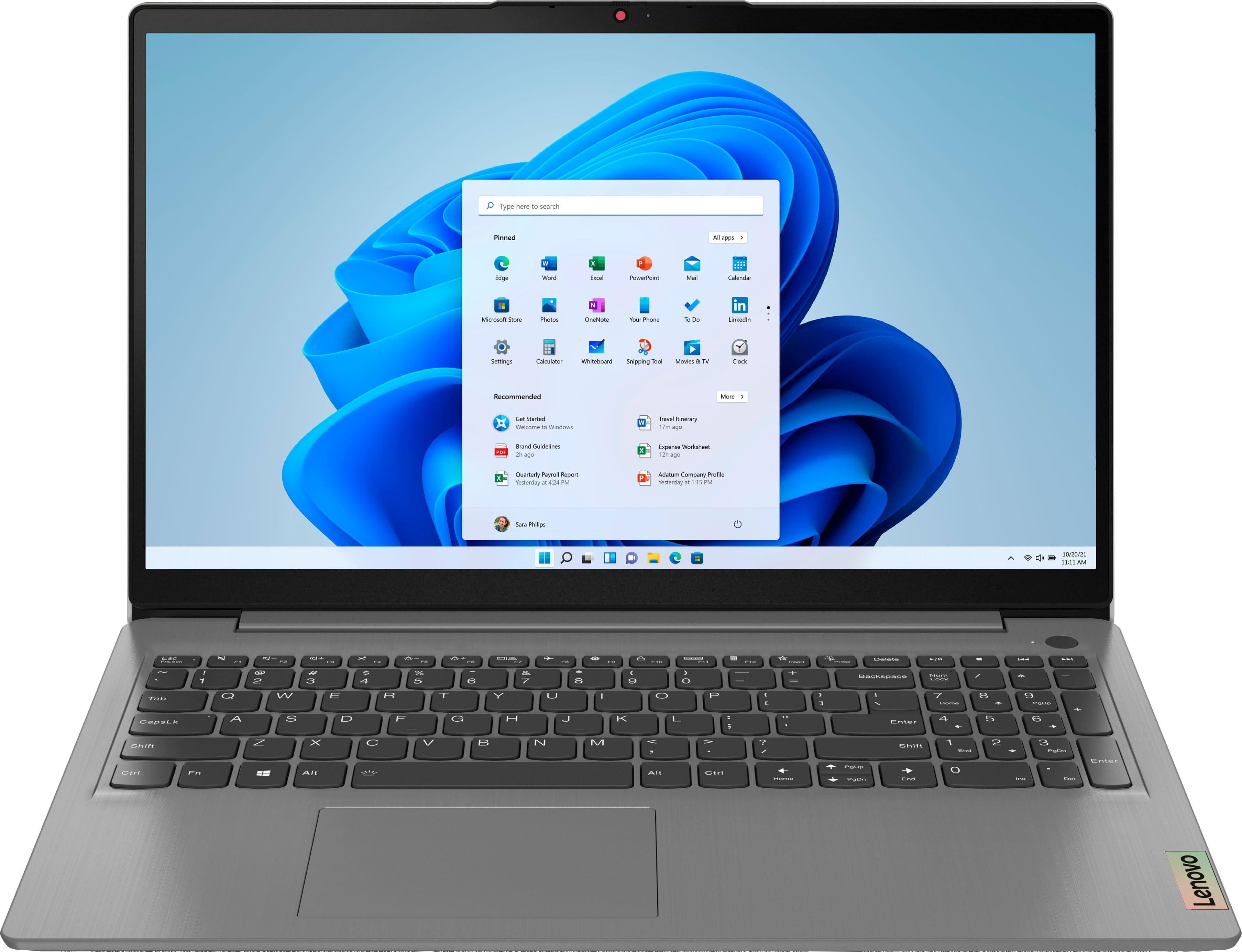
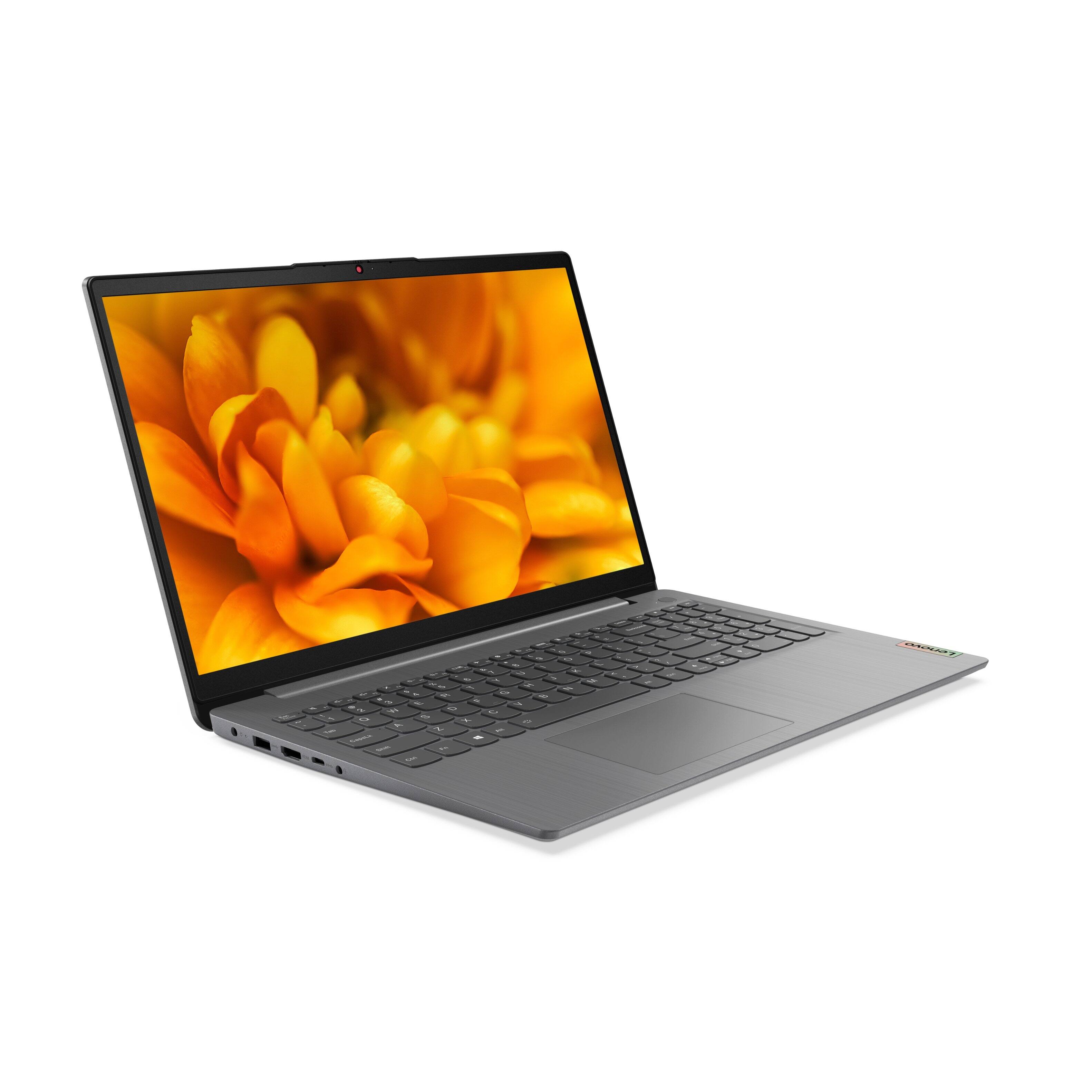
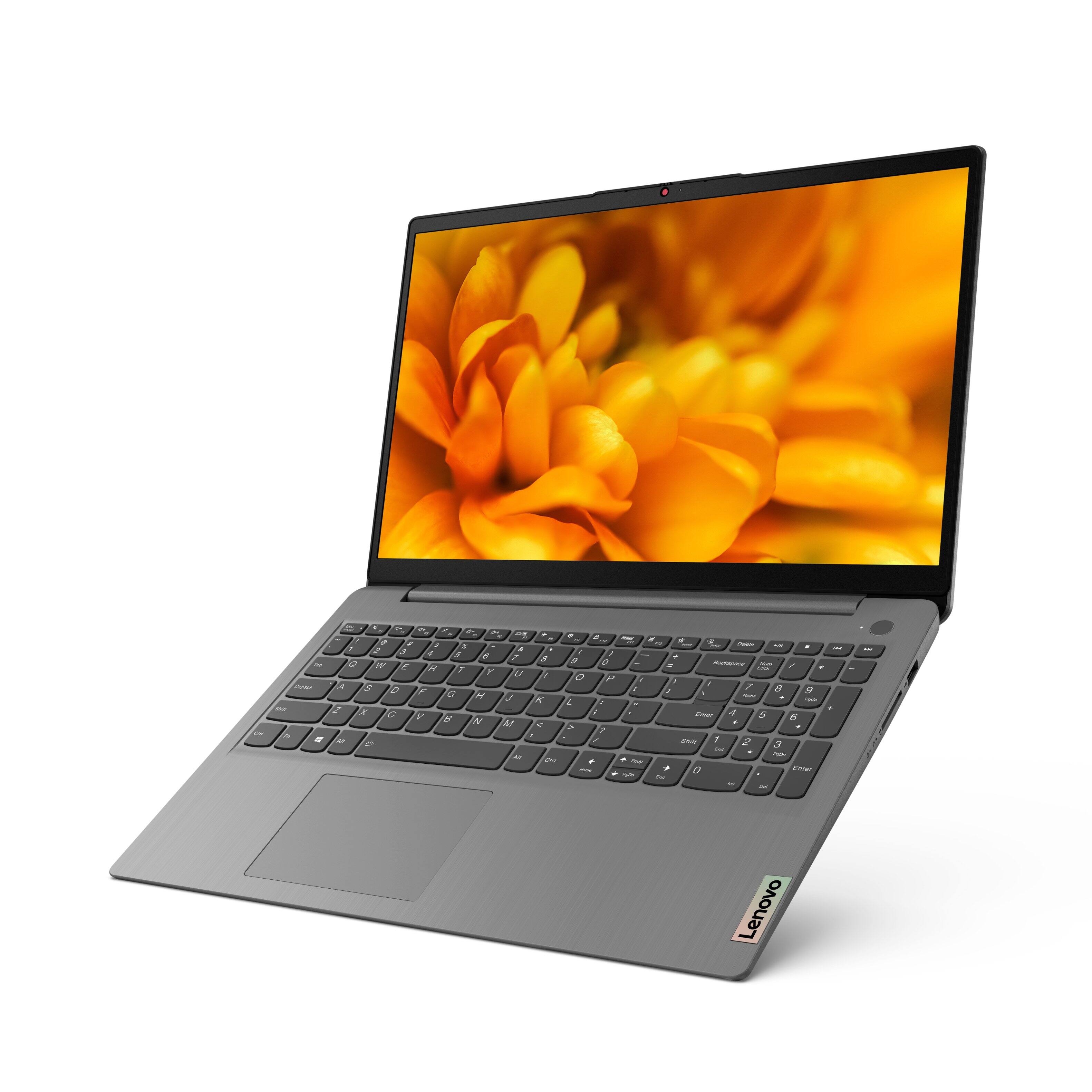

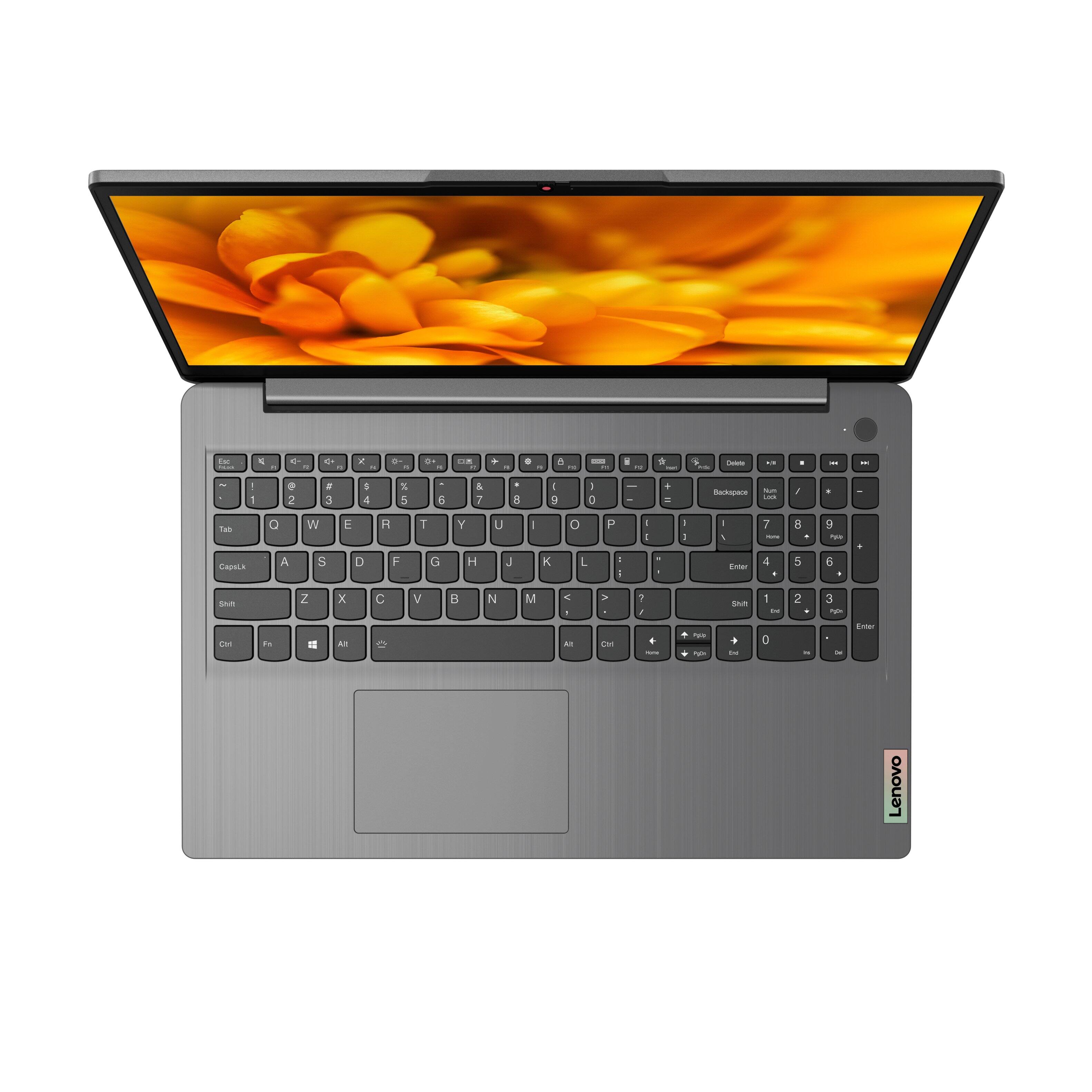

- Model:
- 82H801DQUS/82H8018SUS
- SKU:
- 6461977
Rating by feature
- Battery Life
Rating 4.4 out of 5 stars
- Speed
Rating 4.7 out of 5 stars
- Display
Rating 4.6 out of 5 stars
Customers are saying
Customers have good things to say about the Lenovo Ideapad 3's touch screen, price, weight, and ease of use. They appreciate the responsiveness of the touch screen, affordability, portability, and user-friendly interface. However, some customers have concerns about the battery life, limited storage, and gaming capabilities. Additionally, a few users mentioned that the power button felt cheap and that it took some time to get used to Windows 11.
This summary was generated by AI based on customer reviews.
Will not turn on
||Posted . Owned for less than 1 week when reviewed.This reviewer received promo considerations or sweepstakes entry for writing a review.Picked up the laptop yesterday afternoon. Opened and set it up. Now little over 24 hrs later, the laptop will not even turn on. I fully charged it before even setting up, and I barley used it, so not sure why it will not turn on. Returning tomorrow
No, I would not recommend this to a friendBrand response from Lenovo Product Expert
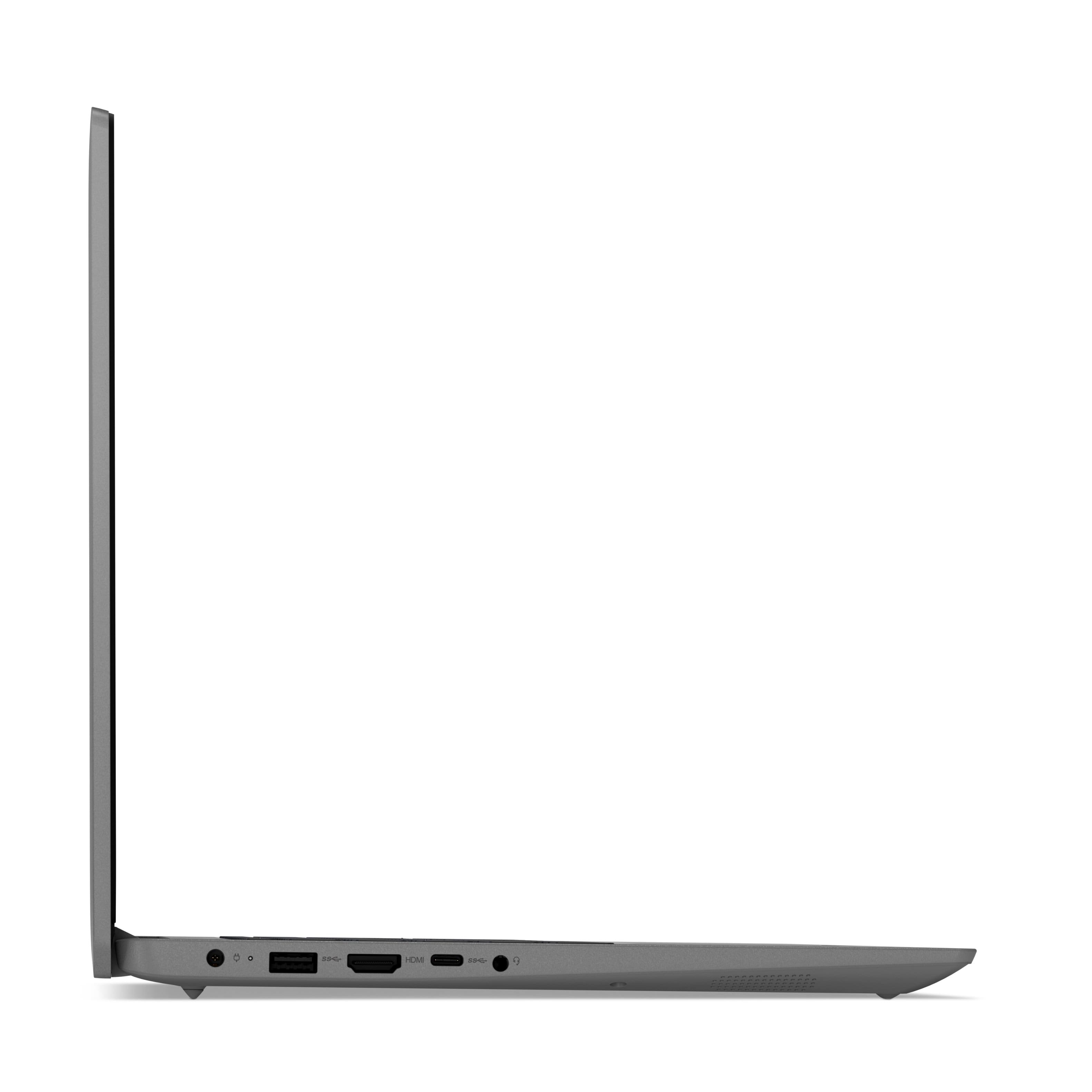
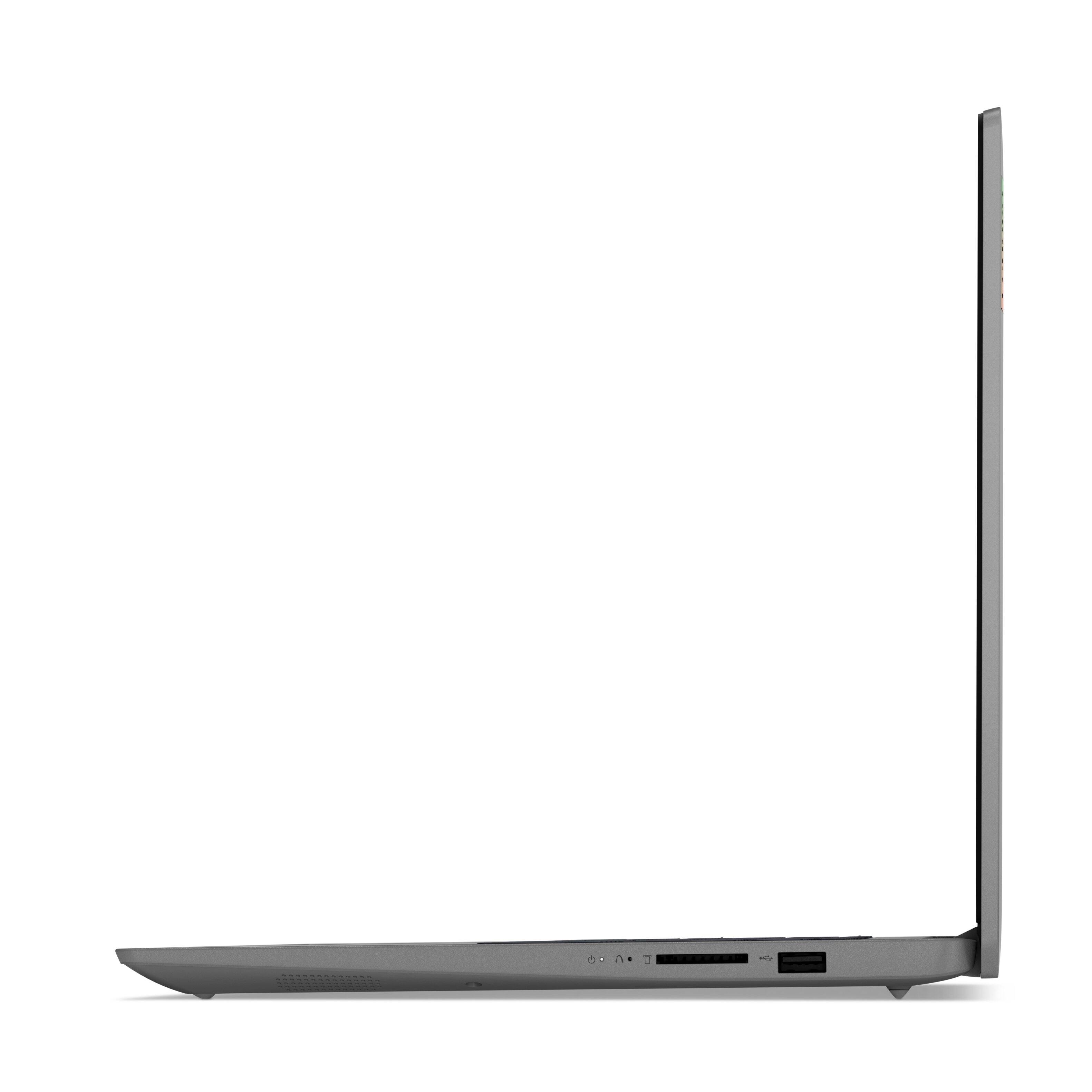
Posted .We are sorry to hear that you are having issues with your Lenovo IdeaPad 3 15 Laptop, model number 82H801DQUS. Resetting this computer may clear the issue you are having. This system is equipped with OneKey Recovery System. There is a very small pin hole on the right side of the device, right near the SD Card slot on the device. You will need a pin to push this reset button. Plug the device in. Let the battery charge for about 15 minutes. Push the reset button. The system should boot to a choice screen where you can choose "Restore To Factory Default". Select this. It will delete everything from the hard drive except the original factory install of the operating system. You will need to reinstall all programs and files after the reset. If you don't have copies of the files, try to make one before you restore by selecting "Boot to desktop" and trying to back up your files. Once you have the computer reset, be sure any software you installed is compatible with Windows 11. There is no need to install Microsoft Office software. The software is already part of the operating system, you just need to activate the software with a purchased product key. If you have installed a copy of Microsoft Office, this is conflicting with the existing copy on the system and this will slow your system down. If you have installed a 3rd party anti-virus program, be sure that Windows Defender is turned off and that the trial version of McAfee Anti-Virus software is uninstalled. There can only be one anti-virus program on the system. You may need to restore your system to original factory default settings if any of the programming errors have occurred. You can do that by typing "restore" in the Cortana search window. Just click on the magnifying glass icon at the bottom left of your Windows 11 Desktop. Click on "Reset This PC" Then click on "Get Started" and follow the on screen directions to restore to factory defaults. If the problem persists, we recommend you contact Lenovo Tech Support at: 877-453-6686.

Microphone defective
||Posted . Owned for 3 weeks when reviewed.This reviewer received promo considerations or sweepstakes entry for writing a review.I really liked the laptop overall but sadly the microphone stopped working.
No, I would not recommend this to a friendBrand response from Lenovo Product Expert
Posted .We are sorry to hear that you are having issues with the built in Dual Array Microphone within your Lenovo IdeaPad 3 15 Laptop, model number 82H801DQUS. Here is a link to some troubleshooting tips for fixing a microphone within a Windows laptop: https://support.microsoft.com/en-us/windows/fix-microphone-problems-5f230348-106d-bfa4-1db5-336f35576011. If the issue continues, we recommend you contact Lenovo Tech Support for additional help, let the Support Specialist you connect with know the steps you have already tried: 877-453-6686.
Slow
||Posted .This reviewer received promo considerations or sweepstakes entry for writing a review.This laptop is to slow, I spent a little more and got a nice asus.
No, I would not recommend this to a friendBrand response from Lenovo Product Expert
Posted .This Lenovo IdeaPad 3 15 Laptop, model number 82H801DQUS, is a fast configuration with its 4-Core/8-Thread, 11th Gen Intel Core i5-1135G7 Processor, with a base speed of 2.4GHz and a Turbo Boost speed of up to 4.2GHz. This processor is supported by 12GB DDR4-3200MHz RAM and a 256GB M.2 2242 PCIe 3.0x4 NVMe solid state hard drive. If you are getting slower than expected performance, be sure any software you installed is compatible with Windows 11. This will include any legacy software installed from an old computer. Additionally, there is no need to install Microsoft Office software. The software is already part of the operating system, you just need to activate the software with a purchased product key. If you have installed a copy of Microsoft Office, this is conflicting with the existing copy on the system and this will slow your system down. If you have installed a 3rd party anti-virus program, be sure that Windows Defender is turned off and that the trial version of McAfee Anti-Virus software is uninstalled. There can only be one anti-virus program on the system. Here is a link to instructions for uninstalling McAfee from a Windows computer: https://service.mcafee.com/?articleId=TS101331&page=shell&shell=article-view You may need to restore your system to original factory default settings if any of the programming errors have occurred. You can do that by typing "restore" in the Cortana search window. Just click on the magnifying glass icon at the bottom of your Windows 11 Desktop. Click on "Reset This PC" Then click on "Get Started" and follow the on screen directions to restore to factory defaults. If the problem persists, we recommend you contact Lenovo Tech Support at: 877-453-6686.
Do not expect much
||Posted . Owned for 1 month when reviewed.This reviewer received promo considerations or sweepstakes entry for writing a review.I am so disappointed with this purchase. I am not able to even have two applications open at the same time without the fan spinning loudly. I explained what I was going to use the computer for before purchasing it and was told it would be sufficient. Not so much!! I am trying to sell!
No, I would not recommend this to a friendBrand response from Lenovo Product Expert
Posted .We are sorry to hear that you are having issues with your Lenovo IdeaPad 3 15 Laptop, model number 82H801DQUS. The internal fan will automatically cool the system internals down, based on the heat generated by the system and this will vary depending on the workload the computer is under. If the internal fan is running at high RPMs under light workloads, first, be sure any software you installed is compatible with Windows 11. This will include any legacy software installed from an old computer. Additionally, there is no need to install Microsoft Office software. The software is already part of the operating system, you just need to activate the software with a purchased product key. If you have installed a copy of Microsoft Office, this is conflicting with the existing copy on the system and this will slow your system down. If you have installed a 3rd party anti-virus program, be sure that Windows Defender is turned off and that the trial version of McAfee Anti-Virus software is uninstalled. There can only be one anti-virus program on the system. Here is a link to instructions for uninstalling McAfee from a Windows computer: https://service.mcafee.com/?articleId=TS101331&page=shell&shell=article-view You may need to restore your system to original factory default settings if any of the programming errors have occurred. You can do that by typing "restore" in the Cortana search window. Just click on the magnifying glass icon at the bottom of your Windows 11 Desktop. Click on "Reset This PC" Then click on "Get Started" and follow the on screen directions to restore to factory defaults. If there is no incompatible software installed, you can use Lenovo Smart Power to manually control fan and system performance: ( Fn + Q ) option to change the fan by undervolting the processor. If the issue continues, we recommend you call Lenovo Tech Support for additional help at: 877-453-6686.
Nice design
||Posted . Owned for 3 weeks when reviewed.This reviewer received promo considerations or sweepstakes entry for writing a review.This laptop has a nice design. It was a bit too slow for my needs
No, I would not recommend this to a friendBrand response from Lenovo Product Expert
Posted .We always recommend you check the requirements and compatibility of any software you will be installing on your new computer, before you invest in any computer. Be sure your new computer can support the software you will need to use.
Fried after 25 days
||Posted . Owned for 2 weeks when reviewed.This reviewer received promo considerations or sweepstakes entry for writing a review.Had the laptop exactly 25 days. Opened it today and put my finger on the keyboard, got a shock and the computer shut down and will not turn back on. Ends up the motherboard is fried. Hoping Lenova will stand behind the product.
No, I would not recommend this to a friendBrand response from Lenovo Product Expert
Posted .We are sorry to hear that you are having issues with your Lenovo IdeaPad 3 15 Laptop, model number 82H8018SUS. This model ships with both case material and keyboard surface area made from: PC + ABS Plastic (Top), PC + ABS Plastic (Bottom). Static electricity won't discharge into plastic. If static discharges into the plastic case, or the plastic on the keyboard, it's not a problem. The case forms a cage around the sensitive components inside. It's only really a problem if it discharges through an integrated circuit or circuit board inside the computer. So the issue you are having must be caused by something else. We recommend you contact Lenovo Tech Support for additional help with your issue at: 877-453-6686.
no good
||Posted .This reviewer received promo considerations or sweepstakes entry for writing a review.microsoft takes over, dont buy, or change windows ...
No, I would not recommend this to a friendBrand response from Lenovo Product Expert
Posted .This Lenovo IdeaPad 3 15 Laptop, model number 82H801DQUS, ships with Windows 11 S-Mode, 64-bit Operating System installed. Windows 11 S-Mode provides added security by only allowing APPs available ( and therefore certified by Microsoft) at the Microsoft Store. If you don't need the added security or you need to install APPs not available at the Microsoft Store, you can switch to standard Windows 11 Home 64-bit Operating System, at no additional cost. If you choose to switch out of S-Mode for Windows 11 Home: Here is a link to instructions for switching from Windows 11 S-Mode to Windows 11 Home: https://support.microsoft.com/en-us/windows/switching-out-of-s-mode-in-windows-4f56d9be-99ec-6983-119f-031bfb28a307#WindowsVersion=Windows_11. If you have questions about your Lenovo IdeaPad 3 15 Laptop, we recommend you contact Lenovo Tech Support for additional information at: 877-453-6686.
Do not make any major purchases through BestBuy
||Posted . Owned for 3 months when reviewed.This reviewer received promo considerations or sweepstakes entry for writing a review.15 days of use, fingerprint scanner is no longer working and it shuts off when pressure is applied beside the mouse pad. Trying to reach Lenovo directly because Best Buy’s return policy has expired 14 days after Christmas.
No, I would not recommend this to a friendBrand response from Lenovo Product Expert
Posted .We are sorry to hear that you are having issues with the fingerprint scanner on your Lenovo IdeaPad 3 15 Laptop, model number 82H801DQUS. This model configuration ships with a Touch style fingerprint reader on power button. Try lightly sliding your finger over the fingerprint reader. No need to press hard on the reader, in fact pressing hard on the fingerprint reader will distort your fingerprint and cause read errors. If the issue continues, we recommend you contact Lenovo Tech Support for additional help at: 877-453-6686.
Charger issue
||Posted . Owned for 3 weeks when reviewed.This reviewer received promo considerations or sweepstakes entry for writing a review.The power supply plug that goes into the laptop has no grip and just hangs there you have to prop it up to get the light to come on showing that it’s charging.That’s just ridiculous that is hasn’t been addressed and fixed by the manufacturer and that bby sells it
No, I would not recommend this to a friendBrand response from Lenovo Product Expert
Posted .This Lenovo IdeaPad 3 15 Laptop, model number 82H801DQUS, ships with a dedicated, barrel-type (device side) charging port and a compatible 65W round tip-barrel type - device side, (2-pin, wall-mount) AC adapter/charger, 100-240V, 50-60Hz, included. If you are having issues with the barrel type, device side connector staying within the dedicated barrel type charging port on the computer, we recommend you make an appointment with your local Best Buy Geek Squad Depot to examine the issue. You can also call Lenovo Tech Support for additional information at: 877-453-6686.
Unhappy SMH
||Posted . Owned for 1 month when reviewed.This reviewer received promo considerations or sweepstakes entry for writing a review.The sales rep. asked me what I needed in a computer. He sold me a Lenovo laptop computer that was not right for me. It doesnt do anything i bought it today. he evidently was not informed about the product. I am very very unhappy with the product and the sales rep.
No, I would not recommend this to a friendDo Not Buy This
||Posted . Owned for 2 months when reviewed.This reviewer received promo considerations or sweepstakes entry for writing a review.Terrible laptop. This computer has problems turning on. Most of the time I don’t get to use my laptop because it won’t turn on. I will never get another Lenovo.
No, I would not recommend this to a friendBrand response from Lenovo Product Expert
Posted .We are sorry to hear that you are having issues with your Lenovo IdeaPad 3 15 Laptop, model number 82H801DQUS. First, be sure the battery has an adequate charge to power the laptop. Then, Be sure any software you installed is compatible with Windows 10. There is no need to install Microsoft Office software. The software is already part of the operating system, you just need to activate the software with a purchased product key. If you have installed a copy of Microsoft Office, this is conflicting with the existing copy on the system and this will slow your system down. If you have installed a 3rd party anti-virus program, be sure that Windows Defender is turned off and that the trial version of McAfee Anti-Virus software is uninstalled. There can only be one anti-virus program on the system. You may need to restore your system to original factory default settings if any of the programming errors have occurred. You can do that by typing "restore" in the Cortana search window. Just click on the magnifying glass icon at the bottom left of your Windows 10 Desktop. Click on "Reset This PC" Then click on "Get Started" and follow the on screen directions to restore to factory defaults. Next, if there is no incompatible software installed but the issues persist, check to be sure you have the latest version of Windows 10 on the computer. Then update all BIOS files and drivers up to that latest version of Windows 10. You can easily accomplish this by scanning the computer with the Lenovo Utility software available on this computer. This system has Lenovo utilities installed to help maintain the health of the device and keep the operating system software up to date. Type "Lenovo Vantage" in the Cortana Search window (if Lenovo Vantage is not installed on your device, you can download the APP and install it now). Select Lenovo Vantage from the list. In the window that opens, click on "Health and Support". In the expanded menu, select "Hardware Scan" In the window that opens, select "Run Quick Tests". This will scan your entire system for errors. Follow any directions that may pop up. If the problem continues after this scan, now click on "System Update". First select Windows update from the menu. Scan your system to be sure you have the latest version of Windows 10. Once that scan is complete, select "Additional Updates". This will scan your device to be sure there are no new BIOS/Driver updates needed. Follow any instructions that may pop up. If the issue still continues after these updates, we recommend you call Lenovo Tech Support at: 877-453-6686 for additional help.
Bad Experience
||Posted . Owned for 9 months when reviewed.This reviewer received promo considerations or sweepstakes entry for writing a review.Just to be fair they gave me a refund for the computersince it was defective since day one. but did not refund the additional full protection plan that I bought and had nothing to do with the laptop malfunction.
No, I would not recommend this to a friendBroke in less than 2 weeks.
||Posted . Owned for 2 weeks when reviewed.This reviewer received promo considerations or sweepstakes entry for writing a review.I have had this laptop for less than 2 weeks and it will not connect to the internet. I tried troubleshooting and I get an error that will not go away. I'm so disappointed. I need a laptop for school and work and now I don't have one I can use.
No, I would not recommend this to a friendBrand response from Lenovo Product Expert
Posted .We are sorry to hear that you are having issue with WiFi connectivity. This Lenovo IdeaPad 3 15 laptop, model number 82H801DQUS, ships with wide-range/high speed 802.11ac frequency WiFi installed. If you are having issues with WiFi, first check to be sure you have the latest version of Windows 10/11 on the computer. Then update all BIOS files and drivers up to that latest version of Windows 10/11. You can easily accomplish this by scanning the computer with the Lenovo Utility software available on this computer. This system has Lenovo utilities installed to help maintain the health of the device and keep the operating system software up to date. Type "Lenovo Vantage" in the Cortana Search window (if Lenovo Vantage is not installed on your device, you can download the APP and install it now). Select Lenovo Vantage from the list. In the window that opens, click on "Health and Support". In the expanded menu, select "Hardware Scan" In the window that opens, select "Run Quick Tests". This will scan your entire system for errors. Follow any directions that may pop up. If the problem continues after this scan, now click on "System Update". First select Windows update from the menu. Scan your system to be sure you have the latest version of Windows 10. Once that scan is complete, select "Additional Updates". This will scan your device to be sure there are no new BIOS/Driver updates needed. Follow any instructions that may pop up. If you are showing no updates available or the issue continues after updates are installed, now try directly updating the WiFi Drivers specifically. Here is a link to instructions for doing this: You can directly update/reinstall the WiFi Driver within the Windows 11 Operating System on this Laptop. Here is a link to instructions for doing this: https://allthings.how/how-to-install-or-update-windows-11-wifi-driver/#:~:text=In%20Settings%2C%20click%20on%20the,Download%20%26%20install'%20under%20it. If the issue still continues, we recommend you contact Lenovo Tech Support for additional help at: 877-453-6686.
Computer with Defects
||Posted . Owned for 1 month when reviewed.This reviewer received promo considerations or sweepstakes entry for writing a review.It doen’t work anymore. After 45 days of purchase, went back to the store for replacement for the same cpu, and they told us, we have to talk to the manufacturer directly! I’ve bought from this store for many years. Very disappointed!
No, I would not recommend this to a friendBrand response from Lenovo Product Expert
Posted .We are sorry to hear that you are having issues with your Lenovo IdeaPad 3 15 Laptop, model number 82H801DQUS. Resetting this laptop back to original factory settings may correct the issue you are having. This system is equipped with OneKey Recovery System. There is a very small pin hole on the right side of the device, right near the SD card slot on the device. You will need a pin to push this reset button. Plug the device in. Let the battery charge for about 15 minutes. Push the reset button. The system should boot to a choice screen where you can choose "Restore To Factory Default". Select this. It will delete everything from the hard drive except the original factory install of the operating system. You will need to reinstall all programs and files after the reset. If you don't have copies of the files, try to make one before you restore by selecting "Boot to desktop" and trying to back up your files. If the problem persists after the factory reset, we recommend you contact Lenovo Tech Support at: 877-453-6686.
Don’t was your money
||Posted . Owned for 1 week when reviewed.This reviewer received promo considerations or sweepstakes entry for writing a review.Returned the laptop after few days when the touch pad stopped working.
No, I would not recommend this to a friendBrand response from Lenovo Product Expert
Posted .We are sorry to hear that you had issues with the touchpad functionality on your Lenovo IdeaPad 3 15 Laptop, model number 82H801DQUS. This model ships with Windows 11 S-Mode 64-bit Operating System installed. Be sure that the touchpad has not inadvertently been turned off. Here is a link to information about enabling or disabling the touchpad within Windows 11: https://websiteforstudents.com/how-to-disable-or-enable-touchpad-on-windows-11-pc/. If the issue continues, we recommend you contact Lenovo Tech Support for additional help at: 877-453-6686.
IdeaPad
||Posted . Owned for 1 month when reviewed.This reviewer received promo considerations or sweepstakes entry for writing a review.This product is not user friendly for me & my current tech needs. It does not allow use of Zoom free plan which is my primary need . Just seems complicated to set up. I’d like to return this IdeaPad
No, I would not recommend this to a friendBrand response from Lenovo Product Expert
Posted .We are sorry to hear that you are having issues with your Lenovo IdeaPad 3 15 Laptop, model number 82H801DQUS. This model ships with Windows 11 S-Mode, 64-bit Operating System installed. Windows 11 S-Mode provides added security by only allowing APPs available ( and therefore certified by Microsoft) at the Microsoft Store. If you don't need the added security or you need to install APPs not available at the Microsoft Store, you can switch to standard Windows 11 Home 64-bit Operating System, at no additional cost. The Zoom Video Conferencing APP is available at the Microsoft Store. If you choose to switch out of S-Moe for Windows 11 Home: Here is a link to instructions for switching from Windows 11 S-Mode to Windows 11 Home: https://support.microsoft.com/en-us/help/4456067/windows-10-switch-out-of-s-mode If you continue to have issues, we recommend you contact lenovo Tech Support for additional help at: 877-453-6686.
No product, have total tech guarantee
||Posted . Owned for 3 weeks when reviewed.This reviewer received promo considerations or sweepstakes entry for writing a review.I really cannot review this product since i never broke seal on the packaging before returning it for a refund. My only issue, is that now i have a best buy total tech coverage for something i returned.
No, I would not recommend this to a friend- Pros mentioned:Price, Touch screen
Best cheap laptop evar!
Posted .This reviewer received promo considerations or sweepstakes entry for writing a review.I consider myself something of a cheap laptop connoisseur, having bought a succession of them for work or for family members over many years now. In this particular configuration at the price BB offered, this is the best cheap laptop I've ever seen. If you're a professional photo/video editor, hardcore gamer, or status seeker then you're looking in the wrong place and should already know that. But if you just want a decently priced machine that will fly through the usual daily tasks, this laptop will do that as well as others costing hundreds of dollars more. An i5 CPU, 12GB of RAM, and a 256GB SSD are just amazing at this price point. Those specs are well beyond a basic "check your email and browse the web" machine. You can certainly do some heavy multi-tasking or casual gaming and video editing here. Build quality is fine. It's not a Mac or a Dell XPS, but at 1/3 or less of the price I'm not complaining. It won't score you style points but it doesn't feel cheap. The display and speakers are also fine. Again... not so premium that it will replace a good TV, but completely acceptable for casual music and movies. The inclusion of a fingerprint reader is a great little bonus at this price point too, as is the backlit keyboard. The ports are a little basic - no ethernet or fast-charging USB C, but I can live with that. I installed Windows 10 on this because I'm familiar with it and didn't see any big advantages to Win 11, but I poked at the default install a little and it seemed pretty clean and free of bloatware. If you do wish to install Win 10, note that you'll need the Intel storage driver on your USB stick so that the installer can see the SSD. The Bluetooth adapter also needs a driver that Win 10 doesn't include, if you want that for a mouse during initial configuration. How well will this laptop hold up over time? I expect I won't really know that before the model gets retired by Lenovo. Maybe some keys go wonky or the screen develops dead pixels in a year. But I don't see any particular warning signs. Overalll... just a fantastic budget laptop. This one was for my daughter, but I just bought a second one to replace my 3-4yo Acer that I use at work.
I would recommend this to a friendBrand response from Lenovo Product Expert
Posted .Thank you for choosing the Lenovo IdeaPad 3 15 Laptop, model number 82H801DQUS. This model ships with Windows 11 S-Mode, 64-bit Operating System installed. Windows 11 S-Mode provides added security by only allowing APPs available ( and therefore certified by Microsoft) at the Microsoft Store. If you don't need the added security or you need to install APPs not available at the Microsoft Store, you can switch to standard Windows 11 Home 64-bit Operating System, at no additional cost. We are pleased to hear that the value, features and performance of the IdeaPad 3 15 meets your computing needs so well.
Lenovo
||Posted . Owned for 3 weeks when reviewed.This reviewer received promo considerations or sweepstakes entry for writing a review.Bought the new Lenovo laptop. Keeps rebooting saying error
No, I would not recommend this to a friendBrand response from Lenovo Product Expert
Posted .We are sorry to hear that you are having issues with your Lenovo IdeaPad 3 15 Laptop, model number 82H801DQUS. This model ships with Windows 11 S-Mode 64-bit Operating System installed. Even id you have switched out of S-Mode, be sure any software you installed is compatible with Windows 10. There is no need to install Microsoft Office software. The software is already part of the operating system, you just need to activate the software with a purchased product key. If you have installed a copy of Microsoft Office, this is conflicting with the existing copy on the system and this will slow your system down. If you have installed a 3rd party anti-virus program, be sure that Windows Defender is turned off and that the trial version of McAfee Anti-Virus software is uninstalled. There can only be one anti-virus program on the system. You may need to restore your system to original factory default settings if any of the programming errors have occurred. You can do that by typing "restore" in the Cortana search window. Just click on the magnifying glass icon at the bottom left of your Windows 10 Desktop. Click on "Reset This PC" Then click on "Get Started" and follow the on screen directions to restore to factory defaults. If the problem persists, we recommend you contact Lenovo Tech Support at: 877-453-6686.
Wifi will not connect
||Posted .This reviewer received promo considerations or sweepstakes entry for writing a review.Won't even connect to wifi. Every other device is working properly. Guess i know why there were other open boxes available with cosmetic damage.
No, I would not recommend this to a friendBrand response from Lenovo Product Expert
Posted .We are sorry to hear that you are having issues connecting to your home WiFi Network with your Lenovo IdeaPad 3 15 Laptop, model number. This model ships with Wide-Range/High Speed, 2x2 802.11ac frequency WiFi capability built in. If you are getting less than expected WiFi performance, first check to be sure you have the latest version of Windows 10/11 on the computer. Then update all BIOS files and drivers up to that latest version of Windows 10/11. You can easily accomplish this by scanning the computer with the Lenovo Utility software available on this computer. This system has Lenovo utilities installed to help maintain the health of the device and keep the operating system software up to date. Type "Lenovo Vantage" in the Cortana Search window (if Lenovo Vantage is not installed on your device, you can download the APP and install it now). Select Lenovo Vantage from the list. In the window that opens, click on "Health and Support". In the expanded menu, select "Hardware Scan" In the window that opens, select "Run Quick Tests". This will scan your entire system for errors. Follow any directions that may pop up. If the problem continues after this scan, now click on "System Update". First select Windows update from the menu. Scan your system to be sure you have the latest version of Windows 10/11. Once that scan is complete, select "Additional Updates". This will scan your device to be sure there are no new BIOS/Driver updates needed. Follow any instructions that may pop up. If this scan for updates show that no updates are currently needed, but the WiFi issue continues, you can directly update/reinstall the WiFi Driver within the Windows 10/11 Operating System on this Laptop. Here is a link to instructions for doing this: https://allthings.how/how-to-install-or-update-windows-11-wifi-driver/#:~:text=In%20Settings%2C%20click%20on%20the,Download%20%26%20install'%20under%20it. If the issue still continues, we recommend you contact Lenovo Tech Support for additional help. Be sure to let the Lenovo Customer Support Technician know the troubleshooting steps you have already taken. Call at: 877-453-6686.