Customer Ratings & Reviews
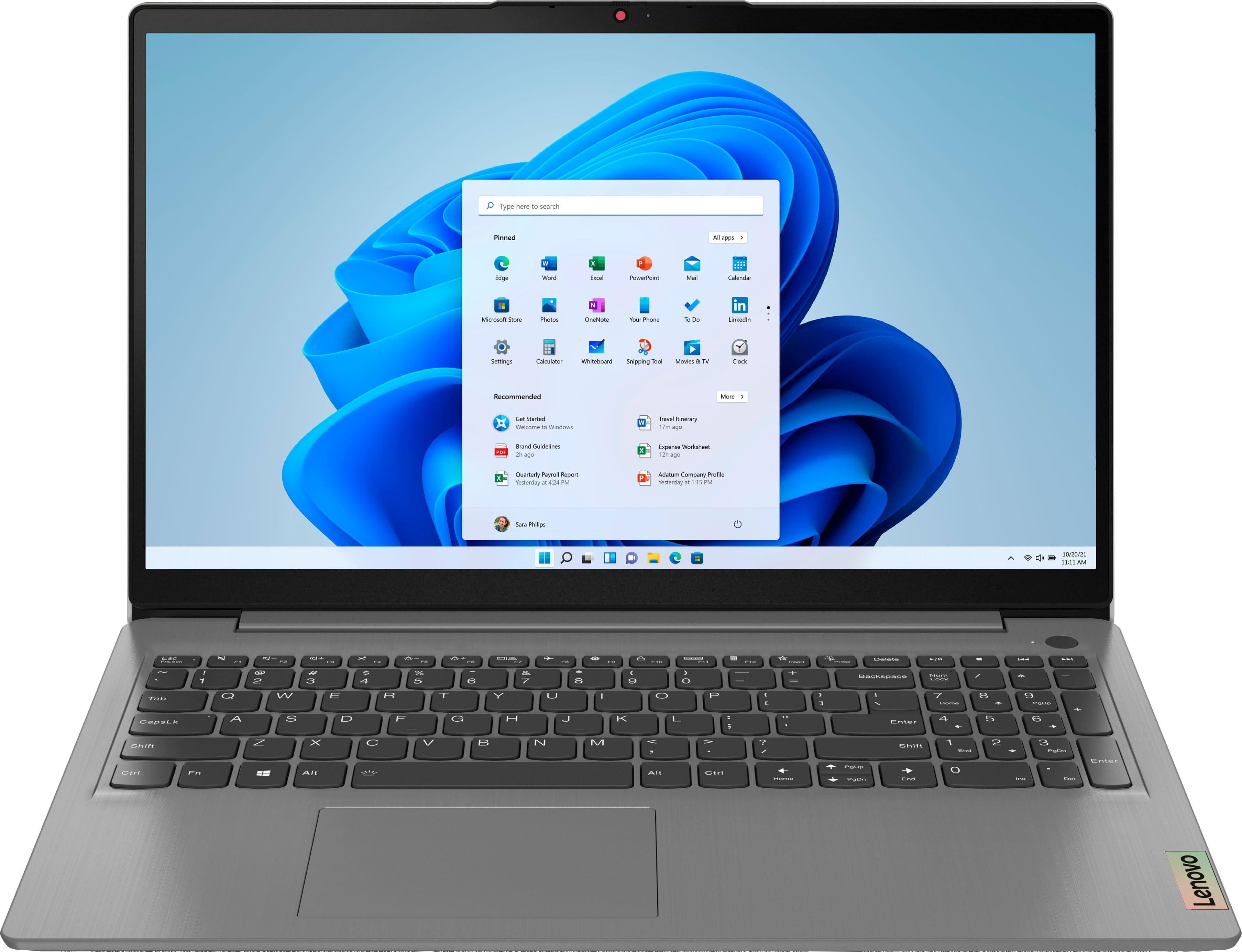
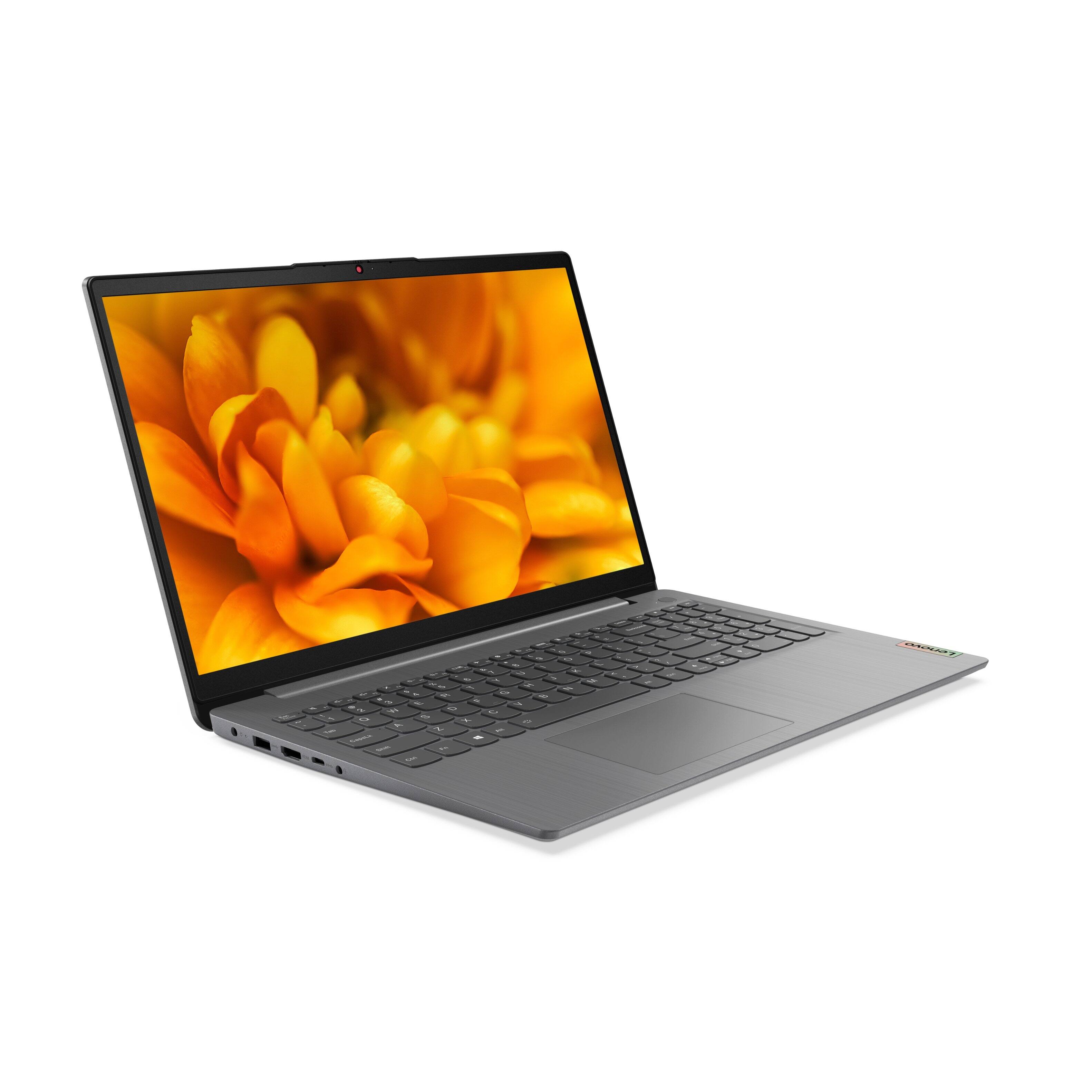
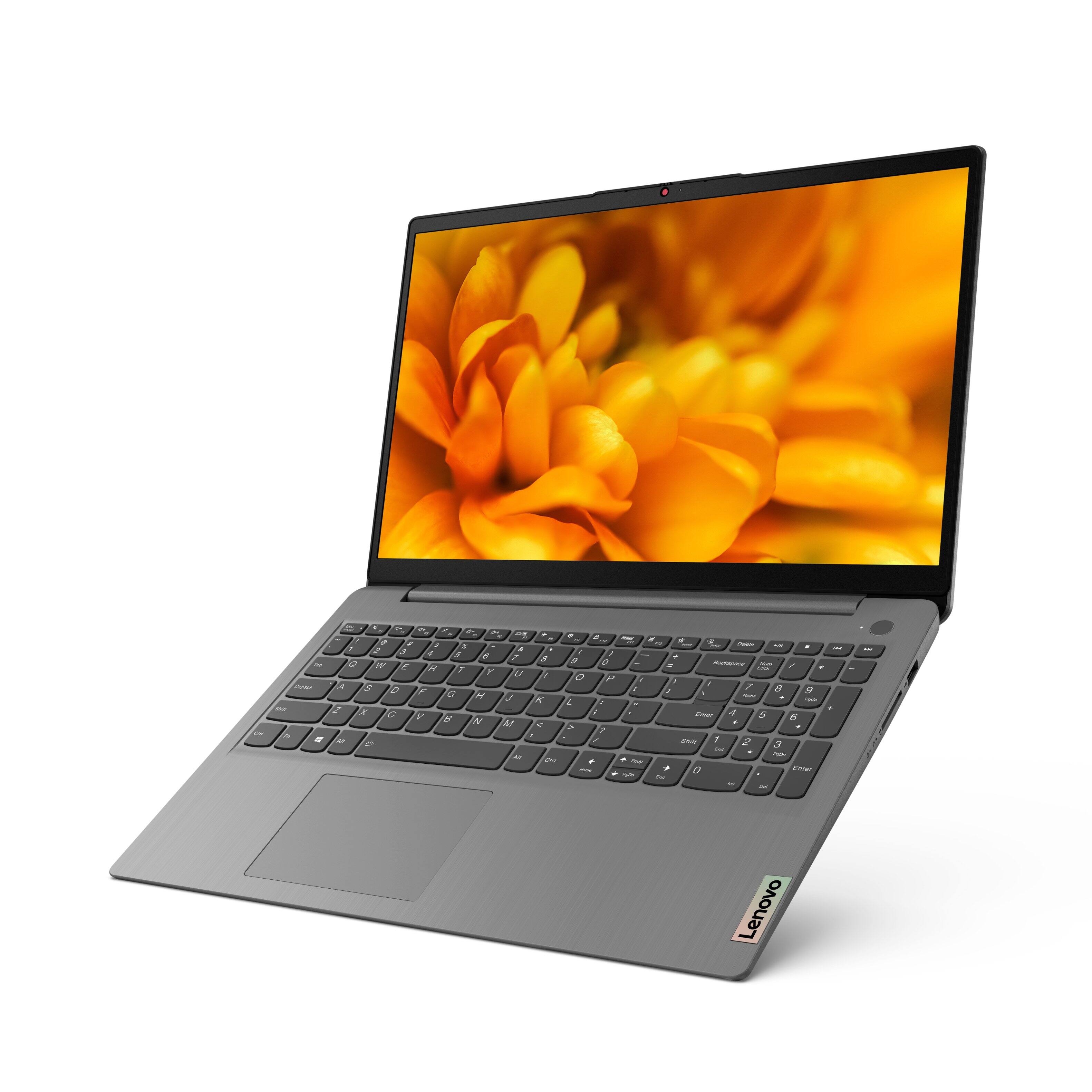

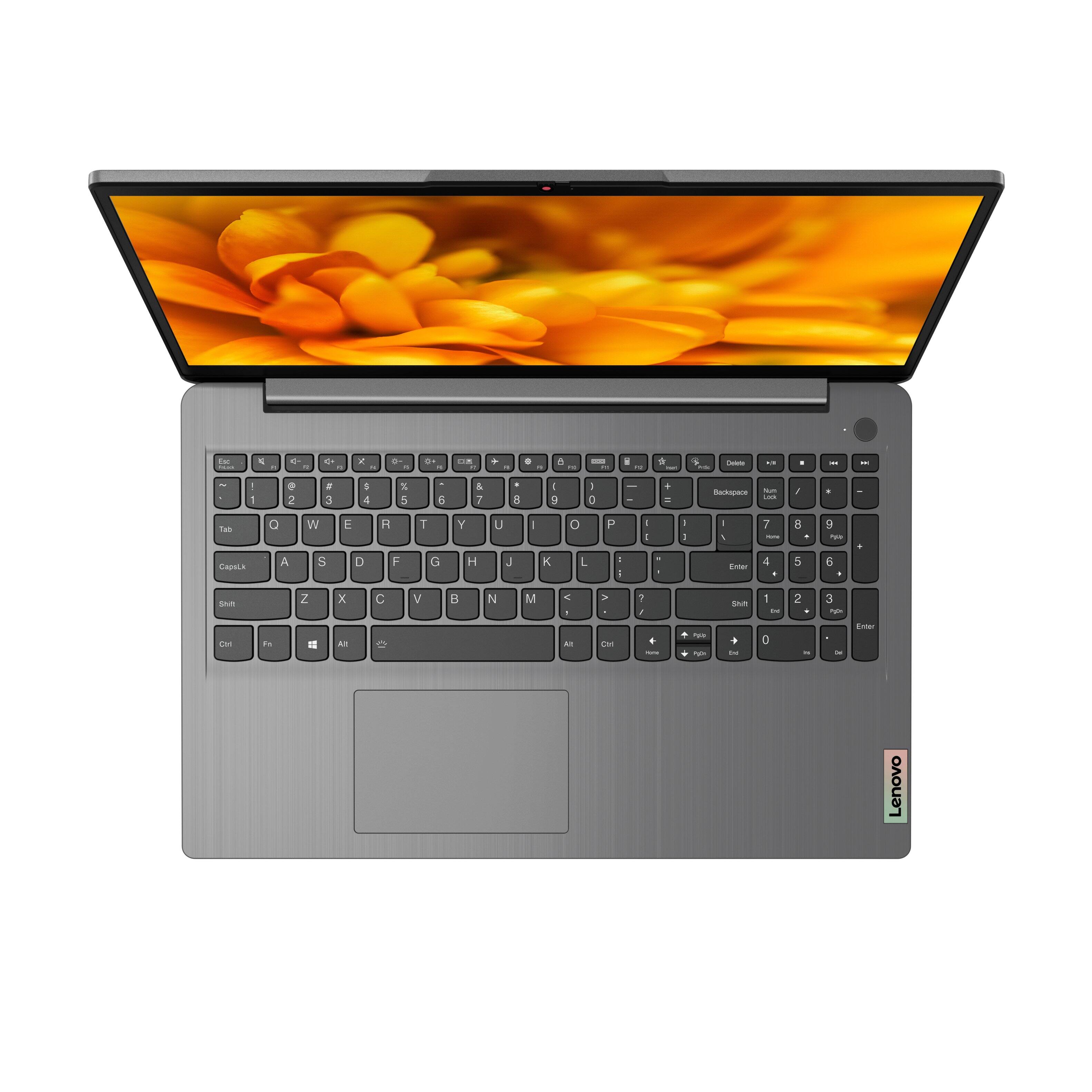

- Model:
- 82H801DQUS/82H8018SUS
- SKU:
- 6461977
Rating by feature
- Battery Life
Rating 4.4 out of 5 stars
- Speed
Rating 4.7 out of 5 stars
- Display
Rating 4.6 out of 5 stars
Customers are saying
Customers have good things to say about the Lenovo Ideapad 3's touch screen, price, weight, and ease of use. They appreciate the responsiveness of the touch screen, affordability, portability, and user-friendly interface. However, some customers have concerns about the battery life, limited storage, and gaming capabilities. Additionally, a few users mentioned that the power button felt cheap and that it took some time to get used to Windows 11.
This summary was generated by AI based on customer reviews.
System error
||Posted . Owned for 2 weeks when reviewed.This reviewer received promo considerations or sweepstakes entry for writing a review.At first loves the laptop , within 5 days it sattrted turning automatically of every one min . I tried to log and restart , the problem continued .
No, I would not recommend this to a friendBrand response from Lenovo Product Expert
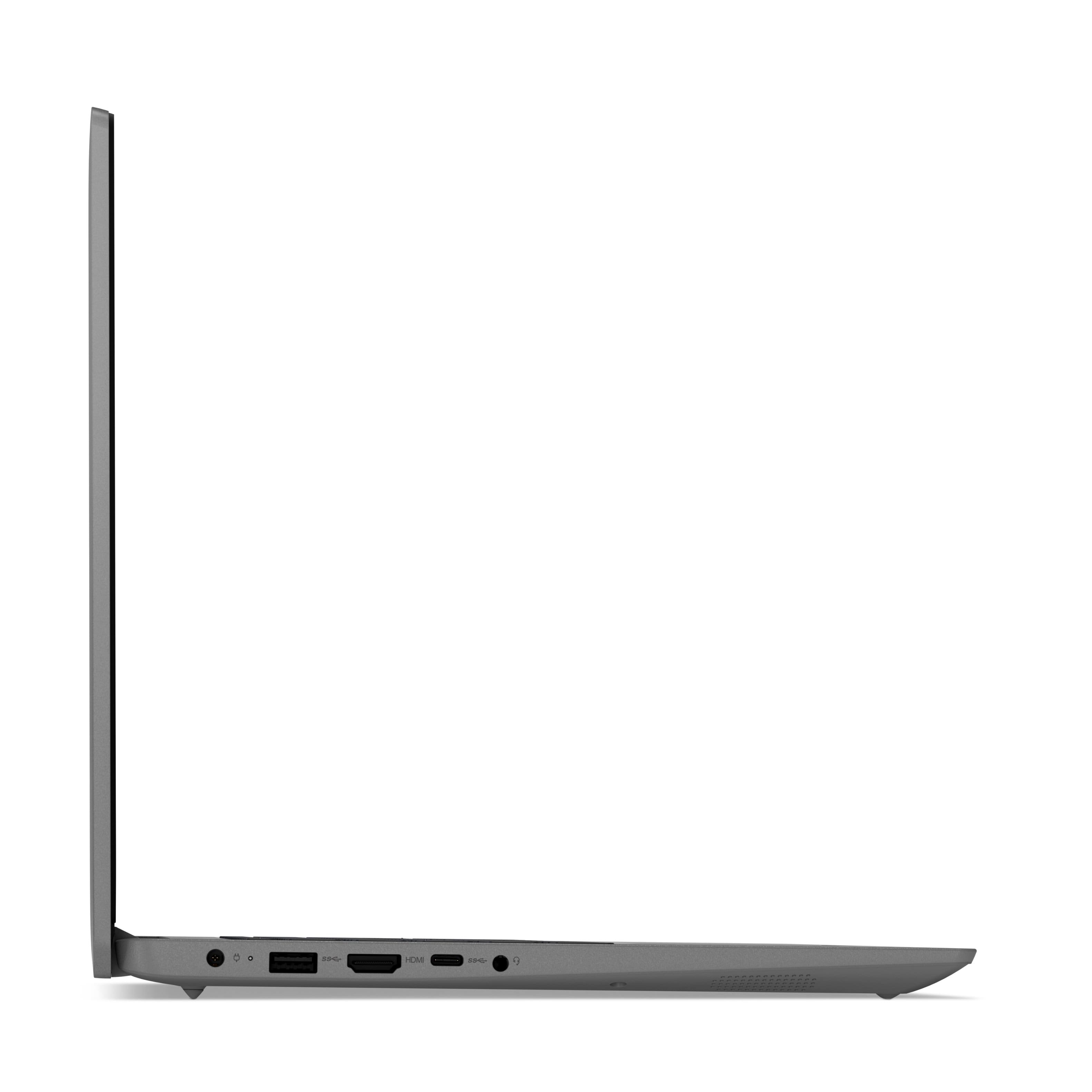
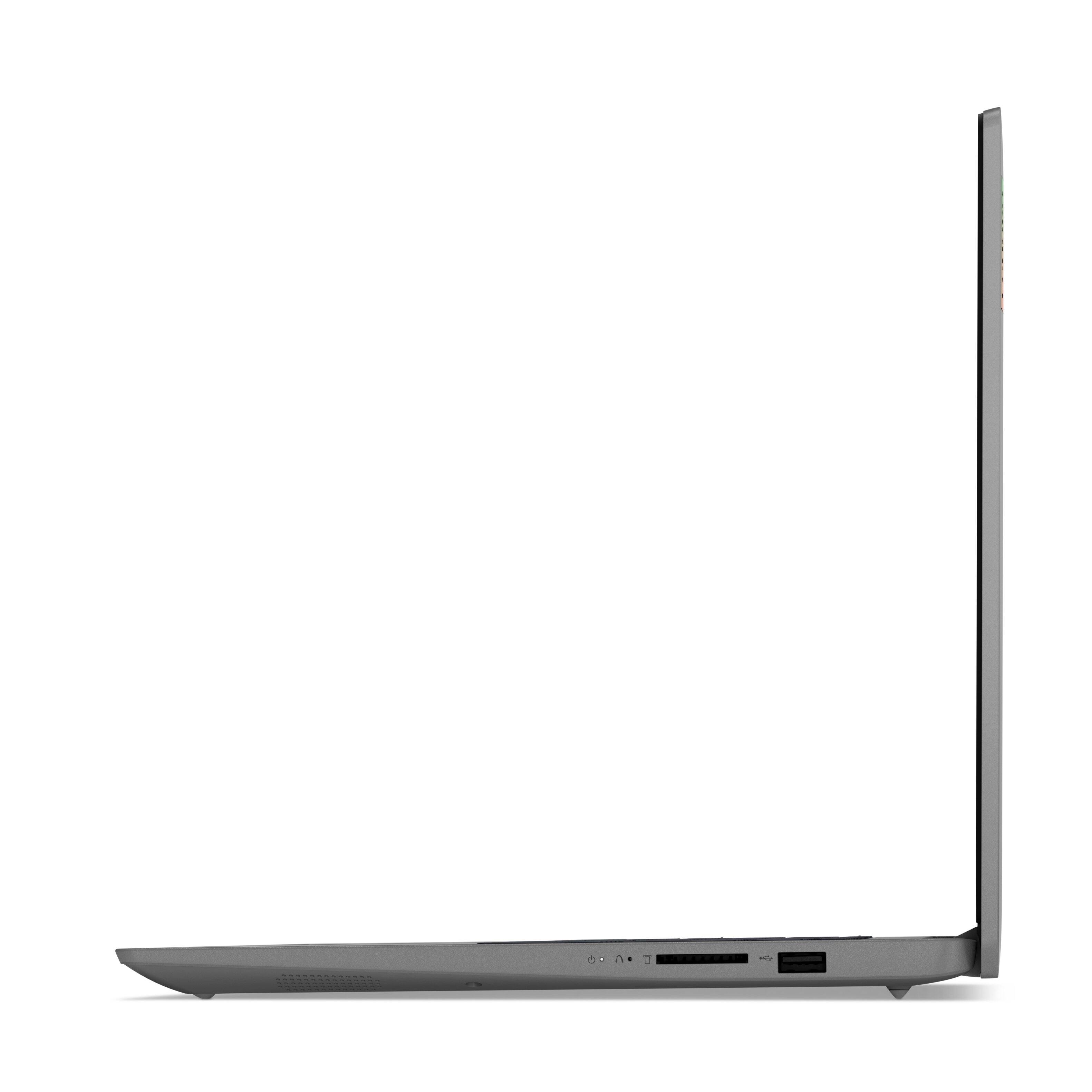
Posted .We are sorry to hear that you are having issues with your Lenovo IdeaPad 3 15 laptop, model number 82H801DQUS. Resetting this computer back to original factory settings may correct the issue you are having. This system is equipped with OneKey Recovery System. There is a very small pin hole on the right side of the device, right near the SD card slot on the device. You will need a pin to push this reset button. Plug the device in. Let the battery charge for about 15 minutes. Push the reset button. The system should boot to a choice screen where you can choose "Restore To Factory Default". Select this. It will delete everything from the hard drive except the original factory install of the operating system. You will need to reinstall all programs and files after the reset. If you don't have copies of the files, try to make one before you restore by selecting "Boot to desktop" and trying to back up your files. If the problem persists after the factory reset, we recommend you contact Lenovo Tech Support at: 877-453-6686.

Geek Squad is the worst this time
||Posted . Owned for 3 months when reviewed.This reviewer received promo considerations or sweepstakes entry for writing a review.Would love to use my new computer if I could get a cord for it. Waiting since 11/22/21 to get a power cord. Pathetic geek squad!!
No, I would not recommend this to a friendWorst laptop overall
||Posted . Owned for 1 month when reviewed.This reviewer received promo considerations or sweepstakes entry for writing a review.Worst laptop overall. Touch screen is not responding. The hinges are really bad and the keys on the keyboard are really horrible.
No, I would not recommend this to a friendBrand response from Lenovo Product Expert
Posted .We are sorry to hear that you are having issues with the touch screen on your Lenovo IdeaPad 3 15 Laptop. Here is a link to instructions for enabling the touch screen on your Windows laptop: https://support.microsoft.com/en-us/windows/enable-and-disable-your-touchscreen-in-windows-b774e29d-be94-990f-c20f-e02892e572fc. If you continue to have issues, we recommend you contact Lenovo Tech Support for additional help at: 877-453-6686.
No
||Posted . Owned for 1 month when reviewed.This reviewer received promo considerations or sweepstakes entry for writing a review.Had a driver go bad within the first month and the Best Buy took it back I do not recommend this computer
No, I would not recommend this to a friendBrand response from Lenovo Product Expert
Posted .We are sorry to hear that you are having issues with your Lenovo IdeaPad 3 15 Laptop. You can easily check to be sure you have the latest version of Windows 11 on the computer, then update all BIOS files and drivers up to that latest version of Windows 11. You can easily accomplish this by scanning the computer with the Lenovo Utility software available on this computer. This system has Lenovo utilities installed to help maintain the health of the device and keep the operating system software up to date. Type "Lenovo Vantage" in the Cortana Search window (if Lenovo Vantage is not installed on your device, you can download the APP and install it now). Select Lenovo Vantage from the list. In the window that opens, click on "Health and Support". In the expanded menu, select "Hardware Scan" In the window that opens, select "Run Quick Tests". This will scan your entire system for errors. Follow any directions that may pop up. If the problem continues after this scan, now click on "System Update". First select Windows update from the menu. Scan your system to be sure you have the latest version of Windows 11. Once that scan is complete, select "Additional Updates". This will scan your device to be sure there are no new BIOS/Driver updates needed. Follow any instructions that may pop up. If the issue continues after these updates, we recommend you call Lenovo Tech Support at: 877-453-6686 for additional help.
Low diskspace after 42 GB used
||Posted . Owned for 7 months when reviewed.This reviewer received promo considerations or sweepstakes entry for writing a review.My laptop shows low diskspace and C drive usage is just 42 GB out of 256. Where is 200+ GB :(
No, I would not recommend this to a friendBrand response from Lenovo Product Expert
Posted .You can check what is taking up your disk space in Windows 11. Here is a link to instructions for doing this: https://pureinfotech.com/whats-taking-up-space-drive-windows-11/. Once you have located what files are taking up the disk space, here is a link to information about cleaning up disk space in Windows 11: https://pureinfotech.com/free-up-space-cleanup-recommendations-windows-11/. Also, be sure any software you installed is compatible with Windows 11. There is no need to install Microsoft Office software. The software is already part of the operating system, you just need to activate the software with a purchased product key. If you have installed a copy of Microsoft Office, this is conflicting with the existing copy on the system and this will slow your system down. If you have installed a 3rd party anti-virus program, be sure that Windows Defender is turned off and that the trial version of McAfee Anti-Virus software is uninstalled. There can only be one anti-virus program on the system. Here is a link to instructions for uninstalling McAfee from a Windows computer: https://service.mcafee.com/?articleId=TS101331&page=shell&shell=article-view You may need to restore your system to original factory default settings if any of the programming errors have occurred. You can do that by typing "restore" in the Cortana search window. Just click on the magnifying glass icon at the bottom left of your Windows 10 Desktop. Click on "Reset This PC" Then click on "Get Started" and follow the on screen directions to restore to factory defaults. If the problem persists, we recommend you contact Lenovo Tech Support at: 877-453-6686.
Does not have a back lit keyboard!
||Posted . Owned for 1 week when reviewed.This reviewer received promo considerations or sweepstakes entry for writing a review.Best buy lied. It does not have a back lit keyboard, returning and ordering a laptop somewhere else.
No, I would not recommend this to a friendBrand response from Lenovo Product Expert
Posted .The Lenovo IdeaPad 3 15 Laptop, model number 82H8018SUS, does have a backlit keyboard: To activate, hold down the Fn Key and at the same time, tap the Spacebar. Once to turn on the backlighting, twice to increase the intensity of the backlighting and three times to turn off the backlighting.
Need help
||Posted . Owned for 1 month when reviewed.This reviewer received promo considerations or sweepstakes entry for writing a review.I cannot get it to hook to my wifi. It keeps rotating to a different option.
No, I would not recommend this to a friendBrand response from Lenovo Product Expert
Posted .We are sorry to hear that you are having issues connecting your Lenovo IdeaPad 3 15 to your local WiFi network. You can directly update/reinstall the WiFi Driver within the Windows 11 Operating System on this Laptop. Here is a link to instructions for doing this: https://allthings.how/how-to-install-or-update-windows-11-wifi-driver/#:~:text=In%20Settings%2C%20click%20on%20the,Download%20%26%20install'%20under%20it. If the issue continues, we recommend you contact Lenovo Tech Support for additional help at: 877-453-6686.
Very Noisy
||Posted . Owned for less than 1 week when reviewed.This reviewer received promo considerations or sweepstakes entry for writing a review.All was great until the constant fan noise. Is there a way to turn it off?
No, I would not recommend this to a friendBrand response from Lenovo Product Expert
Posted .If the system fan is running while your Lenovo IdeaPad 3 15 Laptop is supposed to be at low workload or idle, first check to be sure that there are not updates to the Operating System downloading and being installed to the computer. Here is a link to instructions for checking whether there are updates currently installing on your computer: https://csuf.screenstepslive.com/s/12867/m/48642/l/1343508-checking-for-windows-updates-on-your-pc. Second, if there are no updates being installed, now check what processes are running in the background on your computer. Be sure only those processes you want to be running are: https://thegeekpage.com/find-applications-running-currently-on-windows-11/. If there are no updates being installed and all background processes that are running on your computer are supposed to be running and the system fan is still too loud, you can use Lenovo Smart Power to manually control fan and system performance: ( Fn + Q ) option to change the fan by undervolting the processor. If the issue continues, we recommend you call Lenovo Tech Support for additional help at: 877-453-6686.
Freezes every time.
||Posted . Owned for 3 weeks when reviewed.This reviewer received promo considerations or sweepstakes entry for writing a review.Freeze in the middle. Need to force shutdown and need to restart again to work
No, I would not recommend this to a friendBrand response from Lenovo Product Expert
Posted .We are sorry to hear that you are having issues with your Lenovo IdeaPad 3 15 Laptop. Resetting your computer back to original factory settings may correct the issue you are having. This system is equipped with OneKey Recovery System. There is a very small pin hole on the right side of the device, right near the SD card slot on the device. You will need a pin to push this reset button. Plug the device in. Let the battery charge for about 15 minutes. Push the reset button. The system should boot to a choice screen where you can choose "Restore To Factory Default". Select this. It will delete everything from the hard drive except the original factory install of the operating system. You will need to reinstall all programs and files after the reset. If you don't have copies of the files, try to make one before you restore by selecting "Boot to desktop" and trying to back up your files. Once you have the computer reset, even if you have switch out of S-Mode, be sure any software you installed is compatible with Windows 10/11. There is no need to install Microsoft Office software. The software is already part of the operating system, you just need to activate the software with a purchased product key. If you have installed a copy of Microsoft Office, this is conflicting with the existing copy on the system and this will slow your system down. If you have installed a 3rd party anti-virus program, be sure that Windows Defender is turned off and that the trial version of McAfee Anti-Virus software is uninstalled. There can only be one anti-virus program on the system. You may need to restore your system to original factory default settings if any of the programming errors have occurred. You can do that by typing "restore" in the Cortana search window. Just click on the magnifying glass icon at the bottom left of your Windows 10/11 Desktop. Click on "Reset This PC" Then click on "Get Started" and follow the on screen directions to restore to factory defaults. If the problem persists, we recommend you contact Lenovo Tech Support at: 877-453-6686.
Never got my package
||Posted . Owned for 1 week when reviewed.This reviewer received promo considerations or sweepstakes entry for writing a review.Never got my package. Never got my package. Never got my package.
No, I would not recommend this to a friendVery poor quality
||Posted . Owned for 3 months when reviewed.This reviewer received promo considerations or sweepstakes entry for writing a review.Bought it in November. Completely kaput by February
No, I would not recommend this to a friendBrand response from Lenovo Product Expert
Posted .We are sorry to hear that you are having issues with your Lenovo IdeaPad 3 15 Laptop, model number 82H801DQUS. Resetting this computer back to original factory settings may correct the issue. If you are unable to boot the computer to reach the Windows Desktop Screen, this system is equipped with OneKey Recovery System. There is a very small pin hole on the right side of the device, right near the SD card slot on the device. You will need a pin to push this reset button. Plug the device in. Let the battery charge for about 15 minutes. Push the reset button. The system should boot to a choice screen where you can choose "Restore To Factory Default". Select this. It will delete everything from the hard drive except the original factory install of the operating system. You will need to reinstall all programs and files after the reset. If you don't have copies of the files, try to make one before you restore by selecting "Boot to desktop" and trying to back up your files. If the problem persists after the factory reset, we recommend you contact Lenovo Tech Support at: 877-453-6686.
Does your laptop last 3 years? And it runs well?
Posted .This reviewer received promo considerations or sweepstakes entry for writing a review.Performance: Like a high end productivity laptop. Typical OFfice Suite programs: Smooth as silk, office 365 without lag, download speeds limited only by your internet speed. Updates, warranty, and overall tech aging: priceless. Still works after 3 years and a couple of minor issues. Lenovo, best hardware service around.
I would recommend this to a friend- Pros mentioned:Touch screen
Long Lasting and powerful
Posted .This reviewer received promo considerations or sweepstakes entry for writing a review.It has lasted me nearly 4 years! Powerful enough for work and school and browsing in the background. I really like the size and capability. It was a good choice for me!
I would recommend this to a friend - Pros mentioned:Easy to use
Very efficient
Posted .This reviewer received promo considerations or sweepstakes entry for writing a review.Very good processor speed. Efficient for everyday use and long battery life.
I would recommend this to a friend - Pros mentioned:Speed
Great Pc for the money
Posted .This reviewer received promo considerations or sweepstakes entry for writing a review.great computer, fast shipping, no problems fast computer. Solid state hard drive is Iron!
I would recommend this to a friend - Cons mentioned:Build quality
Nice performing laptop but has a poor build qualit
Posted .This reviewer received promo considerations or sweepstakes entry for writing a review.This laptop would get a 5 star review if it did better in a few aspects... The performance is great, it is fast and can play games at a decent rate, has a nice backlit keyboard, and a power button finger print scanner. There are a couple issues with the system, first the sales page says the chassis is aluminum when the chassis is plastic with an aluminum look painted on... Second is the screen shows lcd flex stress when opening and closing the lid, i exchanged one and the second one does the same, so it has poor build quality... Not sure if i will keep it, for now i will keep checking it out, i have till january to return it.
I would recommend this to a friend - Pros mentioned:Touch screenCons mentioned:Battery life
Unresponsive Touchpad and Poor Battery Life
Posted .This reviewer received promo considerations or sweepstakes entry for writing a review.I would rate it 5 stars if it weren’t for the touch pad being unresponsive ever so often and the poor battery life. I don’t have a mouse, so I rely on the touchpad completely, and whenever it doesn’t work it gets really annoying and slows down my work. Gestures such as scrolling up or down and moving from one window to another do not function well when you have many windows or apps running. Sometimes it just stops working completely. The driver is updated and I still have this problem. Battery life is fair, not great. Lasts about 4 hours when working with programs like Word and Excel, or just scrolling through the Internet (usual college work). Charges really quickly, but uses up the energy really quickly as well. Hardware is lightweight and appealing, and the lighted keyboard is a really nice touch, especially when you have to study late at night.
I would recommend this to a friendBrand response from Lenovo Product Expert
Posted .We are sorry to hear that you are experiencing some issues with your Lenovo IdeaPad 3 15 Touch Screen Laptop. Please refer to this forum to customize your touchpad sensitivity and settings: https://www.tenforums.com/tutorials/141385-adjust-touchpad-sensitivity-windows-10-a.html. If you are getting substantially less battery life, first, set your screen brightness at less than 100-percent - try 80-percent to start with. Then, be sure Battery conservation Mode is turned off. This power management setting should only be used when the laptop is plugged in all the time. It will prolong overall battery life by only charging the battery to 60-percent of capacity. Here is a link to instructions for turning off Battery Conservation Mode: https://support.lenovo.com/us/en/solutions/ht103159. Also check what programs are running in the background on the computer. Be sure only the programs you want running in the background are. These programs will drain the battery. Here is a link to information about how to find out what programs are running in the background on your Windows computer and how to manage them for better system performance: https://www.windowscentral.com/how-prevent-apps-running-background-windows-10. Then, finally, be sure any software you installed is compatible with Windows. Incompatible software will drain the battery at a faster rate. There is no need to install Microsoft Office software. The software is already part of the operating system, you just need to activate the software with a purchased product key. If you have installed a copy of Microsoft Office, this is conflicting with the existing copy on the system and this will slow your system down. If you have installed a 3rd party anti-virus program, be sure that Windows Defender is turned off and that the trial version of McAfee Anti-Virus software is uninstalled. There can only be one anti-virus program on the system. You may need to restore your system to original factory default settings if any of the programming errors have occurred. You can do that by typing "restore" in the Cortana search window. Just click on the magnifying glass icon at the bottom left of your Windows Desktop. Click on "Reset This PC" Then click on "Get Started" and follow the on-screen directions to restore to factory defaults. If the problem persists, we recommend you contact Lenovo Tech Support at: 877-453-6686.
- Pros mentioned:Price
Perfect laptop for daily use
Posted .This reviewer received promo considerations or sweepstakes entry for writing a review.Considering the price and what my own needs are, this laptop has surpassed all my expectations. This had some of the best specs I could find for my price range. I had a great experience with a thinkpad at my old job that lasted forever, so I knew I wanted to look at this brand first. I am glad I did! I've had it for about a month or so at this point. Very sleek looking, not too heavy. My only complaint so far is I am not a big fan of the charger shape (the plug part that goes into the outlet.) I tried to use it with a power strip and it kept falling out. That's an easy fix though and doesn't take away from the laptops performance. My first experience with Windows 11 and it has been very intuitive to use, I had a very easy time setting up a printer to connect to it. It also starts up lightning fast, and the fingerprint login is super convenient. Maybe I'm easily impressed, but I can't recommend it enough!
I would recommend this to a friendBrand response from Lenovo Product Expert
Posted .Thank you for choosing the Lenovo IdeaPad 3 15 Laptop. We are pleased to hear that the value, features and performance of the Ideapad 3 15 meets your computing needs so well.
- Pros mentioned:Touch screen
GREAT LAPTOP
Posted .This reviewer received promo considerations or sweepstakes entry for writing a review.This laptop is great. I had an HP that was about 5 years old, so of course it was slower and acting up. I needed a new laptop since I am starting my master's degree at Purdue in August. I was able to purchase this through the Purdue marketplace at a small discount, so that was a huge plus. I did not want to go cheap (say i3 processor) or super expensive (say i9), but I needed something that would keep up with my schooling. This laptop was rated top 2 from Purdue students, taking into consideration price, performance, and ease of use. I have to say, this laptop is AMAZING so far. Very quick start up, it runs my programs without any issues, and it's a great partner with my google fiber internet measuring around 500 Mbps at any given time with a speed test. The backlit keyboard is great too. 5/5 for this one. I will be purchasing Lenovo products from here on out.
I would recommend this to a friendBrand response from Lenovo Product Expert
Posted .Thank you for choosing the Lenovo IdeaPad 3 15 Laptop. We are pleased to hear that the value and performance of the Ideapad 3 15 meets your computing needs so well.
- Cons mentioned:Battery life, Gaming
Good laptop, short battery life.
Posted .This reviewer received promo considerations or sweepstakes entry for writing a review.This laptop is good for basic day to day use, office based work, internet use that does not include gaming. However, the battery life is about 3 hours, maximum. If you want a long battery life, this is not the computer for you.
I would recommend this to a friendBrand response from Lenovo Product Expert
Posted .Thank you for choosing the Lenovo IdeaPad 3 15 Laptop, model number 82H8018SUS. This model ships with a Integrated 45Wh, Lithium-Polymer Battery, which within this configuration, has a battery life of up to 7 hours, depending on the work the device is performing. If you are getting substantially less battery life, first, set your screen brightness at less than 100-percent - try 80-percent to start with. Then, be sure Battery conservation Mode is turned off. This power management setting should only be used when the laptop is plugged in all the time. It will prolong overall battery life by only charging the battery to 60-percent of capacity. Here is a link to instructions for turning off Battery Conservation Mode: https://support.lenovo.com/us/en/solutions/ht103159. Also check what programs are running in the background on the computer. Be sure only the programs you want running in the background are. These programs will drain the battery. Here is a link to information about how to find out what programs are running in the background on your Windows 10 computer and how to manage them for better system performance: https://www.windowscentral.com/how-prevent-apps-running-background-windows-10. Then, finally, be sure any software you installed is compatible with Windows 10. Incompatible software will drain the battery at a faster rate. There is no need to install Microsoft Office software. The software is already part of the operating system, you just need to activate the software with a purchased product key. If you have installed a copy of Microsoft Office, this is conflicting with the existing copy on the system and this will slow your system down. If you have installed a 3rd party anti-virus program, be sure that Windows Defender is turned off and that the trial version of McAfee Anti-Virus software is uninstalled. There can only be one anti-virus program on the system. You may need to restore your system to original factory default settings if any of the programming errors have occurred. You can do that by typing "restore" in the Cortana search window. Just click on the magnifying glass icon at the bottom left of your Windows 10 Desktop. Click on "Reset This PC" Then click on "Get Started" and follow the on screen directions to restore to factory defaults. If the problem persists, we recommend you contact Lenovo Tech Support at: 877-453-6686.