Customer Ratings & Reviews
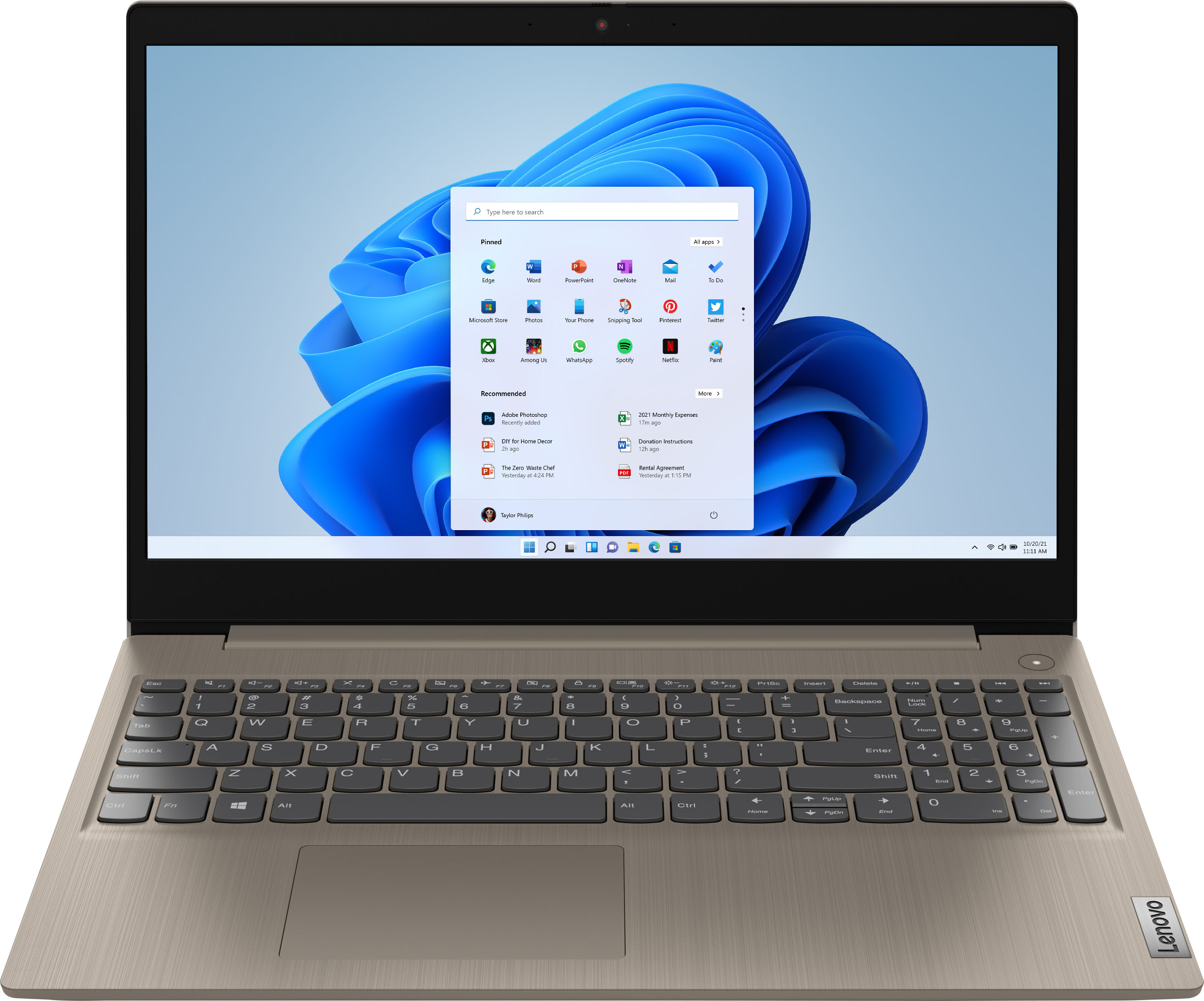
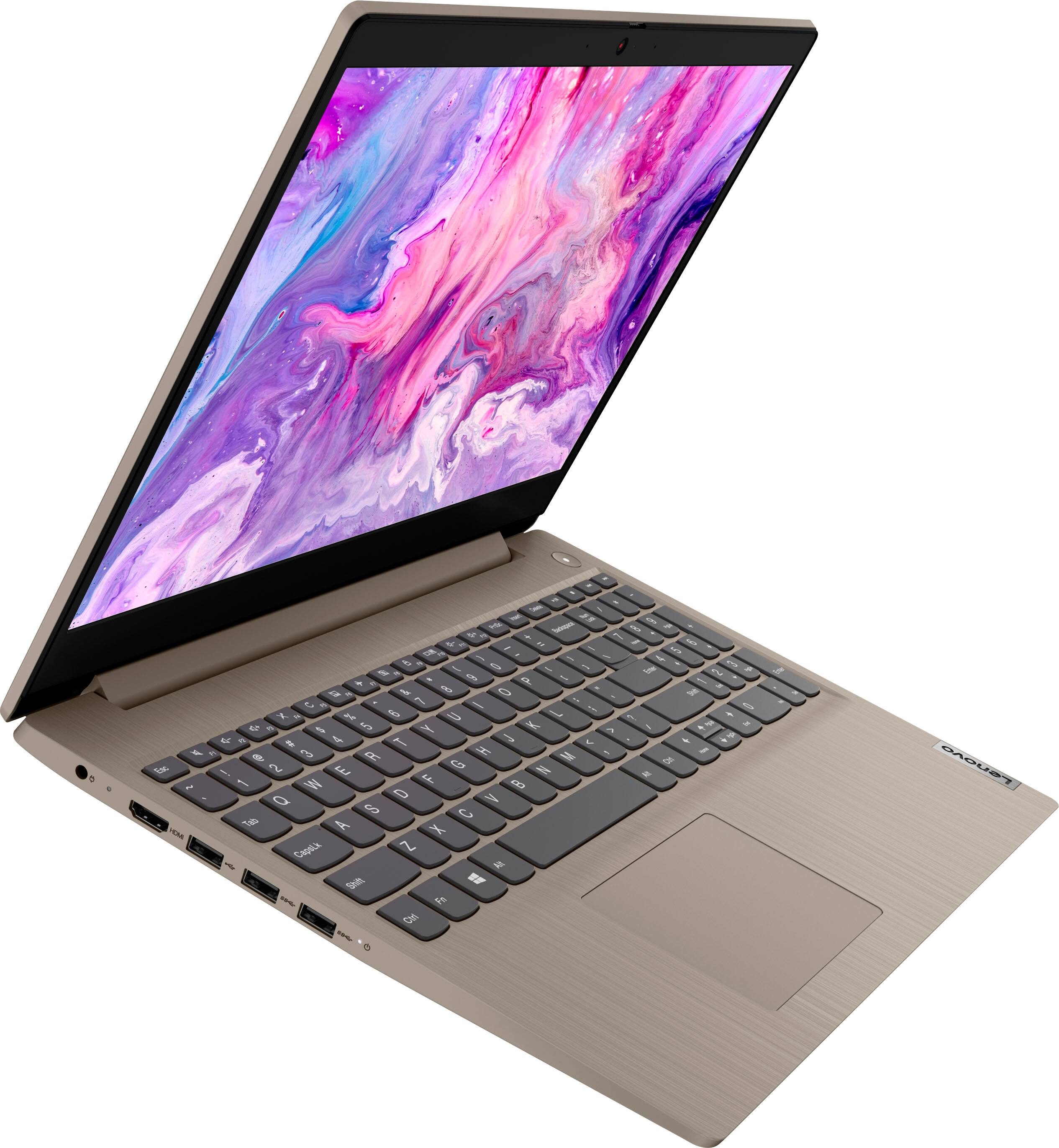
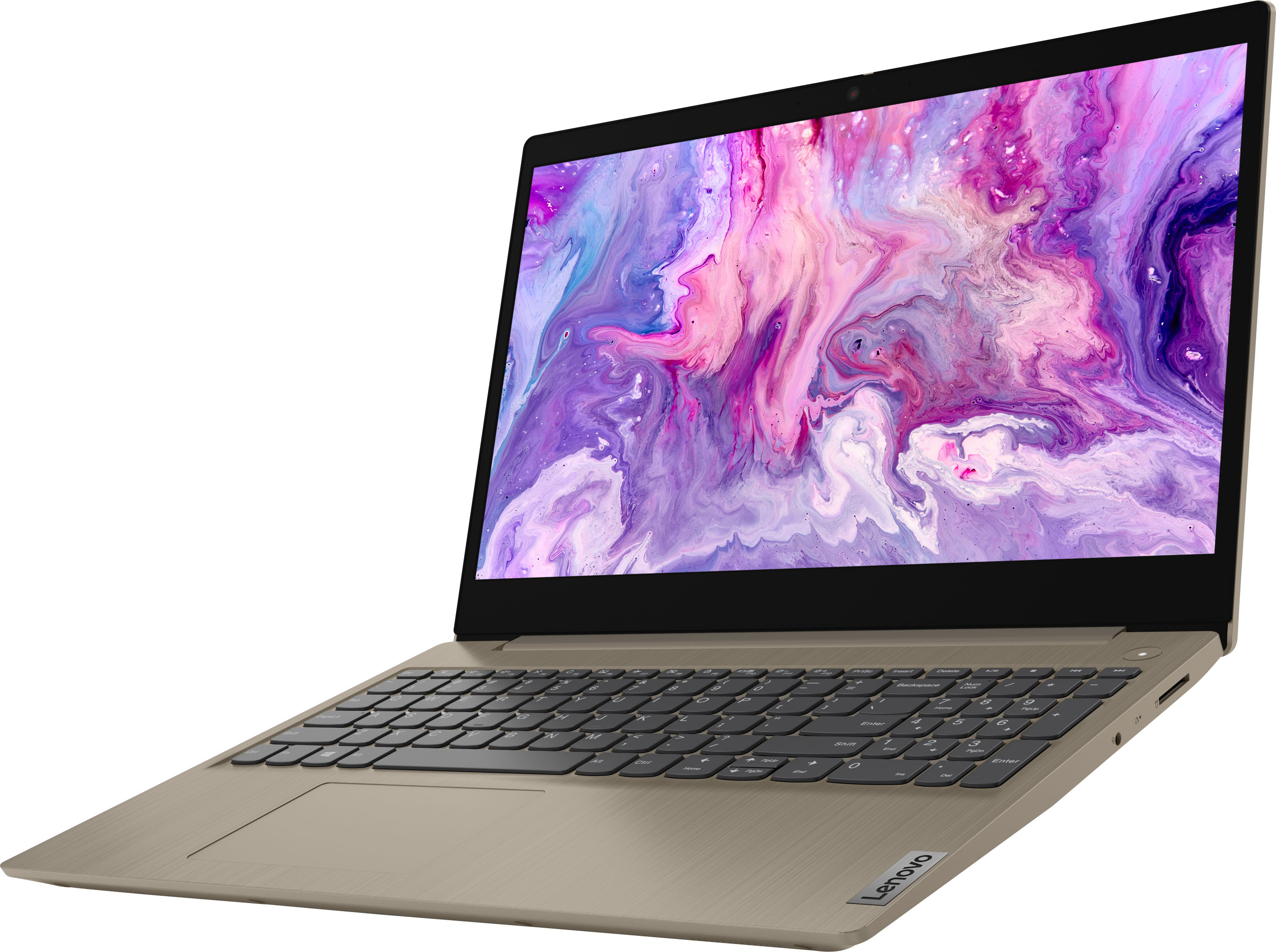
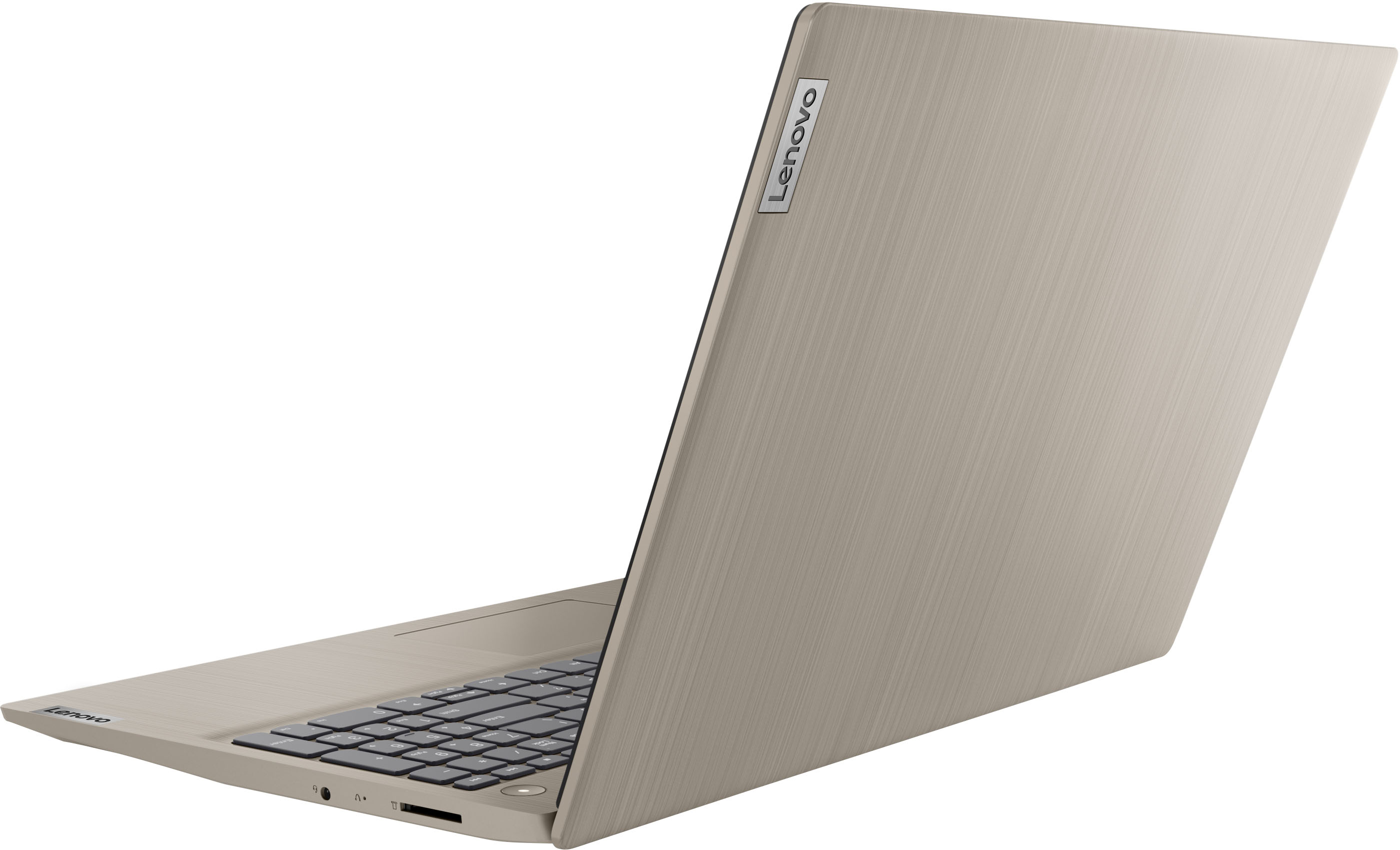

- Model:
- 81X800KLUS
- SKU:
- 6497829
Rating by feature
- Battery Life
Rating 4.4 out of 5 stars
- Speed
Rating 4.5 out of 5 stars
- Display
Rating 4.5 out of 5 stars
Customers are saying
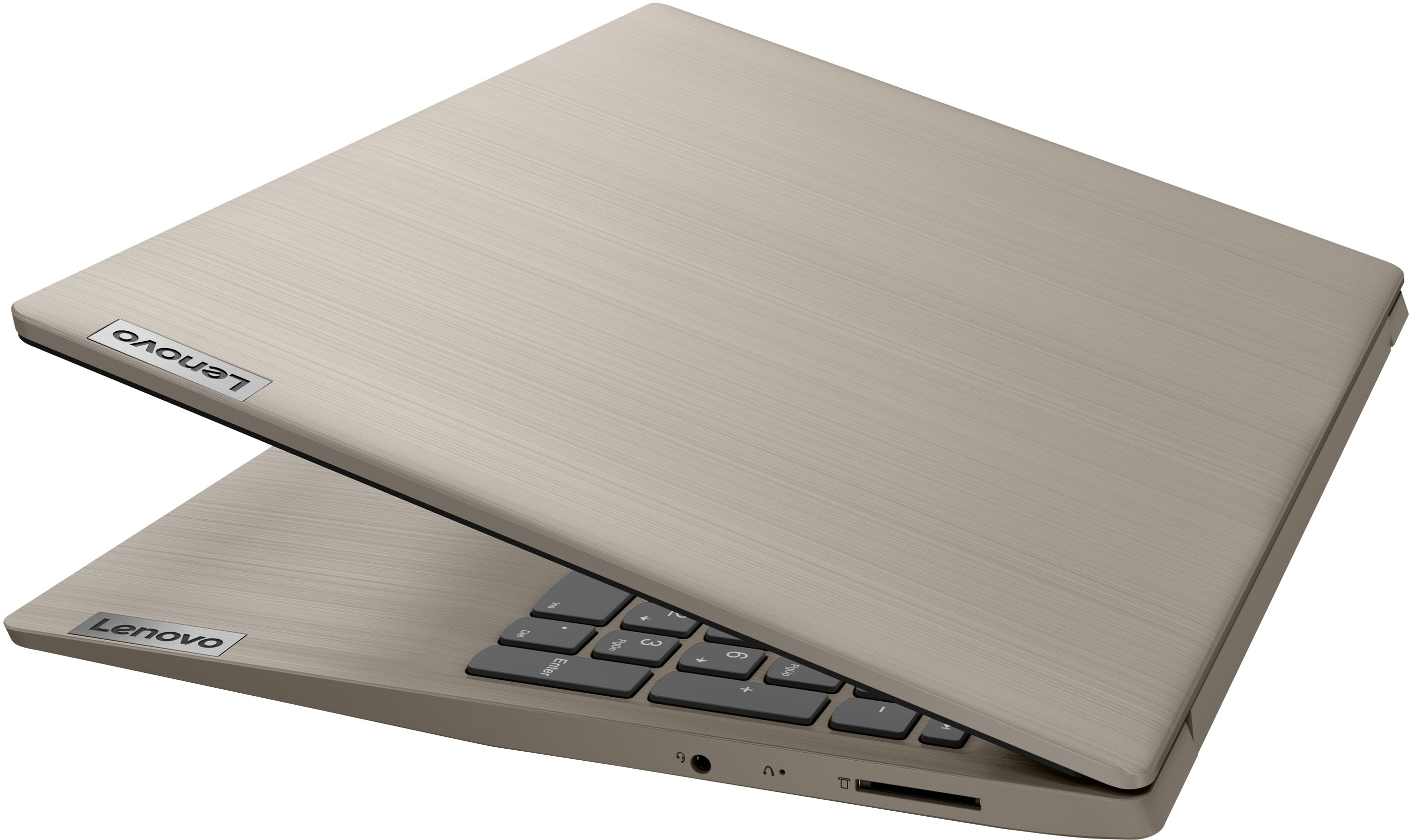
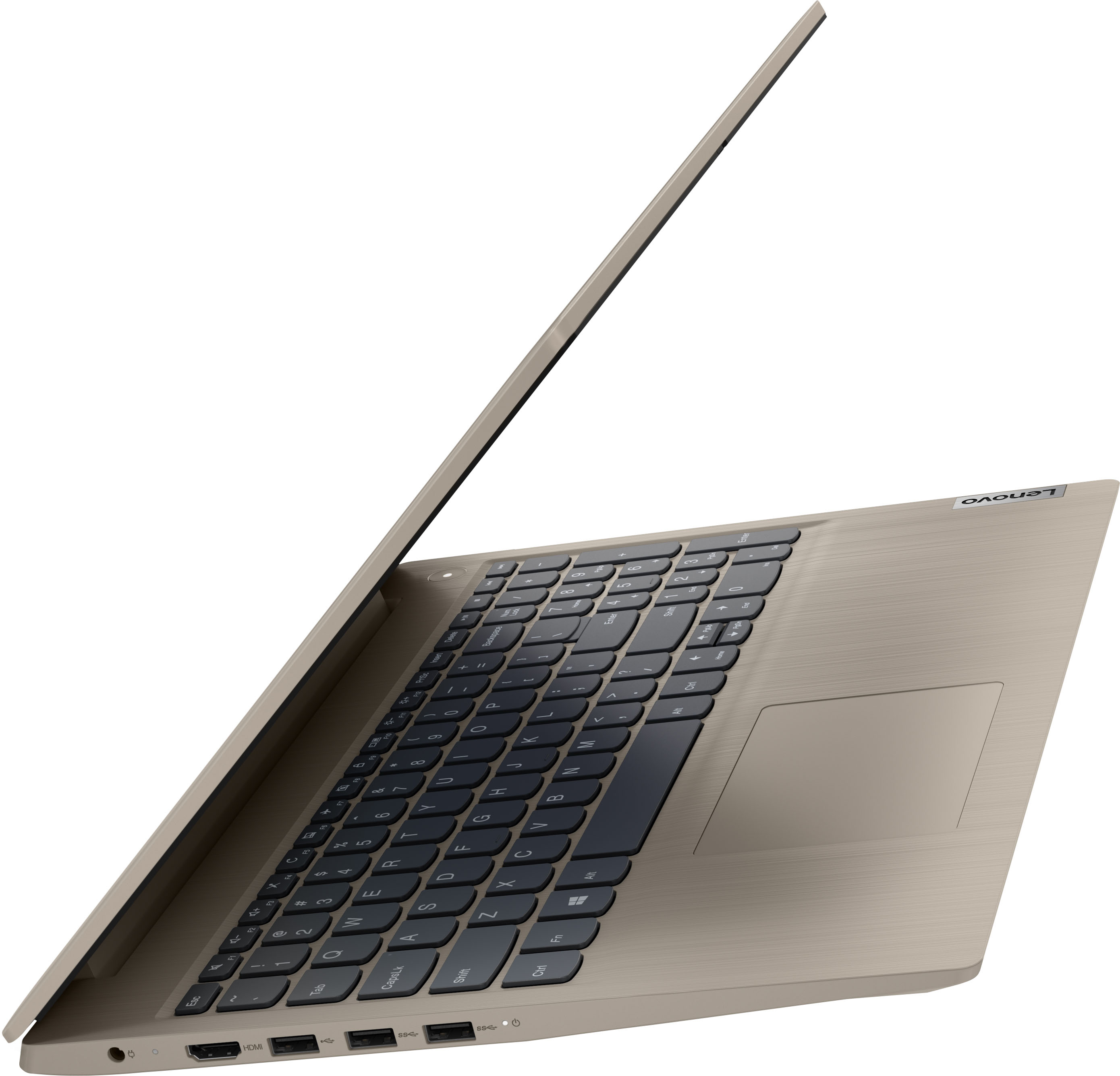
Customers commend the IdeaPad 3's touchscreen, ease of use, performance, and value for its price. Many appreciate its lightweight design and fast SSD, finding it to be a good size for their needs. However, some users point to the battery life as needing improvement, and others express dissatisfaction with the pre-installed operating system. The limited storage capacity is also a concern for some customers.
This summary was generated by AI based on customer reviews.
Nice laptop!
||Posted . Owned for 1 month when reviewed.This reviewer received promo considerations or sweepstakes entry for writing a review.Got a great deal! The only issue is that the touch screen sometimes stops working and I have to power down and wait a few minutes. Otherwise, love it!
I would recommend this to a friendBrand response from Lenovo Product Expert
Posted .Thank you for choosing the Lenovo IdeaPad 3 15 Laptop, model number 81X800ENUS. We are sorry to hear that you are having issues with the touch screen functionality on your IdeaPad 3 15 Laptop. This model ships with Windows 11 S-Mode 64-bit Operating System installed. Windows 11 S-Mode provides added security by only allowing APPs available ( and therefore certified by Microsoft) at the Microsoft Store. If you don't need the added security or you need to install APPs not available at the Microsoft Store, you can switch to standard Windows 11 Home 64-bit Operating System, at no additional cost. Even if you have switched out of S-Mode for Windows 11 Home, be sure any software you installed is compatible with Windows 11. this includes any legacy software you may have installed. There is no need to install Microsoft Office software. The software is already part of the operating system, you just need to activate the software with a purchased product key. If you have installed a copy of Microsoft Office, this is conflicting with the existing copy on the system and this will slow your system down. If you have installed a 3rd party anti-virus program, be sure that Windows Defender is turned off and that the trial version of McAfee Anti-Virus software is uninstalled. There can only be one anti-virus program on the system. You may need to restore your system to original factory default settings if any of the programming errors have occurred. You can do that by typing "restore" in the Cortana search window. Just click on the magnifying glass icon at the bottom left of your Windows 11 Desktop. Click on "Reset This PC" Then click on "Get Started" and follow the on screen directions to restore to factory defaults. If there is no incompatible software installed but the issues persist, check to be sure you have the latest version of Windows 11 on the computer. Then update all BIOS files and drivers up to that latest version of Windows 11. You can easily accomplish this by scanning the computer with the Lenovo Utility software available on this computer. This system has Lenovo utilities installed to help maintain the health of the device and keep the operating system software up to date. Type "Lenovo Vantage" in the Cortana Search window (if Lenovo Vantage is not installed on your device, you can download the APP and install it now). Select Lenovo Vantage from the list. In the window that opens, click on "Health and Support". In the expanded menu, select "Hardware Scan" In the window that opens, select "Run Quick Tests". This will scan your entire system for errors. Follow any directions that may pop up. If the problem continues after this scan, now click on "System Update". First select Windows update from the menu. Scan your system to be sure you have the latest version of Windows 11. Once that scan is complete, select "Additional Updates". This will scan your device to be sure there are no new BIOS/Driver updates needed. Follow any instructions that may pop up. If the issue still continues after these updates, we recommend you call Lenovo Tech Support at: 877-453-6686 for additional help.

- Pros mentioned:Price
Bluetooth is unreliable.
||Posted . Owned for less than 1 week when reviewed.This reviewer received promo considerations or sweepstakes entry for writing a review.The price of this laptop was appealing during a Best Buy flash sale. But it has a flaw that makes it less appealing, Bluetooth works only sporadically. I have tried to use two different Bluetooth mouse with it and though both show as connected but neither works. Both mouse work with my Surface Pro and Lenovo ThinkPad. This is really a basic function you would expect from a Lenovo laptop. I can live with the off-center track pad but not a lack of Bluetooth functionality. I wasn't expecting a lot from this budget laptop and it looks like it isn't going to live up to those low expectations. If this issue continues it will be going back to Best Buy.
No, I would not recommend this to a friendBrand response from Lenovo Product Expert
Posted .We are sorry to hear that you are having issues with your Lenovo IdeaPad 3 15 laptop, model number 81X800ENUS. This model ships with Bluetooth 5.0 Version capability, built in. Be sure the device you are trying to pair is compatible with Bluetooth 5.0 Version. This IdeaPad 3 15 ships with a standard QWERTY keyboard, with 10-key numeric pad included. The touchpad on this laptop is centered under the QWERTY keys, so that when the typist's hands are in the Home Position on the keyboard, the touchpad is centered directly under the typist's hands for easy access. If you continue to have issues with the Bluetooth functionality of your IdeaPad 3 15, we recommend you contact Lenovo Tech Support for additional help at: 877-453-6686.
Lenovo
||Posted . Owned for more than 2 years when reviewed.This reviewer received promo considerations or sweepstakes entry for writing a review.Work fine for last 2 years until this week it became soo slow, unable to connect to internet
No, I would not recommend this to a friendPerfect computer for college students
||Posted . Owned for 1 month when reviewed.This reviewer received promo considerations or sweepstakes entry for writing a review.Purchased this computer for my daughter who attends college full time. She says that it works quite well and the battery lasts a long time. My only complaint is that the screen resolution isn’t that great but fine for what she uses it for. Mostly windows office.
I would recommend this to a friendBrand response from Lenovo Product Expert
Posted .Thank you for choosing the Lenovo IdeaPad 3 15 Laptop, model number 81X800KLUS, for your daughter. This model ships with a 15.6 inch (screen size measured diagonally) TN - HD (1366x768) 10-point Multi-touch screen, with a brightness level of 220 nits and has an Anti-glare Coating. We are pleased to hear that the IdeaPad 3 15 is working out so well for your daughter.
The Lenovo - IdeaPad 3 15" w/HD Touch Screen
||Posted . Owned for 3 weeks when reviewed.This reviewer received promo considerations or sweepstakes entry for writing a review.This is a replacement for my ASUS laptop. My new Lenovo IdeaPad 3 15" has a much larger 15" screen, which is great! The Touch Screen is a new feature for me which is very handy. Probably the best point, this laptop fit into my budget with the sale price.
I would recommend this to a friendBrand response from Lenovo Product Expert
Posted .Thank you for choosing the Lenovo IdeaPad 3 15 Laptop. We are pleased to hear that the value, features and performance of the IdeaPad 3 15 meets your computing needs so well.
Great work and productivity laptop!
||Posted . Owned for 1 month when reviewed.This reviewer received promo considerations or sweepstakes entry for writing a review.The Laptop works good so far. ( I'm saying good due to windows 11 with 8 GB of ram when idle. less than 2gb of ram remains available, It takes way too much ram) The color is a little bit light for my taste but nothing too bad. The look and feel is great.
I would recommend this to a friendGood features
||Posted . Owned for 1 month when reviewed.This reviewer received promo considerations or sweepstakes entry for writing a review.Enjoying it so far. Got it for my 6th graders online school and it's been working well. Appreciate the dual band wifi capability and the aux headphone port which I didn't realize weren't common features anymore until researching to buy this laptop.
I would recommend this to a friendBrand response from Lenovo Product Expert
Posted .Thank you for choosing the Lenovo IdeaPad 3 15 Laptop for your child. We are pleased to hear that the features and performance of the IdeaPad 3 15 meets your child's computing needs so well.
- Pros mentioned:Performance
Colors on display aren’t accurate
||Posted . Owned for 1 month when reviewed.This reviewer received promo considerations or sweepstakes entry for writing a review.The laptop was fast but it was returned because the screen colors were off. We tried everything to adjust the colors but nothing worked. Everything had a bluish gray cast; clothing items that were green displayed as gray (I compared this laptop’s color display to the colors on my iPad and the difference was big). If you plan on using your laptop for streaming movies or online shopping look elsewhere, because this one isn’t going to display the accurate color of what you’re viewing. If you plan on using it for other purposes then it should be OK.
No, I would not recommend this to a friendBrand response from Lenovo Product Expert
Posted .This Lenovo IdeaPad 3 15 Laptop, model number 81X800KLUS, ships with a 15.6 Inch (screen size measured diagonally) TN - HD (1366x768) 10-point Multi-touch screen, with a brightness level of 220 nits, has an Anti-glare Coating. This screen provides 67 Percent of the sRGB (45 Percent of the NTSC) color gamut. If you are getting less than expected image quality, you can manually adjust your screen image settings. Here is a link to more information: https://www.pcmag.com/how-to/how-to-customize-and-enhance-your-windows-10-display. If you have questions about your Lenovo IdeaPad 3 15 Laptop, we recommend you contact lenovo Tech Support for additional information at: 877-453-6686.
Very happy and satisfied
||Posted . Owned for 3 weeks when reviewed.This reviewer received promo considerations or sweepstakes entry for writing a review.This was a gift for my daughter and she loves it! She’s now able to complete her reports and is very satisfied. I have been using Lenovo laptops for many years and was never disappointed. And I bought a Lenovo laptop for my other daughter.
I would recommend this to a friendBrand response from Lenovo Product Expert
Posted .Thank you for choosing the Lenovo IdeaPad 3 15 Laptop for your daughters. We appreciate your loyalty to the Lenovo Brand. We are pleased to hear that Lenovo computers meet both yours and your daughters' computer needs so well.
Above average laptop
||Posted . Owned for 3 weeks when reviewed.This reviewer received promo considerations or sweepstakes entry for writing a review.It has been very dependable and seems to be getting longer battery life than previous Lenovos I have purchased. I had to take it out of Smode because I use Google Chrome as my primary search engine but I could not download it from the Microsoft Store.
I would recommend this to a friendBrand response from Lenovo Product Expert
Posted .Thank you for choosing the Lenovo IdeaPad 3 15 Laptop. We appreciate your loyalty to the Lenovo Brand and we are pleased to hear that this Lenovo IdeaPad 3 15 meets your computing needs so well.
Great budget laptop
||Posted . Owned for 1 month when reviewed.This reviewer received promo considerations or sweepstakes entry for writing a review.Got a great deal on this laptop and is worth every penny. Purchased for grandson for home schooling and so far no issues. It loads very quickly and other than the S mode which it recommends you keep on there I have no other complaints.
I would recommend this to a friendLenova Tower Upgrade
||Posted . Owned for 3 weeks when reviewed.This reviewer received promo considerations or sweepstakes entry for writing a review.It was a major upgrade hardware-wise. The hardware was W11 capable. It was well worth the price. I should have bought it sooner. It takes up minimal space but it hosts all of my external hardware via Bluetooth and USB. Love it.
I would recommend this to a friendBrand response from Lenovo Product Expert
Posted .Thank you for choosing the Lenovo IdeaPad 3 15 Laptop. We are pleased to hear that the value and performance of the IdeaPad 3 15 meets your computing needs so well.
IdeaPad
||Posted . Owned for 1 month when reviewed.This reviewer received promo considerations or sweepstakes entry for writing a review.Great computer for what it meant for. Purchased to keep financial and personal computing from gaming system. Runs all MS programs extremely well.
I would recommend this to a friendBrand response from Lenovo Product Expert
Posted .Thank you for choosing the Lenovo IdeaPad 3 15 HD Touch Screen Laptop. We are very pleased to see that the specifications and features of the Lenovo IdeaPad 3 15 HD Touch Screen Laptop meet your computing needs so well.
Nice laptop
||Posted . Owned for 3 weeks when reviewed.This reviewer received promo considerations or sweepstakes entry for writing a review.Pros: Lightweight Good Screen Good Performance Internet works well i.e the drivers are good Cons: Keypad is hard, i use a wireless mouse to get around this The edges hurt but if you get used to working, you would be avoiding it
I would recommend this to a friendNew Laptop
||Posted . Owned for 3 weeks when reviewed.This reviewer received promo considerations or sweepstakes entry for writing a review.I was replacing a 2013 Toshiba Satellite laptop and the employee at Best buy was extremely helpful. I know almost nothing about computers, wo I told him what I needed and he recommended the Lenovo IdeaPad which happened to be on sale,
I would recommend this to a friendBrand response from Lenovo Product Expert
Posted .Thank you for choosing the Lenovo IdeaPad 3 15 Laptop. We are pleased to hear that the value and performance of the IdeaPad 3 15 meets your computing needs so well.
Lenova Computers from Beat Buy
||Posted . Owned for 3 weeks when reviewed.This reviewer received promo considerations or sweepstakes entry for writing a review.Like the Lenovo products and the Tech support from Geek Squad/Best Buy!! Have bought all of our computers from them for years now. Can call and they will help me if they can over the phone and if not I’ll make an appointment to bring it in
I would recommend this to a friendBrand response from Lenovo Product Expert
Posted .Thank you for choosing the Lenovo IdeaPad 3 15 HD Touch Screen Laptop. We are very pleased to see that the specifications and features of the Lenovo IdeaPad 3 15 HD Touch Screen Laptop meet your computing needs so well.
Much needed computer
||Posted .This reviewer received promo considerations or sweepstakes entry for writing a review.The sale at Best Buy could have not come at a better time. My resent computer was beginning to act up. I was told it would be much better to replace it then try to repair it. Thanks Best Buy for keeping such great sales at all times!!!
I would recommend this to a friendBrand response from Lenovo Product Expert
Posted .Thank you for choosing the Lenovo IdeaPad 3 15 HD Touch Screen Laptop. We are very pleased to see that the specifications and features of the Lenovo IdeaPad 3 15 HD Touch Screen Laptop meet your computing needs so well.
Great computer for the price
||Posted . Owned for 1 month when reviewed.This reviewer received promo considerations or sweepstakes entry for writing a review.Aside from the laptop coming in Windows 11 S-mode, which was relatively easy to get out of - this is a great laptop for the price. Has decent battery life and fast charging time. I love that the webcam has a shutter but keep forgetting I have used it.
I would recommend this to a friendBrand response from Lenovo Product Expert
Posted .Thank you for choosing the Lenovo IdeaPad 3 15 laptop. We are pleased to hear that the features and performance of the Ideapad 3 15 meets your computing needs so well.
Great Value computer
||Posted . Owned for 1 week when reviewed.This reviewer received promo considerations or sweepstakes entry for writing a review.My 4 year old Lenovo laptop died on me so I had to buy another one. I did not want to spend to much if the life of the computer is less than 5 years. Spent 330 which I thought was responsible. Happy with purchase so far.
I would recommend this to a friendOkay laptop
||Posted . Owned for 9 months when reviewed.This reviewer received promo considerations or sweepstakes entry for writing a review.This is a nice laptop however I have had problems with it and it is not even a year old. The warranty is not that good and I had to drive all the way to Charleston to get them to look at it only to be told they don't service it even though when I reached out to Lenovo they recommended that I take it back to Best Buy because they have an agreement. Very confusing. The young man fixed it in less than five minutes but stated I would probably have this issue again. not happy with a laptop that needs servicing in less than six month of ownership. I had very high hopes for this laptop.
No, I would not recommend this to a friend