Customer Ratings & Reviews

- Model:
- 81X800ENUS
- SKU:
- 6477624
Rating by feature
- Battery Life
Rating 4.4 out of 5 stars
- Speed
Rating 4.5 out of 5 stars
- Display
Rating 4.5 out of 5 stars
Customers are saying
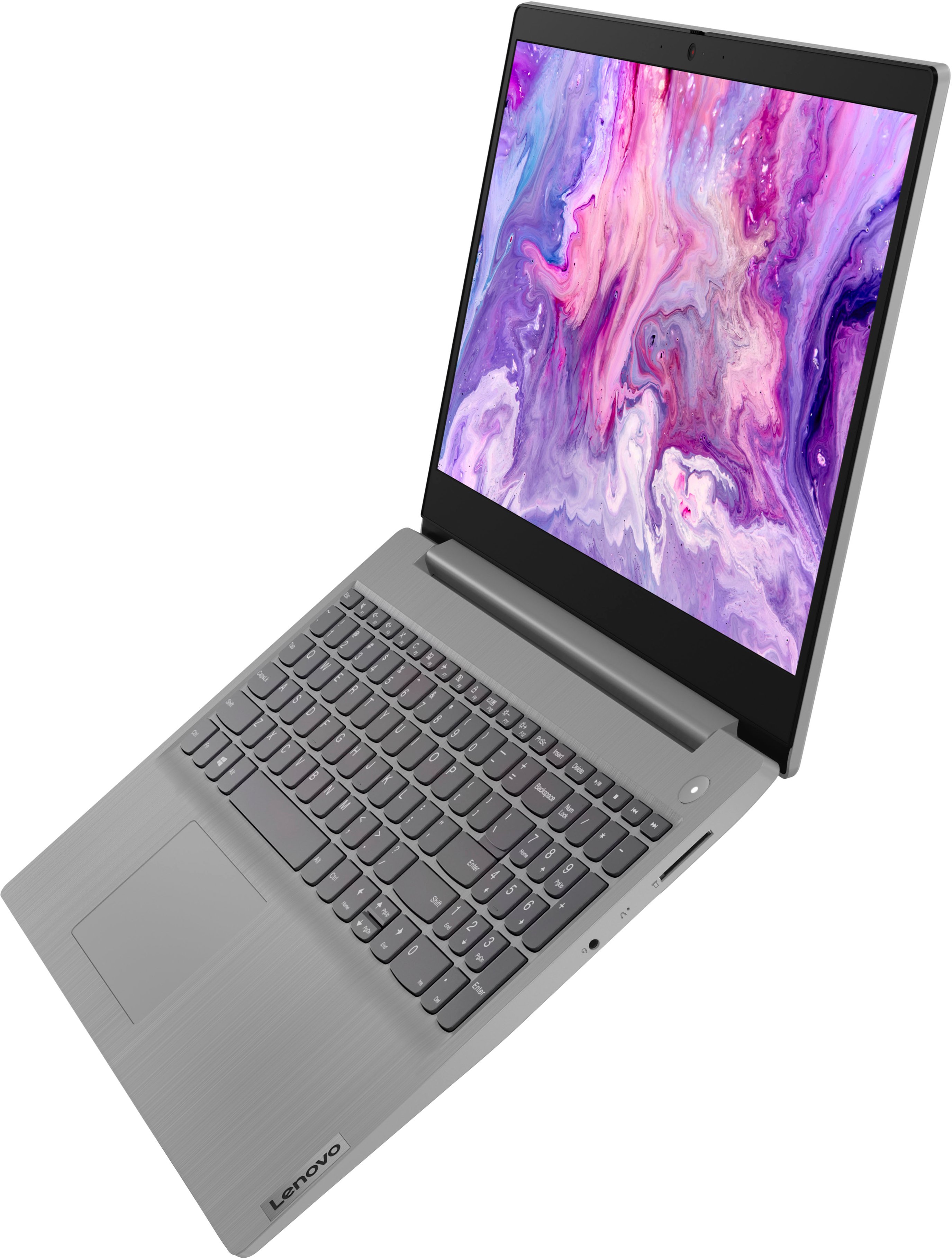
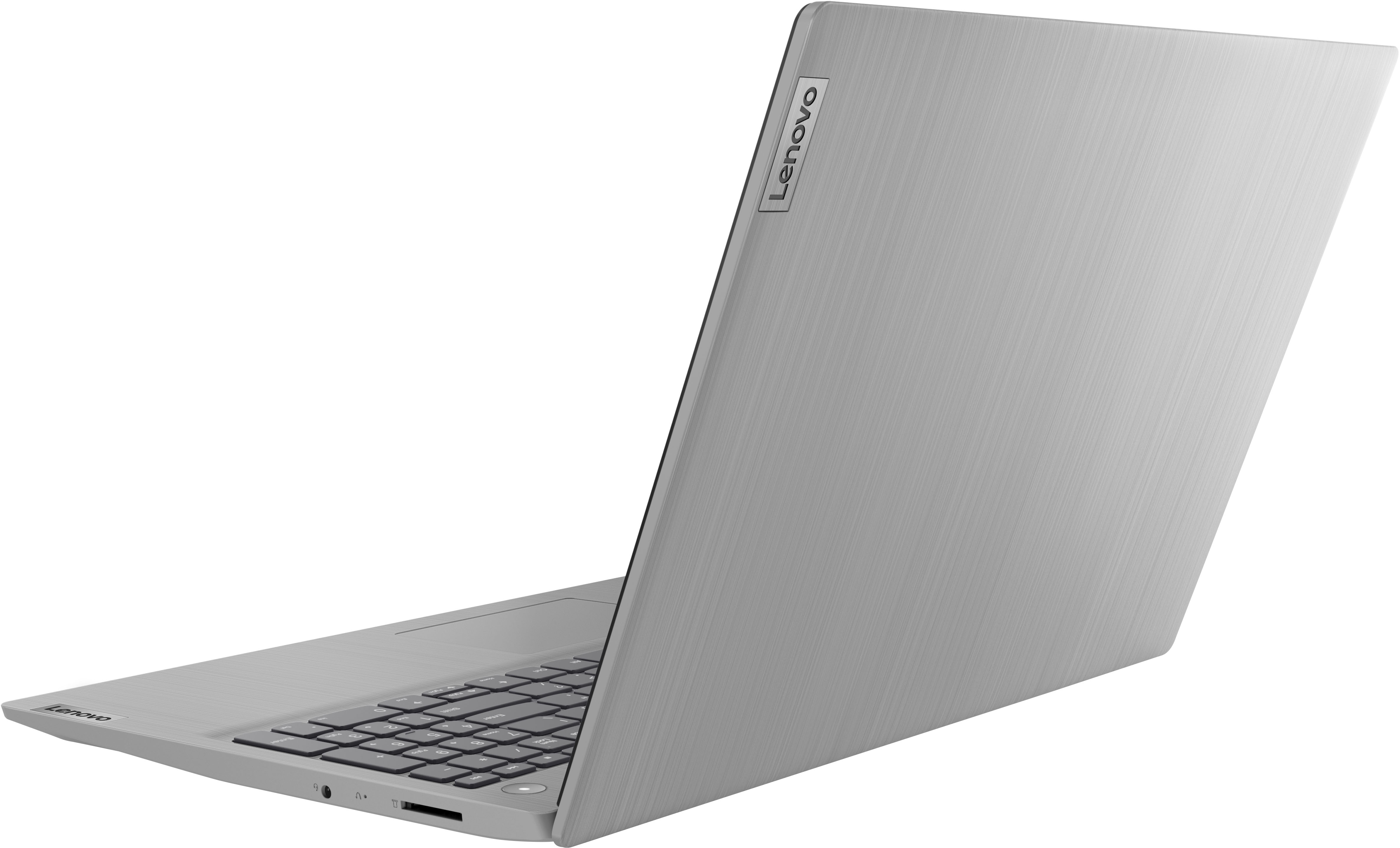
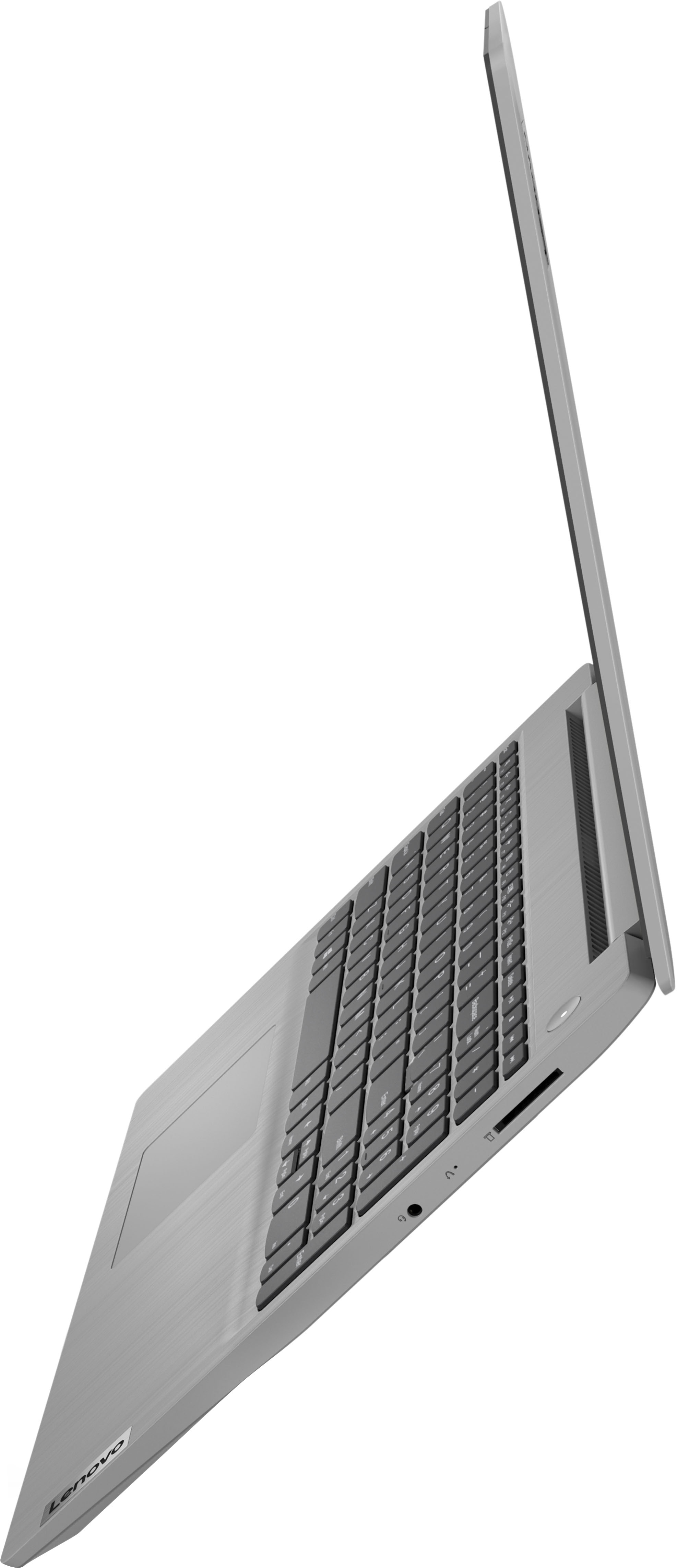
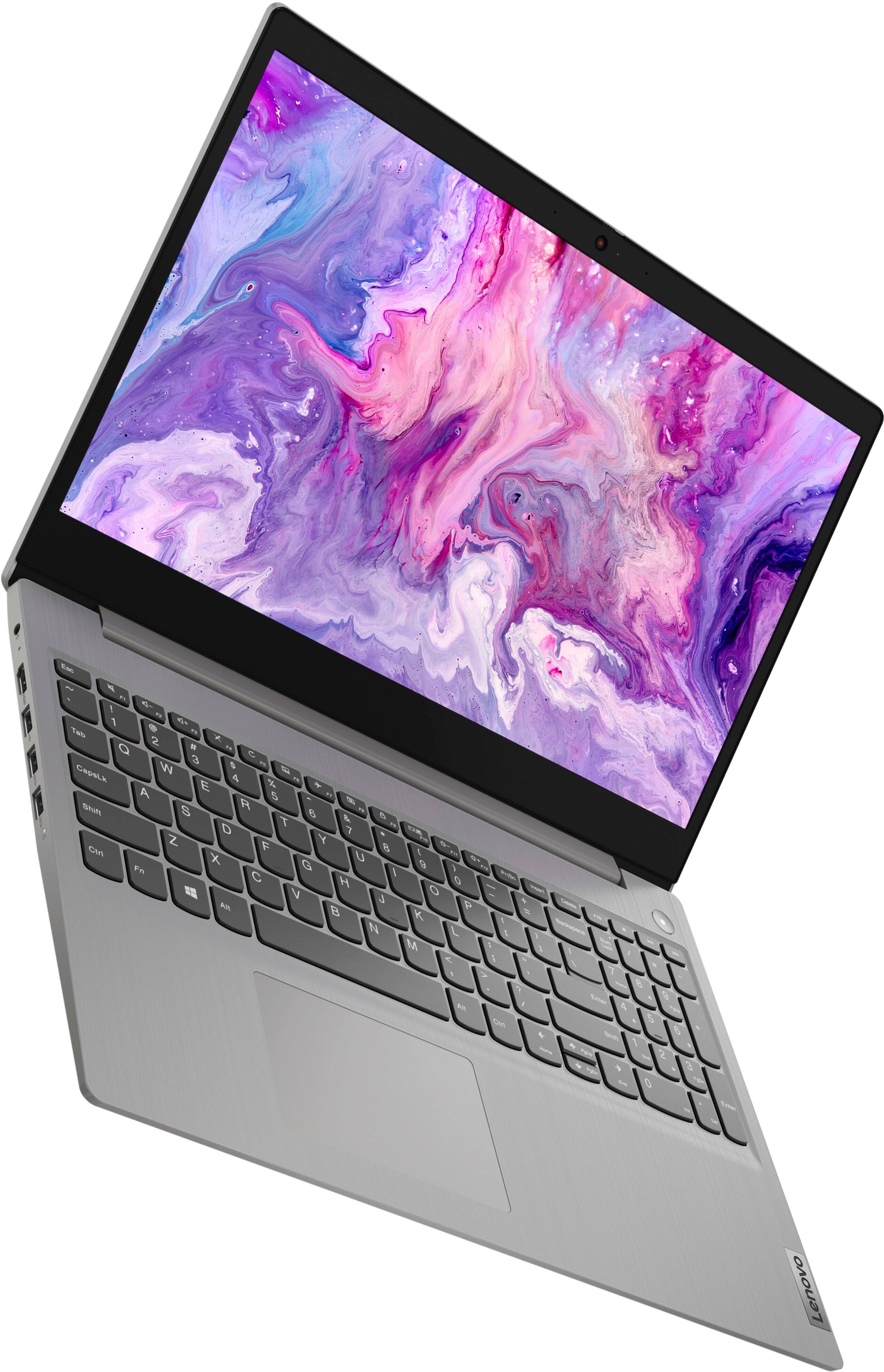
Customers commend the IdeaPad 3's touchscreen, ease of use, performance, and value for its price. Many appreciate its lightweight design and fast SSD, finding it to be a good size for their needs. However, some users point to the battery life as needing improvement, and others express dissatisfaction with the pre-installed operating system. The limited storage capacity is also a concern for some customers.
This summary was generated by AI based on customer reviews.
Ok
||Posted . Owned for 2 months when reviewed.This reviewer received promo considerations or sweepstakes entry for writing a review.This has windows S mode it will not let you download zoom. Everything is in Smode i got this for Christmas ive used it maybe 4 times. I was going to return it unfortunitly they will not let me and im very upset because i need one to be able to work on. THIS laptop is not business friendly
No, I would not recommend this to a friendBrand response from Lenovo Product Expert
Posted .We are sorry to hear that you are having issues with your Lenovo IdeaPad 3 15 Laptop, model number 81X800ENUS. This model ships with Windows 11 S-Mode 64-bit Operating System installed. Windows 11 S-Mode provides added security by only allowing APPs available ( and therefore certified by Microsoft) at the Microsoft Store. If you don't need the added security or you need to install APPs not available at the Microsoft Store, you can switch to standard Windows 11 Home 64-bit Operating System, at no additional cost. If you need to switch out of S-Mode for Windows 11 Home: Here is a link to instructions for switching from Windows 11 S-Mode to Windows 11 Home: https://support.microsoft.com/en-us/help/4456067/windows-10-switch-out-of-s-mode

Just as expected
||Posted . Owned for 1 month when reviewed.This reviewer received promo considerations or sweepstakes entry for writing a review.It was just as I expected, not any less and not any more.
I would recommend this to a friendComputer mom
||Posted . Owned for 3 weeks when reviewed.This reviewer received promo considerations or sweepstakes entry for writing a review.I'm going to be purchasing a nother soon as get this one paid off.
I would recommend this to a frienddon't have one
||Posted .This reviewer received promo considerations or sweepstakes entry for writing a review.on some things it work well other things it is slow.
No, I would not recommend this to a friendLaptop replacement.
||Posted . Owned for 3 weeks when reviewed.This reviewer received promo considerations or sweepstakes entry for writing a review.it is adequate, nothing special and somewhat disappointed.
No, I would not recommend this to a friendBrand response from Lenovo Product Expert
Posted .We always recommend you check the requirements and compatibility of any software you will be installing on your new computer, before you invest in any computer. Be sure your new computer can support the software you will need to use and your workload.
- Cons mentioned:Battery life
Horrible battery life
||Posted .This reviewer received promo considerations or sweepstakes entry for writing a review.Horrible graphics, does not hold a charge longer than 3 hours if you are a student it is definitely what you pay for but i would not recommend.
No, I would not recommend this to a friendBrand response from Lenovo Product Expert
Posted .This Lenovo IdeaPad 3 15 Laptop, model number 81X800KLUS, ships with a Integrated 35Wh, Lithium-Polymer Battery, which within this model configuration, has a battery life of up to 6 hours, depending on the work the device is performing. If you are getting substantially less battery life, first, set your screen brightness at less than 100-percent - try 80-percent to start with. Then, be sure Battery Charge Threshold is turned off. This power management setting should only be used when the laptop is plugged in all the time. It will prolong overall battery life by only charging the battery to 60-percent of capacity. You can turn off Battery Charge Threshold within the Lenovo Vantage APP installed on this computer. In Vantage select Battery Settings and turn off Battery Charge Threshold, if turned on. Set your Power Management to a battery conservation mode for those situations where you need maximum battery life. Also check what programs are running in the background on the computer. Be sure only the programs you want running in the background are. These programs will drain the battery. Here is a link to information about how to find out what programs are running in the background on your Windows 11 computer and how to manage them for better system performance: https://websiteforstudents.com/how-to-find-what-is-running-in-windows-11/. Then, finally, be sure any software you installed is compatible with Windows 11. Incompatible software will drain the battery at a faster rate. There is no need to install Microsoft Office software. The software is already part of the operating system, you just need to activate the software with a purchased product key. If you have installed a copy of Microsoft Office, this is conflicting with the existing copy on the system and this will slow your system down. If you have installed a 3rd party anti-virus program, be sure that Windows Defender is turned off and that the trial version of McAfee Anti-Virus software is uninstalled. There can only be one anti-virus program on the system. You may need to restore your system to original factory default settings if any of the programming errors have occurred. You can do that by typing "restore" in the Cortana search window. Just click on the magnifying glass icon at the bottom of your Windows 11 Desktop. Click on "Reset This PC" Then click on "Get Started" and follow the on screen directions to restore to factory defaults. If the problem persists, we recommend you contact Lenovo Tech Support at: 877-453-6686.
Kids stuff
||Posted .This reviewer received promo considerations or sweepstakes entry for writing a review.Horrible display, not much contrast and everything is washed out on the screen. This thing is slow and shuts down if you have multiple browsers open. Would recommend if one only needs a very basic laptop, maybe for a child.
No, I would not recommend this to a friendBrand response from Lenovo Product Expert
Posted .This Lenovo IdeaPad 3 15 Laptop, model number 81X800KLUS, ships with a 15.6 inch (screen size measured diagonally) TN - HD (1366x768) 10-point Multi-touch screen, with a brightness level of 220 nits and has an Anti-glare Coating. This screen provides 67 Percent of the sRGB (45 Percent NTSC) color gamut. This IdeaPad 3 15 ships with Windows 11 S-Mode, 64-bit Operating System installed and is a light to moderate workload configuration. We always recommend you check the requirements and compatibility of any software you will be installing on your new computer, before you invest in any computer. Be sure your new computer can support the software you will need to use and your workload.
Mouse is Difficult
||Posted . Owned for 3 weeks when reviewed.This reviewer received promo considerations or sweepstakes entry for writing a review.The mouse is horrible. When I first got it, the windows would widen without reason (I found a setting to stop that), but it continues to open and close windows with just the slightest scan over a link. It is very frustrating
No, I would not recommend this to a friendBrand response from Lenovo Product Expert
Posted .We are sorry to hear that you are having issues with the touchpad sensitivity within your Lenovo IdeaPad 3 15 Laptop, model number 81X800KLUS. You can adjust the touchpad in your system settings. You can get there by clicking on the magnifying glass at the bottom left of your Windows 11 screen. Type "touchpad" in the search window. Select "Mouse & touchpad settings" from the list of choices. You can make general adjustments to the touchpad there. You can also select "Additional mouse options" for more detailed adjustments to the touchpad sensitivity by increasing the delay of the touchpad. If the issue continues after these adjustments, we recommend you contact Lenovo Tech Support for additional help at: 877-453-6686.
Not happy
||Posted . Owned for 3 weeks when reviewed.This reviewer received promo considerations or sweepstakes entry for writing a review.There have been several issues with downloads, passwords changing every day, the brightness dim without prompt. I have spent a lot of time dealing with the Geek Squad and the password issue with signing in never got resolved.
No, I would not recommend this to a friendFools Gold
||Posted . Owned for 2 months when reviewed.This reviewer received promo considerations or sweepstakes entry for writing a review.I had this for 3 months and the wireless network card was defective. I sent it for repair and I am still having the same exact issue. This was my first lenovo and I promise you, I will never buy form them again.
No, I would not recommend this to a friendBrand response from Lenovo Product Expert
Posted .We are sorry to hear that you are having issues with WiFi connectivity within your Lenovo IdeaPad 3 15 laptop, model number 81X800KLUS. This model ships with the Intel AX201NGW WiFi-6, wide range/high speed 2x2 802.11ax frequency WiFi card installed, which is also backward compatible to older, a/b/g/n/ac frequency WiFi. Since the WiFi card has been repaired but the issue continues, check to be sure you have the latest version of Windows 11 on the computer. Then update all BIOS files and drivers up to that latest version of Windows 11, including those BIOS files and drivers that control WiFi. You can easily accomplish this by scanning the computer with the Lenovo Utility software available on this computer. This system has Lenovo utilities installed to help maintain the health of the device and keep the operating system software up to date. Type "Lenovo Vantage" in the Cortana Search window (if Lenovo Vantage is not installed on your device, you can download the APP and install it now). Select Lenovo Vantage from the list. In the window that opens, click on "Health and Support". In the expanded menu, select "Hardware Scan" In the window that opens, select "Run Quick Tests". This will scan your entire system for errors. Follow any directions that may pop up. If the problem continues after this scan, now click on "System Update". First select Windows update from the menu. Scan your system to be sure you have the latest version of Windows 11. Once that scan is complete, select "Additional Updates". This will scan your device to be sure there are no new BIOS/Driver updates needed. Follow any instructions that may pop up. If you get a message that states there are no new updates available, you can directly update/reinstall the WiFi Driver within the Windows 11 Operating System on this Laptop. Here is a link to instructions for doing this: https://allthings.how/how-to-install-or-update-windows-11-wifi-driver/#:~:text=In%20Settings%2C%20click%20on%20the,Download%20%26%20install'%20under%20it. If the issue continues after these updates and reinstalls of WiFi drivers, we recommend you contact lenovo Tech Support. Provide your previous service ticket number and let the Lenovo Customer Service Specialist know the software troubleshooting steps you have already taken. Call at: 877-453-6686.
- Cons mentioned:Battery life
Stopped Charging After a Few Weeks
||Posted . Owned for 1 month when reviewed.This reviewer received promo considerations or sweepstakes entry for writing a review.The laptop started off well enough but only weeks after purchasing it will not recharge and my son needs it for assignments at college.
No, I would not recommend this to a friendBrand response from Lenovo Product Expert
Posted .We are sorry to hear that your son is having issues charging his Lenovo IdeaPad 3 15 Laptop, model number 81X800KLUS. First, plug the included 65W round tip (2-pin, wall-mount) AC adapter/charger, 100-240V, 50-60Hz, into a wall socket, then plug in the computer. There is an LED power light next to the AC adapter port on the laptop that will light up when the laptop is charging properly. Solid white: connected to ac power; battery capacity 91%–100%, Solid amber: connected to ac power; battery capacity 1%–90%, Off: not connected to ac power. If the LED light is not on, the issue may be with the AC adapter/charger itself. Here is a link to a compatible replacement AC adapter/charger from a Best Buy advertising partner: https://www.lenovo.com/us/en/p/accessories-and-software/chargers-and-batteries/chargers/gx20l29355?orgRef=https%253A%252F%252Fwww.google.com%252F&cid=us:sem|se|google|GS_Push_Sale|||GX20L29355|18337311350|||shopping|pmax&gclid=EAIaIQobChMI0bGy4Nja-gIVF-DICh0FdQGdEAYYASABEgJZFPD_BwE. If the LED light comes on when the AC adapter/charger is plugged in, now check the current battery charge level by placing the touchpad cursor over the Battery Icon at the bottom right of the Windows 11 Desktop Screen. You don't need to click on the icon, just let the cursor hover over the icon. A pop-up box will appear with the current battery charge level status indicated. If the current charge level is above 50 Percent, unplug the AC adapter/charger and let the battery level drop below 50 Percent. Once the battery level is below 50 Percent, plug the AC adapter/charger back in and the battery should begin charging normally. Windows 11 has Battery Saver software that will stop the laptop from charging once the battery level reaches 100 Percent charge level. This is to protect the battery from being over-charged. Once the battery level reaches less than 90 Percent charge, the battery will only trickle charge. Letting the battery level drop below 50 Percent will let the battery charge at the normal rate, back up to 100 Percent charge level. If this issue continues, we recommend you contact Lenovo tech Support for additional help. Let the Lenovo Customer Support Specialist know the troubleshooting steps you have already taken. Call at: 877-453-6686.
Problem with microsoft store
||Posted . Owned for 3 weeks when reviewed.This reviewer received promo considerations or sweepstakes entry for writing a review.I can't download any app from the microsoft store. Sometimes I get error 0X80070002 when I open Microsoft Store. I cant fix this error and I cant download diferents app from internet.
No, I would not recommend this to a friendBrand response from Lenovo Product Expert
Posted .We are sorry to hear that you are having issues with your Lenovo IdeaPad 3 15 Laptop, model number 81X800KLUS. This model ships with Windows 11 S-Mode, 64-bit Operating System installed. Windows 11 S-Mode provides added security by only allowing APPs available ( and therefore certified by Microsoft) at the Microsoft Store. If you don't need the added security or you need to install APPs not available at the Microsoft Store, you can switch to standard Windows 11 Home 64-bit Operating System, at no additional cost. If you can not download APPs from the Microsoft Store to this Windows 11 Laptop, here is a link to instructions for fixing this issue: https://windowsreport.com/windows-11-store-not-installing-apps/. If the issue continues we recommend you contact Microsoft software tech support at: https://support.microsoft.com/
Terrible screen!!!
||Posted . Owned for less than 1 week when reviewed.This reviewer received promo considerations or sweepstakes entry for writing a review.Good internals but the screen is absolutely terrible!!! It blew my mind that this was even on the market with a screen from the 90s. Do not buy, spend $200 more on the model above this
No, I would not recommend this to a friendBrand response from Lenovo Product Expert
Posted .This Lenovo IdeaPad 3 15 Laptop, model number 81X800KLUS, ships with a 15.6 inch (screen size measured diagonally) TN - HD (1366x768) 10-point Multi-touch screen, with abrightness level of 220 nits and has an Anti-glare Coating.
Do Not Buy, Bad Quality Screen
||Posted .This reviewer received promo considerations or sweepstakes entry for writing a review.BUYER BEWARE. For the price of the laptop, this is probably one of the worst sceen panels to be put on any laptop. The viewing angles are not good and already during the set up my eyes began to strain with the type of panel it has. Lenovo brand isnt bad but the panal that's on this laptop is.
No, I would not recommend this to a friendBrand response from Lenovo Product Expert
Posted .This Lenovo IdeaPad 3 15 Laptop, model number 81X800ENUS, ships with a 15.6 inch (screen size measured diagonally) TN - HD (1366x768) 10-point Multi-touch screen, with viewing angles of ( H / V ) of 160 degrees / 160 degrees, with a brightness level of 220 nits and has an Anti-glare coating. This screen provides 67 Percent of the sRGB (45 Percent NTSC) color gamut.
Not a good quality Laptop
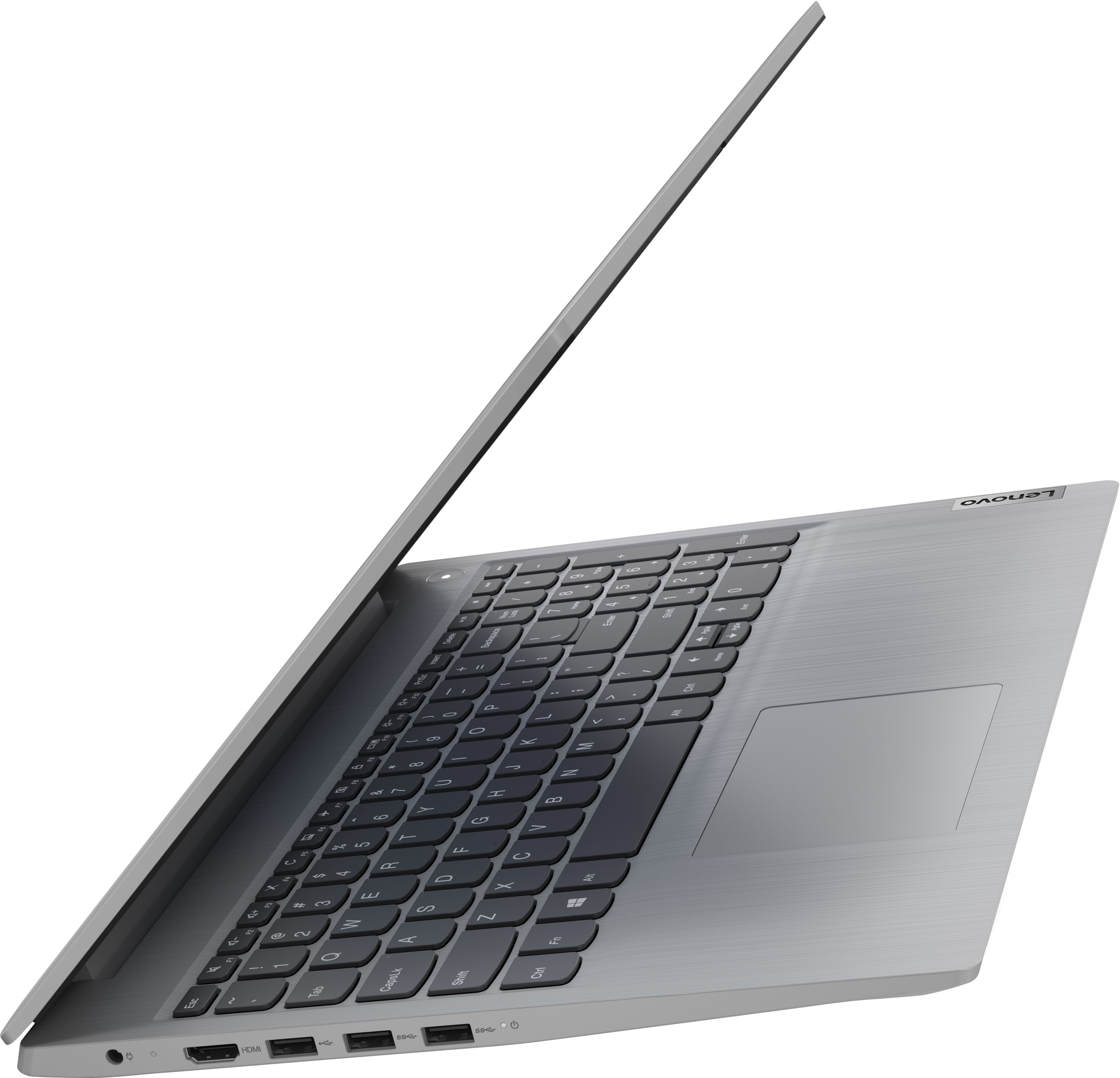
||Posted . Owned for 2 months when reviewed.This reviewer received promo considerations or sweepstakes entry for writing a review.This laptop is not a good laptop. It is pretty slow in performance and the mouse pad position is way to the left and very uncomfortable to use. no USC charging
No, I would not recommend this to a friendAntivirus bundle gimmick
||Posted . Owned for 2 months when reviewed.This reviewer received promo considerations or sweepstakes entry for writing a review.This product automatically adds antivirus bundle(which you probably don't even want) and you cannot exclude it from purchase. But when you want to return the product, they keep 30$ from your refund saying it's deducted for antivirus bundle.
No, I would not recommend this to a friendWorked good for 2 weeks.
||Posted . Owned for 2 weeks when reviewed.This reviewer received promo considerations or sweepstakes entry for writing a review.Worked wonderful for 2 weeks then died. I took it back and ordered another one. I liked it that much for them 2 weeks. I only hope this one lasts and is not a lemon.
I would recommend this to a friendVideo quality is HORRIBLE
||Posted . Owned for less than 1 week when reviewed.This reviewer received promo considerations or sweepstakes entry for writing a review.Just bought this laptop a few days ago. Tonight was the first time I tried the webcam. The video quality is worse than I could possibly imagine for a brand new computer. The color is extremely washed out & the picture is blurry. I went to the Lenovo website & found lots of complaints but no real answers. All they say is the computer's not intended for gaming. I don't do gaming. Do not buy this computer if you use Zoom or any kind of video chat.
No, I would not recommend this to a friendBrand response from Lenovo Product Expert
Posted .We are sorry to hear that you are having issues with the webcam within your Lenovo IdeaPad 3 15 Laptop, model number 81X800KLUS. This model ships with a HD 720p, webcam with Privacy Shutter and Dual Array Microphone. If you are getting less than expected broadcast video quality, check to be sure that the protective film/tape has been removed from the lens of the webcam. This protective film/tape is installed at the factory, to protect the webcam lens during transit and needs to be removed prior to using the webcam. If the protective film/tape has been removed for the webcam lens, but the issue continues, now check to be sure you have the latest version of Windows 11 on the computer. Then update all BIOS files and drivers up to that latest version of Windows 11. You can easily accomplish this by scanning the computer with the Lenovo Utility software available on this computer. This system has Lenovo utilities installed to help maintain the health of the device and keep the operating system software up to date. Type "Lenovo Vantage" in the Cortana Search window (if Lenovo Vantage is not installed on your device, you can download the APP and install it now). Select Lenovo Vantage from the list. In the window that opens, click on "Health and Support". In the expanded menu, select "Hardware Scan" In the window that opens, select "Run Quick Tests". This will scan your entire system for errors. Follow any directions that may pop up. If the problem continues after this scan, now click on "System Update". First select Windows update from the menu. Scan your system to be sure you have the latest version of Windows 11. Once that scan is complete, select "Additional Updates". This will scan your device to be sure there are no new BIOS/Driver updates needed. Follow any instructions that may pop up. If the issue continues after these updates, we recommend you call Lenovo Tech Support at: 877-453-6686 for additional help.
Do not buy
||Posted . Owned for 1 month when reviewed.This reviewer received promo considerations or sweepstakes entry for writing a review.Do not purchase this laptop. There are times when the keypad doesn’t work or when you start typing what appears on the screen is totally different.
No, I would not recommend this to a friendBrand response from Lenovo Product Expert
Posted .We are sorry to hear that you are having issues with your Lenovo IdeaPad 3 15 Laptop, model number 81X800KLUS. This model ships with Windows 11 S-Mode, 64-bit Operating System installed. Windows 11 S-Mode provides added security by only allowing APPs available ( and therefore certified by Microsoft) at the Microsoft Store. If you don't need the added security or you need to install APPs not available at the Microsoft Store, you can switch to standard Windows 11 Home 64-bit Operating System, at no additional cost. Even if you have switched out of S-Mode for Windows 11 Home, be sure any software you installed is compatible with Windows 11. There is no need to install Microsoft Office software. The software is already part of the operating system, you just need to activate the software with a purchased product key. If you have installed a copy of Microsoft Office, this is conflicting with the existing copy on the system and this will slow your system down. If you have installed a 3rd party anti-virus program, be sure that Windows Defender is turned off and that the trial version of McAfee Anti-Virus software is uninstalled. There can only be one anti-virus program on the system. Here is a link to instructions for uninstalling McAfee from a Windows computer: https://service.mcafee.com/?articleId=TS101331&page=shell&shell=article-view You may need to restore your system to original factory default settings if any of the programming errors have occurred. You can do that by typing "restore" in the Cortana search window. Just click on the magnifying glass icon at the bottom of your Windows 11 Desktop. Click on "Reset This PC" Then click on "Get Started" and follow the on screen directions to restore to factory defaults. If the problem persists, we recommend you contact Lenovo Tech Support at: 877-453-6686.
Worst computer ever.
||Posted . Owned for 3 weeks when reviewed.This reviewer received promo considerations or sweepstakes entry for writing a review.Worst computer I have ever purchased. I bought this as an anniversary present. After they started to load there apps on the first day with in the first hour blue screen. You must restart your computer. After several failed attempts this computer was damaged. I will never buy this brand ever again.
No, I would not recommend this to a friendBrand response from Lenovo Product Expert
Posted .We are sorry to hear that after purchasing this Lenovo IdeaPad 3 15 Laptop, model number 81X800KLUS, as a gift, your recipients had issues with This IdeaPad 3 15. This model ships with Windows 11 S-Mode 64-bit Operating System installed. Windows 11 S-Mode provides added security by only allowing APPs available ( and therefore certified by Microsoft) at the Microsoft Store. If you don't need the added security or you need to install APPs not available at the Microsoft Store, you can switch to standard Windows 11 Home 64-bit Operating System, at no additional cost. If you choose to switch out of S-Mode for Windows 11 Home: Here is a link to instructions for switching from Windows 11 S-Mode to Windows 11 Home: https://support.microsoft.com/en-us/help/4456067/windows-10-switch-out-of-s-mode. If you have questions about Windows 11 S-Mode Operating System, we recommend you contact Microsoft Software Support directly for more information at: https://support.microsoft.com/