Customer Ratings & Reviews



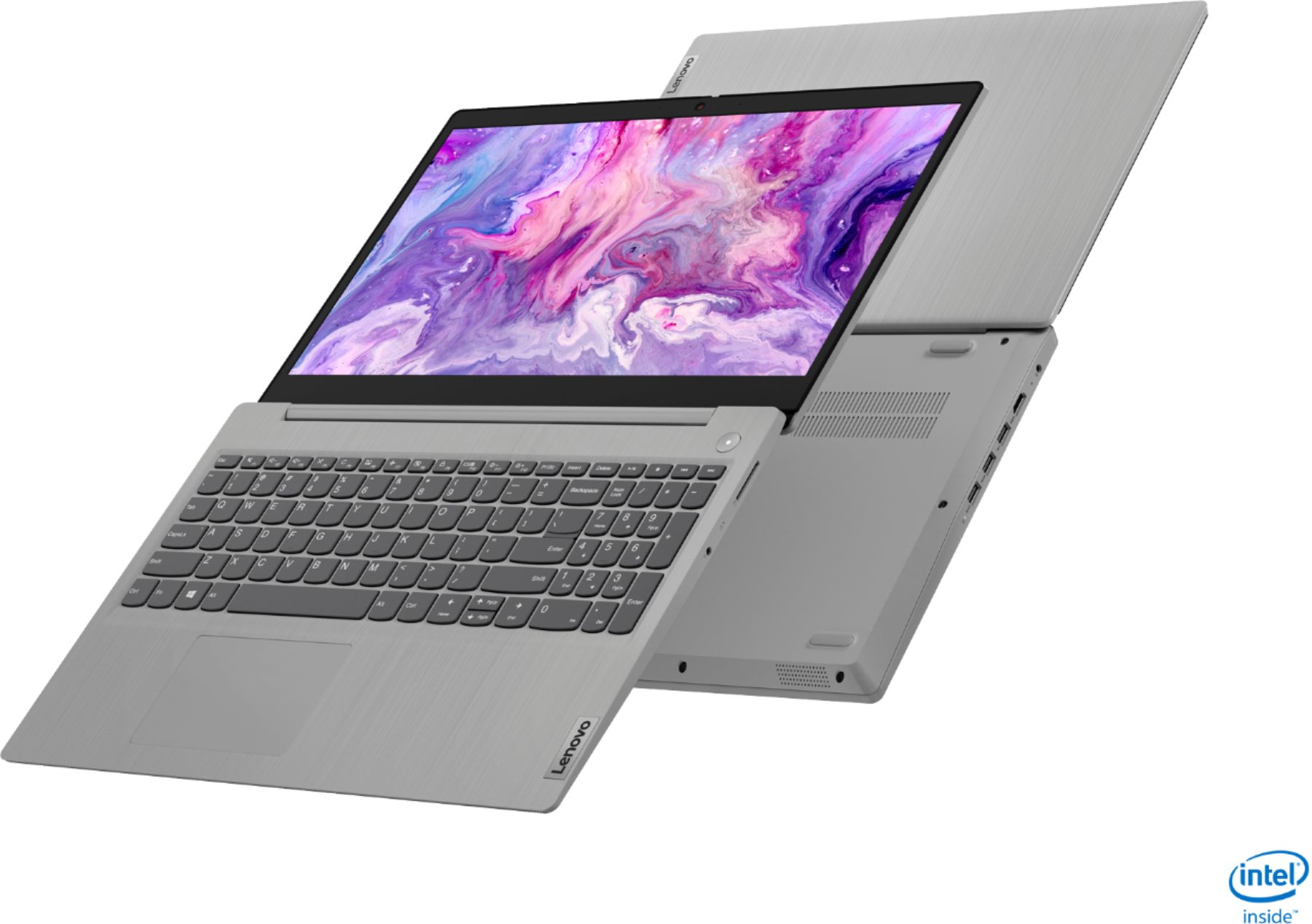
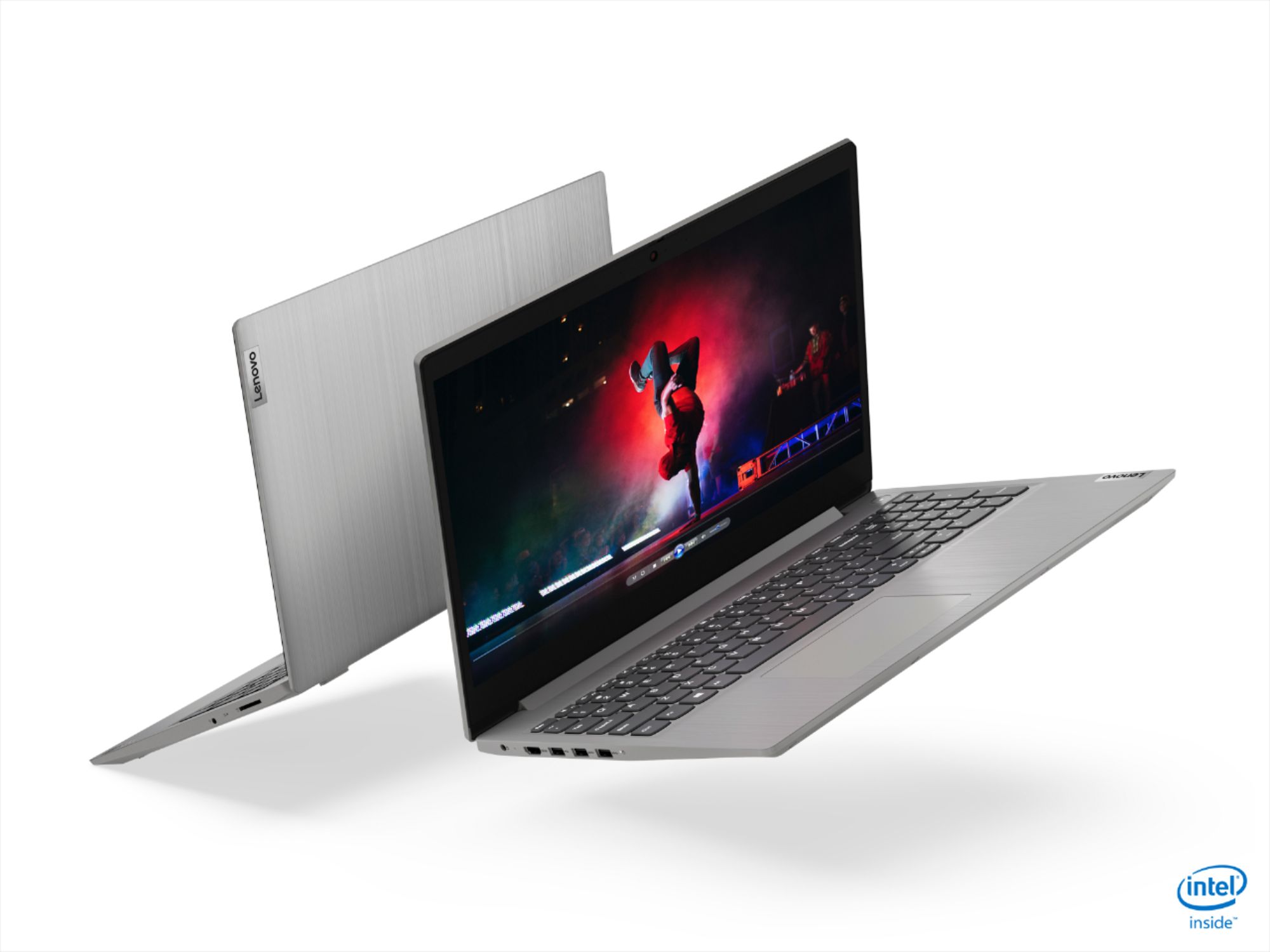

- Model:
- 81WE011UUS
- SKU:
- 6426707
Rating by feature
- Battery Life
Rating 4.2 out of 5 stars
- Speed
Rating 4.4 out of 5 stars
- Display
Rating 4.5 out of 5 stars
Customers are saying
Customers often highlight the IdeaPad 3 15" Laptop's affordability, user-friendly interface, and lightweight design as its main advantages. Many users appreciate its clear screen and satisfactory performance. However, some users have concerns about its battery life, build quality, and the initial difficulty in disabling S mode.
This summary was generated by AI based on customer reviews.
Disconnects from Internet
||Posted . Owned for 1 month when reviewed.This reviewer received promo considerations or sweepstakes entry for writing a review.Good value, but constantly disconnects from the internet. My dad wants one, but I cannot justify getting another one like this.
No, I would not recommend this to a friendBrand response from Lenovo Product Expert
Posted .We are sorry to hear that you are having WiFi connectivity issues with your lenovo IdeaPad 3 15 laptop, model number 81WE011UUS. This model ships with 5G Wide-Rang/High-Speed 2x2 802.11AC WiFi capability. Be sure you have the latest version of Windows 10 on the computer. Then update all of the BIOS files and drivers up to this latest version of Windows 10. You can easily accomplish this by scanning the computer with the Lenovo Utility software available on this computer. This system has Lenovo utilities installed to help maintain the health of the device and keep the operating system software up to date. Type "Lenovo Vantage" in the Cortana Search window (if Lenovo Vantage is not installed on your device, you can download the APP and install it now). Select Lenovo Vantage from the list. In the window that opens, click on "Health and Support". In the expanded menu, select "Hardware Scan" In the window that opens, select "Run Quick Tests". This will scan your entire system for errors. Follow any directions that may pop up. If the problem continues after this scan, now click on "System Update". First select Windows update from the menu. Scan your system to be sure you have the latest version of Windows 10. Once that scan is complete, select "Additional Updates". This will scan your device to be sure there are no new BIOS/Driver updates needed. Follow any instructions that may pop up. If the issue still continues after these updates, we recommend you call Lenovo Tech Support at: 877-453-6686 for additional help.

Difficult laptop
||Posted . Owned for 1 month when reviewed.This reviewer received promo considerations or sweepstakes entry for writing a review.I found this laptop very hard to use. It isn't touchscreen, and the mousepad is really far to the left, which makes no sense, since most people are right-handed.
No, I would not recommend this to a friendBrand response from Lenovo Product Expert
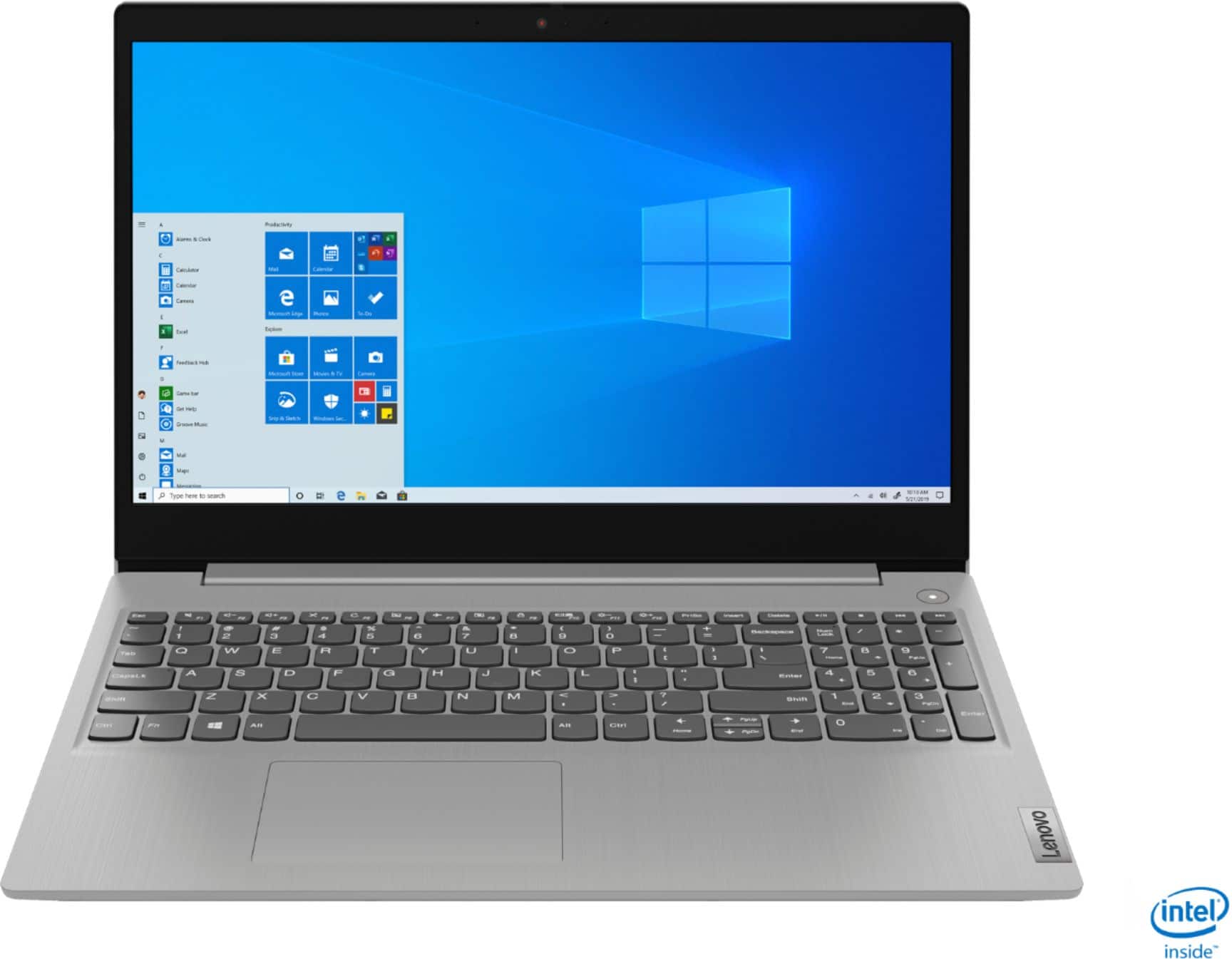
Posted .The Lenovo IdeaPad 3 15 Laptop, model number 81WE011UUS, ships with a standard QWERTY Keyboard with 10-Key Numeric Pad included. The touchpad within this keyboard format is centered under the QWERTY keys, so that when the typist's hands are in the Home Position on the keyboard, the touchpad is centered directly under the typist's hands. You can make adjustments to the touchpad in your system settings. You can get there by clicking on the magnifying glass at the bottom left of your Windows 10 screen. Type "touchpad" in the search window. Select "Mouse & touchpad settings" from the list of choices. You can make general adjustments to the touchpad there. You can also select "Additional mouse options" for more detailed adjustments to the touchpad sensitivity by increasing the delay of the touchpad. If you have additional questions about your Lenovo IdeaPad 3 15 Laptop, we recommend you contact Lenovo Tech Support at: 877-453-6686.
Not worth it
||Posted . Owned for 2 weeks when reviewed.This reviewer received promo considerations or sweepstakes entry for writing a review.1. As mentioned in other reviews-- the network adapter is defective and drops the internet every few hours for no reason and needs to be reset. Annoying when this happens to you during zoom school, telehealth, etc. 2. The plastic is bad, sharp corners that scrape skin, issues with the trackpad 3. Dim screen 4. Distracting low-battery feature hardwired into the system 5. After a few weeks ownership, display and keyboard won't turn on even though the battery does, have to get a new computer now
No, I would not recommend this to a friendBrand response from Lenovo Product Expert
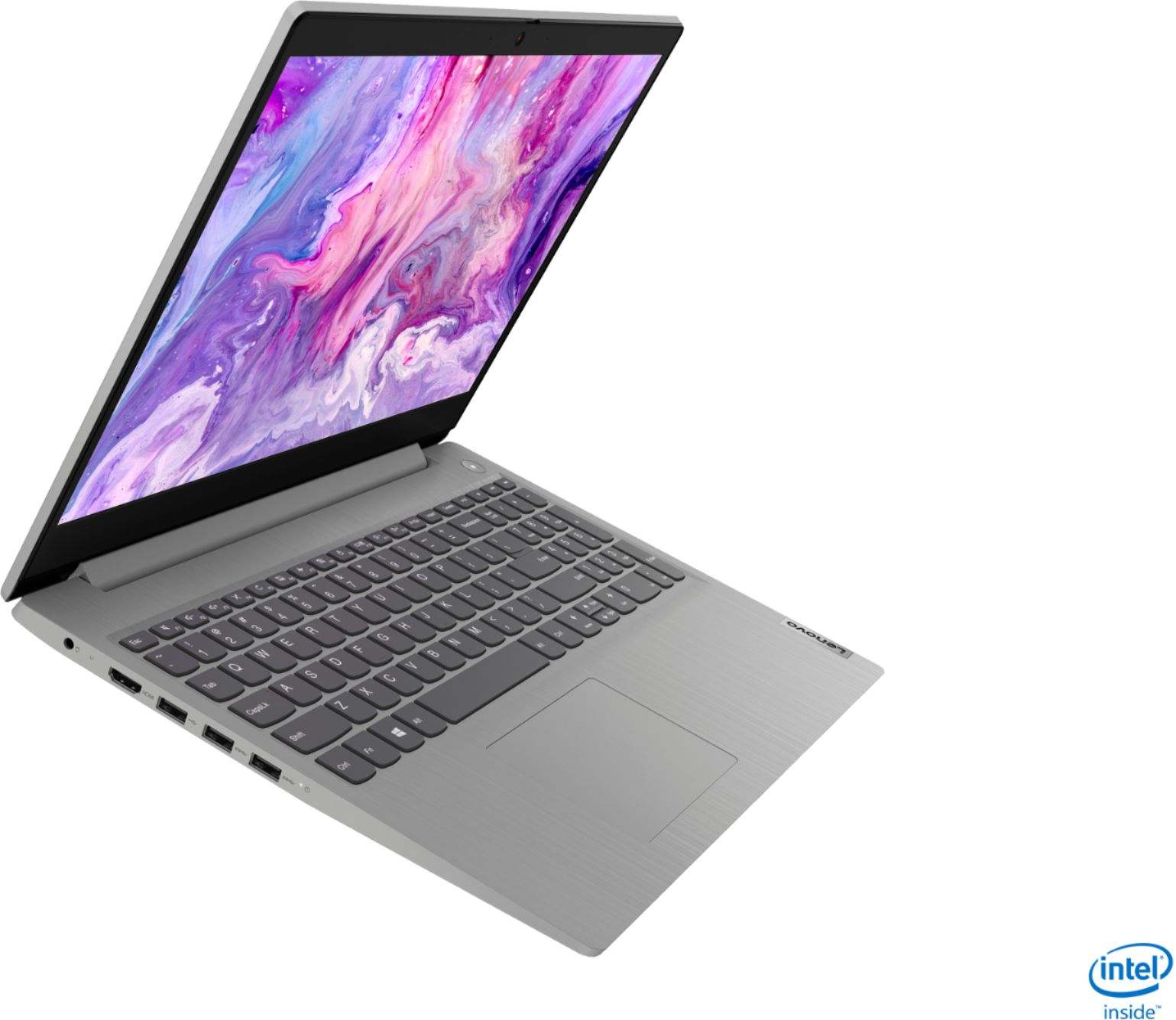
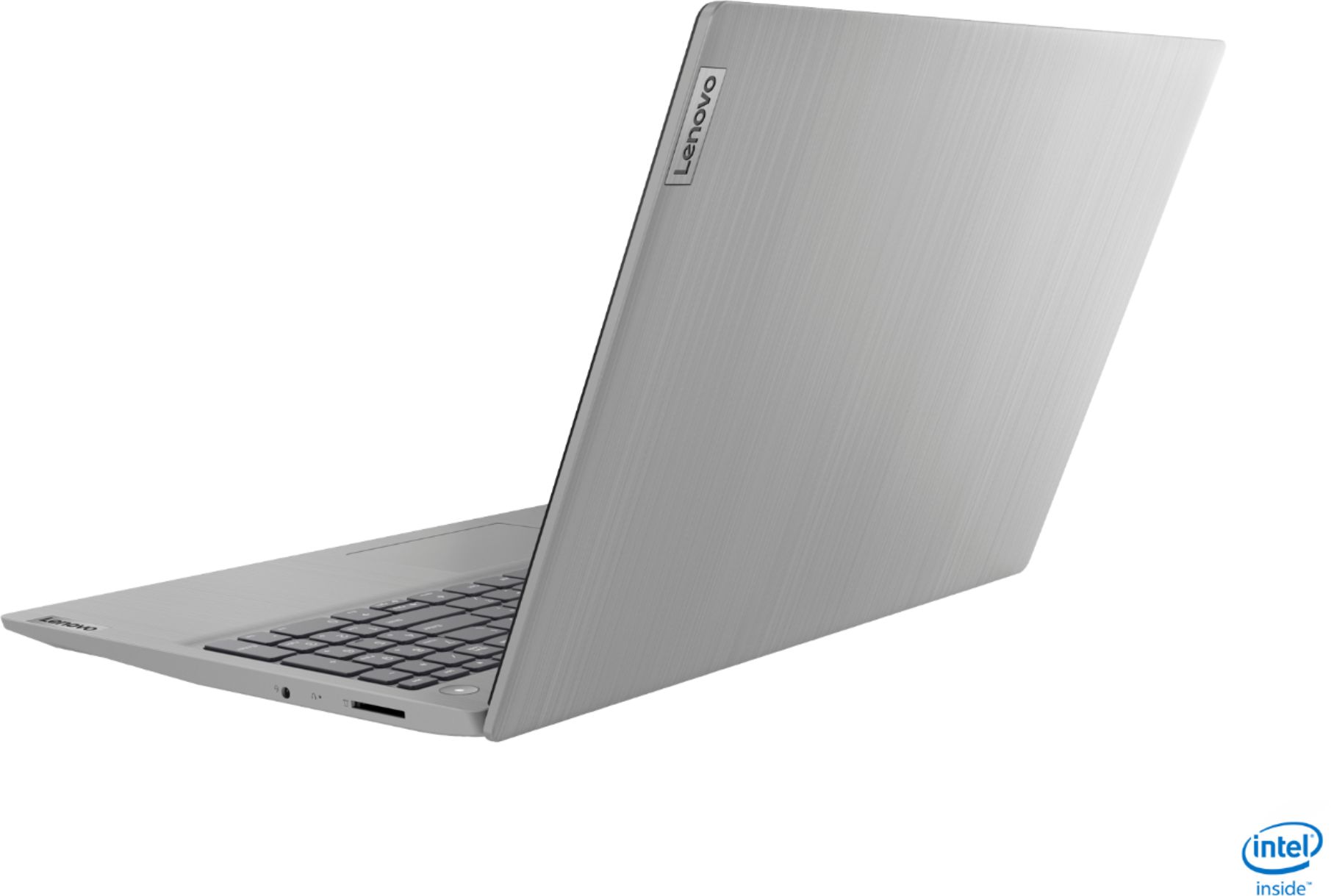
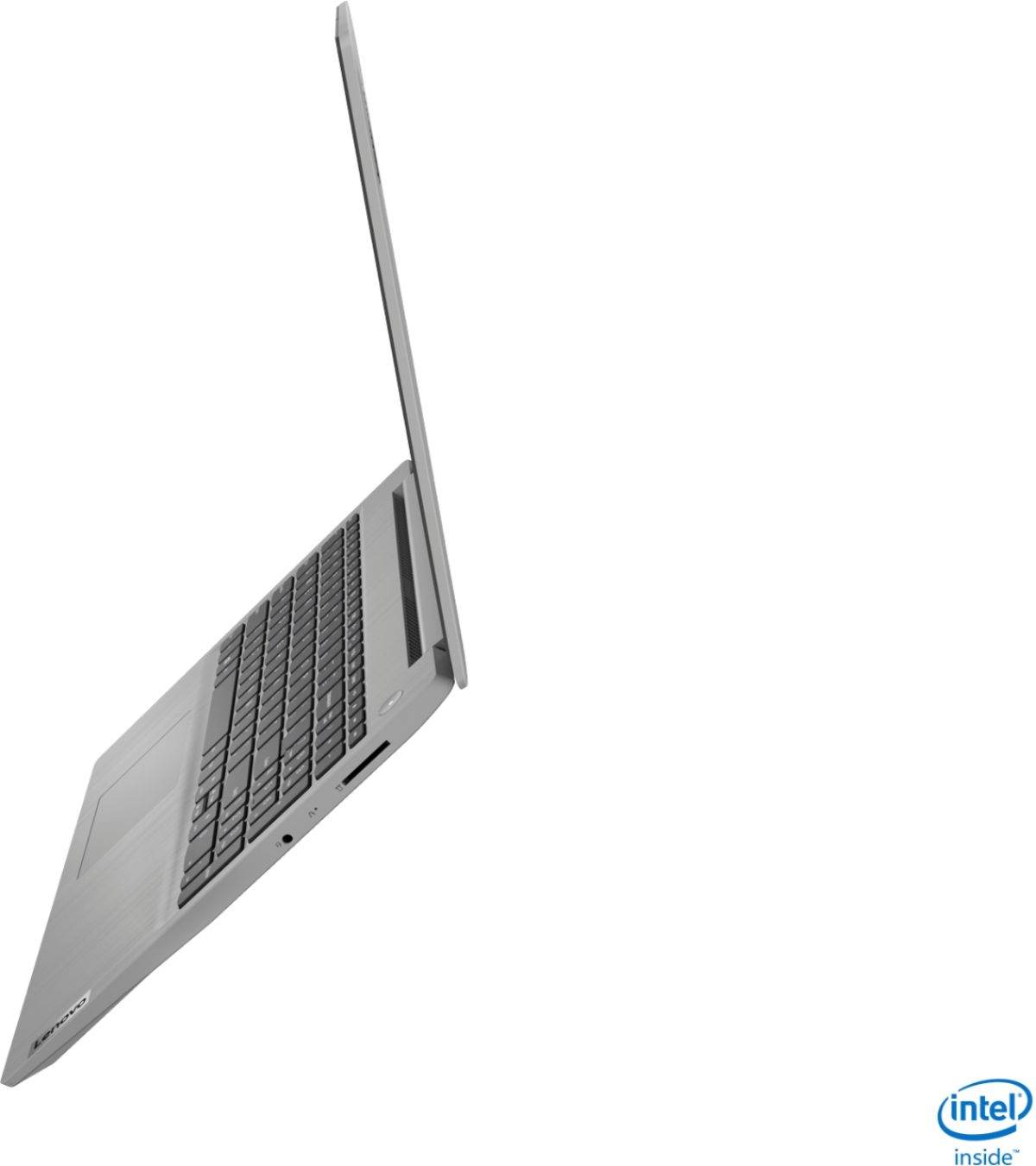
Posted .We are sorry to hear that you are having issues with your Lenovo IdeaPad 3 15 Laptop, model number 81WE011UUS. It is possible that resetting the computer back to original factory settings will correct the issues you are having. Since you can not use the keyboard to properly boot and navigate the system, this system is equipped with OneKey Recovery System. There is a very small pin hole on the right side of the device, right in between headphone jack and the SD card slot on the device. You will need a pin to push this reset button. Plug the device in. Let the battery charge for about 15 minutes. Push the reset button. The system should boot to a choice screen where you can choose "Restore To Factory Default". Select this. It will delete everything from the hard drive except the original factory install of the operating system. You will need to reinstall all programs and files after the reset. If you don't have copies of the files, try to make one before you restore by selecting "Boot to desktop" and trying to back up your files. Once you have the computer reset, be sure any software you installed is compatible with Windows 10. There is no need to install Microsoft Office software. The software is already part of the operating system, you just need to activate the software with a purchased product key. If you have installed a copy of Microsoft Office, this is conflicting with the existing copy on the system and this will slow your system down. If you have installed a 3rd party anti-virus program, be sure that Windows Defender is turned off and that the trial version of McAfee Anti-Virus software is uninstalled. There can only be one anti-virus program on the system. You may need to restore your system to original factory default settings if any of the programming errors have occurred. You can do that by typing "restore" in the Cortana search window. Just click on the magnifying glass icon at the bottom left of your Windows 10 Desktop. Click on "Reset This PC" Then click on "Get Started" and follow the on screen directions to restore to factory defaults. If the problem persists, we recommend you contact Lenovo Tech Support at: 877-453-6686.
Mic do not function and cam privacy shutter mising
||Posted . Owned for 2 months when reviewed.This reviewer received promo considerations or sweepstakes entry for writing a review.The mic do not work and it never worked since i bought it and I am having a case open with Lenovo support since 01/20/2021 to get it resolved, for some reason missed that i have returnable till 01/16/2021. The Privacy Shutter on webcam is broken from day one. I do feel very bad i missed the returnable and no i am stuck with this. Normally I always had great experience with Best Buy but this time not happy at all. I might have to think twice to go back to best buy again in future.
No, I would not recommend this to a friendBest value
||Posted . Owned for 1 month when reviewed.This reviewer received promo considerations or sweepstakes entry for writing a review.Best value. The online service of best buy sucks, I try to get this 4 times on line, they keep canceling my orthers at the end I went to the store,
I would recommend this to a friendpiece of junk.
||Posted . Owned for 2 months when reviewed.This reviewer received promo considerations or sweepstakes entry for writing a review.Laptop is the worse I've ever purchased, screen broke the first month I used it, Lenovo's warranty is nothing but a joke, Laptop is still repair pending. The second one I purchased the system board died within the first week, contacted warranty, still pending, so I ordered another system board myself, cost almost as much as a new laptop. I will never buy another Lenovo product again.
No, I would not recommend this to a friend- Cons mentioned:Battery life
STAY AWAY. NOT WORTH more than 150 bucks
||Posted .This reviewer received promo considerations or sweepstakes entry for writing a review.STAY AWAY FROM THIS. This laptop is horrible. Battery will not last more than two hours
No, I would not recommend this to a friendBrand response from Lenovo Product Expert
Posted .The Lenovo IdeaPad 3 15 Laptop, model number 81WE011UUS, ships with a 2CELL_35WH_INTERNAL, Lithium Polymer Battery, with a battery life of up to 7 hours, depending on the working the device is performing. If you are getting substantially less battery life, be sure Battery conservation Mode is turned off. This power management setting should only be used when the laptop is plugged in all the time. It will prolong overall battery life by only charging the battery to 60-percent of capacity. Here is a link to instructions for turning off Battery Conservation Mode: https://support.lenovo.com/us/en/solutions/ht103159. Also check what programs are running in the background on the computer. Be sure only the programs you want running in the background are. These programs will drain the battery. Here is a link to information about how to find out what programs are running in the background on your Windows 10 computer and how to manage them for better system performance: https://www.windowscentral.com/how-prevent-apps-running-background-windows-10. Then, finally, be sure any software you installed is compatible with Windows 10. Incompatible software will drain the battery at a faster rate. There is no need to install Microsoft Office software. The software is already part of the operating system, you just need to activate the software with a purchased product key. If you have installed a copy of Microsoft Office, this is conflicting with the existing copy on the system and this will slow your system down. If you have installed a 3rd party anti-virus program, be sure that Windows Defender is turned off and that the trial version of McAfee Anti-Virus software is uninstalled. There can only be one anti-virus program on the system. You may need to restore your system to original factory default settings if any of the programming errors have occurred. You can do that by typing "restore" in the Cortana search window. Just click on the magnifying glass icon at the bottom left of your Windows 10 Desktop. Click on "Reset This PC" Then click on "Get Started" and follow the on screen directions to restore to factory defaults. If the problem persists, we recommend you contact Lenovo Tech Support at: 877-453-6686.
- Cons mentioned:Battery life
Not recommended
||Posted . Owned for 9 months when reviewed.This reviewer received promo considerations or sweepstakes entry for writing a review.Battery not good, runs out fast, slow startup, bad internet connection
No, I would not recommend this to a friendBrand response from Lenovo Product Expert
Posted .The Lenovo IdeaPad 3 15 Laptop, model number 81WE011UUS, ships with a Integrated 35Wh, Lithium-Polymer Battery, which within this configuration, has a battery life of up to 7 hours, depending on the work the device is performing. If you are getting substantially less battery life, first, set your screen brightness at less than 100-percent - try 80-percent to start with. Then, be sure Battery conservation Mode is turned off. This power management setting should only be used when the laptop is plugged in all the time. It will prolong overall battery life by only charging the battery to 60-percent of capacity. Here is a link to instructions for turning off Battery Conservation Mode: https://support.lenovo.com/us/en/solutions/ht103159. Also check what programs are running in the background on the computer. Be sure only the programs you want running in the background are. These programs will drain the battery. Here is a link to information about how to find out what programs are running in the background on your Windows 10 computer and how to manage them for better system performance: https://www.windowscentral.com/how-prevent-apps-running-background-windows-10. Then, finally, be sure any software you installed is compatible with Windows 10. Incompatible software will drain the battery at a faster rate. There is no need to install Microsoft Office software. The software is already part of the operating system, you just need to activate the software with a purchased product key. If you have installed a copy of Microsoft Office, this is conflicting with the existing copy on the system and this will slow your system down. If you have installed a 3rd party anti-virus program, be sure that Windows Defender is turned off and that the trial version of McAfee Anti-Virus software is uninstalled. There can only be one anti-virus program on the system. You may need to restore your system to original factory default settings if any of the programming errors have occurred. You can do that by typing "restore" in the Cortana search window. Just click on the magnifying glass icon at the bottom left of your Windows 10 Desktop. Click on "Reset This PC" Then click on "Get Started" and follow the on screen directions to restore to factory defaults. If the problem persists, we recommend you contact Lenovo Tech Support at: 877-453-6686.
Not happy. Poor quality inspection.
||Posted .This reviewer received promo considerations or sweepstakes entry for writing a review.This was supposed to be an "open box" unit in excellent condition that was inspected by their blue crew. Unfortunately it looks like they just took a returned defective unit and sold it to me. The screen has vertical lines across the width of it. Kind of hard to miss. So my daughter's Christmas present is going back and since they are out of stock the price has gone way up.. super.
No, I would not recommend this to a friendGood for price
||Posted . Owned for 1 month when reviewed.This reviewer received promo considerations or sweepstakes entry for writing a review.Nice I brought for my daughter Christmas gift to be able to use for school
I would recommend this to a friendPoor battery performance
||Posted . Owned for 1 year when reviewed.This reviewer received promo considerations or sweepstakes entry for writing a review.Nice laptop but poor battery performance. Within 6 mos of purchase, battery life started dwindling even though system was configured to extend and preserve it. Now I have a laptop that must be plugged-in whenever it is used, a laptop turned desktop. Too bad, the device works well, is fast and easy to use, but no more Lenovo products for me.
No, I would not recommend this to a friendBrand response from Lenovo Product Expert
Posted .This Lenovo IdeaPad 3 15 Laptop,, model number 81WE011UUS, ships with a Integrated 35Wh, Lithium-Polymer Battery, which within this configuration, has a battery life of up to 7 hours, depending on the work the device is performing. If you are getting substantially less battery life, first, set your screen brightness at less than 100-percent - try 80-percent to start with. Then, be sure Battery conservation Mode is turned off. This power management setting should only be used when the laptop is plugged in all the time. It will prolong overall battery life by only charging the battery to 60-percent of capacity. Here is a link to instructions for turning off Battery Conservation Mode: https://support.lenovo.com/us/en/solutions/ht103159. Also check what programs are running in the background on the computer. Be sure only the programs you want running in the background are. These programs will drain the battery. Here is a link to information about how to find out what programs are running in the background on your Windows 10 computer and how to manage them for better system performance: https://www.windowscentral.com/how-prevent-apps-running-background-windows-10. Then, finally, be sure any software you installed is compatible with Windows 10. Incompatible software will drain the battery at a faster rate. There is no need to install Microsoft Office software. The software is already part of the operating system, you just need to activate the software with a purchased product key. If you have installed a copy of Microsoft Office, this is conflicting with the existing copy on the system and this will slow your system down. If you have installed a 3rd party anti-virus program, be sure that Windows Defender is turned off and that the trial version of McAfee Anti-Virus software is uninstalled. There can only be one anti-virus program on the system. You may need to restore your system to original factory default settings if any of the programming errors have occurred. You can do that by typing "restore" in the Cortana search window. Just click on the magnifying glass icon at the bottom left of your Windows 10 Desktop. Click on "Reset This PC" Then click on "Get Started" and follow the on screen directions to restore to factory defaults. If the problem persists, we recommend you contact Lenovo Tech Support at: 877-453-6686.
Light but useless with Zoom
||Posted . Owned for 3 weeks when reviewed.This reviewer received promo considerations or sweepstakes entry for writing a review.The good: It is light, starts up quickly, and has a nice keyboard. The bad: Unable to use with Zoom or any other web video calls as the video slows down then crashes. Also the screen has issues with constant flickering and going blank every 5 minutes. This lasts for 30 seconds then resets itself. A very bad experience with an expensive laptop. Will be returning it.
No, I would not recommend this to a friendBrand response from Lenovo Product Expert
Posted .Hello, we are sorry to hear you are experiencing this issue with your Lenovo IdeaPad 3 15" laptop. This model ships with Windows 10 S-Mode Operating System. Windows 10 S-Mode provides added security by only allowing APPs available (and therefore certified by Microsoft) at the Microsoft Store. If you do not need the added security or you need to install APPs not available at the Microsoft Store, you can switch to standard Windows 10 Home 64-bit Operating System, at no additional cost.: Here is a link to instructions for switching from Windows 10 S-Mode to Windows 10 Home: https://support.microsoft.com/en-us/help/4456067/windows-10-switch-out-of-s-mode . IF after switching out of S-Mode the issue persists please ensure you have the latest system software and device driver/ bios updates installed on your machine. You can easily accomplish this by scanning the computer with the Lenovo Utility software available on this computer. This system has Lenovo utilities installed to help maintain the health of the device and keep the operating system software up to date. Type "Lenovo Vantage" in the Cortana Search window (if Lenovo Vantage is not installed on your device, you can download the APP and install it now). Select Lenovo Vantage from the list. In the window that opens, click on "Health and Support". In the expanded menu, select "Hardware Scan” In the window that opens, select "Run Quick Tests". This will scan your entire system for errors. Follow any directions that may pop up. If the problem continues after this scan, now click on "System Update". First select Windows update from the menu. Scan your system to be sure you have the latest version of Windows 10. Once that scan is complete, select "Additional Updates". This will scan your device to be sure there are no new BIOS/Driver updates needed. Follow any instructions that may pop up. If the issue continues after these updates, we recommend you call Lenovo Tech Support at: 877-453-6686 for additional help.
Laptop
||Posted . Owned for 1 month when reviewed.This reviewer received promo considerations or sweepstakes entry for writing a review.This was a terrible laptop!! Bought it as a black Friday purchase and it lasted 3 weeks. Screen went black and would not come out of sleep mode. I bought it because it was recommended by a bestbuy employee. Now I have to get a new computer and pay full price and not be able to take advantage of Black Friday prices. I’ll be sticking with Amazon from here on out.
No, I would not recommend this to a friendBrand response from Lenovo Product Expert
Posted .We are sorry to hear that you are having issues with your Lenovo IdeaPad 3 15 Laptop, model number 81WE011UUS. It is possible that resetting your computer back to original factory settings will correct the issue you describe. Since you can no longer boot the computer, this system is equipped with OneKey Recovery System. There is a very small pin hole on the right side of the device, right in between the headphone jack and the SD card slot on the device. You will need a pin to push this reset button. Plug the device in. Let the battery charge for about 15 minutes. Push the reset button. The system should boot to a choice screen where you can choose "Restore To Factory Default". Select this. It will delete everything from the hard drive except the original factory install of the operating system. You will need to reinstall all programs and files after the reset. If you don't have copies of the files, try to make one before you restore by selecting "Boot to desktop" and trying to back up your files. Once you have the computer reset, be sure any software you installed is compatible with Windows 10. There is no need to install Microsoft Office software. The software is already part of the operating system, you just need to activate the software with a purchased product key. If you have installed a copy of Microsoft Office, this is conflicting with the existing copy on the system and this will slow your system down. If you have installed a 3rd party anti-virus program, be sure that Windows Defender is turned off and that the trial version of McAfee Anti-Virus software is uninstalled. There can only be one anti-virus program on the system. You may need to restore your system to original factory default settings if any of the programming errors have occurred. You can do that by typing "restore" in the Cortana search window. Just click on the magnifying glass icon at the bottom left of your Windows 10 Desktop. Click on "Reset This PC" Then click on "Get Started" and follow the on screen directions to restore to factory defaults. If the problem persists, we recommend you contact Lenovo Tech Support at: 877-453-6686.
Not Great
||Posted . Owned for 3 weeks when reviewed.This reviewer received promo considerations or sweepstakes entry for writing a review.non functional could not hold a charge battery died in minutes after unplugging. Slow interface
No, I would not recommend this to a friendAbsolute trash, Windows S mode is not a real OS
||Posted . Owned for 1 month when reviewed.This reviewer received promo considerations or sweepstakes entry for writing a review.Has WIndows S mode. This fact is not Clear upon purchase. It is not real computer, as an owner of a computer store for 15 years I highly distrust the reviews on this item. WIndows S mode is not a real copy of windows and there is no way this many people are ok with not being able to install programs. It is a long drive to return this pile of junk.
No, I would not recommend this to a friendBrand response from Lenovo Product Expert
Posted .The Lenovo IdeaPad 3 15 Laptop, model number 81WE011UUS, ships with Windows 10 S-Mode 64-bit Operating System. Windows 10 S-Mode provides added security by only allowing APPs available ( and therefore certified by Microsoft) at the Microsoft Store. If you don't need the added security or you need to install APPs not available at the Microsoft Store, you can switch to standard Windows 10 Home 64-bit Operating System, at no additional cost. Here is a link to instructions for switching from Windows 10 S-Mode to Windows 10 Home: https://support.microsoft.com/en-us/help/4456067/windows-10-switch-out-of-s-mode
Hate this computer
||Posted . Owned for 2 months when reviewed.This reviewer received promo considerations or sweepstakes entry for writing a review.Horrible computer I really hope I'm able to return it I keep getting the blue screen of death
No, I would not recommend this to a friendBrand response from Lenovo Product Expert
Posted .We are sorry to hear that you are having issues with your Lenovo IdeaPad 3 15 Laptop, model number 81WE011UUS. This model ships with Windows 10 S-Mode Operating System. Windows 10 S-Mode provides added security by only allowing APPs available ( and therefore certified by Microsoft) at the Microsoft Store. If you don't need the added security or you need to install APPs not available at the Microsoft Store, you can switch to standard Windows 10 Home 64-bit Operating System, at no additional cost. Even if you have switched out of S-Mode, be sure any software you installed is compatible with Windows 10. There is no need to install Microsoft Office software. The software is already part of the operating system, you just need to activate the software with a purchased product key. If you have installed a copy of Microsoft Office, this is conflicting with the existing copy on the system and this will slow your system down. If you have installed a 3rd party anti-virus program, be sure that Windows Defender is turned off and that the trial version of McAfee Anti-Virus software is uninstalled. There can only be one anti-virus program on the system. You may need to restore your system to original factory default settings if any of the programming errors have occurred. You can do that by typing "restore" in the Cortana search window. Just click on the magnifying glass icon at the bottom left of your Windows 10 Desktop. Click on "Reset This PC" Then click on "Get Started" and follow the on screen directions to restore to factory defaults. If the problem persists, we recommend you contact Lenovo Tech Support at: 877-453-6686.
Returned
||Posted . Owned for 3 weeks when reviewed.This reviewer received promo considerations or sweepstakes entry for writing a review.It wasnt the computer but the lady who helped me was not at all what i told her i wanted
No, I would not recommend this to a friendDon’t buy
||Posted . Owned for 1 month when reviewed.This reviewer received promo considerations or sweepstakes entry for writing a review.Tried to replace the open box one I had that was malfunctioning, but this was worse I feel like the holiday discounted computers must’ve been the reject computers from the company. It had more hardware issues than the open box issue with keyboards. I’ve bought many computers from Best Buy and this was the worst experience ever.
No, I would not recommend this to a friendMrs
||Posted . Owned for 1 month when reviewed.This reviewer received promo considerations or sweepstakes entry for writing a review.I have had nothing but problems with Outlook and will never buy this brand again. When I went to geek squad they said they couldn’t help with Outlook. Can I return it and get a better computer? I will be buying a new computer no matter what. This is the first time I have ever been unhappy with something I bought at Best Buy.
No, I would not recommend this to a friendBrand response from Lenovo Product Expert
Posted .Hi there, we are sorry to hear you are having this experience with Outlook on your Lenovo Idea Pad 3 15" laptop. We understand how frustrating it can be when your e-mail isn't working right. Outlook is a Microsoft product. Lenovo laptops use Microsoft Windows 10. If you are having issues with Outlook it is most likely a Windows issue. At this time we don't have any reports of there being a Outlook issue specific to Lenovo Computers. We recommend checking out this Article that was posted on 12/7/2020 by Microsoft titled "Fixes or workarounds for recent issues on Outlook" https://support.microsoft.com/en-us/office/fixes-or-workarounds-for-recent-issues-on-outlook-com-8c95d913-d96b-4065-9171-e1fa44b03ff5
- Cons mentioned:Battery life
Battery review
||Posted . Owned for 3 weeks when reviewed.This reviewer received promo considerations or sweepstakes entry for writing a review.Battery runs down too quickly need to review batteries
No, I would not recommend this to a friendBrand response from Lenovo Product Expert
Posted .Hello, the Lenovo IDeaPad 3 15" laptop model # 81WE011UUS features a battery life of up to 7.5 hours. If you are getting substantially less battery life, please adjust your screen brightness settings. A setting of 100% brightness will drain your battery much faster than a lower setting. We recommend setting the screen brightness to some value below 100% that is still comfortable for you to view. Next be sure Battery conservation Mode is turned off. This power management setting should only be used when the laptop is plugged in all the time. It will prolong overall battery life by only charging the battery to 60-percent of capacity. Here is a link to instructions for turning off Battery Conservation Mode: https://support.lenovo.com/us/en/solutions/ht103159. Also check what programs are running in the background on the computer. Be sure only the programs you want running in the background are. These programs will drain the battery. Here is a link to information about how to find out what programs are running in the background on your Windows 10 computer and how to manage them for better system performance: https://www.windowscentral.com/how-prevent-apps-running-background-windows-10. Then, finally, be sure any software you installed is compatible with Windows 10. Incompatible software will drain the battery at a faster rate. There is no need to install Microsoft Office software. The software is already part of the operating system, you just need to activate the software with a purchased product key. If you have installed a copy of Microsoft Office, this is conflicting with the existing copy on the system and this will slow your system down. If you have installed a 3rd party anti-virus program, be sure that Windows Defender is turned off and that the trial version of McAfee Anti-Virus software is uninstalled. There can only be one anti-virus program on the system. You may need to restore your system to original factory default settings if any of the programming errors have occurred. You can do that by typing "restore" in the Cortana search window. Just click on the magnifying glass icon at the bottom left of your Windows 10 Desktop. Click on "Reset This PC" Then click on "Get Started" and follow the on screen directions to restore to factory defaults. If the problem persists, we recommend you contact Lenovo Tech Support at: 877-453-6686.