Customer Ratings & Reviews
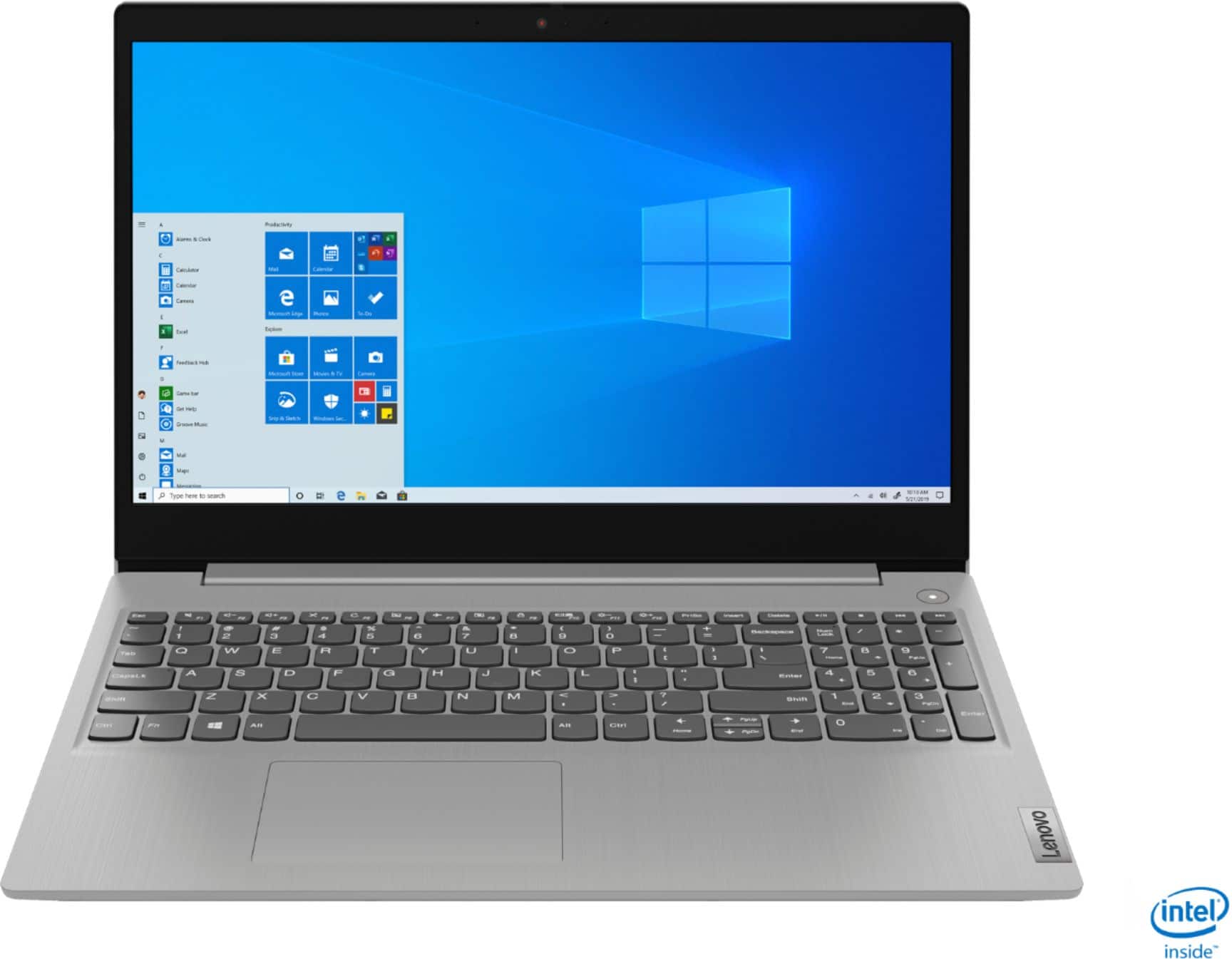
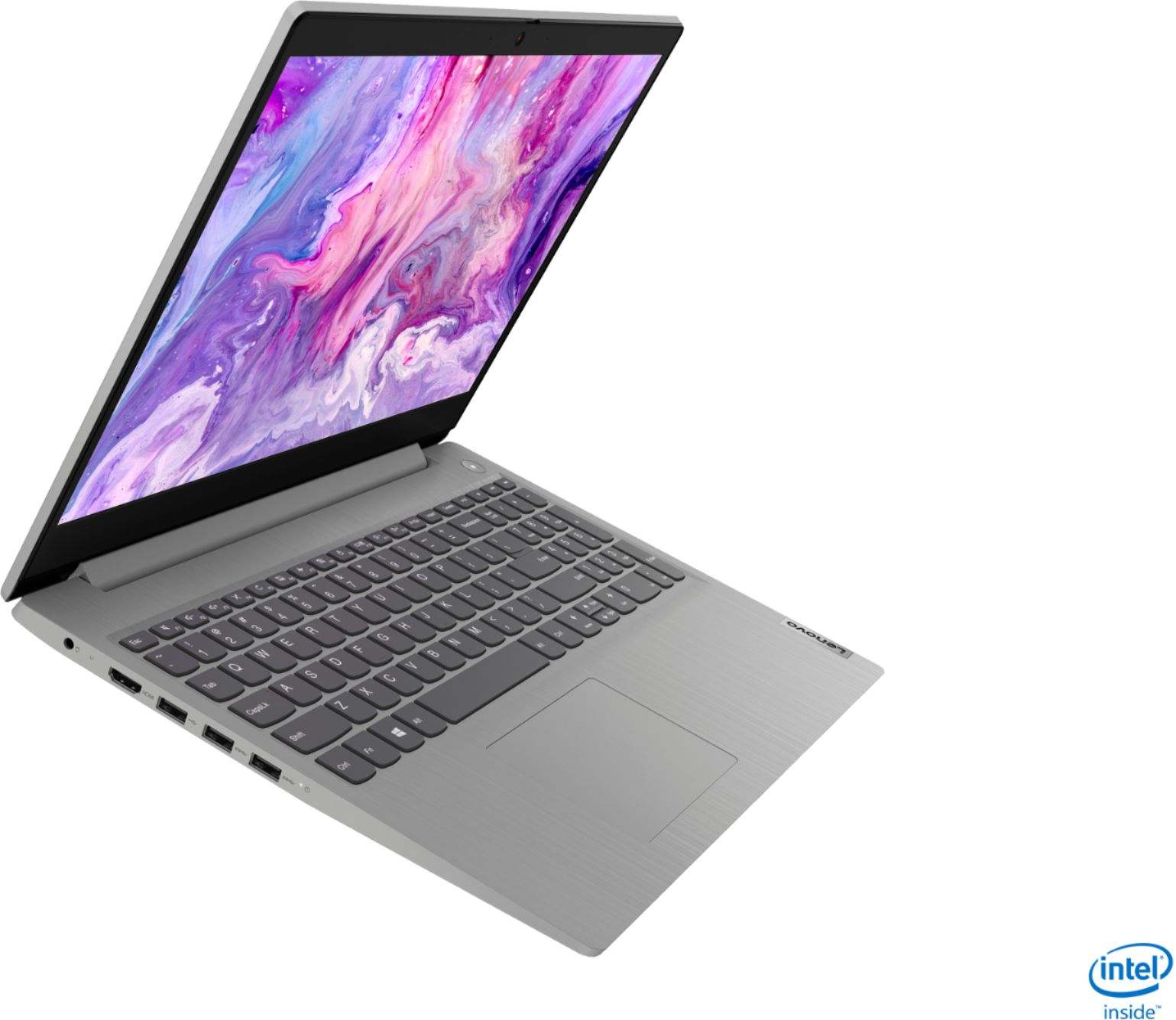
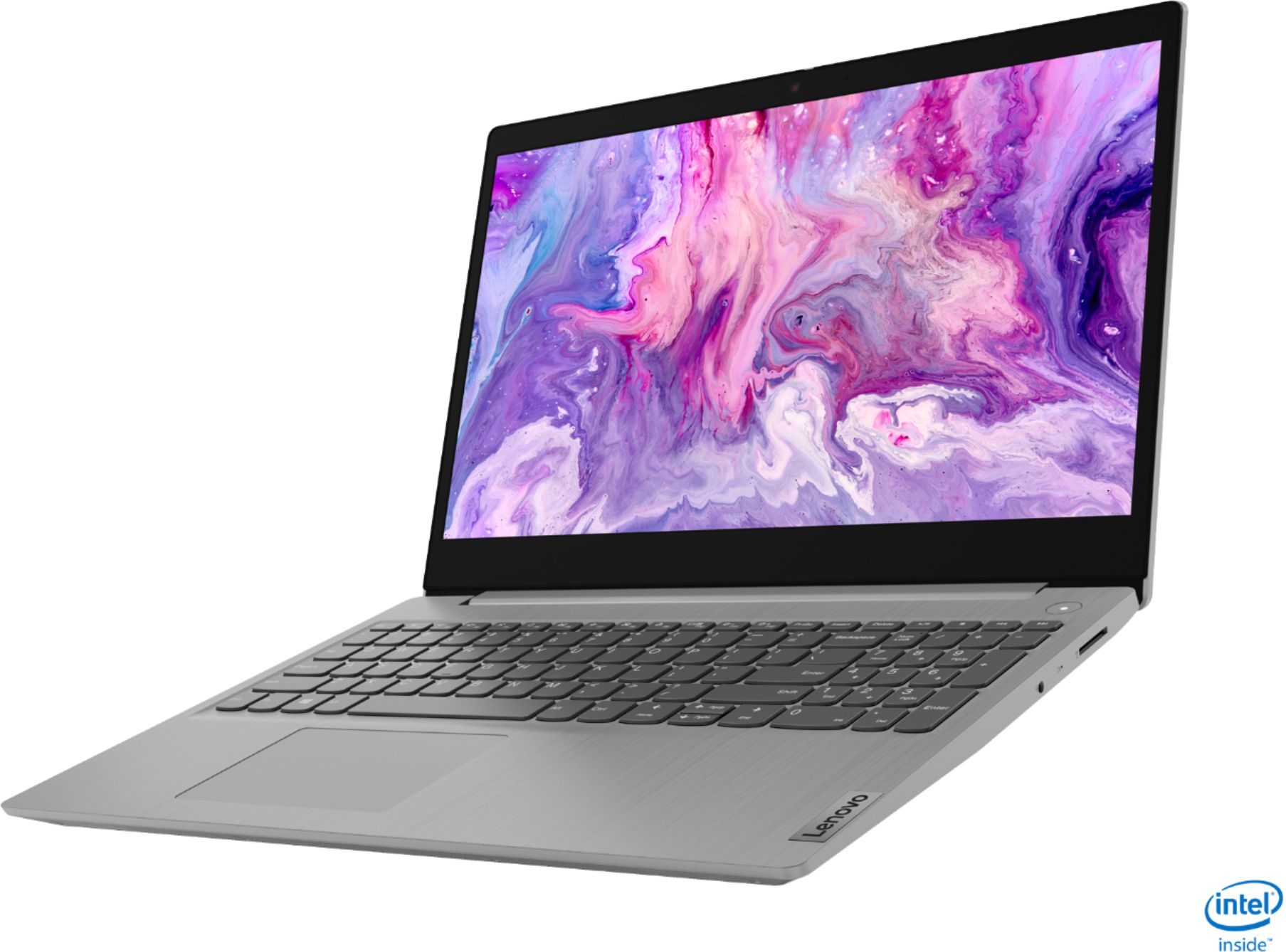
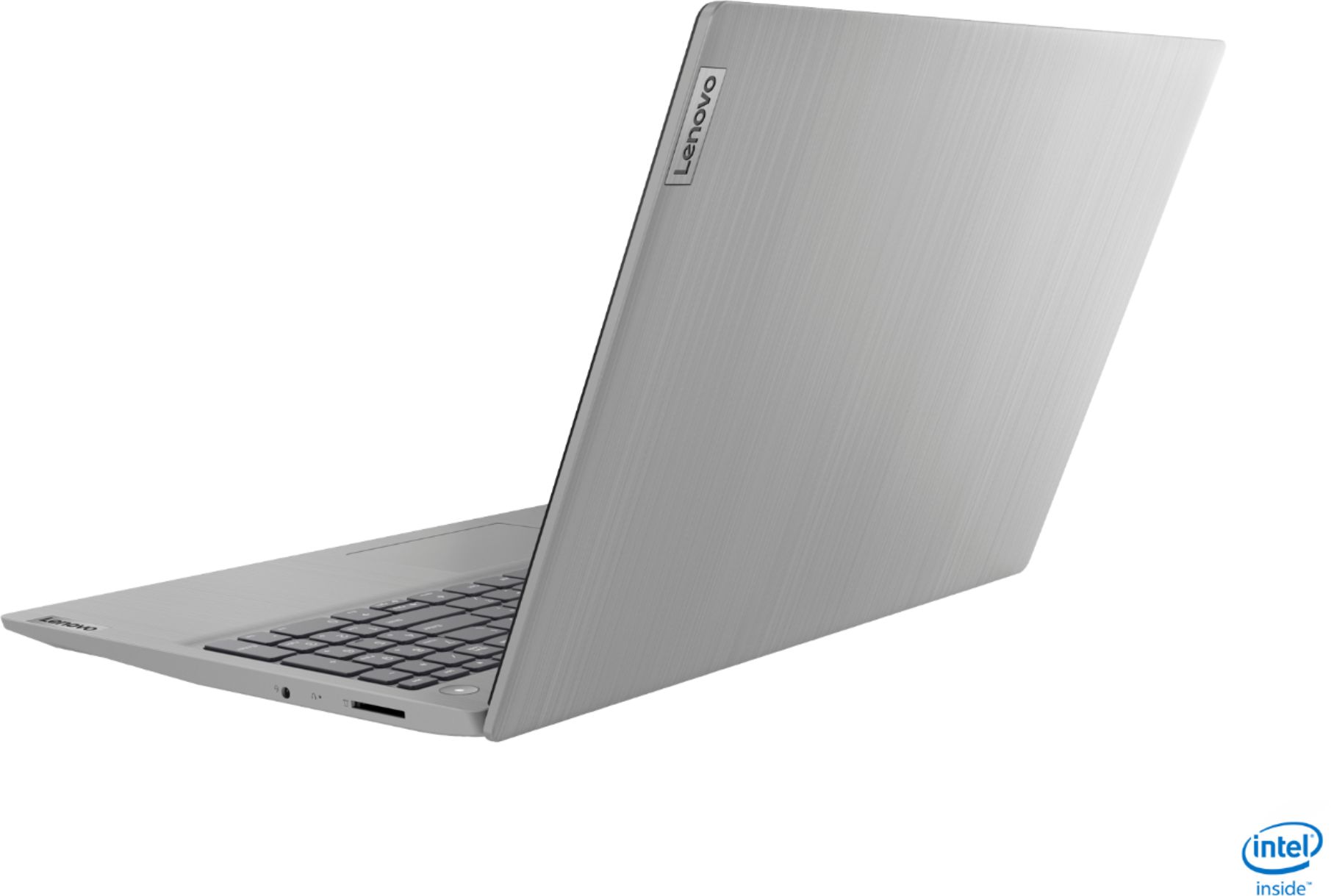
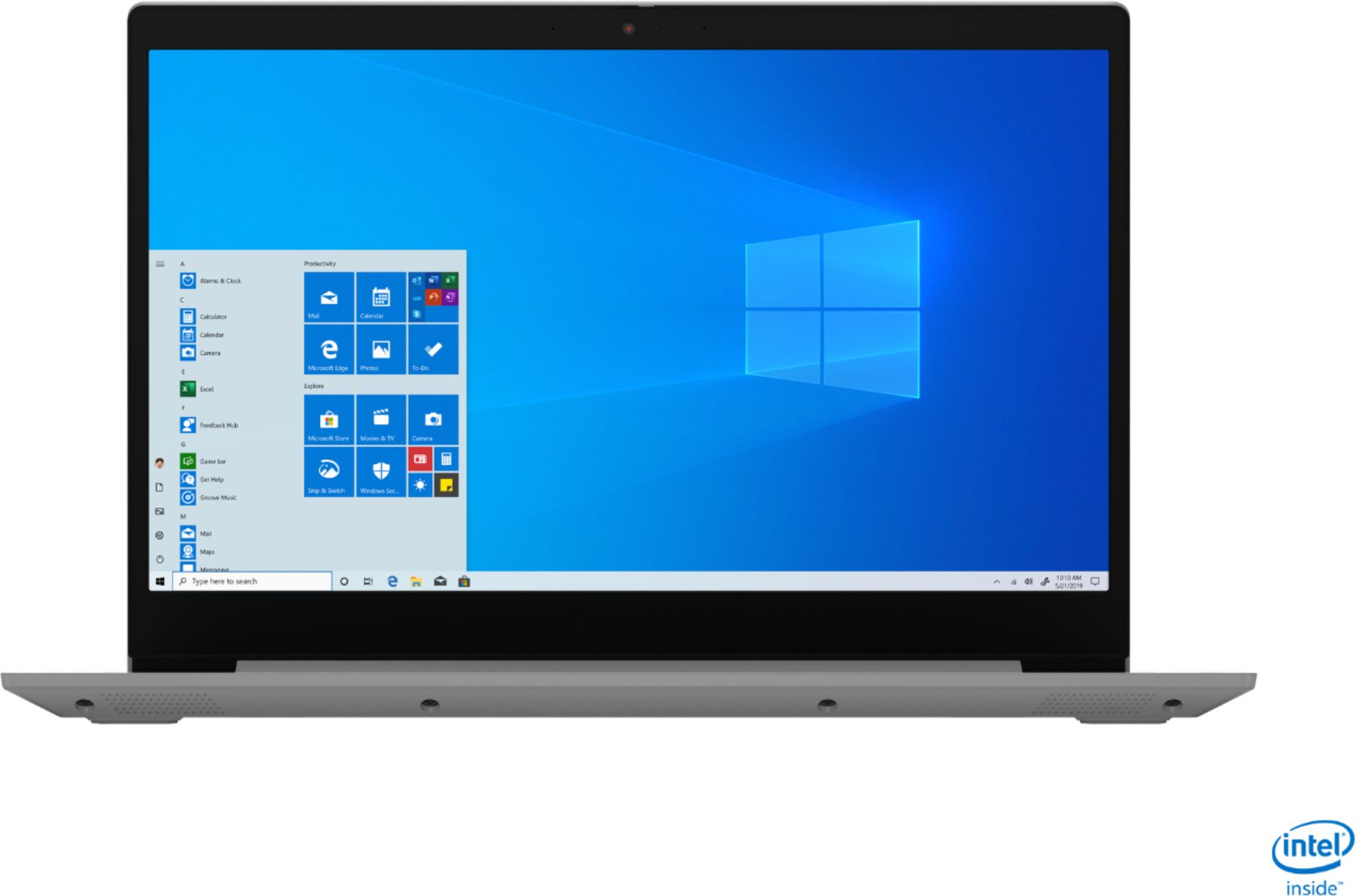
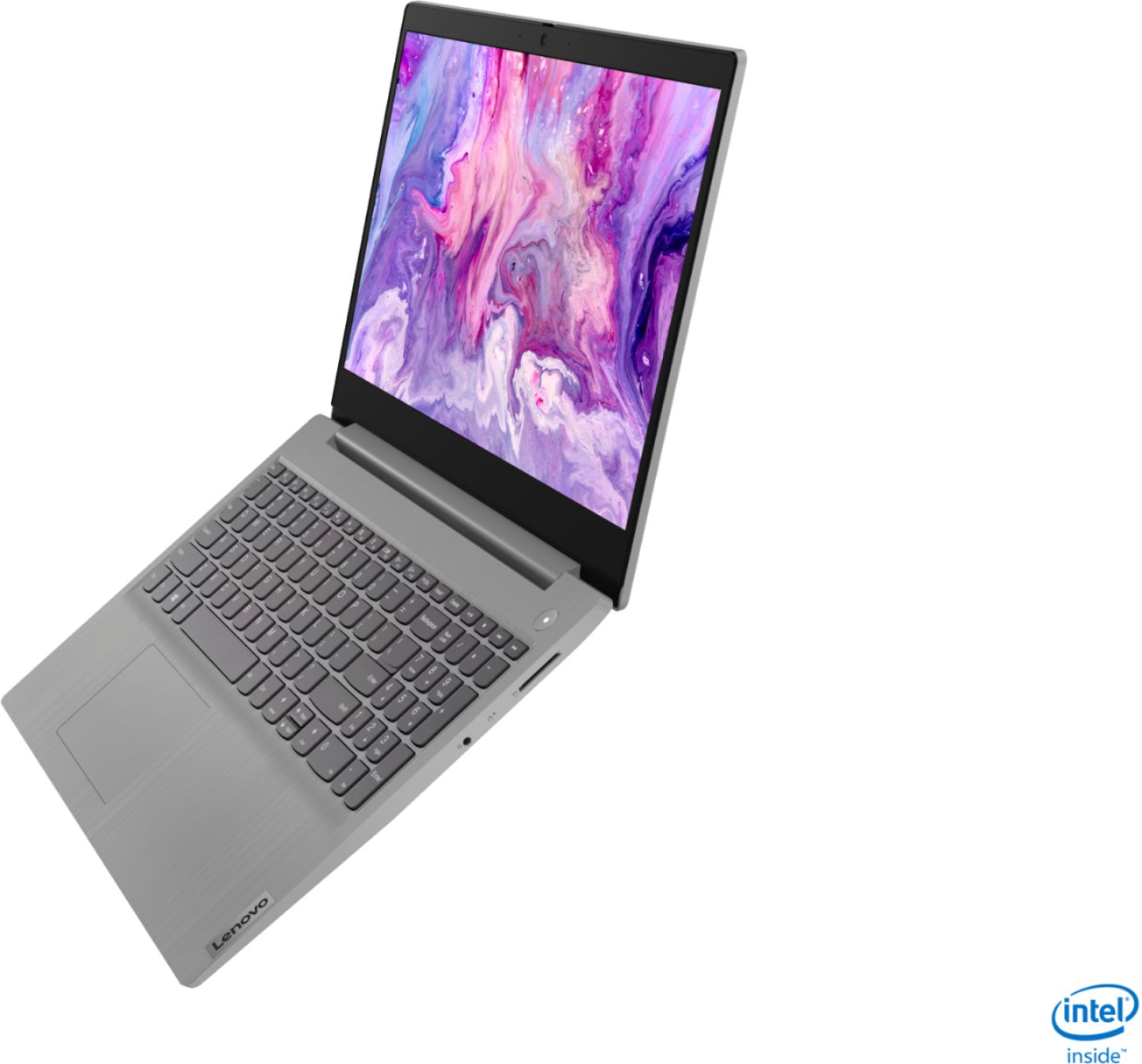
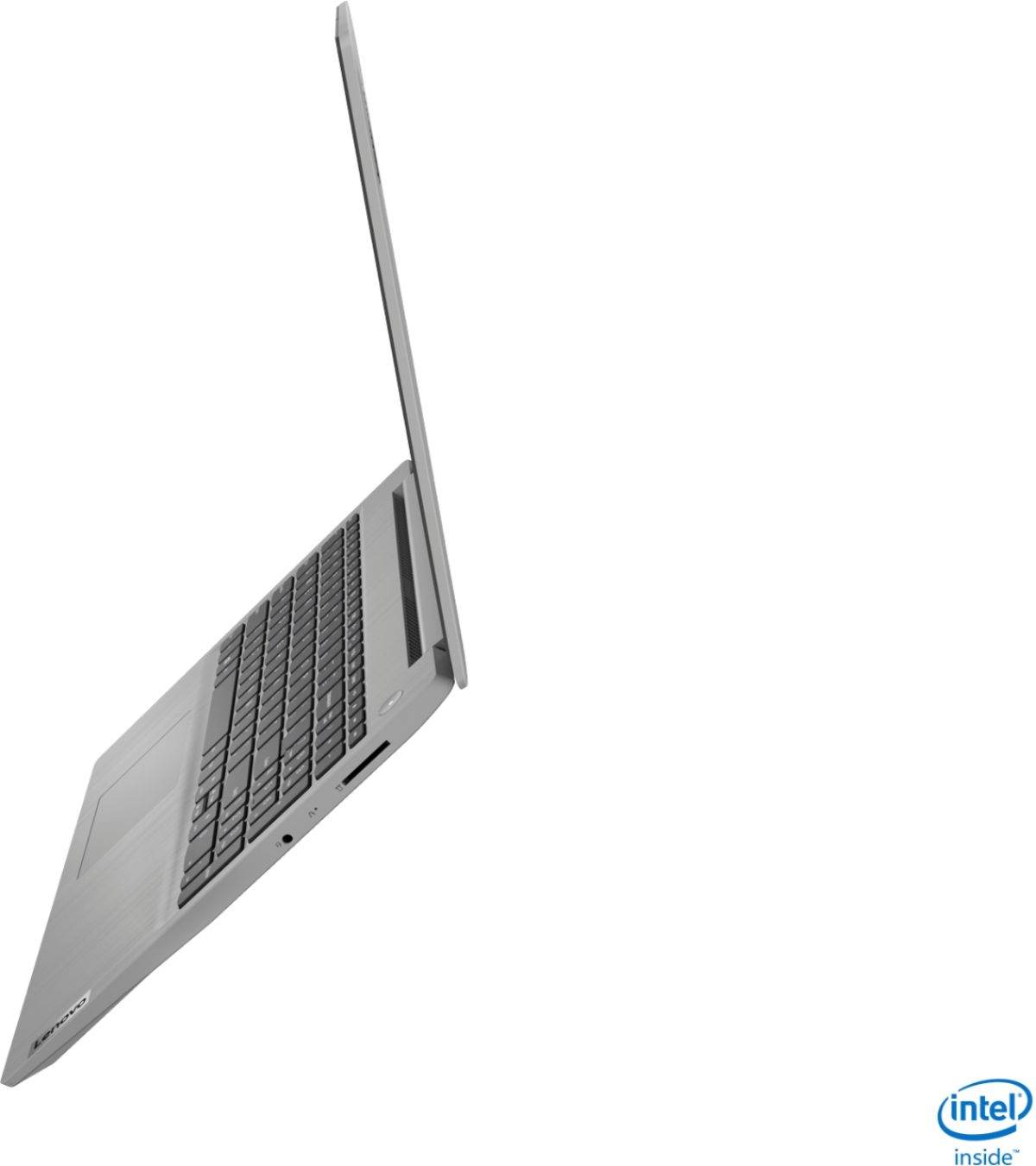


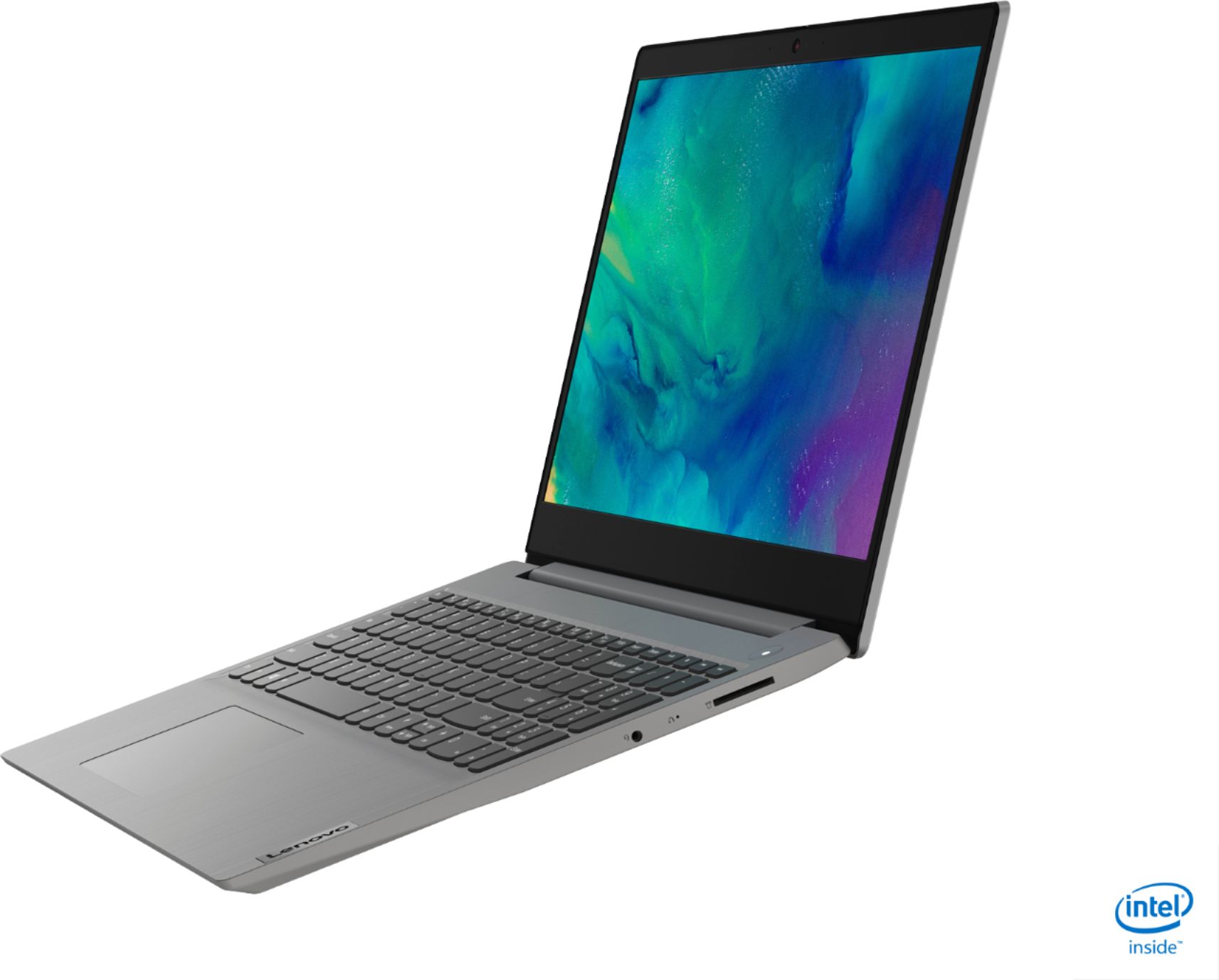


- Model:
- 81WE011UUS
- SKU:
- 6426707
Rating by feature
- Battery Life
Rating 4.2 out of 5 stars
- Speed
Rating 4.4 out of 5 stars
- Display
Rating 4.5 out of 5 stars
Customers are saying
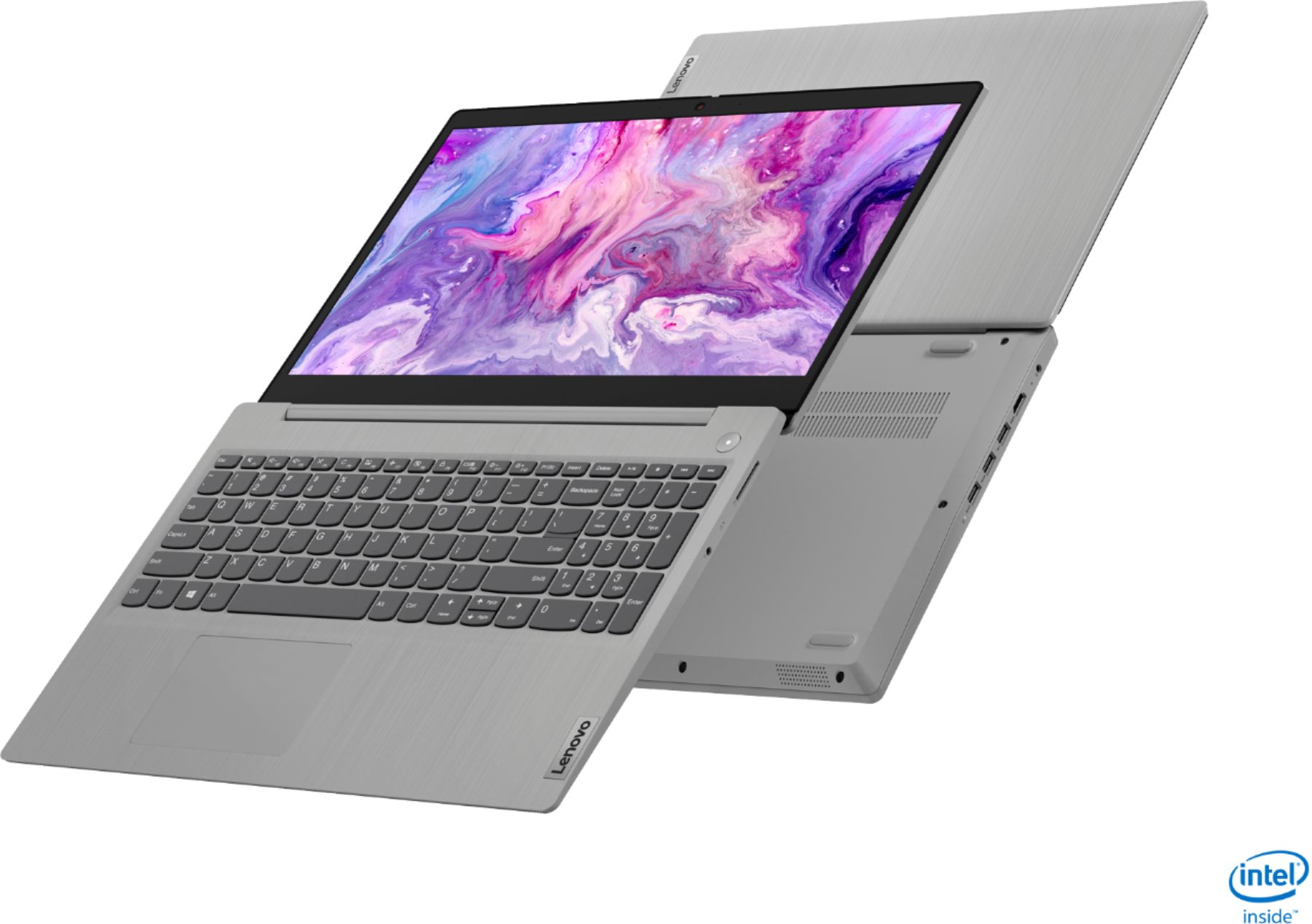
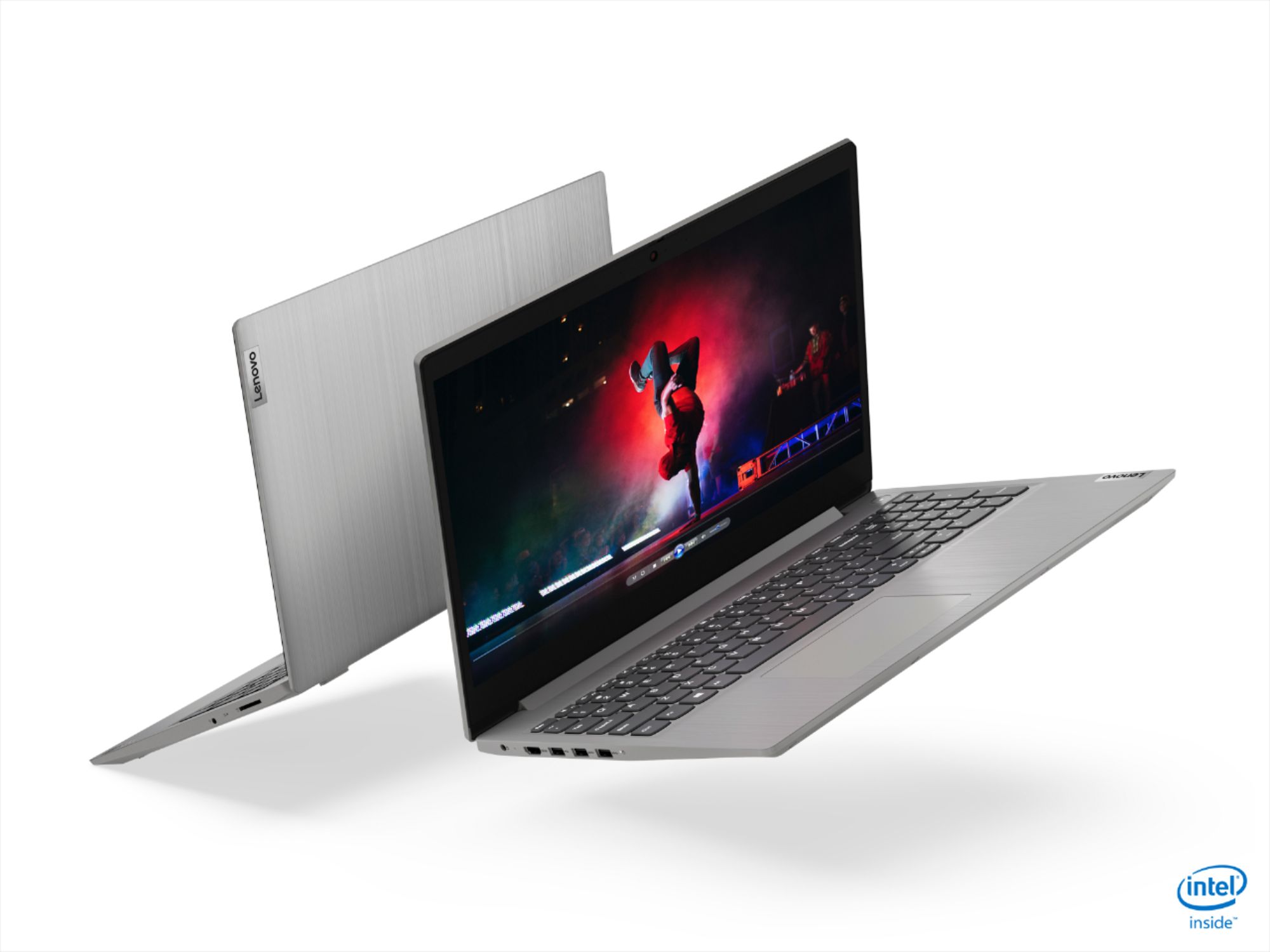
Customers often highlight the IdeaPad 3 15" Laptop's affordability, user-friendly interface, and lightweight design as its main advantages. Many users appreciate its clear screen and satisfactory performance. However, some users have concerns about its battery life, build quality, and the initial difficulty in disabling S mode.
This summary was generated by AI based on customer reviews.
- Pros mentioned:Lightweight
Merry Christmas
||Posted .This reviewer received promo considerations or sweepstakes entry for writing a review.I love my new computer. It is easy to navigate and I love how light it is. Having tech support and virus protection with this purchase is a bonus.
I would recommend this to a friendBrand response from Lenovo Product Expert
Posted .Thank you for choosing the Lenovo IdeaPad 3 15 Laptop, model number 81WE011UUS. We are pleased to hear that the ease of use and performance of the IdeaPad 3 15 meets your computing needs so well.

- Pros mentioned:Speed
Great computer
||Posted . Owned for 1 year when reviewed.This reviewer received promo considerations or sweepstakes entry for writing a review.Great gaming computer. My son loves this laptop. Very convenient and pretty fast. No issues with it so far. Not a bad price either.
I would recommend this to a friend - Pros mentioned:Speed
Great product
||Posted . Owned for 1 month when reviewed.This reviewer received promo considerations or sweepstakes entry for writing a review.This computer was a gift for my son. He loves computer games and he says the computer is fast and runs really good. I totally recommend this product.
I would recommend this to a friendBrand response from Lenovo Product Expert
Posted .Thank you for choosing the lenovo IdeaPad 3 15 Laptop for your son. We are pleased to hear that the IdeaPad 3 15 meets your son's computing needs so well.
- Pros mentioned:Speed
Perfect
||Posted . Owned for less than 1 week when reviewed.This reviewer received promo considerations or sweepstakes entry for writing a review.This amazing laptop has all that I need to do homework and it’s very fast. Does not slow down at all for any reason. It’s slick and very well designed.
I would recommend this to a friend - Cons mentioned:Battery life
Good purchase
||Posted . Owned for 1 month when reviewed.This reviewer received promo considerations or sweepstakes entry for writing a review.I have never been a laptop person but I will say I needed a laptop and didn't know what to look for. This laptop is awesome only con is that the battery dies quickly.
I would recommend this to a friendBrand response from Lenovo Product Expert
Posted .Thank you for choosing the Lenovo IdeaPad 3 15 Laptop, model number 81WE011UUS. This model ships with a Integrated 35Wh, Lithium-Polymer Battery, which within this configuration, has a battery life of up to 7 hours, depending on the work the device is performing. If you are getting substantially less battery life, first, set your screen brightness at less than 100-percent - try 80-percent to start with. Then, be sure Battery conservation Mode is turned off. This power management setting should only be used when the laptop is plugged in all the time. It will prolong overall battery life by only charging the battery to 60-percent of capacity. Here is a link to instructions for turning off Battery Conservation Mode: https://support.lenovo.com/us/en/solutions/ht103159. Also check what programs are running in the background on the computer. Be sure only the programs you want running in the background are. These programs will drain the battery. Here is a link to information about how to find out what programs are running in the background on your Windows 10 computer and how to manage them for better system performance: https://www.windowscentral.com/how-prevent-apps-running-background-windows-10. Then, finally, be sure any software you installed is compatible with Windows 10. Incompatible software will drain the battery at a faster rate. There is no need to install Microsoft Office software. The software is already part of the operating system, you just need to activate the software with a purchased product key. If you have installed a copy of Microsoft Office, this is conflicting with the existing copy on the system and this will slow your system down. If you have installed a 3rd party anti-virus program, be sure that Windows Defender is turned off and that the trial version of McAfee Anti-Virus software is uninstalled. There can only be one anti-virus program on the system. You may need to restore your system to original factory default settings if any of the programming errors have occurred. You can do that by typing "restore" in the Cortana search window. Just click on the magnifying glass icon at the bottom left of your Windows 10 Desktop. Click on "Reset This PC" Then click on "Get Started" and follow the on screen directions to restore to factory defaults. If the problem persists, we recommend you contact Lenovo Tech Support at: 877-453-6686.
- Pros mentioned:Speed
Perfect Laptop
||Posted . Owned for 3 weeks when reviewed.This reviewer received promo considerations or sweepstakes entry for writing a review.Excellent computer to do most of the stuff. It's just not quad core, otherwise it's a perfect laptop with top speed for single thread applications.
I would recommend this to a friend - Pros mentioned:Speed
Does what I need
||Posted .This reviewer received promo considerations or sweepstakes entry for writing a review.Fastest laptop I've owned in the past I've had HP laptops with AMD processers I use it for Facebook and listening to music mainly does the job for me
I would recommend this to a friend - Pros mentioned:Lightweight
Just what I needed!
||Posted . Owned for 1 month when reviewed.This reviewer received promo considerations or sweepstakes entry for writing a review.This computer is just what I needed - a faster experience than my old one, which was really bogging down. I like that it is lightweight and quiet.
I would recommend this to a friendBrand response from Lenovo Product Expert
Posted .Hello. Thank you for choosing the Lenovo IdeaPad 3 laptop. We are pleased to hear that the value and performance of the IdeaPad 3 meets your computing needs so well!
- Cons mentioned:Battery life
Great Laptop for the price
||Posted . Owned for less than 1 week when reviewed.This reviewer received promo considerations or sweepstakes entry for writing a review.Everything works great. only battery seems to be draining fast, but would still give 5 for the price paid.
I would recommend this to a friendBrand response from Lenovo Product Expert
Posted .Thank you for choosing the Lenovo IdeaPad 3 laptop. We are pleased to hear that the value and performance of the IdeaPad 3 meets your computing needs so well! The Lenovo IdeaPad 3 15 Laptop, model number 81WE011UUS, ships with a 2CELL_35WH_INTERNAL, Lithium Polymer Battery, with a battery life of up to 7 hours, depending on the working the device is performing. If you are getting substantially less battery life, be sure Battery conservation Mode is turned off. This power management setting should only be used when the laptop is plugged in all the time. It will prolong overall battery life by only charging the battery to 60-percent of capacity. Here is a link to instructions for turning off Battery Conservation Mode: https://support.lenovo.com/us/en/solutions/ht103159. Also check what programs are running in the background on the computer. Be sure only the programs you want running in the background are. These programs will drain the battery. Here is a link to information about how to find out what programs are running in the background on your Windows 10 computer and how to manage them for better system performance: https://www.windowscentral.com/how-prevent-apps-running-background-windows-10. Then, finally, be sure any software you installed is compatible with Windows 10. Incompatible software will drain the battery at a faster rate. There is no need to install Microsoft Office software. The software is already part of the operating system, you just need to activate the software with a purchased product key. If you have installed a copy of Microsoft Office, this is conflicting with the existing copy on the system and this will slow your system down. If you have installed a 3rd party anti-virus program, be sure that Windows Defender is turned off and that the trial version of McAfee Anti-Virus software is uninstalled. There can only be one anti-virus program on the system. You may need to restore your system to original factory default settings if any of the programming errors have occurred. You can do that by typing "restore" in the Cortana search window. Just click on the magnifying glass icon at the bottom left of your Windows 10 Desktop. Click on "Reset This PC" Then click on "Get Started" and follow the on screen directions to restore to factory defaults. If the problem persists, we recommend you contact Lenovo Tech Support at: 877-453-6686.
Lenova
||Posted . Owned for 3 weeks when reviewed.This reviewer received promo considerations or sweepstakes entry for writing a review.Going to take some time to get used to but am pleased with the performance at this point. Do wish that more data could have been transferred from my old laptop.
I would recommend this to a friend- Pros mentioned:Price
Good Bang for the Buck!!
||Posted . Owned for 1 month when reviewed.This reviewer received promo considerations or sweepstakes entry for writing a review.Needed a laptop when my other one bit the dust. Couldn't spend much money. This is a great laptop for my needs!! Couldn't be happier with my choice.
I would recommend this to a friend - Pros mentioned:Price
Good and well equipped laptop
||Posted . Owned for 1 month when reviewed.This reviewer received promo considerations or sweepstakes entry for writing a review.Good laptop, good specs and great value. So far no problems, it's light and works just as expected. My only complaint it's the lack of a USB C port.
I would recommend this to a friend - Pros mentioned:Speed
Lenovo as advertized
||Posted . Owned for 1 month when reviewed.This reviewer received promo considerations or sweepstakes entry for writing a review.So far, it has met all expectations and then some. Works fast...downloads are quick....computer is very user friendly. Very happy with my purchase.
I would recommend this to a friend - Pros mentioned:Price
meh
||Posted .This reviewer received promo considerations or sweepstakes entry for writing a review.It is a bit loud... but is overall a good laptop. It has a somewhat good design, although it is bulky overall. Still, it is a good bang for your buck.
I would recommend this to a friend - Pros mentioned:Price
Great value
||Posted . Owned for 1 month when reviewed.This reviewer received promo considerations or sweepstakes entry for writing a review.I purchased this laptop to replace an HP touchscreen laptop that I dropped. This laptop was half the price and is considerably better than the HP.
I would recommend this to a friendBrand response from Lenovo Product Expert
Posted .Thank you for choosing the Lenovo IdeaPad 3 15 Laptop. We are pleased to hear that the value and performance of the IdeaPad 3 15 meets your computing needs so well.
- Pros mentioned:Easy to use
Good laptop
||Posted . Owned for 1 month when reviewed.This reviewer received promo considerations or sweepstakes entry for writing a review.The Lenovo laptop is a good size for me. After the Geek Squad set it up, it was easy to get online and check things out. I'm very happy with it.
I would recommend this to a friendBrand response from Lenovo Product Expert
Posted .Thank you for choosing the Lenovo IdeaPad 3 15 laptop. We are pleased to hear that the Ideapad 3 15 is working out so well for you.
- Pros mentioned:Speed
Lovely laptop
||Posted . Owned for 1 month when reviewed.This reviewer received promo considerations or sweepstakes entry for writing a review.I love this laptop. It is super fast and has plenty of space for my music and books. The battery lasts a long time, it's light and easier to carry.
I would recommend this to a friend - Pros mentioned:Speed
Great laptop
||Posted . Owned for 3 weeks when reviewed.This reviewer received promo considerations or sweepstakes entry for writing a review.I just started using it it is fast. I like the option when I open it up it boots up. I like the size of the screen. Easy to set up and get going.
I would recommend this to a friend - Cons mentioned:Battery life
Fast and Efficient
||Posted . Owned for 3 weeks when reviewed.This reviewer received promo considerations or sweepstakes entry for writing a review.Very nice laptop, great value, runs fast and smooth with the SSD, battery life is not great however this is to be expected for the price paid.
I would recommend this to a friendBrand response from Lenovo Product Expert
Posted .Hello. Thank you for choosing the Lenovo IdeaPad 3 laptop model # 81WE011UUS. This unit has a battery life of up to 7.5 hours. If you are getting substantially less battery life, please adjust your screen brightness settings. A setting of 100% brightness will drain your battery much faster than a lower setting. We recommend setting the screen brightness to some value below 100% that is still comfortable for you to view. Next be sure Battery conservation Mode is turned off. This power management setting should only be used when the laptop is plugged in all the time. It will prolong overall battery life by only charging the battery to 60-percent of capacity. Here is a link to instructions for turning off Battery Conservation Mode: https://support.lenovo.com/us/en/solutions/ht103159. Also check what programs are running in the background on the computer. Be sure only the programs you want running in the background are. These programs will drain the battery. Here is a link to information about how to find out what programs are running in the background on your Windows 10 computer and how to manage them for better system performance: https://www.windowscentral.com/how-prevent-apps-running-background-windows-10. Then, finally, be sure any software you installed is compatible with Windows 10. Incompatible software will drain the battery at a faster rate. There is no need to install Microsoft Office software. The software is already part of the operating system, you just need to activate the software with a purchased product key. If you have installed a copy of Microsoft Office, this is conflicting with the existing copy on the system and this will slow your system down. If you have installed a 3rd party anti-virus program, be sure that Windows Defender is turned off and that the trial version of McAfee Anti-Virus software is uninstalled. There can only be one anti-virus program on the system. You may need to restore your system to original factory default settings if any of the programming errors have occurred. You can do that by typing "restore" in the Cortana search window. Just click on the magnifying glass icon at the bottom left of your Windows 10 Desktop. Click on "Reset This PC" Then click on "Get Started" and follow the on screen directions to restore to factory defaults. If the problem persists, we recommend you contact Lenovo Tech Support at: 877-453-6686
- Pros mentioned:Easy to use
Lenovo - IdeaPad 3
||Posted . Owned for less than 1 week when reviewed.This reviewer received promo considerations or sweepstakes entry for writing a review.First time purchase for a Lenovo PC and windows 10S. It's for the wife for our 37th anniversay. It didn't take long for her to set it up and enjoy.
I would recommend this to a friend