Customer Ratings & Reviews
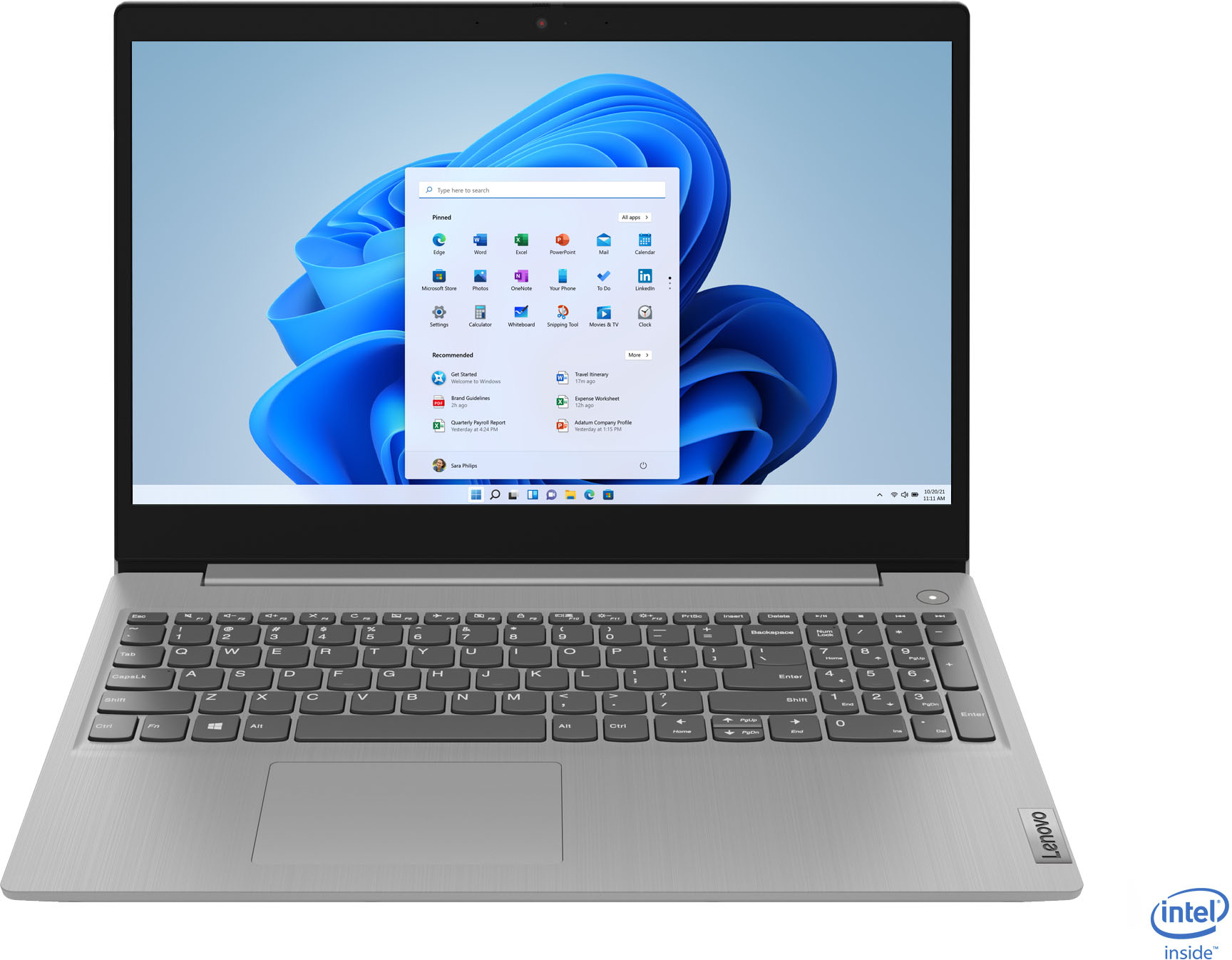
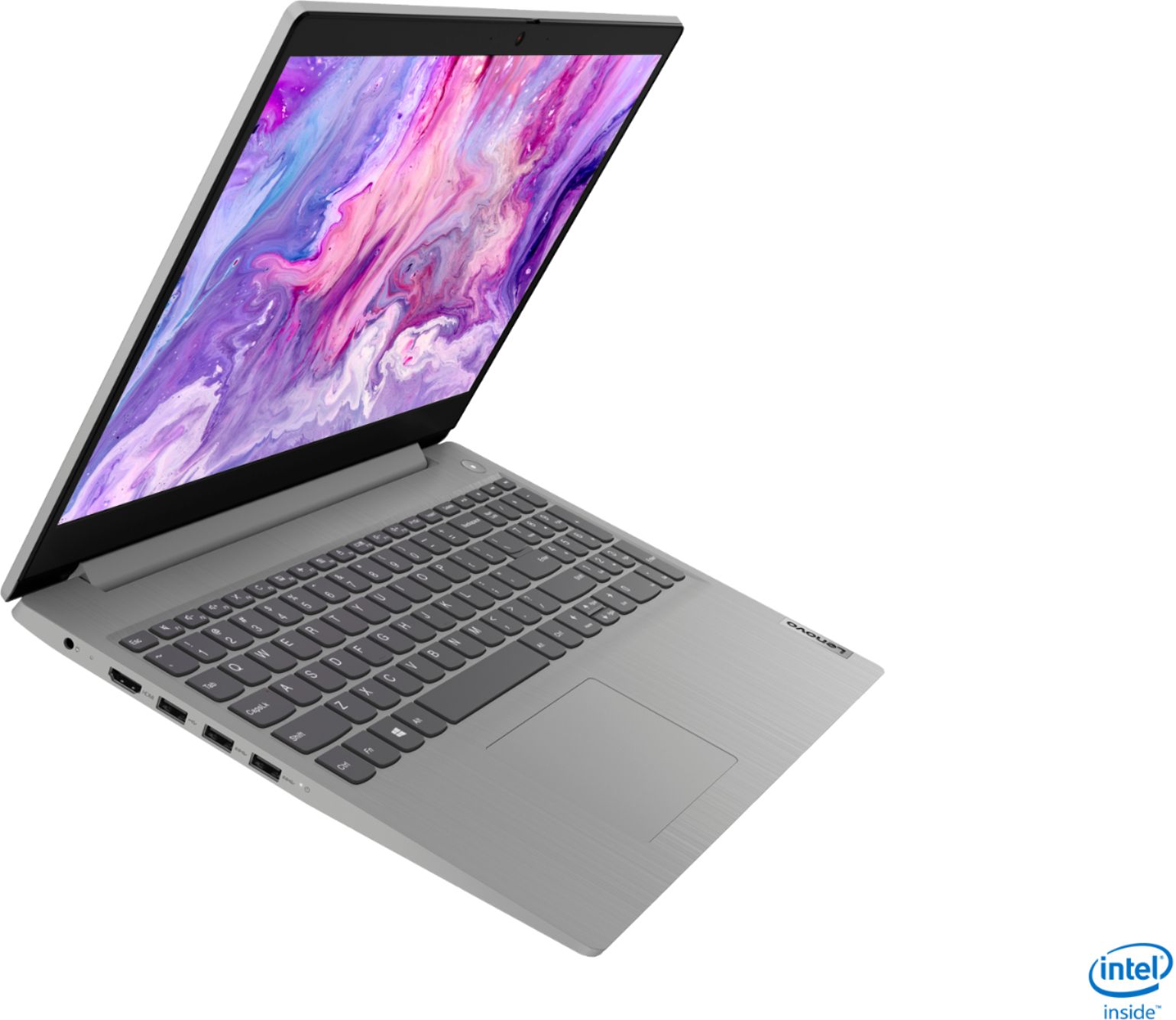
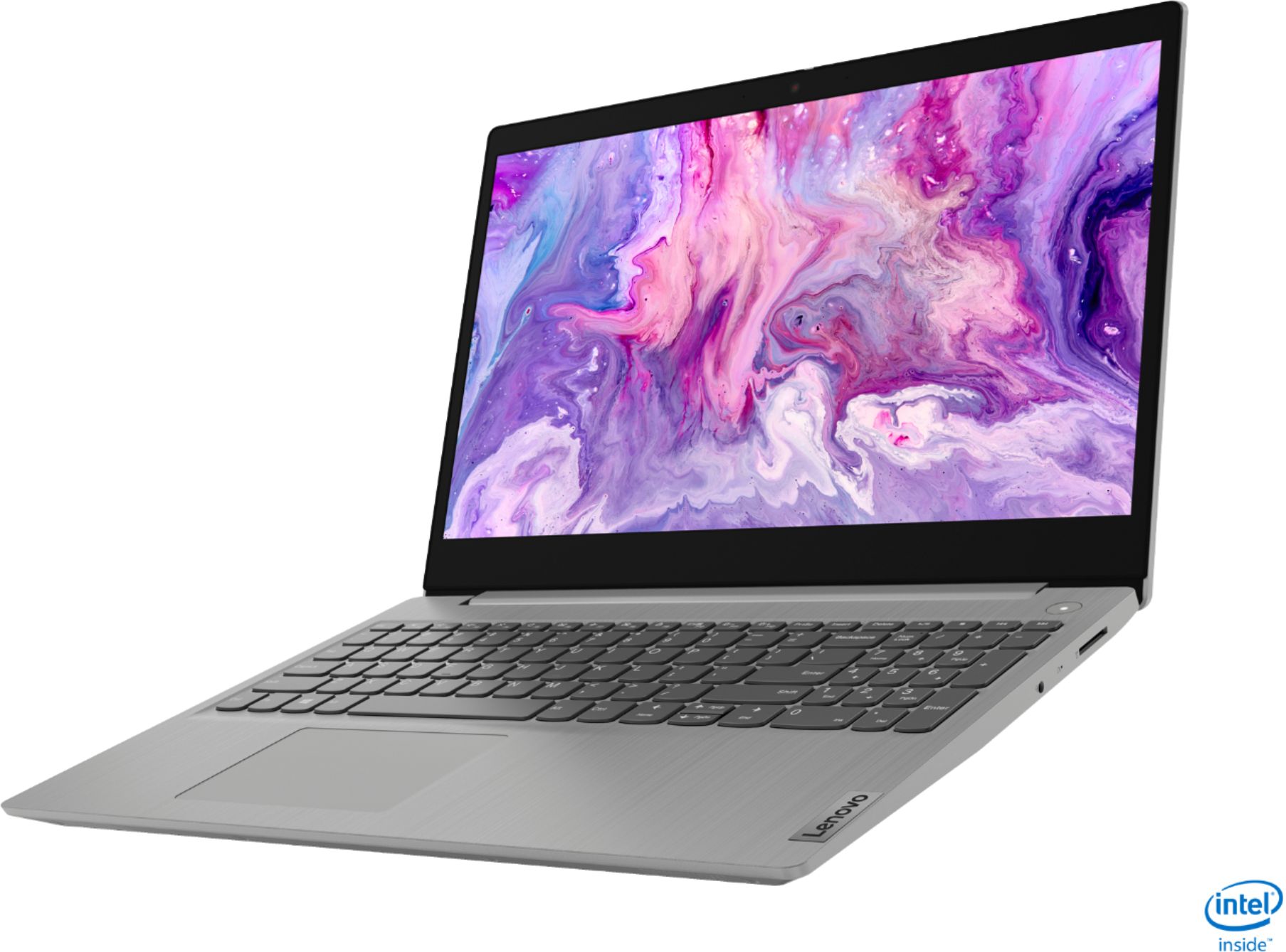

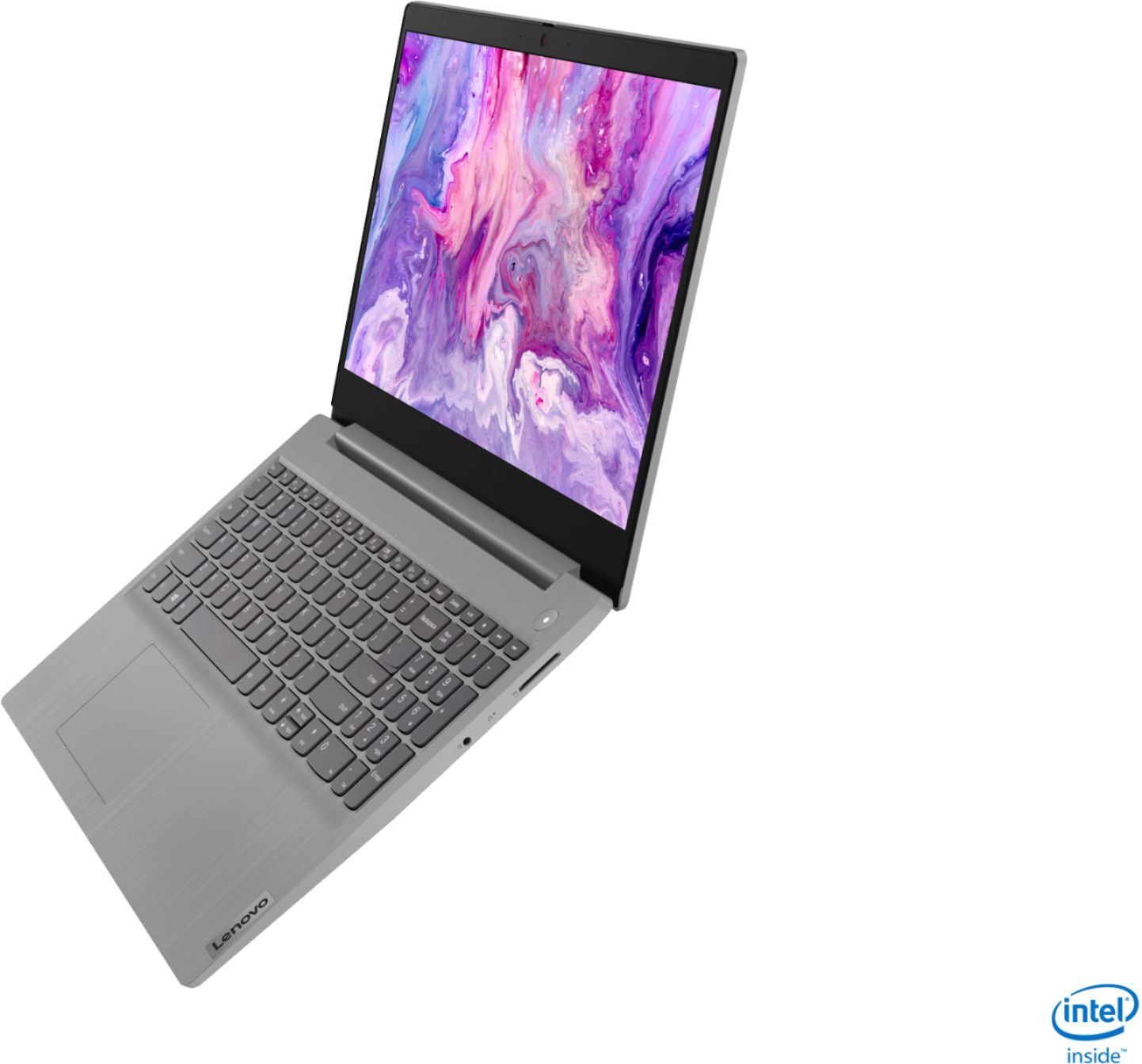
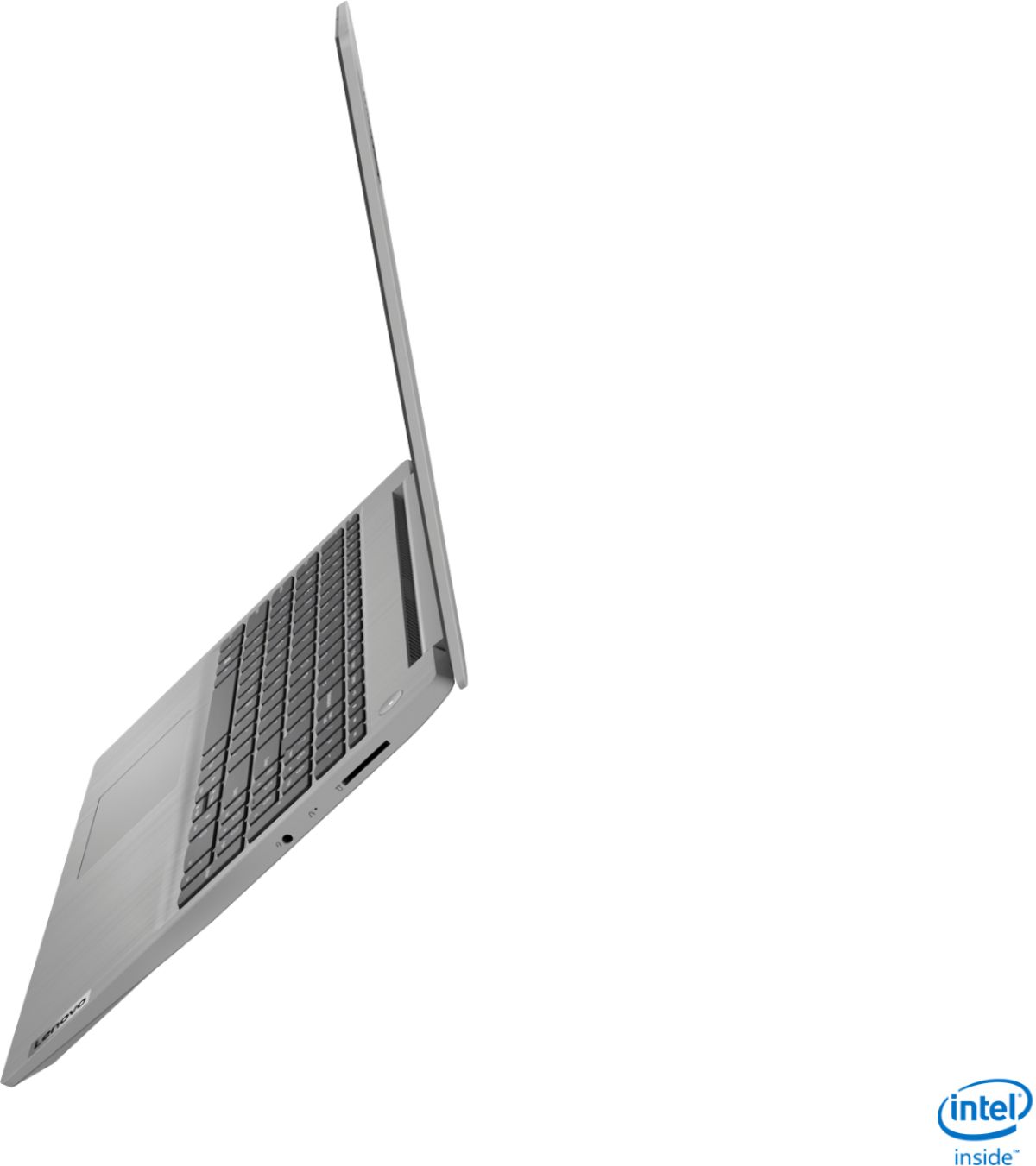
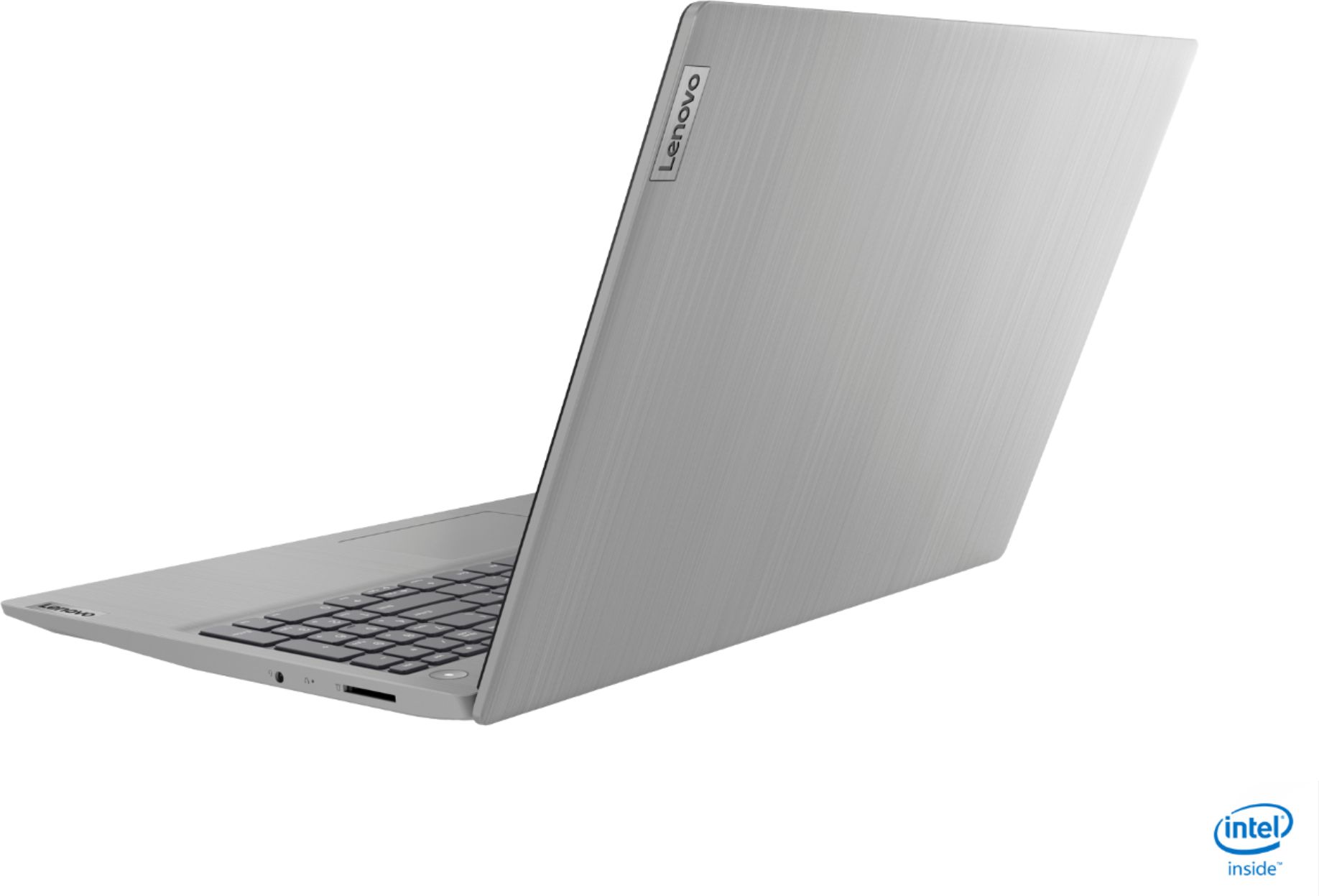
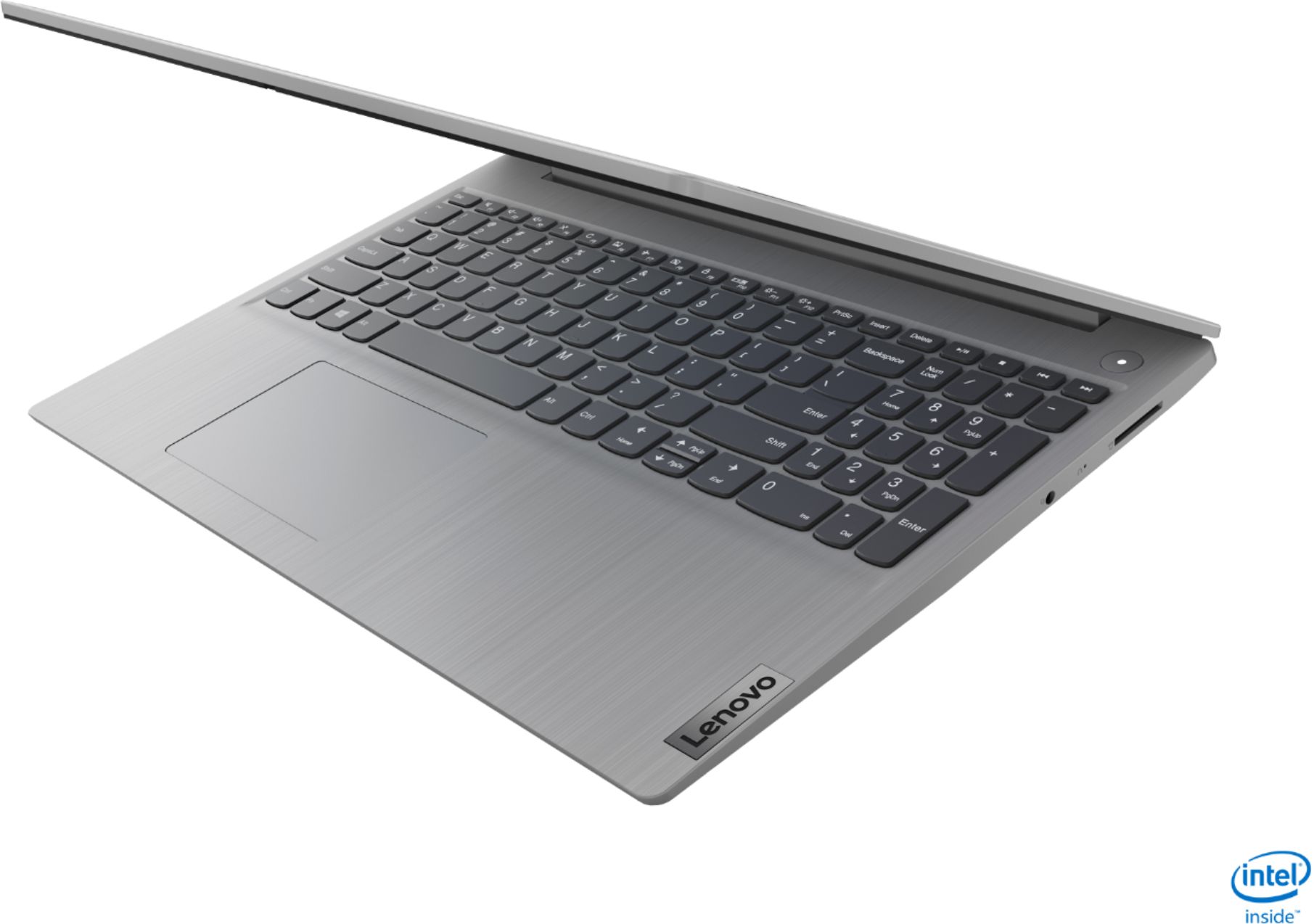
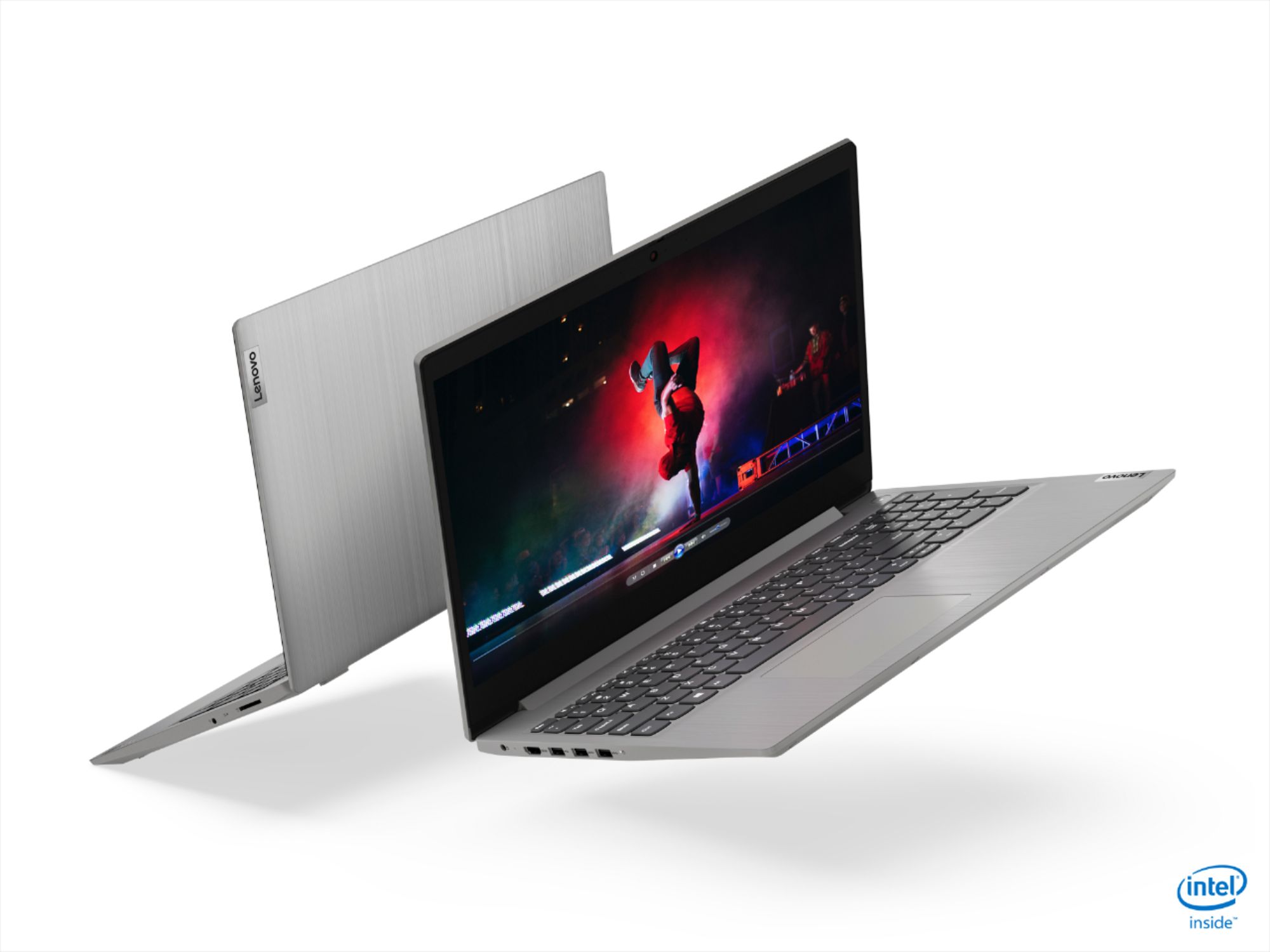
- Model:
- 81WE00NKUS
- SKU:
- 6426712
Rating by feature
- Battery Life
Rating 4.2 out of 5 stars
- Speed
Rating 4.4 out of 5 stars
- Display
Rating 4.3 out of 5 stars
Customers are saying
Customers often highlight the IdeaPad 3's affordability, lightweight design, and responsive touchscreen display. Many users have also praised its performance and reliability even after several years of use. However, some users have expressed concerns about its battery life, low-resolution screen, and limited storage capacity.
This summary was generated by AI based on customer reviews.
Great computer but had issues with the mouse pad.
||Posted . Owned for 1 month when reviewed.This reviewer received promo considerations or sweepstakes entry for writing a review.Mouse pad does not work in one week of use. Great computer otherwise. Bought a wireless mouse to be able to get around the use of the pad on the laptop.
I would recommend this to a friendBrand response from Lenovo Product Expert
Posted .We are sorry to hear that you are having issues with the touchpad within your Lenovo IdeaPad 3 15 Laptop, model number 81WE00NKUS. First, try tapping the HotKey in the F6 position on your keyboard. This HotKey toggles the touchpad on/off. If that does not fix the issue, now check to be sure you have the latest version of Windows 10 on the computer. Then update all of the BIOS files and drivers up to that latest version of Windows 10. You can easily accomplish this by scanning the computer with the Lenovo Utility software available on this computer. This system has Lenovo utilities installed to help maintain the health of the device and keep the operating system software up to date. Type "Lenovo Vantage" in the Cortana Search window (if Lenovo Vantage is not installed on your device, you can download the APP and install it now). Select Lenovo Vantage from the list. In the window that opens, click on "Health and Support". In the expanded menu, select "Hardware Scan" In the window that opens, select "Run Quick Tests". This will scan your entire system for errors. Follow any directions that may pop up. If the problem continues after this scan, now click on "System Update". First select Windows update from the menu. Scan your system to be sure you have the latest version of Windows 10. Once that scan is complete, select "Additional Updates". This will scan your device to be sure there are no new BIOS/Driver updates needed. Follow any instructions that may pop up. If the issue still continues after these updates, we recommend you call Lenovo Tech Support at: 877-453-6686 for additional help.

Lenovo
||Posted .This reviewer received promo considerations or sweepstakes entry for writing a review.It is working without any issues. It has a nice size screen. Since I am a veteran computer user it is pretty easy to find myself around the computer.
I would recommend this to a friendBrand response from Lenovo Product Expert
Posted .Hello. Thank you for choosing the Lenovo IdeaPad 3 laptop. We are pleased to hear that the value and performance of the IdeaPad 3 meets your computing needs so well!
- Cons mentioned:Battery life
Black screen and poor battery life!
||Posted . Owned for 3 weeks when reviewed.This reviewer received promo considerations or sweepstakes entry for writing a review.Bought this laptop a week before Black Friday on 11/24/2020 and I should have returned it right away. I bought it to mostly play one game on as well as use Microsoft office. Immediately I noticed that the battery life sucked but decided to keep it and give it a chance. Now on 12/18, the screen does not turn on when the laptop turns on. Owned it for less than a month. DO NOT BUY.
No, I would not recommend this to a friendBrand response from Lenovo Product Expert
Posted .We are sorry to hear that you are having issues with your Lenovo IdeaPad 3 15 Laptop, model number 81WE00NKUS. It is possible that resetting your computer back to original factory settings will correct the issue your describe. Since you can not boot the computer, this system is equipped with OneKey Recovery System. There is a very small pin hole on the right side of the device, right between the headphone jack and the SD card slot on the device. You will need a pin to push this reset button. Plug the device in. Let the battery charge for about 15 minutes. Push the reset button. The system should boot to a choice screen where you can choose "Restore To Factory Default". Select this. It will delete everything from the hard drive except the original factory install of the operating system. You will need to reinstall all programs and files after the reset. If you don't have copies of the files, try to make one before you restore by selecting "Boot to desktop" and trying to back up your files. Once you have the computer reset, be sure any software you installed is compatible with Windows 10. There is no need to install Microsoft Office software. The software is already part of the operating system, you just need to activate the software with a purchased product key. If you have installed a copy of Microsoft Office, this is conflicting with the existing copy on the system and this will slow your system down. If you have installed a 3rd party anti-virus program, be sure that Windows Defender is turned off and that the trial version of McAfee Anti-Virus software is uninstalled. There can only be one anti-virus program on the system. You may need to restore your system to original factory default settings if any of the programming errors have occurred. You can do that by typing "restore" in the Cortana search window. Just click on the magnifying glass icon at the bottom left of your Windows 10 Desktop. Click on "Reset This PC" Then click on "Get Started" and follow the on screen directions to restore to factory defaults. If the problem persists, we recommend you contact Lenovo Tech Support at: 877-453-6686.
Frustrated and disappointed
||Posted . Owned for 1 month when reviewed.This reviewer received promo considerations or sweepstakes entry for writing a review.I bought this laptop for my husband as a Christmas present. I was so excited to present it to him as I knew that his present laptop was a source of frustration. So imagine that it is Christmas and I proudly hand over his gift. On opening it and seeing the specs he was impressed and excited to try out his new possession. Then everything went downhill. He turned on the PC and and the screen comes up that the PC has to be restarted as there was an issue with start up. No biggie, we thought so we restarted. The message continues to pop up. We can't connect to wired internet because there is no port for the wire and we can't connect to the wireless because we can't even start up. So as not to spoil the season, we put aside the PC and return to it a few days later but the issue persisted. We contacted customer service and was told that there may be an issue with Windows 10 so to try reinstalling it. We were directed to the site to retrieve the software and proceeded to do as was directed. Then the message came up "There was a problem resetting your PC. No changes were made". The thing even refused to be reset. I gave my husband my PC and sent back the paper weight as that was all that it was good for. Maybe I was just unlucky and got a dud, but that is no consolation given the expenses involved in buying and returning ...
No, I would not recommend this to a friendNeed faster shipping for guam
||Posted . Owned for 2 weeks when reviewed.This reviewer received promo considerations or sweepstakes entry for writing a review.Didn’t come in yet but I’m praying it’s good. Also I would like to add long shipping. There people on Guam that likes your products. Get to that man!
I would recommend this to a friendDisappointed
||Posted . Owned for 3 weeks when reviewed.This reviewer received promo considerations or sweepstakes entry for writing a review.This computer is already having glitches and I am not pleased with it at all. I went with the Lenovo because our one before it lasted 4 or 5 years.
No, I would not recommend this to a friend- Cons mentioned:Battery life, Camera
Poor quality product
||Posted .This reviewer received promo considerations or sweepstakes entry for writing a review.The display is not clear The camera is real bad The batteery is real bad
No, I would not recommend this to a friendBrand response from Lenovo Product Expert
Posted .The Lenovo IdeaPad 3 15 Laptop, model number 81WE00NKUS, ships with a 15.6-Inch (screen size measured diagonally) TN, LCD w/LED Backlight (Anti-glare) screen, with a resolution of 1366 X 768 (HD) and a brightness level of 220 nits. This model ships with a 720p (HD) webcam with manual Privacy Shutter and Dual Array Microphones, built in. There is a 2CELL_35WH_INTERNAL, Lithium Polymer Battery, with a battery life of up to 7 hours, depending on the work the device is performing. If you are getting substantially less battery life, First, set your screen brightness at less than 100-percent - try 80-percent to start with. Then, be sure Battery conservation Mode is turned off. This power management setting should only be used when the laptop is plugged in all the time. It will prolong overall battery life by only charging the battery to 60-percent of capacity. Here is a link to instructions for turning off Battery Conservation Mode: https://support.lenovo.com/us/en/solutions/ht103159. Also check what programs are running in the background on the computer. Be sure only the programs you want running in the background are. These programs will drain the battery. Here is a link to information about how to find out what programs are running in the background on your Windows 10 computer and how to manage them for better system performance: https://www.windowscentral.com/how-prevent-apps-running-background-windows-10. Then, finally, be sure any software you installed is compatible with Windows 10. Incompatible software will drain the battery at a faster rate. There is no need to install Microsoft Office software. The software is already part of the operating system, you just need to activate the software with a purchased product key. If you have installed a copy of Microsoft Office, this is conflicting with the existing copy on the system and this will slow your system down. If you have installed a 3rd party anti-virus program, be sure that Windows Defender is turned off and that the trial version of McAfee Anti-Virus software is uninstalled. There can only be one anti-virus program on the system. You may need to restore your system to original factory default settings if any of the programming errors have occurred. You can do that by typing "restore" in the Cortana search window. Just click on the magnifying glass icon at the bottom left of your Windows 10 Desktop. Click on "Reset This PC" Then click on "Get Started" and follow the on screen directions to restore to factory defaults. If the problem persists, we recommend you contact Lenovo Tech Support at: 877-453-6686.
basic config
||Posted . Owned for 1 month when reviewed.This reviewer received promo considerations or sweepstakes entry for writing a review.ok.. basic config. would be great if it has the 1080 p. the display is of old config and is out of date
No, I would not recommend this to a friendBrand response from Lenovo Product Expert
Posted .The Lenovo IdeaPad 3 15 Laptop, model number 81WE00NKUS, ships with the energy-efficient 4-Core/8-Thread 10th. Gen Intel Core i5-1035G1 processor, with a battery-saving base speed of 1.0GHz and a Turbo Boost Speed of up to 3.6GHz through 8-Threads. This processor is supported by 12GB DDR4-2666MHz RAM and a 256GB NVMe TLC solid state hard drive for high performance computing speeds.
Decent laptop for school and zoom etc.
||Posted . Owned for 2 months when reviewed.This reviewer received promo considerations or sweepstakes entry for writing a review.Decent laptop, screen quality isn't the best and could use a backlit keyboard but it's fast, lots of memory and should last for years to come.
I would recommend this to a friendDecent if purchased on sale
||Posted . Owned for 1 month when reviewed.This reviewer received promo considerations or sweepstakes entry for writing a review.Fast startup. Poor graphics. It was a bargain on Black Friday but ended up returning it in exchange for something better albeit more expensive.
No, I would not recommend this to a friendScreen Resolution not good
||Posted . Owned for 2 weeks when reviewed.This reviewer received promo considerations or sweepstakes entry for writing a review.Screen Resolution is really pathetic. Battery is draining very fast. Otherwise configuration is good
No, I would not recommend this to a friendBrand response from Lenovo Product Expert
Posted .The Lenovo IdeaPad 3 15 Laptop, model number 81WE00NKUS, ships with a 15.6-Inch (screen size measured diagonally) TN, LCD w/LED Backlight (Anti-glare) screen, with a resolution of 1366 X 768 (HD) and a brightness level of 220 nits. This model ships with a 2CELL_35WH_INTERNAL, Lithium Polymer Battery, with a battery life of up to 7 hours, depending on the work the device is performing. If you are getting substantially less battery life, First, set your screen brightness at less than 100-percent - try 80-percent to start with. Then, be sure Battery conservation Mode is turned off. This power management setting should only be used when the laptop is plugged in all the time. It will prolong overall battery life by only charging the battery to 60-percent of capacity. Here is a link to instructions for turning off Battery Conservation Mode: https://support.lenovo.com/us/en/solutions/ht103159. Also check what programs are running in the background on the computer. Be sure only the programs you want running in the background are. These programs will drain the battery. Here is a link to information about how to find out what programs are running in the background on your Windows 10 computer and how to manage them for better system performance: https://www.windowscentral.com/how-prevent-apps-running-background-windows-10. Then, finally, be sure any software you installed is compatible with Windows 10. Incompatible software will drain the battery at a faster rate. There is no need to install Microsoft Office software. The software is already part of the operating system, you just need to activate the software with a purchased product key. If you have installed a copy of Microsoft Office, this is conflicting with the existing copy on the system and this will slow your system down. If you have installed a 3rd party anti-virus program, be sure that Windows Defender is turned off and that the trial version of McAfee Anti-Virus software is uninstalled. There can only be one anti-virus program on the system. You may need to restore your system to original factory default settings if any of the programming errors have occurred. You can do that by typing "restore" in the Cortana search window. Just click on the magnifying glass icon at the bottom left of your Windows 10 Desktop. Click on "Reset This PC" Then click on "Get Started" and follow the on screen directions to restore to factory defaults. If the problem persists, we recommend you contact Lenovo Tech Support at: 877-453-6686.
Lenovo
||Posted . Owned for 1 week when reviewed.This reviewer received promo considerations or sweepstakes entry for writing a review.I'm having issues with the curser it keeps getting stuck and does not move. It's new and maybe an adjustment period. I'll give it another week.
No, I would not recommend this to a friendBrand response from Lenovo Product Expert
Posted .We are sorry to hear that you are having issues with the cursor on your Lenovo IdeaPad 3 15 Laptop, model number 81WE00NKUS. First, Be sure any software you installed is compatible with Windows 10. There is no need to install Microsoft Office software. The software is already part of the operating system, you just need to activate the software with a purchased product key. If you have installed a copy of Microsoft Office, this is conflicting with the existing copy on the system and this will slow your system down. If you have installed a 3rd party anti-virus program, be sure that Windows Defender is turned off and that the trial version of McAfee Anti-Virus software is uninstalled. There can only be one anti-virus program on the system. You may need to restore your system to original factory default settings if any of the programming errors have occurred. You can do that by typing "restore" in the Cortana search window. Just click on the magnifying glass icon at the bottom left of your Windows 10 Desktop. Click on "Reset This PC" Then click on "Get Started" and follow the on screen directions to restore to factory defaults. If there is no incompatible software installed, then be sure you have the latest version of Windows 10 on the computer. The update all of the BIOS files and drivers up to that latest version of Windows 10. You can easily accomplish this by scanning the computer with the Lenovo Utility software available on this computer. This system has Lenovo utilities installed to help maintain the health of the device and keep the operating system software up to date. Type "Lenovo Vantage" in the Cortana Search window (if Lenovo Vantage is not installed on your device, you can download the APP and install it now). Select Lenovo Vantage from the list. In the window that opens, click on "Health and Support". In the expanded menu, select "Hardware Scan" In the window that opens, select "Run Quick Tests". This will scan your entire system for errors. Follow any directions that may pop up. If the problem continues after this scan, now click on "System Update". First select Windows update from the menu. Scan your system to be sure you have the latest version of Windows 10. Once that scan is complete, select "Additional Updates". This will scan your device to be sure there are no new BIOS/Driver updates needed. Follow any instructions that may pop up. Finally, you can make adjustments to the touchpad in your system settings. You can get there by clicking on the magnifying glass at the bottom left of your Windows 10 screen. Type "touchpad" in the search window. Select "Mouse & touchpad settings" from the list of choices. You can make general adjustments to the touchpad there. You can also select "Additional mouse options" for more detailed adjustments to the touchpad sensitivity by increasing the delay of the touchpad. If the issue still continues after these updates, we recommend you call Lenovo Tech Support at: 877-453-6686 for additional help.
Lenovo, great specs, not so great camera....
||Posted . Owned for 3 weeks when reviewed.This reviewer received promo considerations or sweepstakes entry for writing a review.Great specs, just not that great camera quality. I love the processing speed. Just not in love with camera quality for zoom meetings.
No, I would not recommend this to a friendBrand response from Lenovo Product Expert
Posted .The Lenovo IdeaPad 3 15 Laptop, model number 81WE00NKUS, ships with a 720p (HD) webcam with manual Privacy Shutter and Dual Array microphones built in. For the best broadcast video quality from your webcam, be sure you are in a well lighted setting and that the manual Privacy Shutter is in the completely open position. If you continue to have issues with your webcam, we recommend you contact Lenovo Tech Support at: 877-453-6686.
Doing the job.
||Posted .This reviewer received promo considerations or sweepstakes entry for writing a review.Operation is fine. However, I've never seen a laptop without a cd/dvd player. Additionally, becoming less of a microsoft fan every day.
I would recommend this to a friendWorst experience ever!
||Posted . Owned for 10 months when reviewed.This reviewer received promo considerations or sweepstakes entry for writing a review.When transferring my files, I lost a part of them because of the STUPID pre-installed OneDrive software, which I never asked for. It loaded an OLD copy of my files, I saved what I could as soon as I noticed, and it cost me 2 entire days to get everything transferred (apart from what I lost!). Went to the Geek Squad to had OneDrive de-installed, they said it was. Later I noticed it was NOT de-installed. I'd signed up for a paid backup - gladly, because a few months later, I had an even worse issue: ALL MY FILES WERE GONE FROM MY COMPUTER! Took me almost a week to gradually get it all back from my backup as a one-time transfer wasn't possible. This was a cost in time of over $10k, no one cared for helping me at BestBuy or Microsoft. And now, after only 10 months, the camera stopped working, exactly before an important online show. This thing has been a disaster, but mostly OneDrive on it. We know why all PCs come with this... so they can track all our files. I hate it and do not want another laptop with this software on it. Also, the camera should have lasted longer.
No, I would not recommend this to a friendGreat performance not good display
||Posted . Owned for 3 weeks when reviewed.This reviewer received promo considerations or sweepstakes entry for writing a review.Great performance, speed and design. Display not good. Battery is ok, not as advertised p
I would recommend this to a friendBrand response from Lenovo Product Expert
Posted .The Lenovo IdeaPad 3 15 Laptop, model number 81WE00NKUS, ships with a 15.6-Inch (screen size measured diagonally) TN, LCD w/LED Backlight (Anti-glare) screen, with a resolution of 1366 X 768 (HD) and a brightness level of 220 nits. This model ships with a 2CELL_35WH_INTERNAL, Lithium Polymer Battery, with a battery life of up to 7 hours, depending on the work the device is performing. If you are getting substantially less battery life, First, set your screen brightness at less than 100-percent - try 80-percent to start with. Then, be sure Battery conservation Mode is turned off. This power management setting should only be used when the laptop is plugged in all the time. It will prolong overall battery life by only charging the battery to 60-percent of capacity. Here is a link to instructions for turning off Battery Conservation Mode: https://support.lenovo.com/us/en/solutions/ht103159. Also check what programs are running in the background on the computer. Be sure only the programs you want running in the background are. These programs will drain the battery. Here is a link to information about how to find out what programs are running in the background on your Windows 10 computer and how to manage them for better system performance: https://www.windowscentral.com/how-prevent-apps-running-background-windows-10. Then, finally, be sure any software you installed is compatible with Windows 10. Incompatible software will drain the battery at a faster rate. There is no need to install Microsoft Office software. The software is already part of the operating system, you just need to activate the software with a purchased product key. If you have installed a copy of Microsoft Office, this is conflicting with the existing copy on the system and this will slow your system down. If you have installed a 3rd party anti-virus program, be sure that Windows Defender is turned off and that the trial version of McAfee Anti-Virus software is uninstalled. There can only be one anti-virus program on the system. You may need to restore your system to original factory default settings if any of the programming errors have occurred. You can do that by typing "restore" in the Cortana search window. Just click on the magnifying glass icon at the bottom left of your Windows 10 Desktop. Click on "Reset This PC" Then click on "Get Started" and follow the on screen directions to restore to factory defaults. If the problem persists, we recommend you contact Lenovo Tech Support at: 877-453-6686.
dissatisfied
||Posted . Owned for less than 1 week when reviewed.This reviewer received promo considerations or sweepstakes entry for writing a review.very displeased, item was suppose to be a exceptional condition with all accessory items were to be included. when i was received there was no packing slip or even the laptop box that showed me what I was to receive. So after already being a little irritated i go and turn the computer on; the screen does light up, it is talking but no picture . So I take the laptop to the closest Best Buy and the Geek rep while helping another customer asked me if what the probably was , he proceeds on taking laptop and turns it on and the screen is dark. The rep. then stated that i could do a return because it could take 2 to 3 weeks before i MIGHT get it back. i was under the assumption that Best Buy checked the open box sales especially when labeling as exceptional condition. I have been a customer of Best Buys for quite a long period but here lately they really could use a refresher in customer service, it just seems the last few visits they just don't have the time for the customer or look the other way. Oh and i am in need of a laptop due to Best Buy don't want my business.
No, I would not recommend this to a friendGood deal for $350, can’t pay more for this
||Posted . Owned for 3 weeks when reviewed.This reviewer received promo considerations or sweepstakes entry for writing a review.It’s a good deal for the $350 plus taxes but they could have done better in terms of keyboard, weight of the laptop etc
I would recommend this to a friendGood Gift
||Posted . Owned for 3 weeks when reviewed.This reviewer received promo considerations or sweepstakes entry for writing a review.Bought as a gift. Person that received is happy with it. Lots of options that higher priced computers didn't have.
I would recommend this to a friendLACK OF SCREEN CLARITY
||Posted . Owned for more than 2 years when reviewed.This reviewer received promo considerations or sweepstakes entry for writing a review.SCREEN CLARITY IS NOT THE BEST, COLORS ON SCREEN ARE NOT VIVID.
No, I would not recommend this to a friend