Customer Ratings & Reviews
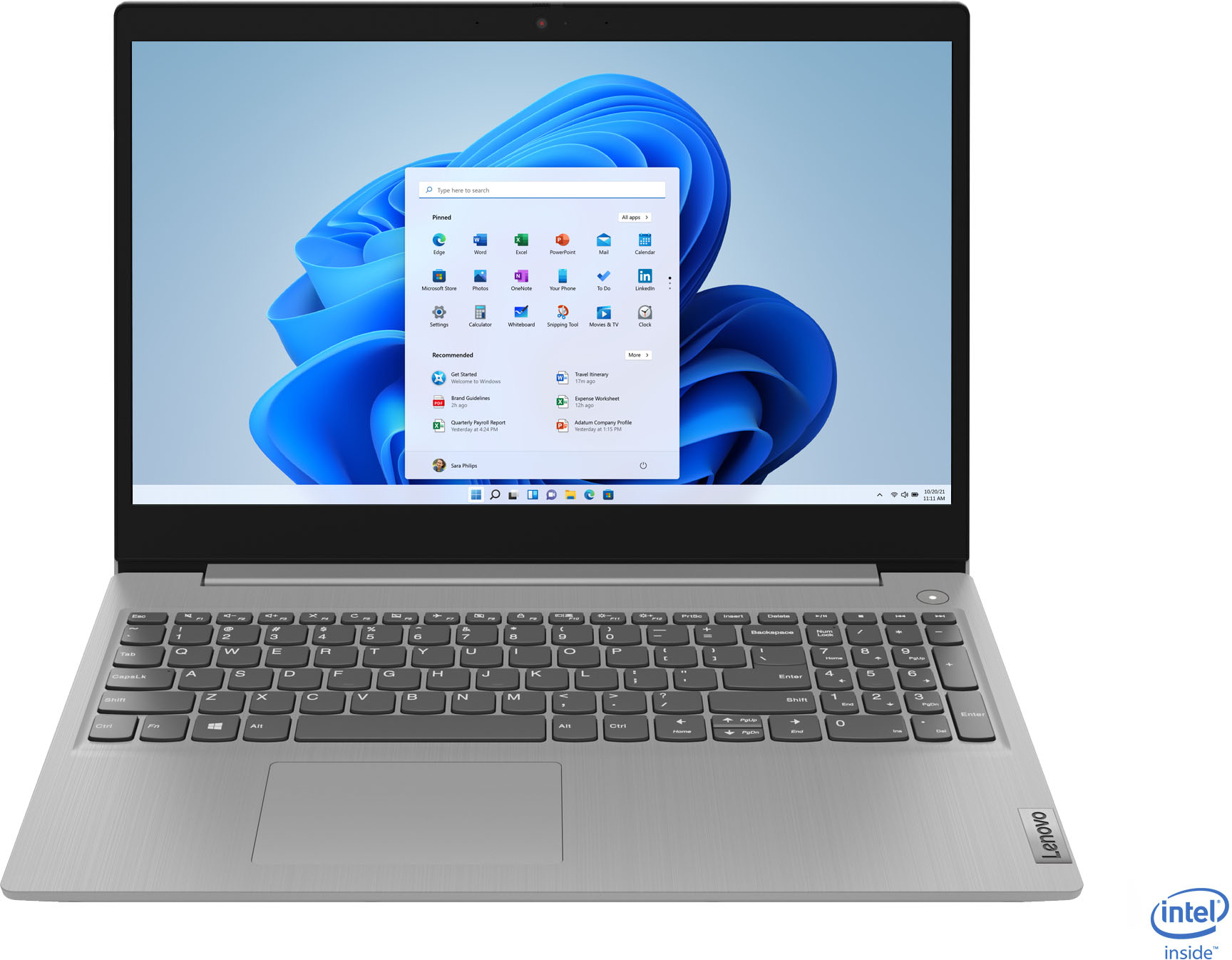
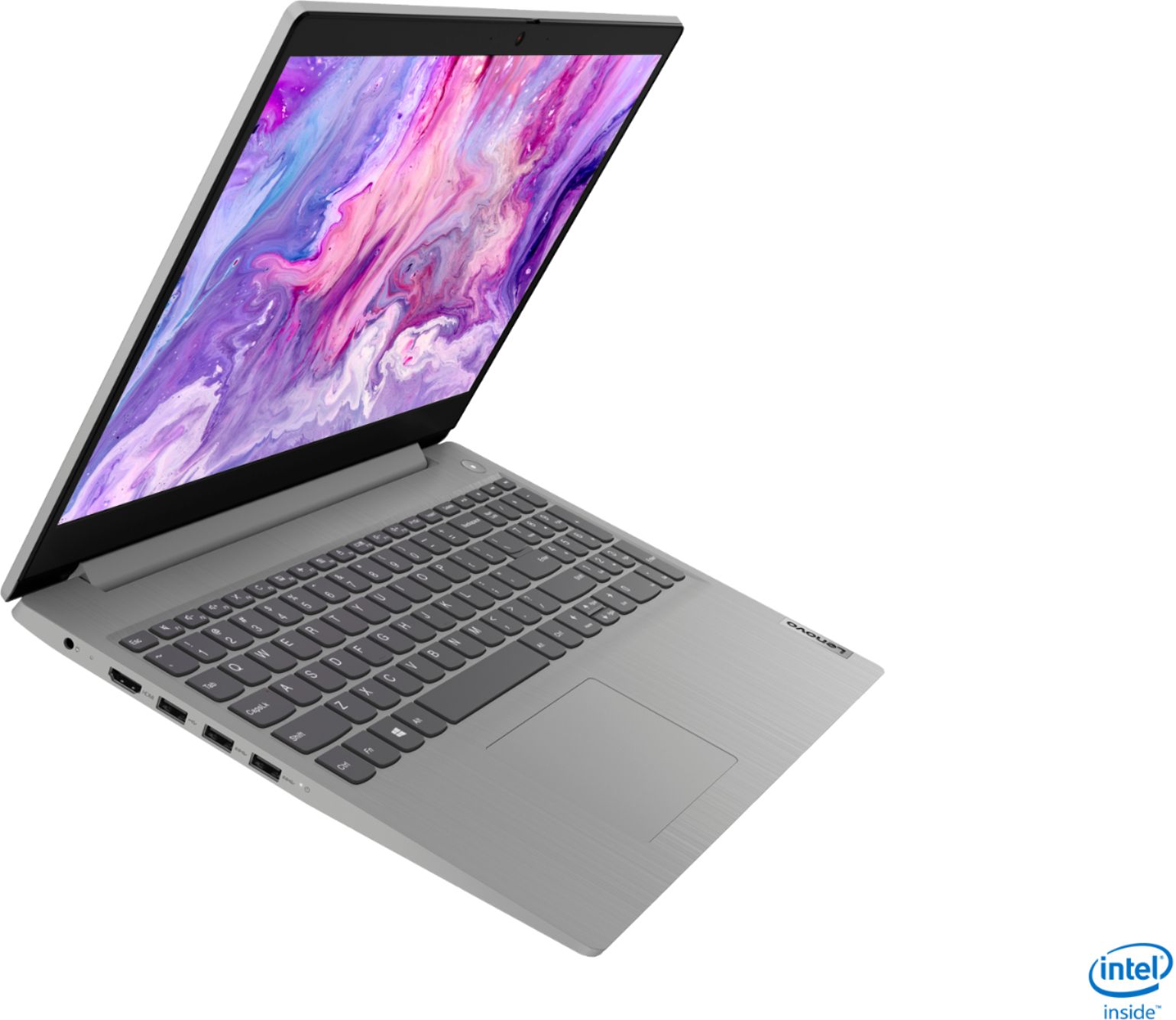
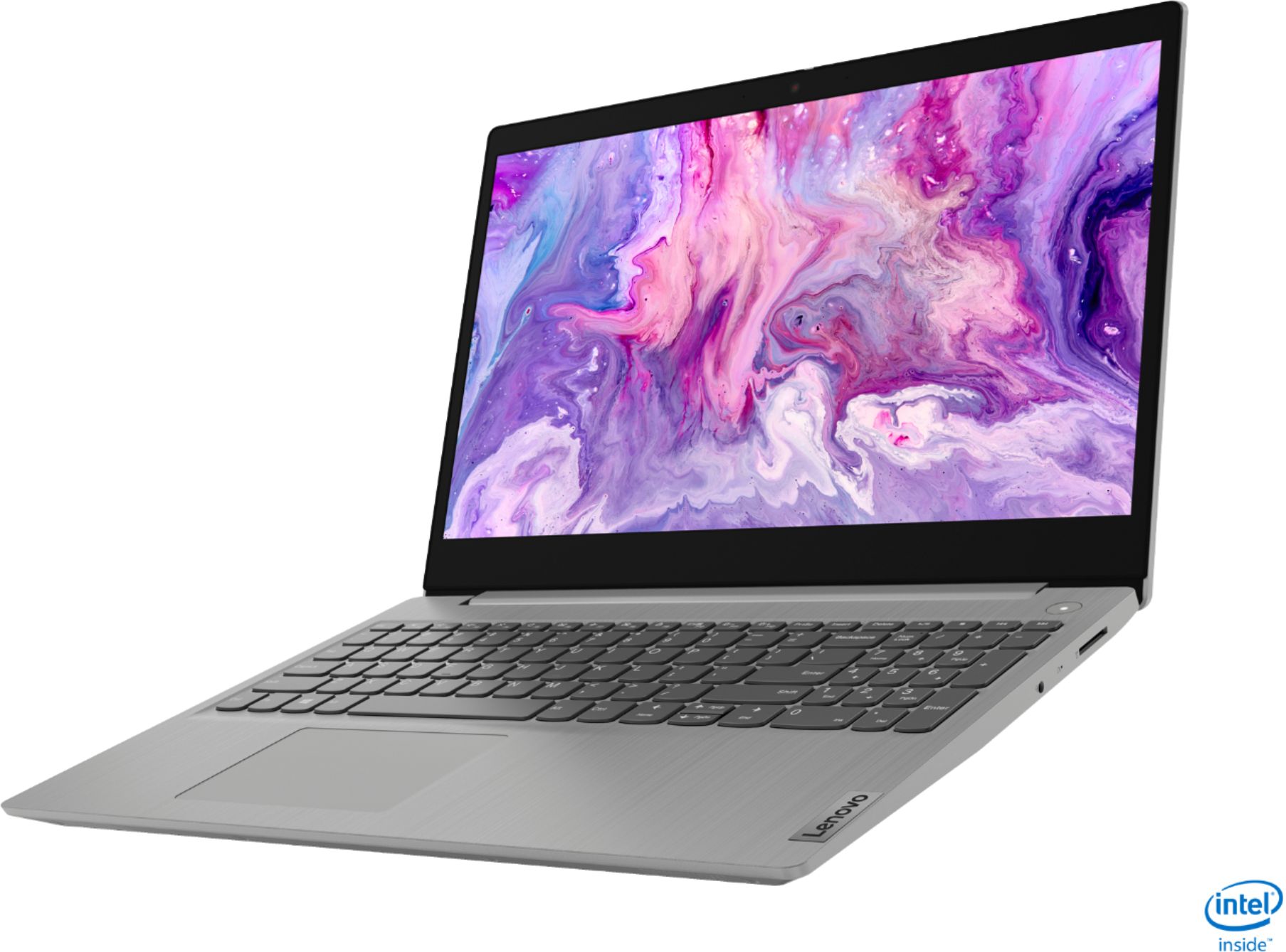

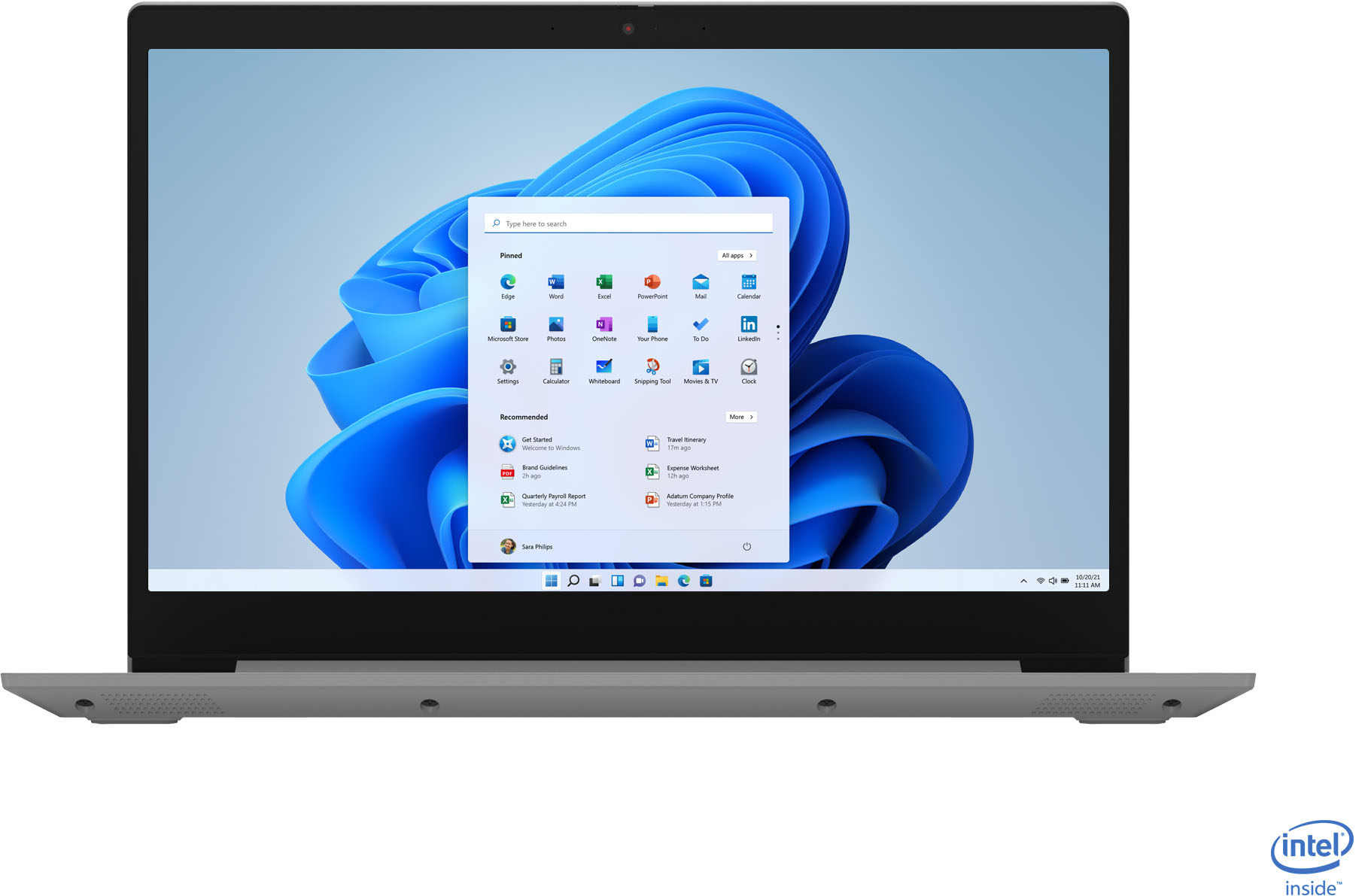
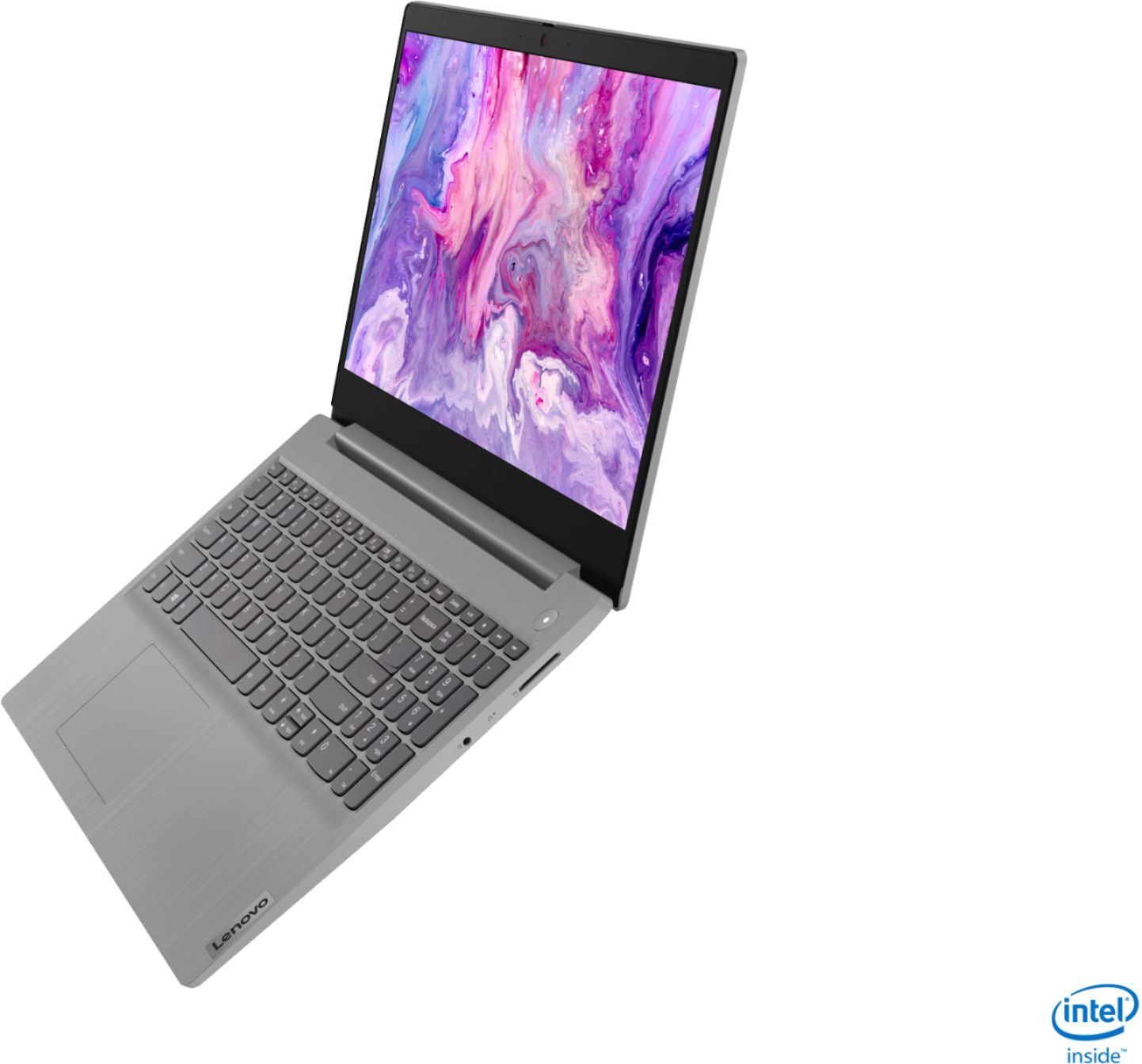
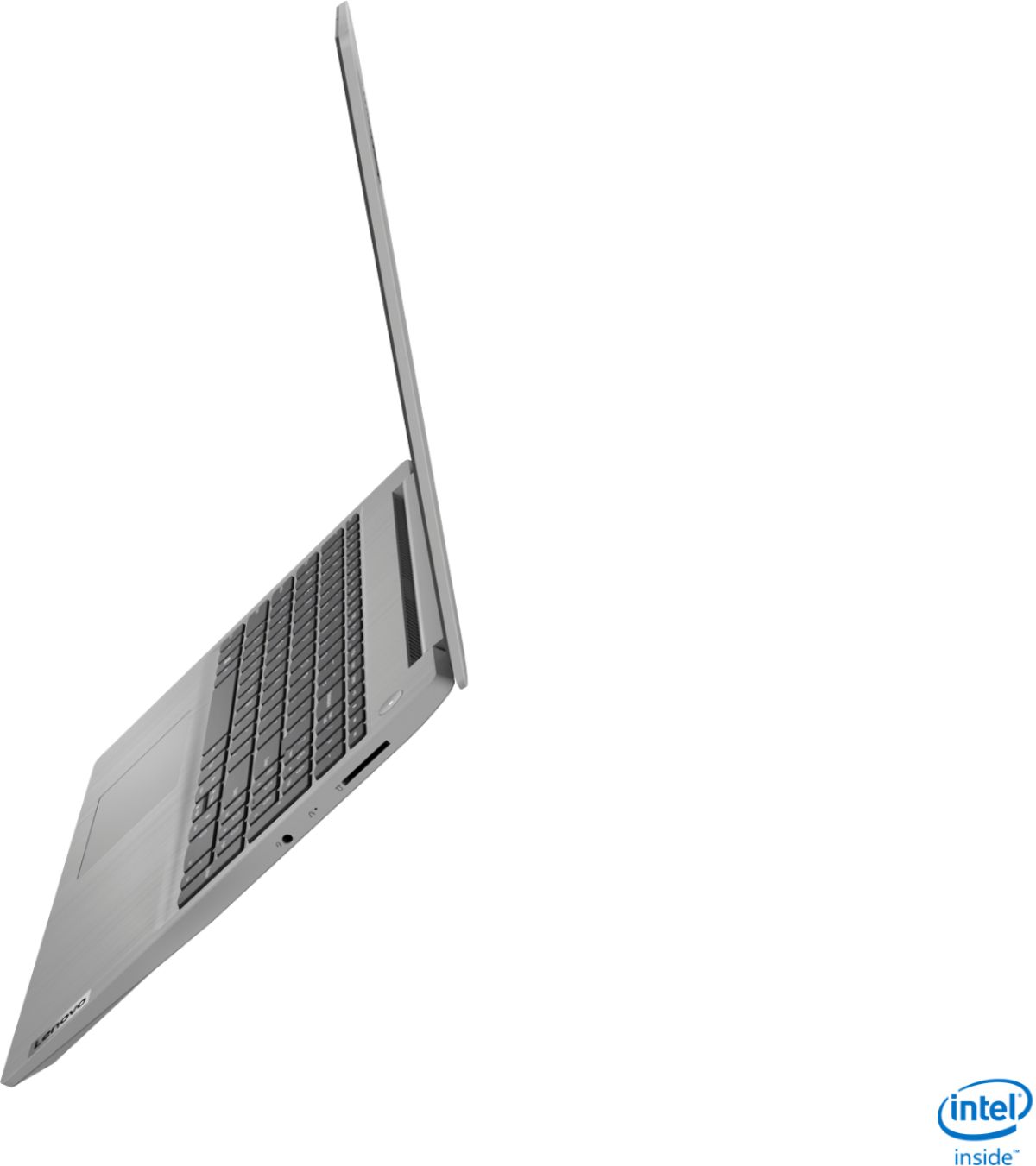
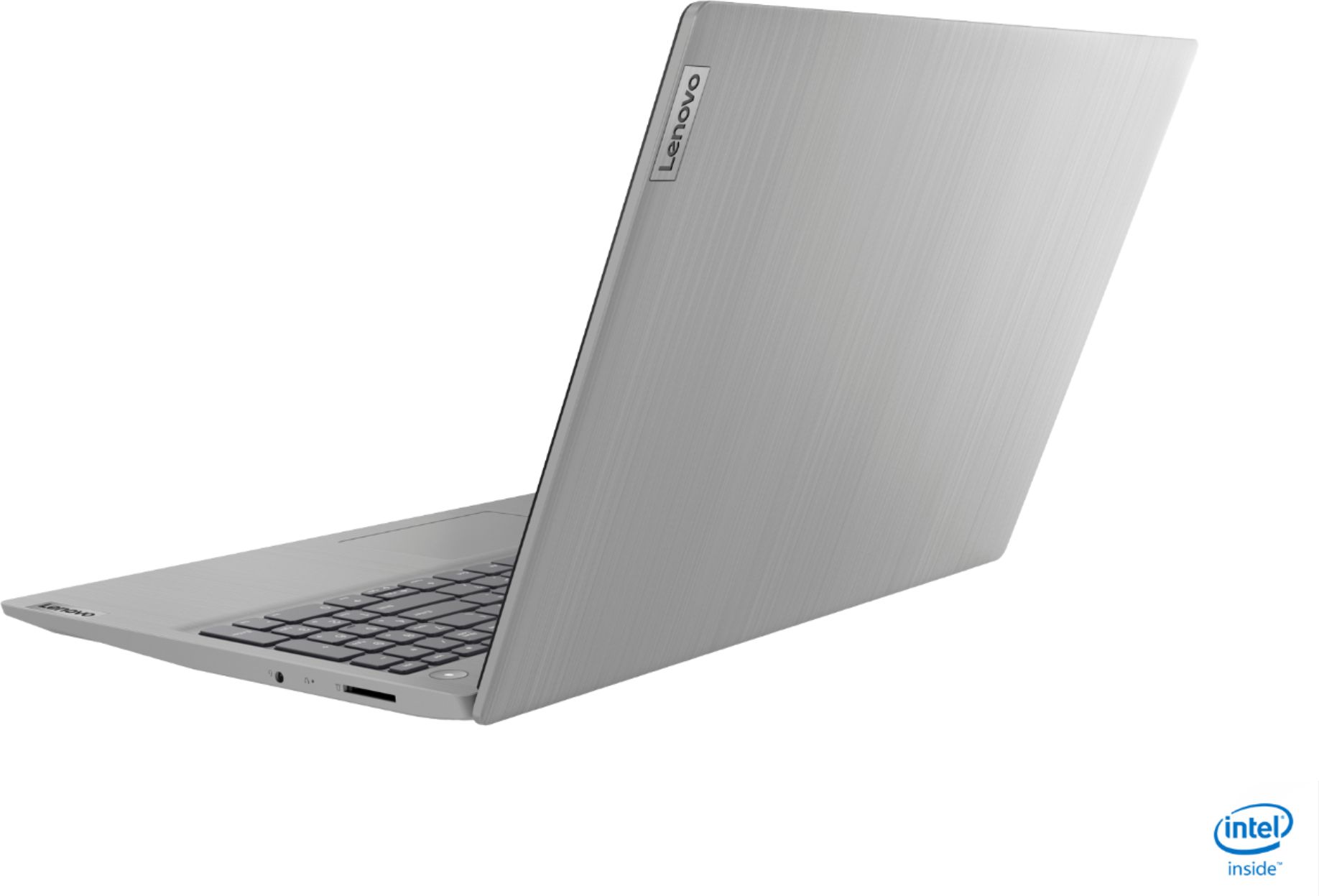
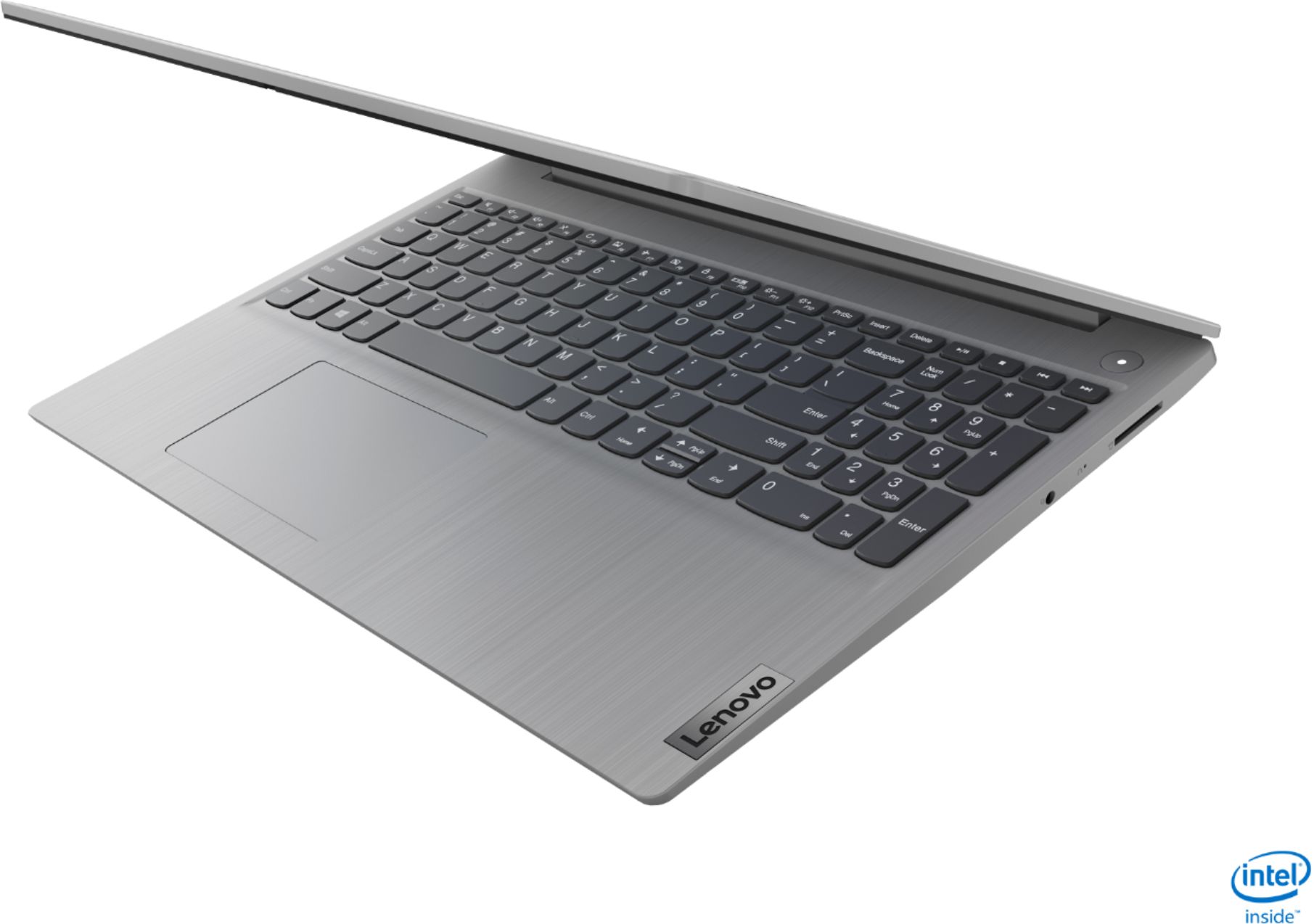
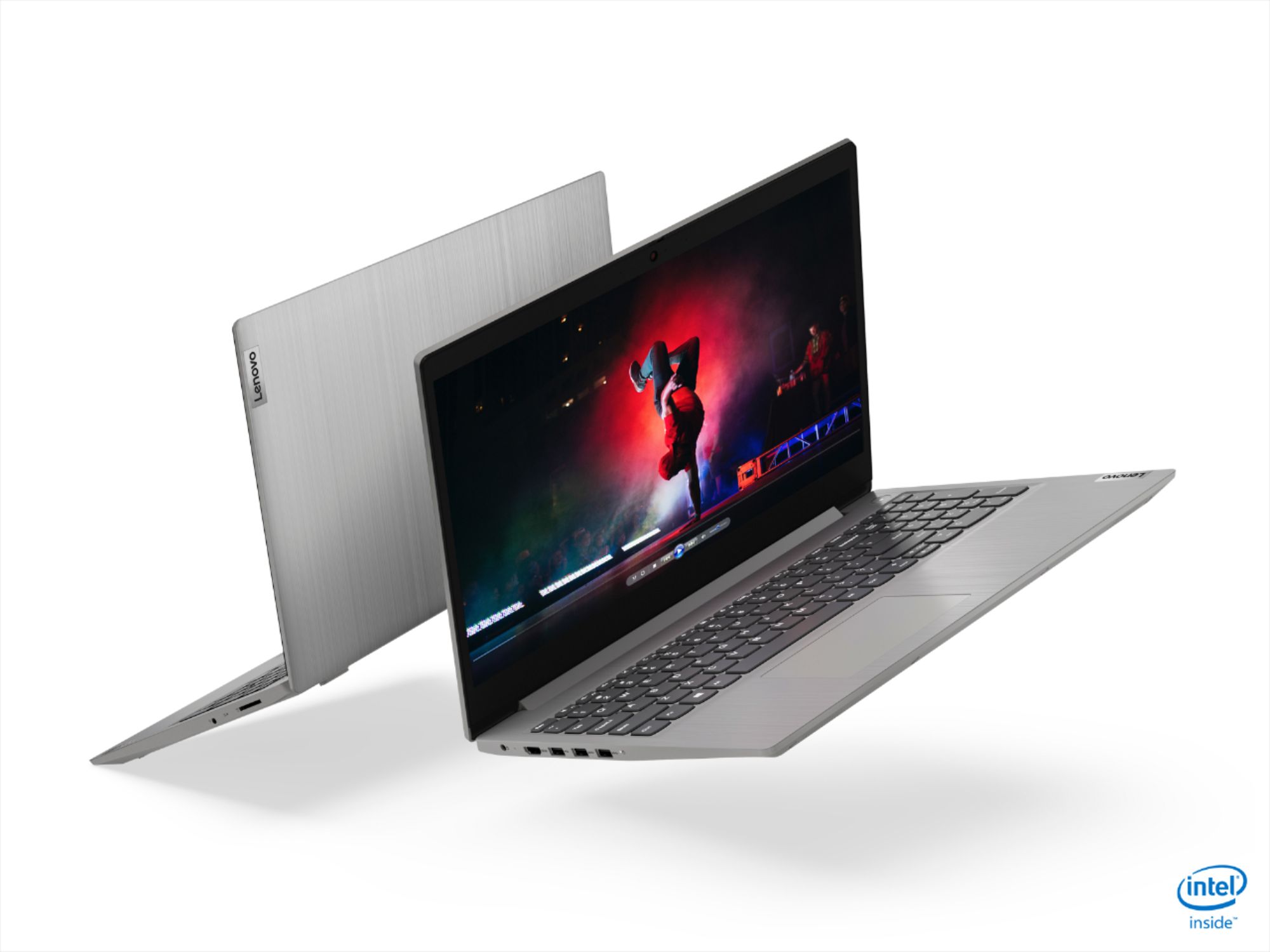
- Model:
- 81WE00NKUS
- SKU:
- 6426712
Rating by feature
- Battery Life
Rating 4.2 out of 5 stars
- Speed
Rating 4.4 out of 5 stars
- Display
Rating 4.3 out of 5 stars
Customers are saying
Customers often highlight the IdeaPad 3's affordability, lightweight design, and responsive touchscreen display. Many users have also praised its performance and reliability even after several years of use. However, some users have expressed concerns about its battery life, low-resolution screen, and limited storage capacity.
This summary was generated by AI based on customer reviews.
- Cons mentioned:Build quality
Poor laptop
||Posted . Owned for 2 weeks when reviewed.This reviewer received promo considerations or sweepstakes entry for writing a review.Very low quality, not only the screen but all material. Sold as new for customer but actually it is used
No, I would not recommend this to a friend - Cons mentioned:Battery life
Really bad lap top
||Posted . Owned for 1 year when reviewed.This reviewer received promo considerations or sweepstakes entry for writing a review.It last one year and half. Battery just take one hour and it’s done
No, I would not recommend this to a friend - Pros mentioned:Price
Good
||Posted . Owned for 3 weeks when reviewed.This reviewer received promo considerations or sweepstakes entry for writing a review.Good computer for the price. Works good & easy to operate, It has worked good since I received it.
I would recommend this to a friend Poor screen resolution
||Posted .This reviewer received promo considerations or sweepstakes entry for writing a review.The screen resolution is so outdated and doesn’t match to other good features on this laptop.
No, I would not recommend this to a friendKeyboard is not working
||Posted . Owned for 1 month when reviewed.This reviewer received promo considerations or sweepstakes entry for writing a review.Very disappointed with the laptop.worked well for first 2 weeks but keyboard not working after initial usage and display is bad
No, I would not recommend this to a friendBrand response from Lenovo Product Expert
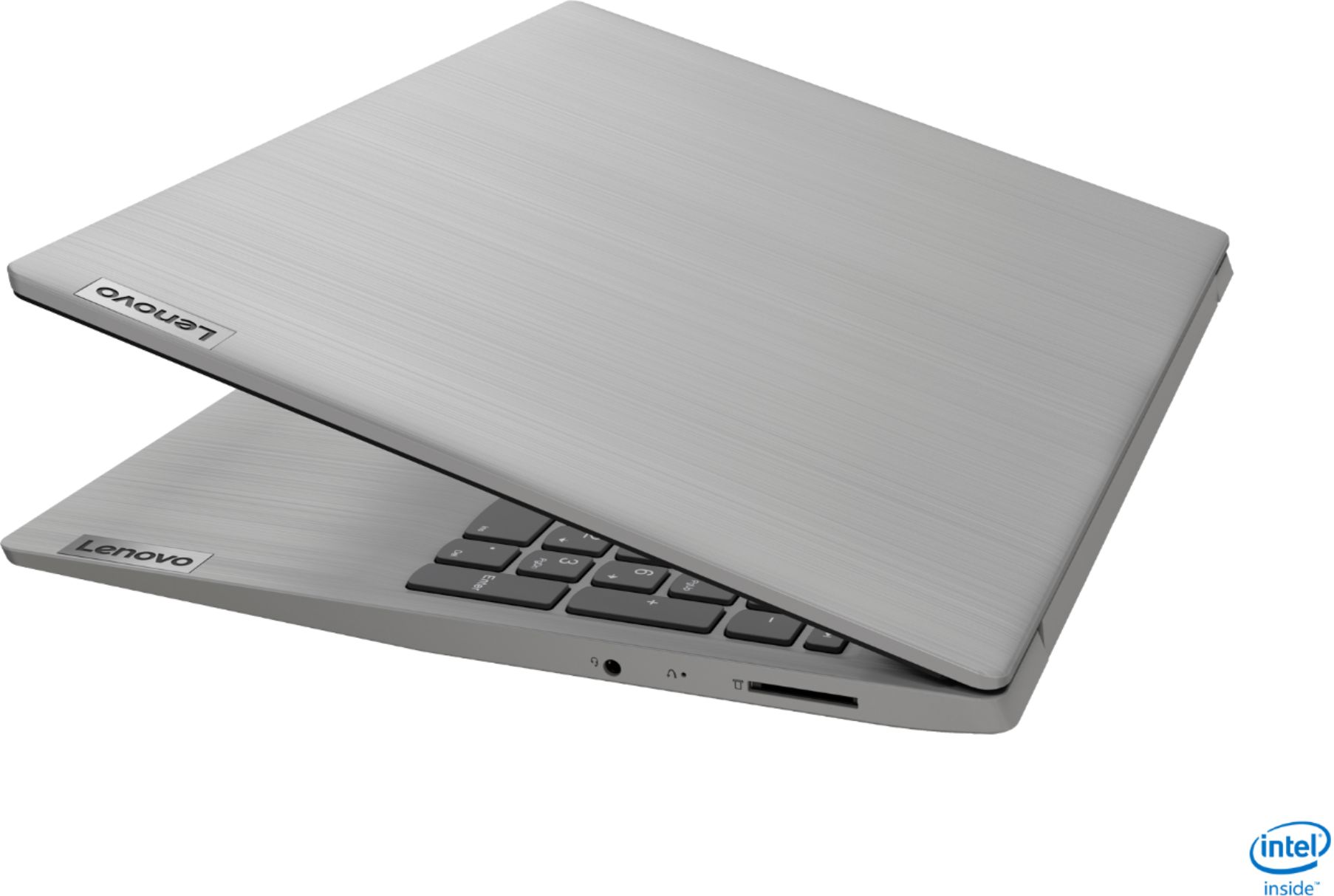
Posted .We are sorry to hear that you are having issues with your Lenovo IdeaPad 3 15 Laptop, model number 81WE00NKUS. Resetting the laptop to original factory setting may correct the issue you are having with the keyboard. This system is equipped with OneKey Recovery System. There is a very small pin hole on the right side of the device, right in between the headphone jack and the SD card slot on the device. You will need a pin to push this reset button. Plug the device in. Let the battery charge for about 15 minutes. Push the reset button. The system should boot to a choice screen where you can choose "Restore To Factory Default". Select this. It will delete everything from the hard drive except the original factory install of the operating system. You will need to reinstall all programs and files after the reset. If you don't have copies of the files, try to make one before you restore by selecting "Boot to desktop" and trying to back up your files. Once you have the computer reset, be sure any software you installed is compatible with Windows 10. There is no need to install Microsoft Office software. The software is already part of the operating system, you just need to activate the software with a purchased product key. If you have installed a copy of Microsoft Office, this is conflicting with the existing copy on the system and this will slow your system down. If you have installed a 3rd party anti-virus program, be sure that Windows Defender is turned off and that the trial version of McAfee Anti-Virus software is uninstalled. There can only be one anti-virus program on the system. You may need to restore your system to original factory default settings if any of the programming errors have occurred. You can do that by typing "restore" in the Cortana search window. Just click on the magnifying glass icon at the bottom left of your Windows 10 Desktop. Click on "Reset This PC" Then click on "Get Started" and follow the on screen directions to restore to factory defaults. If the problem persists, we recommend you contact Lenovo Tech Support at: 877-453-6686.

Lenovo
||Posted . Owned for 1 month when reviewed.This reviewer received promo considerations or sweepstakes entry for writing a review.We cannot get the caps lock key light to turn off. And now I have to bring it back to Best Buy for someone to help me with is.
No, I would not recommend this to a friendBrand response from Lenovo Product Expert
Posted .We are sorry to hear that you are having issues with the CAPS LOCK on/off LED light on your IdeaPad 3 15 Laptop, model number 81WE00NKUS. It is possible that resetting the Windows 10 Operating System will correct the issue. Here is a link to instructions for resetting Windows 10: https://support.microsoft.com/en-us/windows/recovery-options-in-windows-10-31ce2444-7de3-818c-d626-e3b5a3024da5. If the issue continues, we recommend you contact Lenovo Tech Support for additional help at: 877-453-6686.
Good specs but practically slow
||Posted . Owned for 1 month when reviewed.This reviewer received promo considerations or sweepstakes entry for writing a review.Not very good, good specs but not runs good. If you save something harddisk makes loud sound like krrr jrrr krrr krrrr
No, I would not recommend this to a friendBrand response from Lenovo Product Expert
Posted .Hello, we are sorry to hear you are experiencing this issue with your Lenovo 3 15" laptop model #81WE00NKUS . This unit ships with a 265 GB Solid State drive. An SSD should not be making any noise as it does not have moving parts like traditional hard drives. Please perform a system scan and ensure you have installed all of the latest Windows 10 updates, System device driver updates and BIOS. You can easily accomplish this by scanning the computer with the Lenovo Utility software available on this computer. This system has Lenovo utilities installed to help maintain the health of the device and keep the operating system software up to date. Type "Lenovo Vantage" in the Cortana Search window (if Lenovo Vantage is not installed on your device, you can download the APP and install it now). Select Lenovo Vantage from the list. In the window that opens, click on "Health and Support". In the expanded menu, select "Hardware Scan” In the window that opens, select "Run Quick Tests". This will scan your entire system for errors. Follow any directions that may pop up. If the problem continues after this scan, now click on "System Update". First select Windows update from the menu. Scan your system to be sure you have the latest version of Windows 10. Once that scan is complete, select "Additional Updates". This will scan your device to be sure there are no new BIOS/Driver updates needed. Follow any instructions that may pop up. If the issue continues after these updates, we recommend you call Lenovo Tech Support at: 877-453-6686 for additional help.
High configuration but cheap quality
||Posted . Owned for 1 week when reviewed.This reviewer received promo considerations or sweepstakes entry for writing a review.Configuration wise looks like a robust laptop. But, performance is not up to the mark. Also, display quality is very bad.
No, I would not recommend this to a friendBrand response from Lenovo Product Expert
Posted .The Lenovo IdeaPad 3 15 Laptop, model number 81WE00NKUS, ships with the 10th Generation, 4-Core/8-Thread Intel Core i5-1035G1
processor, with an energy-efficient base speed of 1.0GHz and a Turbo Boost speed of up to 3.6GHz for maximum computing power. This processor is supported by 12GB DDR4-2666MHz RAM and a 256GB NVMe TLC solid state hard drive. This model ships with Windows 10 S-Mode Operating System. Windows 10 S-Mode provides added security by only allowing APPs available ( and therefore certified by Microsoft) at the Microsoft Store. If you don't need the added security or you need to install APPs not available at the Microsoft Store, you can switch to standard Windows 10 Home 64-bit Operating System, at no additional cost. If you are getting slower than anticipated performance, be sure any software you installed is compatible with Windows 10. There is no need to install Microsoft Office software. The software is already part of the operating system, you just need to activate the software with a purchased product key. If you have installed a copy of Microsoft Office, this is conflicting with the existing copy on the system and this will slow your system down. If you have installed a 3rd party anti-virus program, be sure that Windows Defender is turned off and that the trial version of McAfee Anti-Virus software is uninstalled. There can only be one anti-virus program on the system. You may need to restore your system to original factory default settings if any of the programming errors have occurred. You can do that by typing "restore" in the Cortana search window. Just click on the magnifying glass icon at the bottom left of your Windows 10 Desktop. Click on "Reset This PC" Then click on "Get Started" and follow the on screen directions to restore to factory defaults. If the problem persists, we recommend you contact Lenovo Tech Support at: 877-453-6686.
Buyer Beware
||Posted . Owned for 1.5 years when reviewed.This reviewer received promo considerations or sweepstakes entry for writing a review.Bought the computer in January 2021. Screen started blacking out right after warranty ended. Paid Best Buy $200 for Geek Squad service. Now being told it will cost $350 to repair. The computer itself only cost $470. Don't ever buy this computer or the Geek Squad service plan for $200. Neither are worth the $
No, I would not recommend this to a friendMisses the Mark
||Posted . Owned for less than 1 week when reviewed.This reviewer received promo considerations or sweepstakes entry for writing a review.Laptop was returned after issues with the trackpad. Not impressed with the screeen. Build quality was acceptable.
No, I would not recommend this to a friendBrand response from Lenovo Product Expert
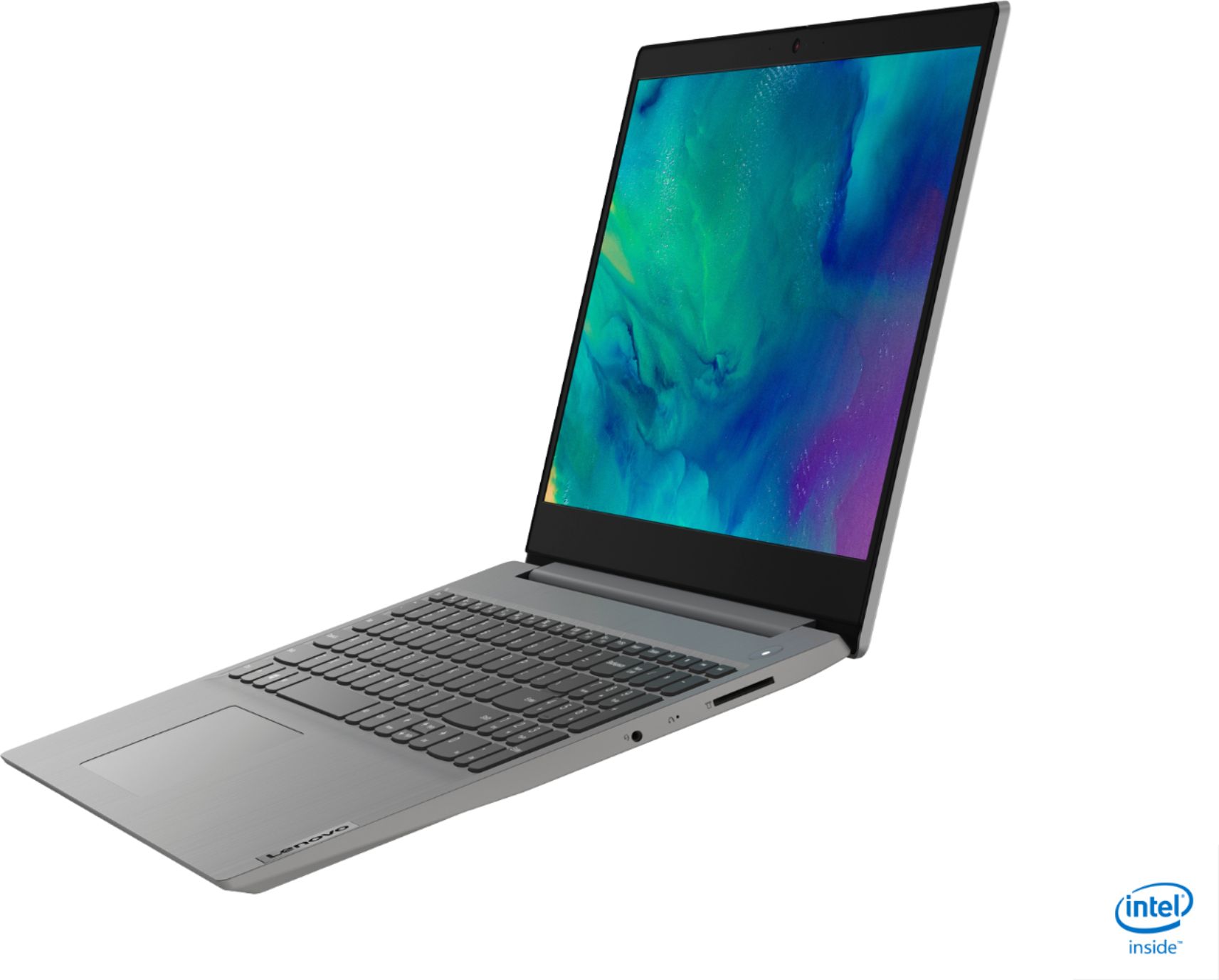
Posted .With regard to the touchpad, you can make adjustments to the touchpad in your system settings. You can get there by clicking on the magnifying glass at the bottom left of your Windows 10 screen. Type "touchpad" in the search window. Select "Mouse & touchpad settings" from the list of choices. You can make general adjustments to the touchpad there. You can also select "Additional mouse options" for more detailed adjustments to the touchpad sensitivity by increasing the delay of the touchpad. The Lenovo IdeaPad 3 15 Laptop, model number 81WE00NKUS, ships with a 15.6-Inch (screen size measured diagonally) TN, LCD w/LED Backlight (Anti-glare) screen, with a resolution of 1366 X 768 (HD) and a brightness level of 220 nits.
- Cons mentioned:Camera
It needs fix
||Posted . Owned for 3 weeks when reviewed.This reviewer received promo considerations or sweepstakes entry for writing a review.There is an error in a softwere..Camera stopped working and cannot be turned on
No, I would not recommend this to a friendBrand response from Lenovo Product Expert
Posted .Hello, we are sorry to hear you are experiencing this issue with your Lenovo IdeaPad 3 laptop model #81WE00NKUS . Please ensure the webcam is active by pressing the f8 key which has a camera picture on it. This can commonly disable the camera by accident. Next please ensure that the camera privacy shutter is turned off. This is a little black switch that is located above the webcam at the top of your screen. moving the slider to the red will block the camera, moving the slider the other direction will allow the camera to function. if your issue remains please ensure you have the latest software, device drivers, and BIOS installed on your machine. You can easily accomplish this by scanning the computer with the Lenovo Utility software available on this computer. This system has Lenovo utilities installed to help maintain the health of the device and keep the operating system software up to date. Type "Lenovo Vantage" in the Cortana Search window (if Lenovo Vantage is not installed on your device, you can download the APP and install it now). Select Lenovo Vantage from the list. In the window that opens, click on "Health and Support". In the expanded menu, select "Hardware Scan” In the window that opens, select "Run Quick Tests". This will scan your entire system for errors. Follow any directions that may pop up. If the problem continues after this scan, now click on "System Update". First select Windows update from the menu. Scan your system to be sure you have the latest version of Windows 10. Once that scan is complete, select "Additional Updates". This will scan your device to be sure there are no new BIOS/Driver updates needed. Follow any instructions that may pop up. If the issue continues after these updates, we recommend you call Lenovo Tech Support at: 877-453-6686 for additional help.
Brightness key is not working and Support is denie
||Posted . Owned for 1 month when reviewed.This reviewer received promo considerations or sweepstakes entry for writing a review.The brightess key stopped working after 10 days of use. Before giving a poor review, I just wanted to understand if I am missing something. So I called the Lenovo customer care in India (I bought the product in USA and using it in India). The response was not at all supportive, I was denied the support because I bought this product in USA. Now I can neither return it nor get it serviced.
No, I would not recommend this to a friendBrand response from Lenovo Product Expert
Posted .We are sorry to hear that you are having issues with brightness control on your Lenovo IdeaPad 3 15 Laptop, model number 81WE00NKUS. Be sure auto-brightness has not been inadvertently been turned on. You can press Windows + I, or click Start -> Settings to open Settings.
Next you can click System, and click Display from the left pane. Turn the Change brightness automatically when lighting changes option status to Off. Here is a link to more information about turning off auto brightness control within Windows 10: https://www.minitool.com/news/disable-adaptive-brightness-windows-10.html
Dissatisfaction
||Posted . Owned for 3 weeks when reviewed.This reviewer received promo considerations or sweepstakes entry for writing a review.It was only 2 weeks before my laptop quit working. I contacted Lenovo and they charged me $79 to send a tech to my house to fix it. After 2 trips and replacing multiple components it still does not work. Now i am supposed to send it in to be “repaired”. It will be even longer without the laptop and I haven’t even made the 1st payment. Needless to say i am very dissatisfied.
No, I would not recommend this to a friendBrand response from Lenovo Product Expert
Posted .We are sorry to hear that you are having issues with your Lenovo IdeaPad 3 15 Laptop, model number 81WE00NKUS. Be sure any software you installed is compatible with Windows 10. There is no need to install Microsoft Office software. The software is already part of the operating system, you just need to activate the software with a purchased product key. If you have installed a copy of Microsoft Office, this is conflicting with the existing copy on the system and this will slow your system down. If you have installed a 3rd party anti-virus program, be sure that Windows Defender is turned off and that the trial version of McAfee Anti-Virus software is uninstalled. There can only be one anti-virus program on the system. You may need to restore your system to original factory default settings if any of the programming errors have occurred. You can do that by typing "restore" in the Cortana search window. Just click on the magnifying glass icon at the bottom left of your Windows 10 Desktop. Click on "Reset This PC" Then click on "Get Started" and follow the on screen directions to restore to factory defaults. The Tech working on your system may not see that there is conflicting software installed.
- Cons mentioned:Camera
Camera not working
||Posted . Owned for 2 months when reviewed.This reviewer received promo considerations or sweepstakes entry for writing a review.My camera gone . It’s not working, it’s not even showing option to return
No, I would not recommend this to a friendBrand response from Lenovo Product Expert
Posted .We are sorry to hear that you are having issues with the webcam on your Lenovo IdeaPad 3 15 Laptop, model number 81WE00NKUS. This model ships with a 720p (HD) webcam with manual Privacy Shutter built in. Be sure the Privacy Shutter is completely open before trying to use the webcam or the webcam will not operate. There is a small slider, directly above the webcam lens. Move the tab to the right to open the Privacy Shutter. There is a red dot over the webcam lens that will disappear when the Privacy Shutter is fully open. This will indicate that the webcam is really to use. You can close the Privacy Shutter when you are done with the webcam for your security, by sliding the tab to the left to close the Privacy Shutter. The Red Dot will appear over the webcam lens when the Privacy Shutter is closed. If that does not solve the problem, here is a link to some other troubleshooting fixes for webcam issues: https://www.windowscentral.com/how-fix-common-camera-problems-windows-10. Finally if the issue continues, we recommend you contact Lenovo Tech Support at: 877-453-6686.
- Cons mentioned:Battery life
Lenovo
||Posted . Owned for 3 weeks when reviewed.This reviewer received promo considerations or sweepstakes entry for writing a review.Do not buy this LAPTOP its Battery issue it drains within 1-2 hours
No, I would not recommend this to a friendBrand response from Lenovo Product Expert
Posted .Hello, we are sorry to hear you are experiencing this issue with your battery life. The Lenovo IdeaPad 3 15" laptop model # 81WE00NKUS is rated for up tp 7.5 hours of batter life depending on your usage scenario. If you are getting substantially less battery life, please adjust your screen brightness settings. A setting of 100% brightness will drain your battery much faster than a lower setting. We recommend setting the screen brightness to some value below 100% that is still comfortable for you to view. Next be sure Battery conservation Mode is turned off. This power management setting should only be used when the laptop is plugged in all the time. It will prolong overall battery life by only charging the battery to 60-percent of capacity. Here is a link to instructions for turning off Battery Conservation Mode: https://support.lenovo.com/us/en/solutions/ht103159. Also check what programs are running in the background on the computer. Be sure only the programs you want running in the background are. These programs will drain the battery. Here is a link to information about how to find out what programs are running in the background on your Windows 10 computer and how to manage them for better system performance: https://www.windowscentral.com/how-prevent-apps-running-background-windows-10. Then, finally, be sure any software you installed is compatible with Windows 10. Incompatible software will drain the battery at a faster rate. There is no need to install Microsoft Office software. The software is already part of the operating system, you just need to activate the software with a purchased product key. If you have installed a copy of Microsoft Office, this is conflicting with the existing copy on the system and this will slow your system down. If you have installed a 3rd party anti-virus program, be sure that Windows Defender is turned off and that the trial version of McAfee Anti-Virus software is uninstalled. There can only be one anti-virus program on the system. You may need to restore your system to original factory default settings if any of the programming errors have occurred. You can do that by typing "restore" in the Cortana search window. Just click on the magnifying glass icon at the bottom left of your Windows 10 Desktop. Click on "Reset This PC" Then click on "Get Started" and follow the on screen directions to restore to factory defaults. If the problem persists, we recommend you contact Lenovo Tech Support at: 877-453-6686.
Faulty product
||Posted . Owned for 3 weeks when reviewed.This reviewer received promo considerations or sweepstakes entry for writing a review.Needs to be returned. Will not hook up to wi fi. Product has a faulty wi fi card
No, I would not recommend this to a friendBrand response from Lenovo Product Expert
Posted .The Lenovo IdeaPad 3 15 Laptop, model number 81WE00NKUS, ships with 5G, Wide-Range/High Speed, 2x2 802.11AC frequency WiFi. It is backward compatible with older b/g/n frequency WiFi as well. Resetting your computer back to original factory settings may correct the issue you are having. This system is equipped with OneKey Recovery System. There is a very small pin hole on the right side of the device, right in between the headphone jack and the SD card slot on the device. You will need a pin to push this reset button. Plug the device in. Let the battery charge for about 15 minutes. Push the reset button. The system should boot to a choice screen where you can choose "Restore To Factory Default". Select this. It will delete everything from the hard drive except the original factory install of the operating system. You will need to reinstall all programs and files after the reset. If you don't have copies of the files, try to make one before you restore by selecting "Boot to desktop" and trying to back up your files. If the problem persists after the factory reset, we recommend you contact Lenovo Tech Support at: 877-453-6686.
Average
||Posted . Owned for 1 month when reviewed.This reviewer received promo considerations or sweepstakes entry for writing a review.Not what I expected. After waiting anxiously on its arrival, I was disappointed.
No, I would not recommend this to a friendPoor
||Posted .This reviewer received promo considerations or sweepstakes entry for writing a review.Too much waiting for pickup in the store.. people who are directly buying the products leaving the store early compare to us . It took around 1hr for me to just pick my product. And I struggled with employees to know the price of Fitbit watch.. Then I fedup and left the store immediately..
No, I would not recommend this to a friendComputer not working
||Posted . Owned for 1 month when reviewed.This reviewer received promo considerations or sweepstakes entry for writing a review.Something has happened to my computer and it will not power up.. I have blackout spells due to medication I take for stage 4 cancer that causes me to have serious hot flashes. I passed out while working on computer when I came to it would not restart.
No, I would not recommend this to a friendBrand response from Lenovo Product Expert
Posted .We are sorry to hear that you are having issues with your Lenovo IdeaPad 3 15 Laptop, model number 81WE00NKUS. First, try plugging the computer in and letting it charge for 15-minutes. Try starting the computer again, while leaving the computer plugged in. If the computer will not boot up while plugged in and after charging for 15-minutes, this system is equipped with OneKey Recovery System. There is a very small pin hole on the right side of the device, right in between the headphone jack and the SD card slot on the device. You will need a pin to push this reset button. Plug the device in. Let the battery charge for about 15 minutes. Push the reset button. The system should boot to a choice screen where you can choose "Restore To Factory Default". Select this. It will delete everything from the hard drive except the original factory install of the operating system. You will need to reinstall all programs and files after the reset. If you don't have copies of the files, try to make one before you restore by selecting "Boot to desktop" and trying to back up your files. If the problem persists after the factory reset, we recommend you contact Lenovo Tech Support at: 877-453-6686.
Worst experience
||Posted . Owned for 3 weeks when reviewed.This reviewer received promo considerations or sweepstakes entry for writing a review.Worst experience with this just opened the device worked on it for day for just 2 to 3 hour's shut it down the next day laptop doesn't boot up and it was the new one nor the open box or a refurbished one was not expecting that from a new laptop Lenovo
No, I would not recommend this to a friendBrand response from Lenovo Product Expert
Posted .We are sorry to hear that you are having issues with your Lenovo IdeaPad 3 15 Laptop, model number 81WE00NKUS. It is possible that resetting your computer back to original factory settings will fix the issue you describe. Since you can no longer boot the computer, this system is equipped with OneKey Recovery System. There is a very small pin hole on the right side of the device, right in between the headphone jack and the SD card slot on the device. You will need a pin to push this reset button. Plug the device in. Let the battery charge for about 15 minutes. Push the reset button. The system should boot to a choice screen where you can choose "Restore To Factory Default". Select this. It will delete everything from the hard drive except the original factory install of the operating system. You will need to reinstall all programs and files after the reset. If you don't have copies of the files, try to make one before you restore by selecting "Boot to desktop" and trying to back up your files. Once you have the computer reset, be sure any software you installed is compatible with Windows 10. There is no need to install Microsoft Office software. The software is already part of the operating system, you just need to activate the software with a purchased product key. If you have installed a copy of Microsoft Office, this is conflicting with the existing copy on the system and this will slow your system down. If you have installed a 3rd party anti-virus program, be sure that Windows Defender is turned off and that the trial version of McAfee Anti-Virus software is uninstalled. There can only be one anti-virus program on the system. You may need to restore your system to original factory default settings if any of the programming errors have occurred. You can do that by typing "restore" in the Cortana search window. Just click on the magnifying glass icon at the bottom left of your Windows 10 Desktop. Click on "Reset This PC" Then click on "Get Started" and follow the on screen directions to restore to factory defaults. If the problem persists, we recommend you contact Lenovo Tech Support at: 877-453-6686.