Customer Ratings & Reviews
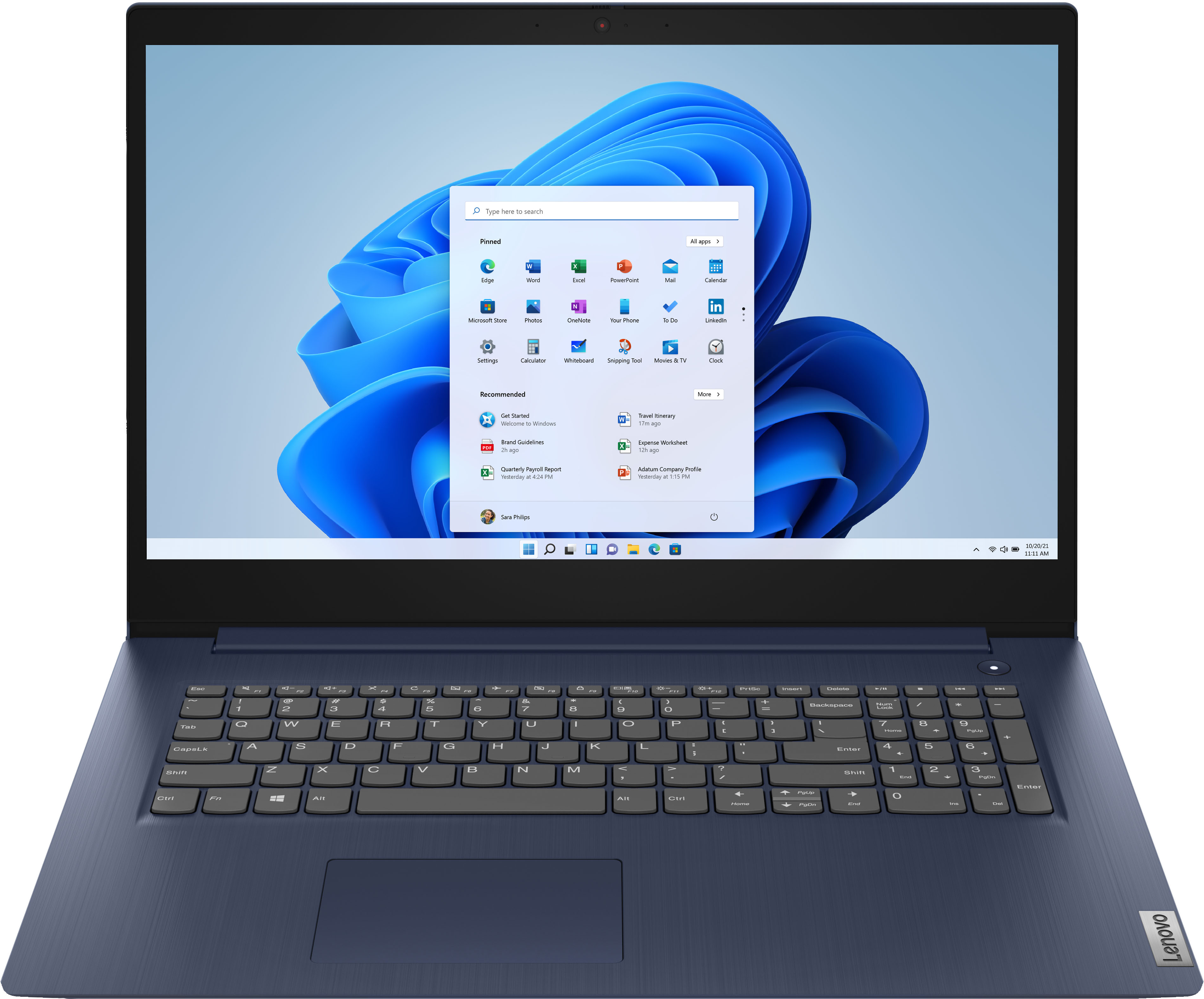
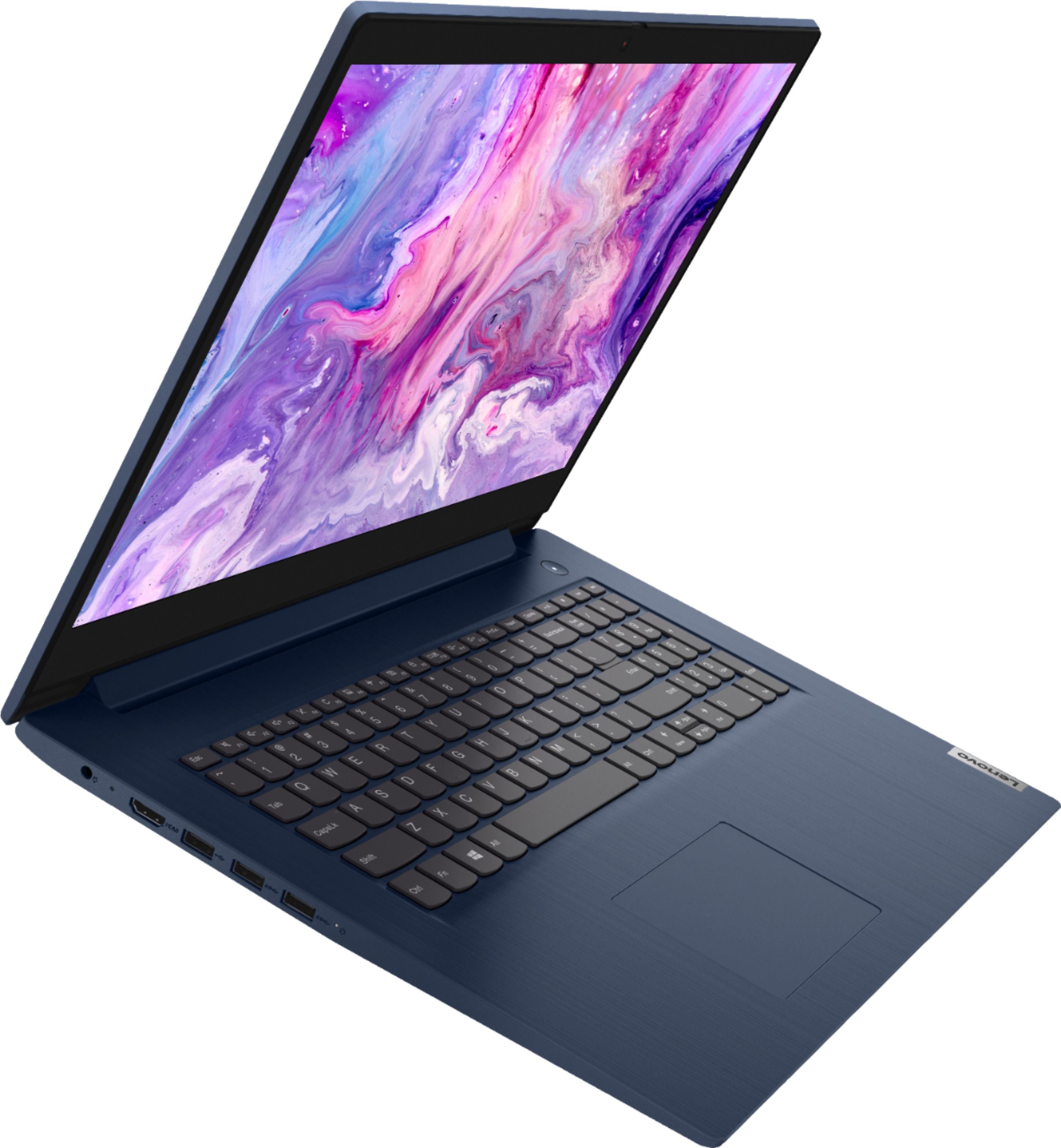
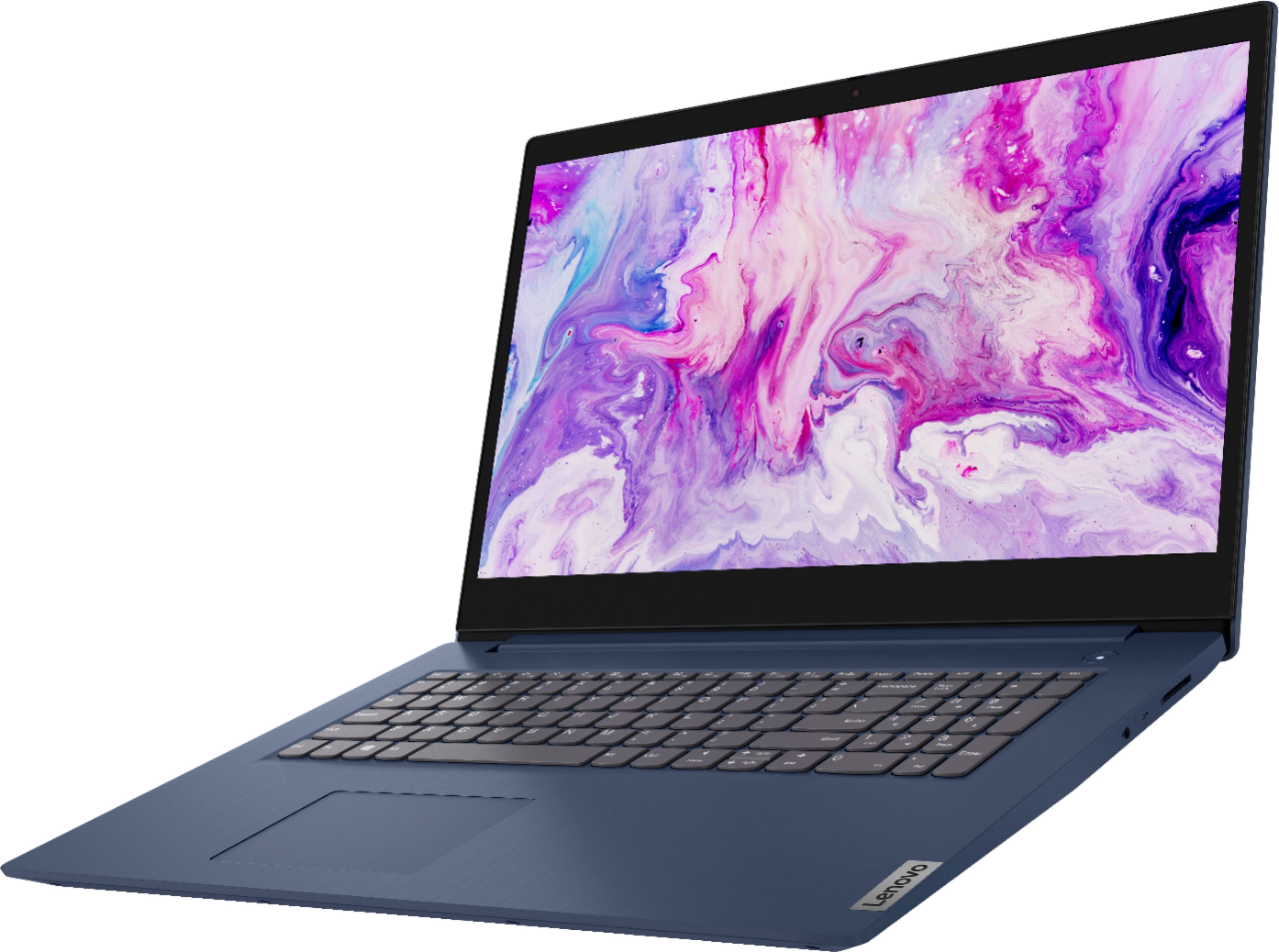
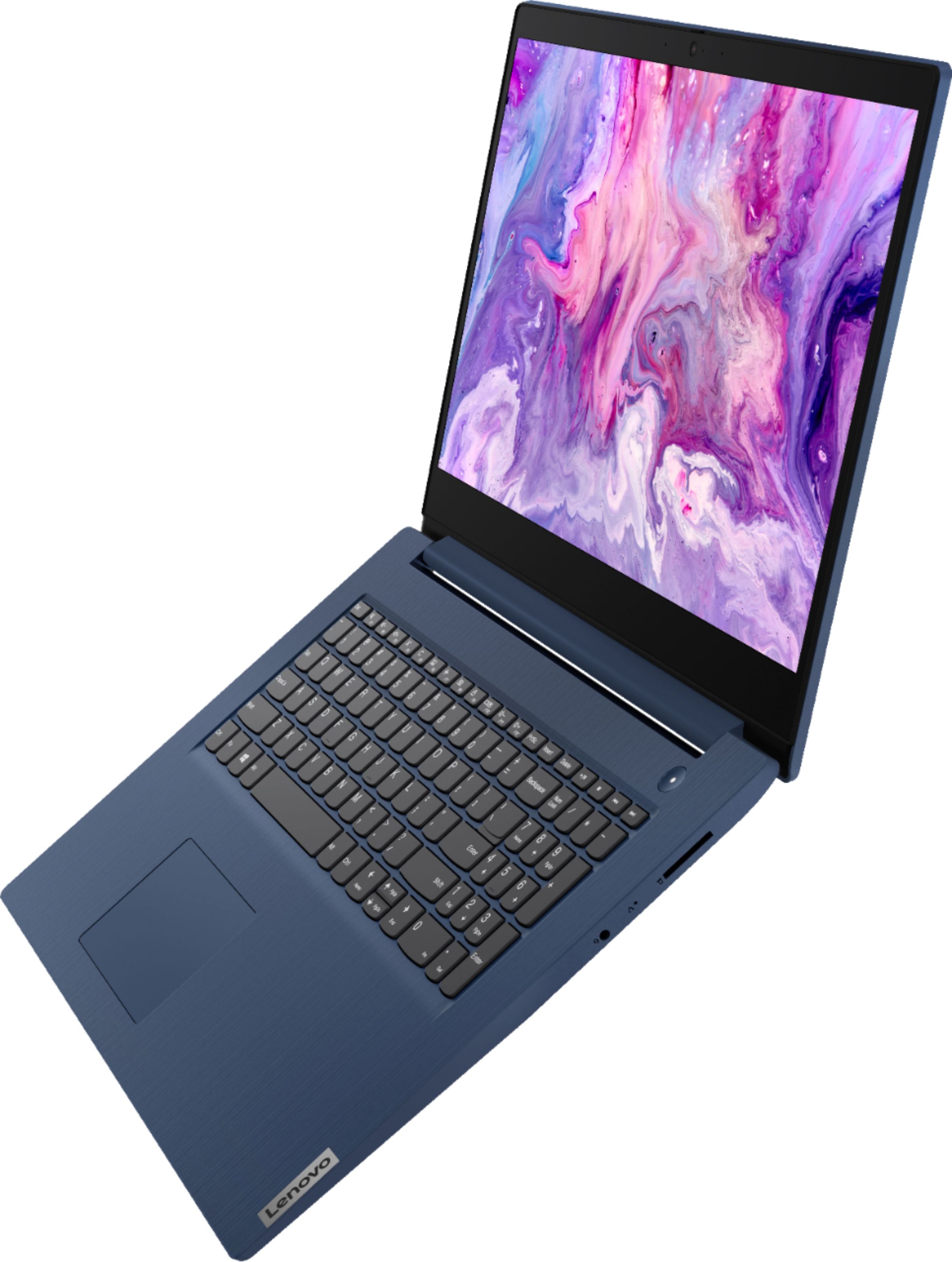

- Model:
- 81WF004CUS
- SKU:
- 6449490
Rating by feature
- Battery Life
Rating 3.8 out of 5 stars
- Speed
Rating 3.2 out of 5 stars
- Display
Rating 3.9 out of 5 stars
Customers are saying
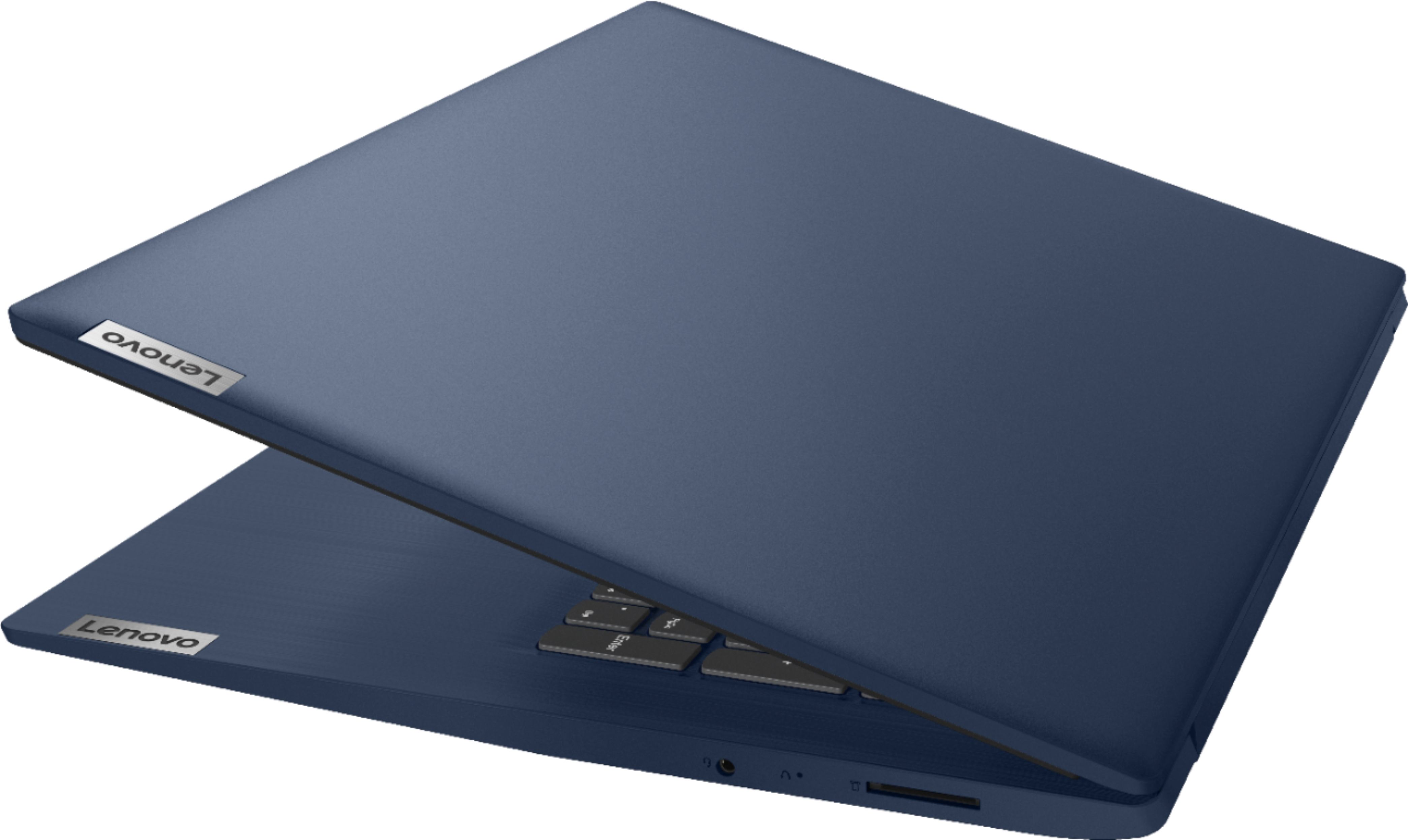
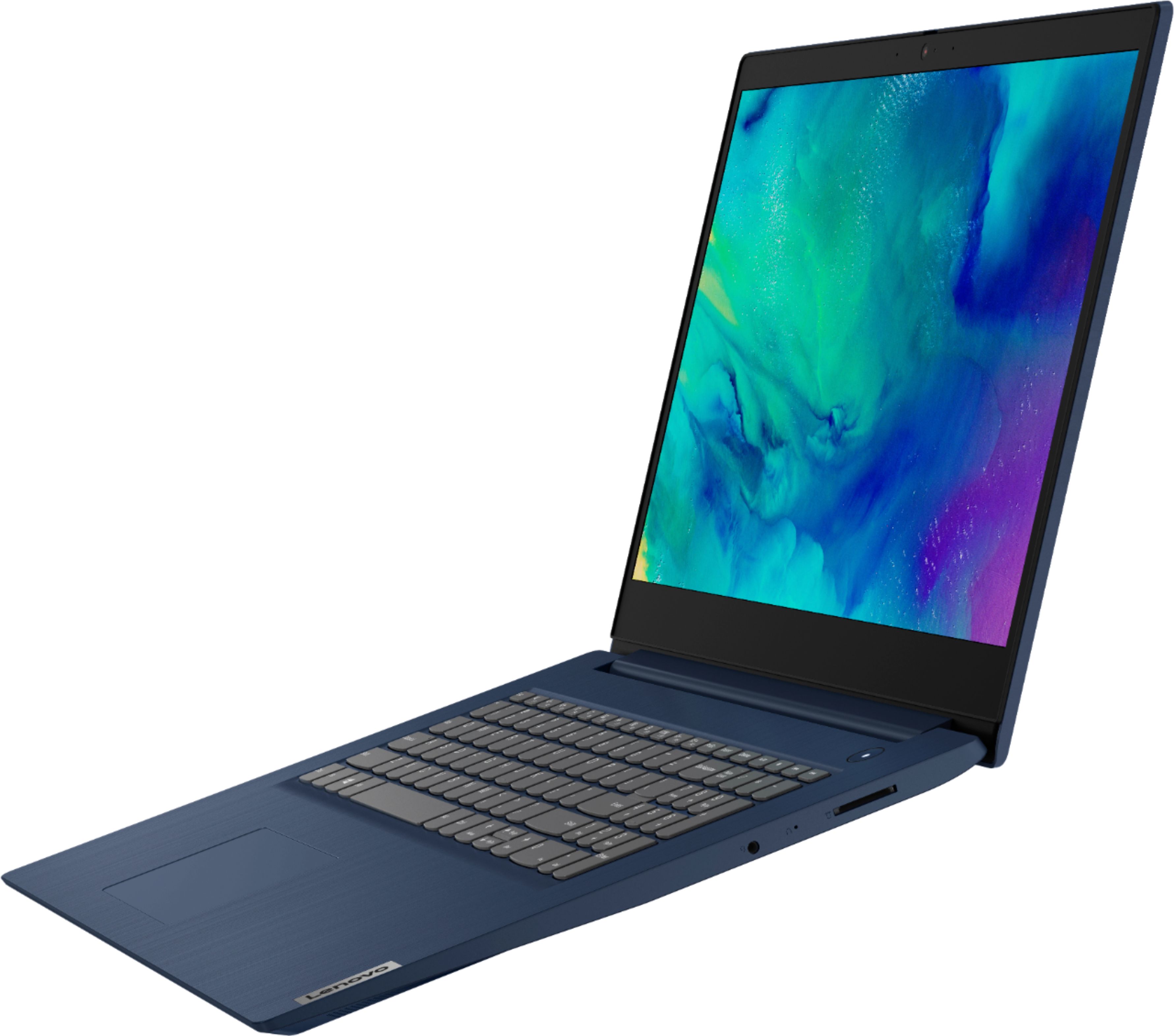
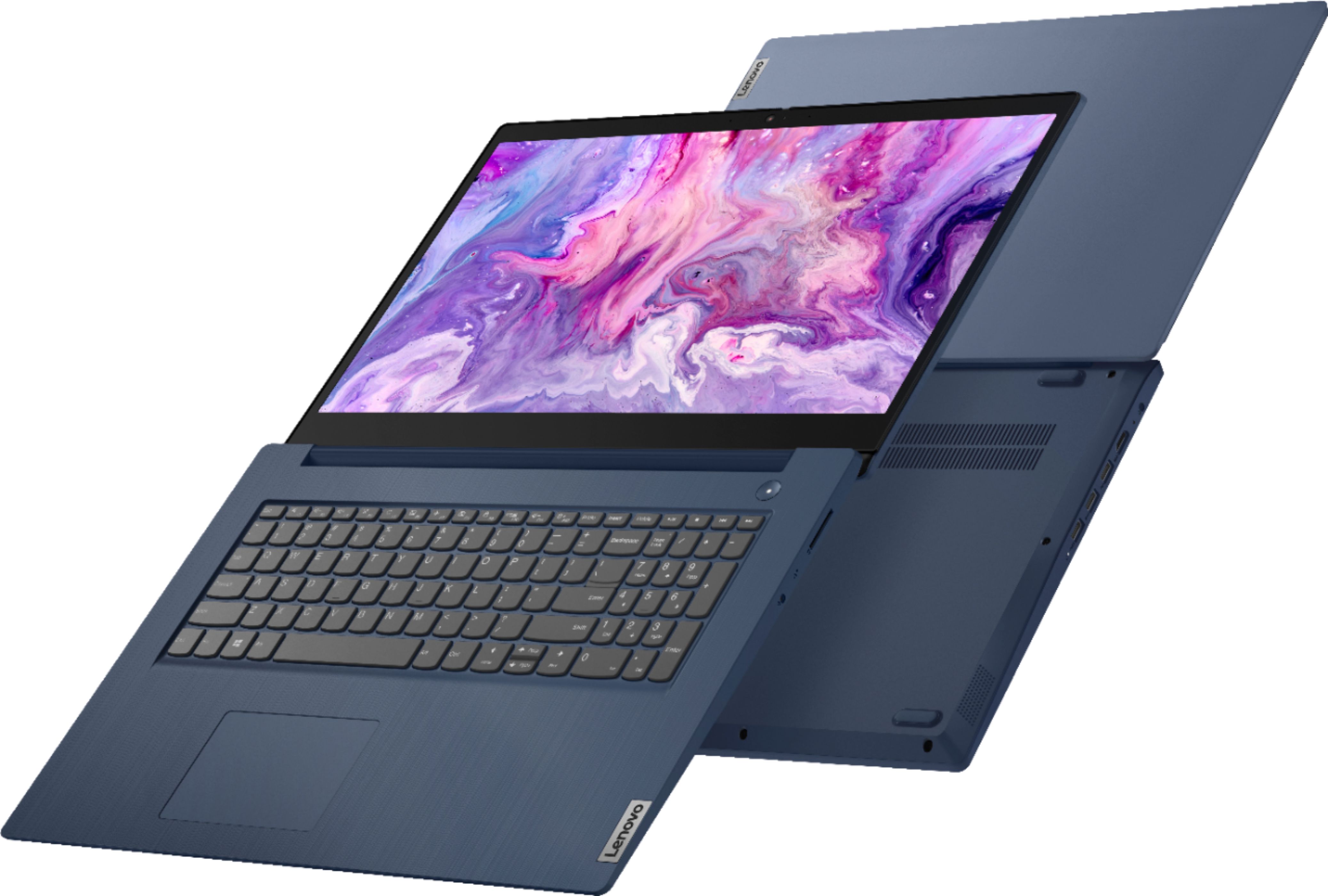
Customers enjoy the large screen, affordable price, and user-friendly nature of the Ideapad 3 17. It is lightweight and suitable for work. However, some users have concerns about its performance, boot time, and battery life.
This summary was generated by AI based on customer reviews.
NEVER AGAIN THIS BRAND
||Posted . Owned for less than 1 week when reviewed.This reviewer received promo considerations or sweepstakes entry for writing a review.we got this laptop an it went out in a month . it was saying manger reboot. less than a month of having it . geek squad said something about the drive begin cd an the disc is rubbing on something . NEVER DROPPED THIS LAPTOP IT WAS STILL NEW. DO NOT RECCOMEND . ALWAYS PURCHASE A SSD ..NOW I KNOW OR A GAMER LAPTOP
No, I would not recommend this to a friendBrand response from Lenovo Product Expert
Posted .The Lenovo IdeaPad 3 17 Laptop, model number 81WF004CUS, does not have a built CD/DVD drive. We recommend you contact Lenovo Tech Support for help with your specific model laptop at: 866-426-0911.

- Cons mentioned:Speed
so slow
||Posted . Owned for 10 months when reviewed.This reviewer received promo considerations or sweepstakes entry for writing a review.Can't remember the last laptop I purchased that was this slow.
No, I would not recommend this to a friendBrand response from Lenovo Product Expert
Posted .We are sorry to hear that the Lenovo IdeaPad 3 17 laptop, model number 81WF004CUS. This model configuration ships with Windows 10 S-Mode 64-bit Operating System installed and will boot from off to the Windows Login Screen in less than 40-seconds. If you are getting slower boot times, even if you have switched out of S-Mode, be sure any software you installed is compatible with Windows 10. There is no need to install Microsoft Office software. The software is already part of the operating system, you just need to activate the software with a purchased product key. If you have installed a copy of Microsoft Office, this is conflicting with the existing copy on the system and this will slow your system down. If you have installed a 3rd party anti-virus program, be sure that Windows Defender is turned off and that the trial version of McAfee Anti-Virus software is uninstalled. There can only be one anti-virus program on the system. Here is a link to instructions for uninstalling McAfee from a Windows computer: https://service.mcafee.com/?articleId=TS101331&page=shell&shell=article-view You may need to restore your system to original factory default settings if any of the programming errors have occurred. You can do that by typing "restore" in the Cortana search window. Just click on the magnifying glass icon at the bottom left of your Windows 10 Desktop. Click on "Reset This PC" Then click on "Get Started" and follow the on screen directions to restore to factory defaults. If the problem persists, we recommend you contact Lenovo Tech Support at: 877-453-6686.
- Cons mentioned:Speed
Pass this one up, unless you like waiting.
||Posted . Owned for 3 weeks when reviewed.This reviewer received promo considerations or sweepstakes entry for writing a review.Super slow. Had to return it. It was worse than the Dell we were replacing.
No, I would not recommend this to a friendBrand response from Lenovo Product Expert
Posted .The Lenovo IdeaPad 3 17 Laptop, model number 81WF004CUS, will boot from off to the Windows 10 Desktop Screen in less than 40-seconds. This model ships with Windows 10 S-Mode 64-Bit Operating System. Windows 10 S-Mode provides added security by only allowing APPs available ( and therefore certified by Microsoft) at the Microsoft Store. If you don't need the added security or you need to install APPs not available at the Microsoft Store, you can switch to standard Windows 10 Home 64-bit Operating System, at no additional cost. If you are getting slower boot times and/or generally slower than expected performance, even id you have switched out of S-Mode, Be sure any software you installed is compatible with Windows 10. There is no need to install Microsoft Office software. The software is already part of the operating system, you just need to activate the software with a purchased product key. If you have installed a copy of Microsoft Office, this is conflicting with the existing copy on the system and this will slow your system down. If you have installed a 3rd party anti-virus program, be sure that Windows Defender is turned off and that the trial version of McAfee Anti-Virus software is uninstalled. There can only be one anti-virus program on the system. You may need to restore your system to original factory default settings if any of the programming errors have occurred. You can do that by typing "restore" in the Cortana search window. Just click on the magnifying glass icon at the bottom left of your Windows 10 Desktop. Click on "Reset This PC" Then click on "Get Started" and follow the on screen directions to restore to factory defaults. If the problem persists, we recommend you contact Lenovo Tech Support at: 877-453-6686.
- Cons mentioned:Speed
SLOW
||Posted . Owned for 1 year when reviewed.This reviewer received promo considerations or sweepstakes entry for writing a review.This laptop is so slow. I can’t do anything with it!!
No, I would not recommend this to a friend Do not waste your money
||Posted . Owned for 10 months when reviewed.This reviewer received promo considerations or sweepstakes entry for writing a review.This computers hard drive has failed twice in the factory warranty period. I thought Lenovo was a great product….We are also still paying payments on something that will end up a paperweight! Not pleased at all with this one, or with the service we have received.
No, I would not recommend this to a friendBrand response from Lenovo Product Expert
Posted .We are sorry to hear that you are having issues with your Lenovo IdeaPad 3 17 laptop, model number 81WF004CUS. This model ships with Windows 10 S-Mode, 64-bit Operating System installed. Windows 10 S-Mode provides added security by only allowing APPs available ( and therefore certified by Microsoft) at the Microsoft Store. If you don't need the added security or you need to install APPs not available at the Microsoft Store, you can switch to standard Windows 10 Home 64-bit Operating System, at no additional cost. Resetting this computer back to original factory settings may correct the issues you are having. This system is equipped with OneKey Recovery System. There is a very small pin hole on the right side of the device, right in between the headphone jack and SD Card Slot on the device. You will need a pin to push this reset button. Plug the device in. Let the battery charge for about 15 minutes. Push the reset button. The system should boot to a choice screen where you can choose "Restore To Factory Default". Select this. It will delete everything from the hard drive except the original factory install of the operating system. You will need to reinstall all programs and files after the reset. If you don't have copies of the files, try to make one before you restore by selecting "Boot to desktop" and trying to back up your files. Once you have the computer reset, even if you switched out of S-Mode, be sure any software you installed is compatible with Windows 10. There is no need to install Microsoft Office software. The software is already part of the operating system, you just need to activate the software with a purchased product key. If you have installed a copy of Microsoft Office, this is conflicting with the existing copy on the system and this will slow your system down. If you have installed a 3rd party anti-virus program, be sure that Windows Defender is turned off and that the trial version of McAfee Anti-Virus software is uninstalled. There can only be one anti-virus program on the system. Here is a link to instructions for uninstalling McAfee from a Windows computer: https://service.mcafee.com/?articleId=TS101331&page=shell&shell=article-view You may need to restore your system to original factory default settings if any of the programming errors have occurred. You can do that by typing "restore" in the Cortana search window. Just click on the magnifying glass icon at the bottom left of your Windows 10 Desktop. Click on "Reset This PC" Then click on "Get Started" and follow the on screen directions to restore to factory defaults. If the problem persists, we recommend you contact Lenovo Tech Support at: 877-453-6686.
Try before you buy
||Posted . Owned for 1 month when reviewed.This reviewer received promo considerations or sweepstakes entry for writing a review.Awkward keyboard location. Not very easy to use. Wish I had tried it out more before I bought.
No, I would not recommend this to a friendBrand response from Lenovo Product Expert
Posted .The Lenovo IdeaPad 3 17 Laptop, model number 81WF004CUS, ships with a standard QWERTY keyboard with included 10-Key Numeric Pad on a spacious 17.3 inch frame, for a comfortable typing experience.
- Cons mentioned:Speed
Spend the money on something better
||Posted . Owned for 2 months when reviewed.This reviewer received promo considerations or sweepstakes entry for writing a review.This is slooowwww I wished I returned it , would not buy again
No, I would not recommend this to a friendBrand response from Lenovo Product Expert
Posted .The Lenovo IdeaPad 3 17 Laptop, model number 81WF004CUS will boot from off to the Windows 10 Desktop Screen in less than 40-seconds. If you are experiencing slower boot times and/or generally slower performance than expected, even if you have switched out of S-Mode, be sure any software you installed is compatible with Windows 10. There is no need to install Microsoft Office software. The software is already part of the operating system, you just need to activate the software with a purchased product key. If you have installed a copy of Microsoft Office, this is conflicting with the existing copy on the system and this will slow your system down. If you have installed a 3rd party anti-virus program, be sure that Windows Defender is turned off and that the trial version of McAfee Anti-Virus software is uninstalled. There can only be one anti-virus program on the system. You may need to restore your system to original factory default settings if any of the programming errors have occurred. You can do that by typing "restore" in the Cortana search window. Just click on the magnifying glass icon at the bottom left of your Windows 10 Desktop. Click on "Reset This PC" Then click on "Get Started" and follow the on screen directions to restore to factory defaults. If there is no incompatible software installed but the issues persist, check to be sure you have the latest version of Windows 10 on the computer. Then update all BIOS files and drivers up to that latest version of Windows 10. You can easily accomplish this by scanning the computer with the Lenovo Utility software available on this computer. This system has Lenovo utilities installed to help maintain the health of the device and keep the operating system software up to date. Type "Lenovo Vantage" in the Cortana Search window (if Lenovo Vantage is not installed on your device, you can download the APP and install it now). Select Lenovo Vantage from the list. In the window that opens, click on "Health and Support". In the expanded menu, select "Hardware Scan" In the window that opens, select "Run Quick Tests". This will scan your entire system for errors. Follow any directions that may pop up. If the problem continues after this scan, now click on "System Update". First select Windows update from the menu. Scan your system to be sure you have the latest version of Windows 10. Once that scan is complete, select "Additional Updates". This will scan your device to be sure there are no new BIOS/Driver updates needed. Follow any instructions that may pop up. If the issue still continues after these updates, we recommend you call Lenovo Tech Support at: 877-453-6686 for additional help.
- Cons mentioned:Speed
Slowww
||Posted . Owned for 6 months when reviewed.This reviewer received promo considerations or sweepstakes entry for writing a review.Laptop started to get slower not even after 2 months.
No, I would not recommend this to a friendBrand response from Lenovo Product Expert
Posted .The Lenovo IdeaPad 3 17 Laptop, model number 81WF004CUS, will boot from off to the Windows Desktop Screen in less than 40-seconds. If you are getting slower boot times and/or generally slower performance recently, be sure any software you installed is compatible with Windows 10. There is no need to install Microsoft Office software. The software is already part of the operating system, you just need to activate the software with a purchased product key. If you have installed a copy of Microsoft Office, this is conflicting with the existing copy on the system and this will slow your system down. If you have installed a 3rd party anti-virus program, be sure that Windows Defender is turned off and that the trial version of McAfee Anti-Virus software is uninstalled. There can only be one anti-virus program on the system. You may need to restore your system to original factory default settings if any of the programming errors have occurred. You can do that by typing "restore" in the Cortana search window. Just click on the magnifying glass icon at the bottom left of your Windows 10 Desktop. Click on "Reset This PC" Then click on "Get Started" and follow the on screen directions to restore to factory defaults. If the problem persists, we recommend you contact Lenovo Tech Support at: 877-453-6686.
Lenovo Ideapad
||Posted . Owned for 1 year when reviewed.This reviewer received promo considerations or sweepstakes entry for writing a review.I have had numerous issues with it. In the shop often
No, I would not recommend this to a friendI wanna through the thing out the window
||Posted . Owned for 1 year when reviewed.This reviewer received promo considerations or sweepstakes entry for writing a review.After a year of having my laptop I would not recommend buying this brand again. The processor is so slow. I barely use the laptop as is, I still have 7GB of memory on the laptop. I’m in the process now of getting some upgrades add to try to speed it up. Wish me luck! :(
No, I would not recommend this to a friendSmoking & burning
||Posted .This reviewer received promo considerations or sweepstakes entry for writing a review.After 2 1/2 months it had a black screen then started smoking. Something in the connection from the keyboard portion connecting to the monitor began to smoke and melted through the "hinge" portion. Smoke was rising as the plastic was melting. Glad I was awake when this happened.
No, I would not recommend this to a friendsad
||Posted . Owned for 3 weeks when reviewed.This reviewer received promo considerations or sweepstakes entry for writing a review.does not work away from home, just will not pick up any wifi
No, I would not recommend this to a friendBrand response from Lenovo Product Expert
Posted .We are sorry to hear that you are having issues with WiFi connectivity with your Lenovo IdeaPad 3 17 Laptop, model number 81WF004CUS. This model ships with 5G, Wide-Range/High Speed 2x2 802.11AC frequency WiFi which is also compatible with older a/b/g/n frequency WiFi as well. Check to be sure that you have the latest version of Windows 10 on the computer. Then update all BIOS files and drivers up to that latest version of Windows 10. You can easily accomplish this by scanning the computer with the Lenovo Utility software available on this computer. This system has Lenovo utilities installed to help maintain the health of the device and keep the operating system software up to date. Type "Lenovo Vantage" in the Cortana Search window (if Lenovo Vantage is not installed on your device, you can download the APP and install it now). Select Lenovo Vantage from the list. In the window that opens, click on "Health and Support". In the expanded menu, select "Hardware Scan" In the window that opens, select "Run Quick Tests". This will scan your entire system for errors. Follow any directions that may pop up. If the problem continues after this scan, now click on "System Update". First select Windows update from the menu. Scan your system to be sure you have the latest version of Windows 10. Once that scan is complete, select "Additional Updates". This will scan your device to be sure there are no new BIOS/Driver updates needed. Follow any instructions that may pop up. Once you have updated your Operating Software, be sure you are authorized to connect to the WiFi signal. Even public WiFi may require a password. Here is a link to some security tips for using public WiFi: https://www.consumer.ftc.gov/articles/0014-tips-using-public-wi-fi-networks. If you continue to have issue connecting to public WiFi, we recommend you contact Lenovo Tech Support for additional help at: 877-453-6686.
very slow
||Posted . Owned for 4 months when reviewed.This reviewer received promo considerations or sweepstakes entry for writing a review.I bought it because I had a very good experience with Lenovo. but unfortunately it is a computer that does not support having several applications open or performing several tasks at the same time, even a YouTube video does not play well
No, I would not recommend this to a friendhard drive failed within 8 months
||Posted . Owned for 11 months when reviewed.This reviewer received promo considerations or sweepstakes entry for writing a review.Don't waste your money on this product - hard drive failed within 8 months. Best Buy was useless. The Geek Squad advised investing $240 to repair the $600 laptop. I don't think so. This was my last purchase at Best Buy.
No, I would not recommend this to a friendBrand response from Lenovo Product Expert
Posted .We are sorry to hear that you are having issues with your Lenovo IdeaPad 3 17 Laptop. Resetting this computer back to original factory settings may correct the issue you are having. This system is equipped with OneKey Recovery System. There is a very small pin hole on the right side of the device, right in between the headphone jack and the SD Card Slot on the device. You will need a pin to push this reset button. Plug the device in. Let the battery charge for about 15 minutes. Push the reset button. The system should boot to a choice screen where you can choose "Restore To Factory Default". Select this. It will delete everything from the hard drive except the original factory install of the operating system. You will need to reinstall all programs and files after the reset. If you don't have copies of the files, try to make one before you restore by selecting "Boot to desktop" and trying to back up your files. If the problem persists after the factory reset, we recommend you contact Lenovo Tech Support at: 877-453-6686.
Worlds Worst Computer.
||Posted .This reviewer received promo considerations or sweepstakes entry for writing a review.Ive had this overside paperweight for a while. It sucks. My watch is faster and more powerful. There are no display contrast settings. It severely lacks speed and processing ability. They should be ashamed to have produced this.
No, I would not recommend this to a friendBrand response from Lenovo Product Expert
Posted .This Lenovo IdeaPad 3 17 Laptop model number 81WF004CUS, ships with the 4-Core/8-Thread Intel Core i5-1035G1 Processor, supported by 8GB DDR4-2666MHz RAM. This system will boot from off to the Windows Desktop Screen in less than 40-seconds. If you are getting slower boot times, even if you have switched out of S-Mode, be sure any software you installed is compatible with Windows 10. There is no need to install Microsoft Office software. The software is already part of the operating system, you just need to activate the software with a purchased product key. If you have installed a copy of Microsoft Office, this is conflicting with the existing copy on the system and this will slow your system down. If you have installed a 3rd party anti-virus program, be sure that Windows Defender is turned off and that the trial version of McAfee Anti-Virus software is uninstalled. There can only be one anti-virus program on the system. You may need to restore your system to original factory default settings if any of the programming errors have occurred. You can do that by typing "restore" in the Cortana search window. Just click on the magnifying glass icon at the bottom left of your Windows 10 Desktop. Click on "Reset This PC" Then click on "Get Started" and follow the on screen directions to restore to factory defaults. If the problem persists, we recommend you contact Lenovo Tech Support at: 877-453-6686.
Computer
||Posted .This reviewer received promo considerations or sweepstakes entry for writing a review.Inhad to return this computer 3 times. The first time a piece broke off after only having it 4 days. The second one the hard drive went out after only having it a week. The third one was running so slow that i just ended up returning it.
No, I would not recommend this to a frienddisappointed
||Posted . Owned for 3 weeks when reviewed.This reviewer received promo considerations or sweepstakes entry for writing a review.Unfortunately, the computer didn't work, it had a motherboard issue. I returned it to swap it out but they didn't have any more and couldn't order anymore. I bought one somewhere else.
No, I would not recommend this to a friendBrand response from Lenovo Product Expert
Posted .We are sorry to hear that you are having issues with your Lenovo IdeaPad 3 17 Laptop, model number 81WF004CUS. Resetting this computer back to original factory settings may correct the issue you are having. This system is equipped with OneKey Recovery System. There is a very small pin hole on the right side of the device, right in between the near the headphone jack and the SD Card Slot on the device. You will need a pin to push this reset button. Plug the device in. Let the battery charge for about 15 minutes. Push the reset button. The system should boot to a choice screen where you can choose "Restore To Factory Default". Select this. It will delete everything from the hard drive except the original factory install of the operating system. You will need to reinstall all programs and files after the reset. If you don't have copies of the files, try to make one before you restore by selecting "Boot to desktop" and trying to back up your files. If the problem persists after the factory reset, we recommend you contact Lenovo Tech Support at: 877-453-6686.
Don't do it...
||Posted . Owned for 5 months when reviewed.This reviewer received promo considerations or sweepstakes entry for writing a review.This has continued to be a problematic. I have a impossible time moving from program to program, even window to window in both windows internet explorer... I liked Lenovo until now... since the first day...
No, I would not recommend this to a friendBrand response from Lenovo Product Expert
Posted .We are sorry to hear that you are having issues with your Lenovo IdeaPad 3 17 Laptop, model number 81WF004CUS. Be sure any software you installed is compatible with Windows 10. There is no need to install Microsoft Office software. The software is already part of the operating system, you just need to activate the software with a purchased product key. If you have installed a copy of Microsoft Office, this is conflicting with the existing copy on the system and this will slow your system down. If you have installed a 3rd party anti-virus program, be sure that Windows Defender is turned off and that the trial version of McAfee Anti-Virus software is uninstalled. There can only be one anti-virus program on the system. You may need to restore your system to original factory default settings if any of the programming errors have occurred. You can do that by typing "restore" in the Cortana search window. Just click on the magnifying glass icon at the bottom left of your Windows 10 Desktop. Click on "Reset This PC" Then click on "Get Started" and follow the on screen directions to restore to factory defaults. If the problem persists, we recommend you contact Lenovo Tech Support at: 877-453-6686.
TRASH
||Posted . Owned for 11 months when reviewed.This reviewer received promo considerations or sweepstakes entry for writing a review.Trash within 1 semester of school. Took it to Best Buy to get it fixed and it’s still trash. It was just used to get on online classes and Google drive. Don’t waste your money.
No, I would not recommend this to a friendLaptop
||Posted . Owned for 1 month when reviewed.This reviewer received promo considerations or sweepstakes entry for writing a review.When I bought it I took it to Geek squad to update the program. After they tried I was informed that it couldn’t be updated because it was defective. I returned it before I even brought it home.
No, I would not recommend this to a friend