Customer Ratings & Reviews
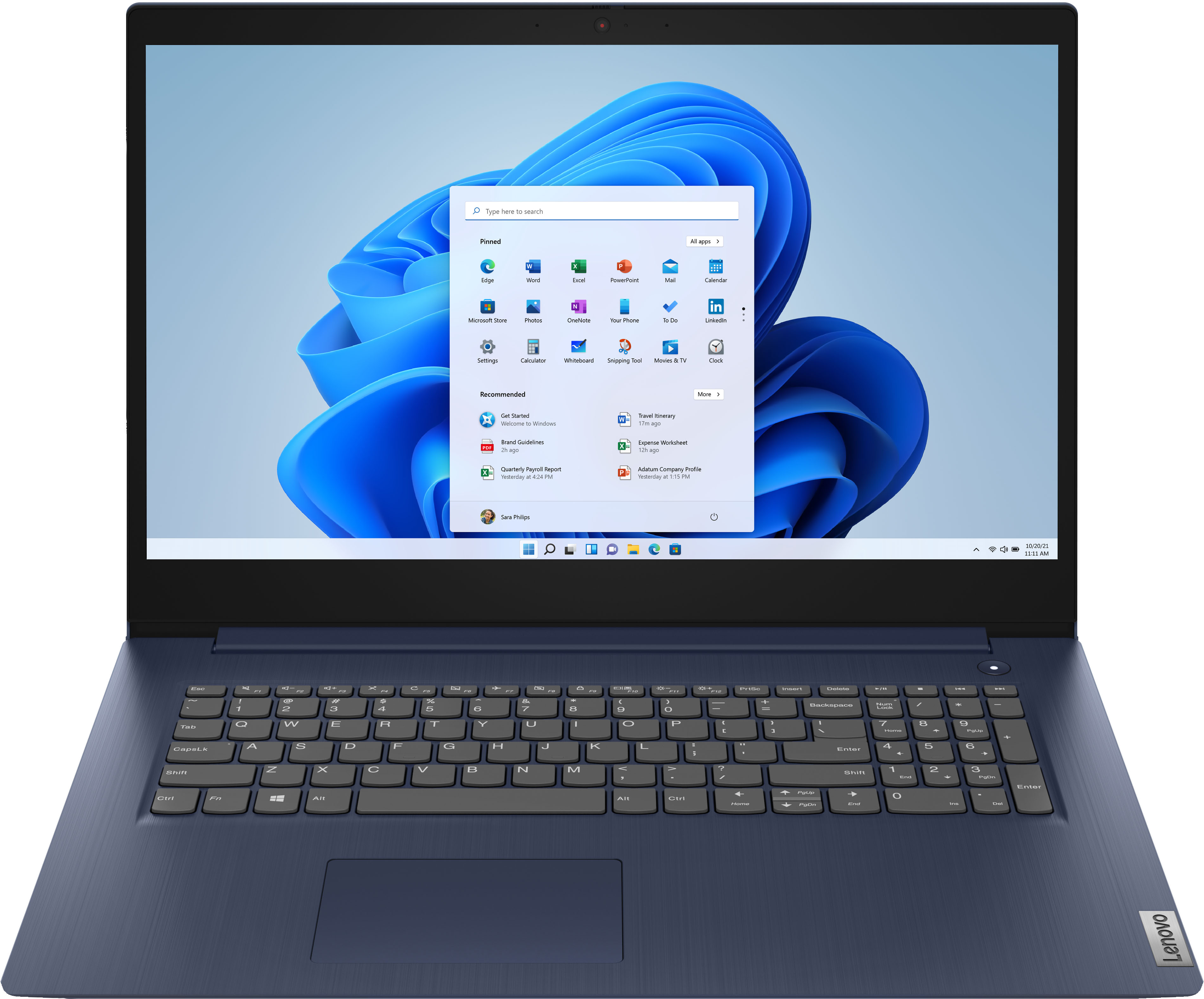
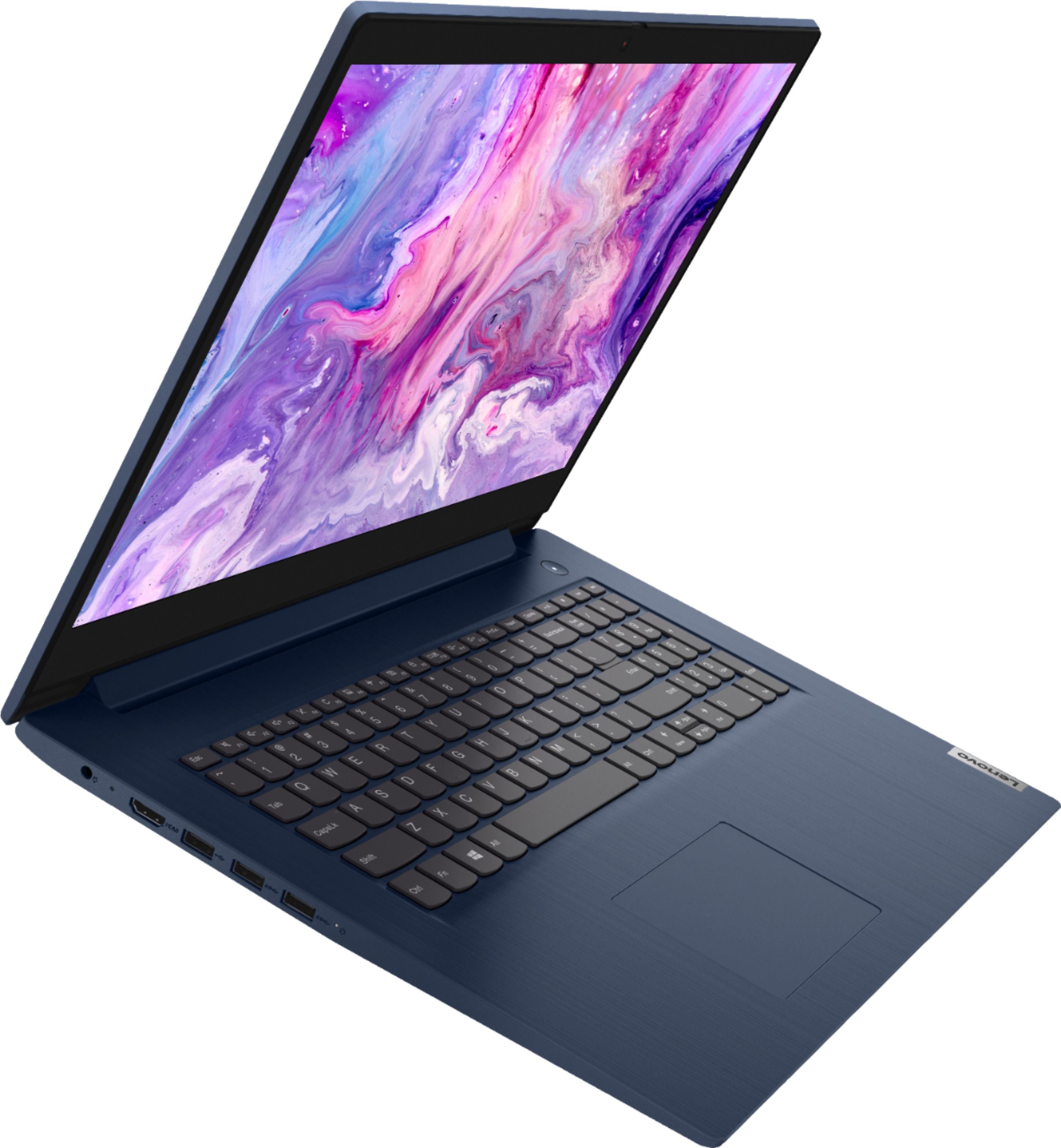
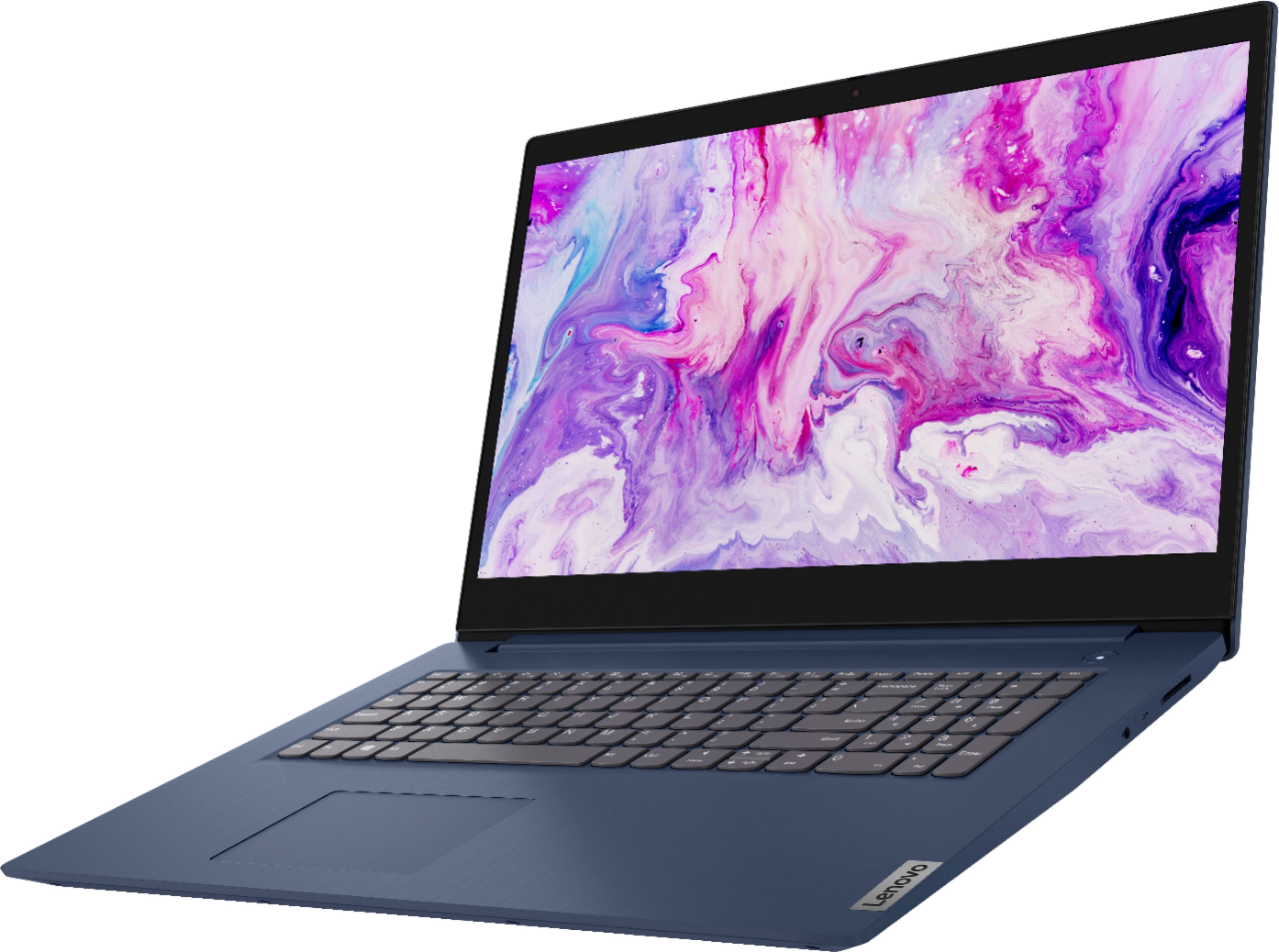
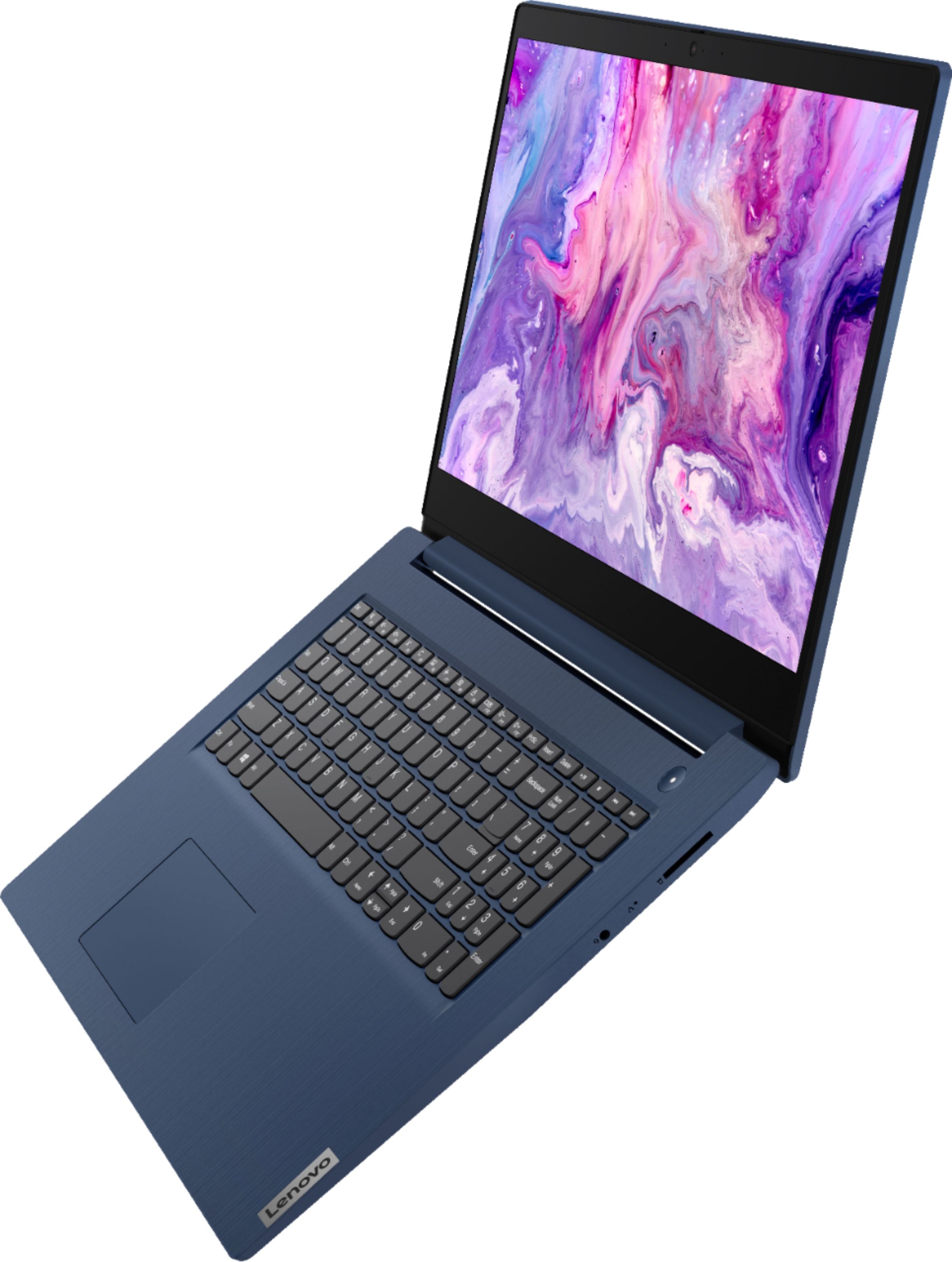

- Model:
- 81WF004CUS
- SKU:
- 6449490
Rating by feature
- Battery Life
Rating 3.8 out of 5 stars
- Speed
Rating 3.2 out of 5 stars
- Display
Rating 3.9 out of 5 stars
Customers are saying
Customers enjoy the large screen, affordable price, and user-friendly nature of the Ideapad 3 17. It is lightweight and suitable for work. However, some users have concerns about its performance, boot time, and battery life.
This summary was generated by AI based on customer reviews.
Worst product...Don't buy Lenovo
||Posted . Owned for 2 months when reviewed.This reviewer received promo considerations or sweepstakes entry for writing a review.Worst product...Dear customer Don't buy it. The computer didn't work after 60 days....This product doesn't even deserve a star. If there was no star options I would select it.
No, I would not recommend this to a friendBrand response from Lenovo Product Expert
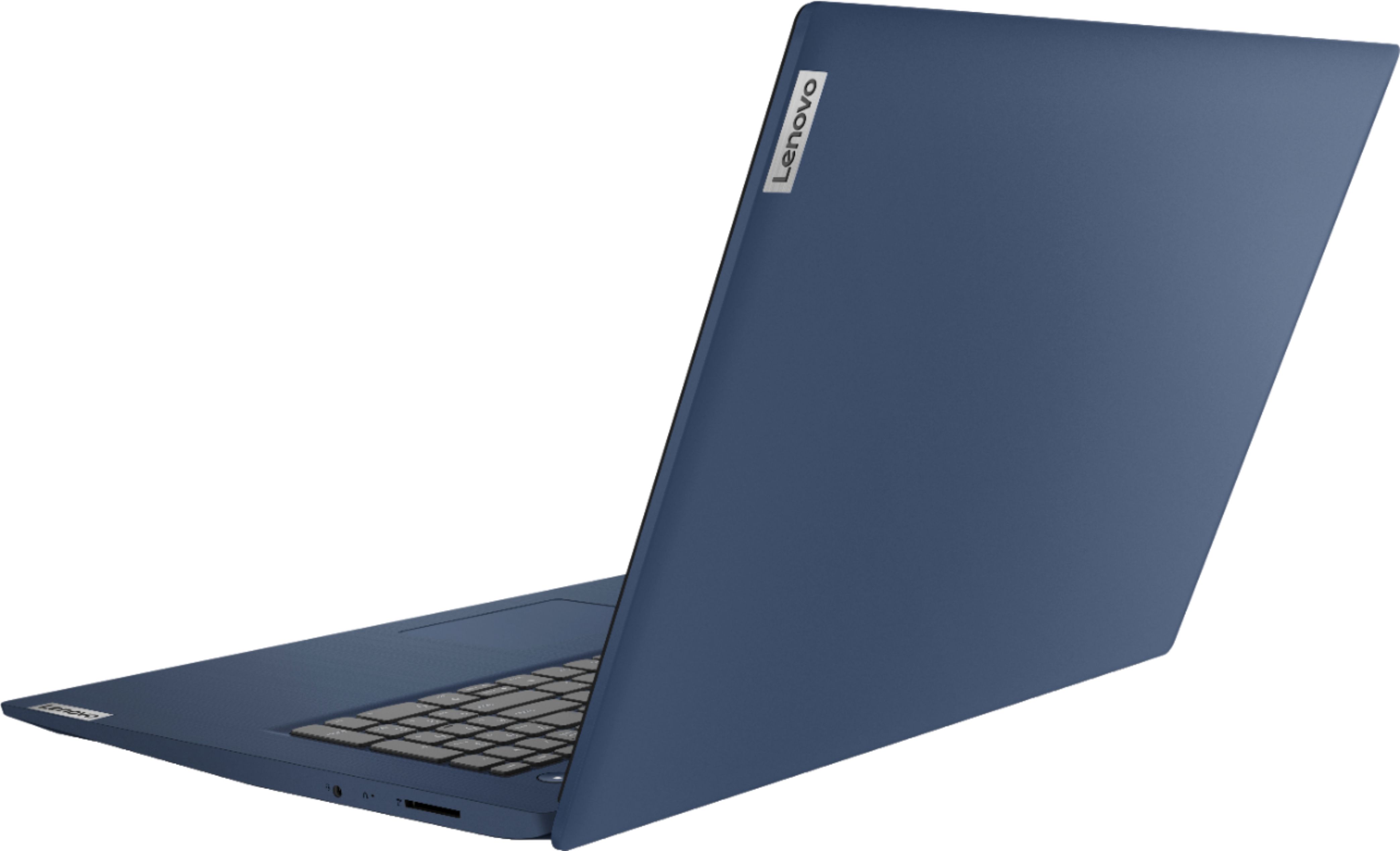
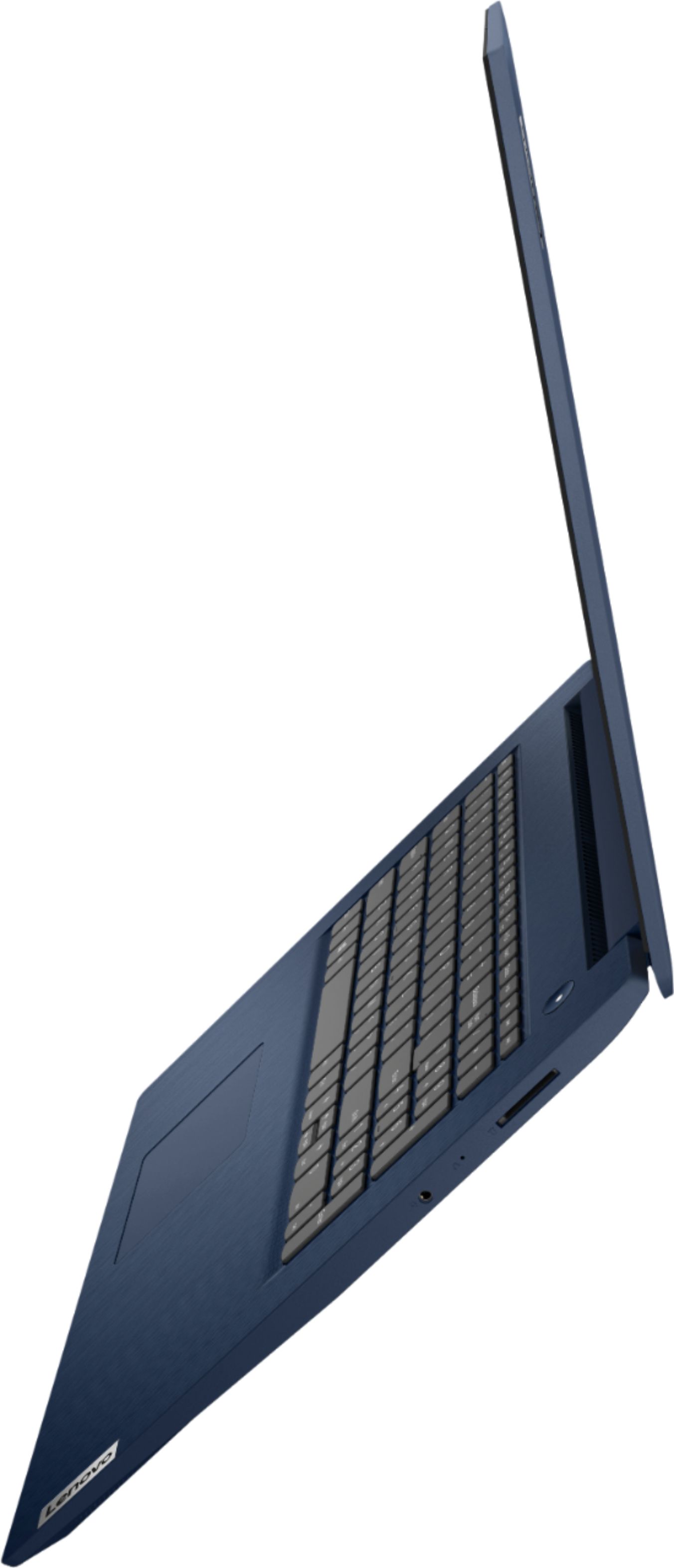
Posted .We are sorry to hear that you are having issues with your Lenovo IdeaPad 3 17 Laptop, model number 81WF004CUS. Resetting your computer back to original factory settings may correct the issue you are having. This system is equipped with OneKey Recovery System. There is a very small pin hole on the right side of the device, right in between the headphone jack and the SD card slot on the device. You will need a pin to push this reset button. Plug the device in. Let the battery charge for about 15 minutes. Push the reset button. The system should boot to a choice screen where you can choose "Restore To Factory Default". Select this. It will delete everything from the hard drive except the original factory install of the operating system. You will need to reinstall all programs and files after the reset. If you don't have copies of the files, try to make one before you restore by selecting "Boot to desktop" and trying to back up your files. After resetting the computer, even if you have switched out of S-Mode, be sure any software you installed is compatible with Windows 10. There is no need to install Microsoft Office software. The software is already part of the operating system, you just need to activate the software with a purchased product key. If you have installed a copy of Microsoft Office, this is conflicting with the existing copy on the system and this will slow your system down. If you have installed a 3rd party anti-virus program, be sure that Windows Defender is turned off and that the trial version of McAfee Anti-Virus software is uninstalled. There can only be one anti-virus program on the system. You may need to restore your system to original factory default settings if any of the programming errors have occurred. You can do that by typing "restore" in the Cortana search window. Just click on the magnifying glass icon at the bottom left of your Windows 10 Desktop. Click on "Reset This PC" Then click on "Get Started" and follow the on screen directions to restore to factory defaults. If the problem persists, we recommend you contact Lenovo Tech Support at: 877-453-6686.

Lousy computer
||Posted . Owned for 3 weeks when reviewed.This reviewer received promo considerations or sweepstakes entry for writing a review.This item became completely inoperable 18 days after the purchase, it is in the shop
No, I would not recommend this to a friendBrand response from Lenovo Product Expert
Posted .We are sorry to hear that you are having issues with your Lenovo IdeaPad 3 17 Laptop, model number 81WF004CUS. Try resetting your computer back to original factory settings. Since you can no longer boot the computer normally, this system is equipped with OneKey Recovery System. There is a very small pin hole on the right side of the device, right in between the headphone jack and the SD card slot on the device. You will need a pin to push this reset button. Plug the device in. Let the battery charge for about 15 minutes. Push the reset button. The system should boot to a choice screen where you can choose "Restore To Factory Default". Select this. It will delete everything from the hard drive except the original factory install of the operating system. You will need to reinstall all programs and files after the reset. If you don't have copies of the files, try to make one before you restore by selecting "Boot to desktop" and trying to back up your files. Once you have the computer reset, even if you have switched the computer out of Windows 10 S-Mode, be sure any software you installed is compatible with Windows 10. There is no need to install Microsoft Office software. The software is already part of the operating system, you just need to activate the software with a purchased product key. If you have installed a copy of Microsoft Office, this is conflicting with the existing copy on the system and this will slow your system down. If you have installed a 3rd party anti-virus program, be sure that Windows Defender is turned off and that the trial version of McAfee Anti-Virus software is uninstalled. There can only be one anti-virus program on the system. You may need to restore your system to original factory default settings if any of the programming errors have occurred. You can do that by typing "restore" in the Cortana search window. Just click on the magnifying glass icon at the bottom left of your Windows 10 Desktop. Click on "Reset This PC" Then click on "Get Started" and follow the on screen directions to restore to factory defaults. If the problem persists, we recommend you contact Lenovo Tech Support at: 877-453-6686.
Horrible Delivery
||Posted .This reviewer received promo considerations or sweepstakes entry for writing a review.Horrible shipping. Returned my items. Made me get a refund, and then I had to go to the store for pick up. What was my point of using DELIVER
No, I would not recommend this to a friendWorst Laptop Ever!!!
||Posted .This reviewer received promo considerations or sweepstakes entry for writing a review.This laptop has a very slow startup and is in possible to surf the internet with this laptop because it is so slow.
No, I would not recommend this to a friendBrand response from Lenovo Product Expert
Posted .This Lenovo IdeaPad 3 17 Laptop, model number 81WF004CUS, will boot from off to the Windows Login Screen in less than 40-seconds. This model configuration ships with Windows 10 S-Mode, 64-bit Operating System installed. Windows 10 S-Mode provides added security by only allowing APPs available ( and therefore certified by Microsoft) at the Microsoft Store. If you don't need the added security or you need to install APPs not available at the Microsoft Store, you can switch to standard Windows 10 Home 64-bit Operating System, at no additional cost. Even if you have switched out of S-Mode, be sure any software you installed is compatible with Windows 10. There is no need to install Microsoft Office software. The software is already part of the operating system, you just need to activate the software with a purchased product key. If you have installed a copy of Microsoft Office, this is conflicting with the existing copy on the system and this will slow your system down. If you have installed a 3rd party anti-virus program, be sure that Windows Defender is turned off and that the trial version of McAfee Anti-Virus software is uninstalled. There can only be one anti-virus program on the system. Here is a link to instructions for uninstalling McAfee from a Windows computer: https://service.mcafee.com/?articleId=TS101331&page=shell&shell=article-view You may need to restore your system to original factory default settings if any of the programming errors have occurred. You can do that by typing "restore" in the Cortana search window. Just click on the magnifying glass icon at the bottom left of your Windows 10 Desktop. Click on "Reset This PC" Then click on "Get Started" and follow the on screen directions to restore to factory defaults. If the problem persists, we recommend you contact Lenovo Tech Support at: 877-453-6686.
So disappointed
||Posted .This reviewer received promo considerations or sweepstakes entry for writing a review.This has someone else's password in it and could never get in!!! Probably 10th computer from Best Buy and last!!
No, I would not recommend this to a friendBrand response from Lenovo Product Expert
Posted .We are sorry you are having issues logging in to your Lenovo IdeaPad 3 17 Laptop, model number 81WF004CUS. Resetting the computer back to original factory settings may correct the login issue. This system is equipped with OneKey Recovery System. There is a very small pin hole on the right side of the device, right in between the headphone jack and the SD Card Slot on the device. You will need a pin to push this reset button. Plug the device in. Let the battery charge for about 15 minutes. Push the reset button. The system should boot to a choice screen where you can choose "Restore To Factory Default". Select this. It will delete everything from the hard drive except the original factory install of the operating system. You will need to reinstall all programs and files after the reset. If you don't have copies of the files, try to make one before you restore by selecting "Boot to desktop" and trying to back up your files. If the problem persists after the factory reset, we recommend you contact Lenovo Tech Support at: 877-453-6686.
Garbage
||Posted . Owned for 3 months when reviewed.This reviewer received promo considerations or sweepstakes entry for writing a review.Stay away. Absolutely garbage. Wish I can return it now. HDD is causing major slowness and each reboot take about 10 minutes.
No, I would not recommend this to a friendBrand response from Lenovo Product Expert
Posted .The Lenovo IdeaPad 3 17 Laptop, model number 81WF004CUS, will boot from off to the Windows 10 Desktop Screen in less than 40-seconds. If you are experiencing slower boot times, be sure any software you installed is compatible with Windows 10. There is no need to install Microsoft Office software. The software is already part of the operating system, you just need to activate the software with a purchased product key. If you have installed a copy of Microsoft Office, this is conflicting with the existing copy on the system and this will slow your system down. If you have installed a 3rd party anti-virus program, be sure that Windows Defender is turned off and that the trial version of McAfee Anti-Virus software is uninstalled. There can only be one anti-virus program on the system. You may need to restore your system to original factory default settings if any of the programming errors have occurred. You can do that by typing "restore" in the Cortana search window. Just click on the magnifying glass icon at the bottom left of your Windows 10 Desktop. Click on "Reset This PC" Then click on "Get Started" and follow the on screen directions to restore to factory defaults. If the problem persists, we recommend you contact Lenovo Tech Support at: 877-453-6686.
Do not buy this item
||Posted . Owned for 3 weeks when reviewed.This reviewer received promo considerations or sweepstakes entry for writing a review.I had to return this item - I made maximum contrast, and the monitor was still not clear enough. Very bad colors, very bad item.
No, I would not recommend this to a friendBrand response from Lenovo Product Expert
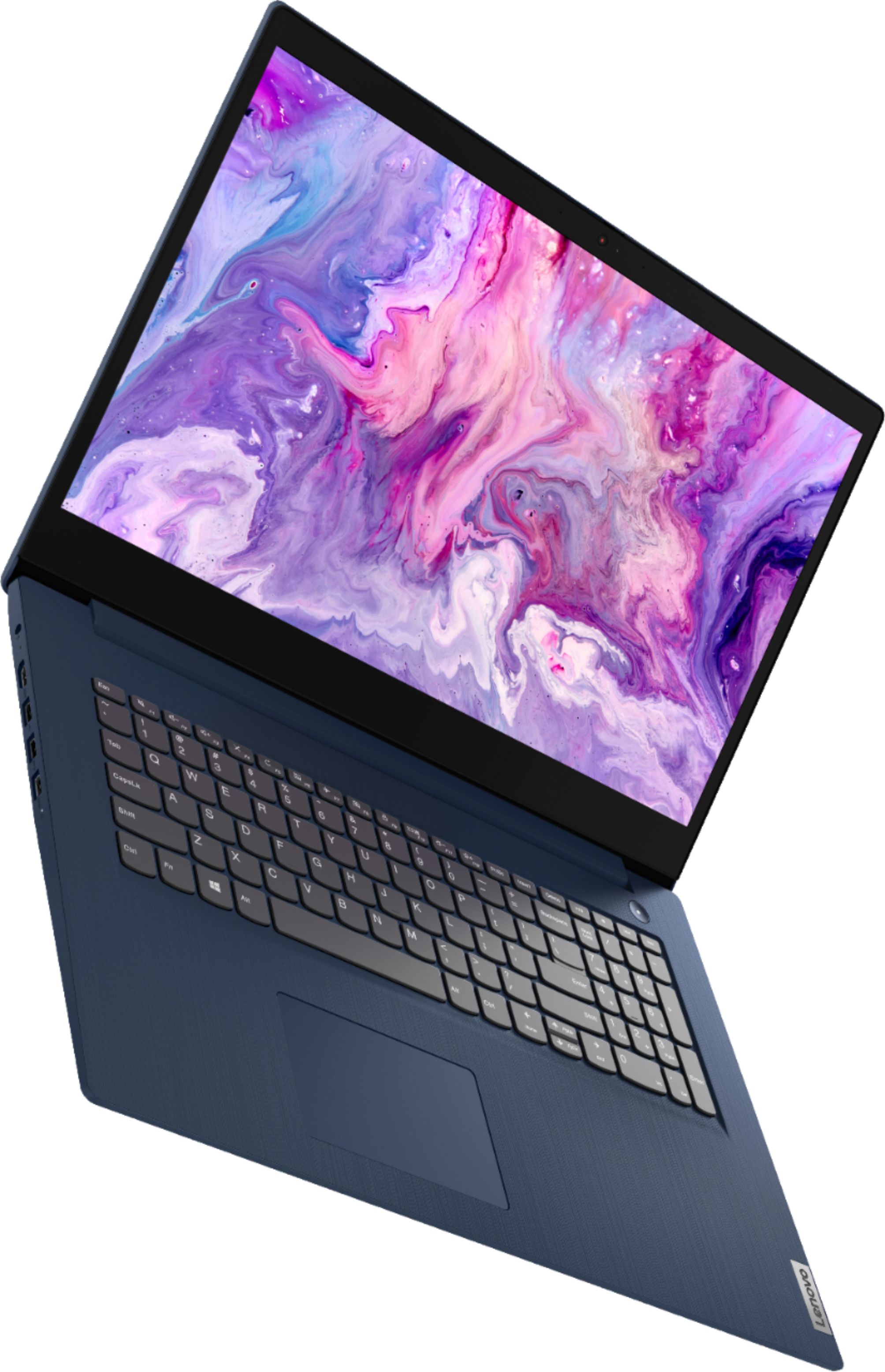
Posted .We are sorry to hear that you are having issues with your Lenovo IdeaPad 3 17 Laptop, model number 81WF004CUS. This model ships with a 17.3 Inch (screen size measured diagonally) TN - HD+ (1600x900) screen, with a brightness level of 250 nits and has an Anti-glare coating. Be sure that you have the screen resolution set at the recommended 1600x900 resolution. You can check this by right clicking on your Windows 10 Desktop Screen, Select Display Settings, scroll down the window that opens to see the current screen resolution settings. If the resolution is set to recommended levels, now be sure any software you installed is compatible with Windows 10. There is no need to install Microsoft Office software. The software is already part of the operating system, you just need to activate the software with a purchased product key. If you have installed a copy of Microsoft Office, this is conflicting with the existing copy on the system and this will slow your system down. If you have installed a 3rd party anti-virus program, be sure that Windows Defender is turned off and that the trial version of McAfee Anti-Virus software is uninstalled. There can only be one anti-virus program on the system. You may need to restore your system to original factory default settings if any of the programming errors have occurred. You can do that by typing "restore" in the Cortana search window. Just click on the magnifying glass icon at the bottom left of your Windows 10 Desktop. Click on "Reset This PC" Then click on "Get Started" and follow the on screen directions to restore to factory defaults. If there is no incompatible software installed but the issues persist, check to be sure you have the latest version of Windows 10 on the computer. Then update all BIOS files and drivers up to that latest version of Windows 10. You can easily accomplish this by scanning the computer with the Lenovo Utility software available on this computer. This system has Lenovo utilities installed to help maintain the health of the device and keep the operating system software up to date. Type "Lenovo Vantage" in the Cortana Search window (if Lenovo Vantage is not installed on your device, you can download the APP and install it now). Select Lenovo Vantage from the list. In the window that opens, click on "Health and Support". In the expanded menu, select "Hardware Scan" In the window that opens, select "Run Quick Tests". This will scan your entire system for errors. Follow any directions that may pop up. If the problem continues after this scan, now click on "System Update". First select Windows update from the menu. Scan your system to be sure you have the latest version of Windows 10. Once that scan is complete, select "Additional Updates". This will scan your device to be sure there are no new BIOS/Driver updates needed. Follow any instructions that may pop up. If the issue still continues after these updates, we recommend you call Lenovo Tech Support at: 877-453-6686 for additional help.
Poor Quality
||Posted . Owned for 2 months when reviewed.This reviewer received promo considerations or sweepstakes entry for writing a review.Clunky and slow. It wasn't an expensive laptop but the performance is far worse than even the cheapest laptops I have owned.
No, I would not recommend this to a friendBrand response from Lenovo Product Expert
Posted .The Lenovo IdeaPad 3 17 Laptop, model number 81WF004CUS, ships with the Intel Core i5-1035G1 processor and will boot from off to the Windows 10 Desktop Screen in less than 40-seconds. If you are getting slower than expected performance, even if you have switched out of S-Mode, be sure any software you installed is compatible with Windows 10. There is no need to install Microsoft Office software. The software is already part of the operating system, you just need to activate the software with a purchased product key. If you have installed a copy of Microsoft Office, this is conflicting with the existing copy on the system and this will slow your system down. If you have installed a 3rd party anti-virus program, be sure that Windows Defender is turned off and that the trial version of McAfee Anti-Virus software is uninstalled. There can only be one anti-virus program on the system. You may need to restore your system to original factory default settings if any of the programming errors have occurred. You can do that by typing "restore" in the Cortana search window. Just click on the magnifying glass icon at the bottom left of your Windows 10 Desktop. Click on "Reset This PC" Then click on "Get Started" and follow the on screen directions to restore to factory defaults. If the problem persists, we recommend you contact Lenovo Tech Support at: 877-453-6686.
Big Mistake
||Posted . Owned for 1.5 years when reviewed.This reviewer received promo considerations or sweepstakes entry for writing a review.This is a piece of junk at any price. Don't get it. Best Buy's geeks can't fix it.
No, I would not recommend this to a friendComputer and had a lot of issues and as a result I
||Posted . Owned for 5 months when reviewed.This reviewer received promo considerations or sweepstakes entry for writing a review.I hate to give a bad review but this Computer and had a lot of issues and as a result I returned it
No, I would not recommend this to a friendNot happy!
||Posted . Owned for 3 weeks when reviewed.This reviewer received promo considerations or sweepstakes entry for writing a review.purchased this computer being lead to believe it had a disc drive and it doesn't. Only an SD. Not happy!!
No, I would not recommend this to a friendBrand response from Lenovo Product Expert
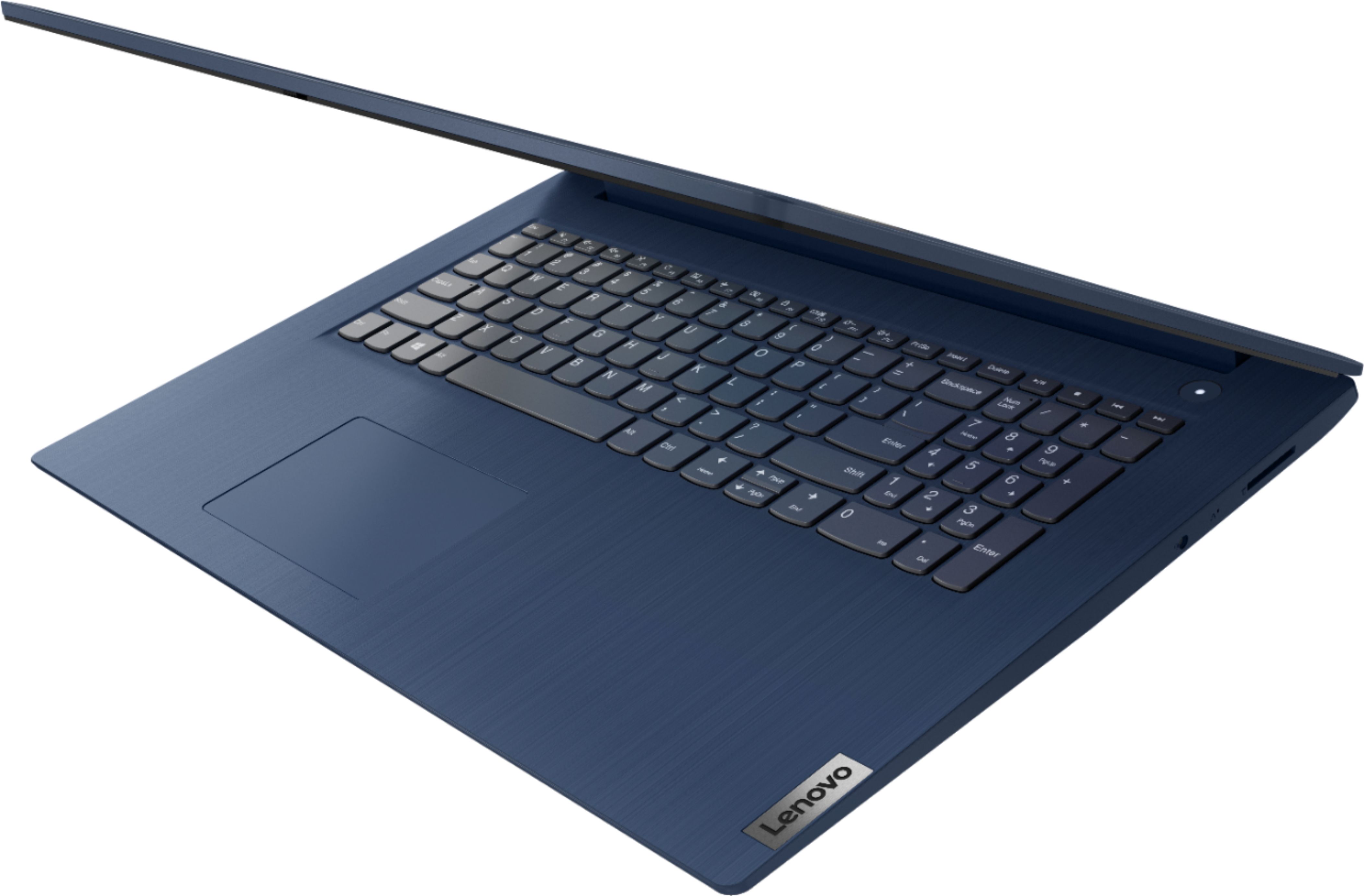
Posted .The Lenovo IdeaPad 3 17 Laptop, model number 81WF004CUS does not ship with a built in CD/DVD drive. You can use an external, USB-based Windows 10 compatible CD/DVD drive with this laptop, like this one: https://www.bestbuy.com/site/lg-8x-external-usb-double-layer-dvdrw-cd-rw-drive-black/5852919.p?skuId=5852919
broker after a few months
||Posted . Owned for 10 months when reviewed.This reviewer received promo considerations or sweepstakes entry for writing a review.broke after a few months, of course after warranty expired. don't waste your money
No, I would not recommend this to a friendBrand response from Lenovo Product Expert
Posted .We are sorry to hear that you are having issues with your Lenovo IdeaPad 3 17 Laptop, model number 81WF004CUS. Resetting this computer back to original factory settings may correct the issue you are having. This system is equipped with OneKey Recovery System. There is a very small pin hole on the right side of the device, right in between the near the headphone jack and the SD Card Slot on the device. You will need a pin to push this reset button. Plug the device in. Let the battery charge for about 15 minutes. Push the reset button. The system should boot to a choice screen where you can choose "Restore To Factory Default". Select this. It will delete everything from the hard drive except the original factory install of the operating system. You will need to reinstall all programs and files after the reset. If you don't have copies of the files, try to make one before you restore by selecting "Boot to desktop" and trying to back up your files. If the problem persists after the factory reset, we recommend you contact Lenovo Tech Support at: 877-453-6686.
No a fan
||Posted . Owned for 11 months when reviewed.This reviewer received promo considerations or sweepstakes entry for writing a review.Slow running, multiple issues not good for multitasking. Always updating.
No, I would not recommend this to a friendBrand response from Lenovo Product Expert
Posted .This Lenovo IdeaPad 3 17 Laptop, model number 81WF004CUS, ships with Windows 10 S-Mode 64-bit Operating System installed. Windows 10 S-Mode provides added security by only allowing APPs available ( and therefore certified by Microsoft) at the Microsoft Store. If you don't need the added security or you need to install APPs not available at the Microsoft Store, you can switch to standard Windows 10 Home 64-bit Operating System, at no additional cost. In Windows 10, you decide when and how to get the latest updates to keep your device running smoothly and securely. To manage your options and see available updates, select Check for Windows updates. Or select the Start button, and then go to Settings > Update & Security > Windows Update . Here is a link to more information: https://support.microsoft.com/en-us/windows/update-windows-3c5ae7fc-9fb6-9af1-1984-b5e0412c556a#WindowsVersion=Windows_10. For more help with any issues you are having, we recommend you contact Lenovo Tech Support at: 877-453-6686.
Operating system not good
||Posted . Owned for 3 weeks when reviewed.This reviewer received promo considerations or sweepstakes entry for writing a review.Windows 11-s operating system Very slow and poor compared to Windows 10
No, I would not recommend this to a friendSorry I bought this computer.
||Posted .This reviewer received promo considerations or sweepstakes entry for writing a review.Computer locks up for no reason. Is so slow to load, and blinks on, off all the time.
No, I would not recommend this to a friendBrand response from Lenovo Product Expert
Posted .We are sorry to hear that you are having issues with your Lenovo IdeaPad 3 17 Laptop, model number 81WF004CUS. This model ships with Windows 10 S-Mode 64-bit Operating System. Windows 10 S-Mode provides added security by only allowing APPs available ( and therefore certified by Microsoft) at the Microsoft Store. If you don't need the added security or you need to install APPs not available at the Microsoft Store, you can switch to standard Windows 10 Home 64-bit Operating System, at no additional cost. Even if you have switched out of S-Mode, be sure any software you installed is compatible with Windows 10. There is no need to install Microsoft Office software. The software is already part of the operating system, you just need to activate the software with a purchased product key. If you have installed a copy of Microsoft Office, this is conflicting with the existing copy on the system and this will slow your system down. If you have installed a 3rd party anti-virus program, be sure that Windows Defender is turned off and that the trial version of McAfee Anti-Virus software is uninstalled. There can only be one anti-virus program on the system. You may need to restore your system to original factory default settings if any of the programming errors have occurred. You can do that by typing "restore" in the Cortana search window. Just click on the magnifying glass icon at the bottom left of your Windows 10 Desktop. Click on "Reset This PC" Then click on "Get Started" and follow the on screen directions to restore to factory defaults. If the problem persists, we recommend you contact Lenovo Tech Support at: 877-453-6686.
my laptop dont likwe it at all
||Posted . Owned for 5 months when reviewed.This reviewer received promo considerations or sweepstakes entry for writing a review.its a poor laptop if i could return it i would and go get me another one
No, I would not recommend this to a friendWTHeck
||Posted . Owned for 3 weeks when reviewed.This reviewer received promo considerations or sweepstakes entry for writing a review.Was scanned and then removed from my purchases but still shows up as a purchase!
I would recommend this to a friendOld stuff
||Posted . Owned for 2 weeks when reviewed.This reviewer received promo considerations or sweepstakes entry for writing a review.No good for games, too slow, save your money and buy an I7 or I9 or a like
No, I would not recommend this to a friendBrand response from Lenovo Product Expert
Posted .We always recommend you check the requirements and compatibility of any software/games you will be installing on your new computer, before you invest in any computer. Be sure your new computer can support the software/games you will need to use.
Cheating don’t suggest to buy here
||Posted .This reviewer received promo considerations or sweepstakes entry for writing a review.Order one but delivered wrong and old laptop. Looks like cheating.
No, I would not recommend this to a friendNo
||Posted . Owned for 2 months when reviewed.This reviewer received promo considerations or sweepstakes entry for writing a review.Trash screen sucks and too forever to load huge for no reason lol
No, I would not recommend this to a friendBrand response from Lenovo Product Expert
Posted .The Lenovo IdeaPad 3 17 Laptop, model number 81WF004CUS, will boot from off to the Windows Desktop Screen in less than 40-seconds. This model ships with a 17.3 inch (screen size measured diagonally) TN - HD+ (1600x900) screen, with a brightness level of 250 nits and has an Anti-glare coating. If you are getting slower boot times and less than expected screen image quality, based on the screen specifications, first, be sure your laptop is not in the process of downloading and installing Operating System updates and this is the reason for the slower boot times. If there are no updates being installed but performance is still slower than expected, be sure any software you installed is compatible with Windows 10. There is no need to install Microsoft Office software. The software is already part of the operating system, you just need to activate the software with a purchased product key. If you have installed a copy of Microsoft Office, this is conflicting with the existing copy on the system and this will slow your system down. If you have installed a 3rd party anti-virus program, be sure that Windows Defender is turned off and that the trial version of McAfee Anti-Virus software is uninstalled. There can only be one anti-virus program on the system. You may need to restore your system to original factory default settings if any of the programming errors have occurred. You can do that by typing "restore" in the Cortana search window. Just click on the magnifying glass icon at the bottom left of your Windows 10 Desktop. Click on "Reset This PC" Then click on "Get Started" and follow the on screen directions to restore to factory defaults. If the problem persists, we recommend you contact Lenovo Tech Support at: 877-453-6686.