Customer Ratings & Reviews

- Model:
- 81WF004CUS
- SKU:
- 6449490
Rating by feature
- Battery Life
Rating 3.8 out of 5 stars
- Speed
Rating 3.2 out of 5 stars
- Display
Rating 3.9 out of 5 stars
Customers are saying
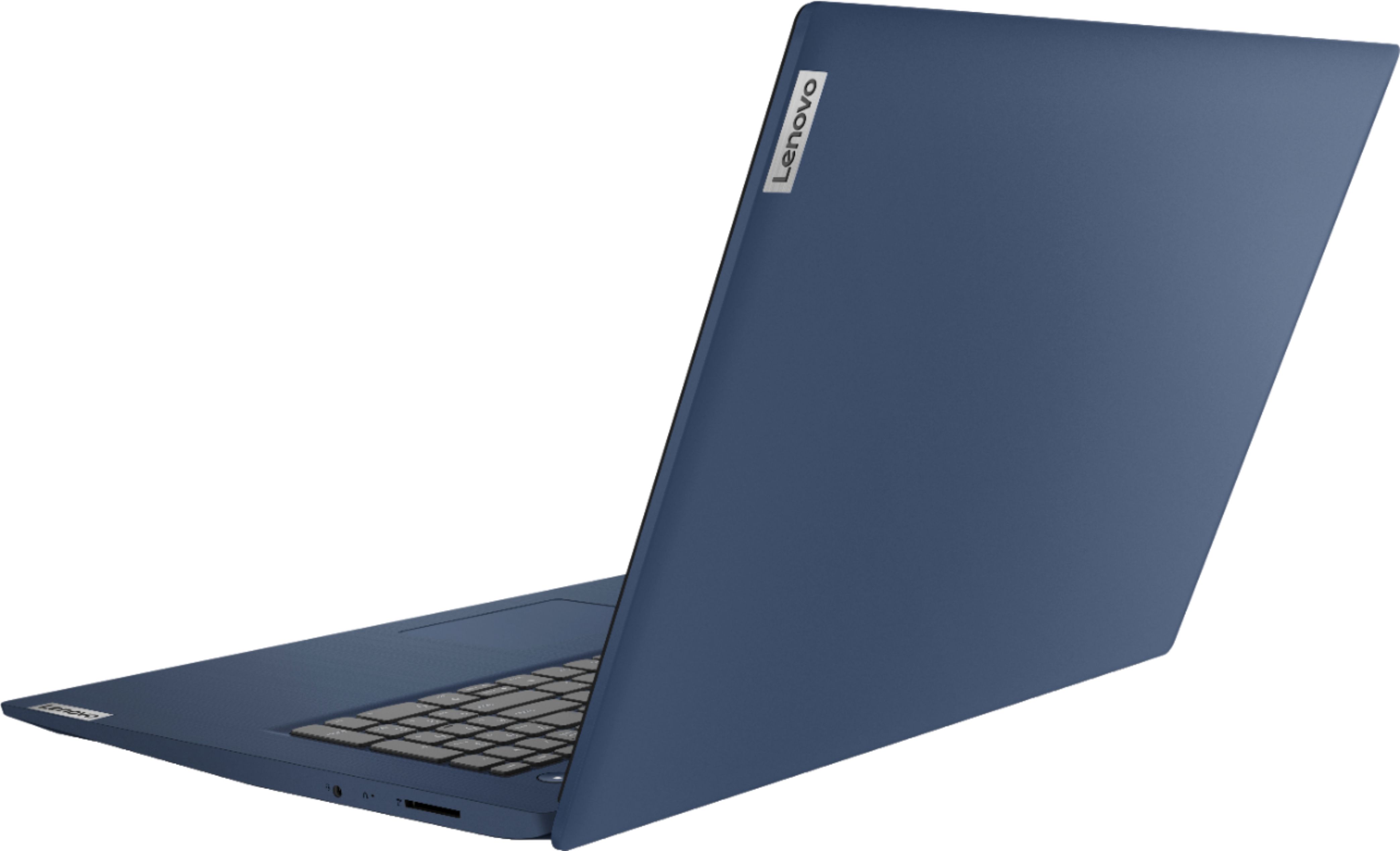
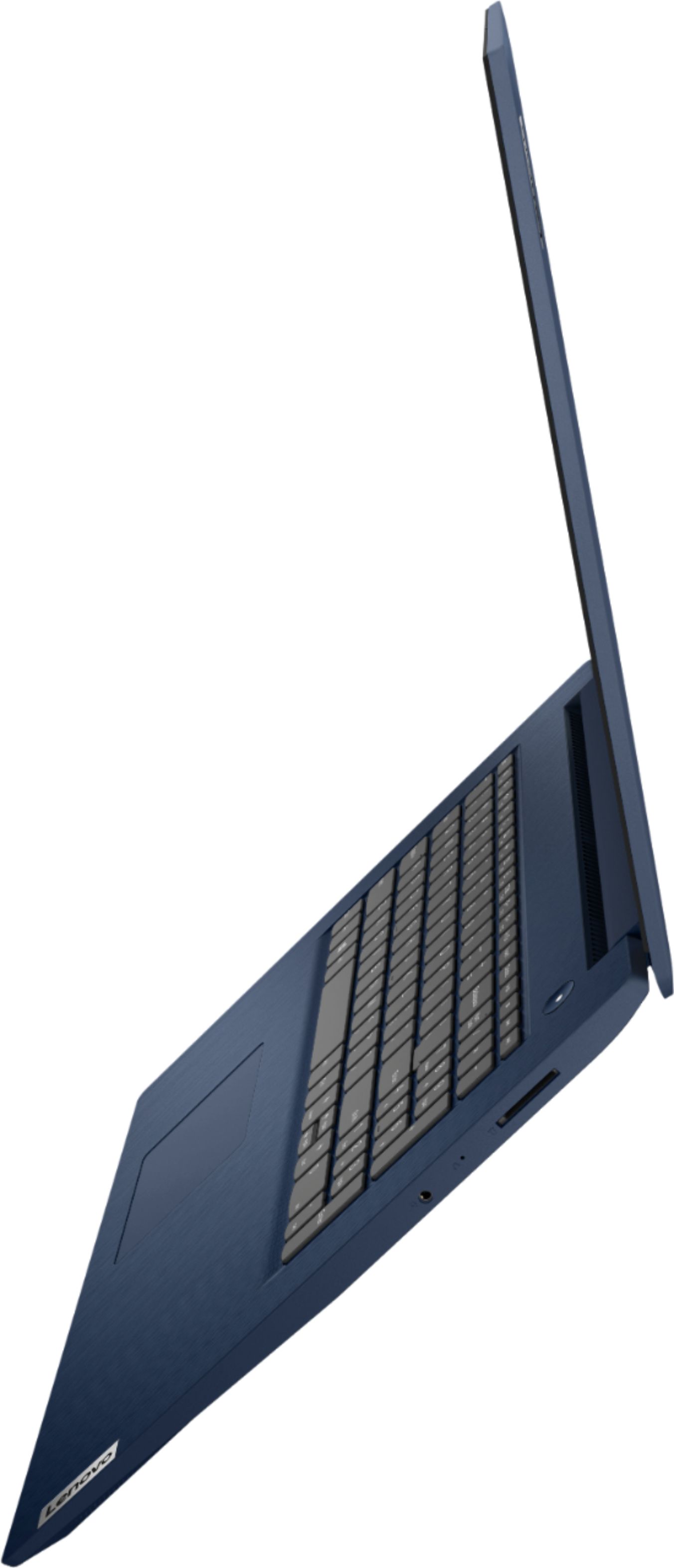
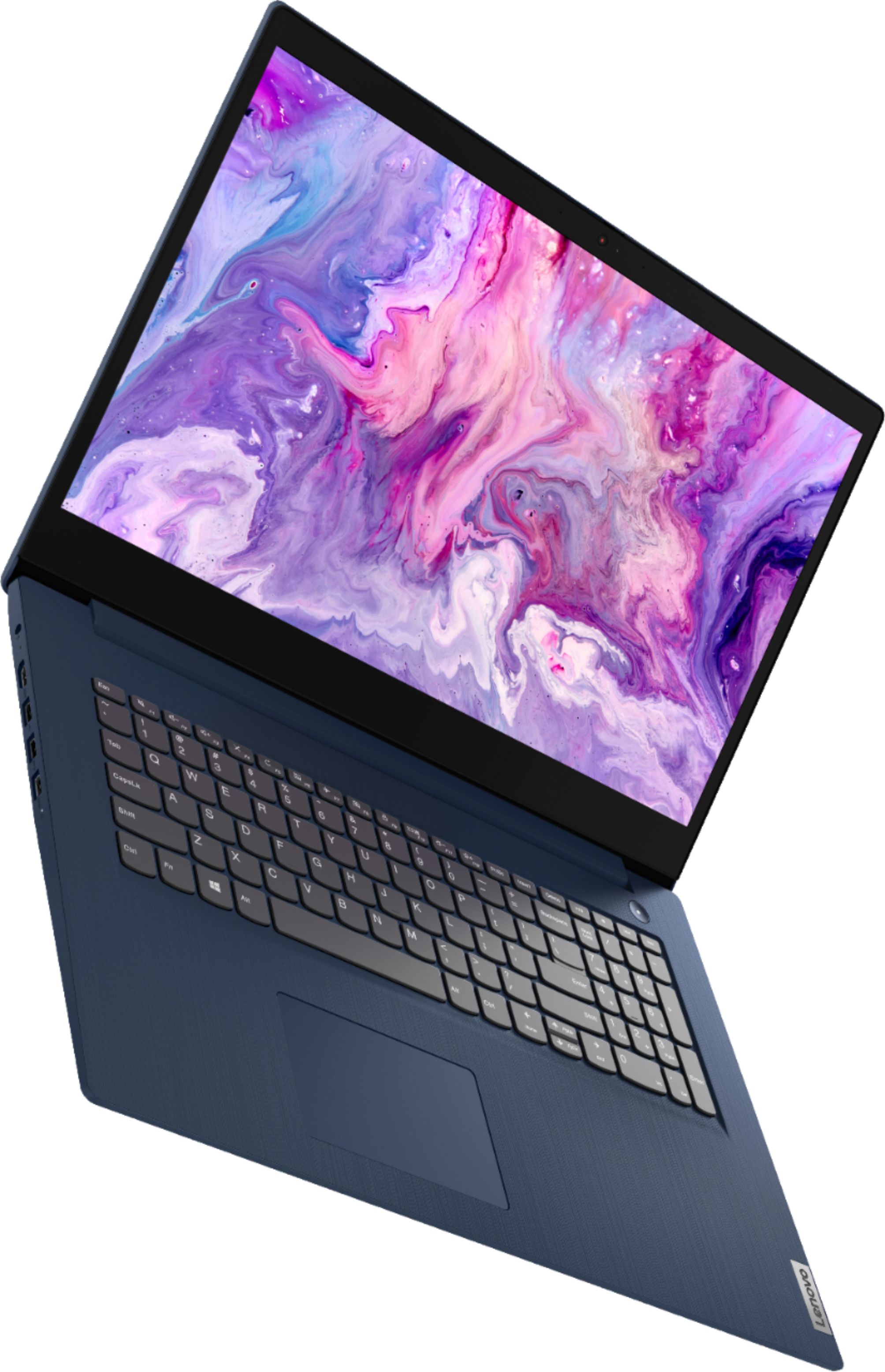
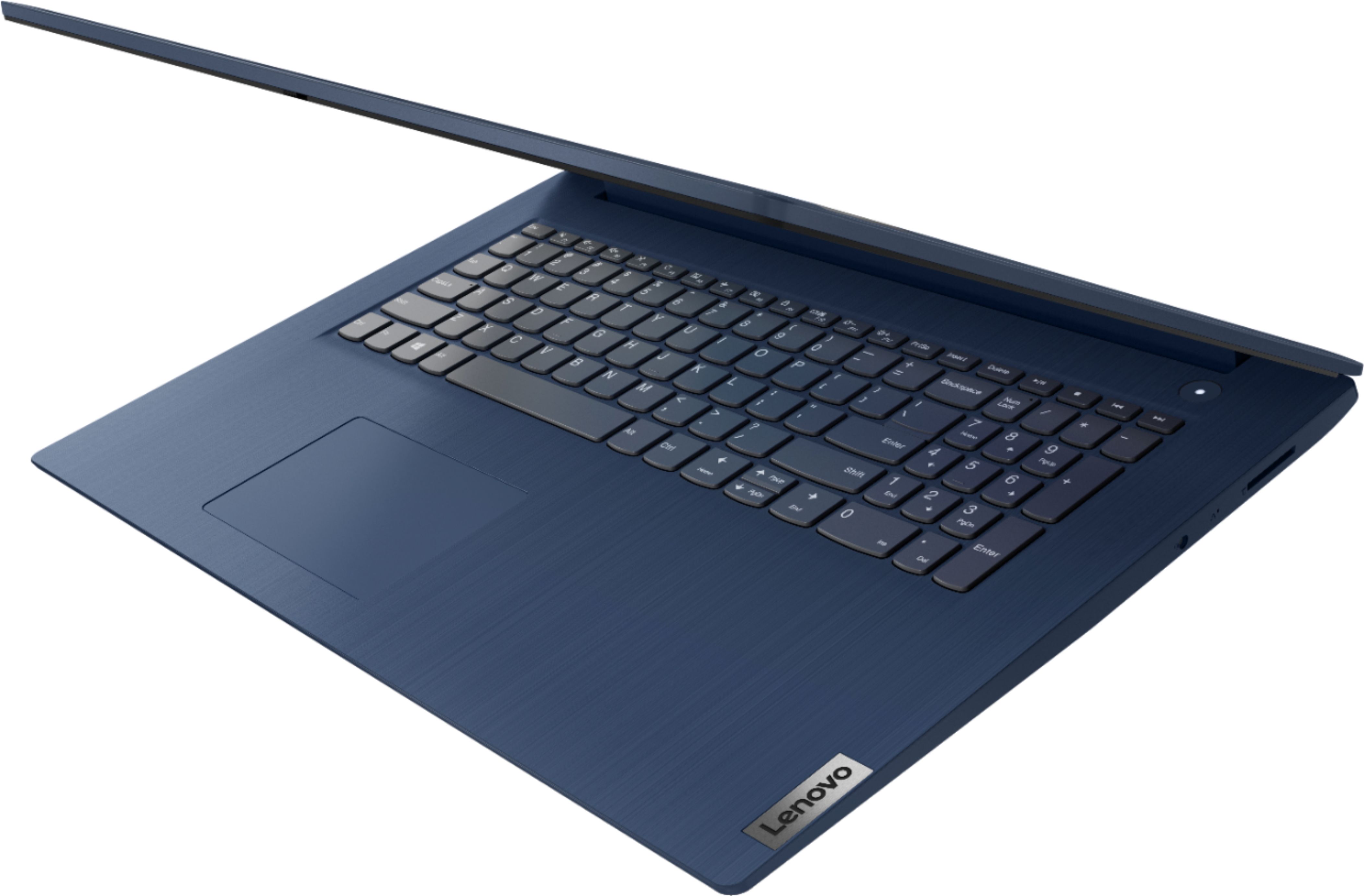
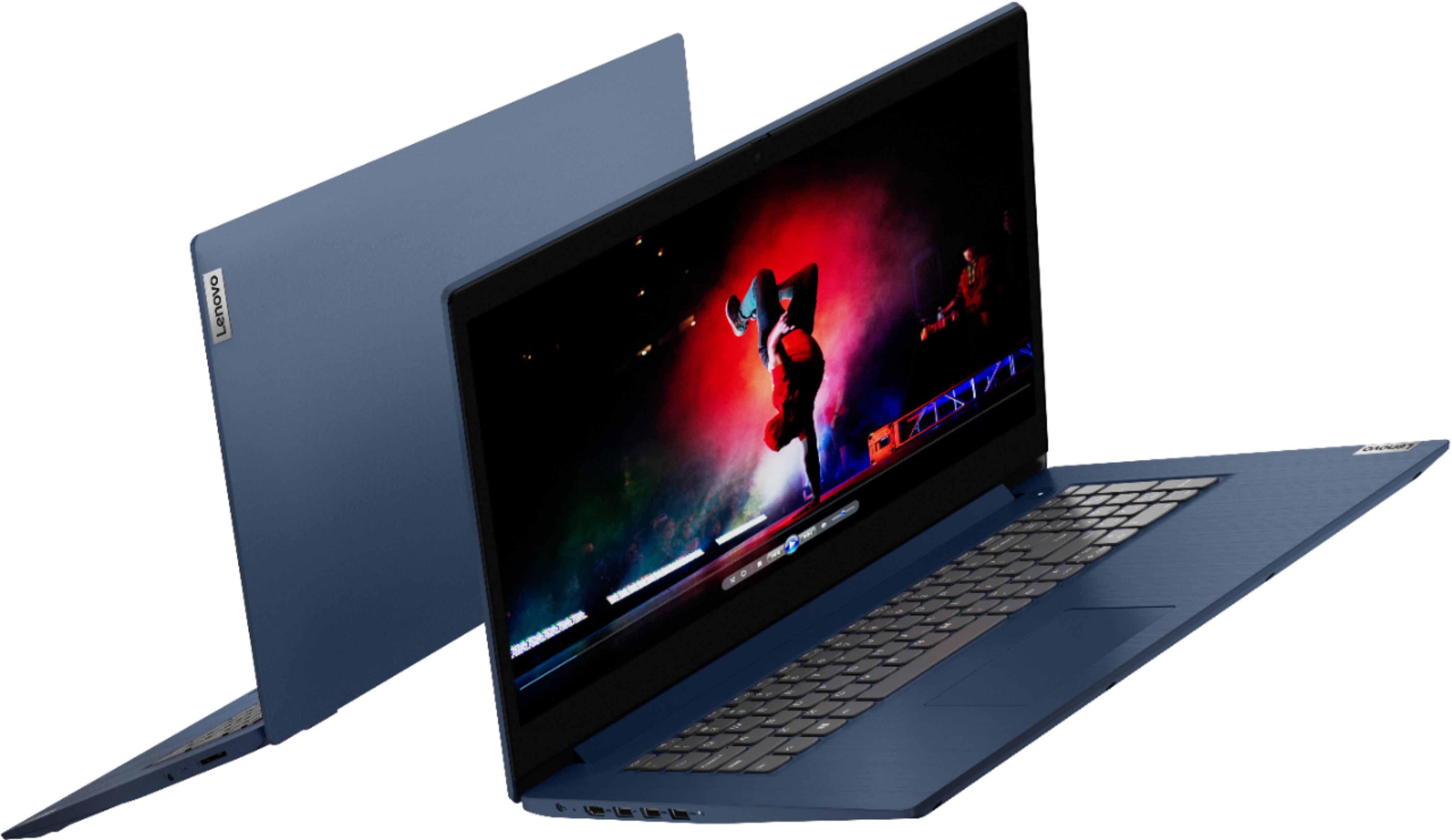
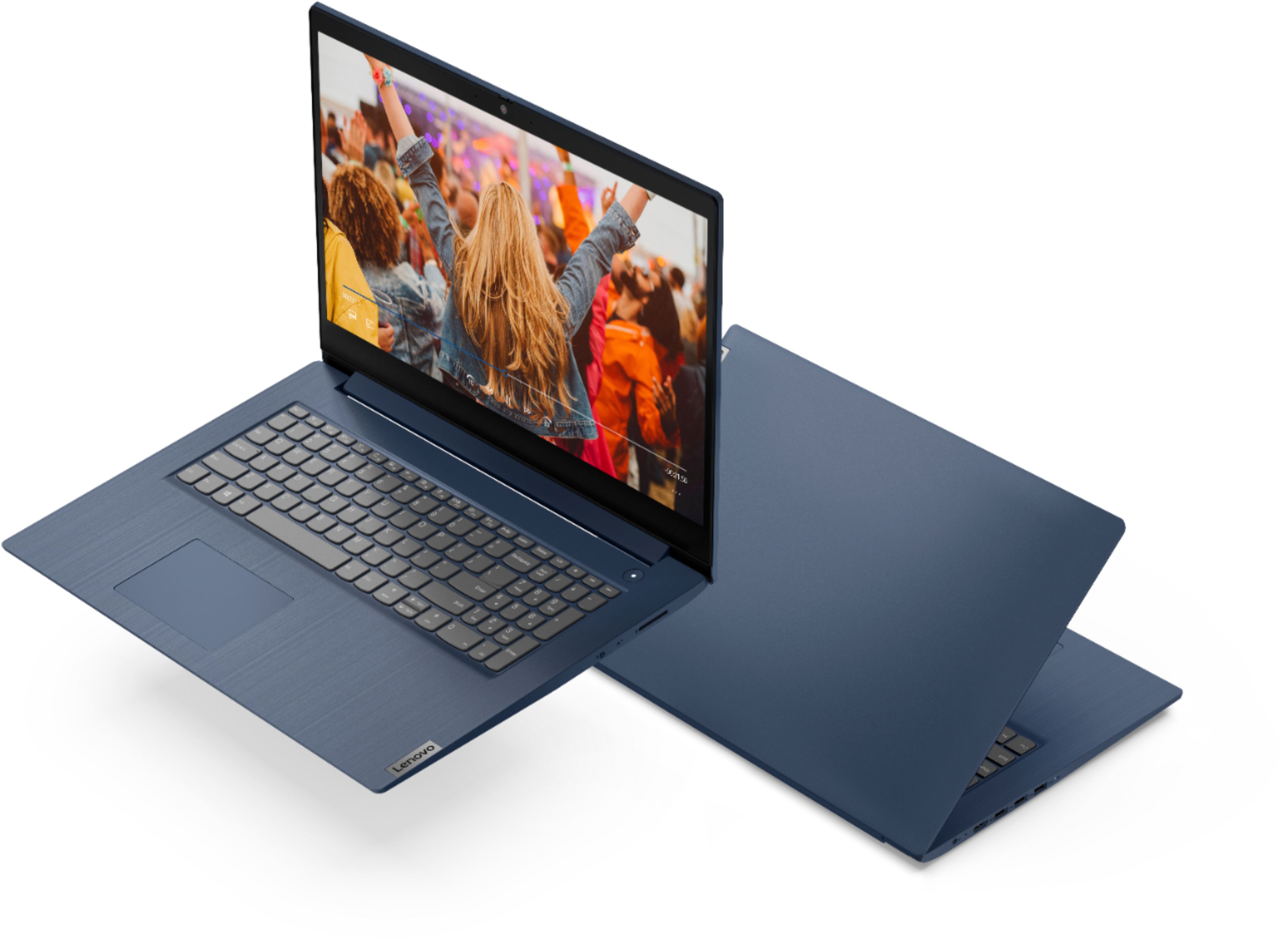
Customers enjoy the large screen, affordable price, and user-friendly nature of the Ideapad 3 17. It is lightweight and suitable for work. However, some users have concerns about its performance, boot time, and battery life.
This summary was generated by AI based on customer reviews.
- Pros mentioned:Large screen
Super Slow
Posted .This reviewer received promo considerations or sweepstakes entry for writing a review.This Laptop is terrible! Out of the box it is extremely slow to load anything. The microphone and webcam are about useless, quality sucks. The only good part is the size of the screen and price. If it wasnt out the return window I would take it back in heartbeat.
No, I would not recommend this to a friendBrand response from Lenovo Product Expert
Posted .The Lenovo IdeaPad 3 17 Laptop model number 81WF004CUS, will boot from off to the Windows 10 Desktop Screen in less than 40-seconds. If you are experiencing slower boot times, even if you have switched out of S-Mode, be sure any software you installed is compatible with Windows 10. There is no need to install Microsoft Office software. The software is already part of the operating system, you just need to activate the software with a purchased product key. If you have installed a copy of Microsoft Office, this is conflicting with the existing copy on the system and this will slow your system down. If you have installed a 3rd party anti-virus program, be sure that Windows Defender is turned off and that the trial version of McAfee Anti-Virus software is uninstalled. There can only be one anti-virus program on the system. You may need to restore your system to original factory default settings if any of the programming errors have occurred. You can do that by typing "restore" in the Cortana search window. Just click on the magnifying glass icon at the bottom left of your Windows 10 Desktop. Click on "Reset This PC" Then click on "Get Started" and follow the on screen directions to restore to factory defaults. If the problem persists, we recommend you contact Lenovo Tech Support at: 877-453-6686.

- Cons mentioned:Performance
Bad on purpose?
Posted .This reviewer received promo considerations or sweepstakes entry for writing a review.A disaster. This new laptop ia slower than all the older laptops in my house. It cant run the basic games in the lowest resolution. It smokes all of its resources even when idle. Will try to roll it back to windows 7, althought I dont have much hope in this machine anymore. A total rip off.
No, I would not recommend this to a friendBrand response from Lenovo Product Expert
Posted .The Lenovo IdeaPad 3 17 Laptop, model number 81WF004CUS, ships with Windows 10 S-Mode 64-bit Operating System, installed. Windows 10 S-Mode provides added security by only allowing APPs available ( and therefore certified by Microsoft) at the Microsoft Store. If you don't need the added security or you need to install APPs not available at the Microsoft Store, you can switch to standard Windows 10 Home 64-bit Operating System, at no additional cost. We recommend you check with the specific game's software publisher's web sites, of the games you want to play, for their compatibility with Windows 10 S-Mode 64-bit operating system and the minimum/recommended hardware requirements (Is a Graphics card required, the processor speed and the minimum required system RAM and the minimum available hard drive space) to run their program, then compare those requirements to this system's configuration. If you choose to switch out of S-Mode for Windows 10 Home: Here is a link to instructions for switching from Windows 10 S-Mode to Windows 10 Home: https://support.microsoft.com/en-us/help/4456067/windows-10-switch-out-of-s-mode
Great Computer for the Price.
Posted .This reviewer received promo considerations or sweepstakes entry for writing a review.Very good computer, for it's price. The battery lasts pretty good for what I have used it for in the month that I have had it. Overall I am really satisfied with my Lenovo.
I would recommend this to a friendBrand response from Lenovo Product Expert
Posted .Thank you for choosing the Lenovo IdeaPad 3 17 Laptop. We are pleased to hear that the IdeaPad 3 17 meets your computing needs so well.
- Cons mentioned:Speed
LJ
Posted .This reviewer received promo considerations or sweepstakes entry for writing a review.Machine is very slow and response time when navigating is ridiculously slow. I have 5 g coming into the modem and that has been ckecked and is not the problem. My 15 year old desktop unit was 10 times faster than this!
No, I would not recommend this to a friendBrand response from Lenovo Product Expert
Posted .This Lenovo IdeaPad 3 17 laptop, model number 81WF004CUS, will boot from off to the Windows Desktop Screen in less than 40-seconds. If you are getting slower than expected performance, even if you have switched out of S-Mode, be sure any software you installed is compatible with Windows 10. There is no need to install Microsoft Office software. The software is already part of the operating system, you just need to activate the software with a purchased product key. If you have installed a copy of Microsoft Office, this is conflicting with the existing copy on the system and this will slow your system down. If you have installed a 3rd party anti-virus program, be sure that Windows Defender is turned off and that the trial version of McAfee Anti-Virus software is uninstalled. There can only be one anti-virus program on the system. You may need to restore your system to original factory default settings if any of the programming errors have occurred. You can do that by typing "restore" in the Cortana search window. Just click on the magnifying glass icon at the bottom left of your Windows 10 Desktop. Click on "Reset This PC" Then click on "Get Started" and follow the on screen directions to restore to factory defaults. If the problem persists, we recommend you contact Lenovo Tech Support at: 877-453-6686.
Lenovo Ideapad
Posted .This reviewer received promo considerations or sweepstakes entry for writing a review.I am very please with my Lenovo lab top I had a desktop for a long period of time . But labtop so covenient can take it anywhere get job done quick and easy.
I would recommend this to a friendBrand response from Lenovo Product Expert
Posted .Thank you for choosing the Lenovo IdeaPad 3 17 Laptop. We are pleased to hear that the features and performance of the IdeaPad 3 17 meets your computing needs so well.
Dont buy, updates will remove audio ability
Posted .This reviewer received promo considerations or sweepstakes entry for writing a review.Do NOT buy this product if you're looking for longevity of any sorts. Things went pretty well for about the 1st yea, started slowing down towards the end but not terrible as I mostly work online and do spreadsheets. Then....did an update. Now the speakers dont work and videos saved on the drive wont play at all. Movies, videos off the camera...nothing. So, cant do anything with sound, whether online or saved to the drive, and videos dont play. I did the troubleshooting, tried to reinstall drivers...nothing. Most people try buying a separate Bluetooth speaker and uses that. Apparently this is a know problem and not specific to me. Spend a little more money and go in a different direction.
No, I would not recommend this to a friendBrand response from Lenovo Product Expert
Posted .We are sorry to hear that you had issues with a recent update to your Lenovo IdeaPad 3 17 Laptop. You can roll back any update that does not work properly on a Windows 10 computer. Here is a link to instructions for rolling back an update within Windows 10: https://support.microsoft.com/en-us/windows/recovery-options-in-windows-31ce2444-7de3-818c-d626-e3b5a3024da5#ID0EDD=Windows_10. If the issues still persist after rolling back the updates, try resetting the computer back to original factory settings. This will erase all of the files and programs back to the original factory install of Windows 10, so if you don't have a backup of these files and programs you should create a backup first. The Lenovo IdeaPad 3 17 Laptop, model number 81WF004CUS, is equipped with OneKey Recovery System. There is a very small pin hole on the right side of the device, right in between the headphone jack and the SD card slot on the device. You will need a pin to push this reset button. Plug the device in. Let the battery charge for about 15 minutes. Push the reset button. The system should boot to a choice screen where you can choose "Restore To Factory Default". Select this. It will delete everything from the hard drive except the original factory install of the operating system. You will need to reinstall all programs and files after the reset. If you don't have copies of the files, try to make one before you restore by selecting "Boot to desktop" and trying to back up your files. If the problem persists after the factory reset, we recommend you contact Lenovo Tech Support at: 877-453-6686.
- Cons mentioned:Speed
Not a great laptop
Posted .This reviewer received promo considerations or sweepstakes entry for writing a review.No backlight on keyboard, and computer itself is so slow I can walk away for 10 minutes, and it still hasn't finished booting. Returning less than 24 hours after I bought it
No, I would not recommend this to a friendBrand response from Lenovo Product Expert
Posted .The Lenovo IdeaPad 3 17 Laptop, model number 81WF004CUS, will boot from off to the Windows 10 Desktop Screen in less than 40-seconds. If you are experiencing slower boot times, even if you have switched out of S-Mode, be sure any software you installed is compatible with Windows 10. There is no need to install Microsoft Office software. The software is already part of the operating system, you just need to activate the software with a purchased product key. If you have installed a copy of Microsoft Office, this is conflicting with the existing copy on the system and this will slow your system down. If you have installed a 3rd party anti-virus program, be sure that Windows Defender is turned off and that the trial version of McAfee Anti-Virus software is uninstalled. There can only be one anti-virus program on the system. You may need to restore your system to original factory default settings if any of the programming errors have occurred. You can do that by typing "restore" in the Cortana search window. Just click on the magnifying glass icon at the bottom left of your Windows 10 Desktop. Click on "Reset This PC" Then click on "Get Started" and follow the on screen directions to restore to factory defaults. If the problem persists, we recommend you contact Lenovo Tech Support at: 877-453-6686.
Much better and cheaper options.
Posted .This reviewer received promo considerations or sweepstakes entry for writing a review.The fact that this is running an HDD and the resolution is 1600x900 is insane. I'm not overblowing this, you can find better options off craiglist. I won't subject myself to being a verified purchaser with it's specs and price.
No, I would not recommend this to a friendWorst Purchase
Posted .This reviewer received promo considerations or sweepstakes entry for writing a review.The worst purchase I have ever made from Best Buy. Within 3 weeks the computer totally froze and when checked by our IT company was told the computer was a total loss. This was outside of their 15 day refund/exchange policy. I did buy it refurbished which may have been my bad but did not anticipate still spending $500 for something to work leas than 3 weeks. Totally disappointed. It was also outside of the manufacturer warranty.
No, I would not recommend this to a friendBrand response from Lenovo Product Expert
Posted .We are sorry to hear that you are having issues with your Lenovo IdeaPad 3 17 Laptop, model number 81WF004CUS. Resetting this computer back to original factory settings may correct the issue you are having. This system is equipped with OneKey Recovery System. There is a very small pin hole on the right side of the device, right in between the headphone jack and SD Card Slot on the device. You will need a pin to push this reset button. Plug the device in. Let the battery charge for about 15 minutes. Push the reset button. The system should boot to a choice screen where you can choose "Restore To Factory Default". Select this. It will delete everything from the hard drive except the original factory install of the operating system. You will need to reinstall all programs and files after the reset. If you don't have copies of the files, try to make one before you restore by selecting "Boot to desktop" and trying to back up your files. If the problem persists after the factory reset, we recommend you contact Lenovo Tech Support at: 877-453-6686.
Victor Adeniyi
Posted .This reviewer received promo considerations or sweepstakes entry for writing a review.The was good for for my wife use and very satisfied with everything.
I would recommend this to a friendAngry at this weak product and no warranty
Posted .This reviewer received promo considerations or sweepstakes entry for writing a review.you didnt post my review?? so i'm trying again. this laptop is such a poor quality that within the first month, the screen stopped working. warranty isnt covering it because they said they found time scratch on the screen. cant imagine how that happened since it is used sitting on a bed unless it is such poor quality.!! waist of money!
No, I would not recommend this to a friendBrand response from Lenovo Product Expert
Posted .We are sorry to hear that you are having issues with your Lenovo IdeaPad 3 17 Laptop, model number 81WF004CUS. Try resetting your computer back to original factory settings to clear the issue with the blank screen. This system is equipped with OneKey Recovery System. There is a very small pin hole on the right side of the device, right in between the headphone jack and the SD card slot on the device. You will need a pin to push this reset button. Plug the device in. Let the battery charge for about 15 minutes. Push the reset button. The system should boot to a choice screen where you can choose "Restore To Factory Default". Select this. It will delete everything from the hard drive except the original factory install of the operating system. You will need to reinstall all programs and files after the reset. If you don't have copies of the files, try to make one before you restore by selecting "Boot to desktop" and trying to back up your files. If the problem persists after the factory reset, we recommend you contact Lenovo Tech Support at: 877-453-6686.