Customer Ratings & Reviews
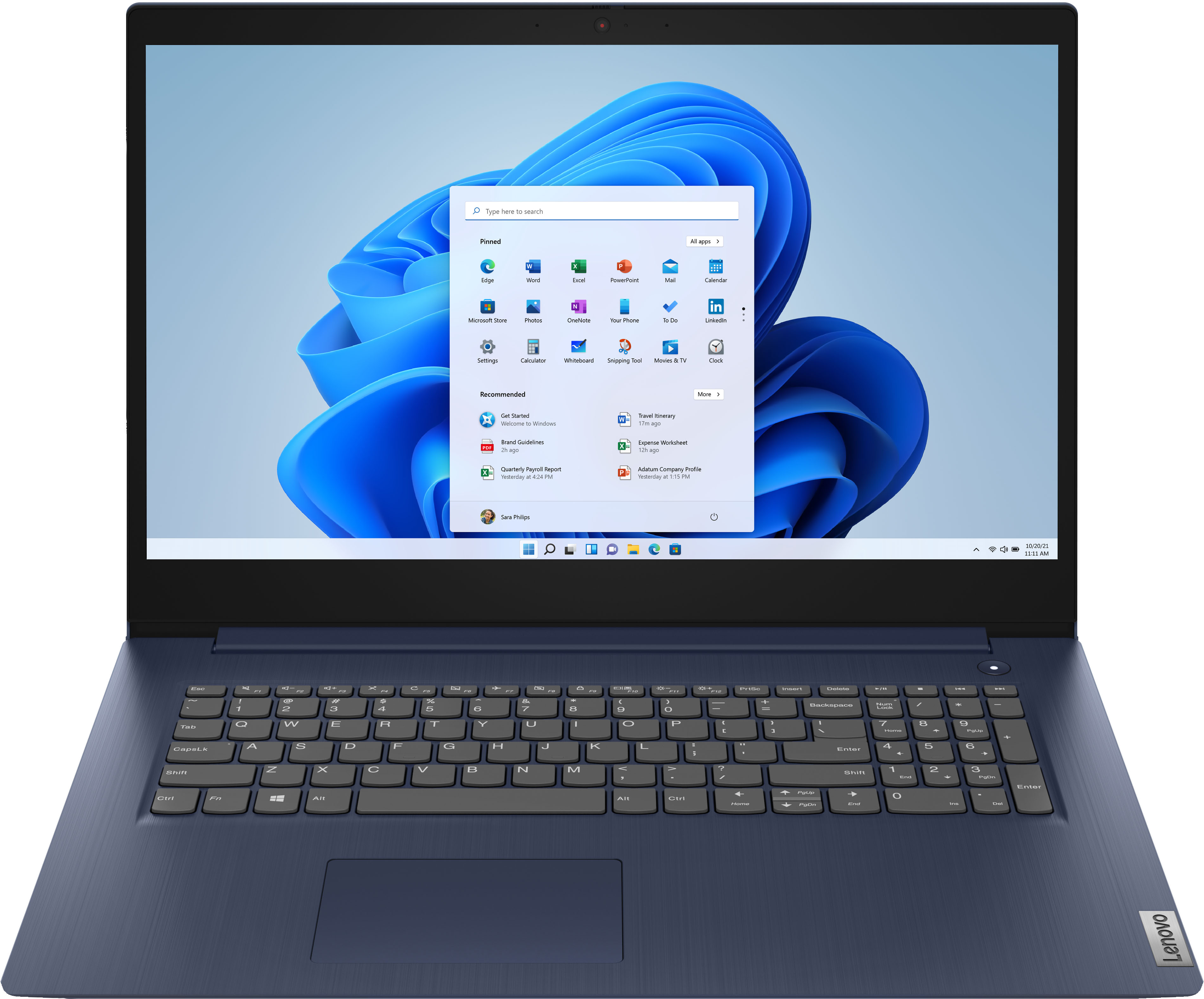
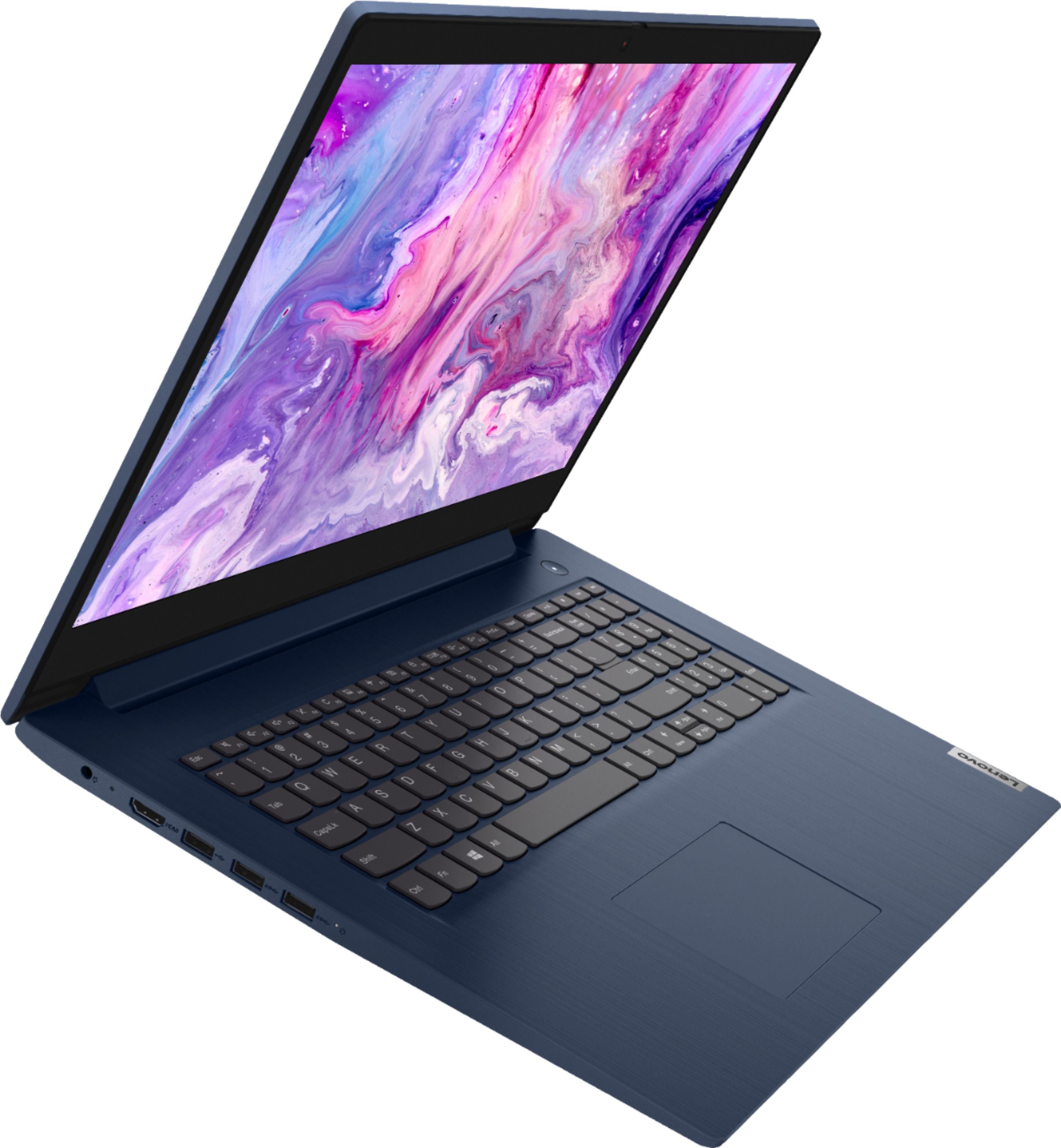
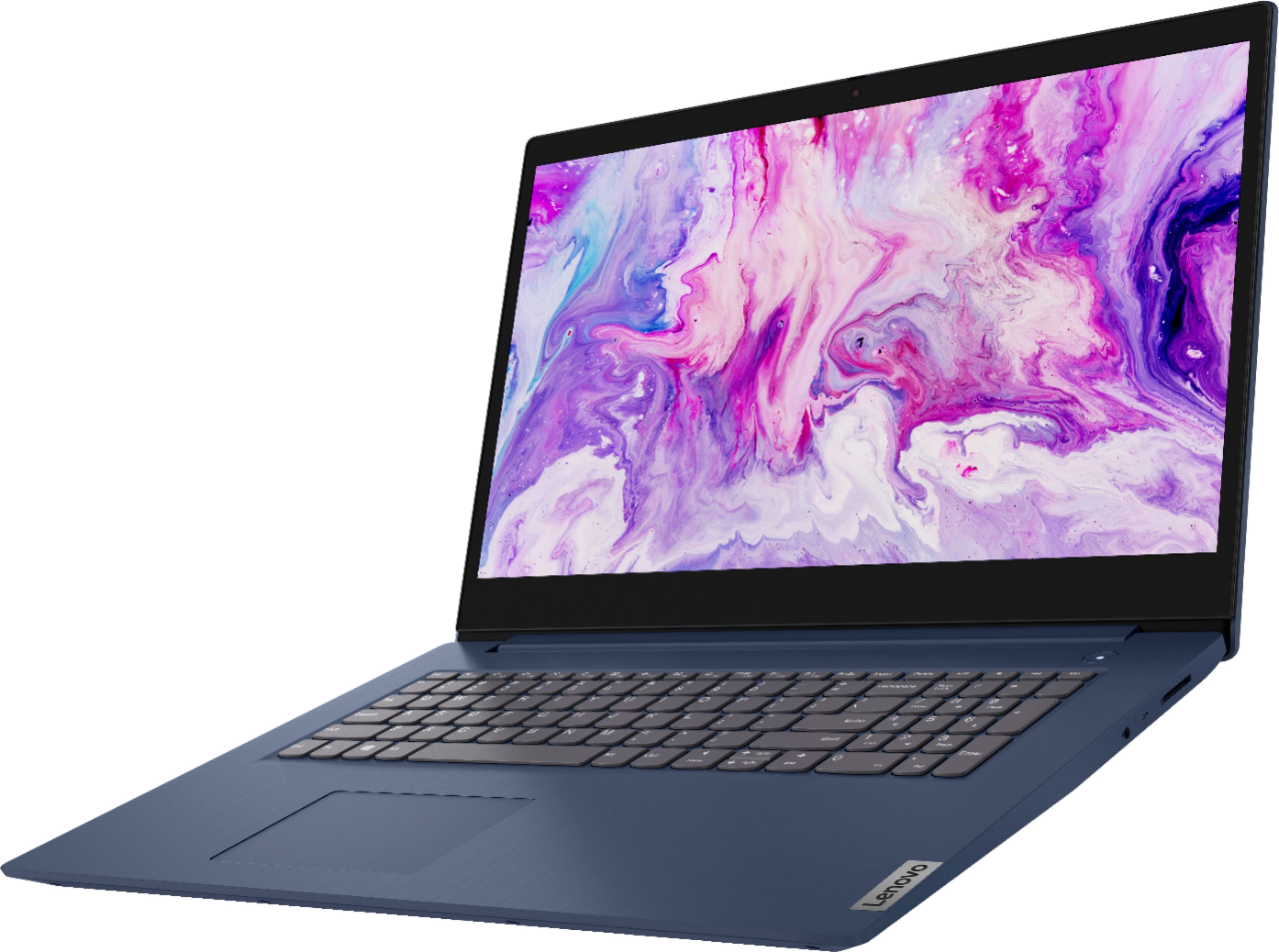
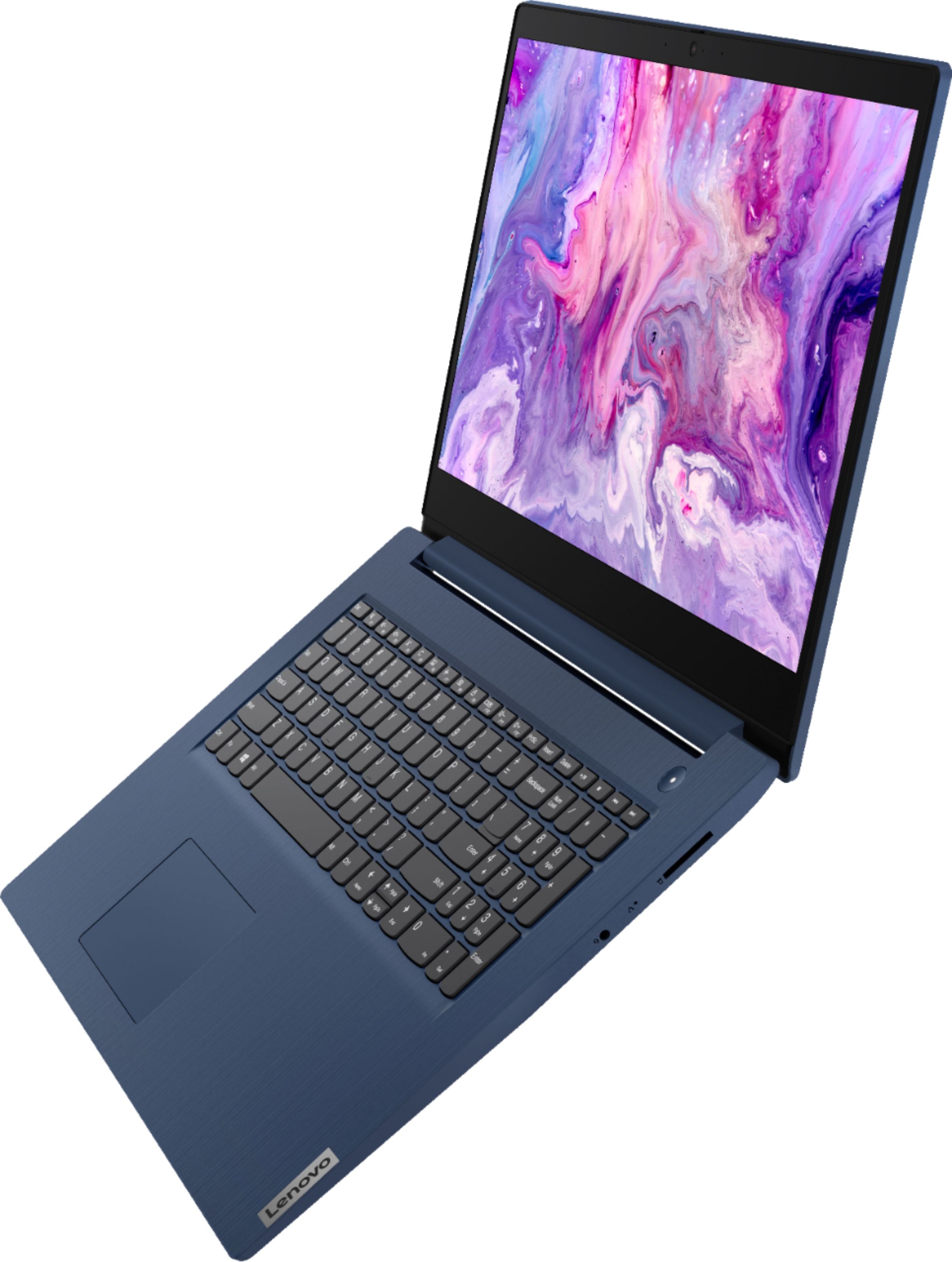
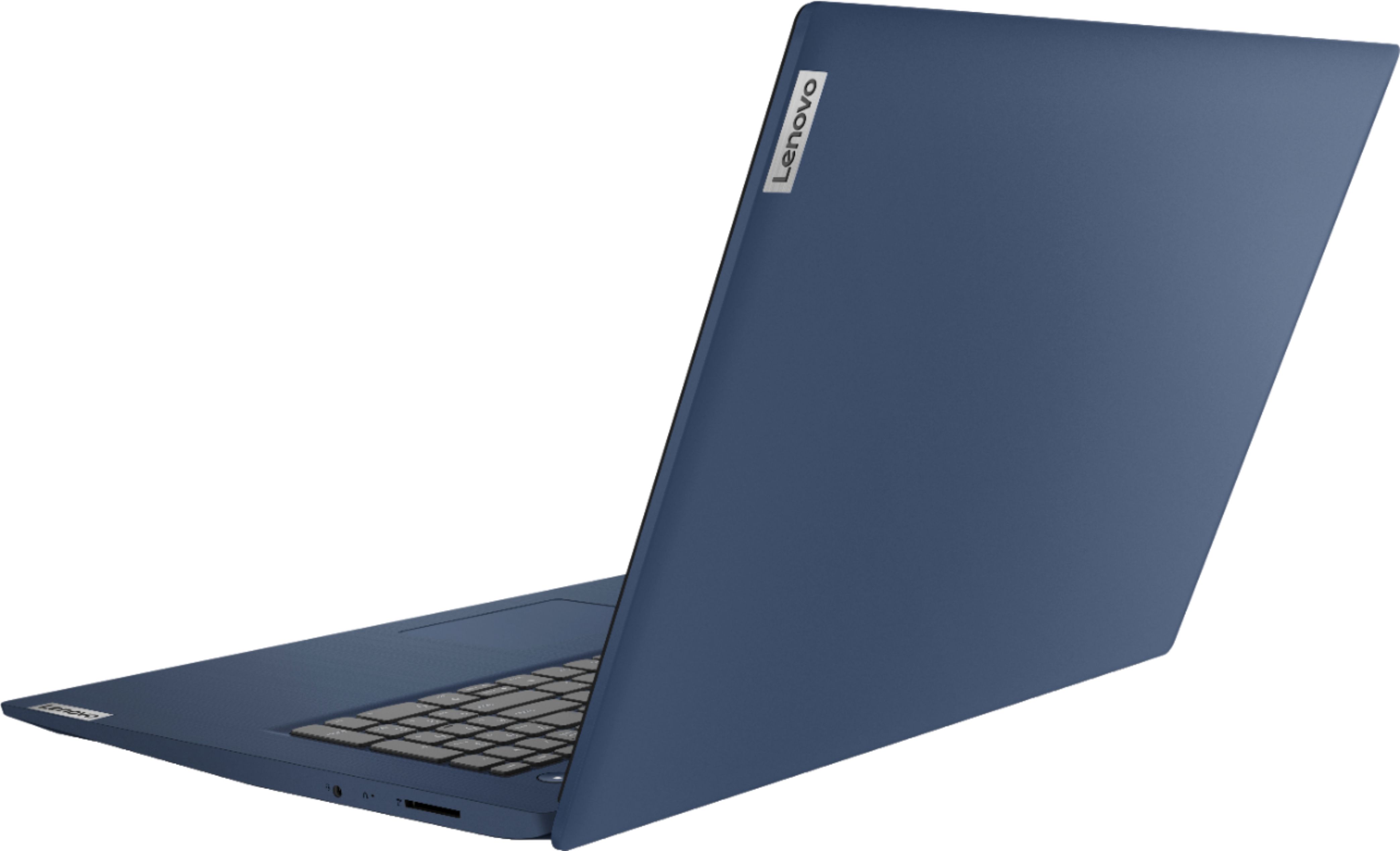
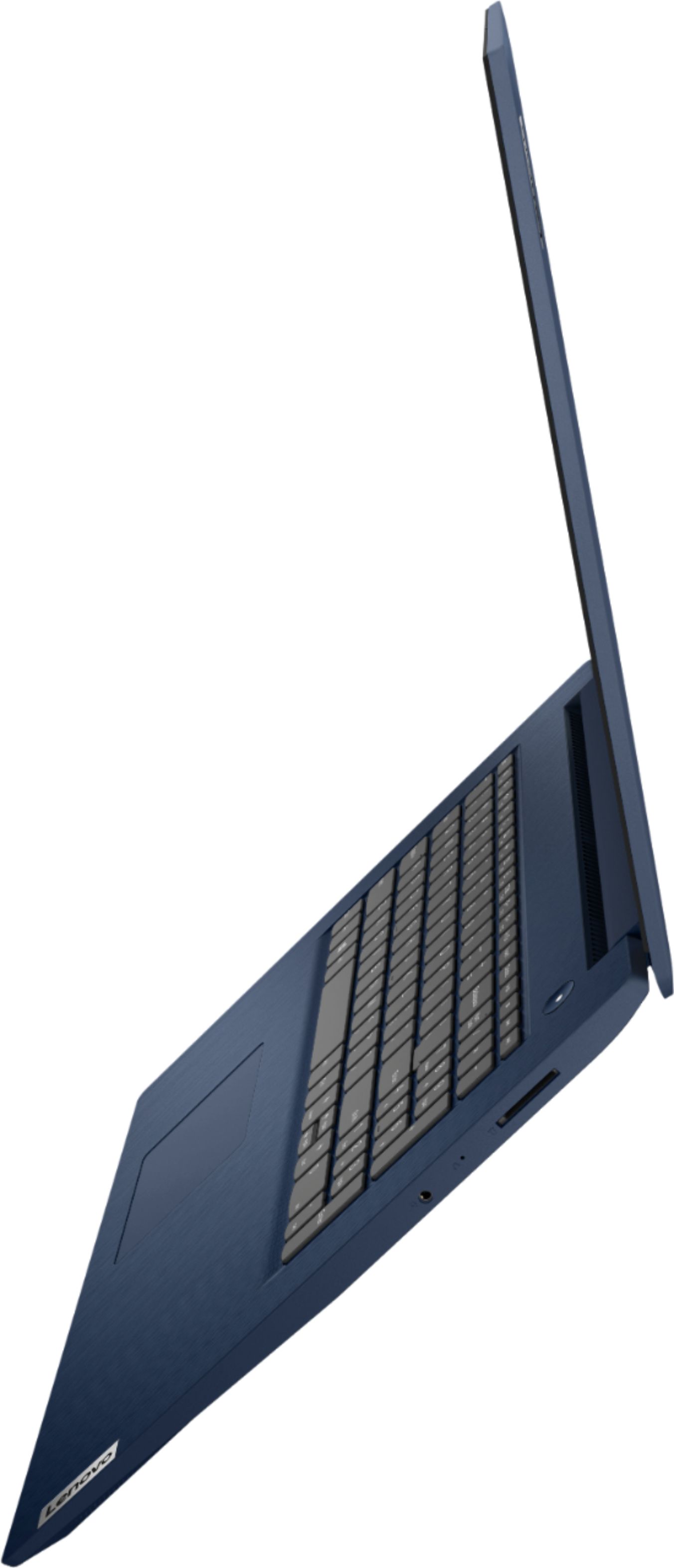
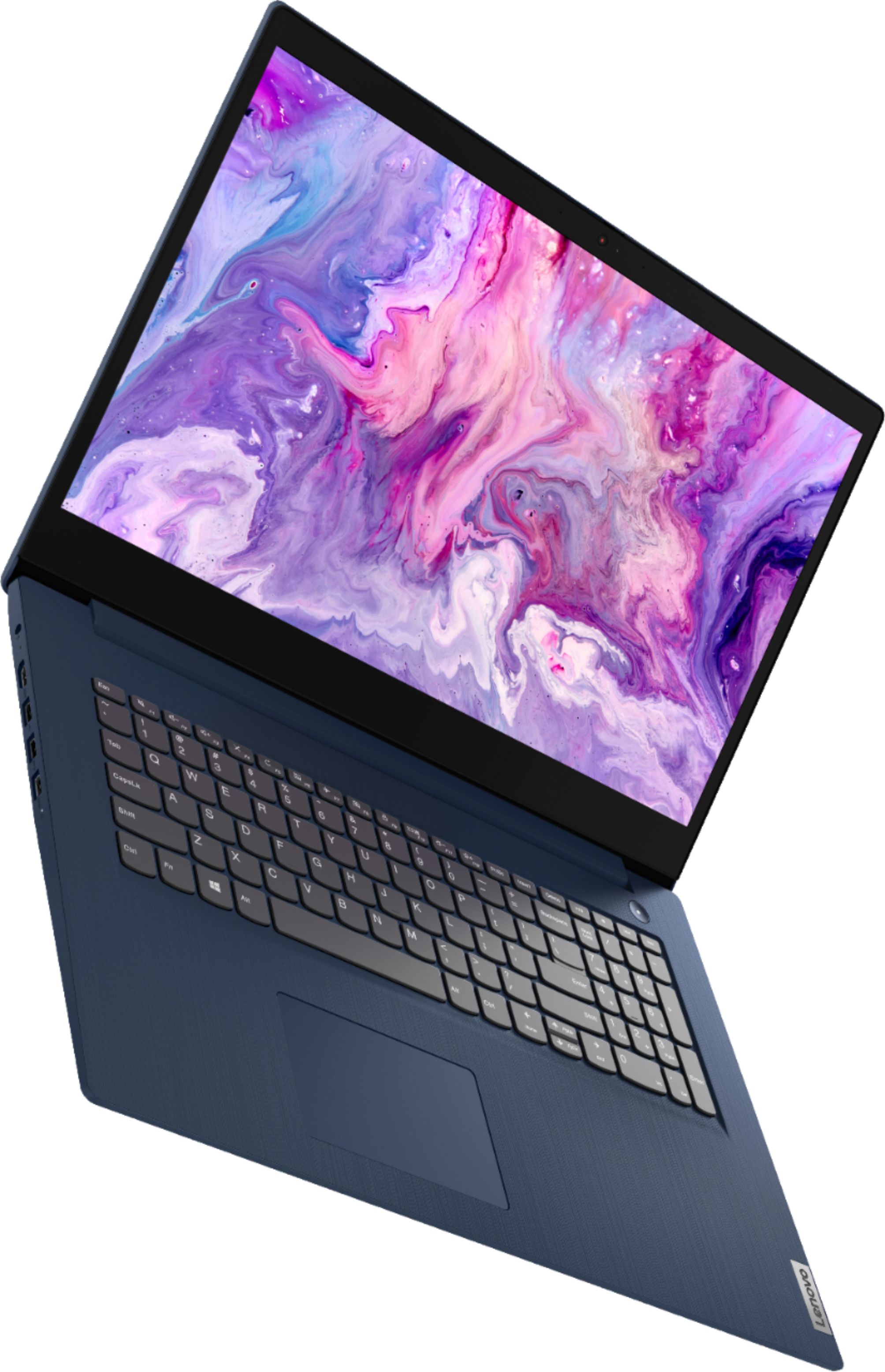
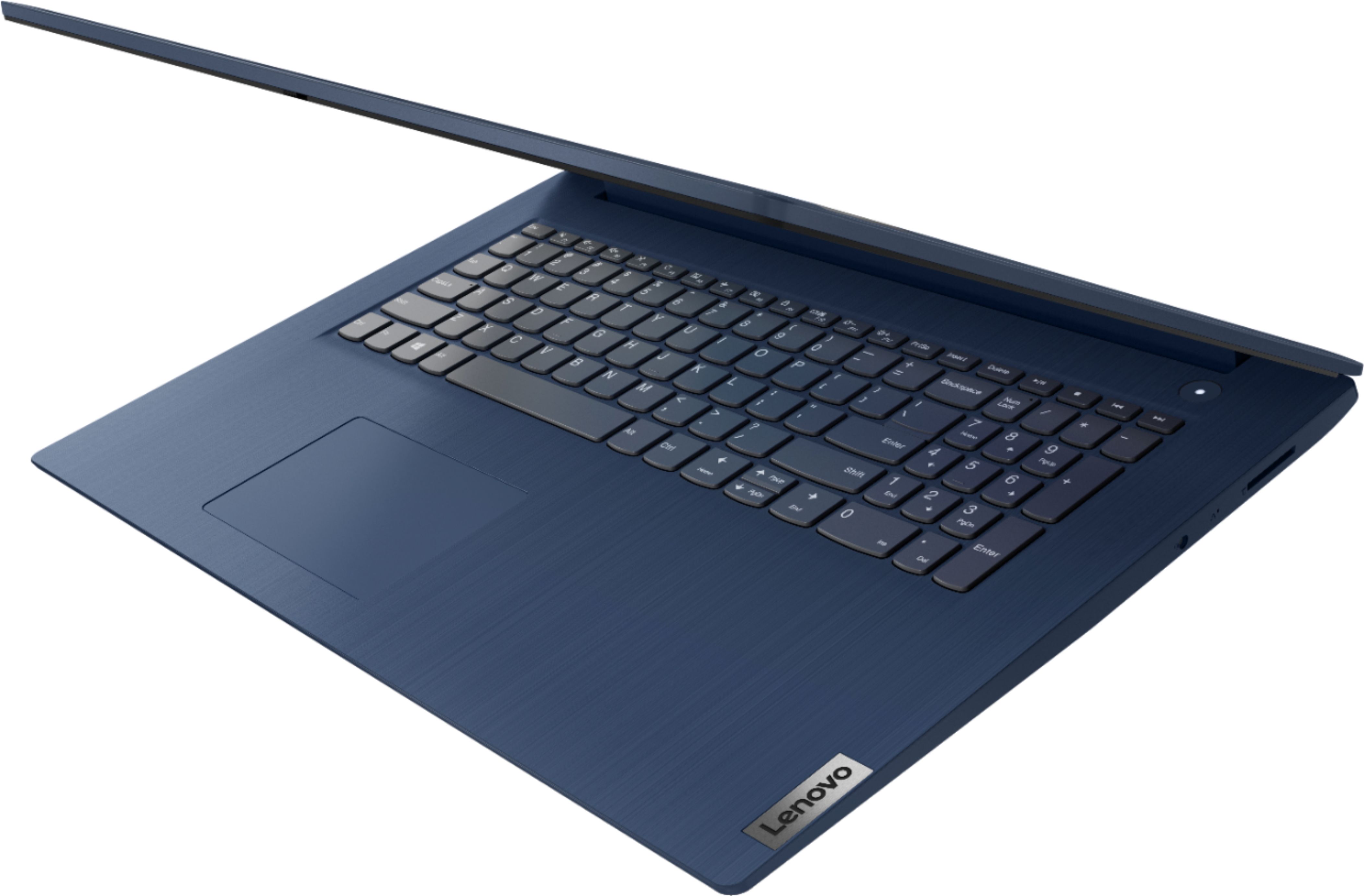
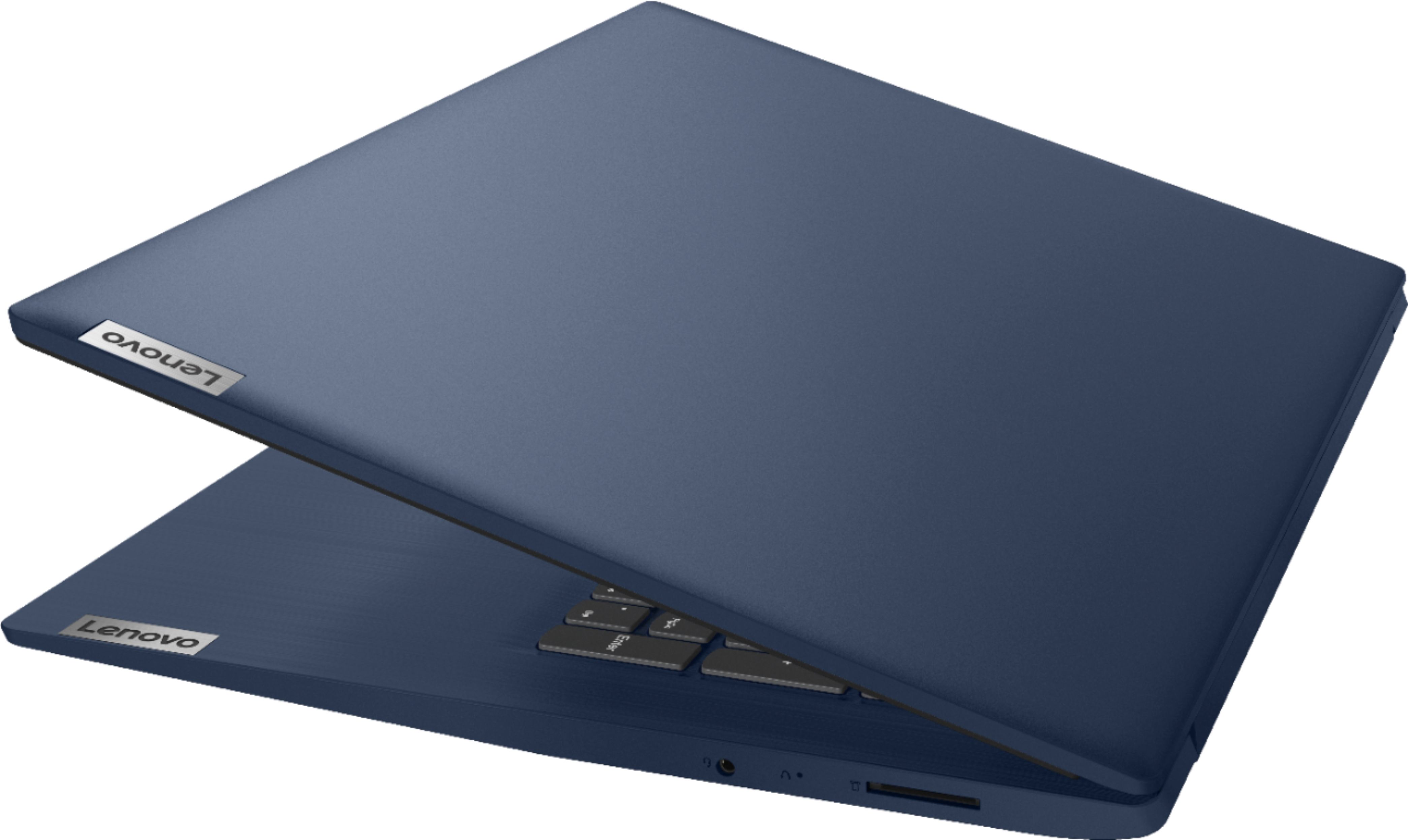
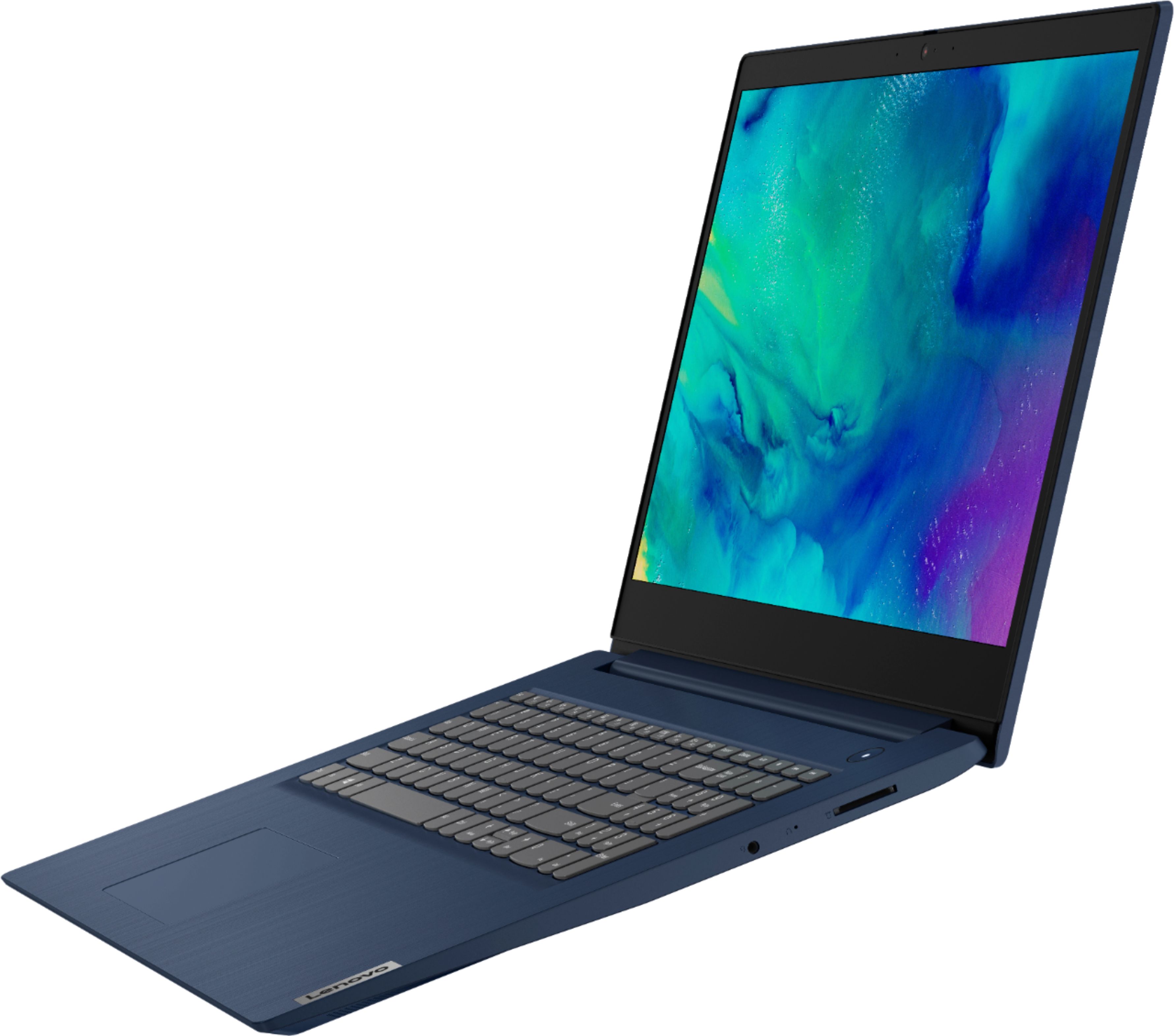

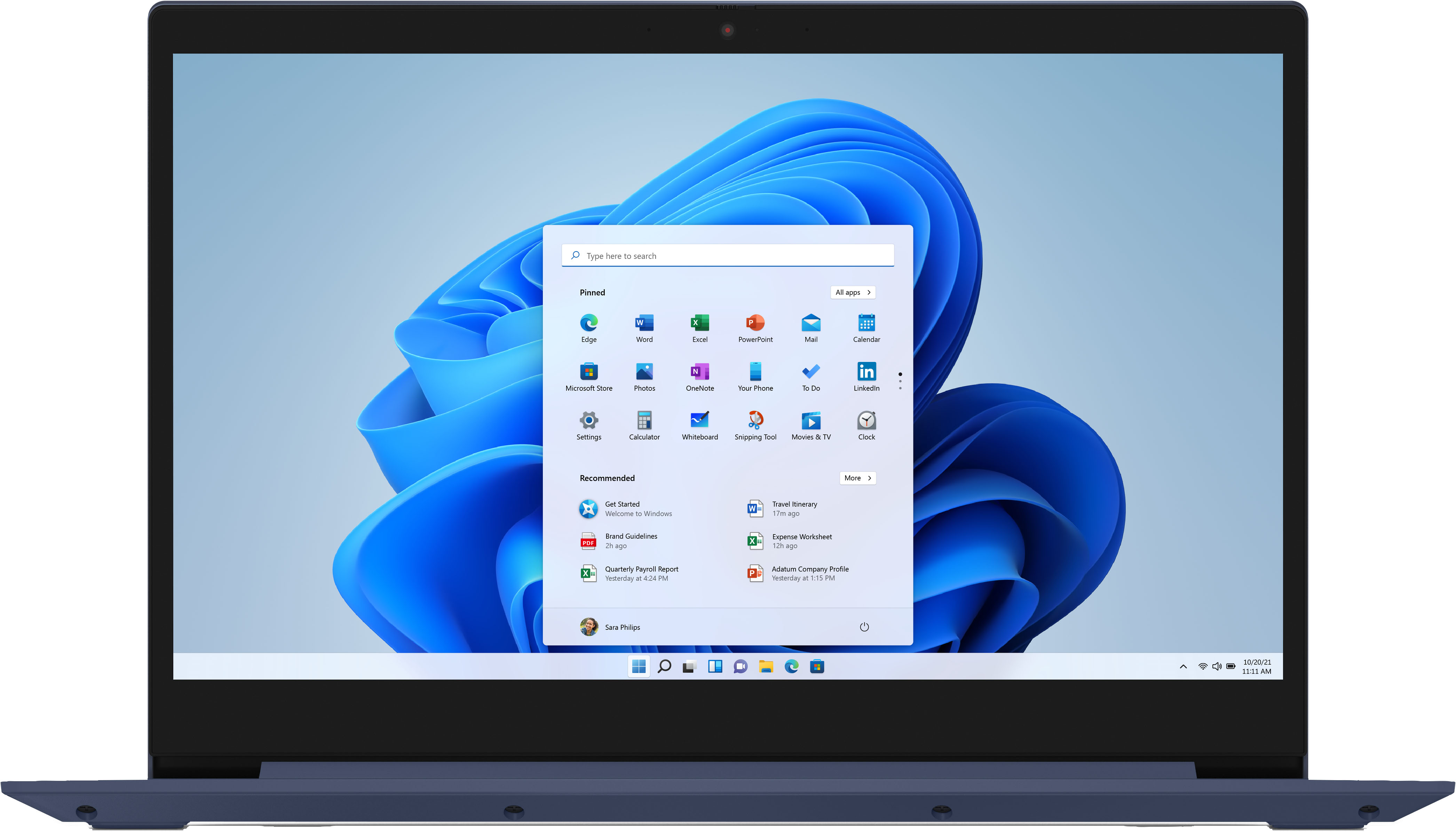
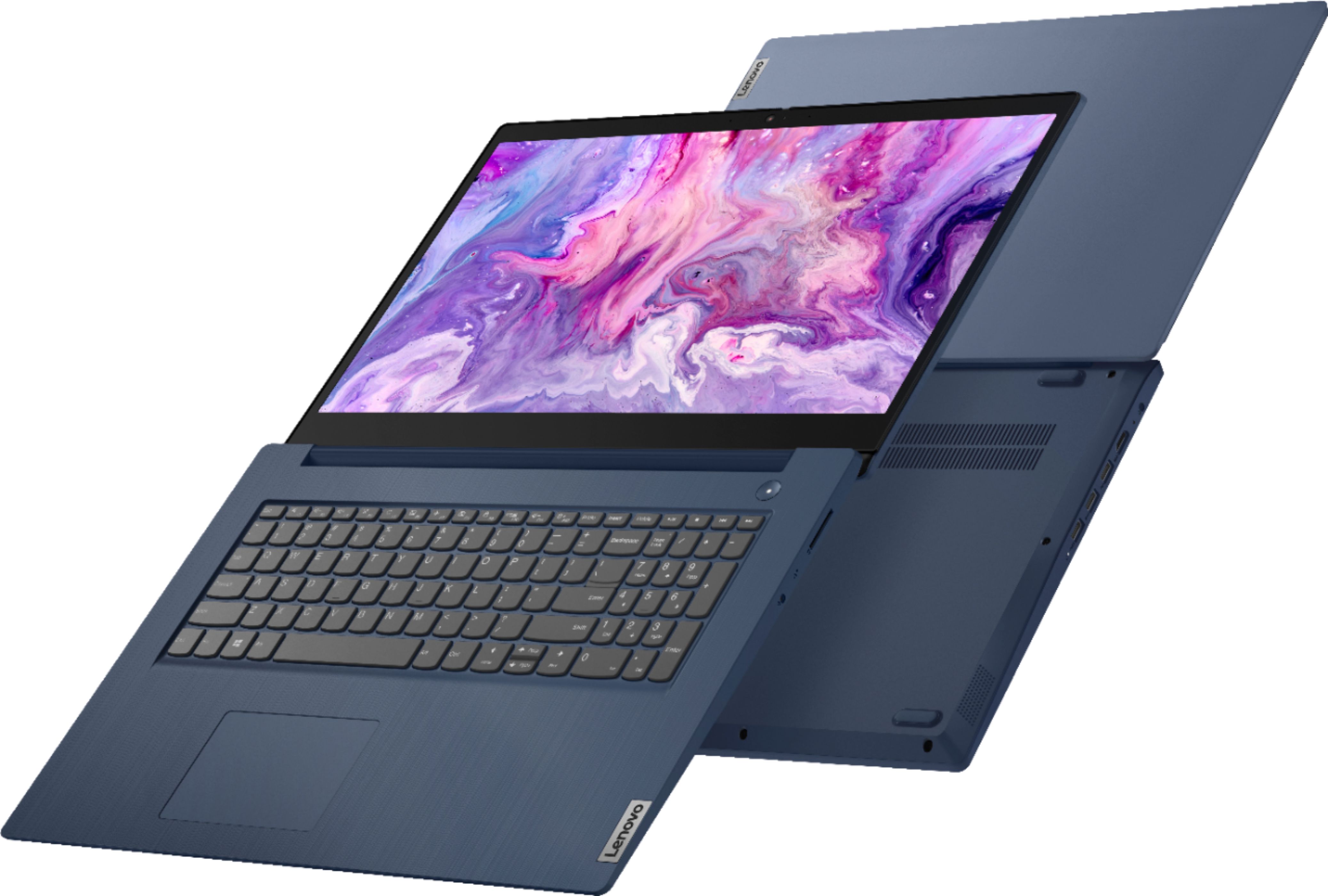
- Model:
- 81WF004CUS
- SKU:
- 6449490
Rating by feature
- Battery Life
Rating 3.8 out of 5 stars
- Speed
Rating 3.2 out of 5 stars
- Display
Rating 3.9 out of 5 stars
Customers are saying
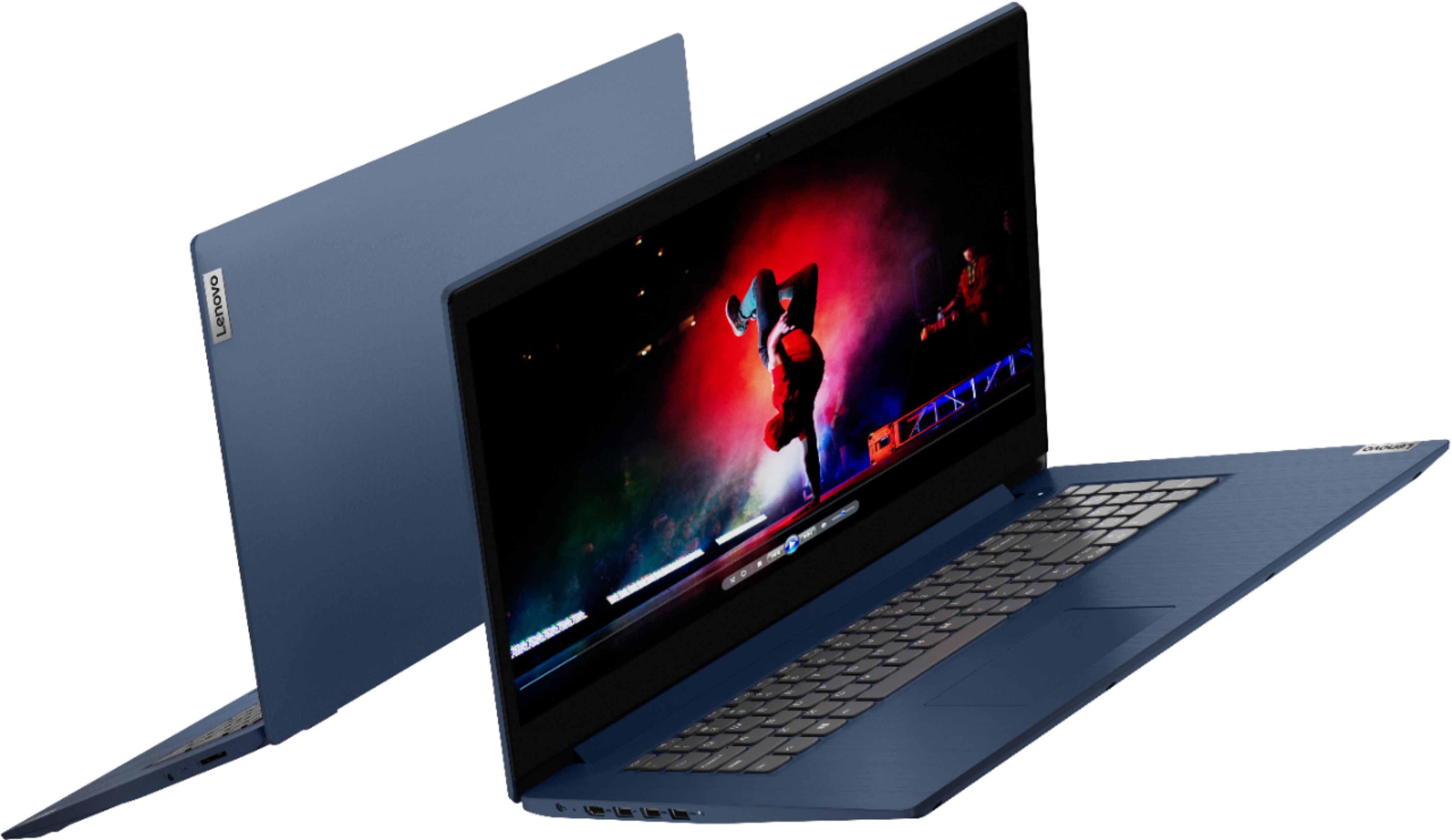
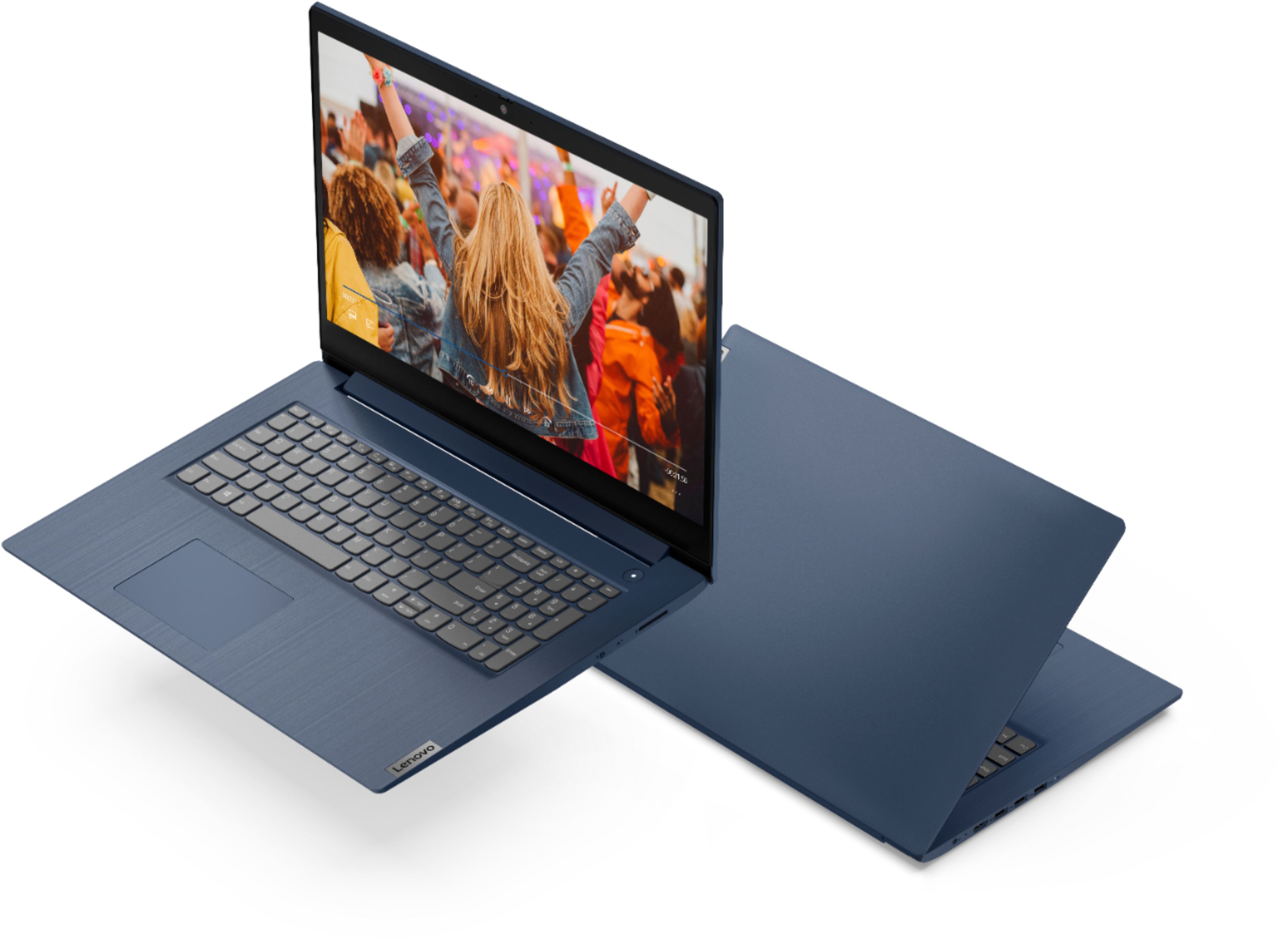
Customers enjoy the large screen, affordable price, and user-friendly nature of the Ideapad 3 17. It is lightweight and suitable for work. However, some users have concerns about its performance, boot time, and battery life.
This summary was generated by AI based on customer reviews.
Great laptop
||Posted . Owned for more than 2 years when reviewed.This reviewer received promo considerations or sweepstakes entry for writing a review.Works great no matter where I am or any state I go too
I would recommend this to a friend- Cons mentioned:Speed
middle of the road laptop
||Posted . Owned for 3 months when reviewed.This reviewer received promo considerations or sweepstakes entry for writing a review.decent slightly above entry level laptop, kind of slow but not unusable
I would recommend this to a friend - Cons mentioned:Boot time
Needs an SSD
||Posted . Owned for 3 weeks when reviewed.This reviewer received promo considerations or sweepstakes entry for writing a review.The monitor is a great size but the standard spinny HD is choking its performance. Swapping to an SSD was an immediate improvement even with the same RAM
I would recommend this to a friend - Pros mentioned:Large screen
Laptop
||Posted . Owned for 2 weeks when reviewed.This reviewer received promo considerations or sweepstakes entry for writing a review.Nice large seventeen inch screen. A bit heavy but it's a large laptop.
I would recommend this to a friendBrand response from Lenovo Product Expert
Posted .Thank you for choosing the Lenovo IdeaPad 3 17 Laptop, model number 81WF004CUS. This model ships with an over-size, 17.3 Inch (screen size measured diagonally) TN - HD+ (1600x900) screen, with a brightness level of 250 nits and has an Anti-glare coating, but still only weighs 4.84 lbs.

- Cons mentioned:Speed
Not that great
||Posted . Owned for 2 months when reviewed.This reviewer received promo considerations or sweepstakes entry for writing a review.I returned this with in one month, very slow and was a waste of 500, instead I bought another laptop for double the price and still feel like I saved money.
No, I would not recommend this to a friend - Cons mentioned:Performance, Speed
Slowest computer ever
||Posted . Owned for 10 months when reviewed.This reviewer received promo considerations or sweepstakes entry for writing a review.I’m very disappointed with this computer. It was extremely slow right from the start. I’ve had it for just about a year and have honestly used it maybe 10 times total bc I get so frustrated with the performance. Just using the internet/searching function takes forever. Don’t waste your money on this computer. Wish I would have returned it when I had the chance.
No, I would not recommend this to a friendBrand response from Lenovo Product Expert
Posted .We are sorry to hear that the Lenovo IdeaPad 3 17 laptop, model number 81WF004CUS. This model ships with fast WiFi-5 - wide range/high speed - 2x2 802.11ac frequency WiFi installed. It also ships with Windows 10 S-Mode, 64-bit Operating System installed. Windows 10 S-Mode provides added security by only allowing APPs available ( and therefore certified by Microsoft) at the Microsoft Store. If you don't need the added security or you need to install APPs not available at the Microsoft Store, you can switch to standard Windows 10 Home 64-bit Operating System, at no additional cost. Even if you have switched out of S-Mode, be sure any software you installed is compatible with Windows 10. There is no need to install Microsoft Office software. The software is already part of the operating system, you just need to activate the software with a purchased product key. If you have installed a copy of Microsoft Office, this is conflicting with the existing copy on the system and this will slow your system down. If you have installed a 3rd party anti-virus program, be sure that Windows Defender is turned off and that the trial version of McAfee Anti-Virus software is uninstalled. There can only be one anti-virus program on the system. Here is a link to instructions for uninstalling McAfee from a Windows computer: https://service.mcafee.com/?articleId=TS101331&page=shell&shell=article-view You may need to restore your system to original factory default settings if any of the programming errors have occurred. You can do that by typing "restore" in the Cortana search window. Just click on the magnifying glass icon at the bottom left of your Windows 10 Desktop. Click on "Reset This PC" Then click on "Get Started" and follow the on screen directions to restore to factory defaults. If the problem persists, we recommend you contact Lenovo Tech Support at: 877-453-6686.
- Cons mentioned:Battery life
Decent laptop
||Posted . Owned for 1 month when reviewed.This reviewer received promo considerations or sweepstakes entry for writing a review.Battery does not stay charged long, but all in all is a decent laptop
I would recommend this to a friendBrand response from Lenovo Product Expert
Posted .The Lenovo IdeaPad 3 17 Laptop, model number 81WF004CUS, ships with a 3CELL_42WH_INTERNAL, Lithium Polymer Battery, which within this configuration, has a battery life of up to 9 hours, depending on the work the device is performing. If you are getting substantially less battery life, first, set your screen brightness at less than 100-percent - try 80-percent to start with. Then, be sure Battery conservation Mode is turned off. This power management setting should only be used when the laptop is plugged in all the time. It will prolong overall battery life by only charging the battery to 60-percent of capacity. Here is a link to instructions for turning off Battery Conservation Mode: https://support.lenovo.com/us/en/solutions/ht103159. Also check what programs are running in the background on the computer. Be sure only the programs you want running in the background are. These programs will drain the battery. Here is a link to information about how to find out what programs are running in the background on your Windows 10 computer and how to manage them for better system performance: https://www.windowscentral.com/how-prevent-apps-running-background-windows-10. Then, finally, be sure any software you installed is compatible with Windows 10. Incompatible software will drain the battery at a faster rate. There is no need to install Microsoft Office software. The software is already part of the operating system, you just need to activate the software with a purchased product key. If you have installed a copy of Microsoft Office, this is conflicting with the existing copy on the system and this will slow your system down. If you have installed a 3rd party anti-virus program, be sure that Windows Defender is turned off and that the trial version of McAfee Anti-Virus software is uninstalled. There can only be one anti-virus program on the system. You may need to restore your system to original factory default settings if any of the programming errors have occurred. You can do that by typing "restore" in the Cortana search window. Just click on the magnifying glass icon at the bottom left of your Windows 10 Desktop. Click on "Reset This PC" Then click on "Get Started" and follow the on screen directions to restore to factory defaults. If the problem persists, we recommend you contact Lenovo Tech Support at: 877-453-6686.
- Pros mentioned:Gaming
Good buy
||Posted . Owned for 1 month when reviewed.This reviewer received promo considerations or sweepstakes entry for writing a review.Great value machine. Working well for school work and light gaming.
I would recommend this to a friendBrand response from Lenovo Product Expert
Posted .Thank you choosing the Lenovo IdeaPad 3 17 laptop, model number 81WF004CUS. This model ships with Windows 10 S-Mode 64-bit Operating System. Windows 10 S-Mode provides added security by only allowing APPs available ( and therefore certified by Microsoft) at the Microsoft Store. If you don't need the added security or you need to install APPs not available at the Microsoft Store, you can switch to standard Windows 10 Home 64-bit Operating System, at no additional cost. We always recommend you check the requirements and compatibility of any software/games you will be installing on your new computer, before you invest in any computer. Be sure your new computer can support the software/games you will need to use.
- Pros mentioned:Large screen
Awesome laptop!
||Posted . Owned for 3 weeks when reviewed.This reviewer received promo considerations or sweepstakes entry for writing a review.I love this laptop! Amazing price for the screen size, GB memory and HDD! This is my first Lenovo product, but I love it so far! As long as I am not streaming anything, I can get at least 4 hours of battery life without the charger. I would recommend this product to anyone.
I would recommend this to a friend - Cons mentioned:Battery life
Boss
||Posted . Owned for 3 weeks when reviewed.This reviewer received promo considerations or sweepstakes entry for writing a review.Live the computer overall, but the battery doesn't last very long.
I would recommend this to a friendBrand response from Lenovo Product Expert
Posted .Thank you for choosing the Lenovo IdeaPad 3 17 Laptop, model number 81WF004CUS. This model ships with a 3CELL_42WH_INTERNAL, Lithium Polymer Battery, which within this configuration, has a battery life of up to 9 hours. If you are getting substantially less battery life, first, set your screen brightness at less than 100-percent - try 80-percent to start with. Then, be sure Battery conservation Mode is turned off. This power management setting should only be used when the laptop is plugged in all the time. It will prolong overall battery life by only charging the battery to 60-percent of capacity. Here is a link to instructions for turning off Battery Conservation Mode: https://support.lenovo.com/us/en/solutions/ht103159. Also check what programs are running in the background on the computer. Be sure only the programs you want running in the background are. These programs will drain the battery. Here is a link to information about how to find out what programs are running in the background on your Windows 10 computer and how to manage them for better system performance: https://www.windowscentral.com/how-prevent-apps-running-background-windows-10. Then, finally, be sure any software you installed is compatible with Windows 10. Incompatible software will drain the battery at a faster rate. There is no need to install Microsoft Office software. The software is already part of the operating system, you just need to activate the software with a purchased product key. If you have installed a copy of Microsoft Office, this is conflicting with the existing copy on the system and this will slow your system down. If you have installed a 3rd party anti-virus program, be sure that Windows Defender is turned off and that the trial version of McAfee Anti-Virus software is uninstalled. There can only be one anti-virus program on the system. You may need to restore your system to original factory default settings if any of the programming errors have occurred. You can do that by typing "restore" in the Cortana search window. Just click on the magnifying glass icon at the bottom left of your Windows 10 Desktop. Click on "Reset This PC" Then click on "Get Started" and follow the on screen directions to restore to factory defaults. If the problem persists, we recommend you contact Lenovo Tech Support at: 877-453-6686.
- Pros mentioned:Large screen
I just love my Lenovo Ideapad from Best Buy!
||Posted . Owned for 3 weeks when reviewed.This reviewer received promo considerations or sweepstakes entry for writing a review.I just love my Lenovo Ideapad 3 17 17" Laptop. The memory and the speed of my Ideapad is really fast and the monitor screen is a lot bigger than my last laptop. I'm most happy with my purchase from Best Buy and I highly recommend this product to anyone that wants to buy a Lenovo Ideapad.
I would recommend this to a friendBrand response from Lenovo Product Expert
Posted .Thank you for choosing the Lenovo IdeaPad 3 17 Laptop. We are pleased to hear that the features and performance of the IdeaPad 3 17 meets your computing needs so well.
- Pros mentioned:Storage
Lenovo
||Posted .This reviewer received promo considerations or sweepstakes entry for writing a review.This laptop is mainly for work and has loads of memory and storage.
I would recommend this to a friendBrand response from Lenovo Product Expert
Posted .Thank you for choosing the Lenovo IdeaPad 3 17 Laptop, model number 81WF004CUS. We are pleased to hear that the IdeaPad 3 17 meets your computing needs so well.
- Pros mentioned:Price
Worth it
||Posted . Owned for less than 1 week when reviewed.This reviewer received promo considerations or sweepstakes entry for writing a review.Nice and practical laptop in work. Good price and worth it.
I would recommend this to a friendBrand response from Lenovo Product Expert
Posted .Thank you for choosing the Lenovo IdeaPad 3 17 Laptop. We are pleased to hear that the value and performance of the IdeaPad 3 17 meets your computing needs so well.
Does everything we need it too at home.
||Posted . Owned for 1 month when reviewed.This reviewer received promo considerations or sweepstakes entry for writing a review.Not a stellar performer, but does what we need well. Bright and clear screen. ZOOM meetings go well, with a good camera and speakers. Have complaints about the mic being a little "low" from others. Seems to take a little while to fully load when booting. Not at all dissatisfied, just not an excitingly fast computer. Budget minded, budget products.
I would recommend this to a friendBrand response from Lenovo Product Expert
Posted .Thank you for choosing the Lenovo IdeaPad 3 17 Laptop. You can test your broadcast audio prior to entering a Zoom Meeting to be sure the audio levels at both your computer and within the conferencing APP itself are at your desired levels: https://support.zoom.us/hc/en-us/articles/201362283-Testing-computer-or-device-audio. The Lenovo IdeaPad 3 17 will boot from off to the Windows 10 Desktop Screen in less than 40-seconds. If you are experiencing slower boot times, first, be sure any software you installed is compatible with Windows 10. There is no need to install Microsoft Office software. The software is already part of the operating system, you just need to activate the software with a purchased product key. If you have installed a copy of Microsoft Office, this is conflicting with the existing copy on the system and this will slow your system down. If you have installed a 3rd party anti-virus program, be sure that Windows Defender is turned off and that the trial version of McAfee Anti-Virus software is uninstalled. There can only be one anti-virus program on the system. You may need to restore your system to original factory default settings if any of the programming errors have occurred. You can do that by typing "restore" in the Cortana search window. Just click on the magnifying glass icon at the bottom left of your Windows 10 Desktop. Click on "Reset This PC" Then click on "Get Started" and follow the on screen directions to restore to factory defaults. If there is no incompatible software installed but the issues persist, check to be sure you have the latest version of Windows 10 on the computer. Then update all BIOS files and drivers up to that latest version of Windows 10. You can easily accomplish this by scanning the computer with the Lenovo Utility software available on this computer. This system has Lenovo utilities installed to help maintain the health of the device and keep the operating system software up to date. Type "Lenovo Vantage" in the Cortana Search window (if Lenovo Vantage is not installed on your device, you can download the APP and install it now). Select Lenovo Vantage from the list. In the window that opens, click on "Health and Support". In the expanded menu, select "Hardware Scan" In the window that opens, select "Run Quick Tests". This will scan your entire system for errors. Follow any directions that may pop up. If the problem continues after this scan, now click on "System Update". First select Windows update from the menu. Scan your system to be sure you have the latest version of Windows 10. Once that scan is complete, select "Additional Updates". This will scan your device to be sure there are no new BIOS/Driver updates needed. Follow any instructions that may pop up. If the issue still continues after these updates, we recommend you call Lenovo Tech Support at: 877-453-6686 for additional help.
Not a bad laptop
||Posted .This reviewer received promo considerations or sweepstakes entry for writing a review.Bought as a work laptop and it is doing great. No problems
I would recommend this to a friendBrand response from Lenovo Product Expert
Posted .Thank you for choosing the Lenovo IdeaPad 3 17 Laptop. We are pleased to hear that the IdeaPad 3 17 meets your computing needs so well.
- Pros mentioned:Price
Great for upgrade
||Posted . Owned for 2 months when reviewed.This reviewer received promo considerations or sweepstakes entry for writing a review.Fast Affordable Laptop with quick updates to Win 11
I would recommend this to a friendBrand response from Lenovo Product Expert
Posted .Thank you for choosing the Lenovo IdeaPad 3 17 laptop. We are pleased to hear that the value and performance of the IdeaPad 3 17 meets your computing needs so well.
- Pros mentioned:Large screen
Perfect computer for teachers!
||Posted . Owned for 3 months when reviewed.This reviewer received promo considerations or sweepstakes entry for writing a review.I go this computer for my mom. She is a school teacher and recently had to start teaching from home. I knew she would need something quick with a great amount of memory. This computer is perfect for what she needs. It looks nice and the screen is large enough for her to see.
I would recommend this to a friendBrand response from Lenovo Product Expert
Posted .Thank you for choosing the Lenovo IdeaPad 3 17 Laptop for your mother. We are pleased to hear that the features and performance of the IdeaPad 3 17 meets the computing needs of your mother so well.
- Pros mentioned:Price
Personal Purchase
||Posted . Owned for 1 month when reviewed.This reviewer received promo considerations or sweepstakes entry for writing a review.The Lenovo laptop was exactly what we wanted. We have purchase 4 laptops of poor brands because of price. We decided to go with a nationally recognized company that had a great warranty. Don't think we could have bought another product for the same great price from Best Buy.
I would recommend this to a friend - Pros mentioned:Large screenCons mentioned:Speed
Nice screen HORRIBLE LAG. TAKES HOURS TO DO ANYTHI
||Posted . Owned for 1 month when reviewed.This reviewer received promo considerations or sweepstakes entry for writing a review.So frustrating. Lag lag lag. I counted to 10 every time i typed a word in...waiting for the letters to show up! 20 minutes to get to a site and find what you are looking for due to lag. Had the geek squad fix it and it went faster but still is sooo slow and slower than my 4 yr old hp. Sad...love the size and screen. Something is way wrong with these.
No, I would not recommend this to a friendBrand response from Lenovo Product Expert
Posted .This Lenovo IdeaPad 3 17 Laptop, model number 81WF004CUS, will boot from off to the Windows Desktop Screen in less than 40-seconds. Keyboard input is virtually instantaneous. This configuration ships with wide-range/high speed 2x2 802.11ac WiFi installed. If you are getting slower than expected performance, even if you have switched out of S-Mode, be sure any software you installed is compatible with Windows. There is no need to install Microsoft Office software. The software is already part of the operating system, you just need to activate the software with a purchased product key. If you have installed a copy of Microsoft Office, this is conflicting with the existing copy on the system and this will slow your system down. If you have installed a 3rd party anti-virus program, be sure that Windows Defender is turned off and that the trial version of McAfee Anti-Virus software is uninstalled. There can only be one anti-virus program on the system. You may need to restore your system to original factory default settings if any of the programming errors have occurred. You can do that by typing "restore" in the Cortana search window. Just click on the magnifying glass icon at the bottom left of your Windows Desktop. Click on "Reset This PC" Then click on "Get Started" and follow the on screen directions to restore to factory defaults. If the problem persists, we recommend you contact Lenovo Tech Support at: 877-453-6686.
Bought as open box
||Posted . Owned for 3 weeks when reviewed.This reviewer received promo considerations or sweepstakes entry for writing a review.works well for basic office use but the lack of a graphics card makes it incompatible for gaming. The keyboard is set further in because of the mouse pad so typing is a bit more difficult. Overall a good buy for the price.
I would recommend this to a friendBrand response from Lenovo Product Expert
Posted .Thank you for choosing the Lenovo IdeaPad 3 17 Laptop, model number 81WF004CUS. The IdeaPad 3 17 provides a generous Wrist Rest Area to help prevent wrist injuries, such as Carpal Tunnel Injury.