Customer Ratings & Reviews
- Model:
- ZA740005US
- SKU:
- 6429528
Rating by feature
- Value
Rating 4.6 out of 5 stars
- Quality
Rating 4.5 out of 5 stars
- Ease of Use
Rating 4.4 out of 5 stars
Customers are saying
Customers enjoy the sound quality, ease of use, and display of the Smart Clock Essential. Many appreciate the included night light and the convenient size, finding it ideal for bedside tables. Positive feedback also highlights the Google Assistant integration and the alarm clock functionality. While some users experienced challenges with WiFi connectivity and initial setup, the overall sentiment is positive.
This summary was generated by AI based on customer reviews.
didnt work
||Posted . Owned for 1 month when reviewed.This reviewer received promo considerations or sweepstakes entry for writing a review.i had to return this as it was broken the screen displayed double numbers for 7:30 it would show 77:33 or 77:00 probably just bad luck
I would recommend this to a friendBrand response from Lenovo Product Expert
Posted .We are sorry to hear that you are having issues with your Lenovo Smart Clock Essential. Try resetting your Smart Clock Essential to clear the error: Press and hold the Alarm button and the Volume Down button at the same time for 12 seconds. Here is a link to a short YouTube video that demonstrates the initial setup process of the Smart Clock Essential: https://www.youtube.com/watch?v=oebcueXBCeU&t=31s. If you continue to have issues, we recommend you contact Lenovo Tech Support for Smart Devices at: 866-426-0911.

Eh not great, not terrible.
||Posted . Owned for 11 months when reviewed.This reviewer received promo considerations or sweepstakes entry for writing a review.It’s okay. I’d suggest something else though. It’s technology isn’t as good as other products but for the price it works fine.
No, I would not recommend this to a friendBrand response from Lenovo Product Expert
Posted .Here is a link to a YouTube video that demonstrates the features and functions of this Lenovo Smart Clock Essential: https://www.youtube.com/watch?v=Fo0yA5mWgFQ&t=542s
Good present for $25
||Posted . Owned for 3 months when reviewed.This reviewer received promo considerations or sweepstakes entry for writing a review.It look amazing in my nightstand works amazing as an alarm clock but the google assistant is a bit slow took me long to make it work and set it up
No, I would not recommend this to a friendBrand response from Lenovo Product Expert
Posted .Hi there, Thanks for choosing the Lenovo Smart Clock Essential. We are sorry to hear you are experiencing this issue with the mic/assistant. Please ensure you have removed the plastic film that is on the screen to protect the unit during shipping. If the issue persists, it is possible setting up voice match and raising the "okay google" sensitivity will help with this. to setup voice match please open the Google Home app.
At the top right, tap your account.
Verify that the Google Account shown is the one linked to your speaker or display. To switch accounts, tap another account or Add another account.
Tap Assistant settings Voice Match Add devices.
Make sure any devices you want to link your voice to are checked.
Tap Next I agree.
Follow the in-app steps.
To adjust the sensitivity of the mic please open the Google Home app .
At the bottom, tap Home .
Select your speaker or Smart Display.
At the top right, tap Device settings. ...
Choose how sensitive you want Google Assistant to be when it responds to you. If you need further assistance please don't hesitate to reach out to Lenovo Tech Support at 866-426-0911
Meh.
||Posted . Owned for 1 week when reviewed.This reviewer received promo considerations or sweepstakes entry for writing a review.I'm sure it would have been a sufficient device, unfortunately it was really difficult to pair. It's extremely difficult if not impossible to pair without an internet signal. Without internet, I could not get the clock to function at all. Perhaps I was doing something wrong, but there was no obvious way to help the situation so the item was returned.
No, I would not recommend this to a friendJust okay.
||Posted . Owned for 9 months when reviewed.This reviewer received promo considerations or sweepstakes entry for writing a review.These are okay. Not what I expected. The clock is great for tech savvy people. Even on the highest volume, the alarm is not that loud.
I would recommend this to a friendBrand response from Lenovo Product Expert
Posted .We are sorry to hear that the Lenovo Smart Clock Essential does not meet your needs. You can increase the alarm volume within your Google Home APP on your smart phone or tablet that you used to setup the Lenovo Smart Clock Essential. Here is a link to a YouTube video that also mentions this feature: https://www.youtube.com/watch?v=euiTcZjVr_o&t=3s. If you have more questions about your Lenovo Smart Clock Essential we recommend you contact Lenovo Tech Support for Smart Devices at: 866-426-0911.
Lenovo smart alarm clock
||Posted . Owned for 3 weeks when reviewed.This reviewer received promo considerations or sweepstakes entry for writing a review.Looks good but not user-friendly. The manual doesn’t have w Pugh guidance. Need to check online to understand better.
No, I would not recommend this to a friendMeh
||Posted .This reviewer received promo considerations or sweepstakes entry for writing a review.Weird this one is giving me a hard time to setup but my other was didn't give me these problems
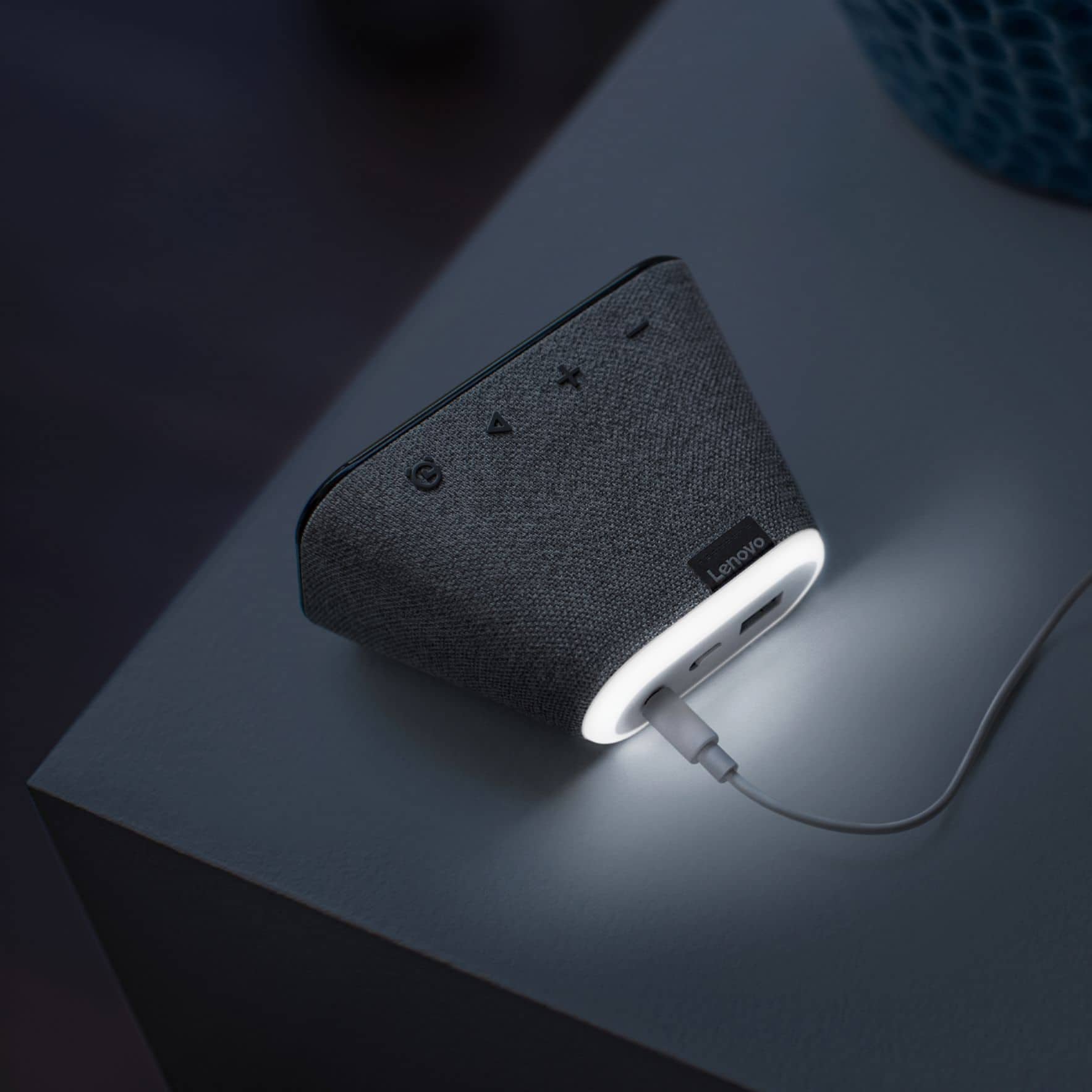
No, I would not recommend this to a friendBright WHITE light
||Posted . Owned for 1 week when reviewed.This reviewer received promo considerations or sweepstakes entry for writing a review.The light is white, sleep much? Light should be red! If I am missing something please tell me. I cant find a way to turn of preset for a day off.
No, I would not recommend this to a friendBrand response from Lenovo Product Expert
Posted .Hi! Thanks for choosing the Lenovo Smart Clock Essential. You may turn the nightlight on or off at any time by saying "Okay Google nightlight on/off" or by pressing and holding the volume - button for 3 seconds. You can adjust the brightness of the nightlight by saying okay "Okay Google nightlight brightness 0-100%. You may also adjust the screen brightness by saying "Okay Google Screen brightness 0-100% with 0% being off. If you need further assistance please don't hesitate to reach out to Lenovo Tech Support at 866-426-0911
Worth for money
||Posted . Owned for 1 week when reviewed.This reviewer received promo considerations or sweepstakes entry for writing a review.Worth for the money. Speakers are not great, but solve the purpose. We just needed a clock that is visible in dark, google assist is added bonus.
I would recommend this to a friendBrand response from Lenovo Product Expert
Posted .Hi! Thanks for choosing the Lenovo Smart Clock Essential. We are pleased to hear the features, design of the Smart Clock Essential is working out so well for you. Group it with smart speakers to hear it across your home. You can also cast videos to your smart TV and music around your home through Chromecast. All you have to do is say the word.
- Pros mentioned:Display, Ease of use

Great simple clock, a little too bright
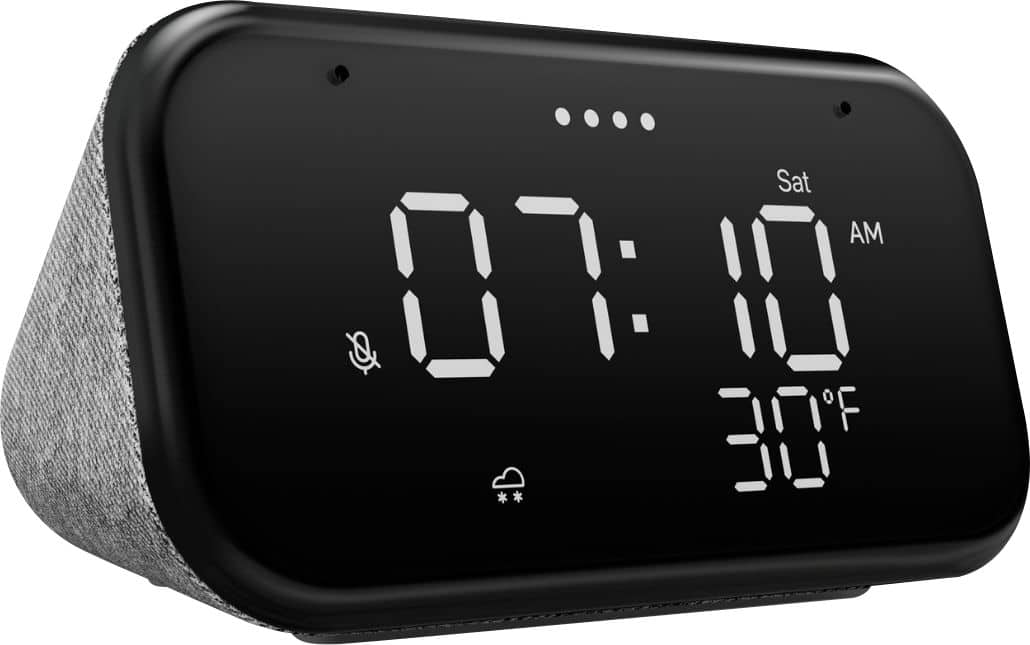
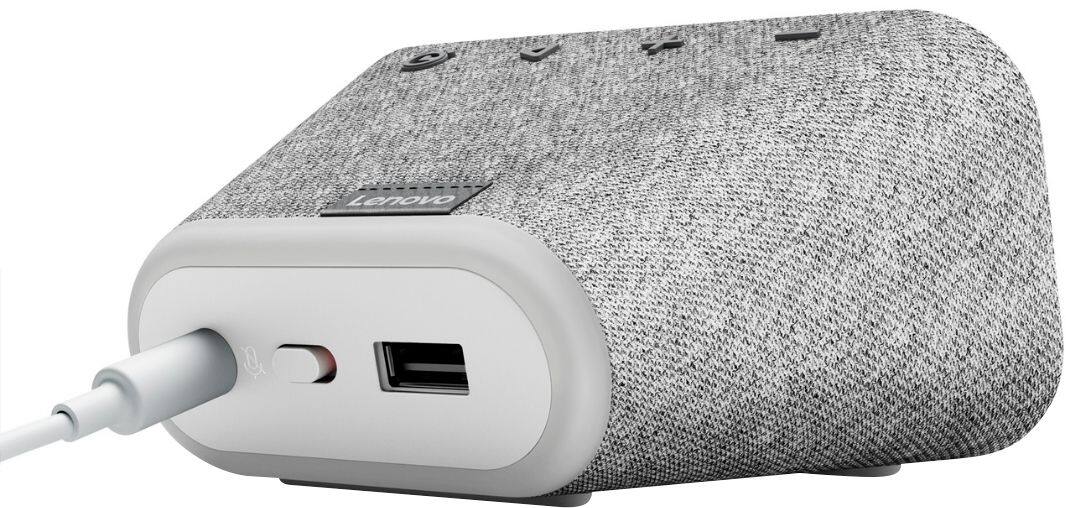
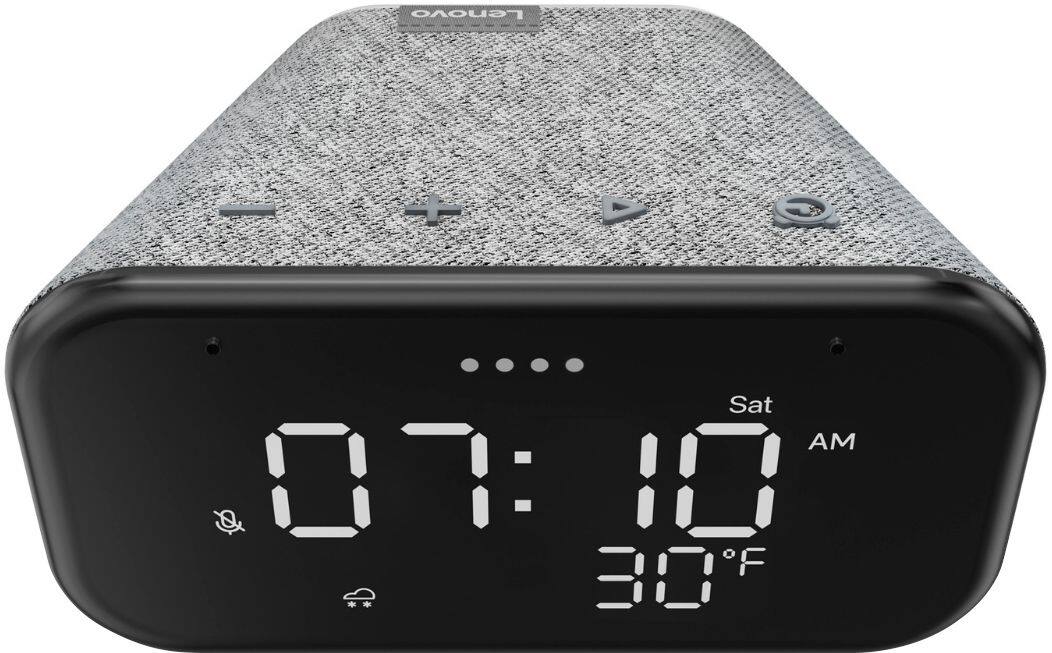
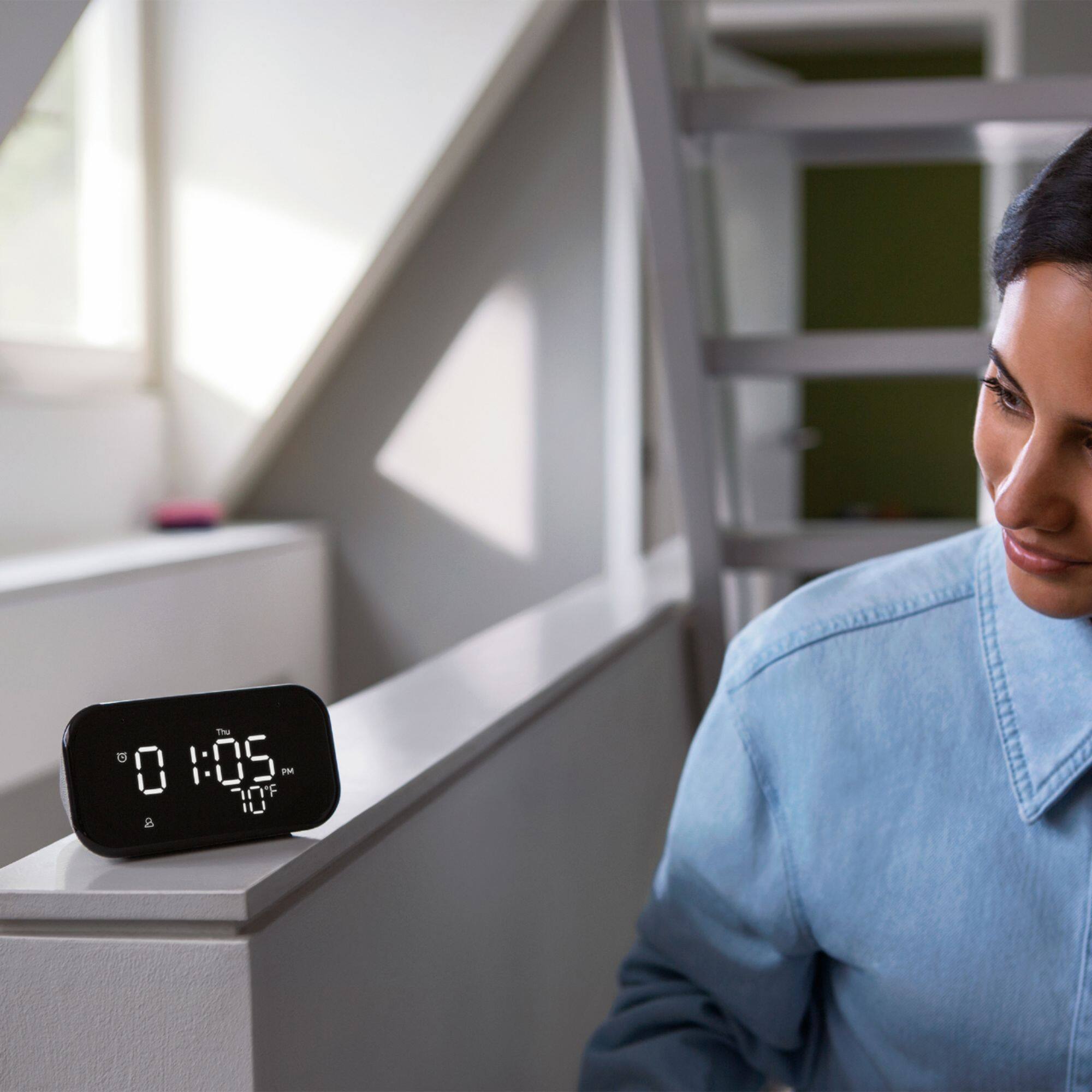
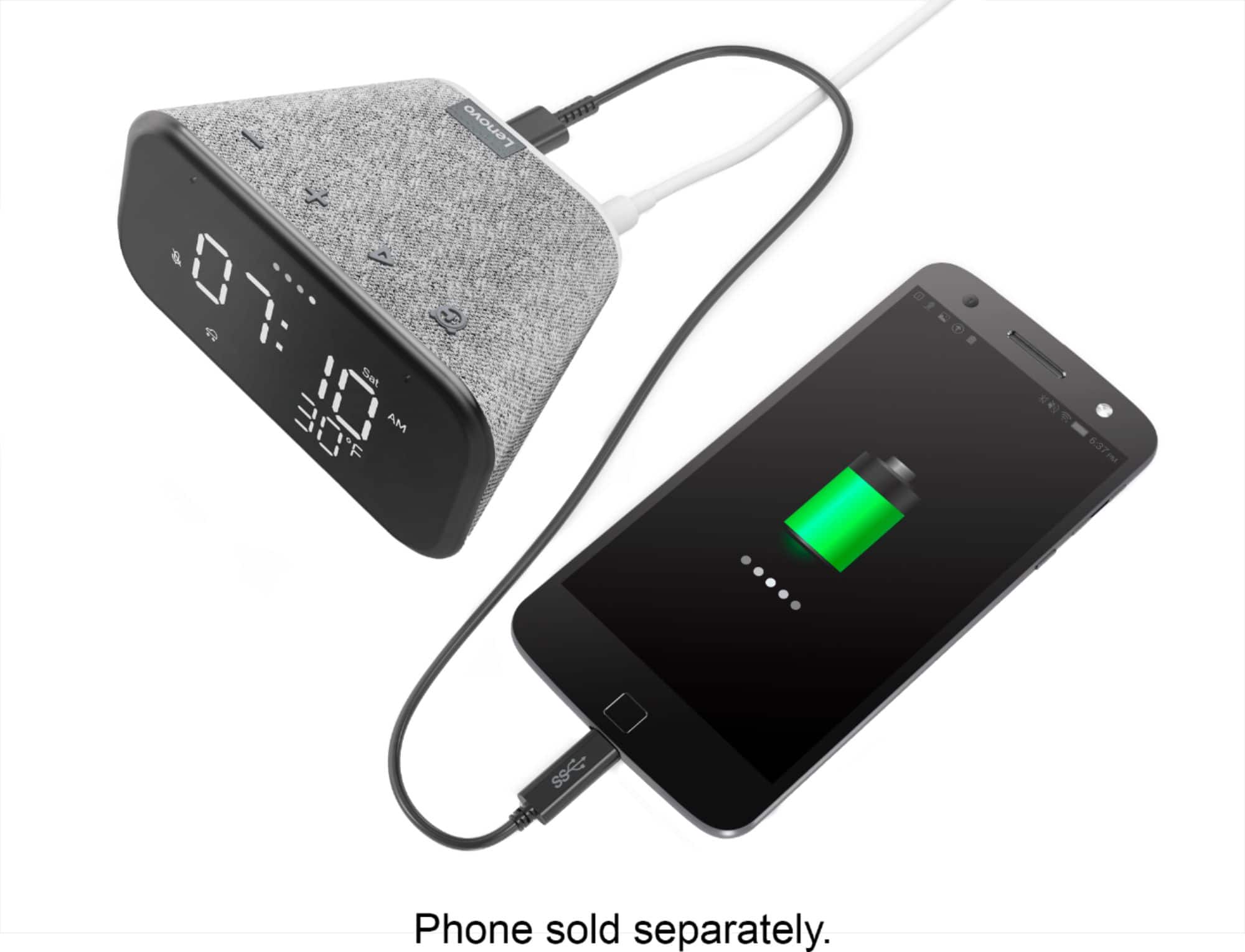
|Posted .This reviewer received promo considerations or sweepstakes entry for writing a review.My wife has had another smart clock on her nightstand for the last year, and I was excited to get one of my own when this model was announced. All in all, it’s a great little device - my one gripe is that even on its lowest brightness setting, it’s still a little too bright for me while sleeping. First the display - I love its simplicity. All the information is displayed in a font that’s reminiscent of old school clocks. I have mine set to display the time, temperature, weather conditions, and day of the week. Speaking of the settings, the clock is very easy to control through the Google Home app. I use an iPhone so I can only speak to the iOS version of the app and it’s very simple and intuitive. I’m not a big fan of using voice assistants so I’ve only dabbled with using Ok Google commands with this clock, but the mic has picked me up each time I’ve issued a command with no issue. Since I use Apple Music and Apple Podcasts, I’m not able to use the clock to playback audio via casting, so I can’t speak to that functionality. One feature I particularly like about this clock is the USB port on the back. I wear an Apple Watch and it needs to charge each night. Before, I would reach down next to my bed to fish out the charging cable plugged into my power strip, but now I have that charger plugged into the back of the clock and it’s much easier. I’m pleased with this little clock, but like I mentioned earlier, the display is just a little too bright for me to have it on my nightstand I think. I’m going to give it some more time, but this may end up moving to my home office desk. If you’re not used to sleeping in total darkness, this clock is a slam dunk.
I would recommend this to a friendBrand response from Lenovo Product Expert
Posted .Hi! Thanks for choosing the Lenovo Smart Clock Essential. We are pleased to hear the features, design, and performance of the Smart Clock Essential is working out so well for you.
It's ok for the price
||Posted . Owned for 8 months when reviewed.This reviewer received promo considerations or sweepstakes entry for writing a review.It looks pretty cool, bit it Sounds just ok. The Google assistant almost never understands you.
I would recommend this to a friend- Cons mentioned:Wifi connectivity
Disappointing even with a low bar
||Posted . Owned for less than 1 week when reviewed.This reviewer received promo considerations or sweepstakes entry for writing a review.For most people, this smart clock is too much clock to be a smart device but thags exactly what i wanted: an alarm clock with Google mini attached to it. Unfortunately, it wouldnt even connect to my wifi despite all the troubleshooting, so it got returned. Thats Lenovo for you.
No, I would not recommend this to a friend Clock
||Posted . Owned for 1 month when reviewed.This reviewer received promo considerations or sweepstakes entry for writing a review.Difficult to set up. Must have internet access. May not be beneficial as a travel clock b
I would recommend this to a friendGreat and not so great
||Posted . Owned for 1 month when reviewed.This reviewer received promo considerations or sweepstakes entry for writing a review.Great lock and smart speaker. Not so great as an alarm clock. Not loud enough to trust that it will wake me up
I would recommend this to a friendBrand response from Lenovo Product Expert
Posted .You can adjust the volume of the alarms the Lenovo Smart Clock Essential plays within the Google Home APP you used to setup the Smart Clock Essential, initially. Here is a YouTube video that demonstrates the features and functions you can control within the Google Home APP for the Lenovo Smart Clock Essential, including the volume of your alarms. You can also ask the Google Assistant to play music for your alarm, if this is helpful: https://www.youtube.com/watch?v=SO7XD9vv_k0. If you continue to have questions about your Lenovo Smart Clock Essential, we recommend you contact lenovo Tech Support for Smart Devices at: 866-426-0911.
Not bad item
||Posted . Owned for 1 year when reviewed.This reviewer received promo considerations or sweepstakes entry for writing a review.Everything is fine, but it's a pity that the temperature mark only shows the external temperature.
I would recommend this to a friendScreen too bright even in lowest setting
||Posted . Owned for 5 months when reviewed.This reviewer received promo considerations or sweepstakes entry for writing a review.Like the device, but would like the screen to dim more. Too bright at bedtime.
No, I would not recommend this to a friendBrand response from Lenovo Product Expert
Posted .You can manually dim the screen on your Lenovo Smart Clock Essential within the device System Settings: Swipe bottom-to-top on the Hub/Clock's screen and you'll see a Settings cog in the bottom right. Tap this and you'll see Display Settings within the menu. Within this you can choose to Show Mono Clock face (or not) and adjust the Minimum Brightness between Brighter, Dim and Darker.
Good price but....
||Posted . Owned for 10 months when reviewed.This reviewer received promo considerations or sweepstakes entry for writing a review.I bought in January and mid October the display lights dim on its own and it gets hard to see the time.
No, I would not recommend this to a friendBrand response from Lenovo Product Expert
Posted .We are sorry to hear that you are having issues with the screen brightness of your Lenovo Smart Clock Essential. You can change the screen brightness on your Smart Clock Essential by using a Voice Command like Hey Google, increase screen brightness to 100 Percent. Try this, in case the screen has been inadvertently dimmed. If the issue continues, we recommend you contact Lenovo Tech Support for Smart Devices, for additional help at: 866-426-0911.
Spy Clock not trusted
||Posted . Owned for 3 weeks when reviewed.This reviewer received promo considerations or sweepstakes entry for writing a review.Shows the time, but feel like it’s listening to everything said in house and sending it to database.
No, I would not recommend this to a friendBrand response from Lenovo Product Expert
Posted .Thank you for choosing the Lenovo Smart Clock Essential. If you do not want to use the Google Assistant Features, this Lenovo Smart Clock Essential has a microphone on/off switch on the back of the clock. Just turn off the microphone to disable Google Assistant Functionality.
Alarm is way too low
||Posted . Owned for 2 months when reviewed.This reviewer received promo considerations or sweepstakes entry for writing a review.So the alarm is way too low. It makes me late for work. Also it should say what day and the date. Like April 28 2021
No, I would not recommend this to a friendBrand response from Lenovo Product Expert
Posted .We are sorry to hear that you are having difficulty with your Lenovo Smart Clock Essential. To check the alarm volume, swipe left to enter the alarm page. Click the settings button on the lower left-hand corner to enter the alarm settings. You can manually adjust volume here. If you continue to have questions about your Lenovo Smart Clock Essential, we recommend you contact Lenovo Tech Support for Smart Devices at: 866-426-0911.
Smart Clock
||Posted . Owned for 3 weeks when reviewed.This reviewer received promo considerations or sweepstakes entry for writing a review.Bought for my husband for Christmas. Much more difficult to set up than I thought it would be.
No, I would not recommend this to a friendBrand response from Lenovo Product Expert
Posted .We are sorry to hear that you are having issues with the initial setup of your lenovo Smart Clock Essential. Here is a link to a YouTube video that demonstrates the setup of the Lenovo Smart Clock Essential: https://www.youtube.com/watch?v=oebcueXBCeU&t=3s. If you have questions about your Lenovo Smart Clock Essential, we recommend you contact lenovo Tech Support for Smart devices at: 866-426-0911.