Customer Ratings & Reviews
- Model:
- ZA740005US
- SKU:
- 6429528
Rating by feature
- Value
Rating 4.6 out of 5 stars
- Quality
Rating 4.5 out of 5 stars
- Ease of Use
Rating 4.4 out of 5 stars
Customers are saying
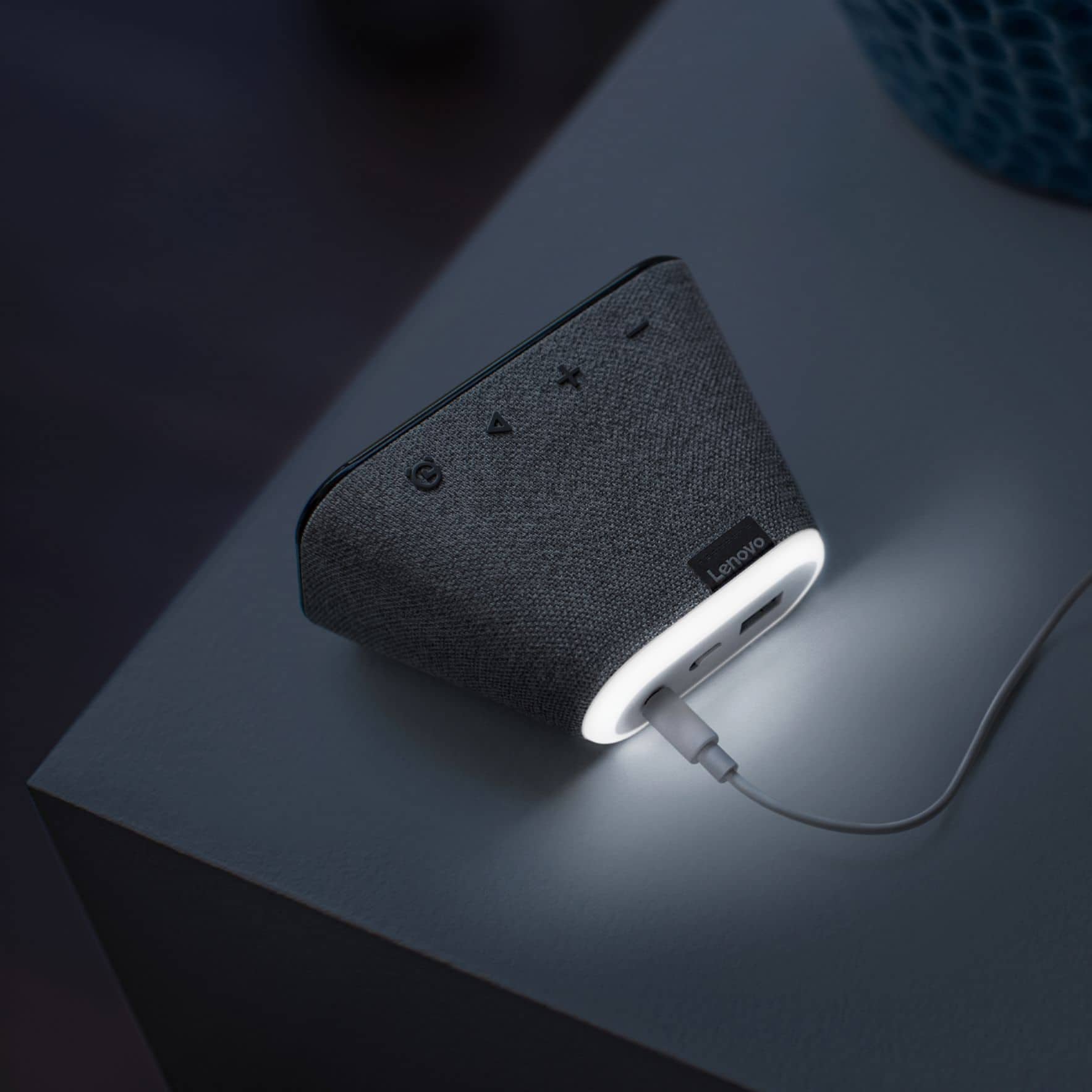
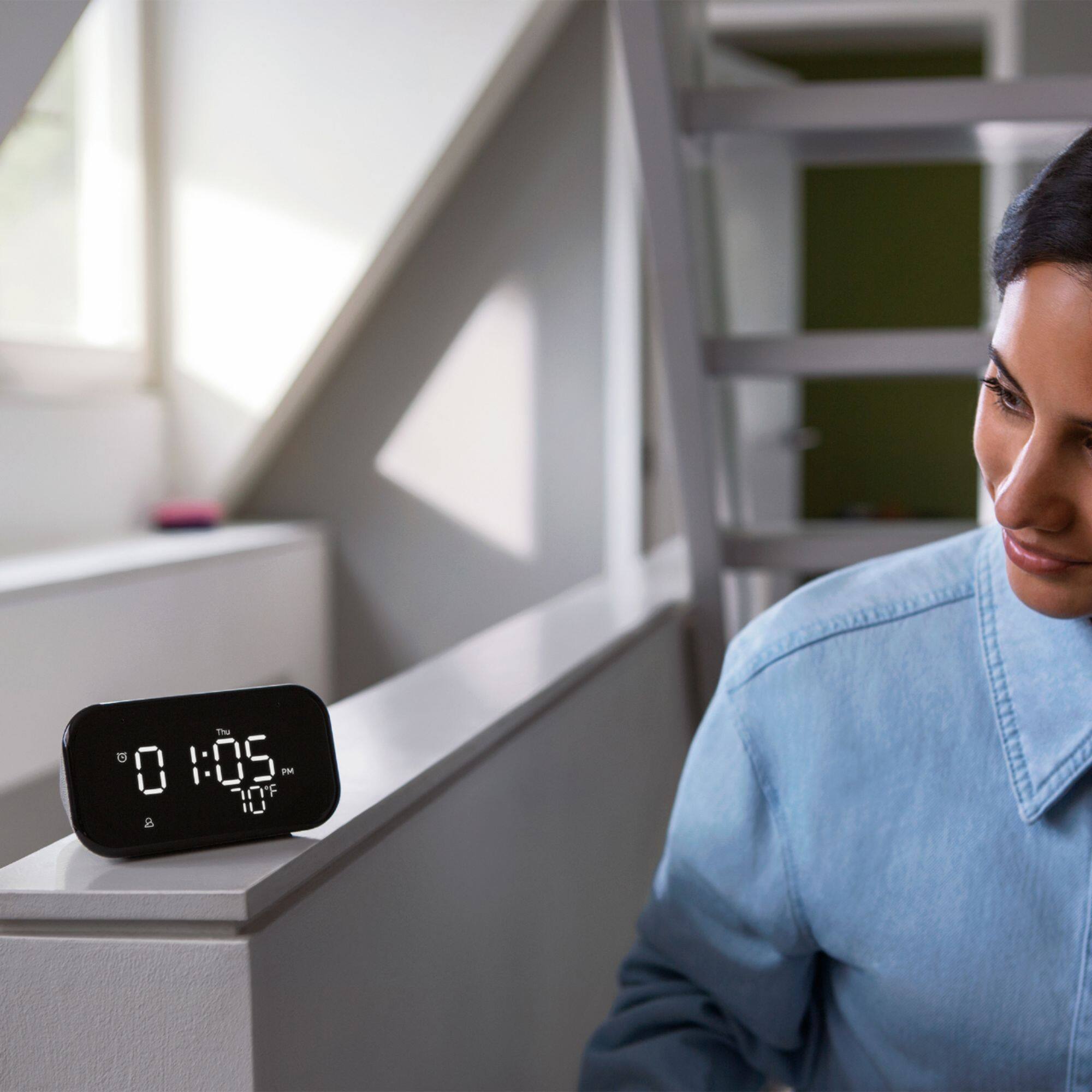
Customers enjoy the sound quality, ease of use, and display of the Smart Clock Essential. Many appreciate the included night light and the convenient size, finding it ideal for bedside tables. Positive feedback also highlights the Google Assistant integration and the alarm clock functionality. While some users experienced challenges with WiFi connectivity and initial setup, the overall sentiment is positive.
This summary was generated by AI based on customer reviews.
Works well enough
||Posted . Owned for 3 weeks when reviewed.This reviewer received promo considerations or sweepstakes entry for writing a review.Features work well but had issues with disconnect and not reconnected without hard reset.
I would recommend this to a friendBrand response from Lenovo Product Expert
Posted .Hi! Thanks for choosing the Lenovo Smart Clock Essential. We are sorry to hear you are experiencing issues with WiFi connectivity. If after performing a hard reset by holding down the volume + and volume - buttons for 10 seconds your issue persists we recommend reaching out to Lenovo Tech Support at 866-426-0911

Meh
||Posted . Owned for less than 1 week when reviewed.This reviewer received promo considerations or sweepstakes entry for writing a review.It's ok didn't really connect to my phone and it has no app to control.
No, I would not recommend this to a friendBrand response from Lenovo Product Expert
Posted .We are sorry to hear that you had issues with the initial setup of your Lenovo Smart Clock Essential. Here is a link to a YouTube video that demonstrates the initial setup of the Lenovo Smart Clock Essential: https://www.youtube.com/watch?v=oebcueXBCeU&t=2s. If you continue to have issues with the initial setup of your Smart Clock Essential, we recommend you contact Lenovo Tech Support for Smart Devices at: 866-426-0911.
Clock style
||Posted . Owned for 3 months when reviewed.This reviewer received promo considerations or sweepstakes entry for writing a review.Clock size is too bulky and difficult to read, too much brightness
No, I would not recommend this to a friendBrand response from Lenovo Product Expert
Posted .Thank you for choosing the Lenovo Smart Clock Essential. The Lenovo Smart Clock Essential has automatic brightness control for the screen backlight. The screen will automatically dim when ambient light is low/off and will brighten when the ambient light is on/bright. You can also control the Smart Clock Essential Night Mode from within the Google Home APP you used for the initial setup of your Smart Clock Essential. Open the Google Home APP for the Smart Clock Essential. Tap the settings gear at the top right of the screen. Tap the Notifications and Digital Wellbeing Settings. Then Tap Night Mode. Here you will be able to set screen brightness, night time volume and Do Not Disturb for Google Assistant Alerts at night. Once you have made your Night Mode settings adjustment, close the Google Home APP. Use Voice Command to turn on Night Mode, like Hey Google, Turn On Night Mode. This will dim your screen and engage volume and Do Not Disturb settings you made in the Google Home APP. If you have Questions about your Lenovo Smart Clock Essential, we recommend you contact Lenovo Tech Support for Smart Devices at: 866-426-0911.
Lenovo Clock
||Posted .This reviewer received promo considerations or sweepstakes entry for writing a review.Display os already failing. Several dead spots on screen...
I would recommend this to a friendBrand response from Lenovo Product Expert
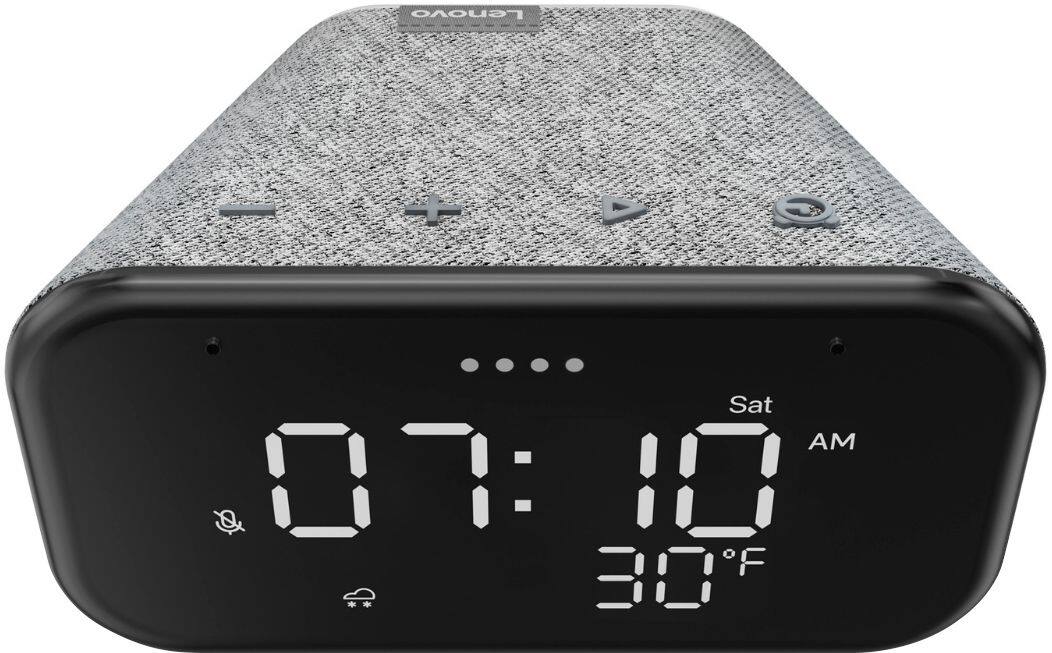
Posted .We are sorry to hear that you are having issues with your Lenovo Smart Clock Essential. Resetting your Smart Clock Essential back to original factory settings may correct the issue you are having. Hold down both the minus button and the alarm button on the top of the Smart Clock Essential for 6-seconds, then follow the Google Assistant Voice instructions. If the issue continues after this reset, we recommend you contact lenovo Tech Support for Smart Devices at: 866-426-0911.
Too Basic
||Posted . Owned for 4 months when reviewed.This reviewer received promo considerations or sweepstakes entry for writing a review.Just a basic Smart clock. Works as decribed. Too basic for $50.
No, I would not recommend this to a friendBrand response from Lenovo Product Expert
Posted .Here is a link to a YouTube video that demonstrates the features and functions of the Lenovo Smart Clock Essential: https://www.youtube.com/watch?v=qEz9qdj9bfc&t=184s
Clock
||Posted . Owned for 7 months when reviewed.This reviewer received promo considerations or sweepstakes entry for writing a review.Not exactly what i thougt it was and has difficulties with connecting
No, I would not recommend this to a friendBrand response from Lenovo Product Expert
Posted .We are sorry to hear that you are having issues connecting your Lenovo Smart Clock Essential to your WiFi. Here is a link to a YouTube video that demonstrates the initial setup procedure for the Lenovo Smart Clock Essential, including discovering your home WiFi signal: https://www.youtube.com/watch?v=qEz9qdj9bfc&t=16s. If the issue continues after performing the initial setup procedure, we recommend you contact Lenovo Tech Support for Smart Devices for additional help at: 866-426-0911.
Decent small speakers
||Posted . Owned for 1 week when reviewed.This reviewer received promo considerations or sweepstakes entry for writing a review.Nice look and feel and decent speakers for size... Stil can’t get it setup tho.
No, I would not recommend this to a friendBrand response from Lenovo Product Expert
Posted .Hello, we are sorry to hear you are having trouble setting up your Lenovo Smart Clock Essential. To Setup please download and install the Google Home App on your smart phone or tablet that is connected to your home network. Next plug in and power on the Smart Clock Essential. Lastly open the Google Home App on you Smart Phone or Tablet and follow the on screen instructions. If your issue remains please perform a factory reset by holding down the “Volume + and – ” buttons on top of your device for 8 Seconds. Then try the setup process again. If the issue still persists, please contact our customer support team at 866-426-0911
Meh
||Posted . Owned for 2 months when reviewed.This reviewer received promo considerations or sweepstakes entry for writing a review.It’s ok but not really that smart lol. Commands aren’t really in sync.
No, I would not recommend this to a friendBrand response from Lenovo Product Expert
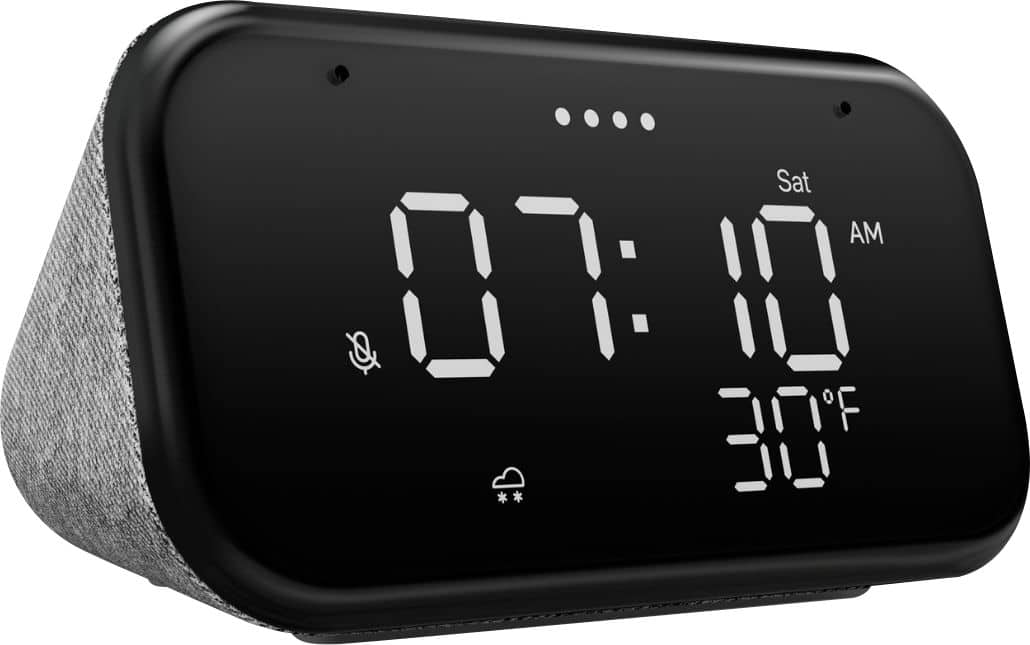
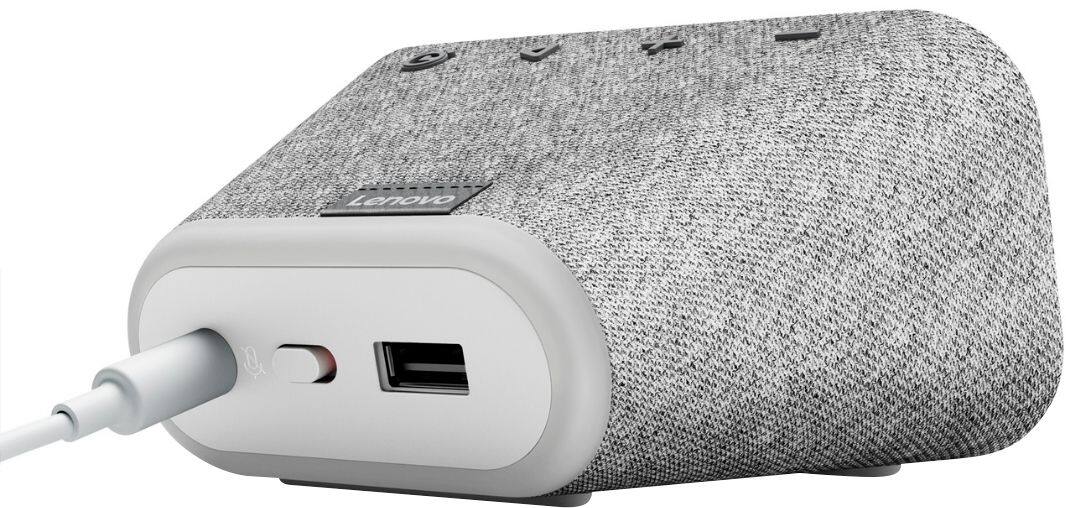
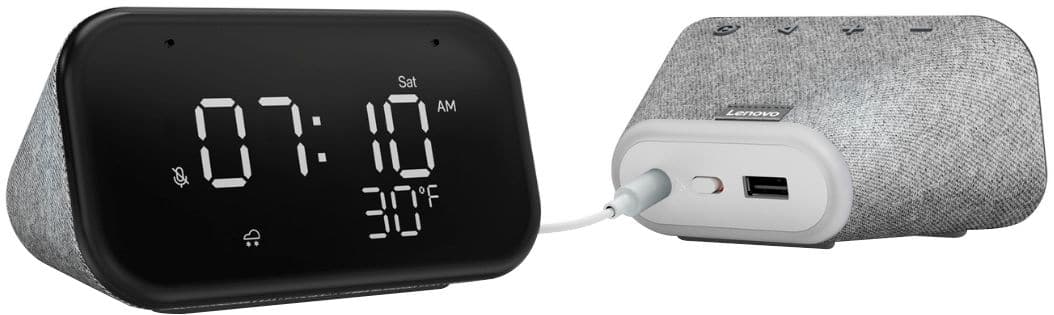
Posted .The Lenovo Smart Clock Essential has a simple LED screen so you can check the time and the weather at a glance. The back has a nightlight, the top has a few buttons for setting an alarm or adjusting the volume, it's just that simple. The Lenovo Smart Clock Essential brings Google Assistant to your bedside in a simple but functional alarm clock.
Clock
||Posted .This reviewer received promo considerations or sweepstakes entry for writing a review.I returned it as it wasn’t what I wanted it to be or do
I would recommend this to a friendBrand response from Lenovo Product Expert
Posted .We are sorry to hear that the Lenovo Smart Clock Essential did not meet your needs.
returned
||Posted . Owned for 2 months when reviewed.This reviewer received promo considerations or sweepstakes entry for writing a review.Ok but had to return it clock never heard me so got annoying.
I would recommend this to a friendBrand response from Lenovo Product Expert
Posted .Hi there, Thanks for choosing the Lenovo Smart Clock Essential. We are sorry to hear you are experiencing this issue with the mic/assistant. Please ensure you have removed the plastic film that is on the screen to protect the unit during shipping. If the issue persists, it is possible setting up voice match and raising the "okay google" sensitivity will help with this. to setup voice match please open the Google Home app.
At the top right, tap your account.
Verify that the Google Account shown is the one linked to your speaker or display. To switch accounts, tap another account or Add another account.
Tap Assistant settings Voice Match Add devices.
Make sure any devices you want to link your voice to are checked.
Tap Next I agree.
Follow the in-app steps.
To adjust the sensitivity of the mic please open the Google Home app .
At the bottom, tap Home .
Select your speaker or Smart Display.
At the top right, tap Device settings. ...
Choose how sensitive you want Google Assistant to be when it responds to you. If you need further assistance please don't hesitate to reach out to Lenovo Tech Support at 866-426-0911
Could be better.
||Posted . Owned for 6 months when reviewed.This reviewer received promo considerations or sweepstakes entry for writing a review.I have honestly thought this would have more features.
No, I would not recommend this to a friendBrand response from Lenovo Product Expert
Posted .Here is a link to a You Tube video that demonstrates the features and functions of the Lenovo Smart Clock Essential: https://www.youtube.com/watch?v=Fo0yA5mWgFQ
As big as your fist
||Posted . Owned for 1 month when reviewed.This reviewer received promo considerations or sweepstakes entry for writing a review.It's a clock. It talks. Very bright, very loud. That's about it.
I would recommend this to a friendBrand response from Lenovo Product Expert
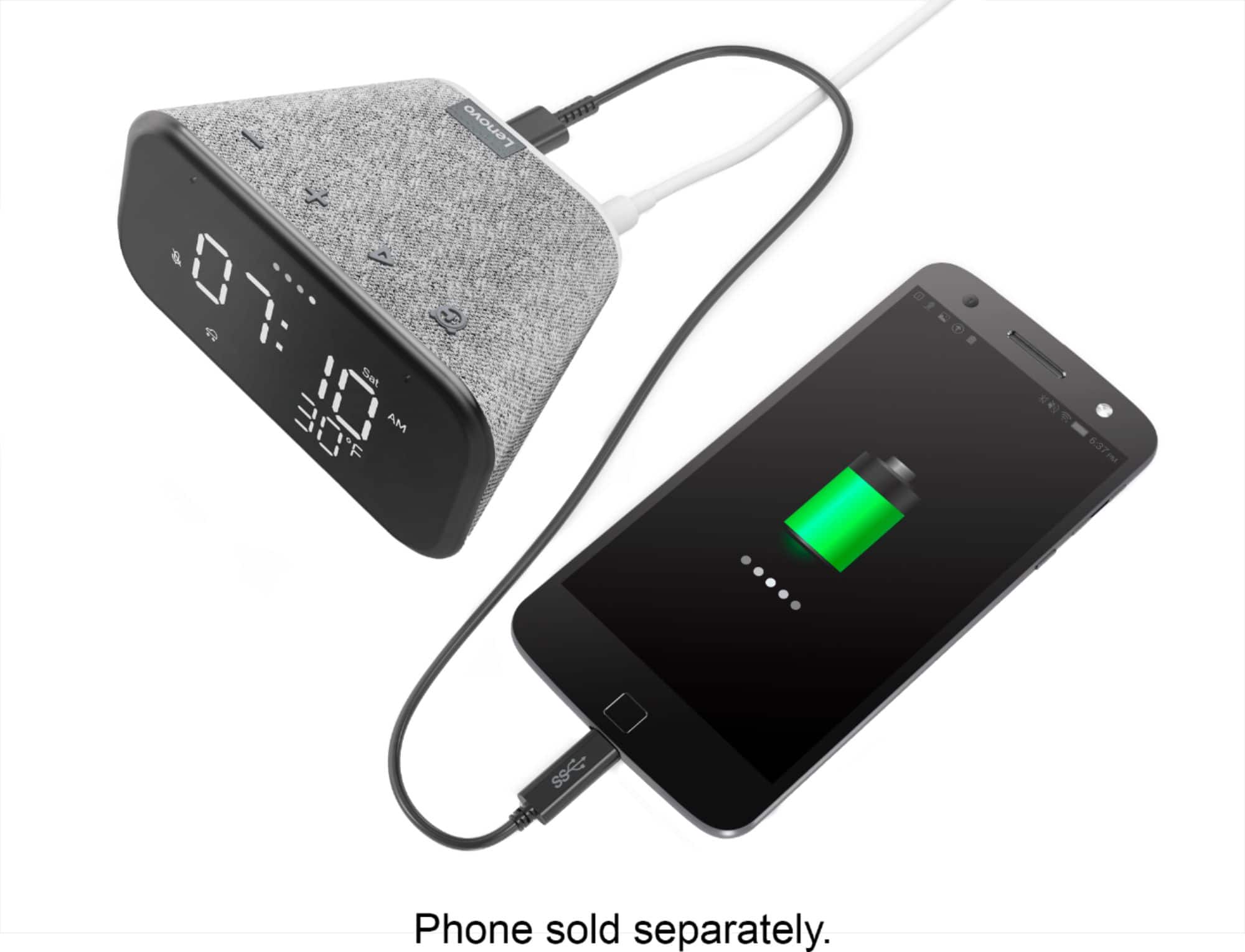
Posted .Hi! Thanks for choosing the Lenovo Smart Clock Essential. Control over 40,000 compatible smart devices from 5,000 brands. Ask Google to set the temperature, dim the lights, and more. Just start with “Hey Google.” Plus, the handy USB port behind the Smart Clock lets you charge devices such as your smart watch or phone. You can also make a household-wide announcement by broadcasting to the other speakers or smart clocks throughout the house. Stream your favorite shows, movies, or music to your TV or speakers using only your voice—just ask Google.
Decent
||Posted . Owned for less than 1 week when reviewed.This reviewer received promo considerations or sweepstakes entry for writing a review.Could use some colors or different fonts. Overall works well
I would recommend this to a friendBrand response from Lenovo Product Expert
Posted .Hi! Thanks for choosing the Lenovo Smart Clock Essential. This is the essential non color version. The Lenovo Smart Clock with Google Assistant model #ZA4R0002US features a 4" color, touch display with 8 different clock faces, a variety of colorful fonts, and the ability to use photo frame background with Google Photos. https://www.bestbuy.com/site/lenovo-smart-clock-with-google-assistant-gray/6335321.p?skuId=6335321
Basic clock
||Posted . Owned for 7 months when reviewed.This reviewer received promo considerations or sweepstakes entry for writing a review.Basic clock. Doesn’t show Google photos……………………………….
No, I would not recommend this to a friendBrand response from Lenovo Product Expert
Posted .The Lenovo Smart Clock Essential provide the time and local weather in s small compact form factor. Here is a link to a short You Tube vide that demonstrates the setup, features and functions of the Lenovo Smart Clock Essential: https://www.youtube.com/watch?v=oebcueXBCeU
It’s okay does the job and reads the time
||Posted .This reviewer received promo considerations or sweepstakes entry for writing a review.Pretty small. Doesn’t do much too me. Don’t really like it
No, I would not recommend this to a friendBrand response from Lenovo Product Expert
Posted .Hi! Thanks for choosing the Lenovo Smart Clock Essential. We are sorry to hear you are having this experience with the Lenovo Smart Clock essential. Control over 40,000 compatible smart devices from 5,000 brands. Ask Google to set the temperature, dim the lights, and more. Just start with “Hey Google.” the following website has a list of useful commands. https://www.androidauthority.com/google-assistant-commands-727911/
Not impressed
||Posted . Owned for 3 weeks when reviewed.This reviewer received promo considerations or sweepstakes entry for writing a review.Nothing magnificent. Basically a google dot with a clock.
I would recommend this to a friendBrand response from Lenovo Product Expert
Posted .Hi Britt, thank you for choosing the Lenovo Smart Clock Essential with Google Assistant. The "Essential" version of our Smart Clock is meant to be just that. A simple alarm clock with hands free Google Assistant features. If you're after a smart display or lock that has more features we recommend the Lenovo Smart Clock with Google Assistant https://www.bestbuy.com/site/lenovo-smart-clock-with-google-assistant-gray/6335321.p?skuId=6335321 ....OR for a larger screen with video and free video calling capabilities we recommend the Lenovo Smart Display 7" https://www.bestbuy.com/site/lenovo-7-smart-display-with-google-assistant-blizzard-white/6411151.p?skuId=6411151
Quick Pass
||Posted . Owned for 3 months when reviewed.This reviewer received promo considerations or sweepstakes entry for writing a review.The device can never recognize my voice, I got other google devices in other rooms hearing my command faster than this device that’s 2 feet in front of me. I’d say it’s a hard pass from me bro!
No, I would not recommend this to a friendBrand response from Lenovo Product Expert
Posted .We are sorry to hear that you are having issues with the Voice Control within the Lenovo Smart Clock Essential. We recommend you contact Lenovo Tech Support for Smart Devices for additional help at: 866-426-0911.
Clock
||Posted . Owned for 1 month when reviewed.This reviewer received promo considerations or sweepstakes entry for writing a review.Good clock. Google does not respond well though...
I would recommend this to a friendBrand response from Lenovo Product Expert
Posted .Hi there, Thanks for choosing the Lenovo Smart Clock Essential. We are sorry to hear you are experiencing this issue with the mic/assistant. Please remove the plastic film that is on the screen to protect the unit during shipping. If the issue persists, it is possible setting up voice match and raising the "okay google" sensitivity will help with this. to setup voice match please open the Google Home app.
At the top right, tap your account.
Verify that the Google Account shown is the one linked to your speaker or display. To switch accounts, tap another account or Add another account.
Tap Assistant settings Voice Match Add devices.
Make sure any devices you want to link your voice to are checked.
Tap Next I agree.
Follow the in-app steps.
To adjust the sensitivity of the mic please open the Google Home app .
At the bottom, tap Home .
Select your speaker or Smart Display.
At the top right, tap Device settings. ...
Choose how sensitive you want Google Assistant to be when it responds to you.
Poor sound
||Posted .This reviewer received promo considerations or sweepstakes entry for writing a review.Poor sound quality, otherwise I guess it does what it is supposed to. Wouldn't recommend unless you just mainly need the alarm clock functions. Device was also painfully slow to respond to voice commands.
No, I would not recommend this to a friendnot a good product
||Posted . Owned for 1 year when reviewed.This reviewer received promo considerations or sweepstakes entry for writing a review.After a few months, 2 of LEDs display burnt out, clock still work fine but the display look terrible and sometime can't read the real time due to burnt LEDs.
No, I would not recommend this to a friendBrand response from Lenovo Product Expert
Posted .We are sorry to hear that you are having issues with the display on your Lenovo Smart Clock Essential. Resetting the Smart Clock Essential back to original factory settings may correct the issue you are having. Hold down both the minus button and the alarm button at the same time, for 6-seconds, then follow the Voice instructions from the Google Assistant. If the issue continues after this reset, we recommend you contact Lenovo Tech Support for Smart Devices at: 866-426-0911.