Customer Ratings & Reviews
- Model:
- ZA740005US
- SKU:
- 6429528
Rating by feature
- Value
Rating 4.6 out of 5 stars
- Quality
Rating 4.5 out of 5 stars
- Ease of Use
Rating 4.4 out of 5 stars
Customers are saying
Customers enjoy the sound quality, ease of use, and display of the Smart Clock Essential. Many appreciate the included night light and the convenient size, finding it ideal for bedside tables. Positive feedback also highlights the Google Assistant integration and the alarm clock functionality. While some users experienced challenges with WiFi connectivity and initial setup, the overall sentiment is positive.
This summary was generated by AI based on customer reviews.
Does not play well with Wi-Fi 6
||Posted . Owned for 3 months when reviewed.This reviewer received promo considerations or sweepstakes entry for writing a review.When it works it works fine. The issue is the wifi compatibility. It does not play well with Wi-Fi 6 access points. So if your network will stay old and outdated you might be okay.
No, I would not recommend this to a friendHardly
||Posted . Owned for 1 month when reviewed.This reviewer received promo considerations or sweepstakes entry for writing a review.Hard to set up ! Still attempting to set up. The outside of product is covered with some type of cheap feeling material. Feels like it was glued on by a first grader.
No, I would not recommend this to a friendNo alarm sound selection.
||Posted . Owned for 4 months when reviewed.This reviewer received promo considerations or sweepstakes entry for writing a review.Nice looking and very simple. Bad part is, there is no other alarm sound. My son gets into a deeper sleep instead of waking up. My Alexa has a lot of alarm selections with annoying sound that will really wake my son up.
No, I would not recommend this to a friendBrand response from Lenovo Product Expert
Posted .The Lenovo Smart Clock Essential will allow you to set an alarm then adjust the volume of the alarm by using the volume up/down buttons on the top of the clock. You can use your voice to easily set alarms and change the volume of the alarm. Here is a link to a YouTube demonstration video with information about settings alarms and the sound the alarm makes: https://www.youtube.com/watch?v=y5blzxjVlig&t=328s. If you have additional questions about your Smart Clock Essential we recommend you contact Lenovo Tech Support for Smart Devices at: 866-426-0911.

Much Too Bright
||Posted . Owned for 1 week when reviewed.This reviewer received promo considerations or sweepstakes entry for writing a review.Works well as a clock but way too bright for the nightstand! Even at the lowest setting it made the whole room light up. Ended up buying a tint to put over it. Pretty disappointed that they didn’t think about this when they made it.
No, I would not recommend this to a friendBrand response from Lenovo Product Expert
Posted .Hi Dave, we are sorry to hear you are having this experience with the display on your Lenovo Smart Clock Essential. Easily brighten or dim the display with a simple voice command. Just say “Okay Google, change display brightness to….” Then say any number from 1 to 100. Currently the Lenovo Smart Clock Essential is not able to completely turn off the display at night . The Lenovo Smart Clock with Google Assistant model # ZA4R0002US has the ability to turn the screen completely off and you have the ability to choose between 3 addition levels of brightness specifically for low light environments. If you need additional assistance please don't hesitate to reach out to Lenovo Technical Support at 866-426-0911 or at
support.lenovo.com
Not as good as it's upgraded partner
||Posted . Owned for 3 weeks when reviewed.This reviewer received promo considerations or sweepstakes entry for writing a review.I prefer it's upgraded match with the wireless charger. This one is too difficult to set alarm and ease 9f use is complicated. Smart homes are supposed to be easier to operate not impossible.
No, I would not recommend this to a friendBrand response from Lenovo Product Expert
Posted .We are sorry to hear that you are having issues with your Lenovo Smart Clock Essential with Google Assistant. You can set a new alarm on your Smart Clock Essential with a Voice Command through the Google Assistant. Just say something like, Hey Google set an alarm for Monday through Friday at 6:30 AM. Here is a link to a YouTube video that demonstrates the setup of the Lenovo Smart Clock Essential, including the manual setup of an alarm: https://www.youtube.com/watch?v=oebcueXBCeU&t=34s. If you have questions about your Lenovo Smart Clock Essential, we recommend you contact lenovo Tech Support for Smart Devices at: 866-426-0911.
Faulty
||Posted . Owned for 3 weeks when reviewed.This reviewer received promo considerations or sweepstakes entry for writing a review.Everything was in package, came on time. It connected to Bluetooth with no problem, tried to connect to internet and would not connect. Discovered it wouldn't connect to internet.
No, I would not recommend this to a friendNot happy
||Posted . Owned for 1 month when reviewed.This reviewer received promo considerations or sweepstakes entry for writing a review.Responding to voice commands is horrible I hv to literally shout to get response from it. Not worth to buy it. Responding Voice commands to is basic feature. Not sure on what basis it’s released to general public
No, I would not recommend this to a friendBrand response from Lenovo Product Expert
Posted .Hi there, Thanks for choosing the Lenovo Smart Clock Essential. We are sorry to hear you are experiencing this issue with the mic/assistant. Please ensure you have removed the plastic film that is on the screen to protect the unit during shipping. This thin plastic film blocks the dual array microphones. If the issue persists, it is possible setting up voice match and raising the "okay google" sensitivity will help with this. to setup voice match please open the Google Home app.
At the top right, tap your account.
Verify that the Google Account shown is the one linked to your speaker or display. To switch accounts, tap another account or Add another account.
Tap Assistant settings Voice Match Add devices.
Make sure any devices you want to link your voice to are checked.
Tap Next I agree.
Follow the in-app steps.
To adjust the sensitivity of the mic please open the Google Home app .
At the bottom, tap Home .
Select your speaker or Smart Display.
At the top right, tap Device settings. ...
Choose how sensitive you want Google Assistant to be when it responds to you. If you need further assistance please don't hesitate to reach out to Lenovo Tech Support at 866-426-0911
Lenovo clock, not easy to use.
||Posted . Owned for 9 months when reviewed.This reviewer received promo considerations or sweepstakes entry for writing a review.This cute little clock advertised as being easy to use, is lacking in that department. The instructions are confusing. I tried, as did a family member. We gave up, and I returned it.
No, I would not recommend this to a friendBrand response from Lenovo Product Expert
Posted .We are sorry to hear that you had difficulty using the Lenovo Smart Clock Essential. Here is a link to a YouTube video that demonstrates the initial setup, features and functions of the Smart Clock Essential: https://www.youtube.com/watch?v=oebcueXBCeU&t=11s. If you continue to have questions about your Smart Clock Essential, we recommend you contact Lenovo Tech Support for Smart Devices at: 866-426-0911.
Not happy
||Posted . Owned for 6 months when reviewed.This reviewer received promo considerations or sweepstakes entry for writing a review.Ok google function does not work seamlessly. The microphone does not pick up the voice instantly and have to repeat the command multiple times. Good looking smart clock though.
No, I would not recommend this to a friendBrand response from Lenovo Product Expert
Posted .We are sorry to hear that you are having issues with Voice Command recognition through your Lenovo Smart Clock Essential. There are several things you can do to improve Voice Recognition through the Smart Clock Essential. Within the Google Home APP you used for the original setup of your Smart Clock Essential, Open the Smart Clock Essential within the Google Home APP. Select the Settings Gear icon at the top right of the screen. Then at the top of the screen, you can select Activate Voice Match. This will train your Smart Clock Essential to better recognize your voice. You can also open Audio settings and at the bottom of the screen, you can tap on Hey Google Sensitivity to increase the sensitivity of the Voice Command feature. If you continue to have issues using Voice Commands with your Lenovo Smart Clock Essential, we recommend you contact Lenovo Tech Support for Smart Devices at: 866-426-0911.
- Pros mentioned:Sound quality
LCD screen gave out just after warranty
||Posted . Owned for 1 year when reviewed.This reviewer received promo considerations or sweepstakes entry for writing a review.would not recommend purchasing this product. although the sound is decent, the LCD screen gave out just after warranty.
No, I would not recommend this to a friend alarm clock
||Posted . Owned for 5 months when reviewed.This reviewer received promo considerations or sweepstakes entry for writing a review.I was very disappointed with this alarm clock! It was much easier to return than continue being frustrated as I attempted to set it up.
No, I would not recommend this to a friendDoes not last long.
||Posted . Owned for 1.5 years when reviewed.This reviewer received promo considerations or sweepstakes entry for writing a review.One of the light on the digital number is no longer light up when in ambient mode. Very disappointing,
No, I would not recommend this to a friendLivingroom clock
||Posted . Owned for 1 month when reviewed.This reviewer received promo considerations or sweepstakes entry for writing a review.Not exactly happy with this clock. Unlike the Google clock I bought and have in my bedroom, you have to get right up on this clock before I can hear or understand the instructions that you give it
No, I would not recommend this to a friendBrand response from Lenovo Product Expert
Posted .Hi there, Thanks for choosing the Lenovo Smart Clock Essential. We are sorry to hear you are experiencing this issue with the mic/assistant. Please ensure you have removed the plastic film that is on the screen to protect the unit during shipping. If the issue persists, it is possible setting up voice match and raising the "okay google" sensitivity will help with this. to setup voice match please open the Google Home app.
At the top right, tap your account.
Verify that the Google Account shown is the one linked to your speaker or display. To switch accounts, tap another account or Add another account.
Tap Assistant settings Voice Match Add devices.
Make sure any devices you want to link your voice to are checked.
Tap Next I agree.
Follow the in-app steps.
To adjust the sensitivity of the mic please open the Google Home app .
At the bottom, tap Home .
Select your speaker or Smart Display.
At the top right, tap Device settings. ...
Choose how sensitive you want Google Assistant to be when it responds to you. If you need further assistance please don't hesitate to reach out to Lenovo Tech Support at 866-426-0911
Ok Smart Alarm Clock
||Posted . Owned for 8 months when reviewed.This reviewer received promo considerations or sweepstakes entry for writing a review.I bought this in a bundle and it is OK. One of the lines in the temperature is already dead. I am not sure if mine is an outlier but I am not too happy with the build quality.
No, I would not recommend this to a friendBrand response from Lenovo Product Expert
Posted .We are sorry to hear that you are having issues with the display of your Lenovo Smart Clock Essential. Try restarting your Smart Clock Essential: 1. Unplug your device. Wait 10 seconds. 2. Plug it back in and try setup again. If the issue continues after a restart, now try a factory reset: With the device powered on, press down both the volume- button and alarm button for 12 seconds. If the issue still continues after the reset, we recommend you contact Lenovo Tech Support for Smart Devices at: 866-426-0911.
Spotty setting up but fine afterwards
||Posted . Owned for 1 month when reviewed.This reviewer received promo considerations or sweepstakes entry for writing a review.Very easy to set up but I had to unplug it and plug it back in a few times and let it sit for a couple of days before it officially setup completely. Now it works just fine.
No, I would not recommend this to a friendBrand response from Lenovo Product Expert
Posted .We are sorry to hear that you had issues with the initial setup of your Lenovo Smart Clock Essential. Here is a link to a short YouTube Video demonstrating the setup of the Smart Clock Essential: https://www.youtube.com/watch?v=oebcueXBCeU&t=1s. If you continue to have issues with your Smart Clock Essential we recommend you contact Lenovo Tech Support for Smart Devices at: 866-426-0911.
Lenovo Smart Clock
||Posted .This reviewer received promo considerations or sweepstakes entry for writing a review.This clock is OK - nothing special. I bought it so that I can leave my cell phone away from the bed to avoid an urge seeing blue light before going to bed.
I would recommend this to a friendLenovo Smart Clock - waste of money
||Posted .This reviewer received promo considerations or sweepstakes entry for writing a review.I was so excited to finally get an update clock and turned out to be the worst choice ever. Tried everything to get it to connect and it doesn't work. Worse clock ever!! The only way to get it to connect is by using Google Home - Google couldn't even locate the clock, reset it several times, and finally got so irritated that I boxed it back up to return and then found out it was past the return date. WASTE OF MONEY.
No, I would not recommend this to a friendBrand response from Lenovo Product Expert
Posted .We are sorry to hear that you had difficulty setting up your Lenovo Smart Clock Essential for the first time. Here is a YouTube video demonstrating the initial setup of the Smart Clock Essential: https://www.youtube.com/watch?v=oebcueXBCeU. If you continue to have issues, we recommend you contact Lenovo Tech Support for Smart Devices for additional help at: 866-426-0911.
- Pros mentioned:Ease of use, Sound quality

More useful than your average alarm clock
|Posted .This reviewer received promo considerations or sweepstakes entry for writing a review.I got this Lenovo smart clock to replace a 2nd gen google home mini that I had been using on my nightstand. I like the style of this much better and the fact that it was an actual clock so I don't have to hit it with "hey google what time is it". Sound quality is alright, certainly gets plenty loud to wake you up. Honestly I think the sound from the google home mini it replaced was a bit better, but for its size and purpose I am not going to complain that much. Super easy set-up through the google home app you don't have to download any additional apps for this thing to work as it should thankfully. Voice pick-up and recognition seem good, on par with the device it has replaced for sure perhaps a little better. It has a night light feature which could be nice but it seems to come on randomly and I haven't quite figured out why or how to disable it completely. Overall a great and stylish upgrade from my original Google home mini, if you are looking for a modern alarm clock this is a great pick.
I would recommend this to a friendBrand response from Lenovo Product Expert
Posted .Hi, thanks for choosing the Lenovo Smart Clock Essential with Google Assistant. We are pleased to hear the functions, performance, and design of the Lenovo Smart Clock Essential are working out so well for you! In regards to the speakers if you have other Google enabled speakers in the same room you can group them together for an addition bump in sound quality. You can also tell your clock to set your preferred speaker in the room as the default speaker device meaning if you tell it to play your favorite Pandora station it will cast the music to your favorite speaker.
Clock
||Posted .This reviewer received promo considerations or sweepstakes entry for writing a review.Perfect size for what I was looking for but display lighting was too bright even on lowest setting for my bed table
I would recommend this to a friend- Pros mentioned:Night light
A Smart Clock That's Essential
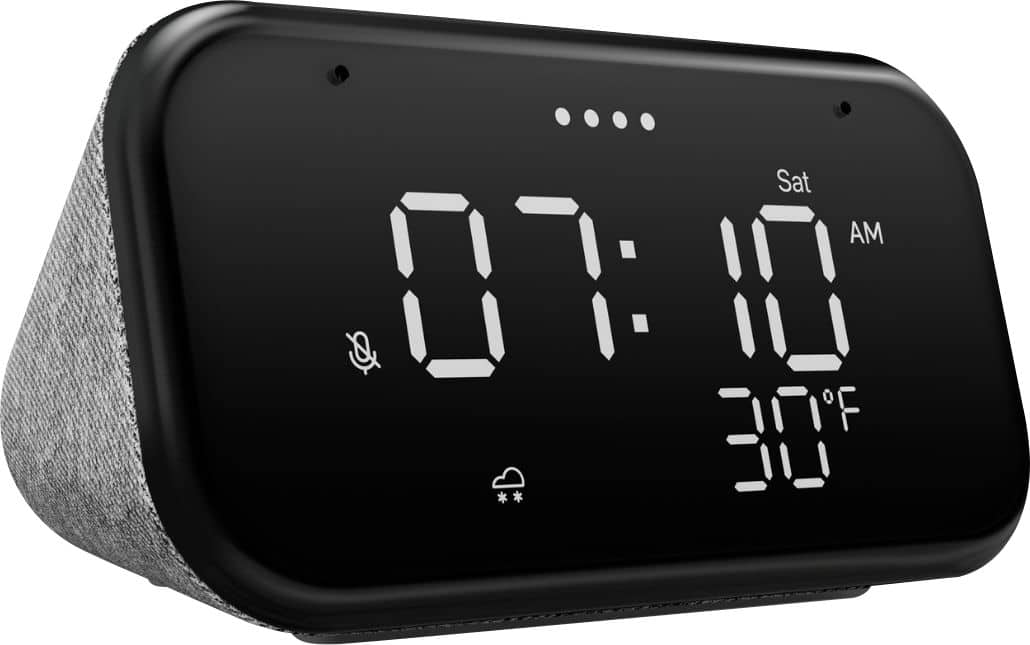
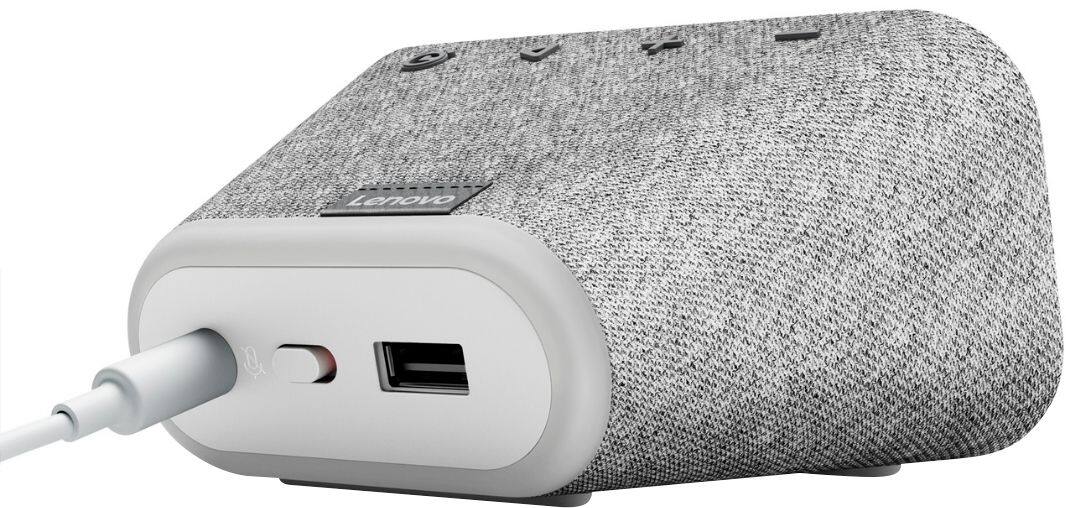
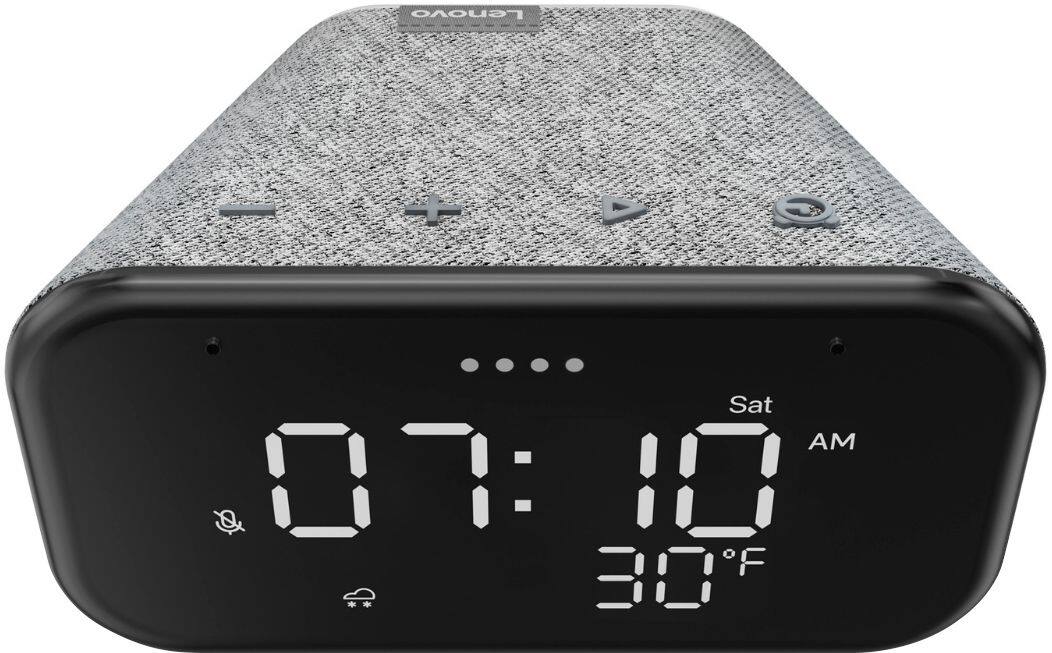
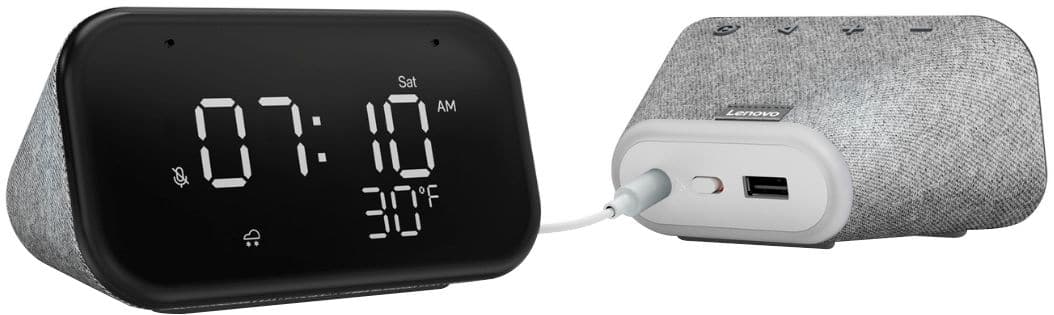
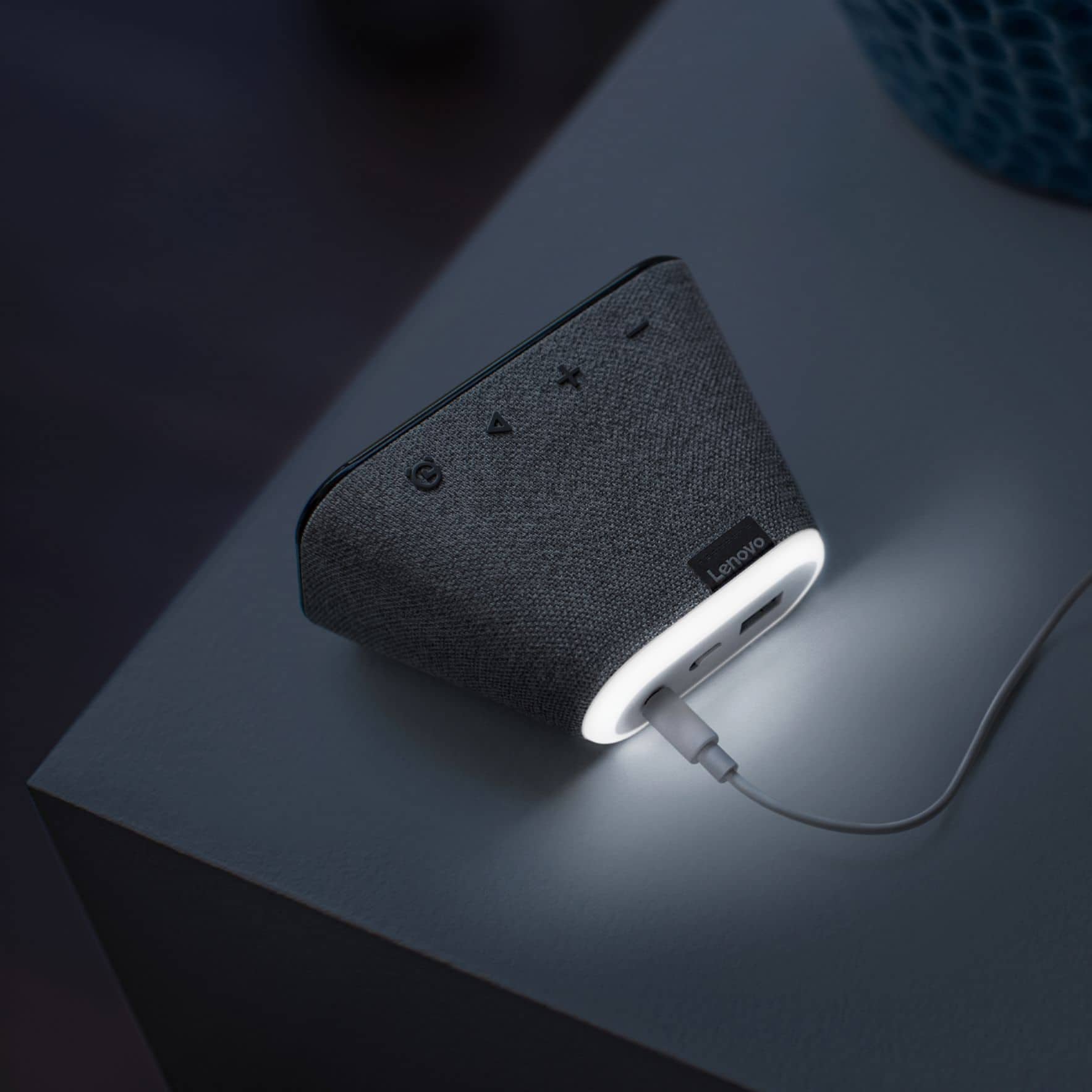
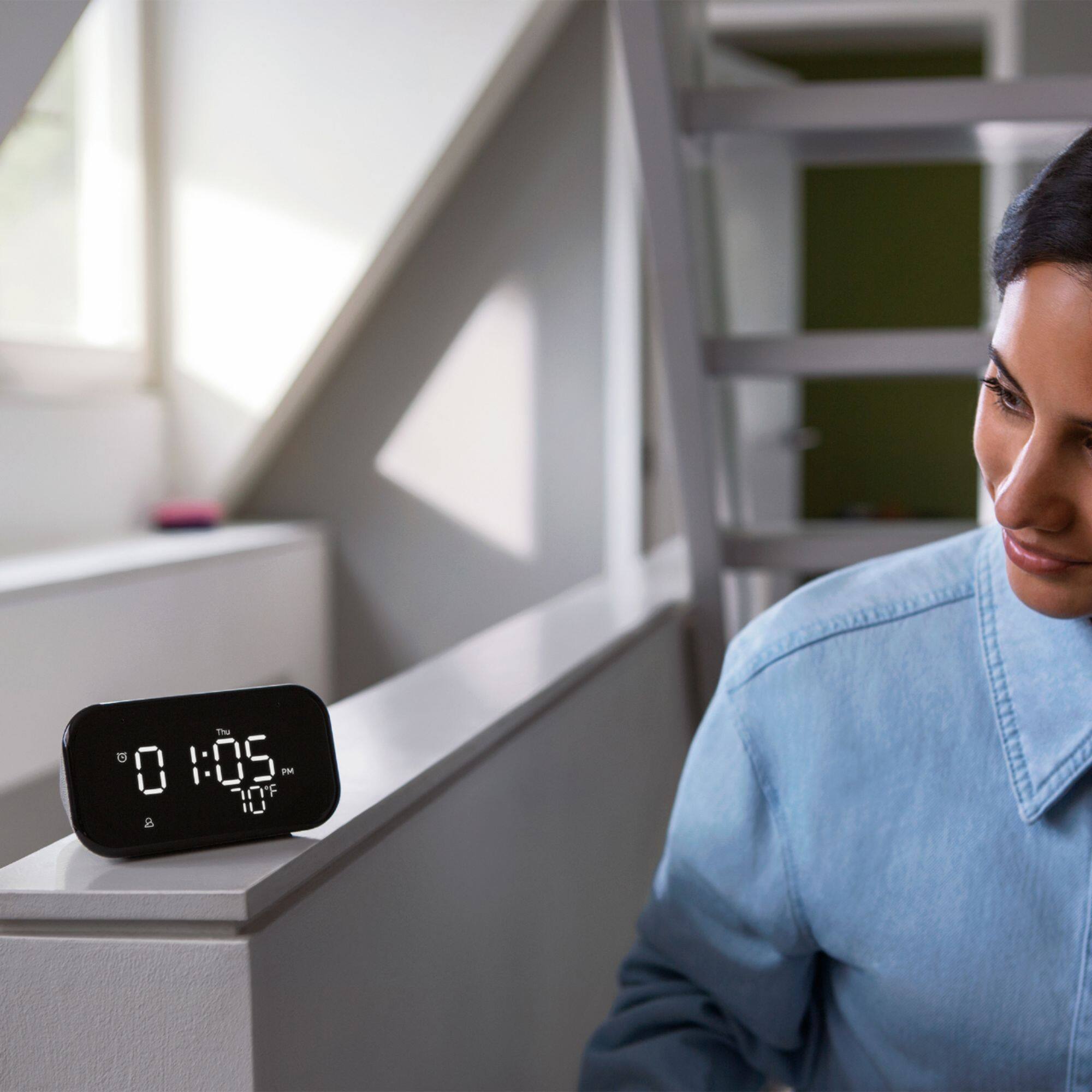
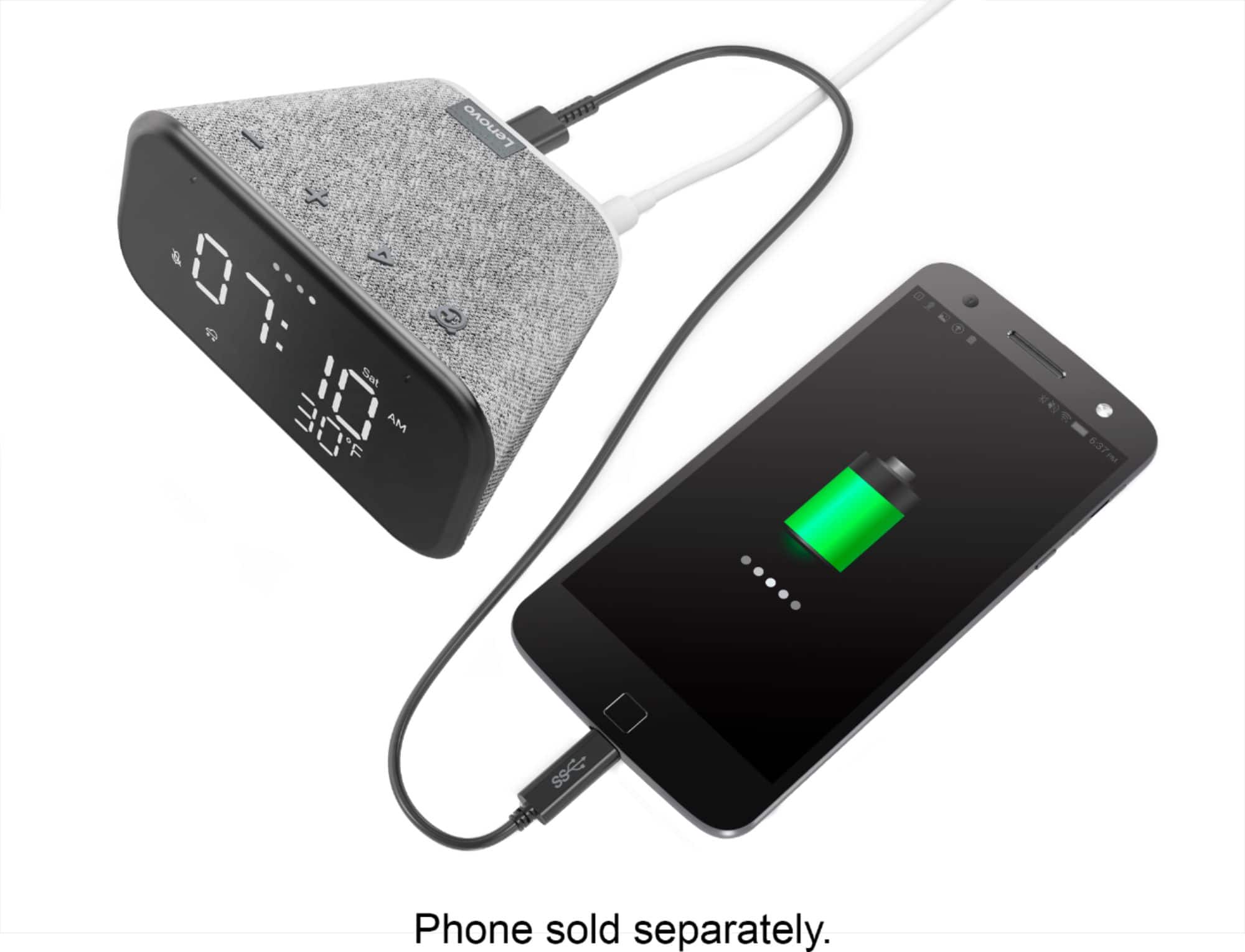
|Posted .This reviewer received promo considerations or sweepstakes entry for writing a review.A good Lenovo Smart Clock that takes care of your basic needs and more. I added the Lenovo Smart Clock device to my Google Home in minutes and started listening to my favorite Google Jazz station immediately. The bright 4 inch LED screen display automatically displays time, date, day, weather and temperature when connected. There are four functions buttons across the top for alarm setup, play/pause, volume down and volume up with microphones placed on each side of the display screen. A convenient Nightlight is on the back of the clock when needed for extra visibility. Google Assist is great at finding the perfect Ted Talks or Personal Growth Padcast to listen and wind down at end of day or setting the alarm for a wake up time. When you say goodnight the Smart Clock plays soft music to lull you to sleep. No touch or color screen on this model but it carries its own advantages of hands free Google Assistant and Google Smart Speaker full voice support.
I would recommend this to a friendBrand response from Lenovo Product Expert
Posted .Hi! Thanks for choosing the Lenovo Smart Clock Essential. We are pleased to hear the features, design, and performance of the Smart Clock Essential is working out so well for you.