Customer Ratings & Reviews
- Model:
- ZA740005US
- SKU:
- 6429528
Rating by feature
- Value
Rating 4.6 out of 5 stars
- Quality
Rating 4.5 out of 5 stars
- Ease of Use
Rating 4.4 out of 5 stars
Customers are saying
Customers enjoy the sound quality, ease of use, and display of the Smart Clock Essential. Many appreciate the included night light and the convenient size, finding it ideal for bedside tables. Positive feedback also highlights the Google Assistant integration and the alarm clock functionality. While some users experienced challenges with WiFi connectivity and initial setup, the overall sentiment is positive.
This summary was generated by AI based on customer reviews.
- Pros mentioned:Display, Night light

Has Basic Essentials
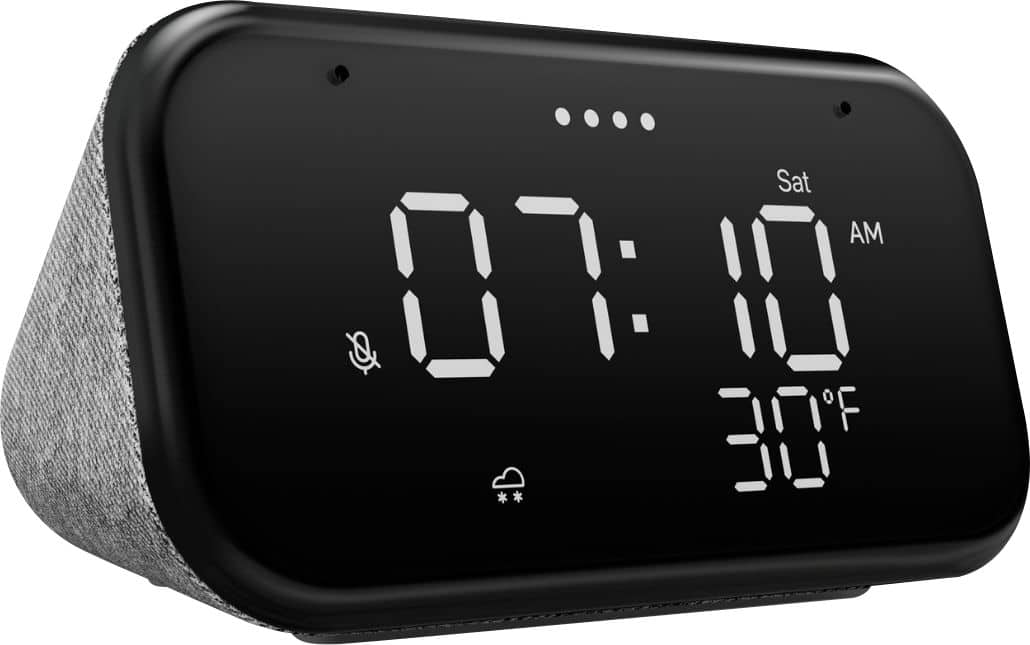
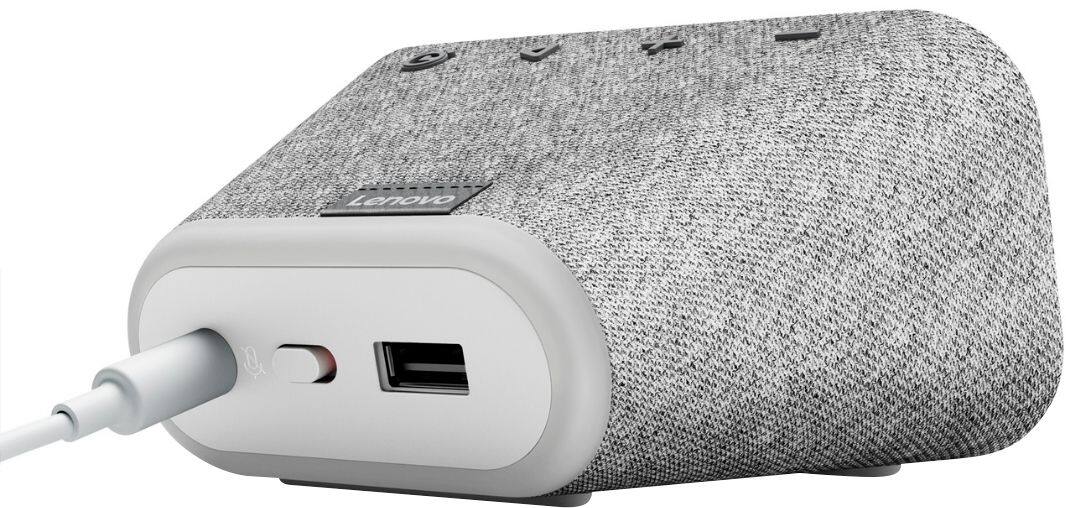
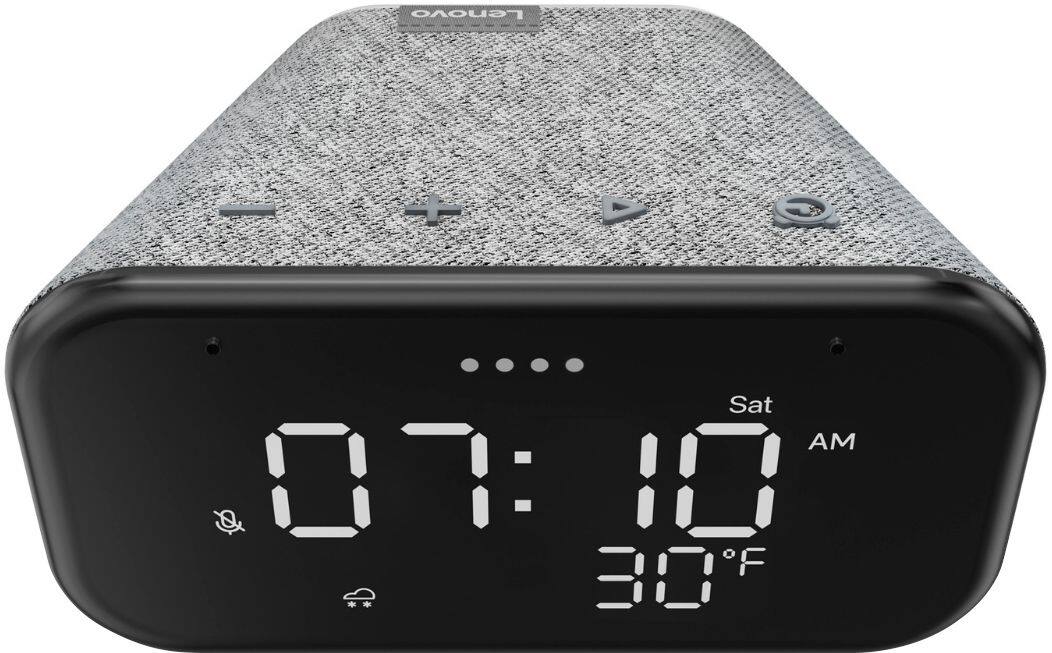
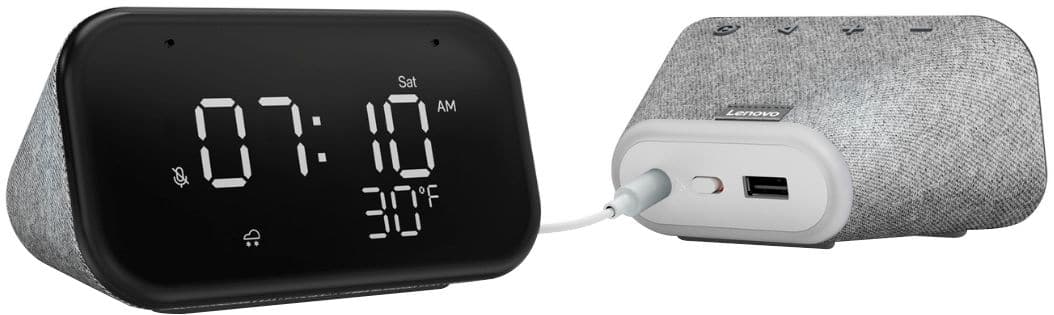
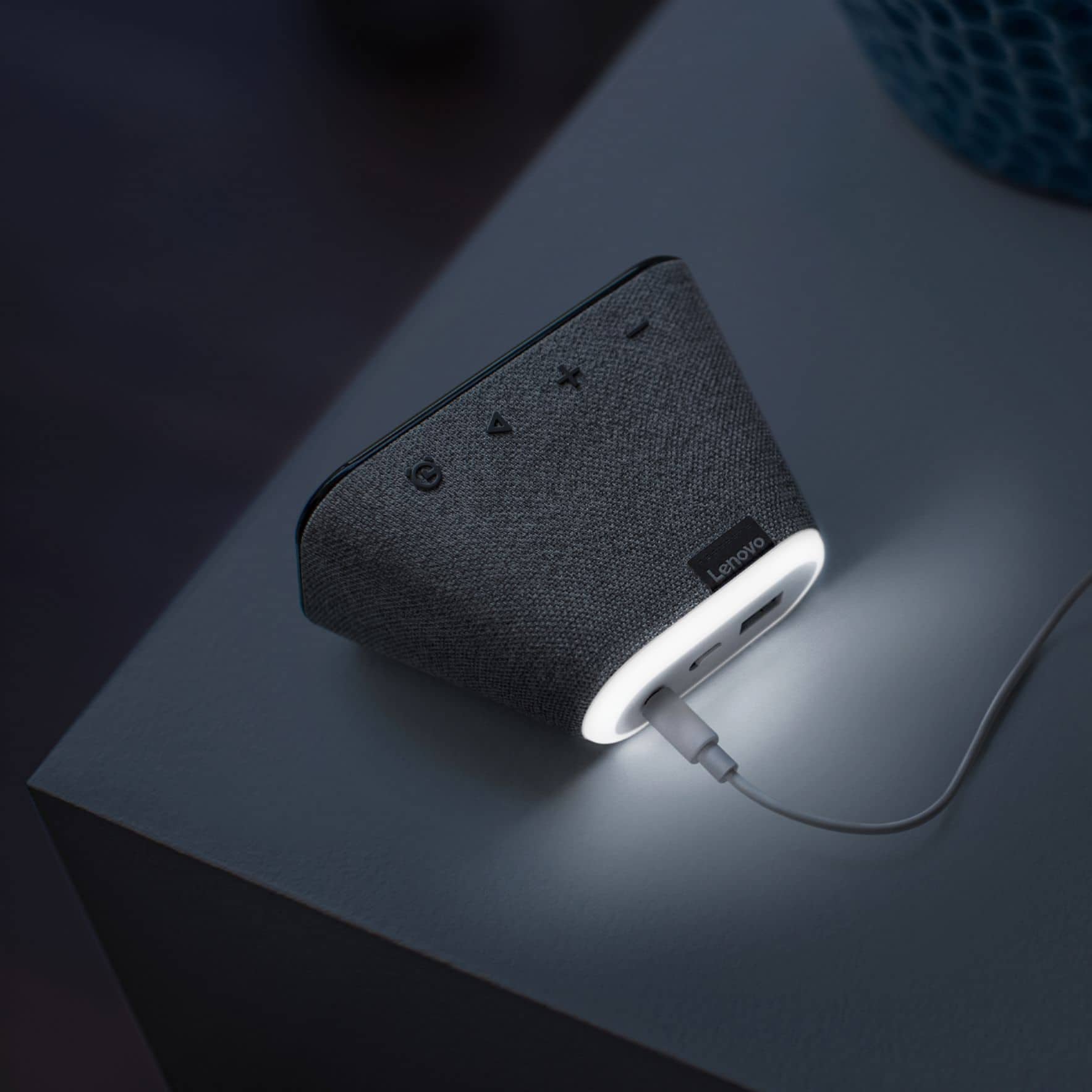
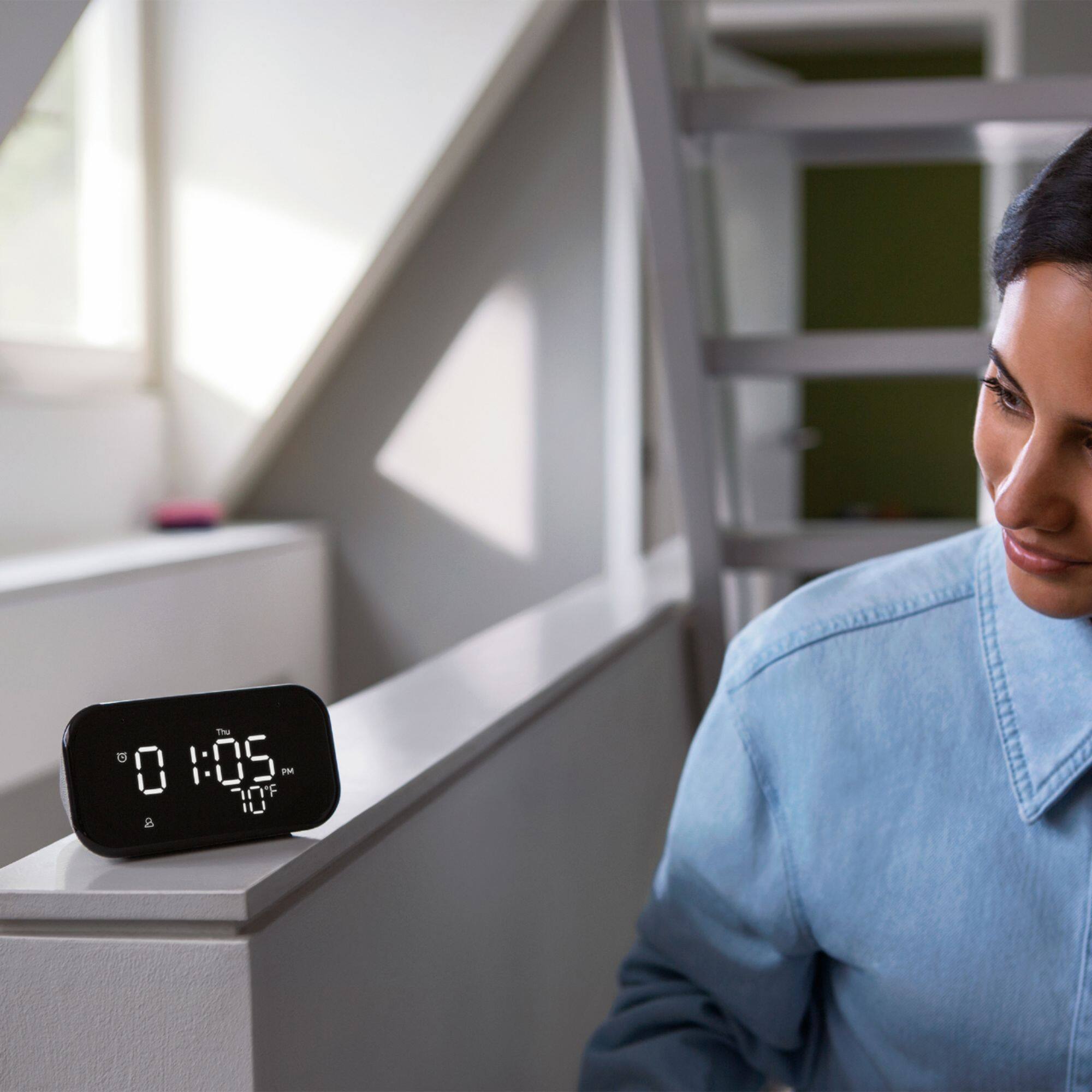
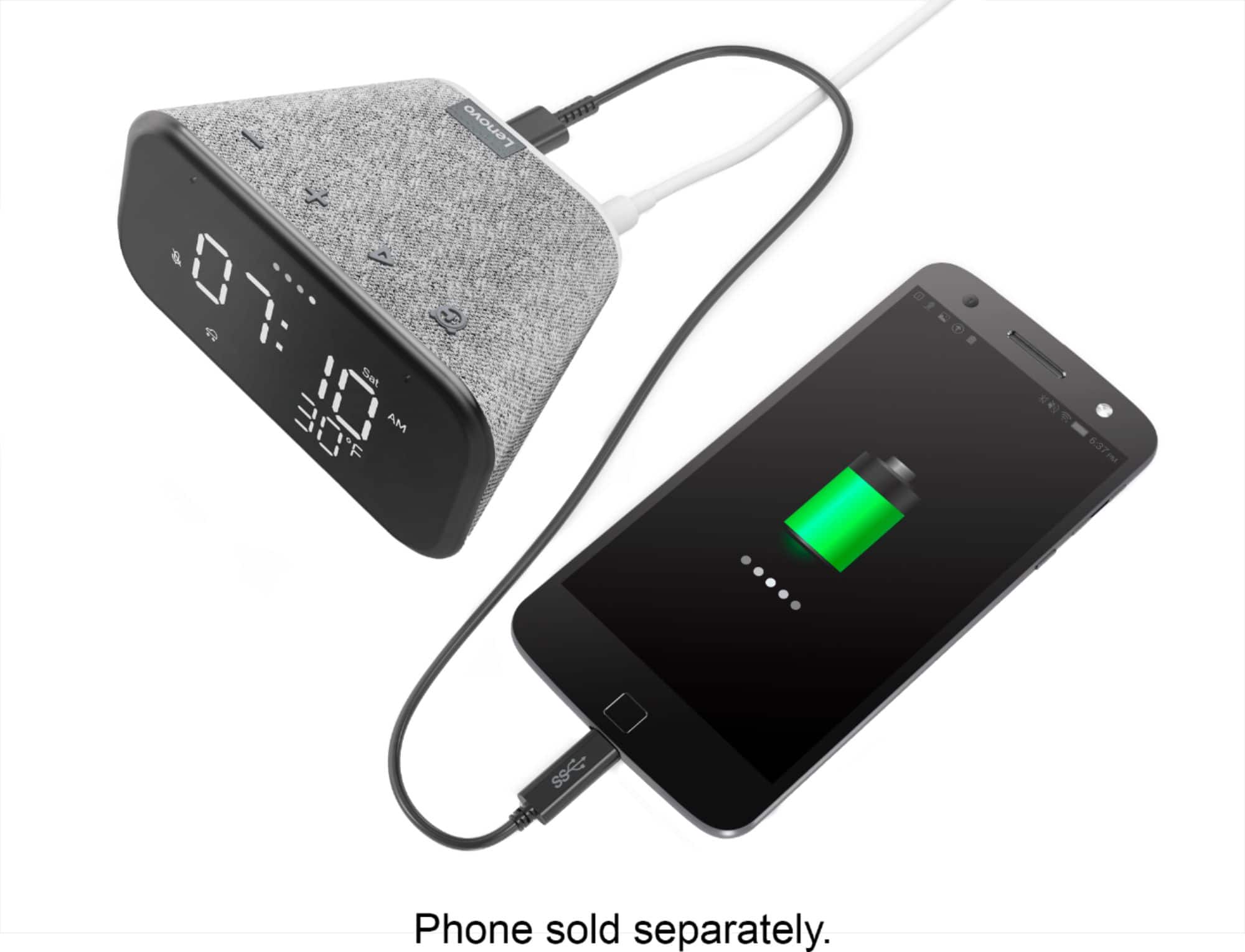
|Posted .This reviewer received promo considerations or sweepstakes entry for writing a review.This is a very simple but handy smart clock. Connect to wi-fi, and the clock time syncs itself based on your location, and it gives you the outside temperature, and day of the week. It even has a "night light" on the back side, which you can turn on by either pushing on the (-) volume button, or by telling Google to turn the night light on. The microphone slots are located in the face of the clock, and they are very sensitive. The sound is what you would expect from a hotel-grade alarm clock, with no real bass, but clear sound. Because it's a Google based device, you can Google-cast to if you get the little Google-cast icon on whatever device you are casting from. Lastly, it has a USB port in the back for charging your phone/laptop. The clock fits in the palm of my average-sized hand. I do recommend it if you happen to be looking for a smart speaker because the clock and temperature are useful features.
I would recommend this to a friendBrand response from Lenovo Product Expert
Posted .Hi! Thanks for choosing the Lenovo Smart Clock Essential. We are pleased to hear the features, design, and performance of the Smart Clock Essential is working out so well for you. We appreciate your recommendation!

Cool gadget for playing music.
||Posted . Owned for 2 weeks when reviewed.This reviewer received promo considerations or sweepstakes entry for writing a review.The functions are cool but the sound was so low that it never woke my son up. And I never heard it from down the hall like his old alarm.
No, I would not recommend this to a friendBrand response from Lenovo Product Expert
Posted .We are sorry to hear that you are having issues with the alarm alert sound for your son's Lenovo Smart Clock Essential. You can increase the volume of the alarm alert sound through the Google Home APP you used to setup this Smart Clock Essential only. The volume controls on the Smart Clock only effect the volume output of the Smart Clock not the alarm alert sound. This way you can set the volume of the alarm alert at a different level than that of the other Google Assistant type responses the Smart Clock delivers. To change the alarm alert sound, with the Smart Clock Essential Powered on, select the Smart Clock Essential from within your Google Home APP. Tap the Settings Gear icon at the top right of the screen. Select Audio from the list of Settings available. Within the Audio Setting, select Alarms and Timers. Use the slider there to adjust the alarm alert sound volume. You may want to use a Voice Command to create an alarm for 1-minute in the future so you can hear the alarm alert sound while you are adjusting the volume. If you have questions about your Lenovo Smart Clock Essential, we recommend you contact Lenovo Tech Support for Smart Devices at: 866-426-0911.
Clock would not complete final config at setup
||Posted . Owned for 1 month when reviewed.This reviewer received promo considerations or sweepstakes entry for writing a review.I used the Home app to add this device into our home but it would never configure at the end of the setup process. I returned for a refund.
No, I would not recommend this to a friendBrand response from Lenovo Product Expert
Posted .We are sorry to hear that you are having difficulty with the initial setup of your Lenovo Smart Clock Essential. Try resetting the Lenovo Smart Clock Essential back to original factory settings: Press and hold the Alarm button and the Volume Down button at the same time for 12 seconds. Here is a link to a YouTube video demonstrating the setup process of the Smart Clock Essential: https://www.youtube.com/watch?v=oebcueXBCeU&t=12s. If the issues continue, we recommend you contact lenovo Tech Support for Smart Devices at: 866-426-0911.
Don’t waste your $$
||Posted . Owned for 1 month when reviewed.This reviewer received promo considerations or sweepstakes entry for writing a review.We purchased this clock for my son’s dorm room. He said it’s the most frustrating thing ever to set up; still not set up and no longer able to return according to BB. My son has set up everything from computers to apple devices to Alexa’s, never had an issue. This product is not intuitive and worthless. I would give it 0 stars if that was possible.
No, I would not recommend this to a friendBrand response from Lenovo Product Expert
Posted .We are sorry to hear that your son is having issues with the initial setup of the Lenovo Smart Clock Essential. Here is a link to a YouTube video, demonstrating the setup of the Lenovo Smart Clock Essential: https://www.youtube.com/watch?v=oebcueXBCeU&t=10s. If your son continues to have issues with the setup of his Lenovo Smart Clock Essential, we recommend he call Lenovo Tech Support for Smart Devices at: 866-426-0911.
Disappointed
||Posted . Owned for 6 months when reviewed.This reviewer received promo considerations or sweepstakes entry for writing a review.I loved this clock Iv purchase it in April 2021 until it started to miss segments!! Lenovo company doesn’t provide any warranty on it!
No, I would not recommend this to a friendBrand response from Lenovo Product Expert
Posted .We are sorry to hear that you are having issues with your Lenovo Smart Clock Essential. First, check to be sure that the Google Calendar you have synchronized to your Smart Clock Essential is still properly paired to the Smart Clock Essential through the Google Home APP you used to setup up the Smart Clock Essential. Check your scheduled events by asking Hey Google, what events do I have planned? If the issues continue, there is a 1-year limited manufacturer's warranty on your Lenovo Smart Clock Essential, covering hardware OEM issues. Your can find out more about your warranty coverage by entering the serial number of your Smart Clock Essential at this web site: https://smartsupport.lenovo.com/pa/lt/products/smart/smart-home/lenovo-smart-clock-essential/warranty or call Lenovo Tech Support for Smart Devices at: 866-426-0911.
Display dies after less than 9 months.
||Posted . Owned for 11 months when reviewed.This reviewer received promo considerations or sweepstakes entry for writing a review.After around 9 months, the display started to dim and some of the number segments started to fade. Pretty much waste of money.
No, I would not recommend this to a friendBrand response from Lenovo Product Expert
Posted .We are sorry to hear that you are having issues with your Lenovo Smart Clock Essential. Resetting the Smart Clock Essential back to original factory settings may fix the issue you are having. Hold down both the minus button and the alarm button at the top of the Smart Clock Essential for 6-seconds. Then follow the audio Google Assistant directions. If the issue continues after this reset, we recommend you contact Lenovo Tech Support for Smart Devices at: 866-426-0911.
Must be connected to see time, wld not connect
||Posted .This reviewer received promo considerations or sweepstakes entry for writing a review.The time cannot be set without being signed into Google home. I thought this was optional. Decided to give it a try & it failed to fully connect even after connecting to my high speed Wi-Fi. I tried multiple times to connect it. The device is useless if it does not display the time. Also it seems ridiculous to be required to share my location just to view the time. No thanks. I’m returning it.
No, I would not recommend this to a friendBrand response from Lenovo Product Expert
Posted .We are sorry to hear that you are having issues with the initial setup of your Lenovo Smart Clock Essential. You will need to use the Google Home APP for the initial setup of this Lenovo Smart Clock Essential. The time displayed by the Smart Clock Essential is internet-based time. Internet Time is based on a new Meridian (as opposed to the Greenwich Meridian). This new Meridian goes through Swatch's office in Biel, Switzerland and is called the BMT Meridian. Permission for the Smart Clock Essential to use your/the device location is needed to establish the correct time zone to display on your Smart Clock Essential. Once the Smart Clock Essential is setup, you can use the manual on/off microphone switch on the back of the Smart Clock Essential to turn off the Google Assistant Function. Here is a link to a YouTube video that demonstrates the setup of the Lenovo Smart Clock Essential: https://www.youtube.com/watch?v=oebcueXBCeU&t=21s. If you have questions about your Lenovo Smart Clock Essential, we recommend you contact Lenovo Tech Support for Smart Devices at: 866-426-0911.
Non-functional out of the box.
||Posted .This reviewer received promo considerations or sweepstakes entry for writing a review.Product requires a connection to the Google Home App to function. The clock would not connect to the app and Lenovo support didn't offer and assistance. It wouldn't ever even show the time. I use the Home app for a number of other devices and they all continue to work without issue. The screen is not showing any numbers, so this broken clock isn't even right twice a day...
No, I would not recommend this to a friend- Cons mentioned:Wifi connectivity
I would not buy this
||Posted . Owned for 1 month when reviewed.This reviewer received promo considerations or sweepstakes entry for writing a review.It doesn't stay connected on wifi It goes dimmed on and off
No, I would not recommend this to a friend You get what you pay for has always been my motto
||Posted . Owned for less than 1 week when reviewed.This reviewer received promo considerations or sweepstakes entry for writing a review.The display is not that great nor the size wished i had ordered a different item for little better price
No, I would not recommend this to a friendShort lived satisfaction
||Posted . Owned for 1 year when reviewed.This reviewer received promo considerations or sweepstakes entry for writing a review.I loved this item and have two of them! Until one line of the LED numbers stopped illuminating and now my Morning entails a guess at whether it is 5:00 or 6:00. Extremely unhappy with this issue and I am past the return window.
No, I would not recommend this to a friendScreen burn just after a year
||Posted . Owned for 1 year when reviewed.This reviewer received promo considerations or sweepstakes entry for writing a review.Great clock when it worked, however just outside of warranty it has awful screen burn and flickering
No, I would not recommend this to a friendNot what I expected
||Posted . Owned for 3 weeks when reviewed.This reviewer received promo considerations or sweepstakes entry for writing a review.It’s too small. And not user friendly. I was expecting something larger, but that said everything about this clock is difficult.
No, I would not recommend this to a friendBrand response from Lenovo Product Expert
Posted .Hello, we are sorry to hear you are having difficulty with the Lenovo Smart Clock Essential. Here is a short video with some helpful steps for setup and usage. https://www.youtube.com/watch?v=oebcueXBCeU . If you need further assistance please don't hesitate to reach out to Lenovo Tech Support at 866-426-0911
Very small, must shout to activate smart assistant
||Posted . Owned for 1 month when reviewed.This reviewer received promo considerations or sweepstakes entry for writing a review.Item is smaller than you may think, it's about 2/3 the size of a modern day smartphone. The temperature reading is not actually from an internal thermometer but the temperature provided from the internet based on your location. The thing I hate most about this is that you literally have to be within a meter for it to pick up the Google Assistant' wake word. Otherwise you'd have to scream at it from within 3 meters..
No, I would not recommend this to a friendBrand response from Lenovo Product Expert
Posted .Hi there, Thanks for choosing the Lenovo Smart Clock Essential. We are sorry to hear you are experiencing this issue with the mic/assistant. Please ensure you have removed the plastic film that is on the screen to protect the unit during shipping. If this is on it will be difficult for the microphone to pick up your voice. If the issue persists, it is possible setting up voice match and raising the "okay google" sensitivity will help with this. to setup voice match please open the Google Home app.
At the top right, tap your account.
Verify that the Google Account shown is the one linked to your speaker or display. To switch accounts, tap another account or Add another account.
Tap Assistant settings Voice Match Add devices.
Make sure any devices you want to link your voice to are checked.
Tap Next I agree.
Follow the in-app steps.
To adjust the sensitivity of the mic please open the Google Home app .
At the bottom, tap Home .
Select your speaker or Smart Display.
At the top right, tap Device settings. ...
Choose how sensitive you want Google Assistant to be when it responds to you. If you need further assistance please don't hesitate to reach out to Lenovo Tech Support at 866-426-0911
Too bright for the bedroom
||Posted . Owned for 3 weeks when reviewed.This reviewer received promo considerations or sweepstakes entry for writing a review.It woks. But it's way too bright for the bedroom. If you don't want the annoying bright light in the bedroom, don't get this one.
No, I would not recommend this to a friendBrand response from Lenovo Product Expert
Posted .Hello, thanks for choosing the Lenovo Smart Clock Essential. You can adjust the screen brightness of the clock from completely off, to it's maximum brightness by saying "Ok Google Screen brightness, and then a number between 0 and 100%,"
Disappointed
||Posted . Owned for 3 weeks when reviewed.This reviewer received promo considerations or sweepstakes entry for writing a review.I unfortunately had to return this product because after 2 days it lost internet connection and I was unable to get it reconnected
No, I would not recommend this to a friendBrand response from Lenovo Product Expert
Posted .Hello, we are sorry to hear you had this experience with the Lenovo Smart Clock Essential. If your device is misbehaving we recommend to please power cycle the device by unplugging it for 1-2 minutes. Plugging it back in, and allowing it to power on. If the issue remains please perform a factory reset by holding down the “Volume + and – ” buttons on top of your device for 8 Seconds. If the issue persists, please contact our customer support team at 866-426-0911
Poor ability to connect to wifi
||Posted . Owned for 1.5 years when reviewed.This reviewer received promo considerations or sweepstakes entry for writing a review.Worked for awhile, but I changed routers and now I can't get it to reconnect....
No, I would not recommend this to a friendNot good
||Posted . Owned for less than 1 week when reviewed.This reviewer received promo considerations or sweepstakes entry for writing a review.Terrible. I bought this as a replacement for my Google mini. It is basically unresponsive to voice. I have to speak loudly 4" from the speaker. Even then the minis in other rooms pick up my voice.....and it doesn't. I am returning it today. I bought 2, 1 for me and 1 for my parents. trying to decide whether I open up the second one and maybe give that one a try maybe I just got a bad one I don't know.
No, I would not recommend this to a friendBrand response from Lenovo Product Expert
Posted .Hi there, Thanks for choosing the Lenovo Smart Clock Essential. We are sorry to hear you are experiencing this issue with the mic. It is possible setting up voice match and raising the "okay google" sensitivity will help with this. to setup voice match please open the Google Home app.
At the top right, tap your account.
Verify that the Google Account shown is the one linked to your speaker or display. To switch accounts, tap another account or Add another account.
Tap Assistant settings Voice Match Add devices.
Make sure any devices you want to link your voice to are checked.
Tap Next I agree.
Follow the in-app steps.
To adjust the Okay Google sensitivity of the mic please open the Google Home app .
At the bottom, tap Home .
Select your speaker or Smart Display.
At the top right, tap Device settings. ...
Choose how sensitive you want Google Assistant to be when it responds to you.
Worthless
||Posted . Owned for 2 months when reviewed.This reviewer received promo considerations or sweepstakes entry for writing a review.Clock works But the temperature stayed on 33 degrees No matter what it was outside. Unplugged it and bought a new clock.
No, I would not recommend this to a friendBrand response from Lenovo Product Expert
Posted .Hello, we are sorry to hear you experienced an issue getting the weather on your Lenovo Smart Clock Essential. Please ensure that you have enabled location services in the Google Home App and that your home address has been set correctly. Both of these need to be enabled/set because the internal weather display uses the internet and your location data to display the correct weather information. More information on enabling location services can be found on the Google Support page here https://support.google.com/websearch/answer/172165?co=GENIE.Platform%3DAndroid&hl=en. If you need further assistance please don't hesitate to reach out to Lenovo Tech Support at 866-426-0911
Trash
||Posted . Owned for 1 month when reviewed.This reviewer received promo considerations or sweepstakes entry for writing a review.Purchased 09/13/22. Sorta simple to figure out and set the alarm schedule if your somewhat tech savvy. Today, 10/21/22 the speaker has blown and at the highest volume does not sound loud. I had to investigate because I wasn’t waking up for work. Guess what… no returns past the 14 days!!! Trash
No, I would not recommend this to a friend