Customer Ratings & Reviews
- Model:
- ZA740005US
- SKU:
- 6429528
Rating by feature
- Value
Rating 4.6 out of 5 stars
- Quality
Rating 4.5 out of 5 stars
- Ease of Use
Rating 4.4 out of 5 stars
Customers are saying
Customers enjoy the sound quality, ease of use, and display of the Smart Clock Essential. Many appreciate the included night light and the convenient size, finding it ideal for bedside tables. Positive feedback also highlights the Google Assistant integration and the alarm clock functionality. While some users experienced challenges with WiFi connectivity and initial setup, the overall sentiment is positive.
This summary was generated by AI based on customer reviews.
Maybe you can make it work.
||Posted . Owned for 1 week when reviewed.This reviewer received promo considerations or sweepstakes entry for writing a review.They don't connect properly. In order to get it to find your network, you'll have to go through multiple extra steps. I set it up in the device utility, reset the device, set it up in home, and it still can't be found. I spent an hour on this, and it doesn't work. I have a house full of smart home products. Skip this one
No, I would not recommend this to a friendSneaky Google
||Posted .This reviewer received promo considerations or sweepstakes entry for writing a review.At first, I thought it would be nice to have a nice clock next to the new LG TV I bought. As soon as I figured out the clock had to be connected to Google in order to work, I simply threw it away. I don't need nor want Google to know anything more about me than they already do. I'm not going to talk to a clock and have Google analyze everything I do and say in my living room.
No, I would not recommend this to a friendWorks separate from the Nest... not the plan
||Posted . Owned for 2 weeks when reviewed.This reviewer received promo considerations or sweepstakes entry for writing a review.Bought this as group package with a new Google Nest for a family member for Christmas. Highly disappointed more with Best Buy than the product at this point. Neither item works properly with the Nest and Best But should be aware of what is needed or how things connect before pairing them in deals.
No, I would not recommend this to a friendBrand response from Lenovo Product Expert
Posted .Hello, thank you for choosing the Lenovo Smart Clock Essential. We are sorry to hear you are having this experience. The Google Nest and Lenovo Smart Clock are both Google Assistant products. Being a part of the same ecosystem they are compatible with one another. E.g. if you ask one to play music on the other it will work. In the same way if you ask one device, or the other, to control your smart lights they both can help you. There will be some differences in the capabilities of the Nest vs the Smart Clock Essential as they do contain different hardware. If you need further assistance with getting these two devices working together we recommend reaching out to Lenovo Tech Support at 866-426-0911

Lenovo makes great products. This was a miss.
||Posted . Owned for 3 weeks when reviewed.This reviewer received promo considerations or sweepstakes entry for writing a review.Limited screen capabilities. Poor mic sensitivity. Good form factor. Excellent finish and utilities (light & USB). With much better options even from Lenovo's stable of smart devices, this may not be a good option. Need to commend their consistent innovation across product lines and categories. They will surely come up with a better device soon enough to replace this.
No, I would not recommend this to a friendBrand response from Lenovo Product Expert
Posted .Hello, we are sorry to hear you are having this experience with the Lenovo Smart Clock Essential model # ZA740005US. This device is indented to be the "Essential version" of the Lenovo Smart Clock with Google Assistant model #ZA4R0002US featured in the following link https://www.bestbuy.com/site/lenovo-smart-clock-with-google-assistant-gray/6335321.p?skuId=6335321. If you desire more screen functionality this may be the model we recommend. In regards to the mic/assistant please ensure you have removed the plastic film that is on the screen to protect the unit during shipping. If the issue persists, it is possible setting up voice match and raising the "okay google" sensitivity will help with this. to setup voice match please open the Google Home app.
At the top right, tap your account.
Verify that the Google Account shown is the one linked to your speaker or display. To switch accounts, tap another account or Add another account.
Tap Assistant settings Voice Match Add devices.
Make sure any devices you want to link your voice to are checked.
Tap Next I agree.
Follow the in-app steps.
To adjust the sensitivity of the mic please open the Google Home app .
At the bottom, tap Home .
Select your speaker or Smart Display.
At the top right, tap Device settings. ...
Choose how sensitive you want Google Assistant to be when it responds to you. If you need further assistance please don't hesitate to reach out to Lenovo Tech Support at 866-426-0911
Not thrilled
||Posted . Owned for 3 weeks when reviewed.This reviewer received promo considerations or sweepstakes entry for writing a review.The clock graphic is a little hard to read, the sound quality of the speaker is bad (no where near what a Google Mini offers), and oddly I have a harder time getting the assistant to properly hear me even though the sensitivity is the same in all my Google devices. Glad I didn’t spend much on it. I’m much happier with the ‘Lenovo smart clock with Google Assistant’.
No, I would not recommend this to a friendBrand response from Lenovo Product Expert
Posted .Hi there, Thanks for choosing the Lenovo Smart Clock Essential. We are sorry to hear you are experiencing this issue with the mic/assistant. Please ensure you have removed the plastic film that is on the screen to protect the unit during shipping. If the issue persists, it is possible setting up voice match and raising the "okay google" sensitivity will help with this. to setup voice match please open the Google Home app.
At the top right, tap your account.
Verify that the Google Account shown is the one linked to your speaker or display. To switch accounts, tap another account or Add another account.
Tap Assistant settings Voice Match Add devices.
Make sure any devices you want to link your voice to are checked.
Tap Next I agree.
Follow the in-app steps.
To adjust the sensitivity of the mic please open the Google Home app .
At the bottom, tap Home .
Select your speaker or Smart Display.
At the top right, tap Device settings. ...
Choose how sensitive you want Google Assistant to be when it responds to you. If you need further assistance please don't hesitate to reach out to Lenovo Tech Support at 866-426-0911
Unreliable
||Posted . Owned for 3 weeks when reviewed.This reviewer received promo considerations or sweepstakes entry for writing a review.Doesn't work very well. Kept waking my kids up in the middle of the night. Now its unplugged and unused
No, I would not recommend this to a friendBrand response from Lenovo Product Expert
Posted .Hello, we are sorry to hear you are experiencing this issue with the Lenovo Smart Clock Essential. Please power cycle the device by unplugging it for 1-2 minutes. Plugging it back in and allowing it to power on. If the issue remains please perform a factory reset by holding down the “Volume + and – ” buttons on top of your device for 8 Seconds. If the issue persists, please contact our customer support team at 866-426-0911
- Pros mentioned:Night light, Sound quality

Great Clock
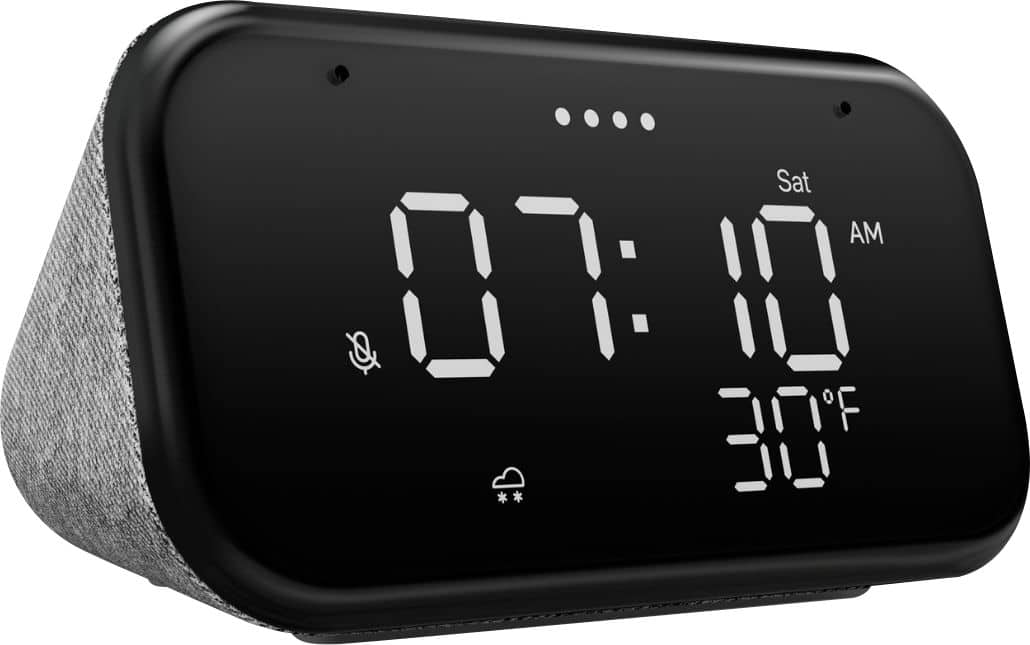
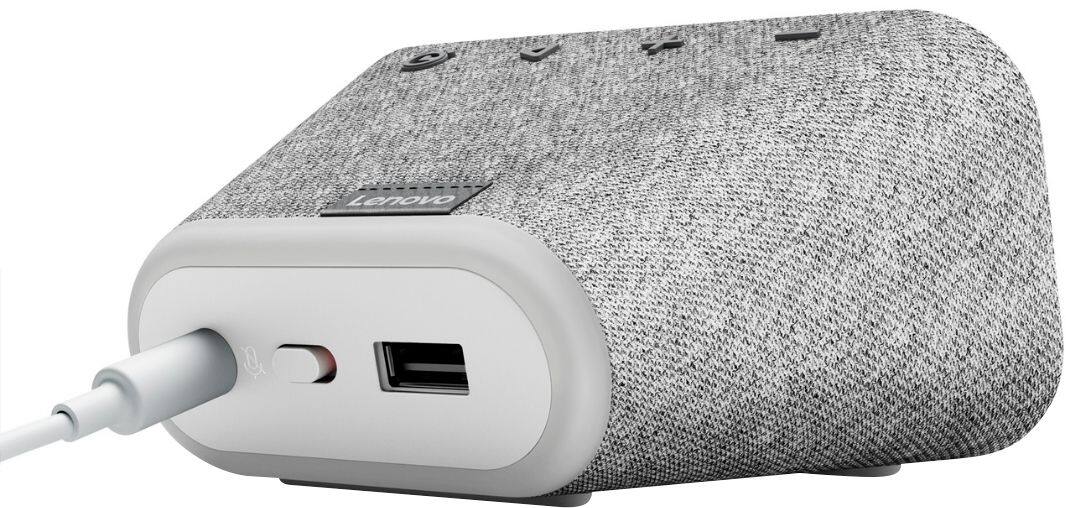
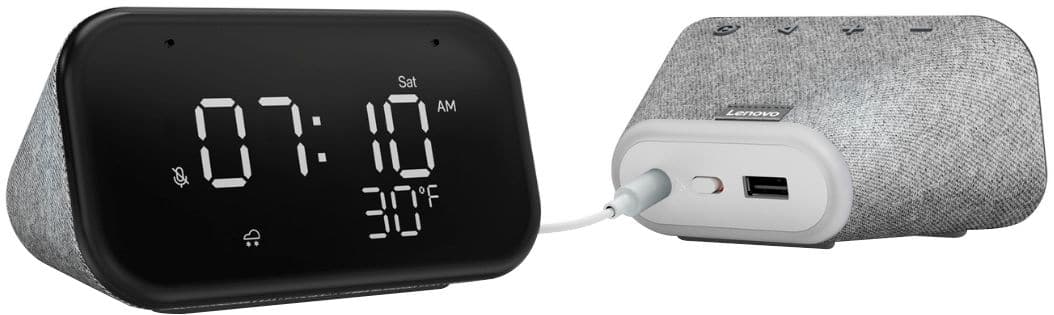
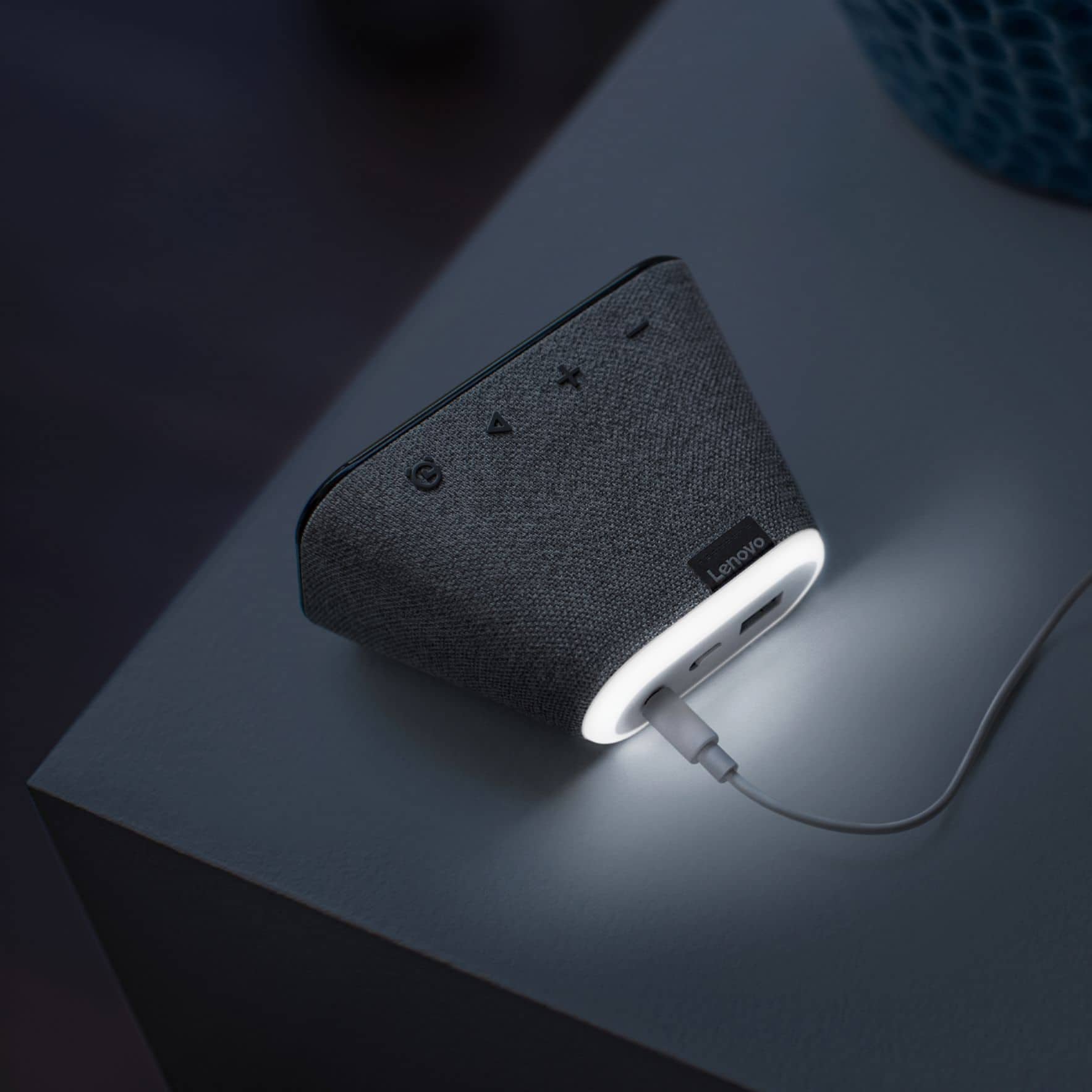
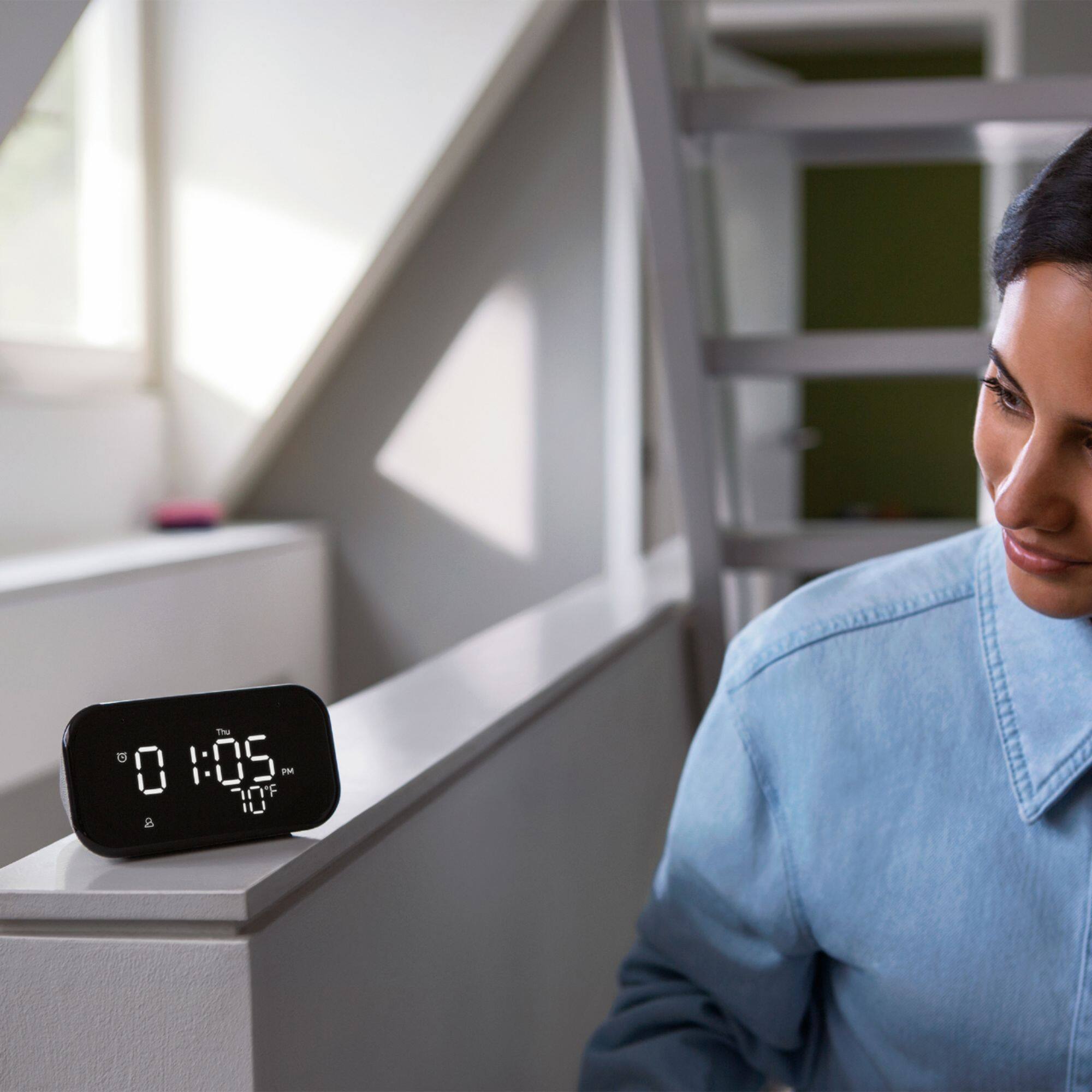
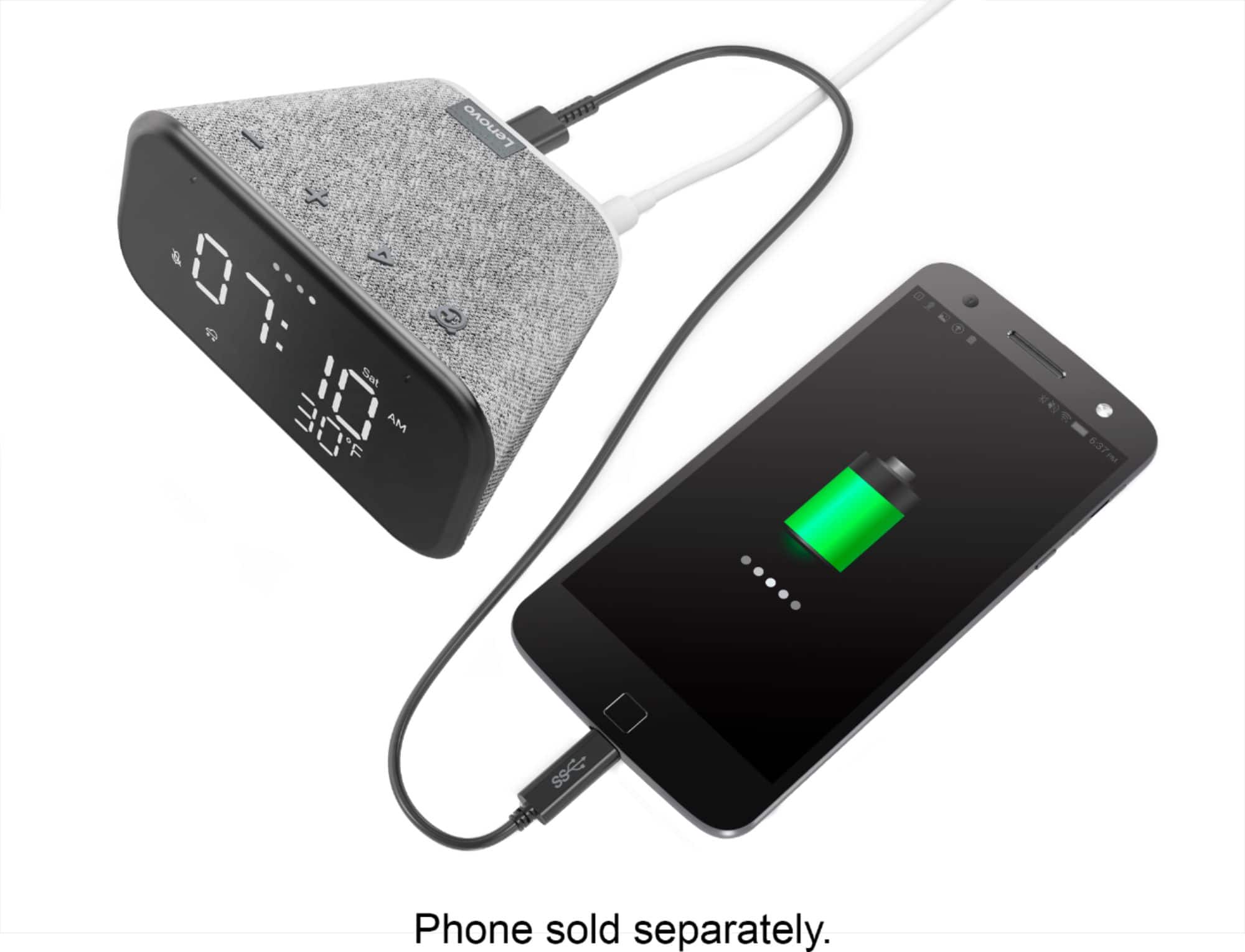
|Posted .This reviewer received promo considerations or sweepstakes entry for writing a review.This is a very useful clock. It has decent sound speaker. You do have to download Google home to your phone to be able to set it up and link it to any other smart device you have at home. I love how it tells you the day of the week and the temperature right off the screen. I did think it was going to be bigger device(measures about 5'' by 2.5'') but its kinda small BUT not a big deal. As the night starts the display dims so its not as bright when you sleep. It has a nightlight which is a good feature. You can ask to play music ,set an alarm and many more. Its nice to have around and not rely on your phone or computer for the time. It also comes with a USB port in the back and can be use to charge your phone.
I would recommend this to a friendBrand response from Lenovo Product Expert
Posted .Hi! Thanks for choosing the Lenovo Smart Clock Essential. We are pleased to hear the features, design, and performance of the Smart Clock Essential is working out so well for you.
Ehhh
||Posted . Owned for 9 months when reviewed.This reviewer received promo considerations or sweepstakes entry for writing a review.Looks nice and does everything but it just wasn’t loud enough for an ‘alarm clock’
No, I would not recommend this to a friendBrand response from Lenovo Product Expert
Posted .You can adjust the volume of the alarm alert sound you are using within the Google Home APP you used on your phone or tablet, while you were setting up the Lenovo Smart Clock Essential for the first time. While an alarm is sounding, whether a preset alarm you have already created or a test alarm you set up for the purpose of adjusting the alarm volume, open the Google Home APP, go to setting and look for Alarms and Timers settings. You will be able to adjust the alarm alert sound there. If you continue to have issues, we recommend you contact Lenovo Tech Support for Smart Devices at: 866-426-0911.
Smart?
||Posted . Owned for 1 month when reviewed.This reviewer received promo considerations or sweepstakes entry for writing a review.It's a clock and i returned it, no significance to me what-so-ever.
No, I would not recommend this to a friendCouldn't get it to work
||Posted . Owned for 3 weeks when reviewed.This reviewer received promo considerations or sweepstakes entry for writing a review.I spent two weekends trying to get this to work. After installing software on an iPad, it found the unit and it passed a sound. I then connected it to my WiFi network. The next step from Google Home then failed. Tried this twice. Gave up, returned.
No, I would not recommend this to a friendSlow
||Posted . Owned for 2 weeks when reviewed.This reviewer received promo considerations or sweepstakes entry for writing a review.Returned. It is not good as much as goole mini, google home or google hub. It doesn’t listen well and operates very slowly. It turned off the light 1-2minutes later once i asked. It will be good if you just want to use it as a clock or use it at kid’s room as a toy.
No, I would not recommend this to a friendBrand response from Lenovo Product Expert
Posted .Hi there, Thanks for choosing the Lenovo Smart Clock Essential. We are sorry to hear you are experiencing this issue with the mic/assistant. Please ensure you have removed the plastic film that is on the screen to protect the unit during shipping. If the issue persists, it is possible setting up voice match and raising the "okay google" sensitivity will help with this. to setup voice match please open the Google Home app.
At the top right, tap your account.
Verify that the Google Account shown is the one linked to your speaker or display. To switch accounts, tap another account or Add another account.
Tap Assistant settings Voice Match Add devices.
Make sure any devices you want to link your voice to are checked.
Tap Next I agree.
Follow the in-app steps.
To adjust the sensitivity of the mic please open the Google Home app .
At the bottom, tap Home .
Select your speaker or Smart Display.
At the top right, tap Device settings. ...
Choose how sensitive you want Google Assistant to be when it responds to you. If you need further assistance please don't hesitate to reach out to Lenovo Tech Support at 866-426-0911
Stick with a basic clock!
||Posted . Owned for 4 months when reviewed.This reviewer received promo considerations or sweepstakes entry for writing a review.Poor quality. Bad interface and not easy to set up!
No, I would not recommend this to a friend- Pros mentioned:Display, Night light
Great alarm clock if you are looking to reduce scr
|Posted .This reviewer received promo considerations or sweepstakes entry for writing a review.It is minimal by design and it is exactly what was required in my case. I wanted to give it to my son so that he can schedule multiple alarm on different days. Yes this functionality is there on all phone, tablets etc but than you have to take care of access screen time. This solves that. It also have a nifty night light to use. It shows temperature information but does not have a room temperature sensor. That is one thing which would have made it perfect. Display dims automatically on light close. Google home functions fine like the home mini I have. if you are going to buy a home mini, buy this.
I would recommend this to a friendBrand response from Lenovo Product Expert
Posted .Hi, thanks for choosing the Lenovo Smart Clock Essential. We are pleased to hear the functions, performance, and design of the Lenovo Smart Clock Essential are working out so well for you! While the unit itself does not have an indoor temperature sensor if you have a smart thermostat in your home it can 1. Tell you the indoor temperature. 2. Tell you the temperature that is set on the thermostat. 3. Adjust the temperature of the thermostat. Just say "Okay google what's the temperature inside?"
this thing is very baisc
||Posted . Owned for 7 months when reviewed.This reviewer received promo considerations or sweepstakes entry for writing a review.the very most basic smart phone you could ever buy
No, I would not recommend this to a friendI do like that it has the temp displayed which it
||Posted . Owned for 1 month when reviewed.This reviewer received promo considerations or sweepstakes entry for writing a review.We sleep through the alarm. It doesn't wake us up.
No, I would not recommend this to a friendNot very user friendly
||Posted . Owned for 3 weeks when reviewed.This reviewer received promo considerations or sweepstakes entry for writing a review.Not very user-friendly at all. I did not realize that it cannot be used without the Google home feature. I had assumed it would be able to function without the Google Home app. Also noticed that the screen scratched TERRIBLY when just slightly brushing it up against soft surfaces--even blankets. Disappointed!
No, I would not recommend this to a friendBrand response from Lenovo Product Expert
Posted .Hello, thank you for choosing the Lenovo Smart Clock Essential, we are sorry to hear you are having this experience. The Smart Clock Essential requires the Google Home App for setup. Once setup the Cock can function independently of the Google Home App. You will only need the App if you would like to access certain settings and features like routines. The screen is made of plastic and should not scratch from contact with cloth or blankets. It's possible the screen is smudged. We recommend cleaning the screen with a non abrasive screen cleaner and a microfiber cloth. the following website has a list of useful commands to help you get the most out of your assistant. https://www.androidauthority.com/google-assistant-commands-727911/
LENOVO SMART CLOCK ESSENTIALS
||Posted . Owned for 1 week when reviewed.This reviewer received promo considerations or sweepstakes entry for writing a review.Purchased this product for my son several months ago. He loved it so I decided to purchase another for his brother. Would recommend this product. This website will not allow me to upgrade the overall rating. It keeps defaulting to poor which is incorrect.
I would recommend this to a friendWouldn’t recommend
||Posted .This reviewer received promo considerations or sweepstakes entry for writing a review.Not compatible with Apple products. Not worth the money spent on it
No, I would not recommend this to a friendToo high tech
||Posted .This reviewer received promo considerations or sweepstakes entry for writing a review.I'm sure it's an awesome device, but it's too high tech for my home.
No, I would not recommend this to a friendBrand response from Lenovo Product Expert
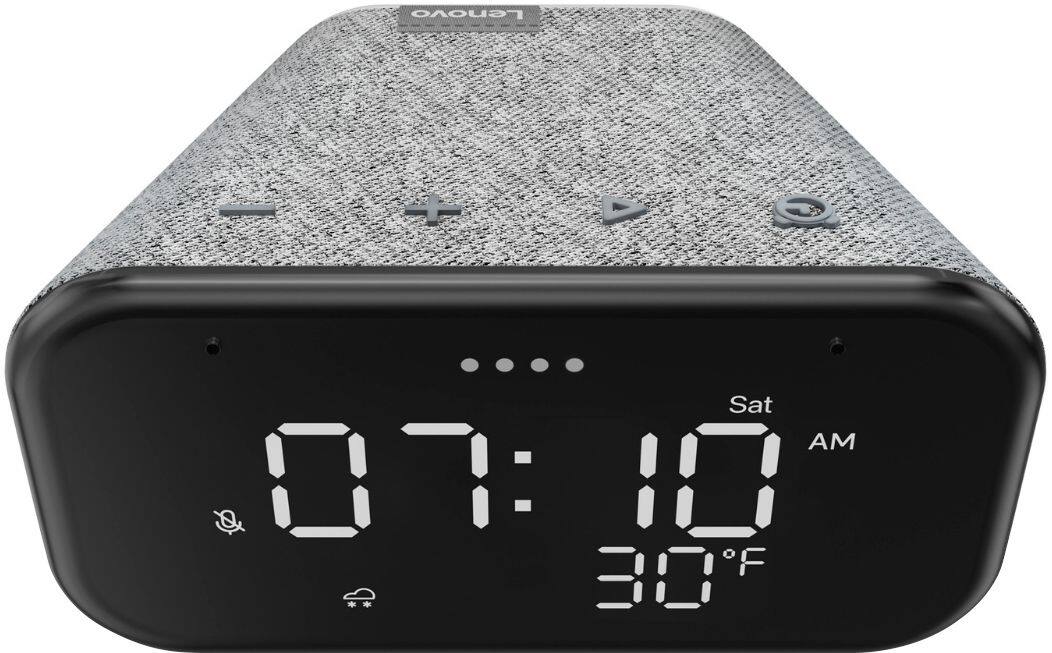
Posted .Hello, we are sorry to hear you are experiencing this issue with your Lenovo Smart Clock Essential. Once the Smart Clock has been setup with the Google Home App, should you choose to do so, there is no further need to use the smart features. Simply switch the Assistant off by using the switch on the back of the Smart Clock. You can set the alarms manually by hand with the buttons on top of the clock. You can turn off and on the night light by holding and pressing the volume down button for 3 seconds. If you need any further assistance please don't hesitate to reach out to Lenovo Tech Support at 866-426-0911
Tinny sounding speaker
||Posted .This reviewer received promo considerations or sweepstakes entry for writing a review.This was to replace an old Insignia smart speaker. The basic functions work but I also used my old smart speaker to listen to Pandora and Internet Radio. The speaker is tinny - it just sux. Returned it the next day.
No, I would not recommend this to a friendBrand response from Lenovo Product Expert
Posted .Hello, we are sorry to hear you had this experience with your Lenovo Smart Clock Essential. You can adjust the bass and treble of the Smart Clock Essential by opening the Google Home App , selecting the Smart Clock Essential, and then the 3 lines or "Equalizer" at the top of the screen.