Customer Ratings & Reviews
- Model:
- ZA4R0037US
- SKU:
- 6441962
Rating by feature
- Value
Rating 4.5 out of 5 stars
- Quality
Rating 4.6 out of 5 stars
- Ease of Use
Rating 4.5 out of 5 stars
Customers are saying
Customers frequently mention the ease of use, sound quality, and alarm features as positive aspects of the Smart Clock with Google Assistant. Many also appreciate the Google Assistant integration, the clock's size, and its display. However, some users reported issues with maintaining a consistent WiFi connection. A lack of battery backup was another recurring negative comment.
This summary was generated by AI based on customer reviews.
- Cons mentioned:Wifi connectivity
Will not connect on college campuses!!
||Posted . Owned for 1 month when reviewed.This reviewer received promo considerations or sweepstakes entry for writing a review.Purchased the Lenovo Smart clock for my daughter for her dorm room. We have Google devices at home and I thought this would help her with her reminders and alarms in her 1st year of college. Can't connect to campus wifi because of no MAC address. I have a $30 paperweight. Very disappointed in Lenovo.
No, I would not recommend this to a friendBrand response from Lenovo Product Expert
Posted .We are sorry to hear that you are having issues with WiFi connectability with your daughter's Smart Clock with Google Assistant. First try restarting the Smart Clock: Unplug your device then wait 10 seconds. Plug it back in. If this does not correct the WiFi issue, reset the Smart Clock back to original factory settings: With the device powered on, press down both the volume+ / volume- button for 10 seconds. Follow the on-screen instructions to set up your device. If the WiFi issue continues after the factory reset, we recommend you contact Lenovo Tech Support for Smart Devices at: 866-426-0911.

Good substitute for an alarm and a Google Home
||Posted . Owned for 3 weeks when reviewed.This reviewer received promo considerations or sweepstakes entry for writing a review.Good item, but could be better with a few design tweaks. Given the limited options however, would definitely recommend due to its usefulness. Hopefully more features will He added through a firmware update.
I would recommend this to a friendBrand response from Lenovo Product Expert
Posted .Thanks for choosing the Lenovo Smart Clock with Google Assistant. Lenovo Smart Clock with the Google Assistant works easily and seamlessly with over 10,000 smart home devices, across more than 1,000 different brands. Here is a short video with some cool Tips and Tricks for getting the most out of your assistant. https://www.youtube.com/watch?v=mCnHBXn5aEw . If you need further assistance we recommend reaching out to the Lenovo Tech Support team at 866-426-0911
It’s not smart as it’s shape!
||Posted . Owned for 3 weeks when reviewed.This reviewer received promo considerations or sweepstakes entry for writing a review.I will say a lot are missing, it looks beautiful with the shape and colors, but not enough with the price and year! .not enough what you expected. I will say google mini is doing more with its year and price!.
I would recommend this to a friendBrand response from Lenovo Product Expert
Posted .Hey there. Thanks for choosing the Lenovo Smart Clock with Google Assistant. It works easily and seamlessly with over 10,000 smart home devices, across more than 1,000 different brands. Switch the porch lights off, turn on the espresso machine, or control any product featuring a ‘works with the Google Assistant’ badge—from the comfort of your bed, with just your voice. By making your home smarter, you can save time, too!
Promised more then it can do
||Posted .This reviewer received promo considerations or sweepstakes entry for writing a review.I tried it for one night and it has to be returned. I wanted to like it but I just can't. It is a great clock, it is a great alarm clock, it can do basic Google Assistant tasks, and it can be streamed to. It cannot do more then that. I asked for a YouTube Music Playlist, it cannot do that. I asked to do a routine that has been used with all my other Google Assistant devices, nope cannot do that either. I was very disappointed. If you are going to use this as an alarm clock only, I highly recommend it. If you want to use it like a traditional Nest/Google device, nope!
No, I would not recommend this to a friendBrand response from Lenovo Product Expert
Posted .Hello, the Lenovo Smart Clock with Google Assistant can utilize routines by setting them up in the Google Home App. To do this open the Google Home App on any smart phone or tablet and then select routines. To enable your bed time routine from the Smart Clock simply say "Okay Google goodnight" for the morning routine simply say "Okay Google good morning" or "tell me about my day". Alternatively you can set an alarm with the "good morning routine" slider enabled to auto initiate your morning routine when you turn off the alarm. If your device is not functioning in this manner please perform a factory reset by holding down the “Volume + and – ” buttons on top of your device for 8 Seconds. If the issue persists, please contact our customer support team at 866-426-0911
Not very smart
||Posted . Owned for 3 weeks when reviewed.This reviewer received promo considerations or sweepstakes entry for writing a review.Mine stopped working after two weeks. The screen would go blank and would not respond to any swipes. Had to unplug and replug to get it back up to only have it happen again in an hour or two.
No, I would not recommend this to a friendBrand response from Lenovo Product Expert
Posted .Hello, we are sorry to hear you are experiencing this issue with the screen on your Lenovo Smart Clock. We recommend to perform a factory reset by holding down the “Volume + and – ” buttons on top of your device for 8 Seconds. If the issue persists, please contact our customer support team at 866-426-0911.
Honest review.
||Posted . Owned for 3 weeks when reviewed.This reviewer received promo considerations or sweepstakes entry for writing a review.I like the clock but I don’t like the fact that when you lose wifi connection it doesn’t show the time. Without internet this clock is useless.
No, I would not recommend this to a friendBrand response from Lenovo Product Expert
Posted .Hello, we are sorry to hear you are having this experience with the Lenovo Smart Clock with Google Assistant. Like other Google Assistant/ Smart devices, this is an always on device, and requires an internet connection to function. There is no need to worry. In the event of a brief power or WiFi outage your set alarm information will be retained and the correct time will be displayed automatically once power/WIFI has been restored.
Good but could be better
||Posted . Owned for less than 1 week when reviewed.This reviewer received promo considerations or sweepstakes entry for writing a review.Not working after three day of use, can’t turn it on at all. I did like it at the beginning. Quick connection, easy setup, great price.
No, I would not recommend this to a friendBrand response from Lenovo Product Expert
Posted .We are sorry to hear that you are having issues with your Lenovo Smart Clock with Google Assistant. Resetting the Smart Clock back to original settings may correct the issue you are having. To reset the Smart Clock - With the device powered on, press down both the volume+ / volume- button for 10 seconds. Follow the on-screen instructions to set up your device. If the issue continues, we recommend you contact Lenovo Tech Support for Smart Devices for additional help at: 866-426-0911.
Tiny little unit
||Posted . Owned for 3 weeks when reviewed.This reviewer received promo considerations or sweepstakes entry for writing a review.Product does what it is supposed to do, however the item is a great deal smaller than one thinks based on the photos. I probably should've looked more closely at the specs before purchasing.
No, I would not recommend this to a friendBrand response from Lenovo Product Expert
Posted .Hi, thanks for choosing the Lenovo Smart Clock with Google Assistant. The 4", color, touch display is listed in the specifications of the product on BestBuy.com as well as in the packaging of the unit. If a larger screen suites you better we recommend the Lenovo Smart Display 7" https://www.bestbuy.com/site/lenovo-7-smart-display-with-google-assistant-blizzard-white/6411151.p?skuId=6411151
More a display than a clock
||Posted . Owned for 2 months when reviewed.This reviewer received promo considerations or sweepstakes entry for writing a review.I was looking for a alarm clock with smart features but I didn't love the size and the clock overall. I ended up returning it and getting the smaller 4" lenovo
No, I would not recommend this to a friendBrand response from Lenovo Product Expert
Posted .We are sorry to hear that this Lenovo Smart Clock with Google Assistant and a 4 Inch (screen size measured diagonally) screen, does not meet your needs.
Constantly loses wifi connection
||Posted . Owned for 3 weeks when reviewed.This reviewer received promo considerations or sweepstakes entry for writing a review.After updating, it still struggles with keeping connection. Even when it has a connection, it seems much slower than my other devices (Google Home minis).
No, I would not recommend this to a friendBrand response from Lenovo Product Expert
Posted .Hi there! If you find your device disconnecting, first ensure that you are on a 2.4ghz WiFi band and that your network connection is strong. I also always recommend checking your WiFi range. Sometimes devices can be right at the edge of that range, but an inexpensive WiFi extender will do the trick. Additionally, make sure your router is capable of supporting all the devices you have connected to it, as that can cause for slower performance on all devices.
Missing obvious features
||Posted . Owned for 1 week when reviewed.This reviewer received promo considerations or sweepstakes entry for writing a review.This might be an OK item for someone who lives alone or is the first in hearing range to want to go to sleep. There is no button to turn off the display and it's annoyingly bright at night. In order to turn the display, you have to say "OK google, turn of display". You could whisper, but then you need to be close enough to push a button or perhaps unplug it and throw it across the room. Using a cell phone might be an alternative, but it isn't obvious how you can turn off the display with the cellphone, and why not just use the cellphone's clock?
No, I would not recommend this to a friendBrand response from Lenovo Product Expert
Posted .Hi there! The Lenovo Smart Clock with Google Assistant has the ability to automatically turn off your screen at night. To do this please swipe up on your clock face from the home screen. Next please select the "Gear or Settings" icon from the right side of the screen. From there please select "Display Settings". You may now tell the clock to turn off the screen when dark and adjust the minimum brightness of the screen to suite your needs. Next you will need to take advantage of the "Auto Dim" feature with ambient light sensor that is built right in to the Lenovo Smart Clock. To enable this feature, from the home screen, please swipe up on the face of the clock. Then tap the circle with the letter "A" in the middle once to pull up the 'Automatic Brightness" menu. Tap the "A" twice to enable or disable the "Auto Dim' feature. Your Lenovo Smart Clock will now adjust the brightness of the screen based off of the ambient lighting in the room, and completely turn off the screen when its dark at night.
Great alarm clock but...
||Posted . Owned for 3 weeks when reviewed.This reviewer received promo considerations or sweepstakes entry for writing a review.I wish you would be able to set the brightness via Google assistant. Sometimes I like to adjust the brightness without having to go through the settings. All in all a good smart alarm clock.
I would recommend this to a friendBrand response from Lenovo Product Expert
Posted .Hi, thanks for choosing the Lenovo Smart Clock with Google Assistant. We are pleased to hear the functions, performance, and design of the Lenovo Smart Clock are working out so well for you! We appreciate your feedback as we are constantly searching for ways to improve our smart devices. You may change the brightness between 1 and 10 with a simple voice command. Try saying "Okay Google Brightness 5" or "Hey Google set my brightness on my clock to 3". Also you may set the "Auto Dim" feature to adjust automatically with the built in ambient light sensor.
Much smaller then pictured
||Posted . Owned for less than 1 week when reviewed.This reviewer received promo considerations or sweepstakes entry for writing a review.Ok product, really tiny compared to the pictures provided. Additionally the clock doesn’t allow you to configure the display to show date and time, very disappointing.
No, I would not recommend this to a friendBrand response from Lenovo Product Expert
Posted .The Lenovo Smart Clock with Google Assistant measures: (W x H x D) - 4.48 x 3.14 x 3.12 Inches. The Smart Clock displays the current time. Need more information - Just say Hey Google and ask for more detailed information about your day or the current conditions outside.
We couldn't get it to connect so trying other opt
||Posted . Owned for 1 month when reviewed.This reviewer received promo considerations or sweepstakes entry for writing a review.We couldn't get one to connect to our wifi so returning it...great reviews from what I read and at the cost, just made sense but I'm returning again, cause one couldn't connect.
No, I would not recommend this to a friendBrand response from Lenovo Product Expert
Posted .Hi there, we are sorry to hear you are experiencing this issue with your Lenovo Smart Clock with Google Assistant. It is possible adjusting some settings with your router will fix this. As it is more compatible please ensure the Smart Clock is connecting to the 2.4 GHz band of your router and not the 5Ghz band. Next we recommend changing the channel the Smart Clock connects to. 1, 6, and 11 are usually the best choices because they don’t overlap with each other. Having too much overlap between wireless devices on your network can cause the Smart Clock to disconnect in rare occurrences. Here is a link with a how to guide to help with your router settings. https://www.hellotech.com/guide/for/how-to-change-wifi-channel-on-router .. If the issue persists, please contact our customer support team at 866-426-0911
Alarm not sounding
||Posted . Owned for 5 months when reviewed.This reviewer received promo considerations or sweepstakes entry for writing a review.Clock worked great for 3 months. Now on occasion the shows it's going off, but there is no volume when volume is set. What good is an alarm when it does wake you. I've done a factory reset and also unplug the clock. This issues persists at least once a week. May as well through it out and just have my phone on the night stand to use the alarm function. All the other functions work great. The alarm function is garbage if it's not going to work correctly. I've been late for work several times because of this issue. FIX THE BUG
No, I would not recommend this to a friendBrand response from Lenovo Product Expert
Posted .We are sorry to hear that you are having issues with your Lenovo Smart Clock. Here is a link to accessing more Technical Support for Lenovo Smart Devices: https://smartsupport.lenovo.com/us/en/
Doesn't work with child account!
||Posted . Owned for 3 months when reviewed.This reviewer received promo considerations or sweepstakes entry for writing a review.The device seems very capable, and the options for clock face are very much appreciated. However, it refuses to accept my daughter's account, even though I have added her via family link and Google home. It keeps saying "Google assistant is not available for this account". She's able to use my JBL devices, and even her brother's other Lenovo clock (the one without display). This would be a great device otherwise, but now unusable since it was purchased for her room...
No, I would not recommend this to a friendBrand response from Lenovo Product Expert
Posted .We are sorry to hear that you are having issues with the Lenovo Smart Clock with Google Assistant recognizing your daughter's Google Account. It is possible that if you have setup your daughter's account with active Parental Controls enabled, that the Smart Clock is not able to work within the Parental Controls restrictions. You may want to try setting up a second Google Account for your daughter just to use with the Smart Clock, without parental controls enabled to see if that allows access to the Smart Clock. You can also contact Lenovo Tech Support for Smart Devices for additional help at: 866-426-0911.
Good for a digital clock
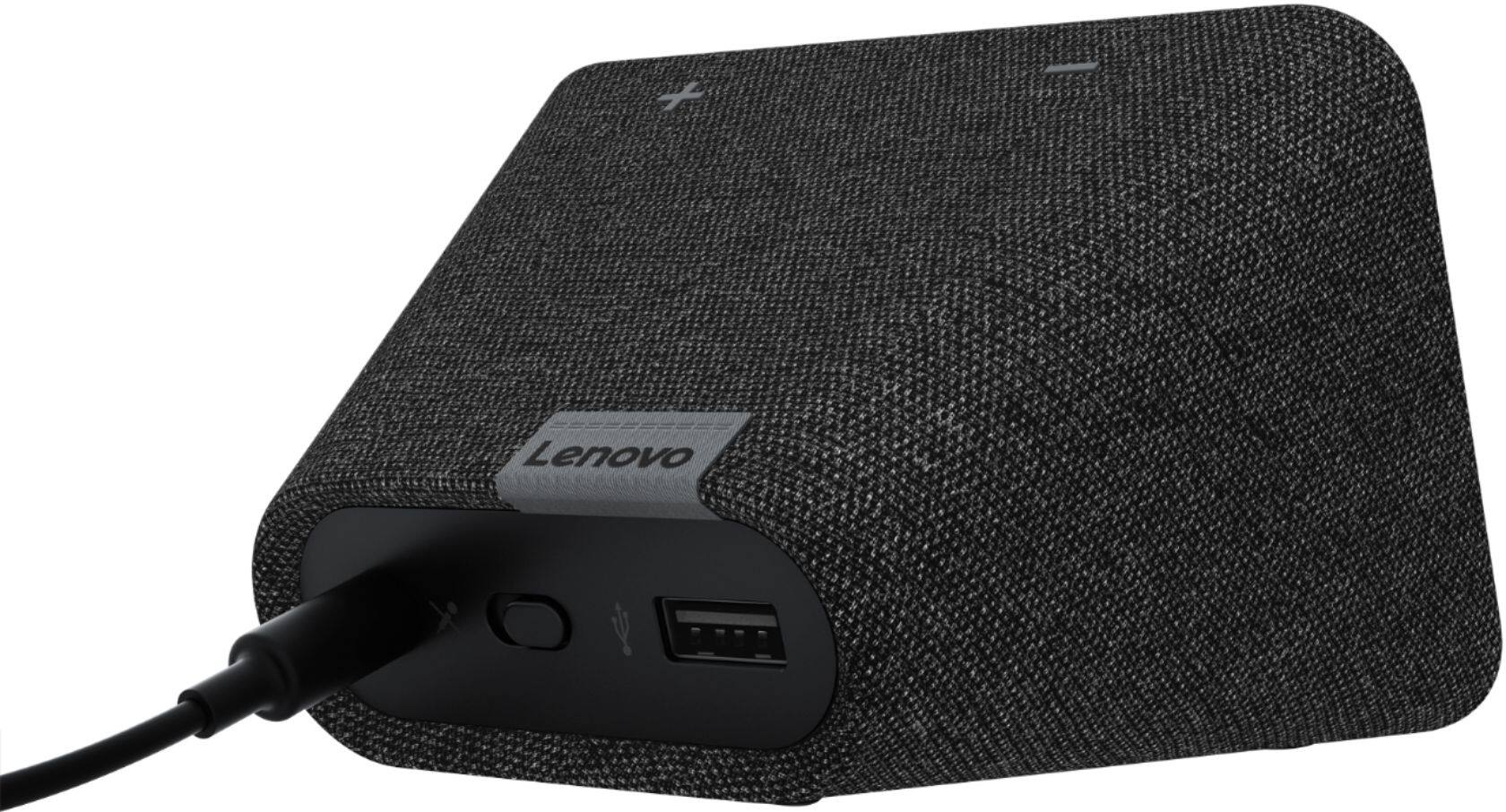
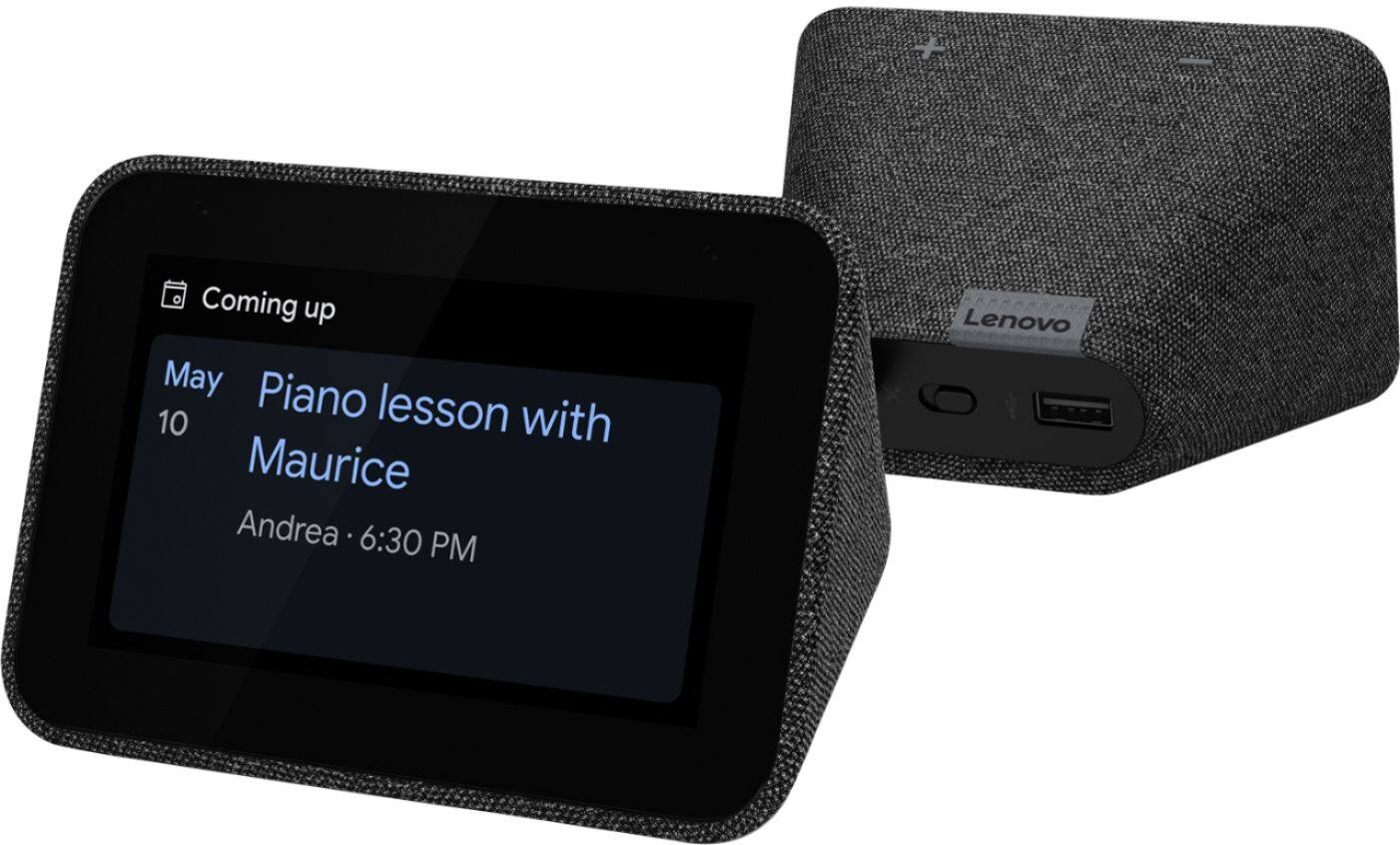
||Posted . Owned for 1 month when reviewed.This reviewer received promo considerations or sweepstakes entry for writing a review.I needed a clock by my bed and I liked the look of it. I don’t have Google home, I have the Alexa so I don’t use it for that. The USB in the back it’s nice to plug my phone in to.
No, I would not recommend this to a friendBrand response from Lenovo Product Expert
Posted .Hi, thanks for choosing the Lenovo Smart Clock with Google Assistant. We are pleased to hear the features like the USB charging port, performance of the alarm, and design of the Lenovo Smart Clock are working out so well for you!
Great smart clock.
||Posted . Owned for 2 months when reviewed.This reviewer received promo considerations or sweepstakes entry for writing a review.This product is great I like it very much and would recommend to any one it's been great I'm enjoying my purchase. If you need it I'd say go and get it. Cool smart clock
I would recommend this to a friendBrand response from Lenovo Product Expert
Posted .Hi, thanks for choosing the Lenovo Smart Clock with Google Assistant. We are pleased to hear the functions, performance, and design of the Lenovo Smart Clock are working out so well for you! We appreciate your recommendation.
Black screen
||Posted . Owned for 3 weeks when reviewed.This reviewer received promo considerations or sweepstakes entry for writing a review.The touch screen is not working after a week from installing it. I searched the web and found out that this is an issues that every customer who has bought one has has the screen not working.
No, I would not recommend this to a friendBrand response from Lenovo Product Expert
Posted .We're sorry to hear you are experiencing issues with your device. We are not aware of an ongoing issue, as you described. I recommend doing a factory reset by long-pressing the volume up and down buttons at the same time until the device reboots. Otherwise, if that does not offer a solution, please contact Lenovo customer support.
Clock
||Posted . Owned for 1 year when reviewed.This reviewer received promo considerations or sweepstakes entry for writing a review.It’s just to replace a boring google chrome Does the same thing as the google but with a digital clock. Speaker could be better but satisfying
I would recommend this to a friendBrand response from Lenovo Product Expert
Posted .Thank you for choosing the Lenovo Smart Clock with Google Assistant. We are pleased to hear that the Smart Clock meets your needs.