Customer Ratings & Reviews
- Model:
- ZA4R0037US
- SKU:
- 6441962
Rating by feature
- Value
Rating 4.5 out of 5 stars
- Quality
Rating 4.6 out of 5 stars
- Ease of Use
Rating 4.5 out of 5 stars
Customers are saying
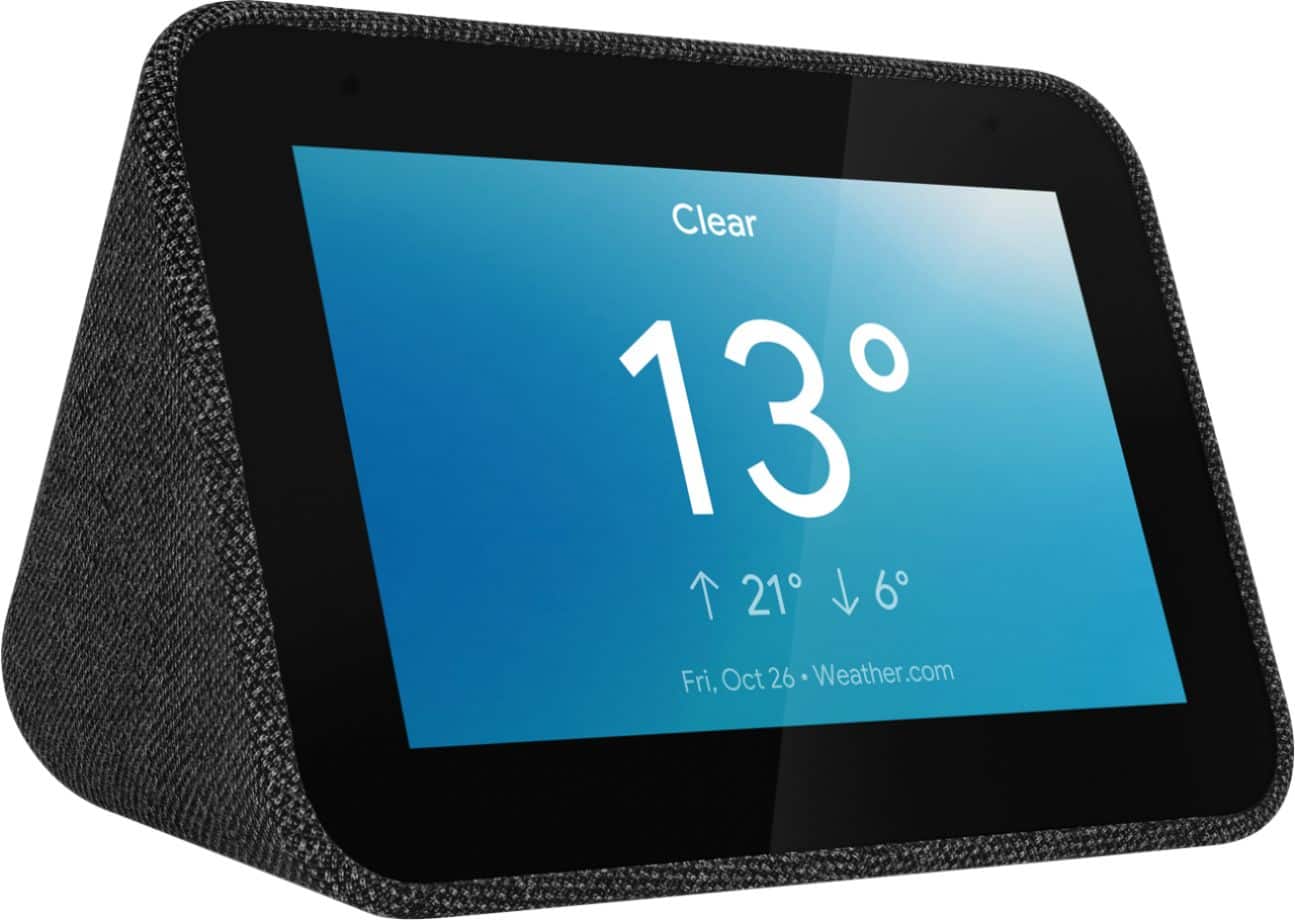
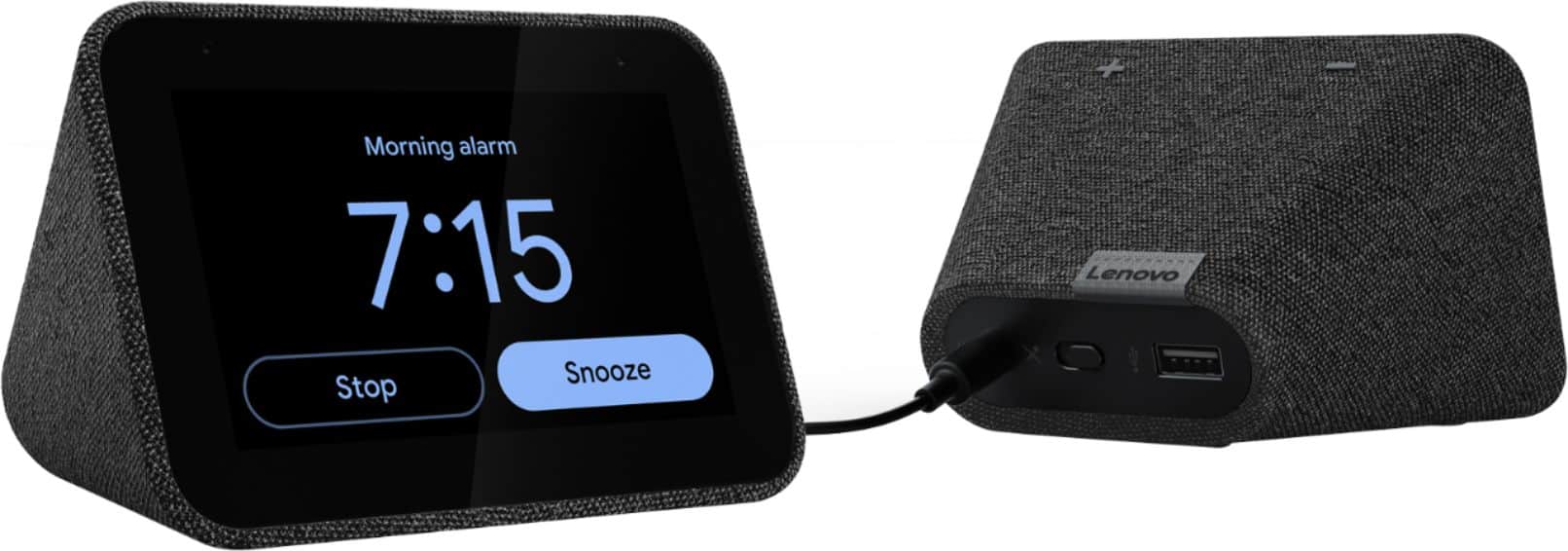
Customers frequently mention the ease of use, sound quality, and alarm features as positive aspects of the Smart Clock with Google Assistant. Many also appreciate the Google Assistant integration, the clock's size, and its display. However, some users reported issues with maintaining a consistent WiFi connection. A lack of battery backup was another recurring negative comment.
This summary was generated by AI based on customer reviews.
wish it was better
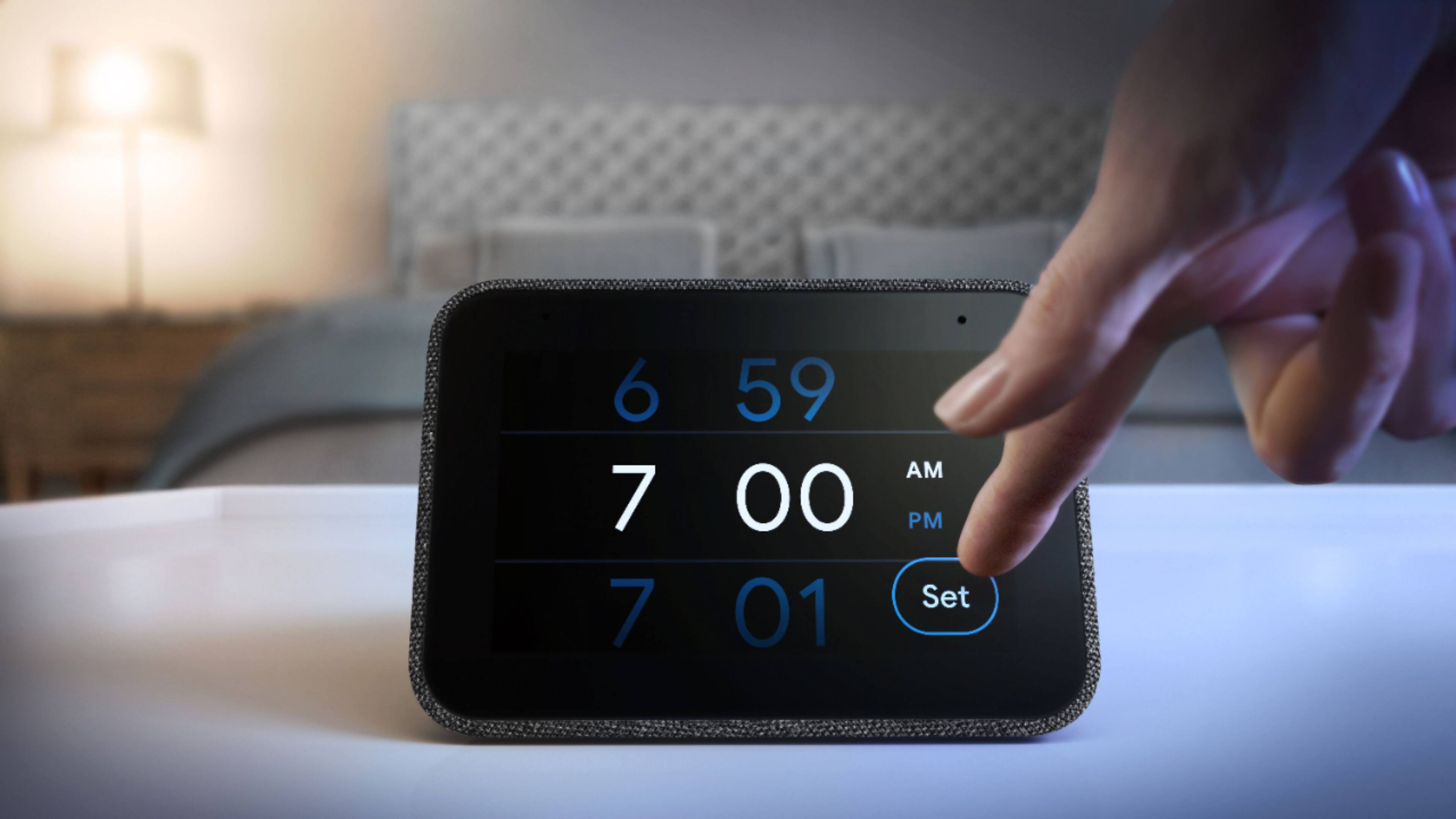
||Posted . Owned for 1 month when reviewed.This reviewer received promo considerations or sweepstakes entry for writing a review.Nice alarm clock replacement but sometimes buggy. Touch screen is super sensitive. It occassionally turns off by itself and needs to be unplugged/replugged back in
No, I would not recommend this to a friendBrand response from Lenovo Product Expert
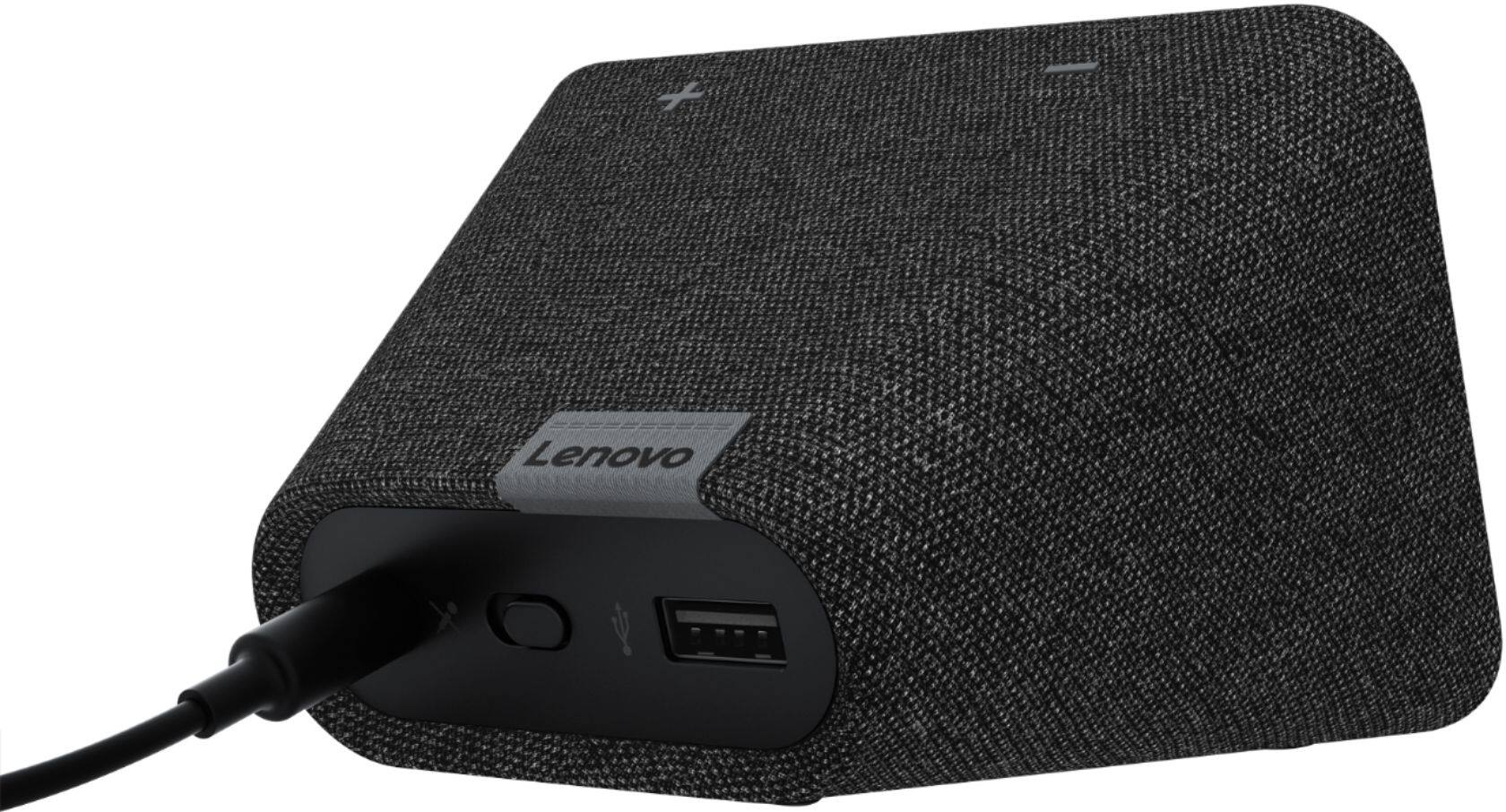
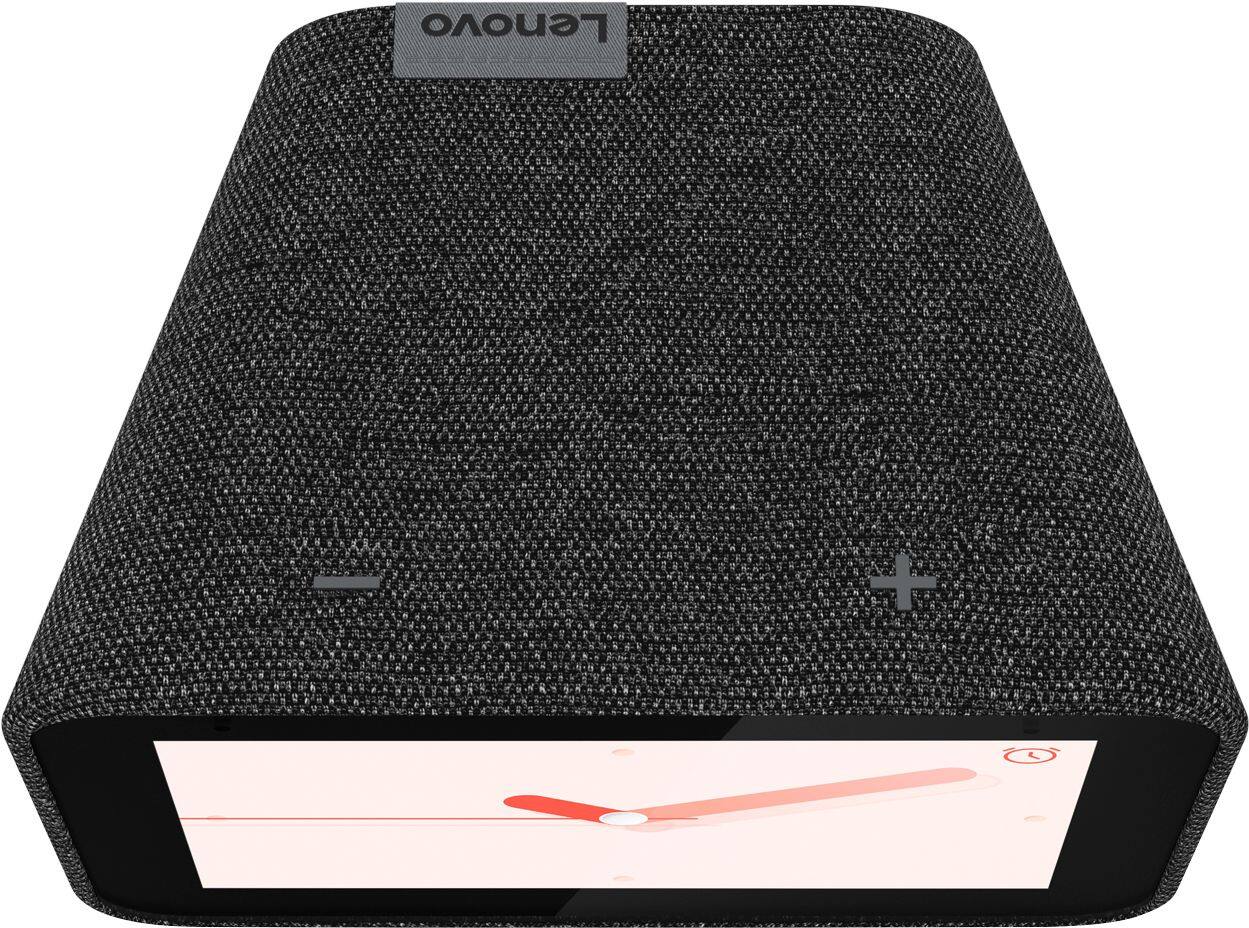
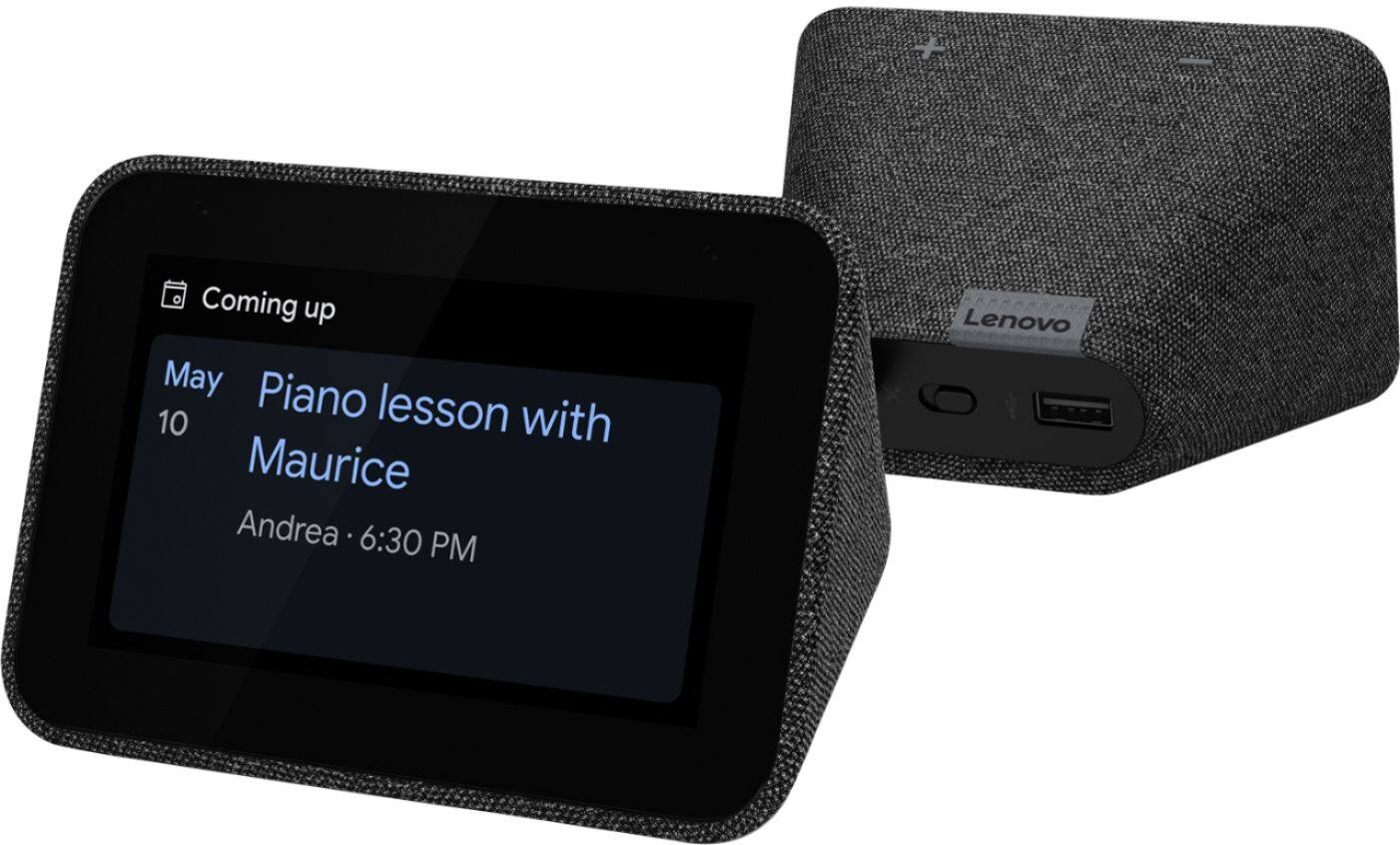
Posted .Hello, we are sorry to hear you are experiencing these issues with your Lenovo Smart Clock with Google Assistant. Your device should not be turning itself off on its own. We recommend to perform a factory reset by holding down the “Volume + and – ” buttons on top of your device for 8 Seconds. If the issue persists, please contact our customer support team at 866-426-0911

Lenovo clock
||Posted . Owned for 7 months when reviewed.This reviewer received promo considerations or sweepstakes entry for writing a review.When watching the ad for this product I thought it would be amazing. I was truly disappointed with the digital capabilities of this clock It can always recognize your voice it's not able to turn the lights on and off It doesn't work seemlessly with blank or Google cameras. I have a lot of glitches with this no live stream no YouTube been playing music can't even show you clipart if you ask it to spell a word does it and displays the word very fast. Truly disappointed in this product
No, I would not recommend this to a friendBrand response from Lenovo Product Expert
Posted .Hello, we are sorry to hear you are experiencing issues with your Assistant on the Lenovo Smart Clock with Google Assistant. YouTube and Videos is not Supported on the Le. novo Smart Clock. These features are supported on the Lenovo Smart Displays like the 7". The Lenovo Smart Clock with the Google Assistant works easily and seamlessly with over 10,000 smart home devices, across more than 1,000 different brands. Here is a short video with some helpful tips and tricks to get the most out of your Assistant. https://www.youtube.com/watch?v=mCnHBXn5aEw
Alternatively the following website has a list of useful commands. https://www.androidauthority.com/google-assistant-commands-727911/
If your device isn't functioning in this manner we recommend performing a factory reset by holding down the “Volume + and – ” buttons on top of your device for 8 Seconds. If the issue persists, please contact our customer support team at 866-426-0911
Too bright at night
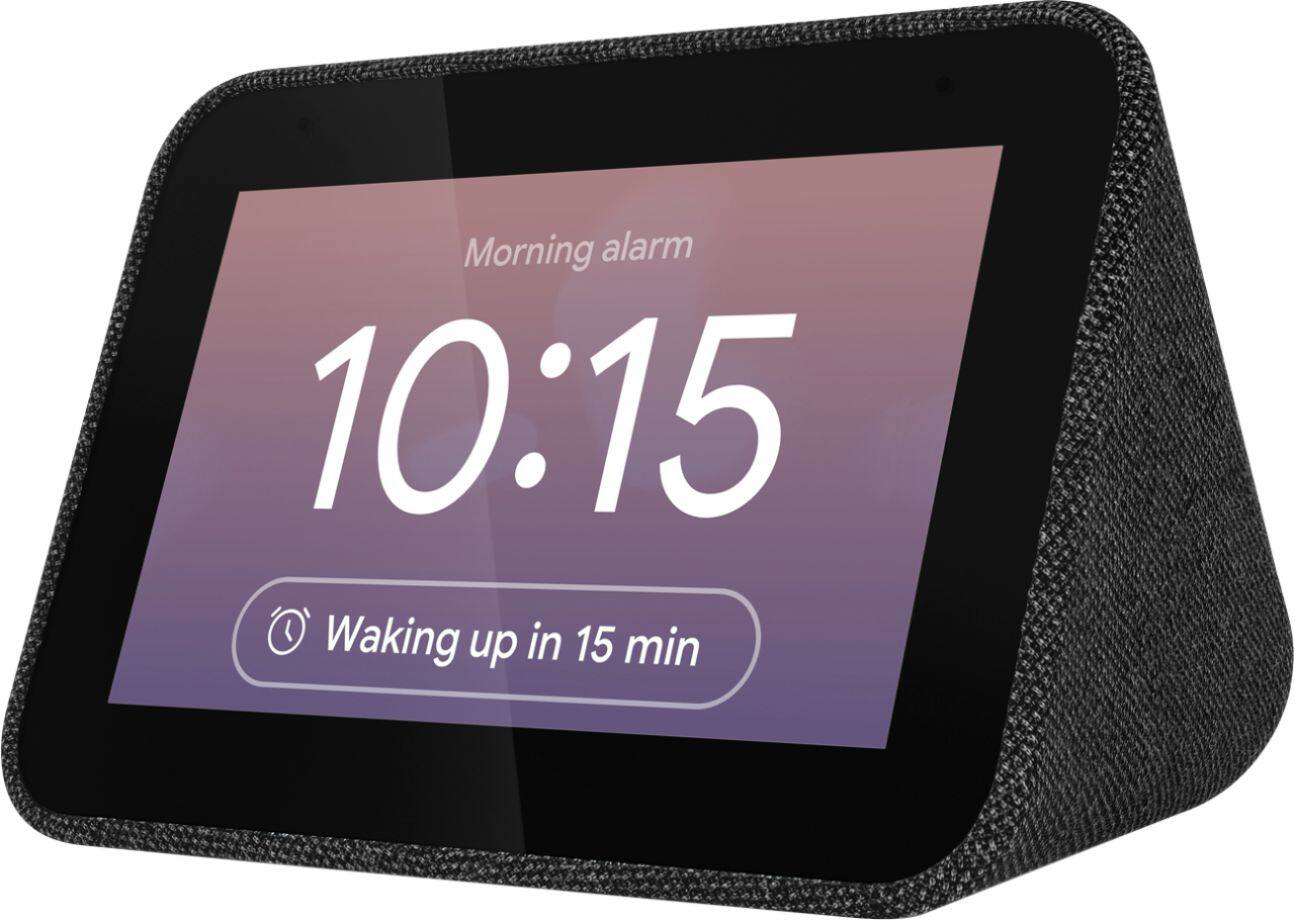
||Posted . Owned for 5 months when reviewed.This reviewer received promo considerations or sweepstakes entry for writing a review.It works as a bedside alarm clock that also shows the weather and has google voice assistant. The only downside is that it doesn’t get dim enough at night.
I would recommend this to a friendBrand response from Lenovo Product Expert
Posted .Hi, thanks for choosing the Lenovo Smart Clock with Google Assistant. there are multiple ways to adjust the brightness of the Display. If you Swipe up from the bottom of the home screen you can select the little circle with the "a" in the middle to toggle "Auto Dim" off/on. This will allow the smart clock to utilize the ambient light sensor to adjust your screen brightness to the lighting in the room. You can take it a step further by adjusting the min/max brightness of the auto dim feature, and even telling the screen to turn completely off at night by selecting the "Display Settings" of the clock. To access Display Settings swipe up from the bottom of the home screen and select the gear or "Settings" icon. Then select "Display Settings"
No battery backup. Mixed review
||Posted . Owned for 1 month when reviewed.This reviewer received promo considerations or sweepstakes entry for writing a review.Never saw such secretive packaging with little info and short instructions. Not a tech and positives/negatives are equal. Would not recommend for older folks like me
No, I would not recommend this to a friendBrand response from Lenovo Product Expert
Posted .Hi, thanks for choosing the Lenovo Smart Clock with Google Assistant. We appreciate your feedback as we are constantly looking for ways to improve our smart devices! Please check out this short video for useful Google Assistant commands you can use with your Lenovo Smart Display or Clock! https://www.youtube.com/watch?v=mCnHBXn5aEw
Alternatively the following website has a list of useful commands. https://www.androidauthority.com/google-assistant-commands-727911/
I looked at him bigger
||Posted . Owned for 6 months when reviewed.This reviewer received promo considerations or sweepstakes entry for writing a review.I should have checked the dimensions, it is very small but useful, I could change the interface to large numbers so that I could see them when I was half asleep
No, I would not recommend this to a friendBrand response from Lenovo Product Expert
Posted .Hi Eduardo, thanks for choosing the Lenovo Smart Clock with Google Assistant. We are pleased to hear the functions like adjustable clock faces, performance, and user friendly design of the Lenovo Smart Clock are working out so well for you! We appreciate your feedback as we are always working to improve our smart devices.
- Cons mentioned:Wifi connectivity
Horrible product
||Posted . Owned for 8 months when reviewed.This reviewer received promo considerations or sweepstakes entry for writing a review.It never worked from the get go. I did every trouble shooting trick that was suggested and still didn't work. It would disconnect itself like every hour. Lenovo customer service poor. I finally returned and exchanged for a mini Google. I would NOT recommend.
No, I would not recommend this to a friendBrand response from Lenovo Product Expert
Posted .Hello. We are sorry to hear you experienced this issue with your Lenovo Smart Clock with Google Assistant. There are a number of different things that could have caused this issue for you. We always recommend you connect the Smart Clock to 2.4GHz signal band of your router not the 5.GHZ signal band. Also it is rare, but in some instances it may be a compatibility issue with your router. Some routers do not let you distinguish between connecting to 2.4GHZ or 5.GHZ. Similarly if you have a "Mesh Network" setup in your home this can combine the 2.4GHZ and 5GHZ signal bands making it difficult for your smart device to stay connected.
Good Clock
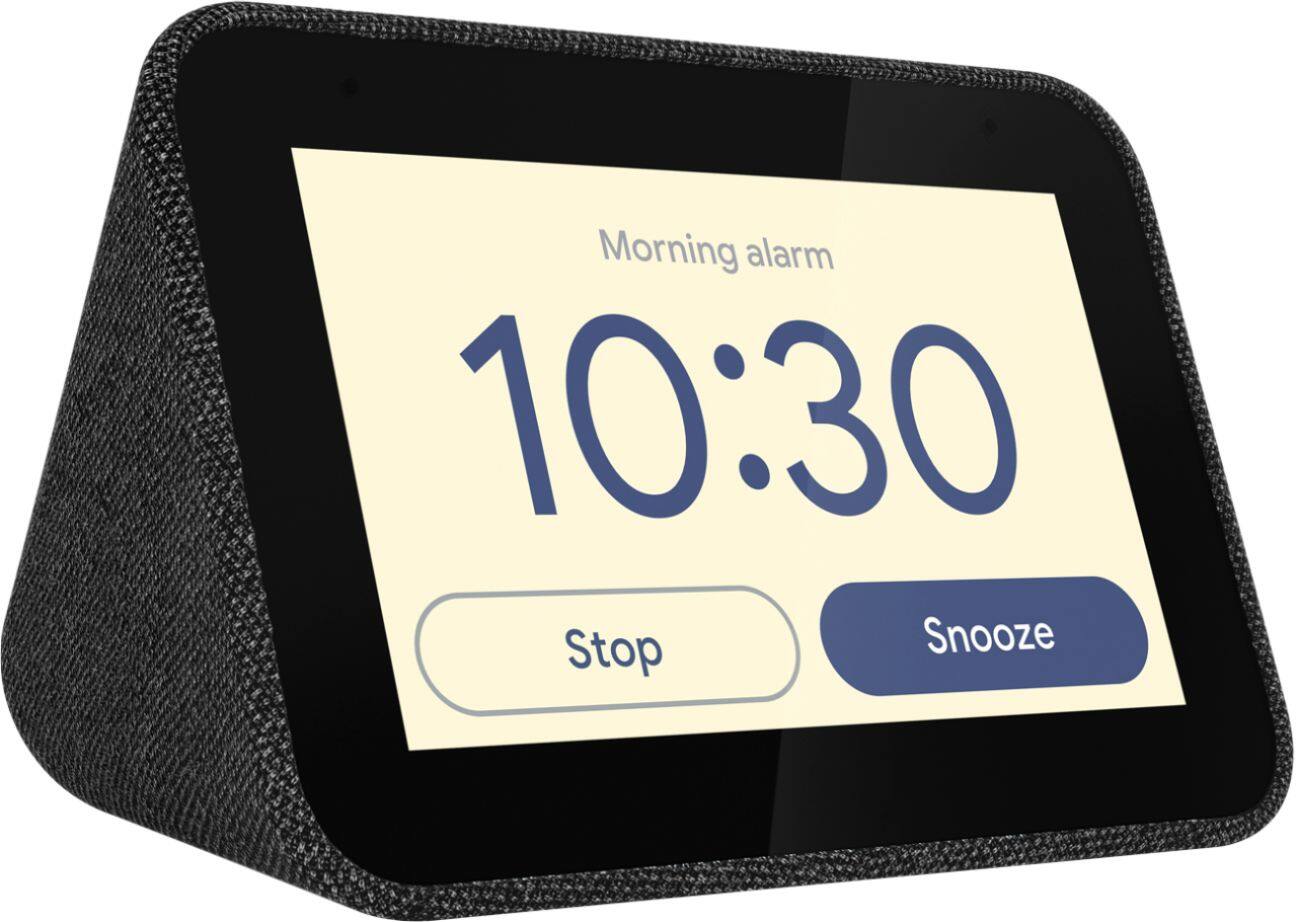
||Posted . Owned for 1 month when reviewed.This reviewer received promo considerations or sweepstakes entry for writing a review.It's a pretty good clock. Only issues I can think of is that it is kind of hard to turn off the alarm sometimes. That and it runs hot a lot.
I would recommend this to a friendBrand response from Lenovo Product Expert
Posted .The Lenovo Smart Clock with Google Assistant should not feel hot to the touch. If your Smart Clock feels hot to the touch, we recommend you unplug the Smart Clock and contact Lenovo Tech Support for Smart Devices for additional help at: 866-426-0911.
Can't connect to a headphone or external speaker
||Posted . Owned for less than 1 week when reviewed.This reviewer received promo considerations or sweepstakes entry for writing a review.Really Lenovo? No Bluetooth output? This is a device that you play music, so you would think that you can use a good quality bluetooth speaker or your bluetooth headphone to listen. However it can't connect to an external buetooth speaker or headphone - so you are stuck with the low-quality speaker in the device. Yes, it has bluetooth but it can only be used as an output device - so if you want to stream your phone's audio to the smart clock using Bluetooth you can - but who would?? - knowing that the device's speaker is not the great? I can't really understand this design decision - all Google Nest smart displays, and even a echo $18.00 smart speaker can connect to another bluetooth device to be used as output. I am returning it
No, I would not recommend this to a friendBrand response from Lenovo Product Expert
Posted .Hello, we are sorry to hear you had this experience with the Lenovo Smart Clock with Google Assistant. Currently the Lenovo Smart Clock only accepts incoming Bluetooth connections. For audio out The Smart Cock can be linked with or Cast audio wirelessly to cast enabled speakers over your homes WIFI connection.
Smart Clock
||Posted . Owned for 1 month when reviewed.This reviewer received promo considerations or sweepstakes entry for writing a review.Works fine as a small desk clock, but the sound isn't great. Was hoping for a nest mini type of sound. Also not as voice-responsive as a nest mini.
No, I would not recommend this to a friendBrand response from Lenovo Product Expert
Posted .Hi there, Thanks for choosing the Lenovo Smart Clock with Google Assistant. We are sorry to hear you are experiencing this issue with the mic/assistant. Please ensure you have removed the plastic film that is on the screen to protect the unit during shipping. If the issue persists, it is possible setting up voice match and raising the "okay google" sensitivity will help with this. to setup voice match please open the Google Home app.
At the top right, tap your account.
Verify that the Google Account shown is the one linked to your speaker or display. To switch accounts, tap another account or Add another account.
Tap Assistant settings Voice Match Add devices.
Make sure any devices you want to link your voice to are checked.
Tap Next I agree.
Follow the in-app steps.
To adjust the sensitivity of the mic please open the Google Home app .
At the bottom, tap Home .
Select your speaker or Smart Display.
At the top right, tap Device settings. ...
Choose how sensitive you want Google Assistant to be when it responds to you. If you need further assistance please don't hesitate to reach out to Lenovo Tech Support at 866-426-0911
Only if its free
||Posted . Owned for 1 month when reviewed.This reviewer received promo considerations or sweepstakes entry for writing a review.It's ok, I wouldn't have bought the device. It came free in a bundle. My wife has it on her desk for the scrolling google photos feature.
I would recommend this to a friendBrand response from Lenovo Product Expert
Posted .Hello, thanks for choosing the Lenovo Smart Clock with Google Assistant. For some useful tips and tricks to help you get the most out of your assistant please check out this short video https://www.youtube.com/watch?v=mCnHBXn5aEw
Alternatively the following website has a list of useful commands. https://www.androidauthority.com/google-assistant-commands-727911/
Great for 1 yr
||Posted . Owned for 1 year when reviewed.This reviewer received promo considerations or sweepstakes entry for writing a review.Worked great up until we had it for 1 year. Then it just died out of nowhere. Loving having this unit. Guess I'll be purchasing a new one.
I would recommend this to a friendBrand response from Lenovo Product Expert
Posted .Hello, we are sorry to hear you are experiencing this issue with your Lenovo Smart Clock with Google Assistant model ZA4R. It is possible that a replacement adapter part SA18C27239 is needed. You may get in contact with Lenovo Support directly by calling 866-426-0911.
Nice Clock with hey google features
||Posted . Owned for 3 weeks when reviewed.This reviewer received promo considerations or sweepstakes entry for writing a review.Nice small Device with bright clock display. Hey google features seem limited Similar to amazon show 5. Between the two I prefer the amazon show.
No, I would not recommend this to a friendBrand response from Lenovo Product Expert
Posted .Hi there! Thanks for choosing the Lenovo Smart Clock with Google Assistant. We are pleased to hear the size and brightness of the device have been working well for you. In regards to assistant functionality we encourage you to check out this short video on Tips and Tricks for using the Google Assistant on your device. https://smartsupport.lenovo.com/us/en/products/smart/smart-home/smart-clock/za4r/videos/VID500113
I refuse to talk to inanimate objects
||Posted . Owned for less than 1 week when reviewed.This reviewer received promo considerations or sweepstakes entry for writing a review.I really wanted to love this clock. It looks great, the speaker is loud enough. Most importantly the microphone can be switched hard off by physical toggle. Unfortunately the touch screen response seems sluggish and unless you are willing to talk to inanimate objects the “smart” function is very limited. I’m no Luddite, but I refuse to have conversations with corporate ai. If you like google assistant this would prolly be a 4 star review.
No, I would not recommend this to a friendClock
||Posted . Owned for 1 month when reviewed.This reviewer received promo considerations or sweepstakes entry for writing a review.This is not as user friendly as Alexa- I will keep it and put in kids room but I had to get another echo dot- I do like the clock feature
No, I would not recommend this to a friendBrand response from Lenovo Product Expert
Posted .Hi, thanks for choosing the Lenovo Smart Clock with Google Assistant. We are sorry to hear you are having difficulties with the device. For some useful tips and trick to help you get the most out of your assistant please check out this short video https://www.youtube.com/watch?v=mCnHBXn5aEw
Alternatively the following website has a list of useful commands. https://www.androidauthority.com/google-assistant-commands-727911/
Not worth the Price
||Posted . Owned for 10 months when reviewed.This reviewer received promo considerations or sweepstakes entry for writing a review.We ended up returning this clock because, for the price, we expected it to be a lot more interactive and "smart"...but they didn't do much at all.
I would recommend this to a friendBrand response from Lenovo Product Expert
Posted .Hello, we are sorry to hear you had this experience. The Lenovo Smart Clock with the Google Assistant does more than just tell you the time and wake you up. Designed to reduce smartphone screen-time at night, it can help you unwind and sleep better. It can also run your smart home, play your favorite music across your home, manage your schedule, and much more. All hands-free, quickly, and easily. Just say “Hey Google” to get started.
Worth buying the Google version
||Posted . Owned for 7 months when reviewed.This reviewer received promo considerations or sweepstakes entry for writing a review.Great Idea... however this thing thing talks all the time by itself!! None of my other Google home devices around the house act like this.
No, I would not recommend this to a friendBrand response from Lenovo Product Expert
Posted .We are sorry to hear you are experiencing this issue with your Lenovo Smart Clock. Please perform a factory reset by holding down the “Volume + and – ” buttons on top of your device for 8 Seconds. If the issue persists, please contact our customer support team at 866-426-0911
Alarm stopped, turns off by itself, talks randomly
||Posted . Owned for 11 months when reviewed.This reviewer received promo considerations or sweepstakes entry for writing a review.Loved this clock at first. The reviews about poor connectivity are true. Additionally it started turning off by itself and then the alarm would never go off (luckily it was my back up behind my phone alarm and my dogs desire to get up for breakfast). Finally it started randomly talking and waking me up at all hours or freaking me out when I was in another room. Maybe worked good for 6 months? Not worth it. Really made me miss the old radio clock I traded in because it couldn’t keep accurate time, at least the alarm worked and it didn’t talk to me.
No, I would not recommend this to a friendBrand response from Lenovo Product Expert
Posted .Hi Heather, we are sorry to hear you are experiencing this issue with your Lenovo Smart Clock. Your device shouldn't be behaving in this manner. Please perform a factory reset by holding down the “Volume + and – ” buttons on top of your device for 8 Seconds. If the issue persists, please contact our customer support team at 866-426-0911
needs functions fixed
||Posted . Owned for 1 month when reviewed.This reviewer received promo considerations or sweepstakes entry for writing a review.I bought this for my wife when she said we needed a new alarm clock. We have other Google Home devices and added this to our devices. One of the useful features is the broadcast making work like an intercom. The Lenovo can send broadcast messages but does not receive. Reading message online it appears this is a growing known issue that Lenovo and Google blame each other. If they fix this with a firmware update I will increase my rating.
No, I would not recommend this to a friendBrand response from Lenovo Product Expert
Posted .Hello, your Lenovo Smart Clock with Google Assistant should send and receive broadcast messages from any google assistant device on your network. If your device isn't functioning in this manner please try the following. Please perform a factory reset by holding down the “Volume + and – ” buttons on top of your device for 8 Seconds. If the issue persists, please contact our customer support team at 866-426-0911
Not for me
||Posted . Owned for 2 months when reviewed.This reviewer received promo considerations or sweepstakes entry for writing a review.Maybe I was expecting too much out of this. It works fine, I just was thinking it was something different.
No, I would not recommend this to a friendBrand response from Lenovo Product Expert
Posted .We are sorry to hear that the Lenovo Smart Clock with Google Assistant does not meet your needs. Here is a link to a YouTube video that demonstrates the features and functions of the Smart Clock: https://www.youtube.com/watch?v=PpidA-n6fLM&t=32s
Does not work correctly with Google Assistant.
||Posted . Owned for 3 weeks when reviewed.This reviewer received promo considerations or sweepstakes entry for writing a review.The Lenovo fork of Android is behind the newest versions, hasn't updated the APKs for a lot of Google utilities, and doesn't integrate well with your other Google Home devices. Every Google Home device in my house has no problem with, "OK Google, play my Afternoon Mix playlist on YouTube Music." I say it, they play it. The Lenovo Smart Clock responds with, "Sure, try this Afternoon Music station" and starts playing whatever it wants. One time I tried to play my relaxing music for bedtime playlist and it gave me hardcore, explicit rap. I tried to contact Lenovo support. All they did was blame Google. Seriously, their response was, "You should contact YouTube Music support." What a joke. You cannot stream videos from YouTube. This is one of those purchases I regret. I would have been happier with another Google Home...even a Google Home Mini.
No, I would not recommend this to a friendBrand response from Lenovo Product Expert
Posted .We are sorry to hear that you are having issues with your Lenovo Smart Clock with Google Assistant. Here is a link to using YouTube Music with Google Home devices like the Smart Clock: https://support.google.com/youtubemusic/answer/9231765?co=GENIE.Platform%3DAndroid&hl=en. The Smart Clock can not stream YouTube videos to its screen. If you continue to have issues, we recommend you contact Lenovo Tech Support for Smart Devices at: 866-426-0911.