Customer Ratings & Reviews
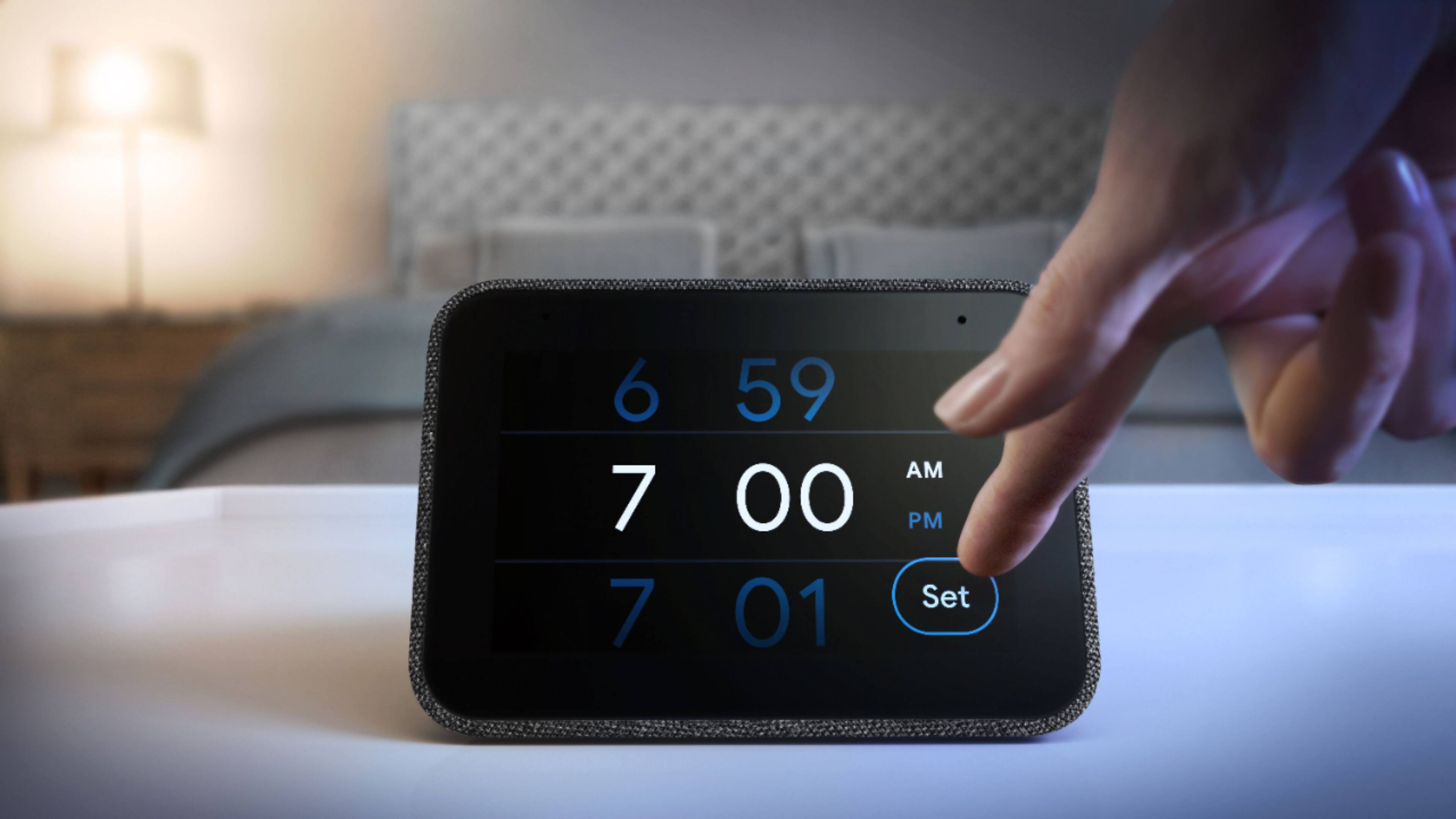
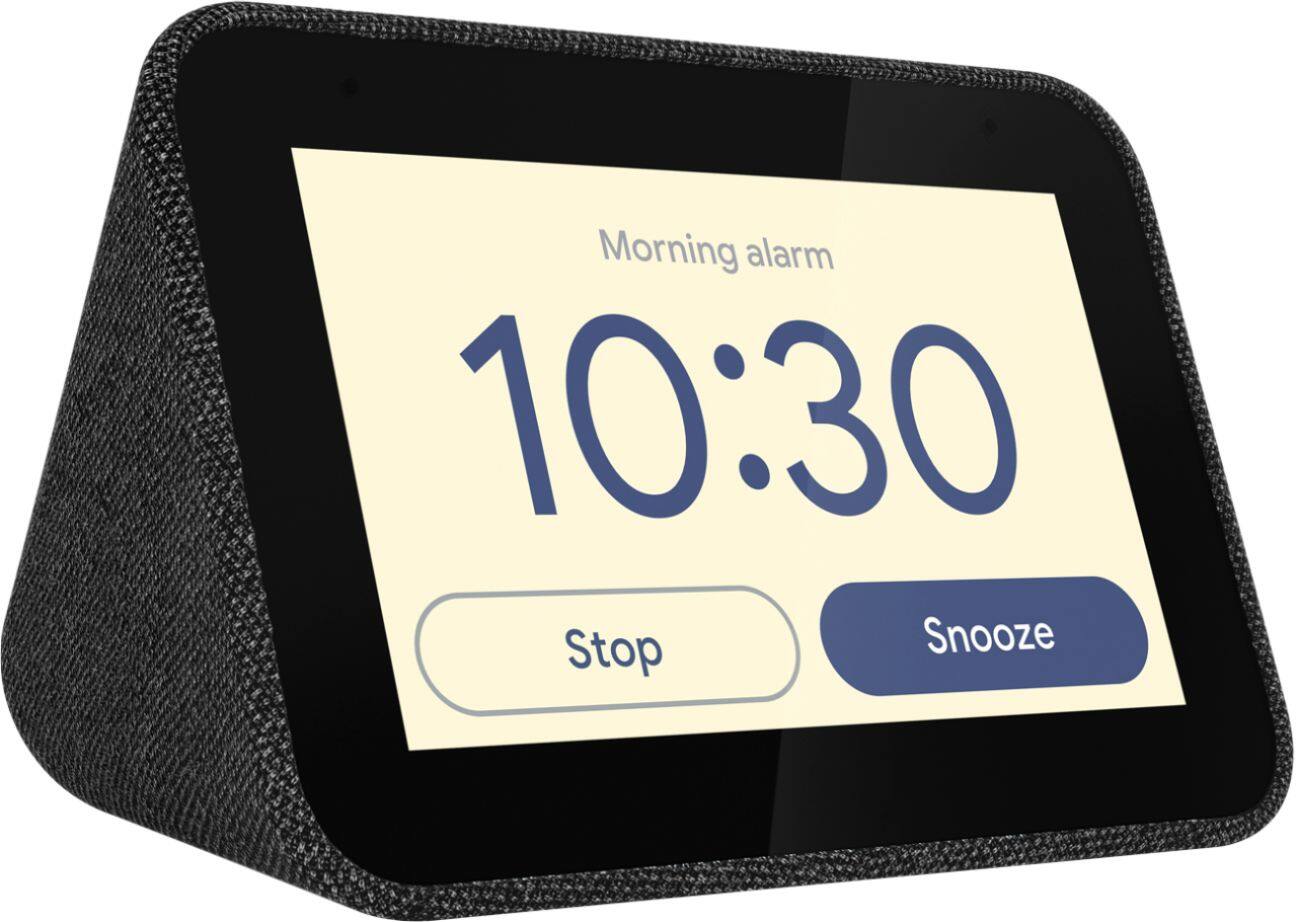
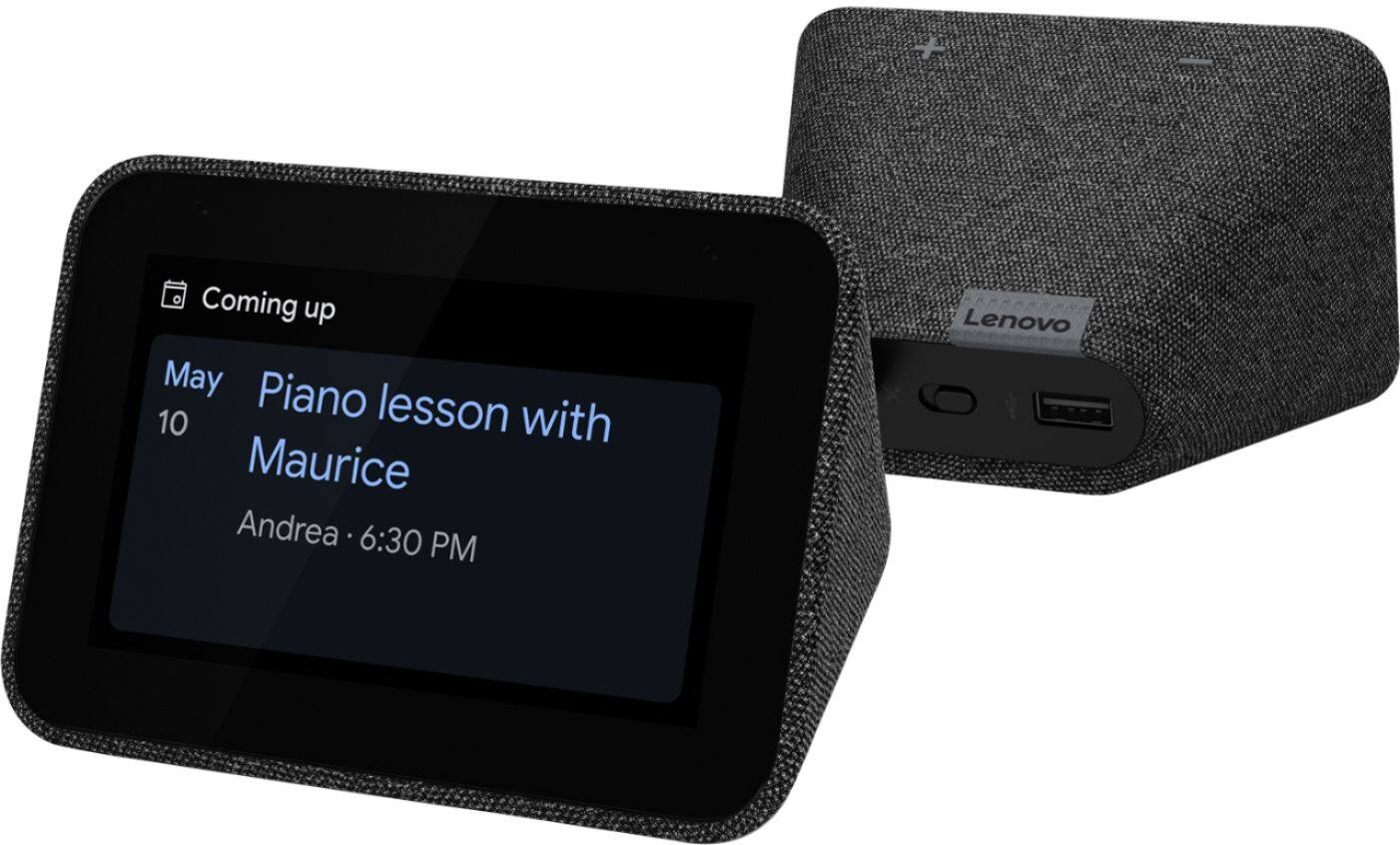
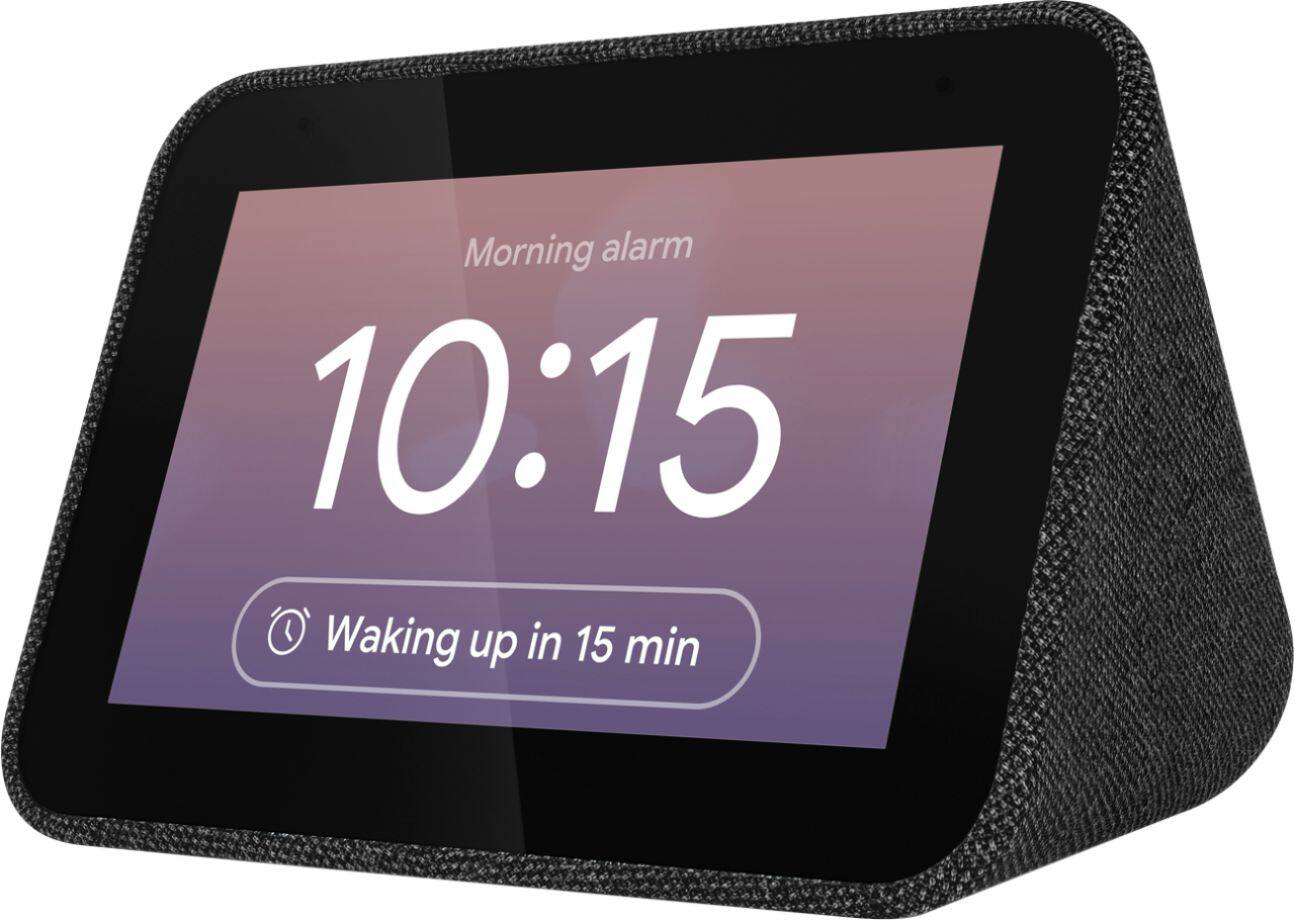
- Model:
- ZA4R0037US
- SKU:
- 6441962
Rating by feature
- Value
Rating 4.5 out of 5 stars
- Quality
Rating 4.6 out of 5 stars
- Ease of Use
Rating 4.5 out of 5 stars
Customers are saying
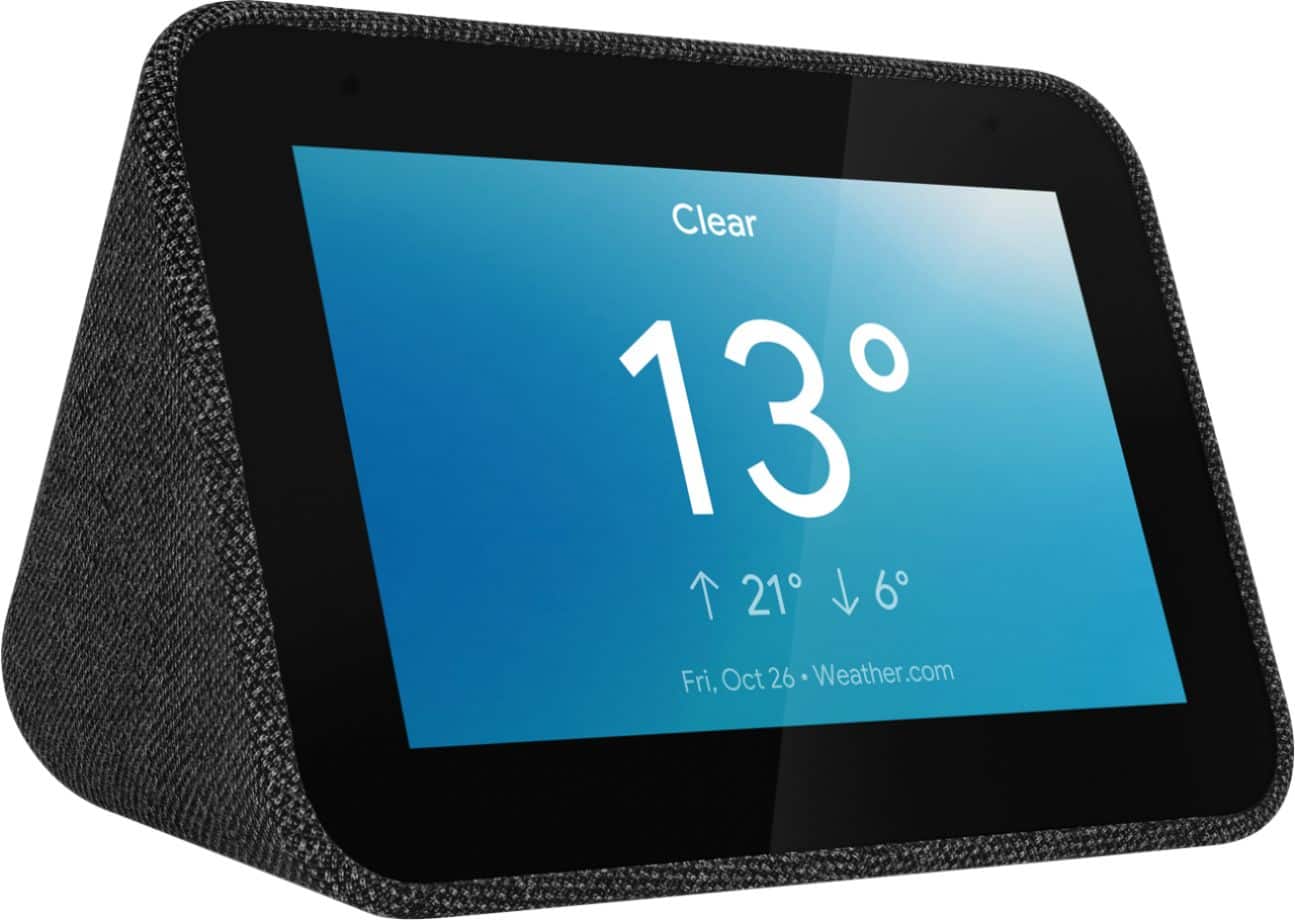
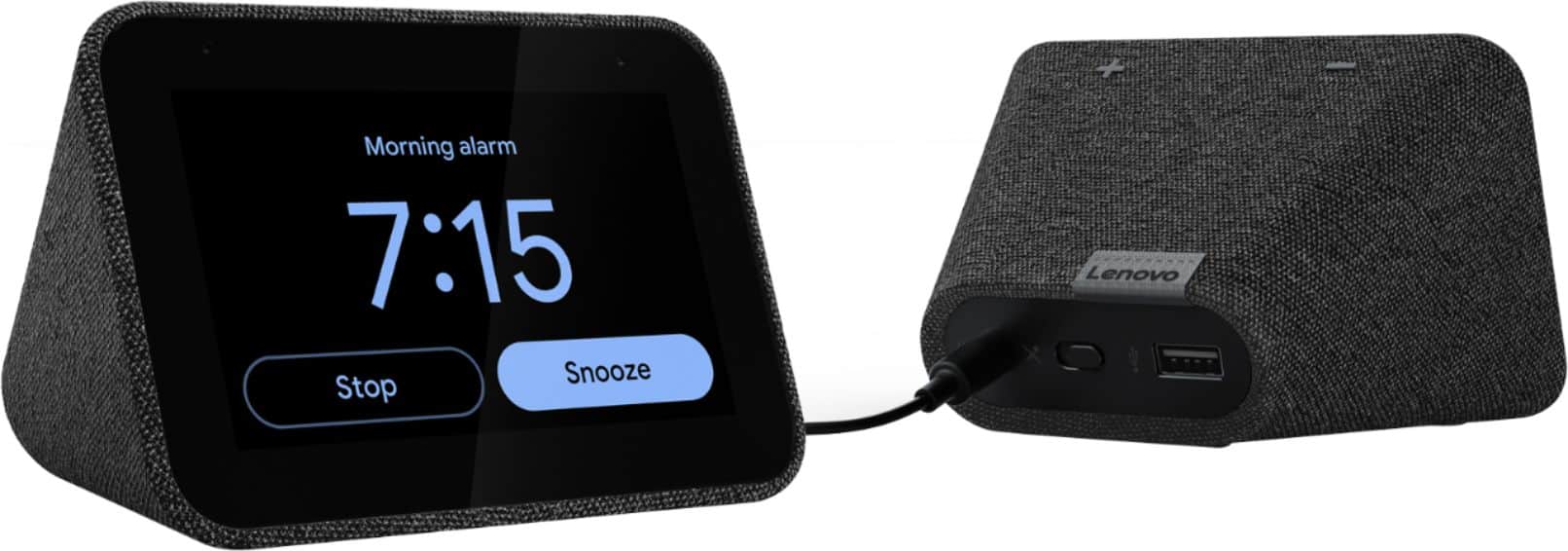
Customers frequently mention the ease of use, sound quality, and alarm features as positive aspects of the Smart Clock with Google Assistant. Many also appreciate the Google Assistant integration, the clock's size, and its display. However, some users reported issues with maintaining a consistent WiFi connection. A lack of battery backup was another recurring negative comment.
This summary was generated by AI based on customer reviews.
- Cons mentioned:Wifi connectivity
Won’t connect
||Posted . Owned for less than 1 week when reviewed.This reviewer received promo considerations or sweepstakes entry for writing a review.Tried to connect to WiFi but it just wouldn’t connect ! Did everything in help section - rebooted WiFi - rebooted clock Changed location - made sure right WiFi ghz ! Connected once for a moment but didn’t last just kept saying cannot connect to WiFi ! Gave up and returned next day
No, I would not recommend this to a friendBrand response from Lenovo Product Expert
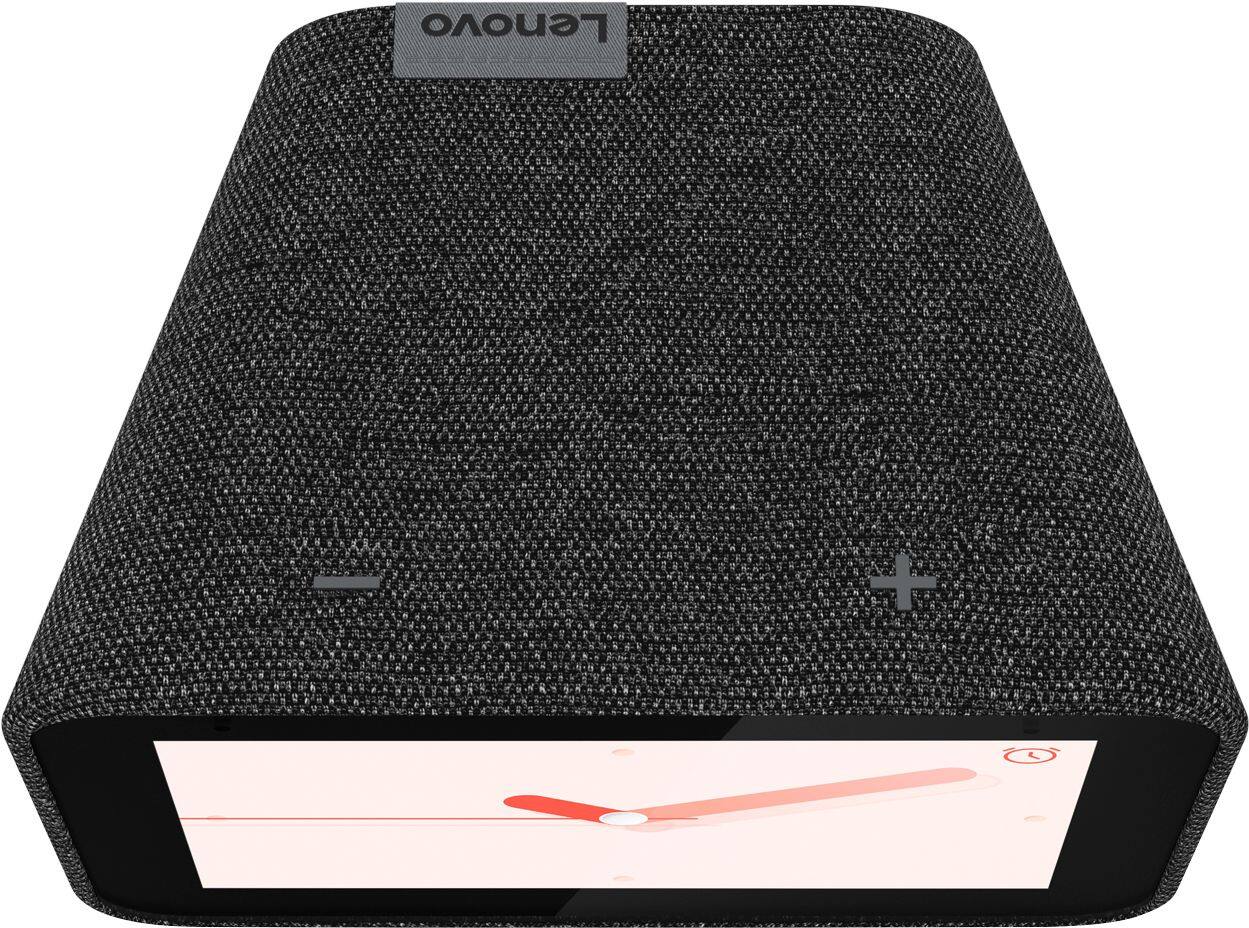
Posted .Hi Swami, we are sorry to hear you experienced issues connecting your Lenovo Smart Clock with Google Assistant to your WiFi network. To setup your smart clock first download the Google Home app on your mobile device. From there you can choose to setup your Lenovo Smart Clock device. If you are still experiencing this issue please factory reset the device by holding down the “volume + and volume - ” buttons on your clock for 8 seconds. If the issue persists after this please get in touch with our customer support team at support.lenovo.com

Think twice
||Posted . Owned for 1 year when reviewed.This reviewer received promo considerations or sweepstakes entry for writing a review.Had this is awhile now. I like to make sure of my opinion. Not happy with this purchase. Alarm goes off whenever Google feels lonely. Morning, afternoon, dinnertime, whenever....EXCEPT when I actually set the alarm. Unplugged and now used as a modern paperweight. On the positive, it is a good clock if you have no other expectations.
No, I would not recommend this to a frienda clock
||Posted .This reviewer received promo considerations or sweepstakes entry for writing a review.Seems to lose some options when i took away my google home mini. Maybe I missed a step but with it, everything seemed fine.
No, I would not recommend this to a friendBrand response from Lenovo Product Expert
Posted .Hi, thanks for choosing the Lenovo Smart Clock with Google Assistant. For some useful tips and trick to help you get the most out of your assistant please check out this short video https://www.youtube.com/watch?v=mCnHBXn5aEw
Alternatively the following website has a list of useful commands. https://www.androidauthority.com/google-assistant-commands-727911/
If your device isn't functioning as intended we recommend performing a reset. To do this please power cycle the device by unplugging it for 1-2 minutes. Plugging it back in and allowing it to power on. If the issue remains please perform a factory reset by holding down the “Volume + and – ” buttons on top of your device for 8 Seconds. If the issue persists, please contact our customer support team at 866-426-0911
Mixed opinions, a bit much for me, returned
||Posted . Owned for 11 months when reviewed.This reviewer received promo considerations or sweepstakes entry for writing a review.Nice addition, but kind of tacky. Its just a Nest with a low res screen, not very good speaker and bright screen in the dark.
No, I would not recommend this to a friendBrand response from Lenovo Product Expert
Posted .Hi there, we are sorry to hear you had this experience with the Lenovo Smart Clock with Google Assistant. You can adjust how much the display dims in low light or tell it to turn off completely. To do this please swipe up on the screen of your Lenovo Smart Clock. Then select the "settings" gear shaped icon on the right. Last select "Display Settings" You can now further adjust the brightness of the screen to your preference. The Lenovo Smart Clock with Google Assistant pairs seamlessly with any cast enabled speakers you may have for full room or multi-room synchronized audio =)
Good but there are better options
||Posted . Owned for 1 week when reviewed.This reviewer received promo considerations or sweepstakes entry for writing a review.I've used other smart speakers in the past and this isn't that bad but it definitely has room for improvement on the software.
No, I would not recommend this to a friendBrand response from Lenovo Product Expert
Posted .Hi, thanks for choosing the Lenovo Smart Clock with Google Assistant. For tips and tricks with getting the most out of your assistant we recommend checking out this short video https://www.youtube.com/watch?v=mCnHBXn5aEw. If you need additional assistance please don't hesitate to reach out to Lenovo Tech Support at 866-426-0911.
Good but keeps crashing
||Posted . Owned for 2 weeks when reviewed.This reviewer received promo considerations or sweepstakes entry for writing a review.Minimalist design. Everything ok except when it started crashing and restarting it's becoming unreliable.
No, I would not recommend this to a friendBrand response from Lenovo Product Expert
Posted .We are sorry to hear that you are having issues with your Lenovo Smart Clock with Google Assistant. First, try a restart of your Smart Clock: 1. Unplug your device then wait 10 seconds. 2. Plug it back in. If the issues continue, now reset the Smart Clock back to original factory settings: 1. With the device powered on, press down both the volume+ / volume- button for 10 seconds. 2. Follow the on-screen instructions to set up your device. If you continue to have issues with your Smart Clock, we recommend you contact Lenovo Tech Support for Smart Devices at: 866-426-0911.
Loud
||Posted .This reviewer received promo considerations or sweepstakes entry for writing a review.Too loud. Wakes up the whole house. The alarm escalates and there doesn't seem to be a way to make it just be one volume.
No, I would not recommend this to a friendBrand response from Lenovo Product Expert
Posted .Hi there! Thank you for choosing the Lenovo Smart Clock with Google Assistant. You can adjust the maximum volume of the alarm by opening the Smart Clock's setting from within the Google Home App and selecting "Alarm Volume and Settings". You can also achieve this from the Smart Clock's touch screen by swiping down------->Alarms------->Alarm settings-------> Alarm Volume
it started out good
||Posted . Owned for 1 month when reviewed.This reviewer received promo considerations or sweepstakes entry for writing a review.Was good until Google came out with apple music working with their products. Lenovo refused to follow so I returned it.
No, I would not recommend this to a friendBrand response from Lenovo Product Expert
Posted .Hi, thanks for choosing the Lenovo Smart Clock with Google Assistant. At this time the Lenovo Smart Clock is not compatible with Apple Music. It is compatible with many other popular streaming services like Spotify, Pandora, YouTube Music, Sirius Xm, and more. We do appreciate your feedback as we are always looking for ways to improve our Smart Devices. If you need further assistance please don't hesitate to reach out to Lenovo Tech Support at 866-426-0911
Doesn't want to stay connected to internet
||Posted . Owned for 1 year when reviewed.This reviewer received promo considerations or sweepstakes entry for writing a review.Doesn't always connect to internet. When trying to talk also, it really does not listen as well as a Google home speaker.
I would recommend this to a friendBrand response from Lenovo Product Expert
Posted .Hello, We are sorry to hear you having trouble with the WiFi connectivity and Microphone Sensitivity on your Lenovo Smart Clock with Google Assistant. In regards to the WiFi please ensure the Smart Clock is within good range of your router. Next try switching between the 2.4Ghz and 5Ghz band of your router. In rare occurrences if there is too much overlap with other wireless devices within the 2.4 or 5 Ghz band it can cause WIFI connectivity issues. After switching bands we recommend to perform a full reset of your system by restarting the modem/router. Then please perform a factory reset of your Smart Clock by holding down the “Volume + and – ” buttons on top of your device for 8 Seconds. In regards to your Assistant response issue, please remove the plastic film that is on the screen to protect the unit during shipping. If the issue persists, it is possible setting up voice match and raising the "okay google" sensitivity will help with this. to setup voice match please open the Google Home app.
At the top right, tap your account.
Verify that the Google Account shown is the one linked to your speaker or display. To switch accounts, tap another account or Add another account.
Tap Assistant settings Voice Match Add devices.
Make sure any devices you want to link your voice to are checked.
Tap Next I agree.
Follow the in-app steps.
To adjust the sensitivity of the mic please open the Google Home app .
At the bottom, tap Home .
Select your speaker or Smart Display.
At the top right, tap Device settings. ...
Choose how sensitive you want Google Assistant to be when it responds to you.
If after these steps your issue/s remain we recommend reaching out to Lenovo Tech Support at 866-426-0911
Speaker does not pick up voice well
||Posted .This reviewer received promo considerations or sweepstakes entry for writing a review.When you ask google for anything you have to right on top of speaker and use a loud voice ! Will be returning when I go that way again
No, I would not recommend this to a friendMeh
||Posted . Owned for 1 month when reviewed.This reviewer received promo considerations or sweepstakes entry for writing a review.It's not bad. But I wished for more. Honestly if I played around with my old Android, I could get more functionality
No, I would not recommend this to a friendBrand response from Lenovo Product Expert
Posted .Hi, thanks for choosing the Lenovo Smart Clock with Google Assistant. For some useful tips and trick to help you get the most out of your assistant please check out this short video https://www.youtube.com/watch?v=mCnHBXn5aEw
Alternatively the following website has a list of useful commands. https://www.androidauthority.com/google-assistant-commands-727911/ If you need further assistance please don't hesitate to reach out to Lenovo Tech Support at 866-426-0911
Decent Clock
||Posted . Owned for 5 months when reviewed.This reviewer received promo considerations or sweepstakes entry for writing a review.Decent clock, but cannot set custom tones. The stock tones do not wake me up regardless of the volume level.
I would recommend this to a friendBrand response from Lenovo Product Expert
Posted .Thank you for choosing the Lenovo Smart Clock with Google Assistant. Try having music wake you up instead of an alarm. To find out how, visit ttps://support.google.com/googlehome/answer/7071598?hl=en under the Alarm category. You can additionally create a "Morning Routine" within the Google Home app and have a specific playlist selected to play. That will allow you to wake up with music to kick-start your day.
Okay clock
||Posted . Owned for 2 months when reviewed.This reviewer received promo considerations or sweepstakes entry for writing a review.I like to colors on the screen, easy to read at night. For some reasons it won't charge my phone or iPad as promised.
I would recommend this to a friendBrand response from Lenovo Product Expert
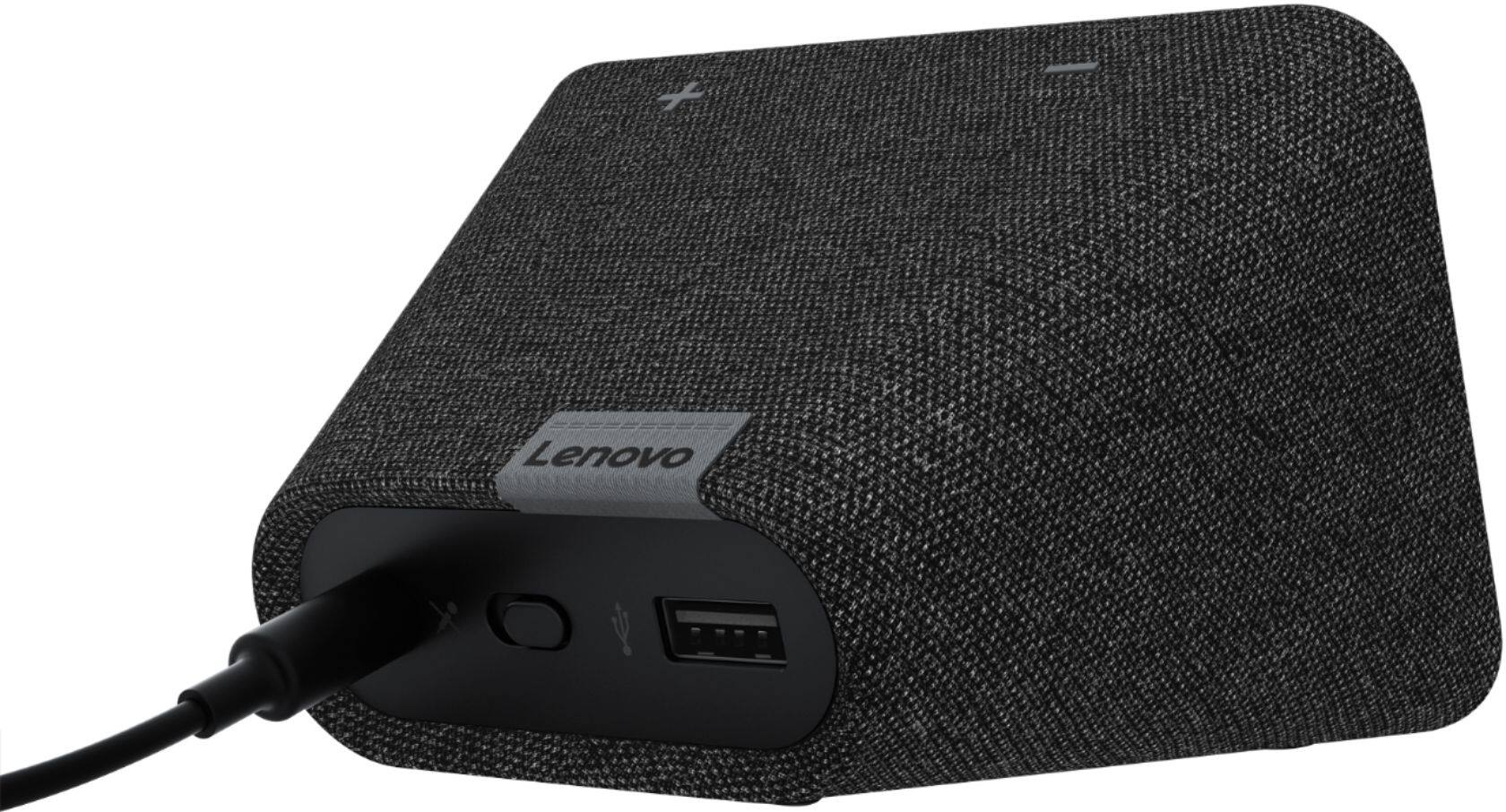
Posted .Hi, thanks for choosing the Lenovo Smart Clock with Google Assistant. According to the Lenovo Forums "The Smart Clock USB follows an international general output agreement, 2.5W (5V-500mA) which is the same standard as the USB port of a notebook." https://forums.lenovo.com/t5/Lenovo-Smart-Display-Lenovo/Lenovo-Smart-Clock-USB-Charging-Output/m-p/4446352
Don't buy. Find a different product for your needs
||Posted . Owned for 4 months when reviewed.This reviewer received promo considerations or sweepstakes entry for writing a review.Constant source of issues with poorly designed firmware and buggy updates. Also has a camera and microphones you can;t actually disable (it gives you options in settings to disable them, but the mics and camera unit are still actually on). From the moment I tried to set it up, it warned me the device I purchased was not designed for use in the United States and that Wifi and other features could not be guaranteed to work because of this. Even after downloading the myriad of apps and allowing all sorts of permissions that seemed unnecessary for a simple Internet connected clock, it would disconnect from the Internet weekly and require set up all over again. And occasionally, it would mention a firmware update failed and needed to be reset to factory defaults again. This device was a constant source of issues until I threw it in the trash. Highly recommend looking for a different device, no matter what your needs are.
No, I would not recommend this to a friendFailed within 20 minutes
||Posted .This reviewer received promo considerations or sweepstakes entry for writing a review.I was able to plug it in, connect it to Google Home and enjoy it for 10 minutes. Then it died. Nothing. Taking it back today.
No, I would not recommend this to a friendBrand response from Lenovo Product Expert
Posted .I'm so sorry to hear you experienced an issue with your device. Have you returned it yet? If not, I may be able to assist you with some troubleshooting.
Loud WiFi cell or tablet Clock
||Posted . Owned for less than 1 week when reviewed.This reviewer received promo considerations or sweepstakes entry for writing a review.Loud metal clock weather Temp Wifi voice condoled but only Cell or Tablet clock setup I tried to setup with my laptop but only a crome laptop works with this smart clock. Read you could run software to emulate a tablet with laptops and I downloaded and tried no luck With out a Teblet or Celphone this really nice smart clock will not work.
I would recommend this to a friendBrand response from Lenovo Product Expert
Posted .Here is a link to a YouTube video that demonstrates the initial setup of the Lenovo Smart Clock with Google Assistant and highlights the features and functions of the Smart Clock: https://www.youtube.com/watch?v=Mzj580tTico&t=285s. If you have questions about your Smart Clock we recommend you contact Lenovo Tech Support for Smart Devices at: 866-426-0911.
Smart clock
||Posted . Owned for 10 months when reviewed.This reviewer received promo considerations or sweepstakes entry for writing a review.A little over priced for what it is there are better options than this for the same or less money.
No, I would not recommend this to a friendBrand response from Lenovo Product Expert
Posted .We are sorry to hear that the Lenovo Smart Clock with Google Assistant did not meet your needs.
New purchased
||Posted . Owned for 1 month when reviewed.This reviewer received promo considerations or sweepstakes entry for writing a review.It works fine I just wish it had a camera built in but over all I am happy with it I bought 3 off them.
I would recommend this to a friendBrand response from Lenovo Product Expert
Posted .Hi, thanks for choosing the Lenovo Smart Clock with Google Assistant. We are pleased to hear the functions, performance, and design of the Lenovo Smart Clock are working out so well for you! We appreciate your loyalty to the Lenovo Brand. We currently offer the Lenovo Smart Display 7" with Google Assistant at Best Buy. The Smart Display 7" is capable of playing video from casting and includes free video calling with built in camera and Google Duo. https://www.bestbuy.com/site/lenovo-7-smart-display-with-google-assistant-blizzard-white/6411151.p?skuId=6411151
Small smart clock
||Posted .This reviewer received promo considerations or sweepstakes entry for writing a review.Smart clock you don't want to buy it because It is to small ,when you see the box it looks very Nice and big,but when you open the box and Take it out you will see how small it really is Not worth the money,it's original price is Overpriced and the sale price should be The original price of you buy it ,you will probably do what I did return it So beware to the buyer
No, I would not recommend this to a friendBrand response from Lenovo Product Expert
Posted .Hi there we are sorry to hear you had this experience with the Lenovo Smart Clock with Google Assistant. The crisp 4" color touch display is labeled on the box, and the screen size/ product dimensions are listed in the specifications on the products page on BestBuy.com. If you need a larger screen we recommend the Lenovo Smart Display 7" https://www.bestbuy.com/site/lenovo-7-smart-display-with-google-assistant-blizzard-white/6411151.p?skuId=6411151
Not as many features that the nest hub offers.
||Posted . Owned for 3 weeks when reviewed.This reviewer received promo considerations or sweepstakes entry for writing a review.I got the Lenovo Smart Clock to use as a monitor for the kids with the nest camera. It occasionally times out in the middle of the night and the only way to view the camera feed is to use the “hey google,” command. It doesn’t offer a swipe down feature for camera feeds like the nest hub offers. The USB also does not put out enough power for a wireless charging pad.
No, I would not recommend this to a friendBrand response from Lenovo Product Expert
Posted .Hi Dan, The Lenovo Smart Clock with Google Assistant features a USB charging port with 2.5W (5V-500mA) which is the same standard as the USB port of a notebook." In regards to the camera feed have you tried dropping the command you use to initiate the stream into a custom routine? That should work, and then you could set the routine to start the feed every day (or night) at your preferred time. If you need further assistance with this we recommend reaching out Lenovo Tech Support at 866-426-0911