Customer Ratings & Reviews
- Model:
- ZA4R0037US
- SKU:
- 6441962
Rating by feature
- Value
Rating 4.5 out of 5 stars
- Quality
Rating 4.6 out of 5 stars
- Ease of Use
Rating 4.5 out of 5 stars
Customers are saying
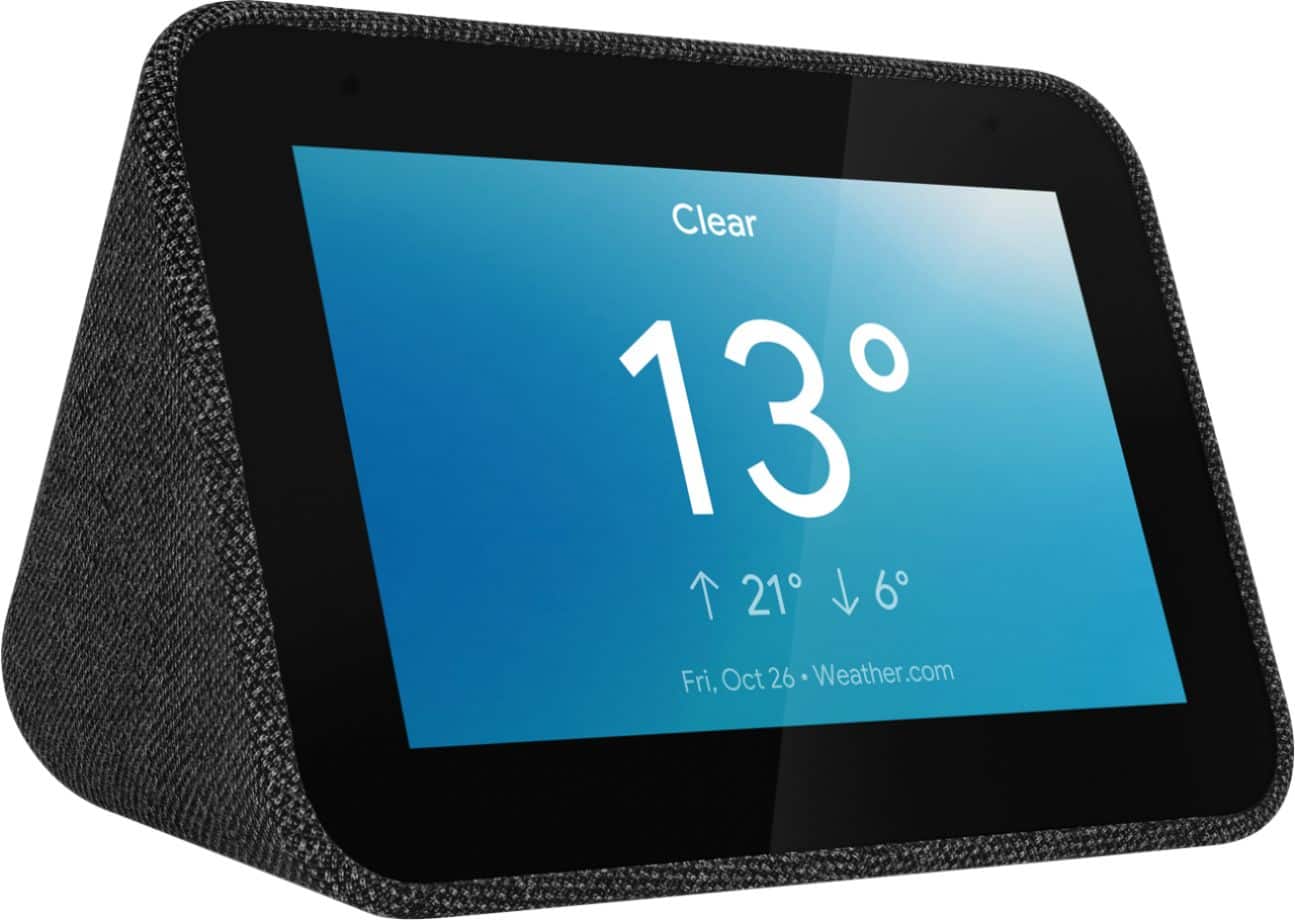
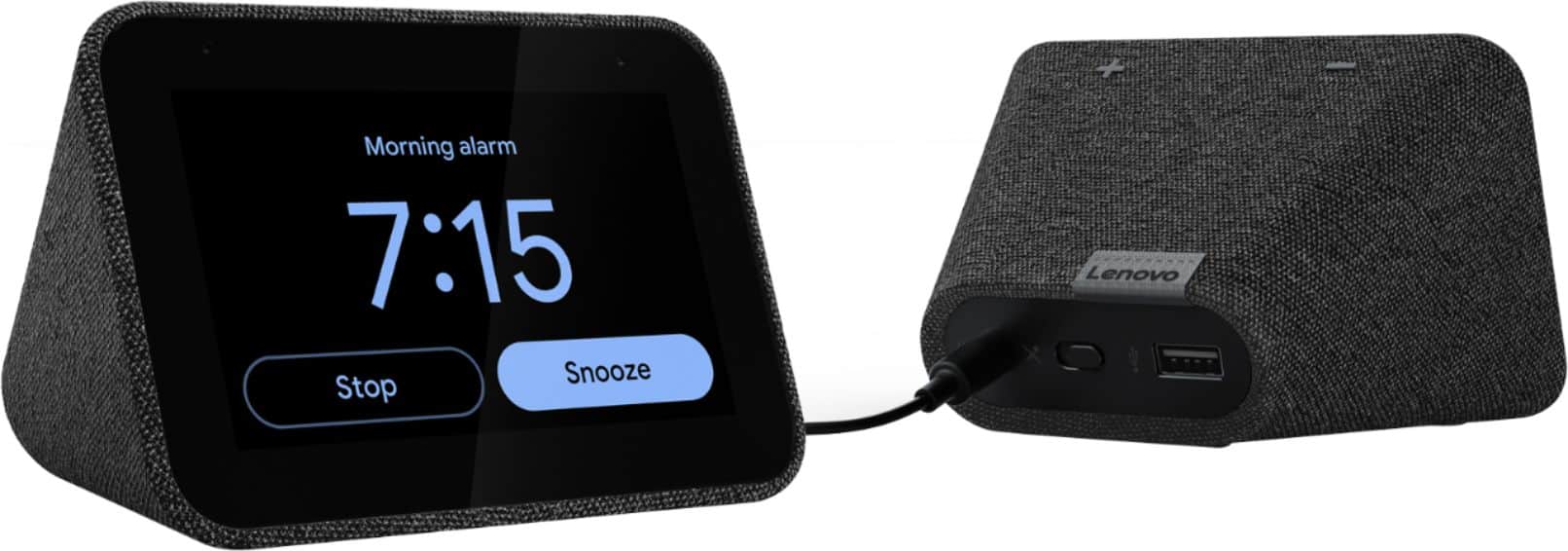
Customers frequently mention the ease of use, sound quality, and alarm features as positive aspects of the Smart Clock with Google Assistant. Many also appreciate the Google Assistant integration, the clock's size, and its display. However, some users reported issues with maintaining a consistent WiFi connection. A lack of battery backup was another recurring negative comment.
This summary was generated by AI based on customer reviews.
Returned because it was unreliable
||Posted . Owned for 3 weeks when reviewed.This reviewer received promo considerations or sweepstakes entry for writing a review.I bought it for the main purpose of an alarm clock. Google kept getting my requests wrong n would not listen when I said to turn off. I returned it after the 2nd time the alarm clock failed to wake me up. I need something reliable. One of the times was the wifi wouldn't connect even though it was connected everywhere else. The 2nd time I have no idea why.
No, I would not recommend this to a friendBrand response from Lenovo Product Expert
Posted .Hi there we are sorry to hear you had this experience with the Lenovo Smart Clock with Google Assistant. If your assistant is having trouble recognizing your voice we recommend setting up voice match and raising the "okay google" sensitivity will help with this. to setup voice match please open the Google Home app.
At the top right, tap your account.
Verify that the Google Account shown is the one linked to your speaker or display. To switch accounts, tap another account or Add another account.
Tap Assistant settings Voice Match Add devices.
Make sure any devices you want to link your voice to are checked.
Tap Next I agree.
Follow the in-app steps.
To adjust the sensitivity of the mic please open the Google Home app .
At the bottom, tap Home .
Select your speaker or Smart Display.
At the top right, tap Device settings. ...
Choose how sensitive you want Google Assistant to be when it responds to you.
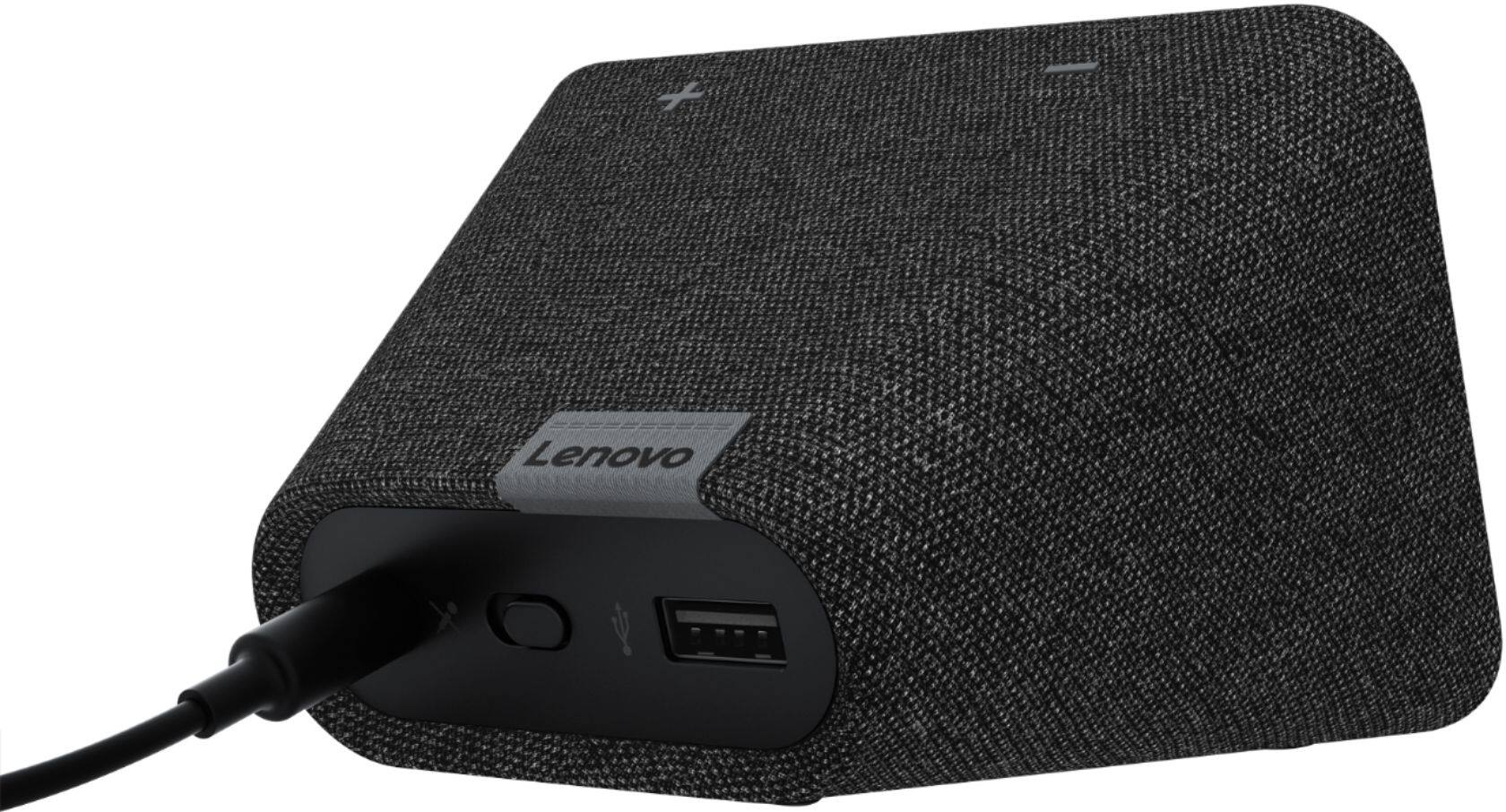
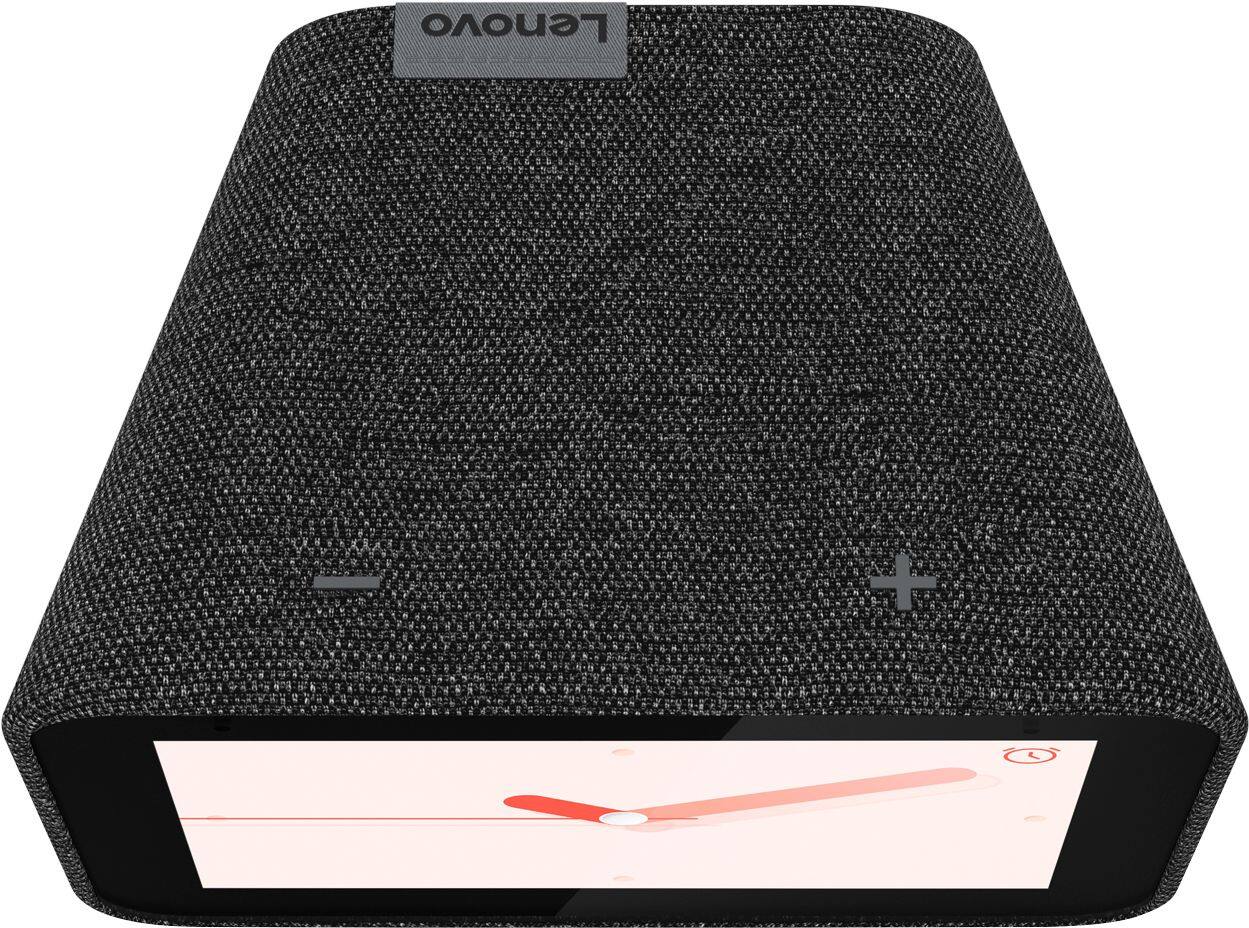
If your device is having connectivity issues we recommend to please power cycle the device by unplugging it for 1-2 minutes. Plugging it back in, and allowing it to power on. If the issue remains please perform a factory reset by holding down the “Volume + and – ” buttons on top of your device for 8 Seconds. If the issue persists, please contact our customer support team at 866-426-0911
Not as expected
||Posted . Owned for 7 months when reviewed.This reviewer received promo considerations or sweepstakes entry for writing a review.I had to return. This wasn't quite what I was looking for. I ended up getting a Amazon echo 5.
No, I would not recommend this to a friendBrand response from Lenovo Product Expert
Posted .Hello, we are sorry to hear you had this experience with the Lenovo Smart Clock with Google Assistant. For some useful tips and trick to help you get the most out of your assistant please check out this short video https://www.youtube.com/watch?v=mCnHBXn5aEw
Alternatively the following website has a list of useful commands. https://www.androidauthority.com/google-assistant-commands-727911/ If you need further assistance please don't hesitate to reach out to Lenovo Tech Support at 866-426-0911
Cool clock
||Posted . Owned for 1 month when reviewed.This reviewer received promo considerations or sweepstakes entry for writing a review.I like the clock but at night time it gets really dim and hard to read. I couldn't find anyway to adjust that.
No, I would not recommend this to a friendBrand response from Lenovo Product Expert
Posted .Hi there! If you are finding the auto-dimming function to be too dark, you can select the auto-dimming function by swiping up on the bottom of the clock. The far left icon represents the brightness. If you tap it until the "A" is gone, that will deselect the auto-brightness feature. You can adjust which brightness level you'd like from the screen, or set up brightness times within the Google Home app. If you ever have questions on your device, we've created an online How-To & Solutions Guide to offer support.
Alarm doesn't always work
||Posted . Owned for 2 months when reviewed.This reviewer received promo considerations or sweepstakes entry for writing a review.I've had this smart clock for almost three months now. Truth is, I love the device. The problem is, the alarm doesn't always work. Since I bought this device for the purpose of being an alarm, it is basically useless now. I've checked on Lenovo forums and it seems to be a common problem. So if you are buying this to be your only alarm, I suggest you keep looking.
No, I would not recommend this to a friendBrand response from Lenovo Product Expert
Posted .Hi there! We are sorry to hear you are experiencing this issue with the alarm on your Lenovo Smart Clock With Google Assistant. Please power cycle the device by unplugging it for 10 seconds, plugging it back in, and allowing it to power on. If your'e still experiencing this issue please perform a factory reset by holding down the “Volume + and – ” buttons on top of your device for 8 Seconds. If the issue persists, please contact our customer support team at 866-426-0911
small
||Posted . Owned for 11 months when reviewed.This reviewer received promo considerations or sweepstakes entry for writing a review.way too small but did work well not bad for price so if you need a really small one this is for you
I would recommend this to a friendBrand response from Lenovo Product Expert
Posted .Hi, thanks for choosing the Lenovo Smart Clock with Google Assistant. We appreciate your feedback!
- Pros mentioned:Google assistant
Nice
||Posted .This reviewer received promo considerations or sweepstakes entry for writing a review.Pretty decent google asisstant. Not the best. But still good.
No, I would not recommend this to a friendBrand response from Lenovo Product Expert
Posted .Hi, thanks for choosing the Lenovo Smart Clock with Google Assistant. For some useful tips and trick to help you get the most out of your assistant please check out this short video https://www.youtube.com/watch?v=mCnHBXn5aEw
Alternatively the following website has a list of useful commands. https://www.androidauthority.com/google-assistant-commands-727911/ .
If you need assistant please don't hesitate to reach out to Lenovo Tech Support at 866-426-0911
Alright product
||Posted . Owned for 3 months when reviewed.This reviewer received promo considerations or sweepstakes entry for writing a review.I honestly feel like this could be better. Screen wise is a bit to small
No, I would not recommend this to a friendBrand response from Lenovo Product Expert
Posted .We are sorry to hear that the Lenovo Smart Clock with Google Assistant does not meet your needs. The Smart Clock ships with a 4 inch (screen size measured diagonally) touch screen. Here is a link to a YouTube video that demonstrates the features and functions of the Smart Clock with Google Assistant: https://www.youtube.com/watch?v=jeDmAOF5Eag&t=281s
terrible
||Posted . Owned for 2 months when reviewed.This reviewer received promo considerations or sweepstakes entry for writing a review.had this 4 months and it stopped working. light stopped working and I can't get it to work with google home
No, I would not recommend this to a friendBrand response from Lenovo Product Expert
Posted .Hi there! Try restarting your device by longpressing the volume up and down buttons for several seconds until it resets. If you have further questions on your device, we've created an online How-To & Solutions Guide to offer support.
Not what I expected
||Posted . Owned for less than 1 week when reviewed.This reviewer received promo considerations or sweepstakes entry for writing a review.I expected more out of this device. It was just like any other google device. It wasn’t for me.
No, I would not recommend this to a friendBrand response from Lenovo Product Expert
Posted .Hi, thanks for choosing the Lenovo Smart Clock with Google Assistant. We are sorry you had this experience with your device. To help get this most out of your Smart Clock we recommend checking out this useful tips and tricks video =) https://www.youtube.com/watch?v=L_eZfuMeOU8
Would not reccomend if you use Apple Music
||Posted . Owned for less than 1 week when reviewed.This reviewer received promo considerations or sweepstakes entry for writing a review.Clock feature is fine and answers lots of questions. My complaint is that it says Apple Music is supported but anytime you try to play a song, it just says, "sorry, something went wrong." Would like to have known that before we purchased it. Apple Music works on the Essential, but clearly not for the Smart Clock.
No, I would not recommend this to a friendBrand response from Lenovo Product Expert
Posted .We are sorry to hear that you are having issues with your Lenovo Smart Clock with Google Assistant. This model is not currently compatible with Apple Music.
Very poor network support
||Posted . Owned for 6 months when reviewed.This reviewer received promo considerations or sweepstakes entry for writing a review.I wanted to use this as a clock radio. I bought it at a hyper-low sale price. It has decent audio and internet radio support. Setting up an alarm proved to be a chore but not so bad after doing it once. Unfortunately it was unable to maintain a network connection for longer than an hour or so. I returned it.
No, I would not recommend this to a friendBrand response from Lenovo Product Expert
Posted .We are sorry to hear that you are having issues connecting your Lenovo Smart Clock with Google Assistant to the internet. Please try these steps one by one until it can be resolved.
Make sure to link the Device with the same WiFi connection as the mobile device.
Please check whether WiFi works correctly by using another device to link with the same WiFi.
Please try to reboot the Device. Unplug your Smart Clock for 1 minute. Plug your Smart Clock back in. Then check it again. Please reset the Device (Long press VOL+ and VOL- 10 Seconds).
Please find your router’s manufacturer and model. Check with the manufacturer to find out if your router model has Smart Connect. If your router has Smart Connect, check with the manufacturer for steps on how to turn off Smart Connect. Then try it again. If the issue continues please contact us with the symptom: can't connect with WiFi, at: 866-426-0911.
It’s free
||Posted . Owned for 1 year when reviewed.This reviewer received promo considerations or sweepstakes entry for writing a review.It’s really low quality. The speakers sound busted out of the box.
I would recommend this to a friendBrand response from Lenovo Product Expert
Posted .We are sorry to hear that you are having issues with your Lenovo Smart Clock with Google Assistant. We recommend you contact Lenovo Tech Support for Smart Devices for help with your issues at: 866-426-0911.
Basic
||Posted . Owned for 3 weeks when reviewed.This reviewer received promo considerations or sweepstakes entry for writing a review.I was hoping it had photo slide show capability in the background while it showed the time.
No, I would not recommend this to a friendBrand response from Lenovo Product Expert
Posted .Hi there! The Lenovo Smart Clock with Google Assistant does show photo slide shows with the time and even the weather! Your Lenovo Smart Clock with Google Assistant can display stock featured photos from google or a "Photo Frame" slide show as your background with Google Photos. To do this, from the home screen, please press on the center of the clock face for 3 seconds. Next swipe right until you see the "Featured Photos" clock face to see stock photos, or select the "Google Photos" clock face to see your own personal photo album. Please note that in order to see your personal photos on your Lenovo Smart Clock with Google Assistant you will first need to upload your photos to the "Google Photos App"
Google alarm clock
||Posted . Owned for 1 week when reviewed.This reviewer received promo considerations or sweepstakes entry for writing a review.It is a nice alarm clock , don't expect much from it. basic equipment not too strong
I would recommend this to a friendBrand response from Lenovo Product Expert
Posted .Hi, thanks for choosing the Lenovo Smart Clock with Google Assistant. The Lenovo Smart Clock with the Google Assistant works easily and seamlessly with over 10,000 smart home devices, across more than 1,000 different brands If you are experiencing issues or need assistance we recommend reaching out to Lenovo Tech Support at 866-426-0911
Good buy
||Posted . Owned for 1 month when reviewed.This reviewer received promo considerations or sweepstakes entry for writing a review.Good for what it is...I got it on black Friday so at a discount it was a good buy
I would recommend this to a friendBrand response from Lenovo Product Expert
Posted .Hi there thank you for choosing the Lenovo Smart Clock with Google Assistant. Lenovo Smart Clock with the Google Assistant works easily and seamlessly with over 10,000 smart home devices, across more than 1,000 different brands. Switch the porch lights off, turn on the espresso machine, or control any product featuring a ‘works with the Google Assistant’ badge—from the comfort of your bed, with just your voice. By making your home smarter, you can save time, too. Here is a link to short video with some Tips and Tricks to help you get the most our of your Assistant =) https://www.youtube.com/watch?v=L_eZfuMeOU8
- Pros mentioned:Alarm, Ease of use, Sound quality
Perfect for a Nightstand
Posted .This reviewer received promo considerations or sweepstakes entry for writing a review.I have purchased numerous smart home devices in recent years, all of them in the Google family. I like them all, but this little Lenovo is without question my favorite! I use it every day from the time I head to bed in the evening until I get out of bed in the morning. I can drift to sleep listening to the sounds of crickets or the surf or a quiet rain shower, thanks to my ability to ask Google to play whatever sounds I am in the mood for. Or of course I can skip music or sounds altogether. I have linked my Google photo gallery to the device, which allows me to see a different photo cycle onto the screen each minute. It’s nice to relive so many memories as I prepare to sleep, and to greet me when I wake up in the morning. The screen brightness and sound volume are both easy to adjust, and the I have no complaints whatsoever with either the sound quality or brightness levels of the screen. It’s more than adequate for a bedroom, and obviously not designed to replicate a concert hall. It’s also nice to learn the outdoor temperature and weather without having to get out of bed or lift a finger to check your phone or turn on a TV. The alarm is very easy to set up, and you can be awakened to your choice of sounds, which is a big plus. I am so very happy I bought this device.
I would recommend this to a friendBrand response from Lenovo Product Expert
Posted .Hell there! Thanks for choosing the Lenovo Smart Clock with Google Assistant. We are pleased to hear the features like soothing sounds before bed, custom "Photo Frame" background, ambient light sensor with "Auto Dim" function, performance, and user friendly design of the Lenovo Smart Clock are working out so well for you!
Google Assistant
||Posted . Owned for 3 weeks when reviewed.This reviewer received promo considerations or sweepstakes entry for writing a review.Very nice Tech Gadget. Glad i purchased on sale. Useful at times
No, I would not recommend this to a friendBrand response from Lenovo Product Expert
Posted .Thank you for choosing the Lenovo Smart Clock with Google Assistant. We are pleased to hear that the Smart Clock meets your needs.
Cool item with small screen
||Posted .This reviewer received promo considerations or sweepstakes entry for writing a review.This works are well as the google home hub but has a smaller screen. Great calendar use!
I would recommend this to a friendBrand response from Lenovo Product Expert
Posted .Hi, thanks for choosing the Lenovo Smart Clock with Google Assistant. We are pleased to hear the functions like reminders from your calendar, performance, size, and design of the Lenovo Smart Clock are working out so well for you!
Tedious
||Posted . Owned for 1 week when reviewed.This reviewer received promo considerations or sweepstakes entry for writing a review.I returned this because I found the programming to be convoluted and not intuitive in the least. I quickly lost my patience and packed it up. The instructions were useless and I couldn't find any helpful info. online. I am used to Apple products that are super intuitive, so this was just plain tedious.
No, I would not recommend this to a friendBrand response from Lenovo Product Expert
Posted .We are sorry to hear that you had difficulty with the initial setup of your Lenovo Smart Clock with Google Assistant. Here is a link to a YouTube video that illustrates the features and easy setup of the Lenovo Smart Clock: https://www.youtube.com/watch?v=Mzj580tTico. If you continue to have questions about your Smart Clock we recommend you contact Lenovo Tech Support for Smart Devices at: 866-426-0911.
Could not set up
||Posted . Owned for 1 month when reviewed.This reviewer received promo considerations or sweepstakes entry for writing a review.This product requires connection to a Google Home network. Could not get it to connect
No, I would not recommend this to a friendBrand response from Lenovo Product Expert
Posted .Hi there! To set up your Smart Clock, you will need the Google Home app on your iOS or Android device. From there, you will want to connect your Smart Clock to a 2.4ghz WiFi band. Then you should be good to go! If you ever have questions on your device, we've created an online How-To & Solutions Guide to offer support.