Customer Ratings & Reviews
- Model:
- ZA4R0037US
- SKU:
- 6441962
Rating by feature
- Value
Rating 4.5 out of 5 stars
- Quality
Rating 4.6 out of 5 stars
- Ease of Use
Rating 4.5 out of 5 stars
Customers are saying
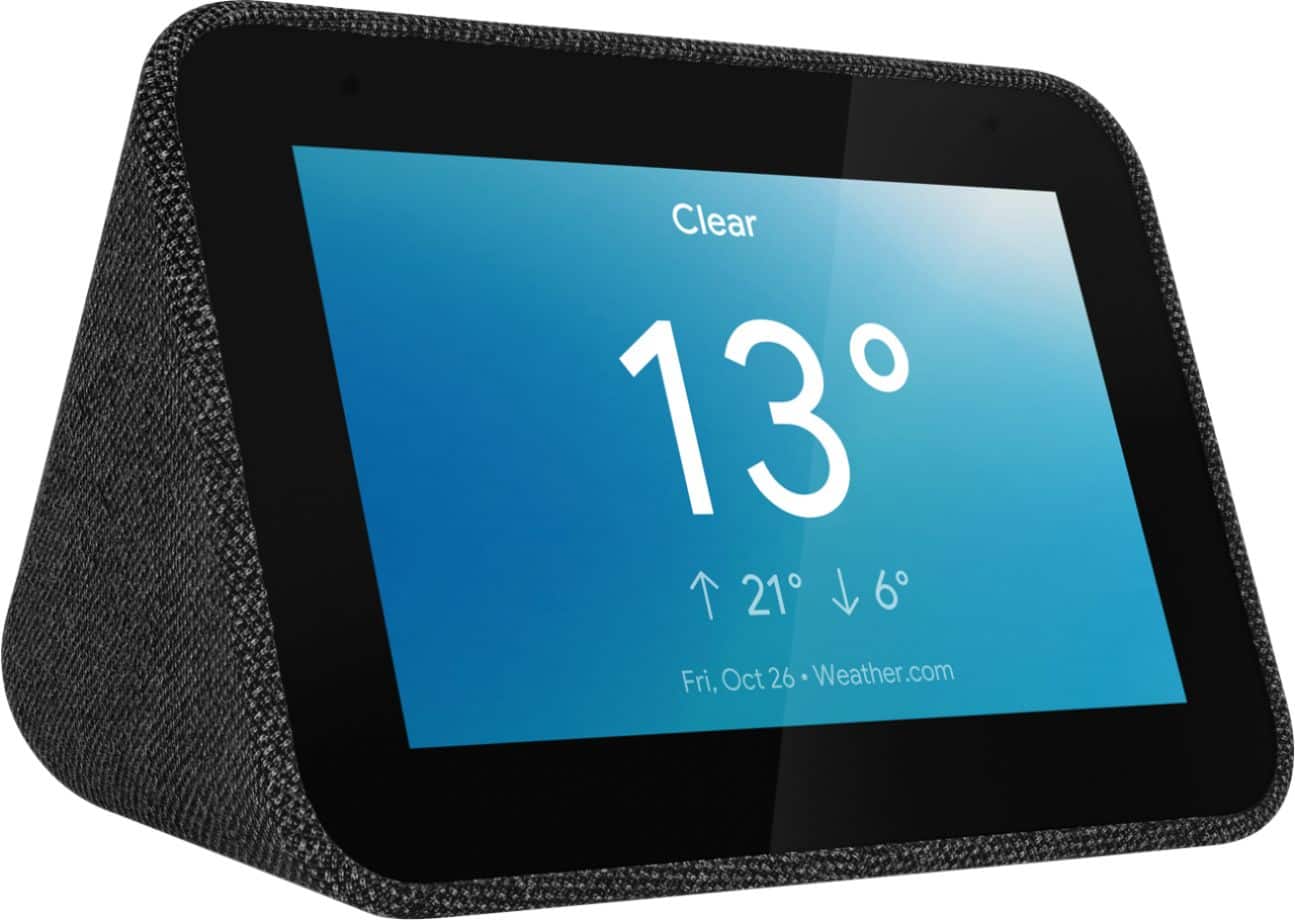
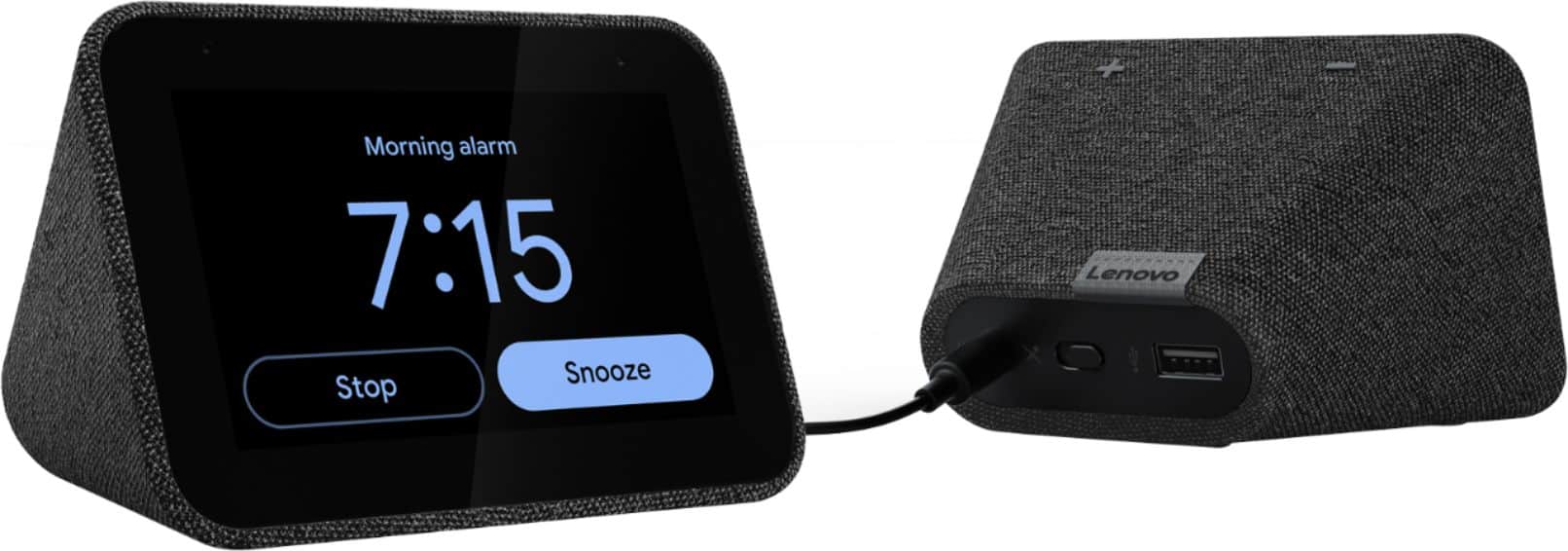
Customers frequently mention the ease of use, sound quality, and alarm features as positive aspects of the Smart Clock with Google Assistant. Many also appreciate the Google Assistant integration, the clock's size, and its display. However, some users reported issues with maintaining a consistent WiFi connection. A lack of battery backup was another recurring negative comment.
This summary was generated by AI based on customer reviews.
Good
||Posted . Owned for less than 1 week when reviewed.This reviewer received promo considerations or sweepstakes entry for writing a review.Had a problem hooking it up. Didnt c any directions in box
I would recommend this to a friendBrand response from Lenovo Product Expert
Posted .Hello there! Thank you for choosing the Lenovo Smart Clock with Google Assistant. We are sorry to hear you experienced difficulty setting up your device. First you will need to download the google home app on any smartphone or tablet. Then plug in your Smart Clock and follow the instructions in the Google Home App. More detailed instructions can found on our support page at support.lenovo.com or by reaching out to our customer support at 866-426-0911

Great smart speaker
||Posted .This reviewer received promo considerations or sweepstakes entry for writing a review.Great smart clock. Great on placement on bed side.
I would recommend this to a friendBrand response from Lenovo Product Expert
Posted .Hi, thanks for choosing the Lenovo Smart Clock with Google Assistant. We are pleased to hear the functions, performance, and design of the Lenovo Smart Clock are working out so well for you!
Didnt like.
||Posted . Owned for 6 months when reviewed.This reviewer received promo considerations or sweepstakes entry for writing a review.I dont like this clock. I guess it depends on how strong your wifi may be but as far as this clock it goes nuts at times. Connection gets lost several times that i end up getting the screen that its trying to look for signal. Didnt like this clock.
No, I would not recommend this to a friendBrand response from Lenovo Product Expert
Posted .The Lenovo Smart Clock with Google Assistant ships with 5G 802.11ac frequency WiFi and is backward compatible with older a/b/g/n frequency WiFi. To connect your Lenovo Smart Clock to your home WiFi: Please try these steps one by one until it can be resolved. 1. Make sure to link the Device with the same WiFi connection as the mobile device. 2. Please check whether WiFi works correctly by using another device to link with the same WiFi. 3. Please try to reboot the Device. 4. Unplug your Smart Clock for 1 minute. 5. Plug your Smart Clock back in.
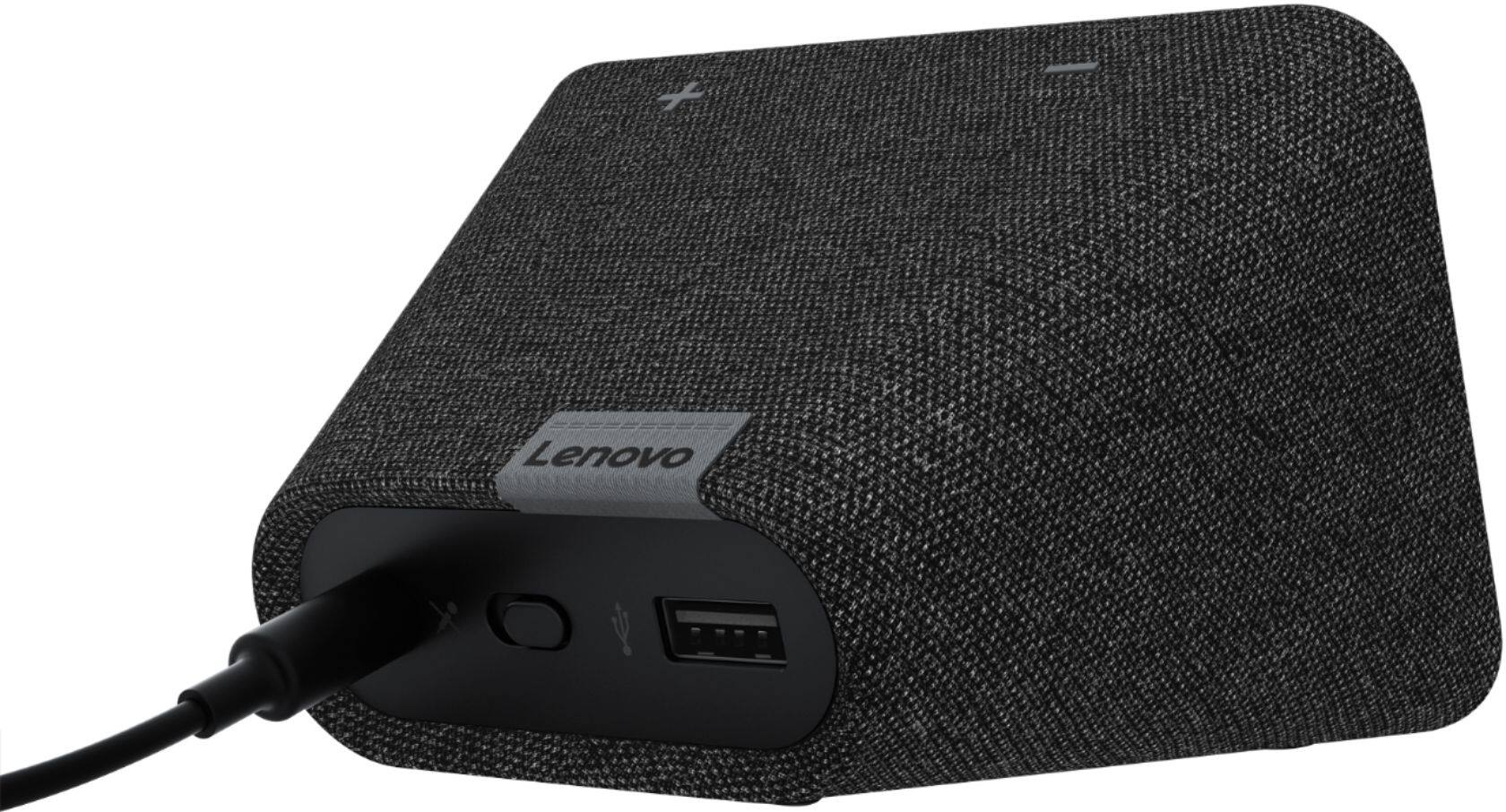
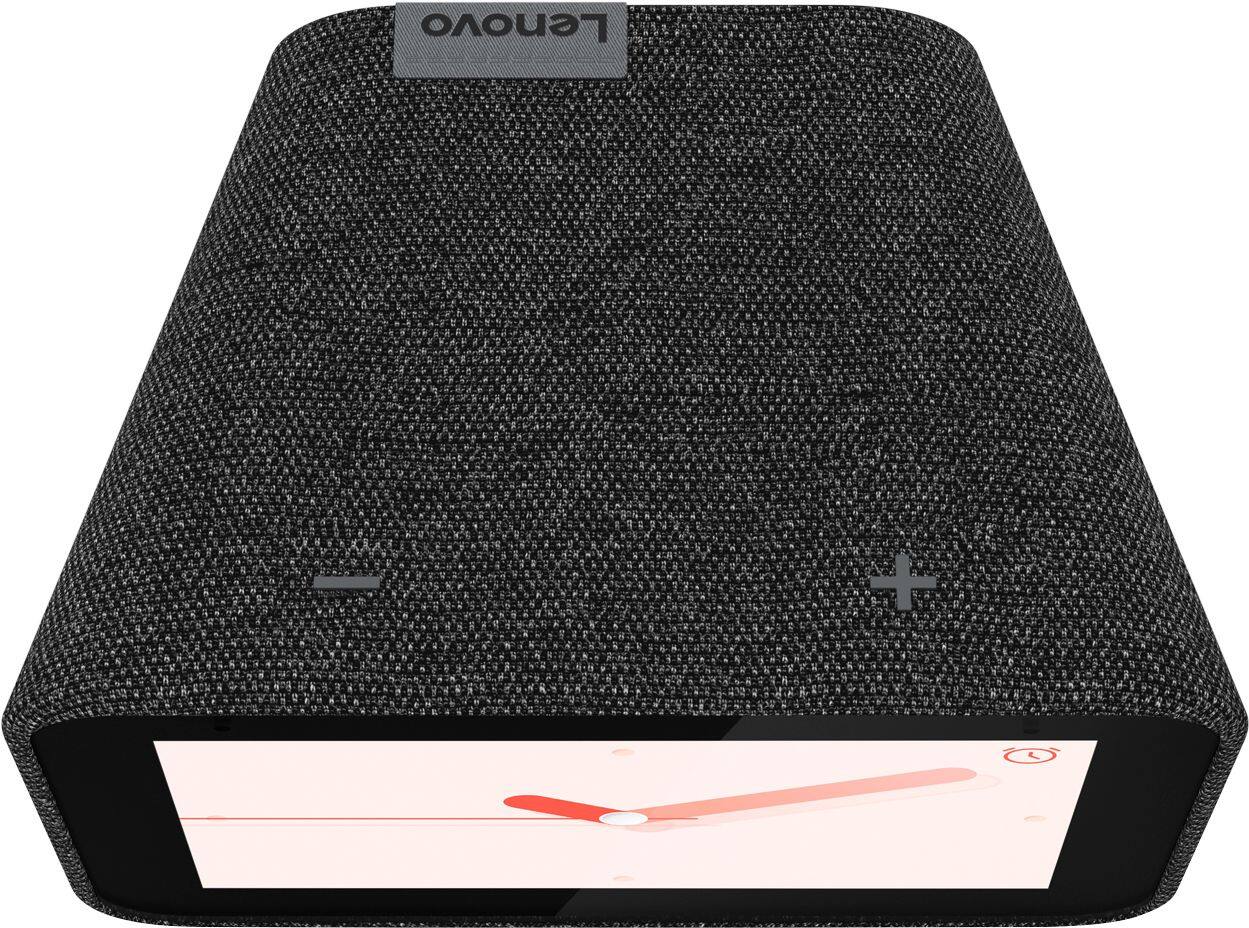
Then check it again. 6. Please reset the Device (Long press VOL+ and VOL- 10 Seconds).
7. Please find your router’s manufacturer and model. Check with the manufacturer to find out if your router model has Smart Connect. If your router has Smart Connect, check with the manufacturer for steps on how to turn off Smart Connect. Then try it again. If the issue continues, we recommend you contact Lenovo Tech Support for Smart Devices at: 866-426-0911.
Nice clock!
||Posted . Owned for 1 month when reviewed.This reviewer received promo considerations or sweepstakes entry for writing a review.its very nice with a lot of features but its very small.
I would recommend this to a friendBrand response from Lenovo Product Expert
Posted .Hi Edwin, Thanks for choosing the Lenovo Smart Clock with Google Assistant. We are pleased to hear the features are working out so well for you. We do offer a line of Lenovo smart displays with Google Assistant in a 7", 8", and 10" variety.
Not bad!
||Posted . Owned for less than 1 week when reviewed.This reviewer received promo considerations or sweepstakes entry for writing a review.Not bad! but I would like me to have a radio, too!
I would recommend this to a friendBrand response from Lenovo Product Expert
Posted .Hi, thanks for choosing the Lenovo Smart Clock with Google Assistant. We are pleased to hear the functions, performance, and design of the Lenovo Smart Clock are working out so well for you! Your Smart Clock can play radio stations for you through Tune-In and even set radio alarms. To play a radio station say something like "Okay Google Play NPR Radio" To set a radio alarm the conversation would go something like "Hey Google, set a music alarm"
"Okay, when's the alarm for?"
"6 am weekdays"
"Alright, on weekdays. And what would you like me to play?"
"CHYM"
"Got it, I'll play CHYM FM radio on weekdays at 6 am
Ok
||Posted . Owned for 3 weeks when reviewed.This reviewer received promo considerations or sweepstakes entry for writing a review.Its small and brightness is ok but speaker is not upto.
No, I would not recommend this to a friendBrand response from Lenovo Product Expert
Posted .Hi, thank you for choosing the Lenovo - Smart Clock with Google Assistant. We are sorry to hear the speakers are not living up to your expectations and we appreciate the feedback. Your Smart clock can cast to any Chromecast enabled speaker you may have or prefer. Music, podcasts, audiobooks, the radio. Lenovo Smart Clock with the Google Assistant lets you listen to what you like, when you like—even as you go from room to room. Group it with smart speakers to hear it across your home.
Good clock if the screen worked.
||Posted . Owned for 1 month when reviewed.This reviewer received promo considerations or sweepstakes entry for writing a review.Worked great for the first couple weeks, then you could see lines in the screen like burn in. Now a month later the screen doesnt even work after multiple factory resets and powering on and off to get the screen back on.
No, I would not recommend this to a friendBrand response from Lenovo Product Expert
Posted .We are sorry to hear that you are having issues with the screen of your Lenovo Smart Clock with Google Assistant. We recommend you contact Lenovo Tech Support for Smart Devices at: 866-426-0911.
It's ok
||Posted .This reviewer received promo considerations or sweepstakes entry for writing a review.I just wish it displayed picture or other stuff...
No, I would not recommend this to a friendBrand response from Lenovo Product Expert
Posted .Hi there! Your Lenovo Smart Clock with Google Assistant can display stock featured photos from google or a "Photo Frame" slide show as your background with Google Photos. To do this, from the home screen, please press on the center of the clock face for 3 seconds. Next swipe right until you see the "Featured Photos" clock face to see stock photos, or select the "Google Photos" clock face to see your own personal photo album. Please note that in order to see your personal photos on your Lenovo Smart Clock with Google Assistant you will first need to upload your photos to the "Google Photos App"
Great...When It Works
||Posted . Owned for 10 months when reviewed.This reviewer received promo considerations or sweepstakes entry for writing a review.For months I've enjoyed using this clock, but now it quit alarming. I set the alarm as usual ("Hey Google, set the alarm for...). Google confirms the setting. In the morning, no alarm sound but the display says it is alarming, with options to stop or snooze. Very disappointing for a "smart" clock to be unable to perform its most fundamental task. This is not an isolated or individual occurrence. Recommend you google something like " Lenovo Smart Clock Alarm Not Working" before you buy. Please don't advise me to power cycle or factory reset. I've done all that.
No, I would not recommend this to a friendBrand response from Lenovo Product Expert
Posted .Hello, we are sorry to hear you are experiencing this issue with your Lenovo Smart Clock with Google Assistant. Please check your alarm volume settings. This can be done by swiping down from the home screen of your device, selecting "alarms", scrolling all the way to the bottom and selecting "alarm settings". From here you can set the default volume of your alarms and timers. If you issue persists we recommend calling Lenovo Tech Support at 866-426-0911.
- Cons mentioned:Wifi connectivity
Piece of Junk
||Posted .This reviewer received promo considerations or sweepstakes entry for writing a review.Couldnt get it to connect to wifi simultaneously with my phone. Thing is a piece of Junk. Wont even let you connect via bluetooth.
No, I would not recommend this to a friendBrand response from Lenovo Product Expert
Posted .We are sorry to hear that you are having issues with the initial setup of your Lenovo Smart Clock with Google Assistant. Here is a link to a YouTube video that demonstrates the initial setup process for the Smart Clock: https://www.youtube.com/watch?v=Mzj580tTico&t=66s. If you continue to have issues with setting up your Smart Clock, we recommend you contact Lenovo Tech Support for Smart Devices at: 866-426-0911.
Might Not Work After Days
||Posted .This reviewer received promo considerations or sweepstakes entry for writing a review.This product was not what I expected, nor was the return policy when I tried to bring it back to the store (Best Buy services a return period of 14 days, vs. 30). The latter, I take accountability for. But, the product itself froze after about 3 days of having it. After unplugging and resetting it, the product worked again. But, after a power outage cut the power to the house, this product was one thing that would not come back on, even after trying the factory reset.
No, I would not recommend this to a friendBrand response from Lenovo Product Expert
Posted .Hello, we are sorry to hear you had this experience with your Lenovo Smart Clock with Google Assistant. We recommend reaching out to customer support at 866-426-0911 .
much smaller than expected.
||Posted . Owned for 2 weeks when reviewed.This reviewer received promo considerations or sweepstakes entry for writing a review.I ended up returning this as the size of the clock is very small. The picture & the box size actually misguide. I like the voice quality and the fact that it does not have a lot of bells and whistles, however, the usage are limited due the size.
No, I would not recommend this to a friendBrand response from Lenovo Product Expert
Posted .Hello, we are sorry to hear you had this experience with the Lenovo Smart Clock with Google Assistant. The Smart Clock ships with a 4" touch display. This information and more is printed on the side of the box and listed in the device's specifications on Best Buy's website https://www.bestbuy.com/site/lenovo-smart-clock-with-google-assistant-gray/6335321.p?skuId=6335321. Lenovo also offer's a 7" Smart Display with Google Assistant for those who require a larger screen. If you need further assistance please don't hesitate to reach out to Lenovo Tech Support at 866-426-0911
Be aware of its Wi-Fi connectivity
||Posted . Owned for 6 months when reviewed.This reviewer received promo considerations or sweepstakes entry for writing a review.This one will keep failing on connecting to Wi-Fi.
No, I would not recommend this to a friendBrand response from Lenovo Product Expert
Posted .Hello, we are sorry to hear you are experiencing this issue with your Lenovo Smart Clock. Please make sure your device is in range of your wireless modem. If it is please perform a factory reset by holding down the “Volume + and – ” buttons on top of your device for 8 Seconds. If the issue persists, please contact our customer support team at 866-426-0911
Software bug causes alarm issues
||Posted . Owned for 4 months when reviewed.This reviewer received promo considerations or sweepstakes entry for writing a review.Software bug causes alarm volume to spike when first going off jarring you awake. This has been a known bug to Lenovo and Google for over a year and nothing has been done. An alarm clock that fails to function as an alarm clock?
No, I would not recommend this to a friendBrand response from Lenovo Product Expert
Posted .Hello, we are sorry to hear you are experiencing this issue with your Lenovo Smart Clock with Google Assistant. We recommend to please perform a factory reset by holding down the “Volume + and – ” buttons on top of your device for 8 Seconds. If the issue persists, please contact our customer support team at 866-426-0911. Additionally you can try selecting a different alarm tone like "beautiful mind" that can be found in your alarm's settings when setting new alarm. Additionally you can set a music alarm to your favorite radio station, artist, song, or podcast. To get started say "Okay Google Set a music alarm"
Touch screen stopped working within a week
||Posted .This reviewer received promo considerations or sweepstakes entry for writing a review.Very disappointed in the product and Best Buy’s policy. I set up the clock with my Google Home. Within a week the touchscreen stopped working. I tried to troubleshoot it for a few days. I gave up and decided to return the product for an exchange. Best Buy wouldn’t take it back. Said it was outside of the return period. I mean, we’re taking just over a week. My advice. Stay away.
No, I would not recommend this to a friendBrand response from Lenovo Product Expert
Posted .Hi, we are sorry to hear you are experiencing this issue with your Lenovo Smart Clock with Google Assistant. Your device's touch screen should not be behaving in this manner. Please try performing a factory reset by holding down the “Volume + and – ” buttons on top of your device for 8 Seconds. If the issue persists, please contact our customer support team at 866-426-0911
Doesn't stay connected to internet
||Posted . Owned for 3 weeks when reviewed.This reviewer received promo considerations or sweepstakes entry for writing a review.This would be a great product if the internet wasn't so sketchy. It disconnects from the internet CONSTANTLY! It's so frustrating! Very responsive to voice. I would give it 5 stars if it stayed connected to the internet. I tried two different clocks and they both did the same thing. The first one I got never reconnected to the internet after disconnecting . The 2nd one disconnects and reconnects all day. Sometimes I have to reset and set it up all over again. Luckily I bought the insurance! I'm surprised Lenovo doesn't fix that issue. I have read other reviewers have the same problem. If you take a chance and buy it...good luck! I don't recommend due to connection issues.
No, I would not recommend this to a friendBrand response from Lenovo Product Expert
Posted .Hi there! We are sorry to hear you are experiencing this issue with your Lenovo Smart Clock. The device shouldn't be having this issue. Please perform a factory reset by holding down the “Volume + and – ” buttons on top of your device for 8 Seconds. If the issue persists, please contact our customer support team at 866-426-0911
Not a good choice.
||Posted . Owned for 1 year when reviewed.This reviewer received promo considerations or sweepstakes entry for writing a review.I would not recommend this to anyone that needs to give a mac address to use the wifi network such as many colleges. This clock uses random scrolling mac addresses which is plain stupid for a smart clock.
No, I would not recommend this to a friendBrand response from Lenovo Product Expert
Posted .You can find the Lenovo Smart Clock with Google Assistant's MAC Address this way: 1. Open Google Home app. 2. Click upper-left hamburger menu icon. 3. Click Devices. 4. Click upper-right device dot menu for your device. 5. Select settings. 6. Find Information header (all the way down)
MAC Address should be listed here -- Includes letters A-F and numerals 0-9. If you continue to have issues, we recommend you contact Lenovo Tech Support for Smart Devices at: 866-426-0911.
Okay, but much left to be desired
||Posted . Owned for 1 month when reviewed.This reviewer received promo considerations or sweepstakes entry for writing a review.The clock feature works but kept disconnecting from wifi. The setup was rather simple, but to scroll through the settings afterwards was dreadful. Great concept but needs a lot more to provide a benefit over a standard alarm clock.
No, I would not recommend this to a friendBrand response from Lenovo Product Expert
Posted .Hi Matt! We are sorry to hear you experienced this issue with your Lenovo Smart Clock With Google Assistant. In regards to the WiFi Please make sure your device is within range of your wireless router. If the problem remains please power cycle the device by unplugging it for 10 seconds, plugging it back in, and allowing it to power on. If you are still experiencing WiFi connectivity issues please perform a factory reset by holding down the “Volume + and – ” buttons on top of your device for 8 Seconds. If the issue persists, please contact our customer support team at 866-426-0911. We appreciate your feedback as we are constantly looking for ways to improve our smart devices
- Cons mentioned:Wifi connectivity
Had to Return
||Posted . Owned for 1 week when reviewed.This reviewer received promo considerations or sweepstakes entry for writing a review.I was not pleased with this purchase at all. I was really excited about the item after reading its description, but I was unable to get it to connect to my WiFi.
No, I would not recommend this to a friendBrand response from Lenovo Product Expert
Posted .We are sorry to hear you are experiencing WIFI connectivity issues With your Lenovo Smart Clock with Google Assistant. We recommend switching between 2.4Ghz and 5Ghz bands of your router. In some instances overlap from other wireless devices can cause this issue. To do this please ensure your device is within good range of your router. Then please perform a factory reset on the device by holding down the “Volume + and – ” buttons on top of your device for 8 Seconds. During setup please select a different band *Either 2.4 Ghz or 5 Ghz when connecting to your WiFi Network. Lastly please reset your model and router by powering them down for 20 seconds then back on again. If the issue persists, please contact our customer support team at 866-426-0911
Stick to Alexa products
||Posted . Owned for 3 weeks when reviewed.This reviewer received promo considerations or sweepstakes entry for writing a review.I had to return this one, the Google function was not as smooth as the Alexa function. It was hard for me to navigate the Google Home app. The Google home app does not have a lot of option to customize.
No, I would not recommend this to a friendBrand response from Lenovo Product Expert
Posted .Hi there, we are sorry to hear you had this experience with the Lenovo Smart Clock with Google Assistant. Once the Smart Clock is setup it will function without having to use the Google Home App. The Lenovo Smart Clock with Google Assistant works easily and seamlessly with over 10,000 smart home devices, across more than 1,000 different brands. Here is a link to a short video with some helpful tips and tricks to get the most out of your assistant. https://www.youtube.com/watch?v=L_eZfuMeOU8