Customer Ratings & Reviews
- Model:
- ZA4R0037US
- SKU:
- 6441962
Rating by feature
- Value
Rating 4.5 out of 5 stars
- Quality
Rating 4.6 out of 5 stars
- Ease of Use
Rating 4.5 out of 5 stars
Customers are saying
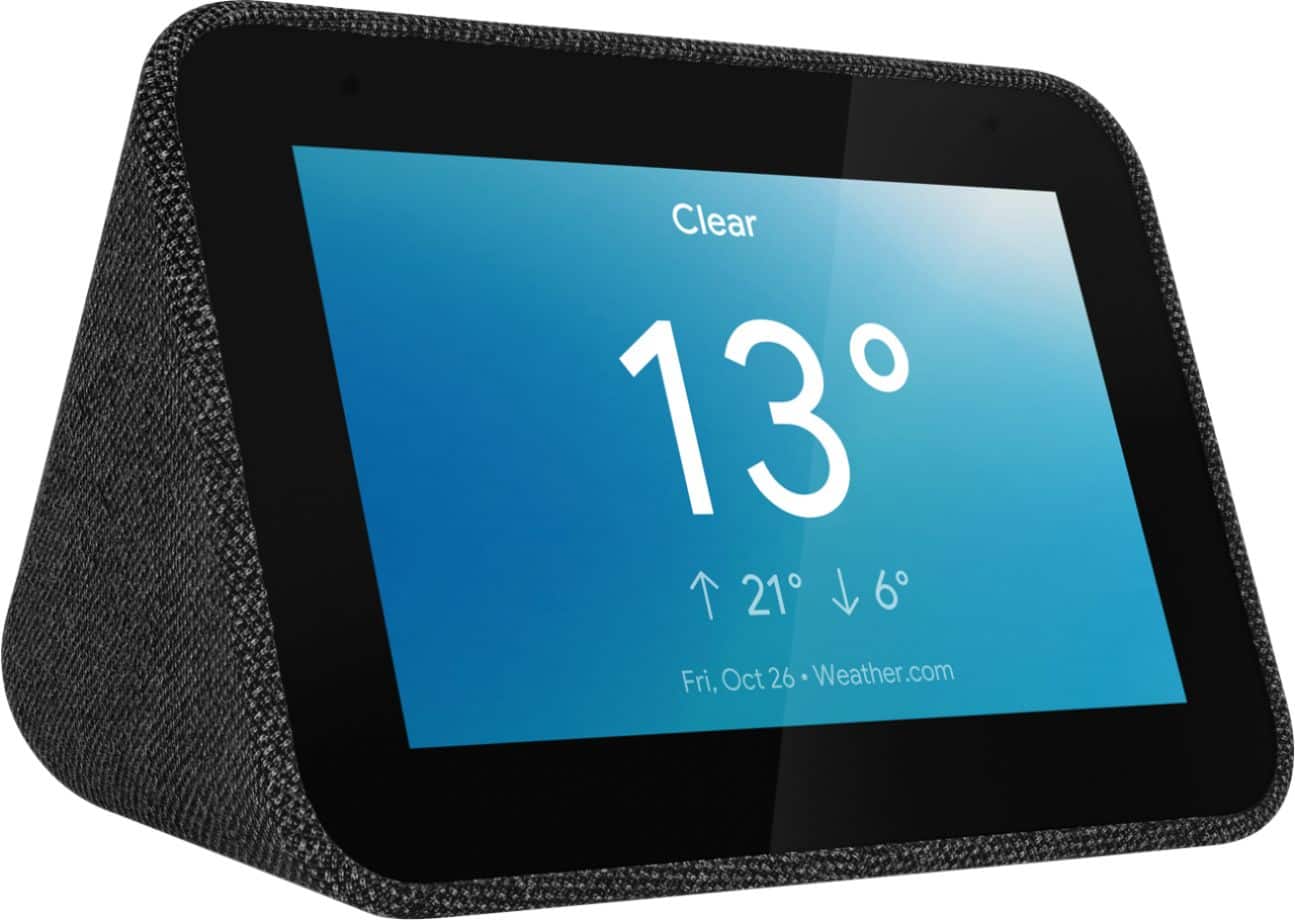
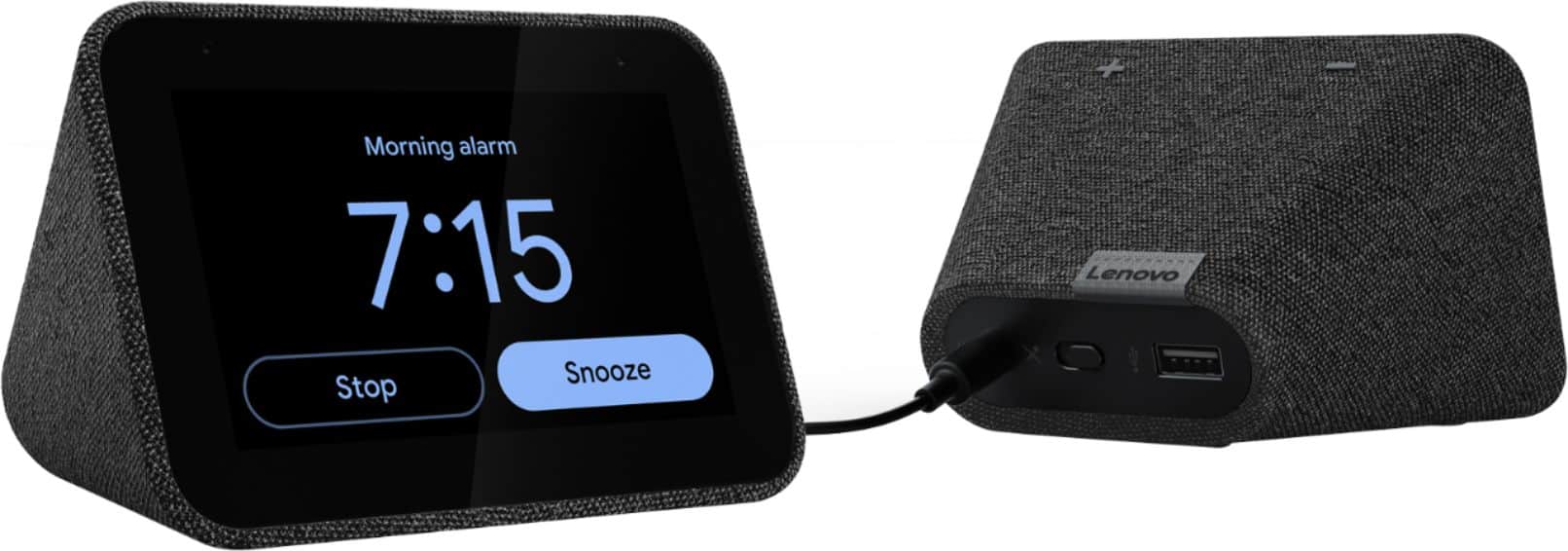
Customers frequently mention the ease of use, sound quality, and alarm features as positive aspects of the Smart Clock with Google Assistant. Many also appreciate the Google Assistant integration, the clock's size, and its display. However, some users reported issues with maintaining a consistent WiFi connection. A lack of battery backup was another recurring negative comment.
This summary was generated by AI based on customer reviews.
not impressed
||Posted . Owned for 4 months when reviewed.This reviewer received promo considerations or sweepstakes entry for writing a review.when it works it is great but it often loses connection and sometimes has a lot of trouble reconnecting.
No, I would not recommend this to a friendBrand response from Lenovo Product Expert
Posted .Hi there! If you are finding your connection is unreliable, please ensure you are connected to a 2.4ghz WiFi band - as it works best on that. I also recommend checking your WiFi settings to see how many devices it can support and also your connection range. Sometimes that can be resolved with an inexpensive WiFi extender. If you ever have questions on your device, we've created an online How-To & Solutions Guide to offer support.

Setup
||Posted . Owned for 2 weeks when reviewed.This reviewer received promo considerations or sweepstakes entry for writing a review.I bought it to listen to music without using my phone. Nope. May as well just be a bluetooth speaker.
No, I would not recommend this to a friendBrand response from Lenovo Product Expert
Posted .We are sorry to hear that you are having issues with your Lenovo Smart Clock. Here is a link to setup instructions for the Smart Clock: https://smartsupport.lenovo.com/us/en/products/smart/smart-home/smart-clock/za4r/solutions/ht508434
Clock
||Posted . Owned for 1 month when reviewed.This reviewer received promo considerations or sweepstakes entry for writing a review.Internet connection wont stay connected! Loses every couple of minutes.
I would recommend this to a friendBrand response from Lenovo Product Expert
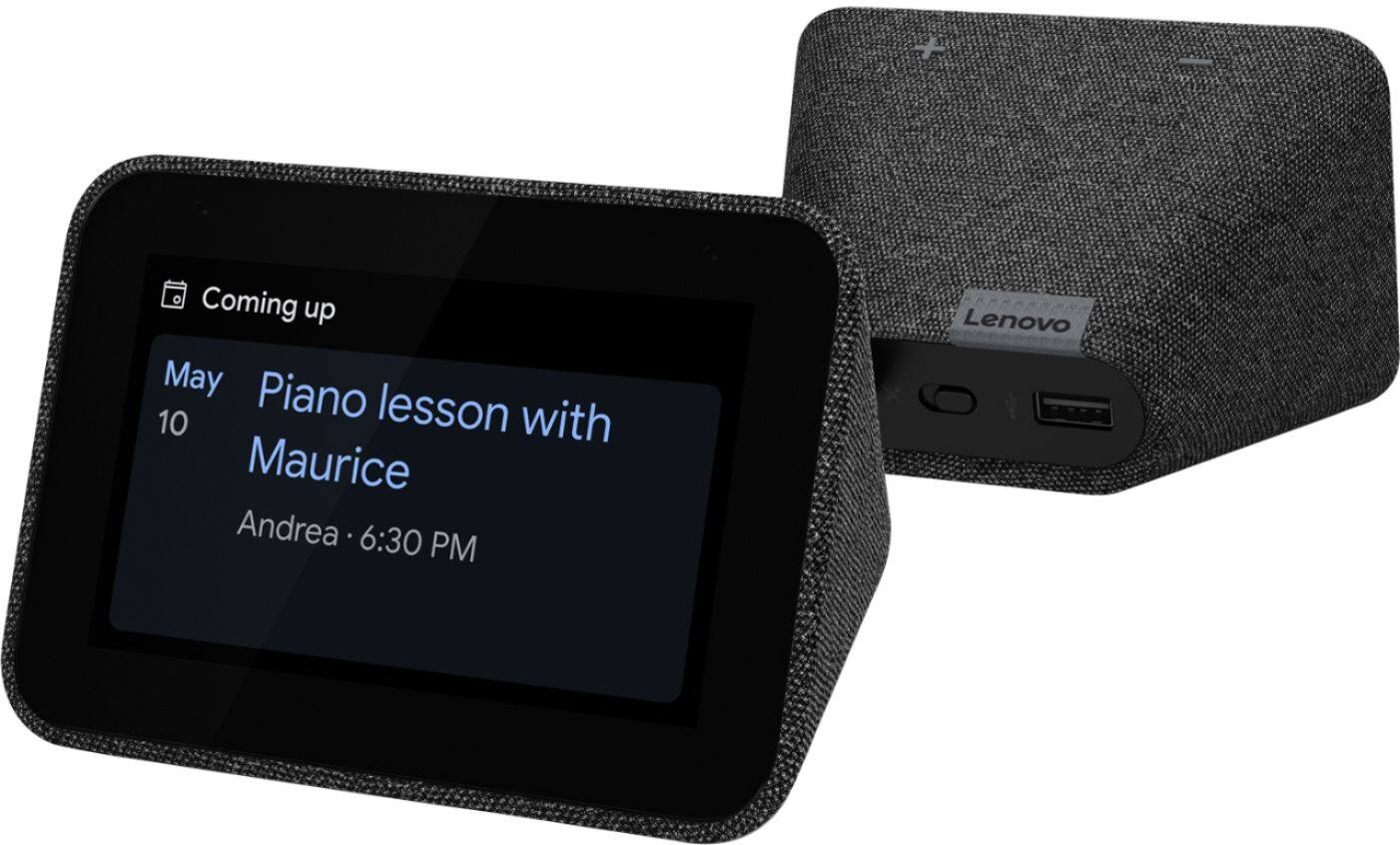
Posted .We are sorry to hear that you are having issues with WiFi connectivity with your Lenovo Smart Clock with Google Assistant. Try restarting the Smart Clock: Unplug your device then wait 10 seconds. Plug it back in. If the WiFi connectivity issue continues after this restart, now reset the Smart Clock back to original factory settings: With the device powered on, press down both the volume+ / volume- button for 10 seconds. Now, follow the on-screen instructions to set up your device. If the WiFi issue continues after this reset, we recommend you cvontact Lenovo Tech Support for Smart Devices at: 866-426-0911.
Passsssss
||Posted . Owned for 1 month when reviewed.This reviewer received promo considerations or sweepstakes entry for writing a review.Too expensive for a smart clock and small screen. No night-light either for my girls.
No, I would not recommend this to a friendBrand response from Lenovo Product Expert
Posted .Hi there, we are sorry to hear you're having this experience with the Lenovo Smart Clock. We currently offer the Lenovo Smart Clock Essential which does feature a built in LED nightlight on the back. https://www.bestbuy.com/site/lenovo-smart-clock-essential-soft-touch-gray/6429528.p?skuId=6429528
If you need further assistance please don't hesitate to reach out to Lenovo Tech Support at 866-426-0911
I did not like it
||Posted .This reviewer received promo considerations or sweepstakes entry for writing a review.Personally, I did not like. I returned it, the set up was not easy.
No, I would not recommend this to a friendDon't do it
||Posted . Owned for 1 month when reviewed.This reviewer received promo considerations or sweepstakes entry for writing a review.Ever since I hooked this up, I've been having problems with my Google assistant
No, I would not recommend this to a friendBrand response from Lenovo Product Expert
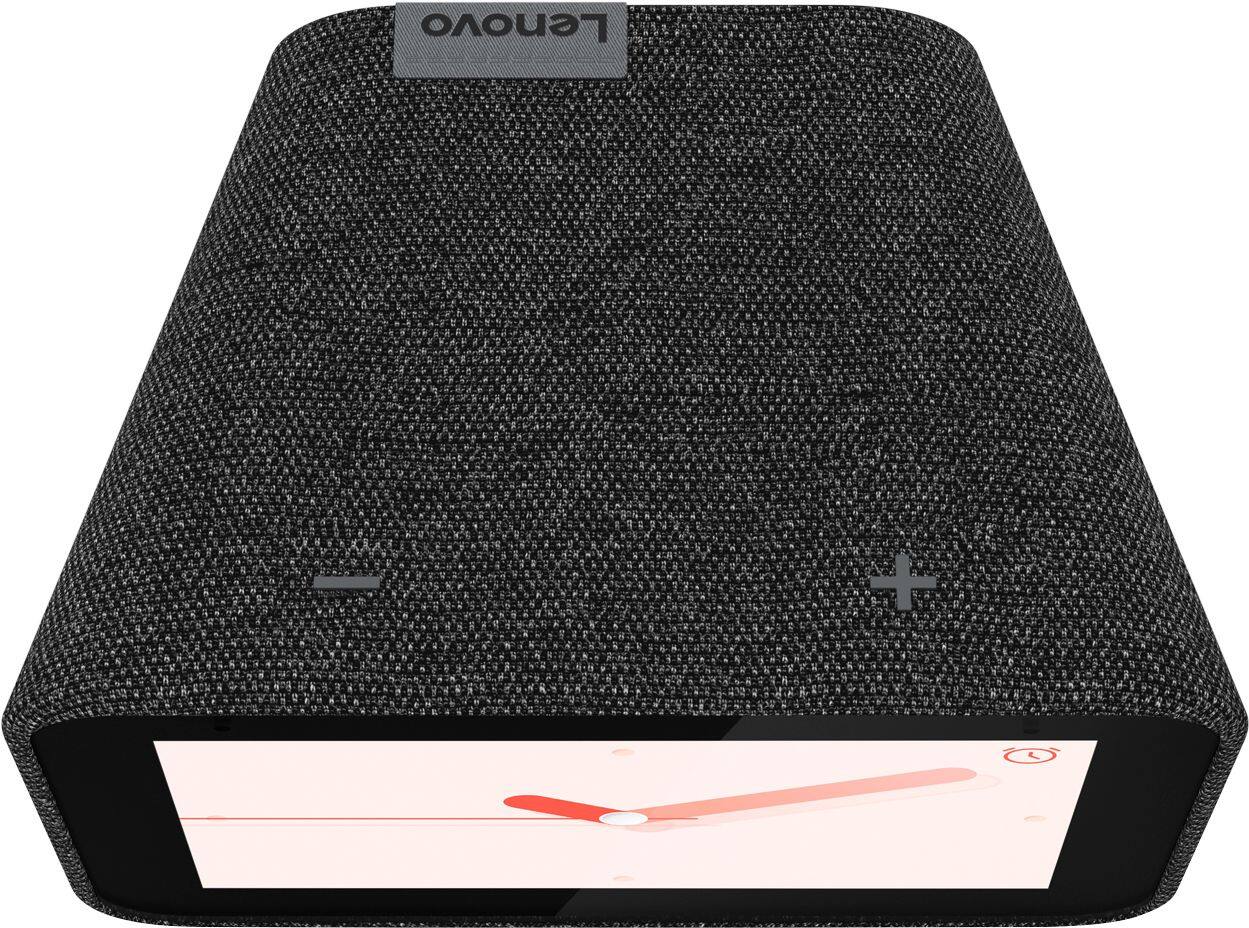
Posted .We are sorry to hear you are experiencing this issue with your Lenovo Smart Clock. Please perform a factory reset by holding down the “Volume + and – ” buttons on top of your device for 8 Seconds. If the issue persists, please contact our customer support team at 866-426-0911
Good but....
||Posted . Owned for 3 months when reviewed.This reviewer received promo considerations or sweepstakes entry for writing a review.Not the best clock to use as an alarm clock. I use it now just to know the time.
No, I would not recommend this to a friendBrand response from Lenovo Product Expert
Posted .We are sorry to hear you are experiencing this issue with your Lenovo Smart Clock with Google Assistant. The Lenovo Smart Clock with the Google Assistant lets you wake up feeling more rested. As the screen brightness gently increases, you can ease yourself into the day. Set up a Good Morning Routine to bring you the local traffic, news, weather, and sports automatically. And if you need more rest, simply tap the device to snooze or dismiss the alarm.
Returned tt
||Posted . Owned for 3 months when reviewed.This reviewer received promo considerations or sweepstakes entry for writing a review.Item doesnt work well for night time screen never dims and its too bright for bedroom
No, I would not recommend this to a friendBrand response from Lenovo Product Expert
Posted .You can change settings on your Lenovo Smart Clock. Swipe bottom-to-top on the Hub/Clock's screen and you'll see a Settings cog in the bottom right. Tap this and you'll see Display Settings within the menu. Within this you can choose to Show Mono Clock Face (or not) and adjust the Minimum Brightness between Brighter, Dim and Darker. Here is a link to more information about adjusting setting on the Lenovo Smart Clock: https://www.pocket-lint.com/smart-home/news/148204-auto-dimming-fix-google-home-hub-nest-hub-lenovo-smart-clock
—
||Posted . Owned for less than 1 week when reviewed.This reviewer received promo considerations or sweepstakes entry for writing a review.It was too small for my liking. It looked larger in the pictures online.
No, I would not recommend this to a friendBrand response from Lenovo Product Expert
Posted .Hello, we are sorry to hear you had this experience with the Lenovo Smart Clock with Google Assistant. The Lenovo Smart Clock features a crisp 4" color touch display. You can find this information listed on the packaging and in the specifications information on the product page below the listing. If you are after a larger display Lenovo offer's a 7" Smart Display with Google Assistant. https://www.bestbuy.com/site/lenovo-7-smart-display-with-google-assistant-blizzard-white/6411151.p?skuId=6411151
Display has died
||Posted .This reviewer received promo considerations or sweepstakes entry for writing a review.After having it for about a year, the display has basically died. It goes black then sometimes turns back on. I’ve tried unplugging/plugging it in, doing a factory reset, etc, nothing solves the problem. It’s too bad because it was a useful little unit but is now headed for the trashcan.
No, I would not recommend this to a friendBrand response from Lenovo Product Expert
Posted .We are sorry to hear that you are having issues with your Lenovo Smart Clock with Google Assistant. We recommend you contact Lenovo Tech Support for Smart Devices for additional help at: 866-426-0911.
smart clock
||Posted . Owned for 1 year when reviewed.This reviewer received promo considerations or sweepstakes entry for writing a review.I bought Ocotber 15, 2019 and yesterday it was stop working. August 16, 2021 more than 1 year only. It was very good to have an smart clock but it doesn't last very long. It was very easy to get wind, or temperature outside but i feel very sad the product is is very poor.
No, I would not recommend this to a friendBrand response from Lenovo Product Expert
Posted .We are sorry to hear that you are having issues with your lenovo Smart Clock with Google Assistant. Try restarting your Smart Clock: Try to restart the device. Unplug your device then wait 10 seconds. Plug it back in. If the issue continues, now try resetting the Smart Clock back to original factory settings: With the device powered on, press down both the volume+ / volume- button for 10 seconds. Follow the on-screen instructions to set up your device. If the issue continues, we recommend you contact lenovo Tech Support for Smart Devices at: 866-426-0911.
Could be better
||Posted . Owned for 1 month when reviewed.This reviewer received promo considerations or sweepstakes entry for writing a review.If you want to use this to assist you with your home automation, cool. This isn't good as an ACTUAL alarm clock if you're a heavy sleeper. The preloaded serene sounds do nothing for my people. If the ability to choose your own sounds was available this would be worth it and get a better score.
No, I would not recommend this to a friendBrand response from Lenovo Product Expert
Posted .Hello, we are sorry to hear you are having an issue with the Alarm waking you up in the morning. I can assist you with this. First please ensure the alarm master volume is set to its maximum. To adjust the maximum volume of your alarm please swipe down from the home screen of your device. Then select "Alarms" then scroll down to the bottom and select the gear or "settings" Icon from the bottom left. You now have access to additional alarm settings including min+max volume. In regards to setting custom alarm sounds this is possible with the use of the "Okay Google Set a Music Alarm" feature. By saying this to your Assistant you now have the choice of setting any sound, song, playlist, newscast etc from a host of options including Spotify, YouTube Music, Pandora, and more. Here is a link to a Spotify Playlist featuring custom alarm sounds including an "Extra Loud" track. https://open.spotify.com/album/0xXtpOK6tYmZhw13Zb3oT2?highlight=spotify:track:5UxHkWHJpxSPHG4Sh607af .
limited applications, touch screen doesn’t work
||Posted . Owned for 3 weeks when reviewed.This reviewer received promo considerations or sweepstakes entry for writing a review.Touch screen never works when I am trying to turn off the alarm in the morning. Have to unplug so I don’t have to hear it get louder and louder. Disappointed.
No, I would not recommend this to a friendBrand response from Lenovo Product Expert
Posted .Hello, we are sorry to hear you are experiencing this issue with your Lenovo Smart Clock. Your Touch screen should function to turn off the alarm. Please try performing a factory reset on the device by by holding down the “Volume + and – ” buttons on top of your device for 10 Seconds. You may also snooze the alarm by tapping on top of the device rather than unplugging it. Alternatively in the morning when your alarm is going off you can say "Okay Google stop alarm" to turn off your alarm without lifting a finger. If your issue still persists please reach out to customer support at 866-426-0911.
work good
||Posted . Owned for 4 months when reviewed.This reviewer received promo considerations or sweepstakes entry for writing a review.works very good. Screen is too small. I return it.
No, I would not recommend this to a friendBrand response from Lenovo Product Expert
Posted .Hello, we are sorry to hear you had this experience with the size of the device. The Lenovo Smart Clock with Google Assistant and it's crisp 4" display is intended to be the perfect nightstand, end table, or table top companion. easily control over 10,000 smart home devices, across more than 1,000 different brands. Switch the porch lights off, turn on the espresso machine, or control any product featuring a ‘works with the Google Assistant’ badge—from the comfort of your bed, with just your voice. By making your home smarter, you can save time, too. If you are after a larger screen we do offer a Lenovo 7" Smart Display with Google Assistant. https://www.bestbuy.com/site/lenovo-7-smart-display-with-google-assistant-blizzard-white/6411151.p?skuId=6411151
Not what I excepted
||Posted . Owned for 1 month when reviewed.This reviewer received promo considerations or sweepstakes entry for writing a review.I thought if its compatible with google home so I can see my cameras on it. No it will not let me see any thing, even I can not stream my YouTube on it. So I returned it and for extra $15 I get a google hub 2nd generation so good.
No, I would not recommend this to a friendBrand response from Lenovo Product Expert
Posted .The Lenovo Smart Clock with Google Assistant will allow you to view your Nest cameras through the Google Home APP. You can cast YouTube videos to another Google Home Screen from the Smart Clock. The Smart Clock can not display YouTube videos on its screen.
Not smart enough
||Posted . Owned for 1 month when reviewed.This reviewer received promo considerations or sweepstakes entry for writing a review.Does not compare with Echo 5 No internet access No intercom
No, I would not recommend this to a friendBrand response from Lenovo Product Expert
Posted .The Lenovo Smart Clock requires a WiFi connection to function as a Google Assistant, which does give you access to the information and web through the assistant. You can also use your device as an intercom through the Google Home app. We recommend visiting our handy online How-To & Solutions Guide to explore all its capabilities.
No Clock shows when internet is down, useless.
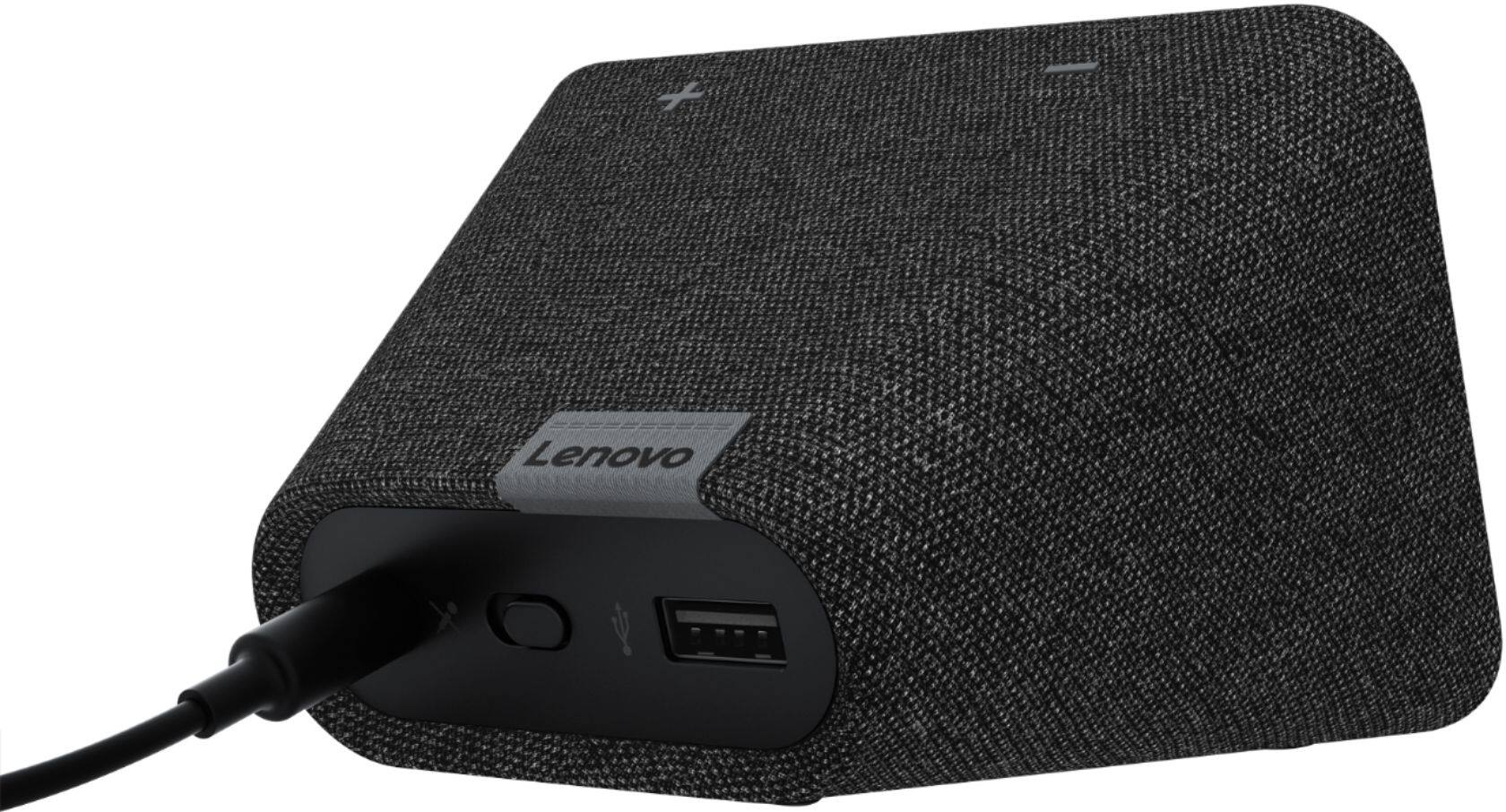
||Posted . Owned for 3 weeks when reviewed.This reviewer received promo considerations or sweepstakes entry for writing a review.I Liked the idea of this Lenovo Smart clock. I like that it has an on/off switch for the microphone. However, I cannot understand why they would not show the clock when the internet is down. Lenovo says that the problem is with Google and not them. Don't waste your money.
No, I would not recommend this to a friendBrand response from Lenovo Product Expert
Posted .Hello, we are sorry to hear your're having this issue. Your Lenovo Smart Clock is designed to display the time and any previously set alarms that you may have in the event of a brief Wi-Fi outage. The display should show a tiny indicator when your Wi-Fi is out to alert you next to the time on the home screen. If your device is not functioning in this manner please try to power cycle the device by unplugging it for 20 seconds, plugging it back in, and allowing it to reboot. If your issue persists, please factory reset the device by holding down the “Volume + and Volume –” Buttons for 10 seconds. If you are still experiencing this issue after the factory reset, please reach out to our customer support team at 866-426-0911
Didn’t work for long
||Posted . Owned for 11 months when reviewed.This reviewer received promo considerations or sweepstakes entry for writing a review.It broke within a couple months and kept freezing!
No, I would not recommend this to a friendBrand response from Lenovo Product Expert
Posted .We are sorry to hear you are experiencing this issue with your Lenovo Smart Clock. Please perform a factory reset by holding down the “Volume + and – ” buttons on top of your device for 8 Seconds. If the issue persists, please contact our customer support team at 866-426-0911
Garbage.
||Posted . Owned for 1 month when reviewed.This reviewer received promo considerations or sweepstakes entry for writing a review.Malfunctioning constantly. "There was a glitch. Try again in a few moments" or "Something went wrong, try again later." Forums all over the web report same issue for months and never been fixed. This never happens with my Google puck sized speakers.
No, I would not recommend this to a friendBrand response from Lenovo Product Expert
Posted .Hello we are sorry to hear you are experiencing issues with your Lenovo Smart Clock with Google Assistant. If your device is misbehaving we recommend to please power cycle the device by unplugging it for 1-2 minutes. Plugging it back in, and allowing it to power on. If the issue remains please perform a factory reset by holding down the “Volume + and – ” buttons on top of your device for 8 Seconds. If the issue persists, please contact our customer support team at 866-426-0911
Not with it
||Posted . Owned for 9 months when reviewed.This reviewer received promo considerations or sweepstakes entry for writing a review.Do not waste your time and money. Constantly disconnects from wifi. I've had to reboot it plenty of times. It's a piece of junk.
No, I would not recommend this to a friendBrand response from Lenovo Product Expert
Posted .The Lenovo Smart Clock with Google Assistant ships with 2.4G/5G Dual Band, IEEE 802.11 a/b/g/n/ac frequency WiFi. For the best WiFi connectivity, first turn your router off then let the router sit for 30-seconds. Power the router back on. The Lenovo Smart Clock should reconnect to the WiFi signal automatically. See if the WiFi connectivity issue has resolved itself. If not, first, Try to restart the the Smart Clock - 1. Unplug your device then wait 10 seconds. 2. Plug it back in. Check the WiFi connectivity to see if the issues is resolved. If not, now reset the Smart Clock back to original factory settings: 1. With the device powered on, press down both the volume+ / volume- button for 10 seconds. 2. Follow the on-screen instructions to set up your device. If the issue continues after the reset, we recommend you contact Lenovo Tech Support for additional help at: 866-426-0911.