Customer Ratings & Reviews
- Model:
- ZA4R0037US
- SKU:
- 6441962
Rating by feature
- Value
Rating 4.5 out of 5 stars
- Quality
Rating 4.6 out of 5 stars
- Ease of Use
Rating 4.5 out of 5 stars
Customers are saying
Customers frequently mention the ease of use, sound quality, and alarm features as positive aspects of the Smart Clock with Google Assistant. Many also appreciate the Google Assistant integration, the clock's size, and its display. However, some users reported issues with maintaining a consistent WiFi connection. A lack of battery backup was another recurring negative comment.
This summary was generated by AI based on customer reviews.
It was great. Now it is trash.
||Posted . Owned for 10 months when reviewed.This reviewer received promo considerations or sweepstakes entry for writing a review.It was great. Was a nice clock and Google Assistant. Until yesterday, when the screen wouldn't turn on. Well, it would show the Lenovo boot screen, then it would stay black. The Assistant still works but the screen doesn't. Pretty dumb.
No, I would not recommend this to a friendBrand response from Lenovo Product Expert
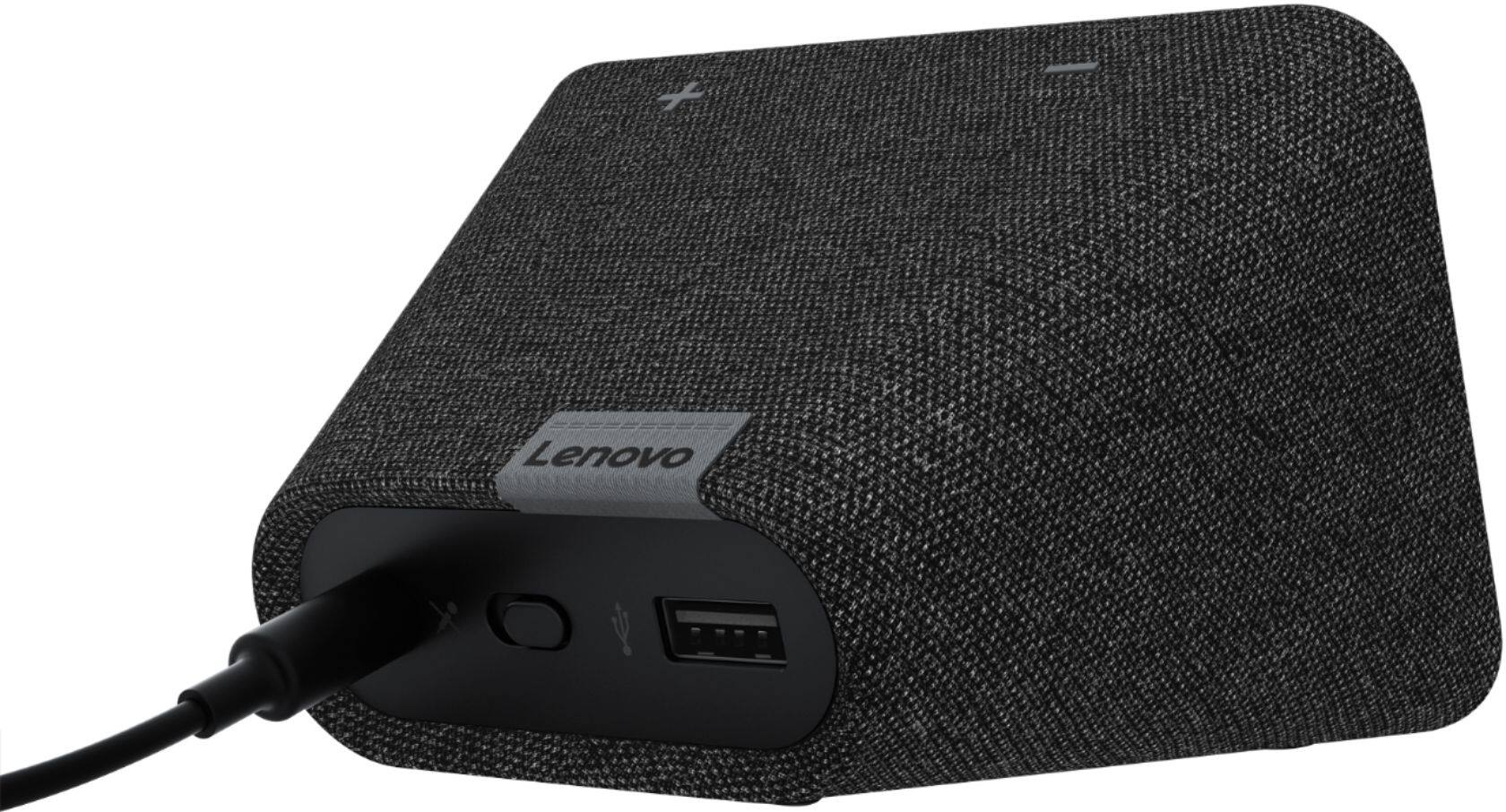
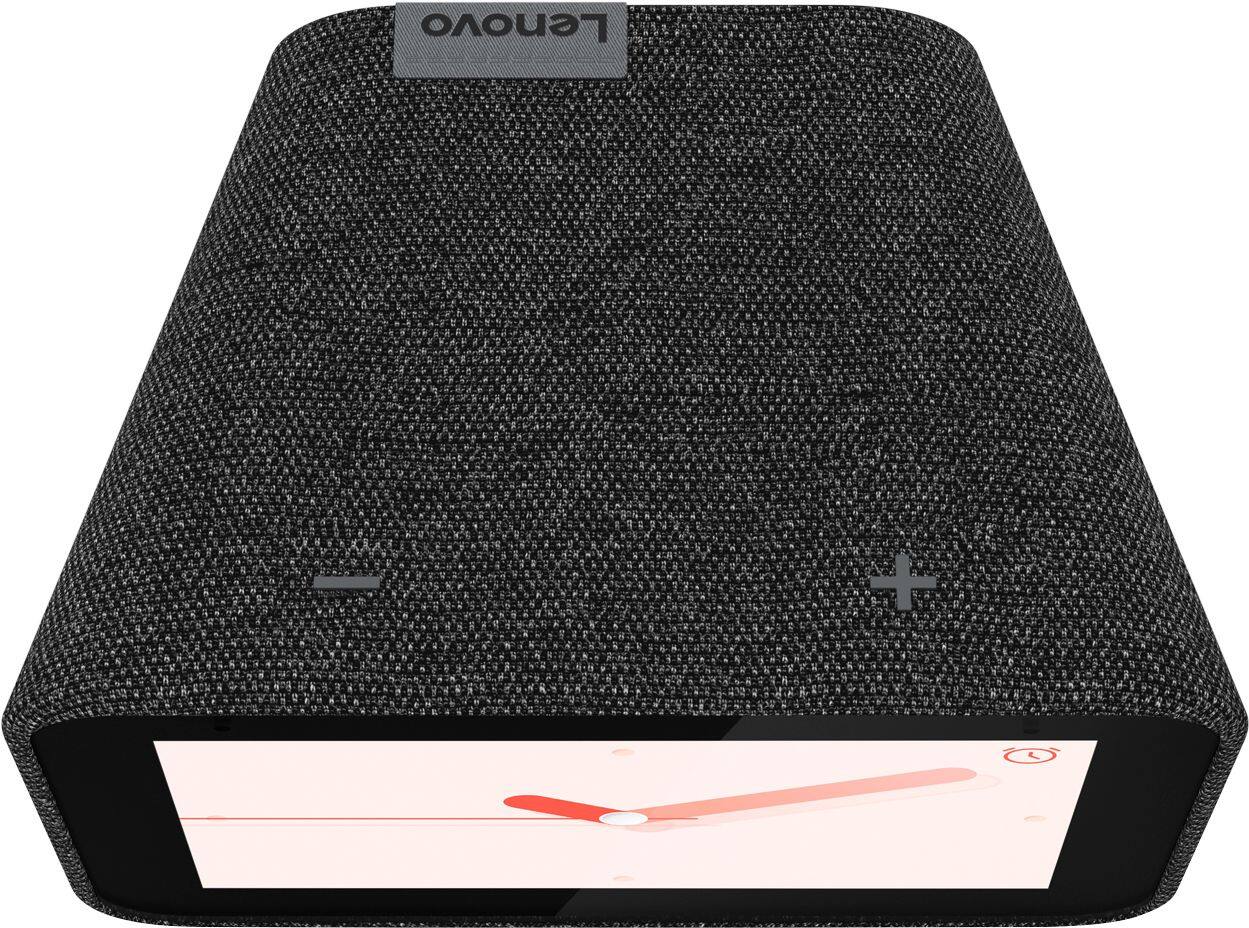
Posted .Hello, we are sorry to hear you are experiencing an issue with the display on your Lenovo Smart Clock with Google Assistant. Please power cycle the device by unplugging it for 1-2 minutes. Plugging it back in, and allowing it to power on. If the issue remains please perform a factory reset by holding down the “Volume + and – ” buttons on top of your device for 8 Seconds. If the issue persists, please contact our customer support team at 866-426-0911

Do not rely on this clock
||Posted . Owned for 1 year when reviewed.This reviewer received promo considerations or sweepstakes entry for writing a review.This thing will arbitrarily decide not to go off when you set an alarm. It freezes, the audio fails, and the entire point of an alarm clock is lost, because i have to set a backup alarm on my phone.
No, I would not recommend this to a friendBrand response from Lenovo Product Expert
Posted .We are sorry to hear that you are having issues with your Lenovo Smart Clock with Google Assistant. First, if you are setting your alarms manually, be sure to save the alarm settings. You can check to be sure the alarms you set are correct either manually by swiping down on the Smart Clock screen, then selecting Alarms. This will display the current alarms you have set. You can also use Voice Command and ask Google Assistant what alarms you currently have set. If the issue continues, try resetting your Smart Clock back to original factory settings. You can do this by - With the device powered on, press down both the volume+ / volume- button for 10 seconds. Follow the on-screen instructions to set up your device. If the issue continues, we recommend you contact Lenovo Tech Support for Smart Devices at: 866-426-0911.
Google has destroyed functionality
||Posted . Owned for 2 months when reviewed.This reviewer received promo considerations or sweepstakes entry for writing a review.Avoid at all costs. Working with Google assistant became a liability effective early January due to a lost lawsuit by Google. Now speaker groups do not work. Maybe Lenovo should sue Google.
No, I would not recommend this to a friendBrand response from Lenovo Product Expert
Posted .The Lenovo Smart Clock with Google Assistant can pair with other Google Home compatible speakers that are on your Google Home network. Here is a link to more information: https://support.google.com/googlenest/answer/7029485?hl=en&co=GENIE.Platform%3DAndroid. If you continue to have issues pairing your Lenovo Smart Clock with Google Assistant to other Google Home compatible devices, we recommend you contact lenovo Tech Support for Smart Devices at: 866-426-0911.
Fine as an assistant but nothing else
||Posted . Owned for 1 year when reviewed.This reviewer received promo considerations or sweepstakes entry for writing a review.Restarts constantly for no reason. Also will not work with Apple Music since the update. Sound is not great, if using for only the Google Assitant then it's fine but music sounds better coming from my phone speaker.
No, I would not recommend this to a friendBrand response from Lenovo Product Expert
Posted .Hello, we are sorry to hear you are experiencing this issue with your Lenovo Smart Clock with Google Assistant. At this time the Lenovo Smart Clock is not compatible with Google Music. You can pair the Lenovo Smart Clock with any cast enabled speaker you may own for full room or whole home audio. In regards to the restarts. Please power cycle the device by unplugging it for 1-2 minutes. Plugging it back in and allowing it to power on. If the issue remains please perform a factory reset by holding down the “Volume + and – ” buttons on top of your device for 8 Seconds. If the issue persists, please contact our customer support team at 866-426-0911
mr ed
||Posted .This reviewer received promo considerations or sweepstakes entry for writing a review.I cant review this purchase because I have not been able to down load the instructions it was not clear to me when I made this purchase that I would need do anything but plug it in the wall ? I am dissatisfied completely
No, I would not recommend this to a friendBrand response from Lenovo Product Expert
Posted .Hi there we are sorry to hear you experienced this problem setting up your Lenovo Smart Clock with Google Assistant. To setup the Smart Cock you will need to download the Google Home App on your Smart Phone or Tablet. Then plug in your Smart Clock , Power it on, and open The Google Home App. Follow the on screen instructions. Your Clock is now Setup. If you need further assistance we recommend reaching out to Lenovo Tech Support at 866-426-0911
Works good, but constantly crashes
||Posted .This reviewer received promo considerations or sweepstakes entry for writing a review.It was good, but constantly crashing and finding out that it would record without me saying “Hey Google” made me throw it in a drawer. Get a HomePod.
No, I would not recommend this to a friendBrand response from Lenovo Product Expert
Posted .We are sorry to hear that you are having issues with your Lenovo Smart Clock with Google Assistant. You can turn the microphone off on your Smart Clock if you want privacy and don't want to use Voice Commands all the time. To correct the system crashing try restarting the Smart Clock: Unplug your device then wait 10 seconds. Plug it back in. If the issues continue, now try resetting the Smart Clock back to original factory settings: With the device powered on, press down both the volume+ / volume- button for 10 seconds. Follow the on-screen instructions to set up your device. If you continue to have problems, we recommend you contact Lenovo Tech Support for Smart Devices at: 866-426-0911.
Dont buy
||Posted . Owned for 7 months when reviewed.This reviewer received promo considerations or sweepstakes entry for writing a review.This just died. Purchased in April 2020. Could not figure out why my phone would not charge using charging port. Well it's because it died, no display no nothing. Tried several outlets in my home. Would like a refund.
No, I would not recommend this to a friendBrand response from Lenovo Product Expert
Posted .Hello, we are sorry to hear you are having this issue. It is possible the power adapter needs to be replaced. The Lenovo Smart Clock model ZA4R
replacement adapter part is SA18C27239. We recommend contacting your Geek Squad to see about ordering you a new one or You may get in contact with Lenovo Support directly by calling 866-426-0911.
Won't connect to google home
||Posted . Owned for less than 1 week when reviewed.This reviewer received promo considerations or sweepstakes entry for writing a review.Worked with this for almost two hours and it just won't hook up to google nest. Finally gave up. I'll pay the extra money and buy another google hub. Lesson learned. Back to the store it goes.
No, I would not recommend this to a friendBrand response from Lenovo Product Expert
Posted .We are sorry to hear that you are having issues setting up and pairing your Lenovo Smart Clock with Google Assistant to your other Google Assistant compatible devices. Here is a link to a YouTube video demonstrating the setup and functionality of the Smart Clock. The Smart Clock is compatible with gadgets featuring the “works with the Google Assistant” badge. If you continue to have issues, we recommend you contact Lenovo Tech Support for Smart Devices at: 866-426-0911.
Not worth the time
||Posted . Owned for 3 weeks when reviewed.This reviewer received promo considerations or sweepstakes entry for writing a review.It worked well for 14 days. It turned into a brick on the 15th day for no apparent reason. I barely made the 15th day of the return period. Had it died a day later, I would have had to deal with Lenovo.
No, I would not recommend this to a friendBrand response from Lenovo Product Expert
Posted .Hello, we are sorry to hear you had this experience with the Lenovo Smart Clock with Google Assistant. Please inspect your charging cable and wall plug for any signs of damage, and then please try plugging your Smart Clock into another outlet to see if this solves the problem. A lot of times simply unplugging the device waiting for 20 seconds, then powering it back on will fix any issues. If the issue remains please perform a factory reset by holding down the “Volume + and – ” buttons on top of your device for 8 Seconds. If the issue persists, please contact our customer support team at 866-426-0911
failed to impress
||Posted .This reviewer received promo considerations or sweepstakes entry for writing a review.The ad read like just what I wanted - a smart alarm clock with a bluetooth speaker. Nope. Could never make the connections necessary to get it to function. Returned items.
No, I would not recommend this to a friendBrand response from Lenovo Product Expert
Posted .The Lenovo Smart Clock with Google Assistant can only be used as sound output device (in Bluetooth connection). It can not deliver sound from another device, it can only output audio to another device, via a Bluetooth connection. And it can't link with another Bluetooth speaker.
Not Compatible with Apple Music
||Posted . Owned for 1 month when reviewed.This reviewer received promo considerations or sweepstakes entry for writing a review.Advertised as compatible with Apple Music but it is not connecting to play. The whole system is complicated and not necessary. Ill be getting a homepod mini
No, I would not recommend this to a friendBrand response from Lenovo Product Expert
Posted .We are sorry to hear that you are having issues pairing your Lenovo Smart Clock with Google Assistant to your existing Apple Music Account. The Lenovo Smart Clock requires the Google Home application for set up, which is compatible with most Android or iPhones. If you continue having an issue pairing your existing Apple Music Account, we recommend you contact Lenovo Tech Support for Smart Devices at: 866-426-0911.
Not As Described
||Posted .This reviewer received promo considerations or sweepstakes entry for writing a review.The Best Buy Specifications list BLUETOOTH VERSION 5.0, but is nowhere to be found and it does not have line out so you are left with mini min speakers. All dressed up and nowhere to go!
No, I would not recommend this to a friendBrand response from Lenovo Product Expert
Posted .You can say "Hey Google, please connect Bluetooth", Smart Clock will tell you the device name, then you can use your phone/tablet to find and connect it in Bluetooth menu. Then you can use Smart Clock as Bluetooth speaker. Here is a link to more information: https://support.lenovo.com/us/en/solutions/ht508387
Think again
||Posted . Owned for 8 months when reviewed.This reviewer received promo considerations or sweepstakes entry for writing a review.Even without a power outage, displays wrong time. Been late to get up multiple times due to time/alarm being incorrect when I get up. Would like to replace.
No, I would not recommend this to a friendBrand response from Lenovo Product Expert
Posted .We are sorry to hear that you are having issues with your Lenovo Smart Clock with Google Assistant. Try resetting your Smart Clock back to original factory settings: Factory reset your device - With the device powered on, press down both the volume+ / volume- button for 10 seconds. Follow the on-screen instructions to set up your device. If the issue continues, we recommend you contact lenovo Tech Support for Smart Devices at: 866-426-0911.
Good when it stays connected to wifi
||Posted . Owned for 1 week when reviewed.This reviewer received promo considerations or sweepstakes entry for writing a review.Looks good, but not dependable, keeps going off line and I have to unplug it then plug again to recalibrate and reconnect to wifi. I have to do this several times a week.
No, I would not recommend this to a friendBrand response from Lenovo Product Expert
Posted .Hi there, we are sorry to hear you are experiencing this issue with your Lenovo Smart Clock with Google Assistant. It is possible adjusting some settings with your router will fix this. As it is more compatible please ensure the Smart Clock is connecting to the 2.4 GHz band of your router and not the 5Ghz band. Next we recommend changing the channel the Smart Clock connects to. 1, 6, and 11 are usually the best choices because they don’t overlap with each other. Having too much overlap between wireless devices on your network can cause the Smart Clock to disconnect in rare occurrences. Here is a link with a how to guide to help with your router settings. https://www.hellotech.com/guide/for/how-to-change-wifi-channel-on-router .. If the issue persists, please contact our customer support team at 866-426-0911
Not happy customer
||Posted . Owned for 3 weeks when reviewed.This reviewer received promo considerations or sweepstakes entry for writing a review.It has not worked since I set it up and have contacted them 3 times and no one has gotten back to me.
No, I would not recommend this to a friendBrand response from Lenovo Product Expert
Posted .We are sorry to hear that you are having issues with your Lenovo Smart Clock with Google Assistant. First try restarting your Smart Clock: Try to restart the device. Unplug your device then wait 10 seconds. Plug it back in. If the issue continues, now try resetting your Smart Clock back to original factory settings: Factory reset your device (only Smart Clock) With the device powered on, press down both the volume+ / volume- button for 10 seconds. Follow the on-screen instructions to set up your device. If the issues continue, we recommend you contact Lenovo Tech Support for Smart Devices at: 866-426-0911.
Don't buy this it's tradh
||Posted . Owned for 8 months when reviewed.This reviewer received promo considerations or sweepstakes entry for writing a review.This thing is garbage!! One day decided it didn't want to connect to the wifi and it's not my internet that is the problem.
No, I would not recommend this to a friendStopped working adter two years
||Posted . Owned for 1.5 years when reviewed.This reviewer received promo considerations or sweepstakes entry for writing a review.Gave these as gifts. Learned that one of them no longer works. It's only two years old so that's disappointing.
No, I would not recommend this to a friendReturned
||Posted . Owned for 1 month when reviewed.This reviewer received promo considerations or sweepstakes entry for writing a review.Had device for less than a month. Does not get great wifi signal. Screen started to cut in and out. Returned and bought a different brand.
No, I would not recommend this to a friendBrand response from Lenovo Product Expert
Posted .We are sorry to hear that you had issues with your Lenovo Smart Clock with Google Assistant. Try resetting your Smart Clock back to original factory settings: 1. With the device powered on, press down both the volume+ / volume- button for 10 seconds. 2. Follow the on-screen instructions to set up your device. If the issue continues, we recommend you contact Lenovo Tech Support for Smart Devices at: 866-426-0911.
Door stop
||Posted .This reviewer received promo considerations or sweepstakes entry for writing a review.Doesn't work. Unable to register it with the Google home app. This was a gift for family and has been such a disappointment and a hassle to return.
No, I would not recommend this to a friendBrand response from Lenovo Product Expert
Posted .Hello, we are sorry to hear you are experiencing issues getting your Lenovo Smart Clock with Google Assistant setup. Please ensure you have the Google Home App installed on your Smart Phone or Tablet that is connected to the home Wi-Fi network you wish to use the Clock on. Once the App is open it's time to plug in the Lenovo Smart Clock with Google Assistant. From here follow the on screen instructions to finish the setup. If your Smart Clock is not connecting please try resetting your router and make sure you are in good range of the WiFi. Next please power cycle the device by unplugging it for 1-2 minutes. Plugging it back in and allowing it to power on. If the issue remains please perform a factory reset by holding down the “Volume + and – ” buttons on top of your device for 8 Seconds. If the issue persists, please contact our customer support team at 866-426-0911
COMPLETE JUNK DON'T WASTE YOUR MONEY OR YOUR TIME
||Posted . Owned for less than 1 week when reviewed.This reviewer received promo considerations or sweepstakes entry for writing a review.Complete piece of junk. Tried setting it up and would not sync. I tried multiple times and just no use so I returned it.
No, I would not recommend this to a friendBrand response from Lenovo Product Expert
Posted .We are sorry to hear that you had difficulty with the initial setup of your Lenovo Smart Clock with Google Assistant. Here is a link to a YouTube video demonstrating the initial setup, features and functions of the Smart Clock: https://www.youtube.com/watch?v=Mzj580tTico&t=2s. If you continue to have issues with your Smart Clock setup, we recommend you contact Lenovo Tech Support for Smart Devices at: 866-426-0911.