Customer Ratings & Reviews
- Model:
- ZA4R0037US
- SKU:
- 6441962
Rating by feature
- Value
Rating 4.5 out of 5 stars
- Quality
Rating 4.6 out of 5 stars
- Ease of Use
Rating 4.5 out of 5 stars
Customers are saying
Customers frequently mention the ease of use, sound quality, and alarm features as positive aspects of the Smart Clock with Google Assistant. Many also appreciate the Google Assistant integration, the clock's size, and its display. However, some users reported issues with maintaining a consistent WiFi connection. A lack of battery backup was another recurring negative comment.
This summary was generated by AI based on customer reviews.
do NOT buy if you use an iPhone
Posted .This reviewer received promo considerations or sweepstakes entry for writing a review.Received this clock as a gift a few weeks ago and it will not set up, won't even show me the time. After weeks trying to contact the Lenovo company, I have heard nothing back and now best buy will not accept a return. Only buy this item if you have a google phone. I have tried every trick in the book from resetting the clock, resetting my device, redownloading the google home app and nothing works. I will never buy another Lenovo device again. Wish I was able to get the refund for this item.
No, I would not recommend this to a friendBrand response from Lenovo Product Expert
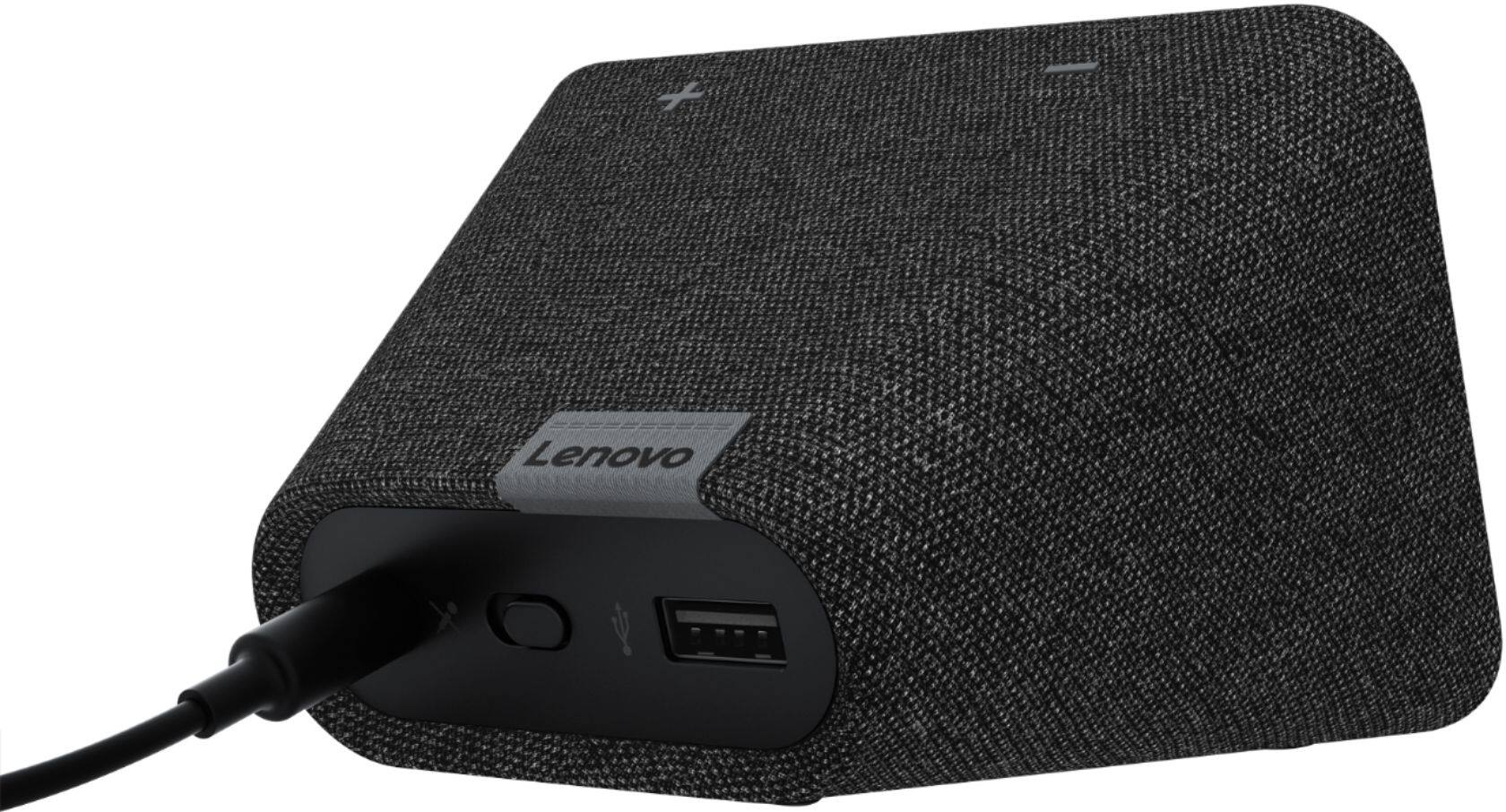
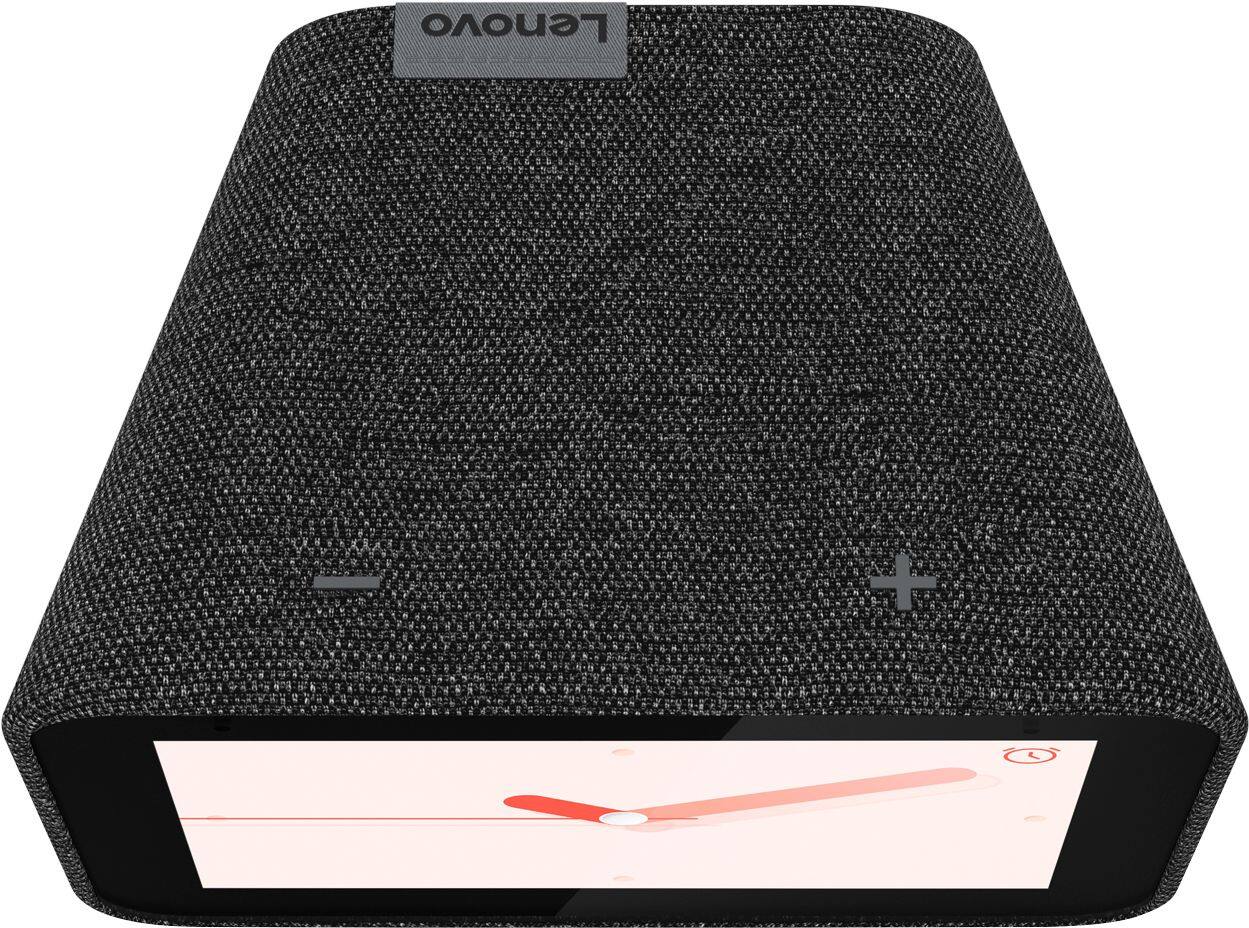
Posted .We are sorry to hear you are experiencing this issue with your Lenovo Smart Clock. The device should have no issues being setup with an I-Phone as all that is required is the Google Home App. The Google Home App is compatible with Android or iOS. Can you please make sure that you are connecting the Smart Clock to the same WiFi network that your smart phone is on? We recommend that you connect the Smart Clock to the 2.4GHZ band of your router as this is the most compatible with smart devices. You said you performed a factory reset before. Please make sure are using the following reset method. Hold down the “Volume + and – ” buttons on top of your device for 10 Seconds. If ,after these trouble shooting steps, the issue persists, please contact our customer support team at 866-426-0911. We appreciate your patience in the matter.

Failed to work as intended.
Posted .This reviewer received promo considerations or sweepstakes entry for writing a review.I really wanted to like this clock. I bought it for the bedroom. Unfortunately it fails on many counts. 1) Rotating MAC address - I had to disable my MAC whitelist. 2) Auto brightness - when on, it is so dark, I can't see it! 3) After the latest firmware 'update' asking Google to play music ends up with the "Let me help you with that".... and does nothing. Someone on Santa's 'naughty' list is getting this for Christmas.
No, I would not recommend this to a friendBrand response from Lenovo Product Expert
Posted .Hello there, We are sorry to hear you are experiencing these issues with your Lenovo Smart Clock. I can assist you with this. 1. I will pass this information along in regards to the MAC address. 2. There are three levels of minimum brightness to choose from. This can easily be adjusted by accessing the "Display Settings" by swiping up from the home screen clock face and selecting the little gear shaped "Settings" Icon in the bottom right corner of the screen. 3. The latest firmware update should not have effected your device in this way. Please try performing a soft reset by unplugging the device forn10 seconds, plugging it back in, and allowing to turn back on. Alternatively you can try to specify what music you want played e.g. "Okay google play music from Spotify". If your issue remains we suggest performing a factory reset by holding down the “Volume + and – ” buttons on top of your device for 8 Seconds. If the issue persists, please contact our customer support team at 866-426-0911
Clock died at 30 days old and BB wouldnt exchange.
Posted .This reviewer received promo considerations or sweepstakes entry for writing a review.I woke up this morning to a black screen on my clock. Its like 35 days old. I went up to Bestbuy where I bought it with my receipt and all the original packaging, manuals and warranty info. They REFUSED to exchange it. Told me I had to mail it back to Lenovo which is total garbage seeing how this clock is 30 days old. Looks like Walmart is my new electronics store.
No, I would not recommend this to a friendBrand response from Lenovo Product Expert
Posted .We are sorry to hear that you are having issues with your Lenovo Smart Clock, with Google Assistant. First check to see if it is just the screen brightness that is the issue. Try saying "Ok Google, Set the screen brightness to 10". If that is not the issue, try a reset of your Smart Clock. Try to restart the device. Unplug your device then wait 10 seconds. Plug it back in. Factory reset your device (only Smart Clock) With the device powered on, press down both the volume+ / volume- button for 10 seconds. Follow the on-screen instructions to set up your device. Here is a link to more troubleshooting information: https://support.lenovo.com/us/en/solutions/ht508387
No Duo calls
Posted .This reviewer received promo considerations or sweepstakes entry for writing a review.This device can not receive duo calls . The less expensive google mini works fine with duo calling.
No, I would not recommend this to a friendBrand response from Lenovo Product Expert
Posted .Hello, According to the Lenovo Smart Clock FAQ page, at this time the Lenovo Smart Clock can only make audio calls. It doesn't support call receiving yet. You can find more information on the FAQ support page here https://smartsupport.lenovo.com/us/en/products/smart/smart-home/smart-clock/za4r/solutions/ht508440
Completely died exactly 10 days after the 1-year w
Posted .This reviewer received promo considerations or sweepstakes entry for writing a review.As the title states, the device is now dead and heading to a landfill. There was no indication it was going to fail, just shut off in the middle of the night. The Device also has outdated BT radio, which prevents it from pairing with Chromecast, like the base Google Home Mini can.
No, I would not recommend this to a friendBrand response from Lenovo Product Expert
Posted .We are sorry to hear that you are having issues with your Lenovo Smart Clock with Google Assistant. This Smart Clock ships with Bluetooth 5.0 capability built which is still a supported Bluetooth version. Resetting this Smart Clock back to original factory settings may clear the issue you are having. To reset the Smart Clock, With the device powered on, press down both the volume+ / volume- button for 10 seconds. Follow the on-screen instructions to set up your device. If the issue continues, we recommend you contact lenovo Tech Support for Smart Devices at: 866-426-0911.
Junk
Posted .This reviewer received promo considerations or sweepstakes entry for writing a review.Spent two hours on setting it up, linking account is not working and continues spinning for hours. Will take it back for refund tomorrow
No, I would not recommend this to a friendBrand response from Lenovo Product Expert
Posted .Hi Joe we are sorry to hear you are experiencing an issue setting up your device. Please ensure your internet connection is turned on, you are in range, and you have the Google Home App installed on your smart phone or tablet that is connected to the network you will be using the Smart Clock on. If your still having problems please power cycle the device by unplugging it for 1-2 minutes. Plugging it back in, and allowing it to power on. If the issue remains please perform a factory reset by holding down the “Volume + and – ” buttons on top of your device for 8 Seconds. If the issue persists, please contact our customer support team at 866-426-0911