Customer Ratings & Reviews
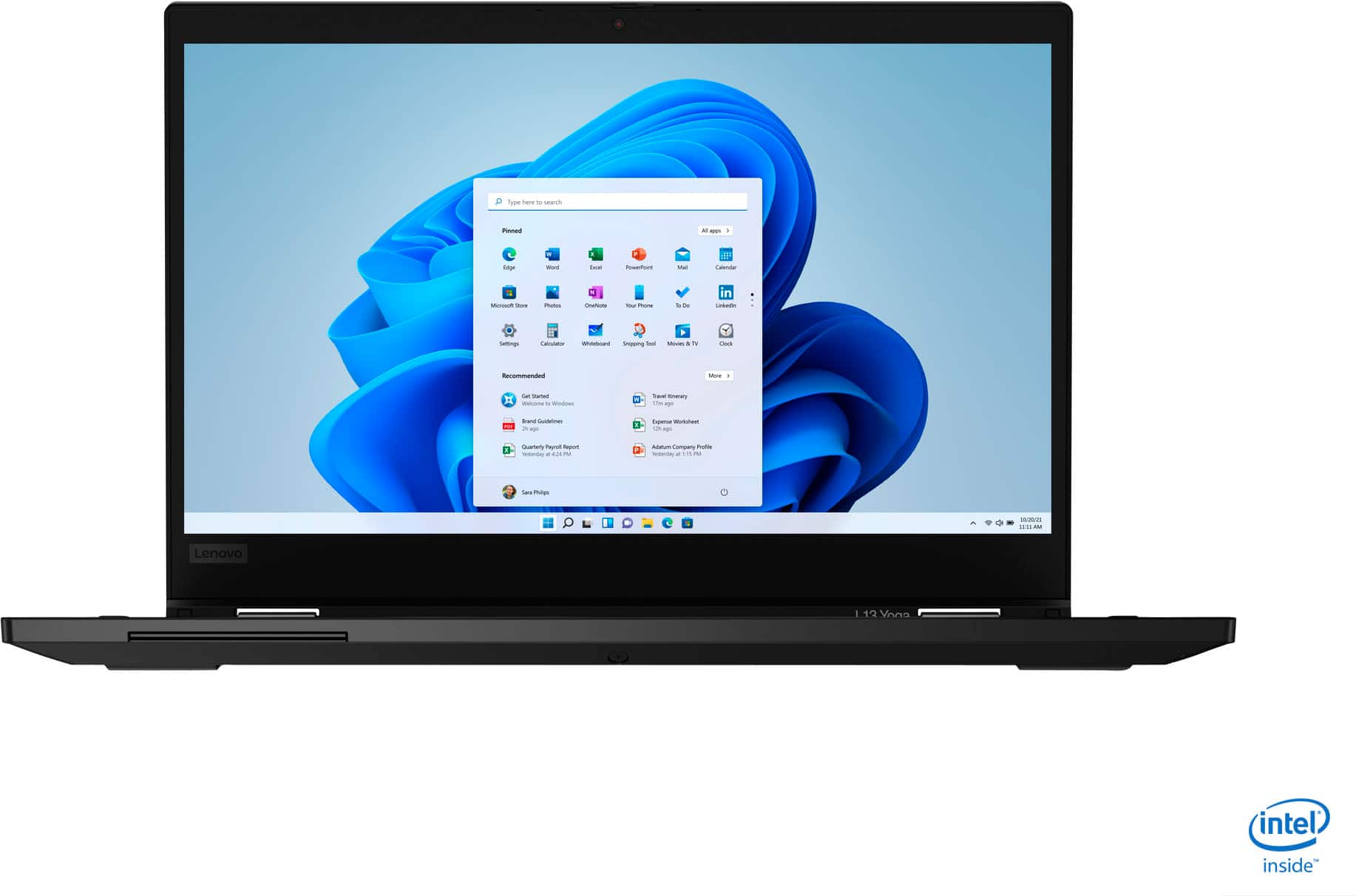

- Model:
- 20R5A000US
- SKU:
- 6393283
Rating by feature
- Battery Life
Rating 4.1 out of 5 stars
- Speed
Rating 4.1 out of 5 stars
- Display
Rating 3.9 out of 5 stars
Customers are saying
Customers highly value the ThinkPad L13 Yoga for its touch screen, light weight, user-friendly interface, and affordable price. Many users appreciate the laptop's 2-in-1 functionality, while some express concerns about battery life, overheating issues, pen malfunction, and limited RAM upgradability.
This summary was generated by AI based on customer reviews.
- Cons mentioned:Microphone, Pen
Would Not Reccomend
||Posted .This reviewer received promo considerations or sweepstakes entry for writing a review.The pen did not work and the system does not pick up my voice wen I use video or apps like Zoom and RIngCentral. I cannot talk during class or meetings because no one can hear me.
No, I would not recommend this to a friendBrand response from Lenovo Product Expert
Posted .We are sorry to hear that you are having issues with the microphone within your Lenovo ThinkPad L13 Yoga, model number 20R5A000US. First, try recording some audio, offline, by using the Windows 10 Audio Recorder. Here is a link to instructions for using the Audio Recording software within Windows 10: https://support.microsoft.com/en-us/windows/how-to-use-voice-recorder-6fbb53d5-0539-abda-a9a4-0bcb84a778e7. If you are able to record and playback an audio recording normally, now check the audio settings within the specific conferencing APP you are using. Be sure you are off mute on both the computer and within the APP as well and that the proper audio device is selected. Regarding using the included ThinkPad Active Pen, be sure you are using the pen with an APP that is compatible with Windows Ink, such as OneNote or Microsoft Word. If the pen still does not work within OneNote or Word, now check to be sure you have the latest version of Windows 10 on the computer. Then update all of the BIOS files and drivers up to that latest version of Windows 10. You can easily accomplish this by scanning the computer with the Lenovo Utility software available on this computer. This system has Lenovo utilities installed to help maintain the health of the device and keep the operating system software up to date. Type "Lenovo Vantage" in the Cortana Search window (if Lenovo Vantage is not installed on your device, you can download the APP and install it now). Select Lenovo Vantage from the list. In the window that opens, click on "Health and Support". In the expanded menu, select "Hardware Scan" In the window that opens, select "Run Quick Tests". This will scan your entire system for errors. Follow any directions that may pop up. If the problem continues after this scan, now click on "System Update". First select Windows update from the menu. Scan your system to be sure you have the latest version of Windows 10. Once that scan is complete, select "Additional Updates". This will scan your device to be sure there are no new BIOS/Driver updates needed. Follow any instructions that may pop up. If the issue still continues after these updates, we recommend you call Lenovo Tech Support at: 877-453-6686 for additional help.

- Cons mentioned:Microphone
All functions don't work
||Posted . Owned for 3 weeks when reviewed.This reviewer received promo considerations or sweepstakes entry for writing a review.The microphone doesn't work. After over an hour with the Lenovo help desk, him remote logging on, downloading several "updates", he said...see if this next update works. If not call back in. I will be returning.
No, I would not recommend this to a friendBrand response from Lenovo Product Expert
Posted .We are sorry to hear that you are having issues with your Lenovo ThinkPad L13 Yoga. You can quickly update all operating software, including all BIOS files and drivers, up to the latest version of Windows 10 by using the Lenovo Utility software available to this computer. This system has Lenovo utilities installed to help maintain the health of the device and keep the operating system software up to date. Type "Lenovo Vantage" in the Cortana Search window (if Lenovo Vantage is not installed on your device, you can download the APP and install it now). Select Lenovo Vantage from the list. In the window that opens, click on "Health and Support". In the expanded menu, select "Hardware Scan" In the window that opens, select "Run Quick Tests". This will scan your entire system for errors. Follow any directions that may pop up. If the problem continues after this scan, now click on "System Update". First select Windows update from the menu. Scan your system to be sure you have the latest version of Windows 10. Once that scan is complete, select "Additional Updates". This will scan your device to be sure there are no new BIOS/Driver updates needed. Follow any instructions that may pop up. If the issue still continues after these updates, we recommend you call Lenovo Tech Support at: 877-453-6686 for additional help.