Customer Ratings & Reviews
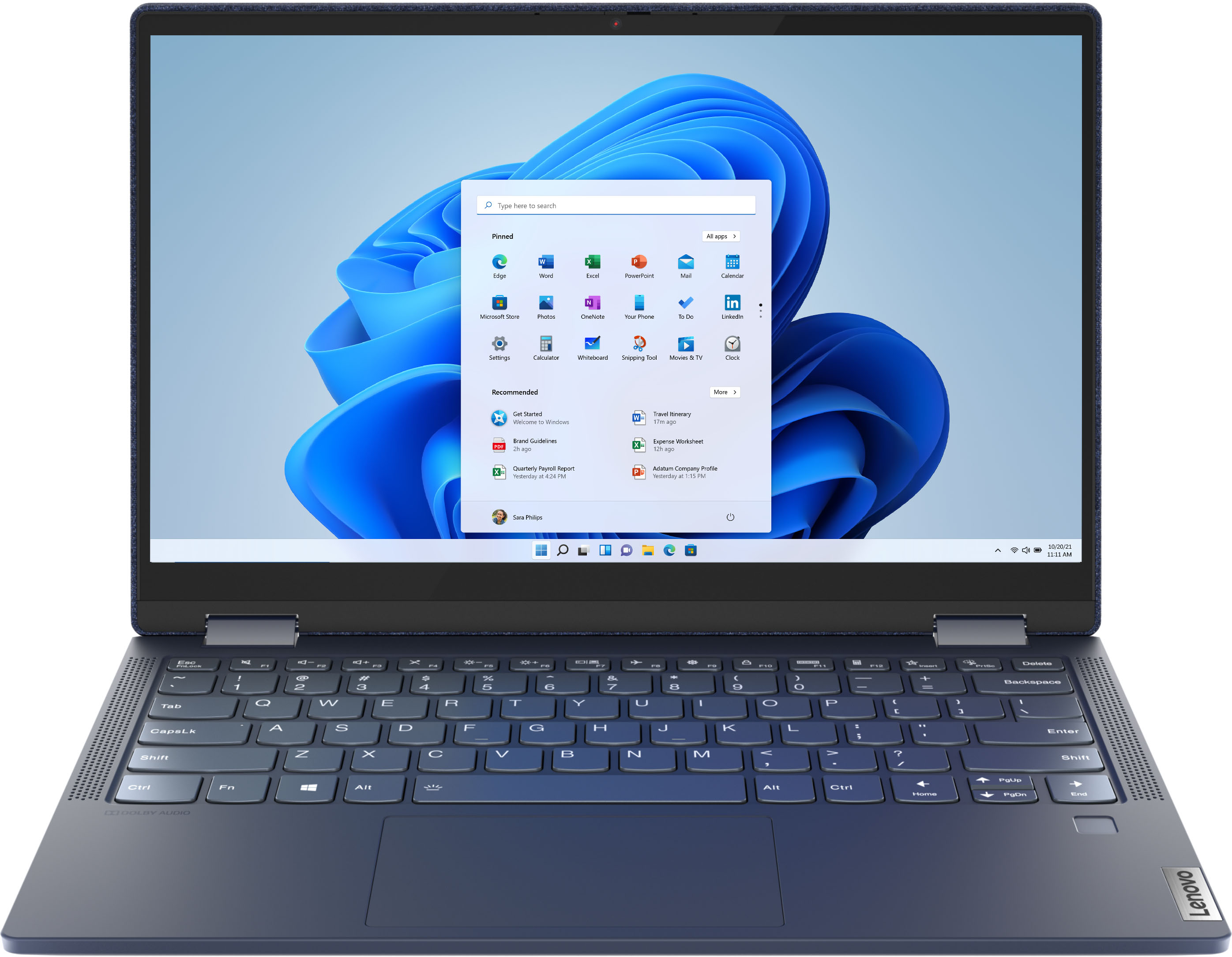


- Model:
- 82FN003TUS
- SKU:
- 6427161
Rating by feature
- Battery Life
Rating 4.4 out of 5 stars
- Speed
Rating 4.6 out of 5 stars
- Display
Rating 4.5 out of 5 stars
Customers are saying
Customers are impressed with the Yoga 6 13 2-in-1 laptop's portability, touch screen, price, and battery life. They appreciate its sleek design, light weight, and user-friendly interface. However, some customers have concerns about the limited RAM, storage, and occasional speaker or webcam issues.
This summary was generated by AI based on customer reviews.
From high to low.
||Posted . Owned for 1 month when reviewed.This reviewer received promo considerations or sweepstakes entry for writing a review.Really loved the computer until it stopped working after three weeks. Didn't buy the geek squad insurance and best buy couldn't help because it was past the return window (two weeks).
No, I would not recommend this to a friendBrand response from Lenovo Product Expert
Posted .We are sorry to hear that you are having issues with your Lenovo Yoga 6 13. It is possible that resetting your computer back to original factory settings may correct the issue you are having. This system is equipped with OneKey Recovery System. There is a very small pin hole on the bottom right side of the device, right near the bottom right corner of the cooling vent on the bottom of the device. You will need a pin to push this reset button. Plug the device in. Let the battery charge for about 15 minutes. Push the reset button. The system should boot to a choice screen where you can choose "Restore To Factory Default". Select this. It will delete everything from the hard drive except the original factory install of the operating system. You will need to reinstall all programs and files after the reset. If you don't have copies of the files, try to make one before you restore by selecting "Boot to desktop" and trying to back up your files. Once you have the computer reset, be sure any software you installed is compatible with Windows 10. There is no need to install Microsoft Office software. The software is already part of the operating system, you just need to activate the software with a purchased product key. If you have installed a copy of Microsoft Office, this is conflicting with the existing copy on the system and this will slow your system down. If you have installed a 3rd party anti-virus program, be sure that Windows Defender is turned off and that the trial version of McAfee Anti-Virus software is uninstalled. There can only be one anti-virus program on the system. You may need to restore your system to original factory default settings if any of the programming errors have occurred. You can do that by typing "restore" in the Cortana search window. Just click on the magnifying glass icon at the bottom left of your Windows 10 Desktop. Click on "Reset This PC" Then click on "Get Started" and follow the on screen directions to restore to factory defaults. If the problem persists, we recommend you contact Lenovo Tech Support at: 877-453-6686.

Lenova Yoga
||Posted . Owned for 6 months when reviewed.This reviewer received promo considerations or sweepstakes entry for writing a review.The computer does not hold a charge and it keeps dying, I have had to purchase 2 charge cords for it. I am not at all happy with this computer. If I could return it I would.
No, I would not recommend this to a friendBrand response from Lenovo Product Expert
Posted .The Lenovo Yoga 6 13 model number 82FN003TUS, ships with a 4CELL_60WH_INTERNAL, Lithium Polymer Battery, which within this configuration, has a battery life of up to 18 hours. First, be sure you are charging the laptop using the correct USB-c port - there is only one computer charging port on this device. It is the USB-c port on the left side of the computer, it has an electric plug icon next to the port. Charge the computer to a full charge. You can check this by rolling your cursor over the battery icon in the Taskbar at the bottom right of your Windows 10 screen. When the battery indicator reads 100 Percent charge, check your battery life again. If you continue to have less than expected battery life, first, set your screen brightness at less than 100-percent - try 80-percent to start with. Then, be sure Battery conservation Mode is turned off. This power management setting should only be used when the laptop is plugged in all the time. It will prolong overall battery life by only charging the battery to 60-percent of capacity. Here is a link to instructions for turning off Battery Conservation Mode: https://support.lenovo.com/us/en/solutions/ht103159. Also check what programs are running in the background on the computer. Be sure only the programs you want running in the background are. These programs will drain the battery. Here is a link to information about how to find out what programs are running in the background on your Windows 10 computer and how to manage them for better system performance: https://www.windowscentral.com/how-prevent-apps-running-background-windows-10. Then, finally, be sure any software you installed is compatible with Windows 10. Incompatible software will drain the battery at a faster rate. There is no need to install Microsoft Office software. The software is already part of the operating system, you just need to activate the software with a purchased product key. If you have installed a copy of Microsoft Office, this is conflicting with the existing copy on the system and this will slow your system down. If you have installed a 3rd party anti-virus program, be sure that Windows Defender is turned off and that the trial version of McAfee Anti-Virus software is uninstalled. There can only be one anti-virus program on the system. You may need to restore your system to original factory default settings if any of the programming errors have occurred. You can do that by typing "restore" in the Cortana search window. Just click on the magnifying glass icon at the bottom left of your Windows 10 Desktop. Click on "Reset This PC" Then click on "Get Started" and follow the on screen directions to restore to factory defaults. If the problem persists, we recommend you contact Lenovo Tech Support at: 877-453-6686.
Not worthy to buy yoga
||Posted . Owned for 1 week when reviewed.This reviewer received promo considerations or sweepstakes entry for writing a review.Sound quality is not up to the mark and I can see peroformance while I use for zoom , not a worth buying with this much cost, only good part is 2 in 1 but no use if not works well
No, I would not recommend this to a friendBrand response from Lenovo Product Expert
Posted .The Lenovo Yoga 6 13 model number 82FN003TUS, ships with front-facing, powerfully immersive 2W stereo audio with Dolby Atmos-optimized sound enhancement. For the best audio experience, be sure Dolby Atmos is turned on and adjusted to your personal preferences. This configuration ships with the powerful 6-Core/12-Thread AMD Ryzen 5 Pro 4650U processor, with a base speed of 2.1GHz and a boost speed of up to 4.0GHz through 12-Threads. This processor is supported by 8GB DDR4-3200MHz RAM and a 256GB NVMe TLC solid state hard drive. If you are getting less than expected performance, check the specific APP for compatibility and requirements. Be sure you have the latest version of Windows 10 on the computer. Then update all of the BIOS files and drivers up to that latest version of Windows 10. You can easily accomplish this by scanning the computer with the Lenovo Utility software available on this computer. This system has Lenovo utilities installed to help maintain the health of the device and keep the operating system software up to date. Type "Lenovo Vantage" in the Cortana Search window (if Lenovo Vantage is not installed on your device, you can download the APP and install it now). Select Lenovo Vantage from the list. In the window that opens, click on "Health and Support". In the expanded menu, select "Hardware Scan" In the window that opens, select "Run Quick Tests". This will scan your entire system for errors. Follow any directions that may pop up. If the problem continues after this scan, now click on "System Update". First select Windows update from the menu. Scan your system to be sure you have the latest version of Windows 10. Once that scan is complete, select "Additional Updates". This will scan your device to be sure there are no new BIOS/Driver updates needed. Follow any instructions that may pop up. Once you have your computer up to date, finally, be sure any software you installed is compatible with Windows 10. There is no need to install Microsoft Office software. The software is already part of the operating system, you just need to activate the software with a purchased product key. If you have installed a copy of Microsoft Office, this is conflicting with the existing copy on the system and this will slow your system down. If you have installed a 3rd party anti-virus program, be sure that Windows Defender is turned off and that the trial version of McAfee Anti-Virus software is uninstalled. There can only be one anti-virus program on the system. You may need to restore your system to original factory default settings if any of the programming errors have occurred. You can do that by typing "restore" in the Cortana search window. Just click on the magnifying glass icon at the bottom left of your Windows 10 Desktop. Click on "Reset This PC" Then click on "Get Started" and follow the on screen directions to restore to factory defaults. If the problem persists, we recommend you contact Lenovo Tech Support at: 877-453-6686.
Beware of Open Box
||Posted . Owned for 3 months when reviewed.This reviewer received promo considerations or sweepstakes entry for writing a review.Purchased an "open box excellent condition" in late August for my sons first year of college. Lasted 3 months, not even the full first semester and the power button doesn't work. Question section showed that remaining warranty would apply to this open box computer, so I did not purchase an additional warranty. Guess that was a mistake, but a computer should last more than 3 months regardless. Will be buying the next one somewhere else.
No, I would not recommend this to a friendBrand response from Lenovo Product Expert
Posted .We are sorry to hear that you are having issues with your Lenovo Yoga 6 13. This computer ships with a limited 1-year manufacturer's warranty that covers hardware OEM issues. If your issue has been diagnosed as a software-based issue, resetting this computer back to original factory settings may correct the problem. This system is equipped with OneKey Recovery System. There is a very small pin hole on the bottom right side of the device, right near the bottom right corner of the cooling vent on the bottom of the device. You will need a pin to push this reset button. Plug the device in. Let the battery charge for about 15 minutes. Push the reset button. The system should boot to a choice screen where you can choose "Restore To Factory Default". Select this. It will delete everything from the hard drive except the original factory install of the operating system. You will need to reinstall all programs and files after the reset. If you don't have copies of the files, try to make one before you restore by selecting Boot to desktop and trying to back up your files. If the problem persists after the factory reset, we recommend you contact Lenovo Tech Support at: 877-453-6686.
Personally had a bad experience (Not saying all wi
||Posted . Owned for 1 month when reviewed.This reviewer received promo considerations or sweepstakes entry for writing a review.Bought brand new, installed programming software for simple electronics programming, used it for maybe 4 hours and the computer crashed. Somehow figured out how to uninstall everything and reinstall windows and haven't touched it since. Very disappointed and I wish it would have happened while I was still able to return it but I hadn't even opened the box until a couple weeks after buying it and now it's been 2 months and I am stuck with something that I am very displeased with.
No, I would not recommend this to a friendBrand response from Lenovo Product Expert
Posted .We always recommend you check the requirements and compatibility of any software you will be installing on your new computer, before you invest in any computer. Be sure your new computer can support the software you will need to use.
charging problems
||Posted . Owned for 1 week when reviewed.This reviewer received promo considerations or sweepstakes entry for writing a review.This unit does not charge with a 12 volt USB-C power supply. The USB-C power supply problems is a known. just google it. But even after much time and BIOS updates it still does not work. I would return the product, but at this point it is unfortunately not possible, and I cannot recoup the time and effort anyway. I would have tested this in the store before ordering. But there were none on display. Buy from a reliable company with a reliable Q/A department instead. NO LENOVO
No, I would not recommend this to a friendLenovo Yoga - $700 into a Blue Abyss
||Posted . Owned for 1 month when reviewed.This reviewer received promo considerations or sweepstakes entry for writing a review.This Lenovo Yoga was purchased in April of 2021, but was not removed from it's delivery box and activated until May 2021. Upon activation, I discovered that the screen had some kind of internal damage or flaw as only half of it would display. Unfortunately, the problem AFTER the return date so, I guess it will make for an interesting paperweight. I'll take it in to get it repaired, but at this point I suspect the cost to just simply replace it is cheaper.
No, I would not recommend this to a friendBrand response from Lenovo Product Expert
Posted .We are sorry to hear that you are having issues with the screen image on your Lenovo Yoga 6 13 model number 82FN003TUS. Resetting your computer back to original factory settings may correct the screen issue you are having. This system is equipped with OneKey Recovery System. There is a very small pin hole on the bottom right side of the device, right near the bottom right corner of the cooling vent on the bottom of the device. You will need a pin to push this reset button. Plug the device in. Let the battery charge for about 15 minutes. Push the reset button. The system should boot to a choice screen where you can choose "Restore To Factory Default". Select this. It will delete everything from the hard drive except the original factory install of the operating system. You will need to reinstall all programs and files after the reset. If you don't have copies of the files, try to make one before you restore by selecting "Boot to desktop" and trying to back up your files. If the problem persists after the factory reset, we recommend you contact Lenovo Tech Support at: 877-453-6686.
Constant Issues
||Posted . Owned for 8 months when reviewed.This reviewer received promo considerations or sweepstakes entry for writing a review.Cannot stand this device. The power button stopped working on me randomly and I had to send it in for repair for several weeks to get fixed. The Network Interface Card constantly disconnects from the internet. My microphone does not work in any capacity, I have reset and spend hours upon hours looking up how to fix it. Do not buy this.
No, I would not recommend this to a friendBrand response from Lenovo Product Expert
Posted .We are sorry to hear that you are having issues with your Lenovo Yoga 6 13. Since you have reset the computer but the issues continue, be sure any software you installed after the reset is compatible with Windows 10. There is no need to install Microsoft Office software. The software is already part of the operating system, you just need to activate the software with a purchased product key. If you have installed a copy of Microsoft Office, this is conflicting with the existing copy on the system and this will slow your system down. If you have installed a 3rd party anti-virus program, be sure that Windows Defender is turned off and that the trial version of McAfee Anti-Virus software is uninstalled. There can only be one anti-virus program on the system. You may need to restore your system to original factory default settings if any of the programming errors have occurred. You can do that by typing "restore" in the Cortana search window. Just click on the magnifying glass icon at the bottom left of your Windows 10 Desktop. Click on "Reset This PC" Then click on "Get Started" and follow the on screen directions to restore to factory defaults. If the problem persists, we recommend you contact Lenovo Tech Support at: 877-453-6686.
Very Disappointed
||Posted . Owned for 3 weeks when reviewed.This reviewer received promo considerations or sweepstakes entry for writing a review.A key fell off within having the computer 3 days. It was running quickly and we were happy with it at first. But we took it back to the store after this happened so quickly. Was concerned with it coming apart more.
No, I would not recommend this to a friendYoga laptop
||Posted . Owned for 1 month when reviewed.This reviewer received promo considerations or sweepstakes entry for writing a review.I've only had my laptop a little over a month and a half and it's already having problems. It won't start.
No, I would not recommend this to a friendBrand response from Lenovo Product Expert
Posted .We are sorry to hear that you are having issues with your Lenovo Yoga 6 13, model number 82FN003TUS. It is possible that resetting your computer back to original factory settings may correct the issue you are having. Since you can not boot the computer normally, this system is equipped with OneKey Recovery System. There is a very small pin hole on the bottom right side of the device, right near the bottom right corner of the cooling vent on the bottom of this device. You will need a pin to push this reset button. Plug the device in. Let the battery charge for about 15 minutes. Push the reset button. The system should boot to a choice screen where you can choose "Restore To Factory Default". Select this. It will delete everything from the hard drive except the original factory install of the operating system. You will need to reinstall all programs and files after the reset. If you don't have copies of the files, try to make one before you restore by selecting "Boot to desktop" and trying to back up your files. Once you have the computer reset, be sure any software you installed is compatible with Windows 10. There is no need to install Microsoft Office software. The software is already part of the operating system, you just need to activate the software with a purchased product key. If you have installed a copy of Microsoft Office, this is conflicting with the existing copy on the system and this will slow your system down. If you have installed a 3rd party anti-virus program, be sure that Windows Defender is turned off and that the trial version of McAfee Anti-Virus software is uninstalled. There can only be one anti-virus program on the system. You may need to restore your system to original factory default settings if any of the programming errors have occurred. You can do that by typing "restore" in the Cortana search window. Just click on the magnifying glass icon at the bottom left of your Windows 10 Desktop. Click on "Reset This PC" Then click on "Get Started" and follow the on screen directions to restore to factory defaults. If the problem persists, we recommend you contact Lenovo Tech Support at: 877-453-6686.
Faulty screen
||Posted . Owned for 1 month when reviewed.This reviewer received promo considerations or sweepstakes entry for writing a review.This started out as an awesome laptop. It's a thing of beauty and everything about it was great. That is until the screen started flipping out after only one day of use. I couldn't believe it and then researched it and found out there's a class action suit against Lenovo for this very problem. Best Buy took it back because it was within 30 days so we dodged a bullet.
No, I would not recommend this to a friendLenovo
||Posted . Owned for 9 months when reviewed.This reviewer received promo considerations or sweepstakes entry for writing a review.Not with how small it is. Just couldn’t do the whole transition from apple lol
I would recommend this to a friend- Pros mentioned:Battery life, Portable
"Great Budget-Friendly Choice for Casual Users"
Posted .This reviewer received promo considerations or sweepstakes entry for writing a review.This device is portable and offers excellent battery life. While the screen brightness is modest, it’s a solid budget-friendly choice for online classes, Zoom meetings, casual gaming, and video streaming.
I would recommend this to a friend Lenovo Yoga 6
||Posted . Owned for 3 weeks when reviewed.This reviewer received promo considerations or sweepstakes entry for writing a review.Extremely disappointed that this laptop did not boot after 15 days of use. Luckily it was during the return period. Purchased as open box - excellent. Tried for in-store exchange..but no luck as open box on hand did not have same configuration.
No, I would not recommend this to a friend- Pros mentioned:Battery life, Touch screen
Well Built 2-1 with Extraordinary Battery Life
Posted .This reviewer received promo considerations or sweepstakes entry for writing a review.The Yoga 6 is a well built 2-1 with extraordinary battery life, allowing over 16 hours of continuous youtube streaming. It is very fast with a Ryzen 5 cpu and has bright 13.3 inch touch screen. Other features include a lighted keyboard and a fingerprint reader. I have used the 13 inch HP Spectre x360 which is a beautiful laptop but has very mediocre battery life at best and the recent M1 MacBook Air which had battery life similar to the Yoga 6. I returned the Air since I did not like the strictly keyboard interface that lacked touch and pen input and didn't offer the multi positions of the Yoga. In the year 2020, you would think that Apple could add these not exactly cutting edge features to their laptop. Especially one that is now being marketed as being able to run Iphone and Ipad apps that essentially depend on a touch interface.
I would recommend this to a friendBrand response from Lenovo Product Expert
Posted .Thank you for choosing the Lenovo Yoga 6 13. We are pleased to hear that the features and performance of the Yoga 6 13 meets your computing needs so well.
Great for a household laptop
Posted .This reviewer received promo considerations or sweepstakes entry for writing a review.This laptop is light and works well for a home laptop. I also loaded some design software and it works for that also however, when l loaded numerous programs it got a little slower
I would recommend this to a friend- Pros mentioned:Touch screen
Great Buy
Posted .This reviewer received promo considerations or sweepstakes entry for writing a review.Amazing performance, fast and crisp screen. The fabric cover is unique and great value for money
I would recommend this to a friend Lenovo
||Posted .This reviewer received promo considerations or sweepstakes entry for writing a review.This product was fine til the cloth started to separate from the actual screen. I had it for less than 90 days and the screen was already coming out. I wouldn’t recommend.
No, I would not recommend this to a friendWant a refund
||Posted . Owned for 5 months when reviewed.This reviewer received promo considerations or sweepstakes entry for writing a review.Within 2 weeks of purchase the keyboard crashed then it was repaired now I’m locked out of my laptop because of bitlocker that I never installed
No, I would not recommend this to a friendMust have gotten the Lemon Model
||Posted . Owned for less than 1 week when reviewed.This reviewer received promo considerations or sweepstakes entry for writing a review.Absolute Lemon. Wifi Super Slow, Computer Super Slow, and it won't hold a charge. It wont turn on unless I keep it plugged in. Very Disappointed
No, I would not recommend this to a friendBrand response from Lenovo Product Expert
Posted .The Lenovo Yoga 6 13 model number 82FN003TUS, ships with the latest Intel 6G, 2x2 802.11AX frequency WiFi, which is also backward compatible to older, a/b/g/n/ac frequency WiFi. The Yoga 6 13 will boot from off to the Windows 10 Desktop Screen in less than 15-seconds. Regarding charging your Yoga 6 13, there is only one computer charging port. It is on the left side of the computer and has an electrical plug icon next to the port. This is the only port that can charge the computer. First, be sure any software you installed is compatible with Windows 10. There is no need to install Microsoft Office software. The software is already part of the operating system, you just need to activate the software with a purchased product key. If you have installed a copy of Microsoft Office, this is conflicting with the existing copy on the system and this will slow your system down. If you have installed a 3rd party anti-virus program, be sure that Windows Defender is turned off and that the trial version of McAfee Anti-Virus software is uninstalled. There can only be one anti-virus program on the system. You may need to restore your system to original factory default settings if any of the programming errors have occurred. You can do that by typing "restore" in the Cortana search window. Just click on the magnifying glass icon at the bottom left of your Windows 10 Desktop. Click on "Reset This PC" Then click on "Get Started" and follow the on screen directions to restore to factory defaults. If there is no incompatible software installed, then check to be sure you have the latest version of Windows 10 on the computer. Then update all BIOS files and drivers up to that latest version of Windows 10. You can easily accomplish this by scanning the computer with the Lenovo Utility software available on this computer. This system has Lenovo utilities installed to help maintain the health of the device and keep the operating system software up to date. Type "Lenovo Vantage" in the Cortana Search window (if Lenovo Vantage is not installed on your device, you can download the APP and install it now). Select Lenovo Vantage from the list. In the window that opens, click on "Health and Support". In the expanded menu, select "Hardware Scan" In the window that opens, select "Run Quick Tests". This will scan your entire system for errors. Follow any directions that may pop up. If the problem continues after this scan, now click on "System Update". First select Windows update from the menu. Scan your system to be sure you have the latest version of Windows 10. Once that scan is complete, select "Additional Updates". This will scan your device to be sure there are no new BIOS/Driver updates needed. Follow any instructions that may pop up. If the issue still continues after these updates, we recommend you call Lenovo Tech Support at: 877-453-6686 for additional help.