Customer Ratings & Reviews
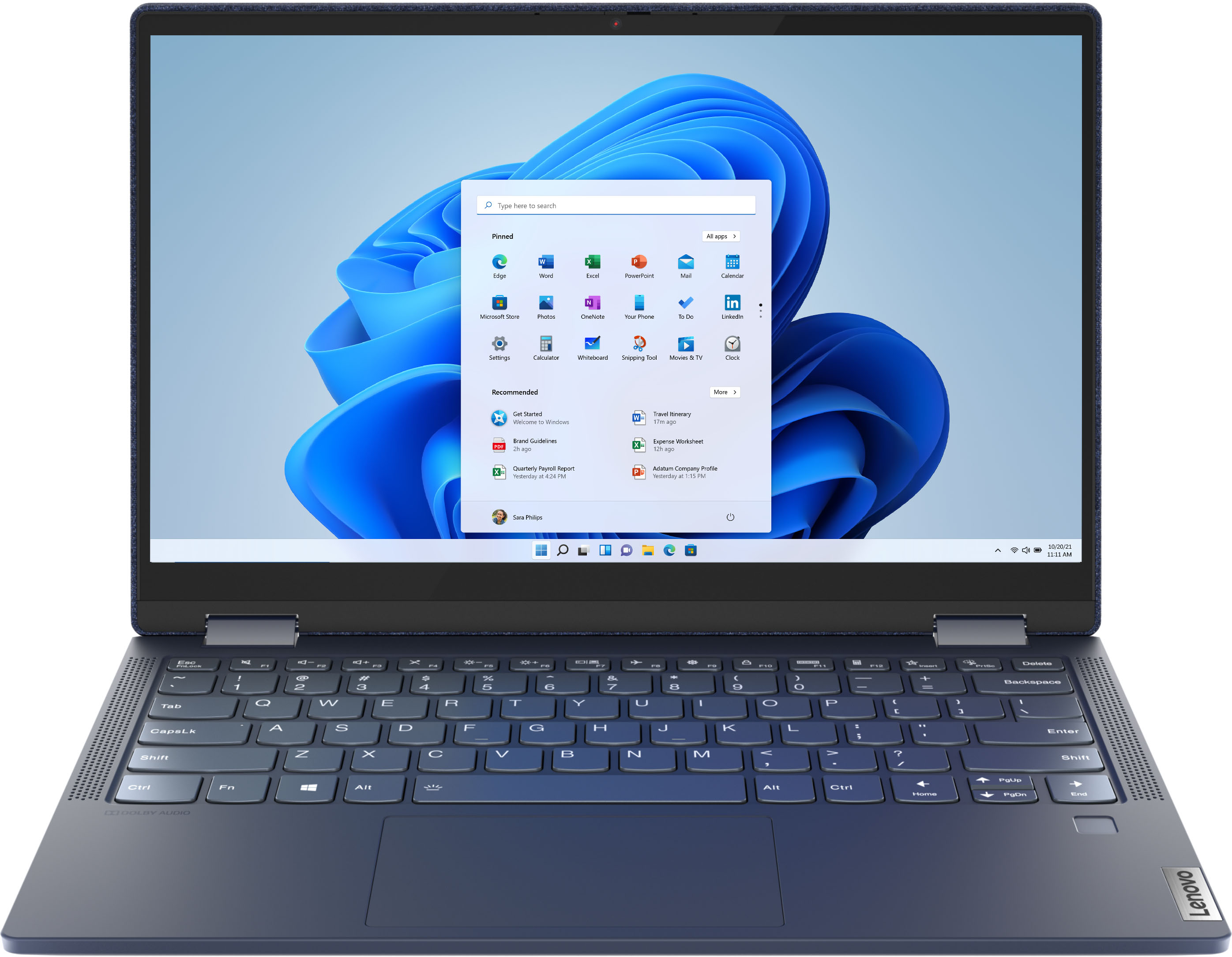


- Model:
- 82FN003TUS
- SKU:
- 6427161
Rating by feature
- Battery Life
Rating 4.4 out of 5 stars
- Speed
Rating 4.6 out of 5 stars
- Display
Rating 4.5 out of 5 stars
Customers are saying
Customers are impressed with the Yoga 6 13 2-in-1 laptop's portability, touch screen, price, and battery life. They appreciate its sleek design, light weight, and user-friendly interface. However, some customers have concerns about the limited RAM, storage, and occasional speaker or webcam issues.
This summary was generated by AI based on customer reviews.
Touch screen problems
Posted .This reviewer received promo considerations or sweepstakes entry for writing a review.I just got this laptop the other day and in the store the touch screen was working and then once I brought my laptop home and set it up, it says that the touchscreen does not work on this laptop. I was wondering if anyone else has had this problem and what to do with this problem. And it is the exact same model as the laptop listed above.
I would recommend this to a friendBrand response from Lenovo Product Expert
Posted .We are sorry to hear that you are having issues with the touchscreen function on your Lenovo Yoga 6 13 model number 82FN003TUS. Be sure any software you installed is compatible with Windows 10. There is no need to install Microsoft Office software. The software is already part of the operating system, you just need to activate the software with a purchased product key. If you have installed a copy of Microsoft Office, this is conflicting with the existing copy on the system and this will slow your system down. If you have installed a 3rd party anti-virus program, be sure that Windows Defender is turned off and that the trial version of McAfee Anti-Virus software is uninstalled. There can only be one anti-virus program on the system. You may need to restore your system to original factory default settings if any of the programming errors have occurred. You can do that by typing "restore" in the Cortana search window. Just click on the magnifying glass icon at the bottom left of your Windows 10 Desktop. Click on "Reset This PC" Then click on "Get Started" and follow the on screen directions to restore to factory defaults. If the problem persists, we recommend you contact Lenovo Tech Support at: 877-453-6686.

Don’t waste your money!
Posted .This reviewer received promo considerations or sweepstakes entry for writing a review.Garbage!! Owned this device for 3 years 2 weeks and literally the battery pack will not hold a charge. This laptop gets used maybe 2-3 times a year.
No, I would not recommend this to a friendCamera is AWEFUL!!! Sad Day :(
Posted .This reviewer received promo considerations or sweepstakes entry for writing a review.I love absolutely everything about this laptop, with the exception of the camera. Really unfortunate, because the video quality was something that was so important to me, as I'm on a ton of Zoom and Teams meetings for work, as well as Facebook video calls with my granddaughter. The resolution on the camera is so grainy that it's terrible. People are always commenting on it. I actually took it back to Best Buy to exchange it for another one thinking that it was just the initial laptop that I bought, but they're all that way. So now I have to take a laptop I really love everything else about and return it because I can't keep it due to the camera quality.Sad day
No, I would not recommend this to a friendBrand response from Lenovo Product Expert
Posted .The Lenovo Yoga 6 13 model number 82FN003TUS, ships with a 720p (HD) webcam with manual Privacy Shutter and Dual Array Microphones. If you are getting less than expected broadcast video quality, check to be sure that the Privacy Shutter is completely open. Now check to be sure you have the latest version of Windows 10 on the computer. Then update all BIOS files and drivers up to that latest version of Windows 10. You can easily accomplish this by scanning the computer with the Lenovo Utility software available on this computer. This system has Lenovo utilities installed to help maintain the health of the device and keep the operating system software up to date. Type "Lenovo Vantage" in the Cortana Search window (if Lenovo Vantage is not installed on your device, you can download the APP and install it now). Select Lenovo Vantage from the list. In the window that opens, click on "Health and Support". In the expanded menu, select "Hardware Scan" In the window that opens, select "Run Quick Tests". This will scan your entire system for errors. Follow any directions that may pop up. If the problem continues after this scan, now click on "System Update". First select Windows update from the menu. Scan your system to be sure you have the latest version of Windows 10. Once that scan is complete, select "Additional Updates". This will scan your device to be sure there are no new BIOS/Driver updates needed. Follow any instructions that may pop up. If the issue still continues after these updates, we recommend you call Lenovo Tech Support at: 877-453-6686 for additional help.
DONT WASTE YOUR TIME OR MONEY......
Posted .This reviewer received promo considerations or sweepstakes entry for writing a review.dont waste your time on this.......out of the box, the USB-C connector does not work........found out after going thru all set up, creating lenovo account - downloading the microsfot office suite etc......tried to set up a call back (via their online system) only to find out that their system never showed any records of it. called back a 2nd time and created a case - told will get a call back sometime in 24-48 hours.......off shore support folks had to idea.....did not know what a thunderbolt port is.......stick to HP or Dell and their US support folks......I am returning it to best buy today.
No, I would not recommend this to a friendBrand response from Lenovo Product Expert
Posted .We are sorry to hear that you are having issues with your Lenovo Yoga 6 13. First, be sure any software you installed is compatible with Windows 10. There is no need to install Microsoft Office software. The software is already part of the operating system, you just need to activate the software with a purchased product key. If you have installed a copy of Microsoft Office, this is conflicting with the existing copy on the system and this will slow your system down. If you have installed a 3rd party anti-virus program, be sure that Windows Defender is turned off and that the trial version of McAfee Anti-Virus software is uninstalled. There can only be one anti-virus program on the system. You may need to restore your system to original factory default settings if any of the programming errors have occurred. You can do that by typing "restore" in the Cortana search window. Just click on the magnifying glass icon at the bottom left of your Windows 10 Desktop. Click on "Reset This PC" Then click on "Get Started" and follow the on screen directions to restore to factory defaults. If the problem persists, we recommend you contact Lenovo Tech Support at: 877-453-6686.
Poor Quality Keyboards
Posted .This reviewer received promo considerations or sweepstakes entry for writing a review.I purchased a Yoga laptop and the keyboard was junk, keys stopped functioning. To repair the keyboard the estimate was $300.00 Lenova keyboard has an extrordinary number of rivets on the backplate which makes the repair expensive. I have never had a keyboard fail on a Dell or the old IBM's...but recently in our office another Lenovo Yoga keyboard has just failed. So this is not just a single event.
No, I would not recommend this to a friendBrand response from Lenovo Product Expert
Posted .We are sorry to hear that you are having issues with keyboard functionality of your Lenovo Yoga 6 13 model number 82FN003TUS. Keyboard functionality is run by Operating System software. Be sure the problem you are having with your keyboard is not software related. First, using the touchscreen on the Yoga 6 13 where necessary, Be sure any software you installed is compatible with Windows 10. There is no need to install Microsoft Office software. The software is already part of the operating system, you just need to activate the software with a purchased product key. If you have installed a copy of Microsoft Office, this is conflicting with the existing copy on the system and this will slow your system down. If you have installed a 3rd party anti-virus program, be sure that Windows Defender is turned off and that the trial version of McAfee Anti-Virus software is uninstalled. There can only be one anti-virus program on the system. You may need to restore your system to original factory default settings if any of the programming errors have occurred. You can do that by typing "restore" in the Cortana search window. Just click on the magnifying glass icon at the bottom left of your Windows 10 Desktop. Click on "Reset This PC" Then click on "Get Started" and follow the on screen directions to restore to factory defaults. If there is no incompatible software installed but the problem persists, check to be sure that you have the latest version of Windows 10 on the computer. Now update all BIOS files and drivers up to that latest version of Windows 10. You can easily accomplish this by scanning the computer with the Lenovo Utility software available on this computer. This system has Lenovo utilities installed to help maintain the health of the device and keep the operating system software up to date. Type "Lenovo Vantage" in the Cortana Search window (if Lenovo Vantage is not installed on your device, you can download the APP and install it now). Select Lenovo Vantage from the list. In the window that opens, click on "Health and Support". In the expanded menu, select "Hardware Scan" In the window that opens, select "Run Quick Tests". This will scan your entire system for errors. Follow any directions that may pop up. If the problem continues after this scan, now click on "System Update". First select Windows update from the menu. Scan your system to be sure you have the latest version of Windows 10. Once that scan is complete, select "Additional Updates". This will scan your device to be sure there are no new BIOS/Driver updates needed. Follow any instructions that may pop up. If the issue still continues after these updates, we recommend you call Lenovo Tech Support at: 877-453-6686 for additional help.
Sucks
Posted .This reviewer received promo considerations or sweepstakes entry for writing a review.Best buy workers recommended this computer to me for school and I'm truly disappointed. There were many pop ups to update the laptop and when I finally did, it was updating all night and now this morning it's frozen. It doesn't even make the noise as if it were on. I've shut it off and on but nothing seems to work. Thanks best buy!
No, I would not recommend this to a friendBrand response from Lenovo Product Expert
Posted .We are sorry to hear that you are having issues with your Lenovo Yoga 6 13 after a recent update. It is possible that resetting your computer back to original factory settings will correct the problem you are having. Since you can no longer boot the computer, this system is equipped with OneKey Recovery System. There is a very small pin hole on the bottom right side of the device, right near the bottom right corner of the cooling vent on the bottom of the device. You will need a pin to push this reset button. Plug the device in. Let the battery charge for about 15 minutes. Push the reset button. The system should boot to a choice screen where you can choose "Restore To Factory Default". Select this. It will delete everything from the hard drive except the original factory install of the operating system. You will need to reinstall all programs and files after the reset. If you don't have copies of the files, try to make one before you restore by selecting "Boot to desktop" and trying to back up your files. If the problem persists after the factory reset, we recommend you contact Lenovo Tech Support at: 877-453-6686.