Customer Ratings & Reviews
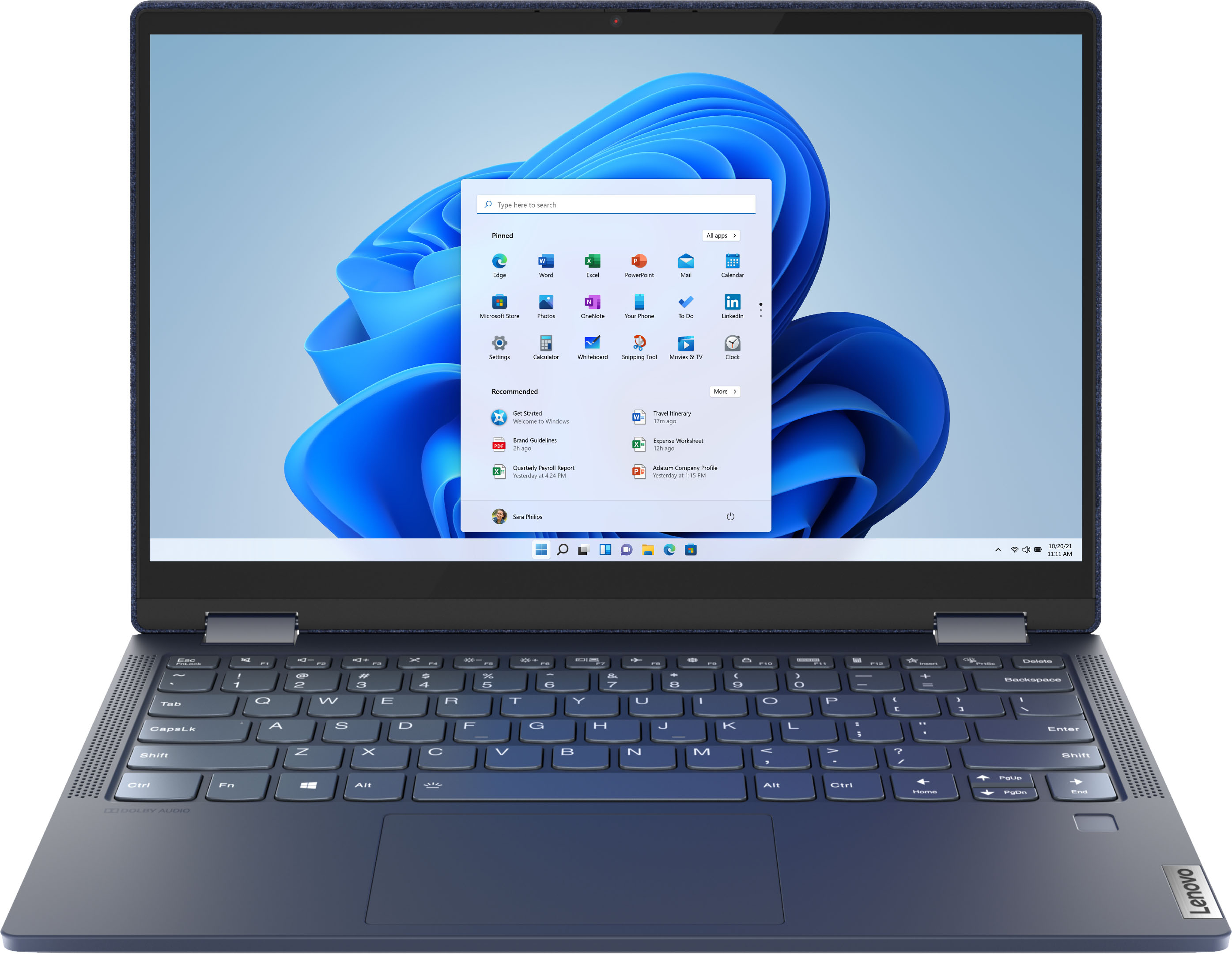



- Model:
- 82ND006YUS/82ND0009US
- SKU:
- 6455181
Rating by feature
- Battery Life
Rating 4.5 out of 5 stars
- Speed
Rating 4.5 out of 5 stars
- Display
Rating 4.6 out of 5 stars
Customers are saying
Customers are pleased with the Yoga 6 13 2-in-1 laptop's touchscreen, ease of use, size, weight, and battery life. Many appreciate its performance and find it to be a good value for the price. However, some customers expressed concerns about the limited RAM and noted that the device can get warm during use, while others wished for an HDMI port. A few also mentioned that the speakers could be improved.
This summary was generated by AI based on customer reviews.
Bad WiFi adapter
||Posted . Owned for less than 1 week when reviewed.This reviewer received promo considerations or sweepstakes entry for writing a review.Picked this up specifically for WiFi 6 and WiFi adapter is dead after 5 days so returning and picking something from anyone not named Lenovo
No, I would not recommend this to a friendBrand response from Lenovo Product Expert
Posted .We are sorry to hear that you are having issues with your Lenovo Yoga 6 13 model number 82ND006YUS. Resetting this computer back to original factory settings may correct the issue you are having with WiFi. This system is equipped with OneKey Recovery System. There is a very small pin hole on the bottom right side of the device, right near the bottom right corner of the cooling vent on the bottom of the device. You will need a pin to push this reset button. Plug the device in. Let the battery charge for about 15 minutes. Push the reset button. The system should boot to a choice screen where you can choose "Restore To Factory Default". Select this. It will delete everything from the hard drive except the original factory install of the operating system. You will need to reinstall all programs and files after the reset. If you don't have copies of the files, try to make one before you restore by selecting "Boot to desktop" and trying to back up your files. If the problem persists after the factory reset, we recommend you contact Lenovo Tech Support at: 877-453-6686.

Not A Good Experience
||Posted . Owned for 3 weeks when reviewed.This reviewer received promo considerations or sweepstakes entry for writing a review.Had it about a week and the wifi card went out on it. During that week, the wifi acted up the whole time. Truly sad
No, I would not recommend this to a friendBrand response from Lenovo Product Expert
Posted .We are sorry to hear that you had issues with the WiFi-6 connectivity within this Lenovo Yoga 6 13 model number 82ND006YUS. Check to be sure you have the latest version of Windows 11 on the computer. Then update all BIOS files and drivers up to that latest version of Windows 11. You can easily accomplish this by scanning the computer with the Lenovo Utility software available on this computer. This system has Lenovo utilities installed to help maintain the health of the device and keep the operating system software up to date. Type "Lenovo Vantage" in the Cortana Search window (if Lenovo Vantage is not installed on your device, you can download the APP and install it now). Select Lenovo Vantage from the list. In the window that opens, click on "Health and Support". In the expanded menu, select "Hardware Scan" In the window that opens, select "Run Quick Tests". This will scan your entire system for errors. Follow any directions that may pop up. If the problem continues after this scan, now click on "System Update". First select Windows update from the menu. Scan your system to be sure you have the latest version of Windows 11. Once that scan is complete, select "Additional Updates". This will scan your device to be sure there are no new BIOS/Driver updates needed. Follow any instructions that may pop up. If the issue still continues after these updates, we recommend you call Lenovo Tech Support at: 877-453-6686 for additional help.
- Pros mentioned:Ease of use
I love it
Posted .This reviewer received promo considerations or sweepstakes entry for writing a review.I have owned and used this for a few years now and I love it. Portable but powerful.
I would recommend this to a friend Do not buy!!!
||Posted . Owned for 4 months when reviewed.This reviewer received promo considerations or sweepstakes entry for writing a review.After a month of use it stopped working. When you turn it on it gets a black screen.
No, I would not recommend this to a friendBrand response from Lenovo Product Expert
Posted .We are sorry to hear that you are having issues with your Lenovo Yoga 6 13, model number 82ND006YUS. Resetting this computer back to original factory settings may fix the issue you are having. This system is equipped with OneKey Recovery System. There is a very small pin hole on the bottom right side of the device, right near the bottom right corner of the cooling vent on the bottom of the device. You will need a pin to push this reset button. Plug the device in. Let the battery charge for about 15 minutes, with the power off. Push the reset button. The system should boot to a choice screen where you can choose "Restore To Factory Default". Select this. It will delete everything from the hard drive except the original factory install of the operating system. You will need to reinstall all programs and files after the reset. If you don't have copies of the files, try to make one before you restore by selecting "Boot to desktop" and trying to back up your files. If the problem persists after the factory reset, we recommend you contact Lenovo Tech Support at: 877-453-6686.
laptop
||Posted .This reviewer received promo considerations or sweepstakes entry for writing a review.The Lap top would not turn on. I charge the computer for a full day and still do not power on.
No, I would not recommend this to a friendBrand response from Lenovo Product Expert
Posted .We are sorry to hear that you are having issues charging your Lenovo Yoga 6 13 model number 82ND006YUS. Be sure you are using the right port to charge the computer. There is only one port that can charge this laptop. It is on the left side of the computer and has an electric plug icon next to it and an LED power indicator that will light up when the computer is plugged in and charging. Plug your included charger into a wall outlet, then plug in the computer side, into the proper charging port. Check to be sure the LED lights up. This indicates that the laptop is charging properly. If the LED does not light up, we recommend you make an appointment with your local Best Buy Store Geek Squad to check if the AC adapter/charger is working properly. You can also call Lenovo Tech Support for additional help at: 877-453-6686.
No power
||Posted . Owned for 2 weeks when reviewed.This reviewer received promo considerations or sweepstakes entry for writing a review.Have it to my wife for Christmas. Opened the box plug it in and it doesn’t work. No power.
No, I would not recommend this to a friendBrand response from Lenovo Product Expert
Posted .We are sorry to hear that you are having issues with your wife's Lenovo Yoga 6 13 model number 82ND006YUS. Be sure that the internal battery has a charge. There is only one port on this computer that can charge the computer's internal battery. Use the USB-c port on the left side of the computer. There is an electric plug icon next to this port. It is the only port that can charge the computer's battery. Let the computer charge for 15-minutes. Now press the power button and the computer will boot normally. If the issue continues after charging for 15-minutes, we recommend you contact Lenovo Tech Support for additional help at: 877-453-6686.
Bad screen
||Posted . Owned for 3 weeks when reviewed.This reviewer received promo considerations or sweepstakes entry for writing a review.The screen went out less than 1 month. The screen changes colors and then blurred.
No, I would not recommend this to a friendBrand response from Lenovo Product Expert
Posted .We are sorry to hear that you are having issues with the screen image on your Lenovo Yoga 6 13, model number 82ND006YUS. Resetting this Yoga 6 13 back to original factory settings may correct the screen image issue you are having. This system is equipped with OneKey Recovery System. There is a very small pin hole on the bottom right side of the device, right near the bottom right corner of the cooling vent on the bottom of the device. You will need a pin to push this reset button. Plug the device in. Let the battery charge for about 15 minutes. Push the reset button. The system should boot to a choice screen where you can choose "Restore To Factory Default". Select this. It will delete everything from the hard drive except the original factory install of the operating system. You will need to reinstall all programs and files after the reset. If you don't have copies of the files, try to make one before you restore by selecting "Boot to desktop" and trying to back up your files. If the problem persists after the factory reset, we recommend you contact Lenovo Tech Support at: 877-453-6686.
NEVER CAME ON NOR CHARGED
||Posted . Owned for 1 week when reviewed.This reviewer received promo considerations or sweepstakes entry for writing a review.Received the laptop it never came on nor charged. Very disappointed i will be returning it.
No, I would not recommend this to a friendBrand response from Lenovo Product Expert
Posted .We are sorry to hear that you are having issues charging the battery within your Lenovo Yoga 6 13, model number 82ND0009US. Be sure you are using the correct USB-c port for charging the computer battery, there is only one port on the computer capable of charging/powering the computer. It is the USB-c port on the left side of the computer. It has the electric plug icon next to the charging port. Plug the AC adapter/charger into a wall socket, then into this charging port with the electric plug icon. Let the computer charge for 15-minutes, then with the computer still plugged in, press the laptop power button. The computer will boot up normally. If the issue continues, we recommend you contact Lenovo Tech Support for additional help at: 877-453-6686.
Never again
||Posted .This reviewer received promo considerations or sweepstakes entry for writing a review.This laptop no good not turning on am not getting any from it
No, I would not recommend this to a friendBrand response from Lenovo Product Expert
Posted .We are sorry to hear that you are having issues with your Lenovo Yoga 6 13, model number 82ND006YUS. First, be sure the battery has sufficient charge to boot the computer. Plug the USB-c Charger into the computer. Be sure to use the correct USB-c charging port, there is only one port on this Yoga 6 13 that can charge the computer. It is the USB-c port on the left side of the computer. After letting the laptop charge for 15-minutes, try to power on the computer. If the computer still does not turn on, resetting your computer back to original factory settings may correct the issue you are having. This system is equipped with OneKey Recovery System. There is a very small pin hole on the bottom right side of the device, right near the bottom right corner of the cooling vent on the bottom of the device. You will need a pin to push this reset button. Leave the computer plugged in. Let the battery charge for about 15 minutes. Push the reset button. The system should boot to a choice screen where you can choose "Restore To Factory Default". Select this. It will delete everything from the hard drive except the original factory install of the operating system. You will need to reinstall all programs and files after the reset. If you don't have copies of the files, try to make one before you restore by selecting "Boot to desktop" and trying to back up your files. If the problem persists after the factory reset, we recommend you contact Lenovo Tech Support at: 877-453-6686.
Zzz
||Posted .This reviewer received promo considerations or sweepstakes entry for writing a review.I don’t know yet is a Christmas gift so I wil write a review when I try it
I would recommend this to a friendCamera issues
||Posted . Owned for 7 months when reviewed.This reviewer received promo considerations or sweepstakes entry for writing a review.slight use over 8 months and the camera doesn't work?
No, I would not recommend this to a friendBrand response from Lenovo Product Expert
Posted .We are sorry to hear that you are having issues with your Lenovo Yoga 6 13, model number 82ND006YUS. You can test your built in webcam easily: The easiest way to test your webcam is with the built-in camera application. Click on the Start button, type “camera”, and then click the Camera app. If everything is working correctly, you should see video from the camera immediately. If the camera does not display a video image, be sure the Privacy Shutter of the webcam is open:
There is a small slider, directly above the webcam lens. Move the tab to the right to open the Privacy Shutter. There is a red dot over the webcam lens that will disappear when the Privacy Shutter is fully open. This will indicate that the webcam is really to use. You can close the Privacy Shutter when you are done with the webcam for your security, by sliding the tab to the left to close the Privacy Shutter. The Red Dot will appear over the webcam lens when the Privacy Shutter is closed. If the Privacy Shutter is open but the webcam test still does not display a video image, here is a link to some troubleshooting tips for fix webcam issues within Windows 11: https://support.microsoft.com/en-us/windows/camera-doesn-t-work-in-windows-32adb016-b29c-a928-0073-53d31da0dad5. If the issue still continues, we recommend you contact lenovo Tech Support for additional help at: 877-453-6686.
YOGA LAPTOP
||Posted . Owned for 1 month when reviewed.This reviewer received promo considerations or sweepstakes entry for writing a review.I had bad experience with best buy that's all I can say
I would recommend this to a friendCustomer service was awful
||Posted . Owned for 3 weeks when reviewed.This reviewer received promo considerations or sweepstakes entry for writing a review.This is just trash, should not be sell. Customer service was awful.
No, I would not recommend this to a friendBrand response from Lenovo Product Expert
Posted .We are sorry to hear that you are having issues with your Lenovo Yoga 6 13 model number 82ND006YUS. We recommend you contact Lenovo Tech Support for help with your issue at: 877-453-6686.
Stopped working after 1 month. Won’t turn on or ch
||Posted . Owned for 1 month when reviewed.This reviewer received promo considerations or sweepstakes entry for writing a review.Stopped working after 1 month. Won’t turn on or charge
No, I would not recommend this to a friendBrand response from Lenovo Product Expert
Posted .We are sorry to hear that you are having issues with your Lenovo Yoga 6 13. Resetting this computer back to original factory settings may correct the issues you are having. This system is equipped with OneKey Recovery System. There is a very small pin hole on the bottom right side of the device, right near the bottom right corner of the cooling vent on the bottom of the device. You will need a pin to push this reset button. Plug the device in. Let the battery charge for about 15 minutes. Push the reset button. The system should boot to a choice screen where you can choose "Restore To Factory Default". Select this. It will delete everything from the hard drive except the original factory install of the operating system. You will need to reinstall all programs and files after the reset. If you don't have copies of the files, try to make one before you restore by selecting "Boot to desktop" and trying to back up your files. If the problem persists after the factory reset, we recommend you contact Lenovo Tech Support at: 877-453-6686.
omg is this laptop new????
||Posted . Owned for less than 1 week when reviewed.This reviewer received promo considerations or sweepstakes entry for writing a review.omg my laptop c button was defect Is this laptop new???
No, I would not recommend this to a friend- Pros mentioned:Touch screen
Really good
Posted .This reviewer received promo considerations or sweepstakes entry for writing a review.Rally good for the price. I love the touch screen feature. Sadly, it fell and the screen is broken now.
I would recommend this to a friend - Pros mentioned:Size
Great Portable Laptop
Posted .This reviewer received promo considerations or sweepstakes entry for writing a review.This laptop runs surprisingly well for its size. I used it throughout my Computer Science degree, which served me well.
No, I would not recommend this to a friend - Cons mentioned:Ram
Overall solid some drawbacks
Posted .This reviewer received promo considerations or sweepstakes entry for writing a review.I have owned this for about 6 months. Love the fabric top cover and convertable hindge to manipulate into any form factor desired. Overall speedy and multitasks well. Disabled Windows forced driver updates to download amd adrenaline so that i could use radeon boost which helps a bit with game performance. Doesnt get 60fps in Rust without 800x600 resolution but it is playable with virtual memory at around 24000mb. Unhappy about no extra ram slot which would greatly increase gaming performance. Battery life is very solid and lasts me about 8 hours heavily used at a comfortable 60% brightness. Downloaded an open source amd tuner utility and set cpu max temp to 80c and enabled performance mode which also tries to keep graphics at 1800mhz. Biggest drawback is no dual channel RAM which would really help gpu performance. AMD super resolution looks amazing on the display at 1440p emulation. Excellent tpd and low wattage device that typically pulls between 15-35W in fully charged state. Solid but improvements can be made. Also no thunderbolt or usb 4 so no way to plug in an egpu
I would recommend this to a friendBrand response from Lenovo Product Expert
Posted .Thank you for choosing the Lenovo Yoga 6 13, model number 82ND006YUS. This model configuration ships with 8GB Soldered DDR4-3200MHz RAM Memory soldered to systemboard, no slots and has dual-channel performance.
Suespect Battery Life
Posted .This reviewer received promo considerations or sweepstakes entry for writing a review.Been using this model for ~10 months and overall would highly recommend. The aspect ration isn't ideal, especially if you need vertical space for work but is fine for videos. The keyboard has satisfying travel and feedback, with a built in FN using the space bar to change the keyboard backlit brightness (although the minimum brightness can be a bit too bright for me in a dark room). The biggest downside I've seen is inconsistent battery performance. Whether it's the battery itself or something with the software, the battery life started great, lasting me multiple days on a single charge. However, after a few months I had this issue where the battery would show ~30-40% charge remaining before suddenly shutting down due to a drained battery. This seemed to go away after a few weeks of fully charging and draining the battery, but has since returned. I would probably have given this laptop 3 stars if I wrote it after my first battery issues, but for the price and value over the last 10 months it does deserve 4 stars.
I would recommend this to a friendBrand response from Lenovo Product Expert
Posted .Thank you for choosing the Lenovo Yoga 6 13, model number 82ND0009US. This model ships with a Integrated 60Wh, Lithium-Polymer Battery, which within this configuration, has a battery life of up to 16 hours, depending on the work the device is performing. If you are getting substantially less battery life, first, set your screen brightness at less than 100-percent - try 80-percent to start with. Then, be sure Battery conservation Mode is turned off. This power management setting should only be used when the laptop is plugged in all the time. It will prolong overall battery life by only charging the battery to 60-percent of capacity. Here is a link to instructions for turning off Battery Conservation Mode: https://support.lenovo.com/us/en/solutions/ht103159. Also check what programs are running in the background on the computer. Be sure only the programs you want running in the background are. These programs will drain the battery. Here is a link to information about how to find out what programs are running in the background on your Windows 10 computer and how to manage them for better system performance: https://www.windowscentral.com/how-prevent-apps-running-background-windows-10. Then, finally, be sure any software you installed is compatible with Windows 10. Incompatible software will drain the battery at a faster rate. There is no need to install Microsoft Office software. The software is already part of the operating system, you just need to activate the software with a purchased product key. If you have installed a copy of Microsoft Office, this is conflicting with the existing copy on the system and this will slow your system down. If you have installed a 3rd party anti-virus program, be sure that Windows Defender is turned off and that the trial version of McAfee Anti-Virus software is uninstalled. There can only be one anti-virus program on the system. You may need to restore your system to original factory default settings if any of the programming errors have occurred. You can do that by typing "restore" in the Cortana search window. Just click on the magnifying glass icon at the bottom left of your Windows 10 Desktop. Click on "Reset This PC" Then click on "Get Started" and follow the on screen directions to restore to factory defaults. If the problem persists, we recommend you contact Lenovo Tech Support at: 877-453-6686.
Love it!!
Posted .This reviewer received promo considerations or sweepstakes entry for writing a review.Great for everyday use. I brought it for college, but I now use it for all my activities.
I would recommend this to a friend