Customer Ratings & Reviews
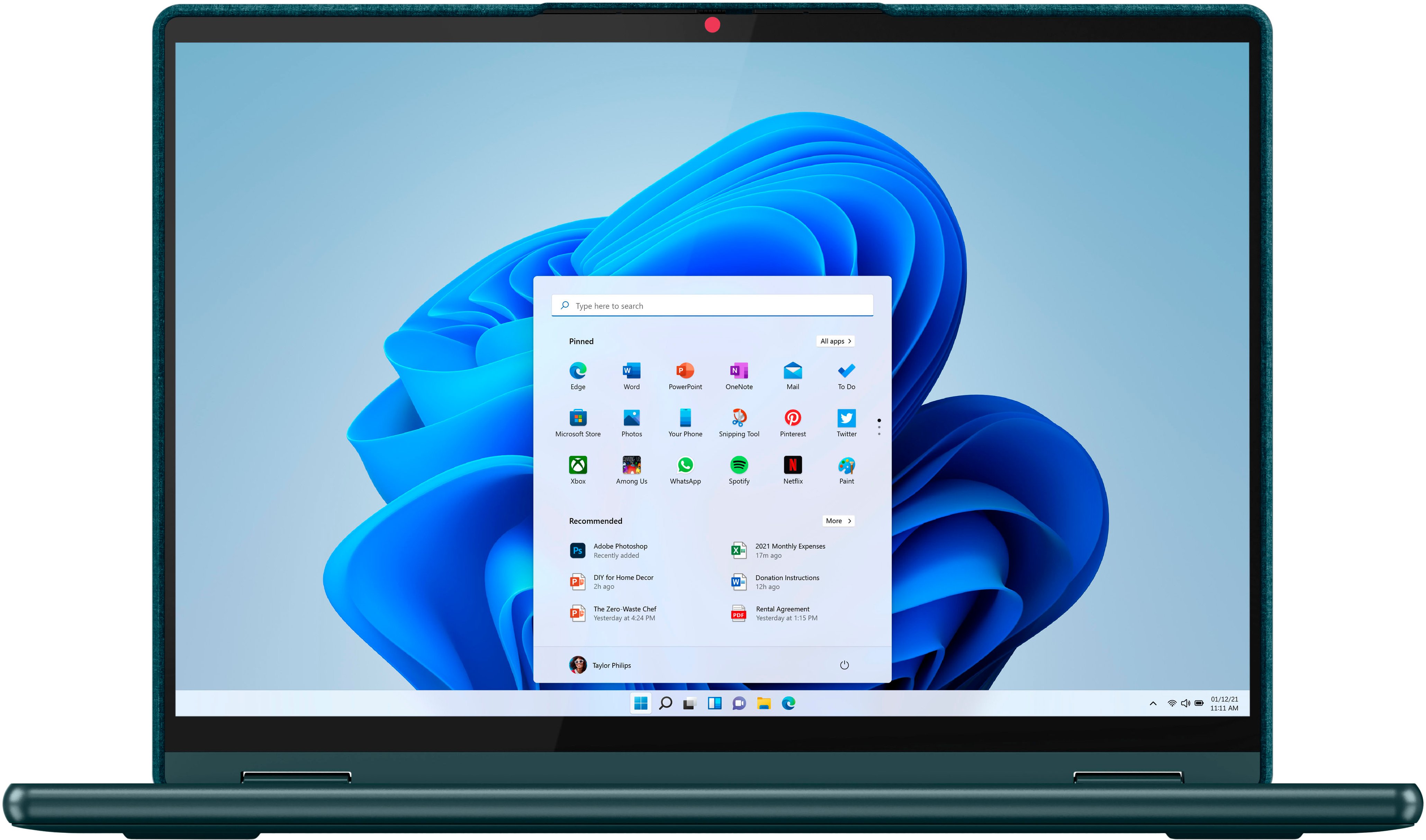
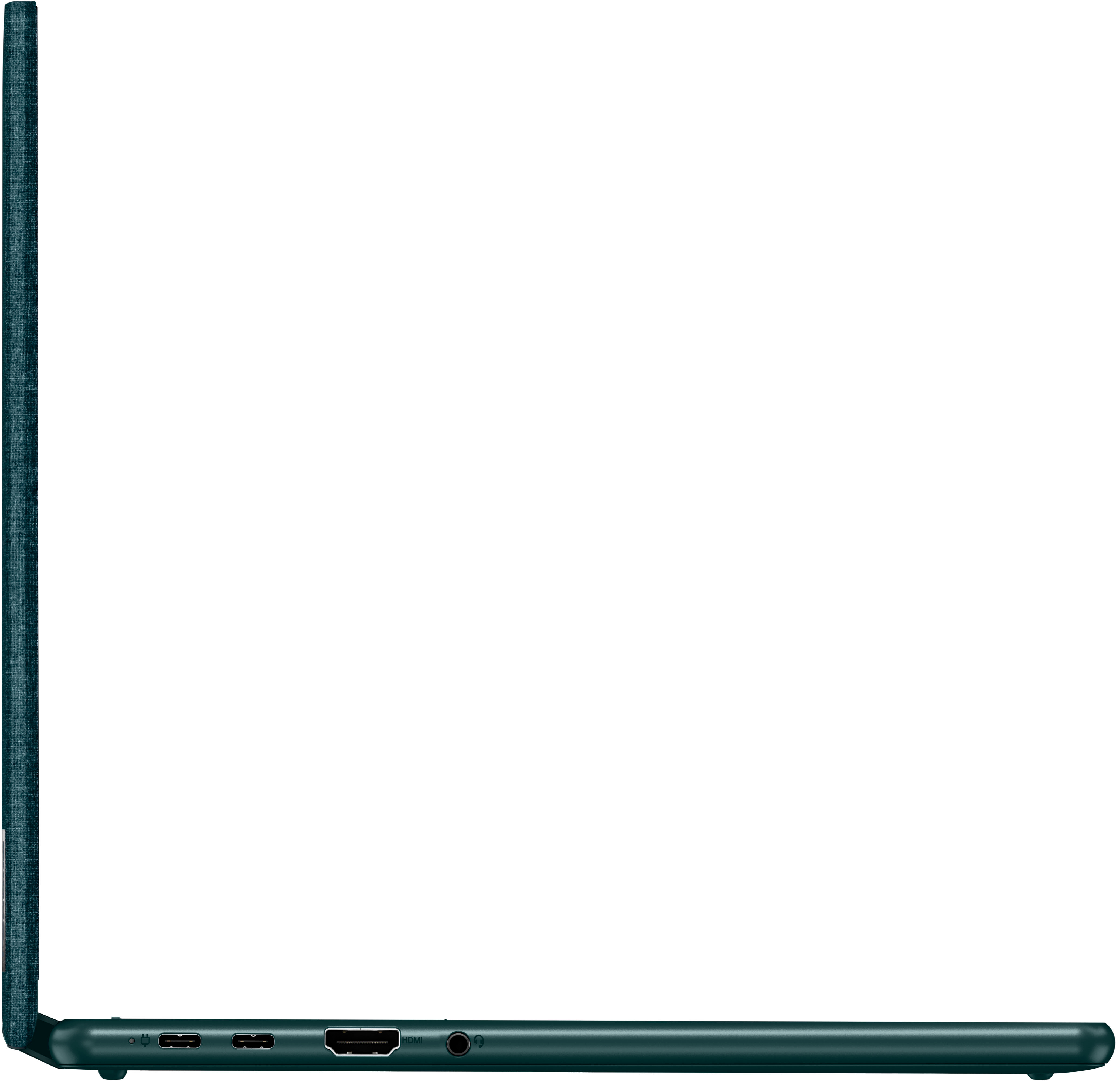
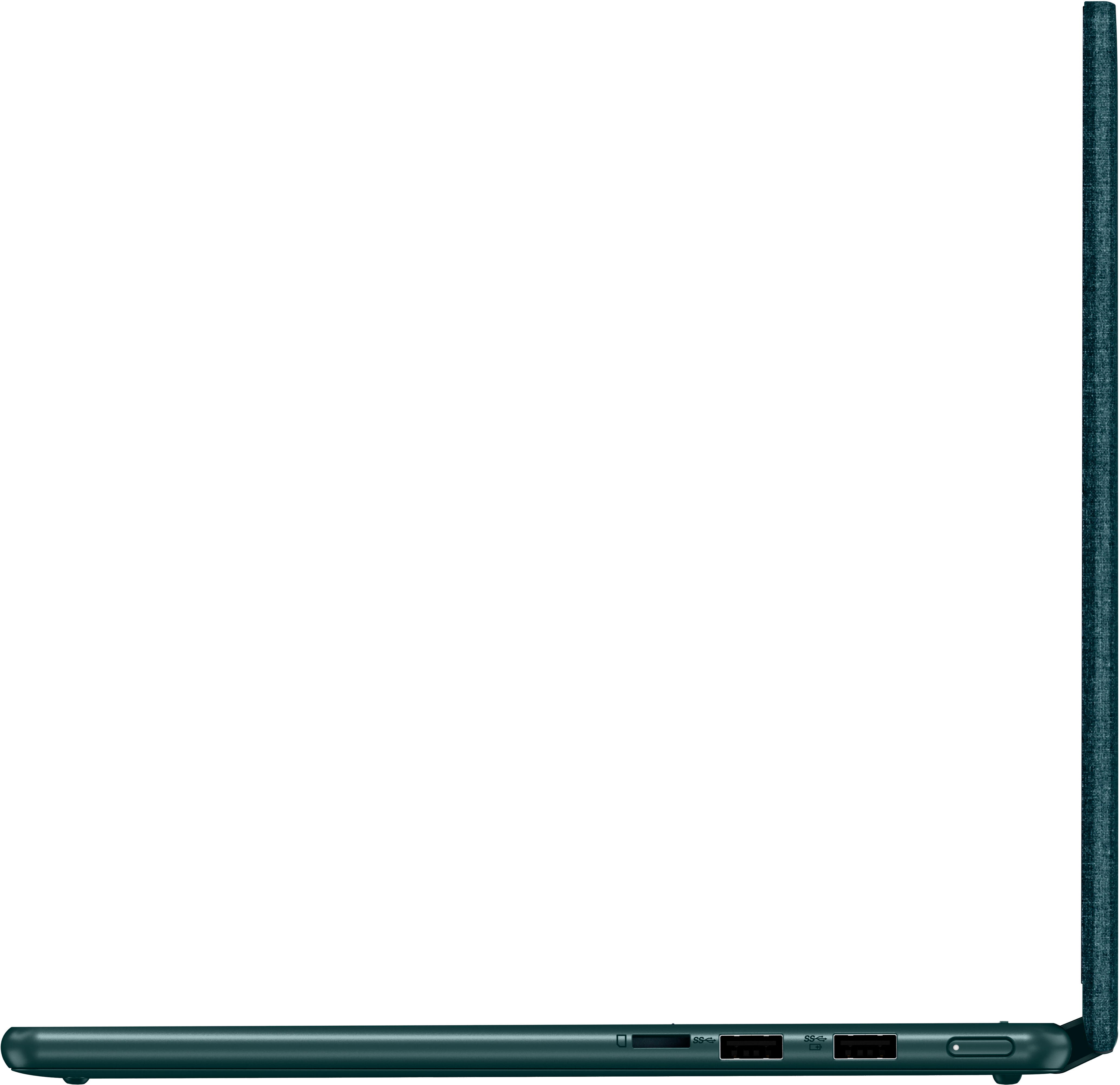
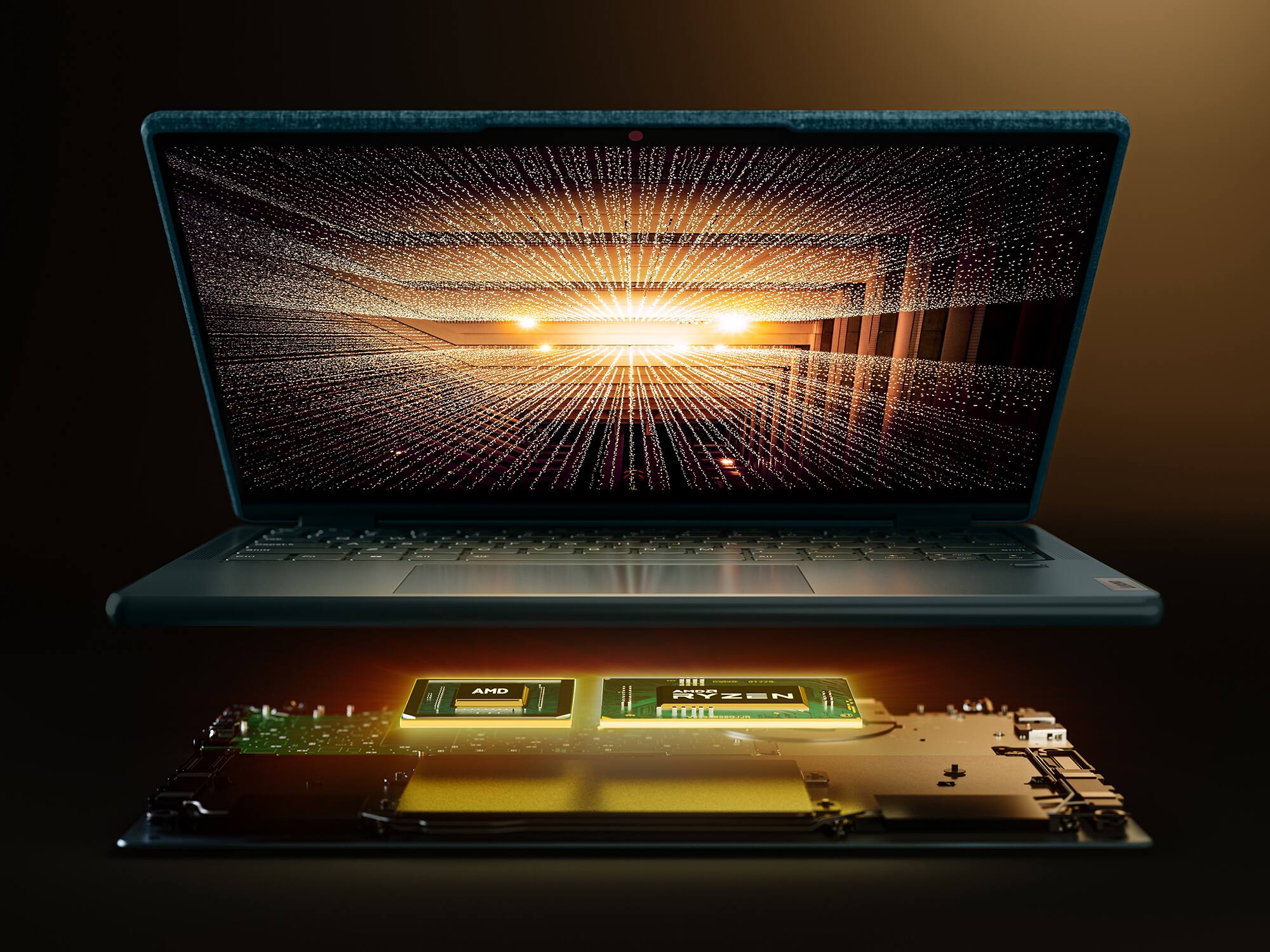


- Model:
- 82UD0002US
- SKU:
- 6502221
Rating by feature
- Battery Life
Rating 4.4 out of 5 stars
- Speed
Rating 4.4 out of 5 stars
- Display
Rating 4.6 out of 5 stars
Customers are saying
Customers are impressed with the Yoga 6's ease of use, touchscreen functionality, lightweight design, and compact size, frequently praising its performance and battery life. Many appreciate the sleek design and find the price point to be reasonable. However, some users have noted concerns regarding limited RAM and occasional overheating issues, along with some connectivity problems.
This summary was generated by AI based on customer reviews.
Great!!!
||Posted . Owned for 3 weeks when reviewed.This reviewer received promo considerations or sweepstakes entry for writing a review.Works great for my needs…it was a great value!!!!!
I would recommend this to a friendBrand response from Lenovo Product Expert
Posted .Thank you for choosing the Lenovo Yoga 6 13. We are pleased to hear that the value and performance of the Yoga 6 13 meets your computing needs so well.

Owner
||Posted . Owned for 3 weeks when reviewed.This reviewer received promo considerations or sweepstakes entry for writing a review.Terrible had one month and crashed. Have an appt with total tech but think it is time to return it and try something else
No, I would not recommend this to a friendBrand response from Lenovo Product Expert
Posted .Hello, Qcfoam, we are sorry to hear that you have experienced an issue with your Yoga 6 13. In advance, this is a lengthy response, however we want to give you and other readers of this response as much information as possible to help ensure your issue is resolved should you encounter something similar in the future. In cases like this, we recommend that you create restore points for your computer to back up from in the event a Windows Update causes issues for your device. Here is a link to learn more about how to complete this process and other recovery options for Windows: https://support.microsoft.com/en-us/windows/recovery-options-in-windows-31ce2444-7de3-818c-d626-e3b5a3024da5 . We also recommend checking for updates through Windows Update settings. These updates can help resolve issues from operating system bugs to driver software improvements. To navigate there, select start on the taskbar (windows logo) or press the windows key on the keyboard then select Settings. In Settings, select Windows Update, and then select the Check For Updates button. Install any available updates and restart your PC if required. If you didn’t have any updates that required a restart, it’s still a good idea to restart your device to make sure any pending updates are installed. Additionally, check for updates in the Lenovo Vantage application that is preinstalled on Windows devices. You can check by opening the app, navigating to the device tab, and selecting the “check for updates” option. If there are updates to install, follow the onscreen directions to finalize those updates. If your issues persists after these steps, we also recommend that you reach out to Lenovo Tech Support at this number for additional assistance: 877-453-6686.
Had to return not worth it
||Posted . Owned for 3 weeks when reviewed.This reviewer received promo considerations or sweepstakes entry for writing a review.When i purchased this laptop it kept restarting on me daily for no reason. Had to return it not worth the price.
No, I would not recommend this to a friendBrand response from Lenovo Product Expert
Posted .Hello, KimberlyS, we are sorry to hear that you encountered an issue with your Yoga 6 13. We recommend reaching out to Lenovo Tech Support and proving a representative with details of your issue so they can help provide a solution. Here is phone number to get in contact with tech support: 877-453-6686.
- Cons mentioned:Heat
Poor battery
||Posted . Owned for less than 1 week when reviewed.This reviewer received promo considerations or sweepstakes entry for writing a review.Looks nice and starts up fast. Does get hot when charging. Battery drains fast even when not used
No, I would not recommend this to a friendBrand response from Lenovo Product Expert
Posted .This Lenovo Yoga 6 13, model number 82UD0002US, ships with a Integrated 59Wh, Lithium-Polymer Battery, which within this model configuration, has a battery life of up to 13 hours, depending on the work the device is performing. It is normal for the Yoga 6 13 to feel warm to the touch as the battery is being charged. If you are getting substantially less battery life, first, set your screen brightness at less than 100-percent - try 80-percent to start with. Then, be sure Battery Charge Threshold is turned off. This power management setting should only be used when the laptop is plugged in all the time. It will prolong overall battery life by only charging the battery to 60-percent of capacity. You can turn off Battery Charge Threshold within the Lenovo Vantage APP installed on this computer. In Vantage select Battery Settings and turn off Battery Charge Threshold, if turned on. Also check what programs are running in the background on the computer. Be sure only the programs you want running in the background are. These programs will drain the battery. Here is a link to information about how to find out what programs are running in the background on your Windows 11 computer and how to manage them for better system performance: https://websiteforstudents.com/how-to-find-what-is-running-in-windows-11/. Then, finally, be sure any software you installed is compatible with Windows 11. Incompatible software will drain the battery at a faster rate. There is no need to install Microsoft Office software. The software is already part of the operating system, you just need to activate the software with a purchased product key. If you have installed a copy of Microsoft Office, this is conflicting with the existing copy on the system and this will slow your system down. If you have installed a 3rd party anti-virus program, be sure that Windows Defender is turned off and that the trial version of McAfee Anti-Virus software is uninstalled. There can only be one anti-virus program on the system. You may need to restore your system to original factory default settings if any of the programming errors have occurred. You can do that by typing "restore" in the Cortana search window. Just click on the magnifying glass icon at the bottom of your Windows 11 Desktop. Click on "Reset This PC" Then click on "Get Started" and follow the on screen directions to restore to factory defaults. If the problem persists, or you feel that the Yoga 6 13 is getting too warm while charging we recommend you contact your local Best Buy Store location to make an appointment with the Geek Squad and have a Geek Squad Agent confirm the health and good operation your Lenovo Yoga 6 13.
Computer Defective
||Posted . Owned for 1 week when reviewed.This reviewer received promo considerations or sweepstakes entry for writing a review.O[pen Box computer purchase, operating system failed in 1st week of use returned and bought another computer
No, I would not recommend this to a friendAmple but too small for me
||Posted . Owned for 3 weeks when reviewed.This reviewer received promo considerations or sweepstakes entry for writing a review.keyboard and screen are too small and compact, smaller than expected . surface way too sensitive.
I would recommend this to a friendProblem after problem
||Posted . Owned for 1 month when reviewed.This reviewer received promo considerations or sweepstakes entry for writing a review.I've had nothing but problems since I bought the computer.
No, I would not recommend this to a friendAvoid open box
||Posted . Owned for less than 1 week when reviewed.This reviewer received promo considerations or sweepstakes entry for writing a review.Cool laptop but slow and crashed on me in less than 2 days of purchase.
No, I would not recommend this to a friendLenovo
||Posted . Owned for 1 month when reviewed.This reviewer received promo considerations or sweepstakes entry for writing a review.The laptop mouse stopped working after a month of limited usage
No, I would not recommend this to a friendBrand response from Lenovo Product Expert
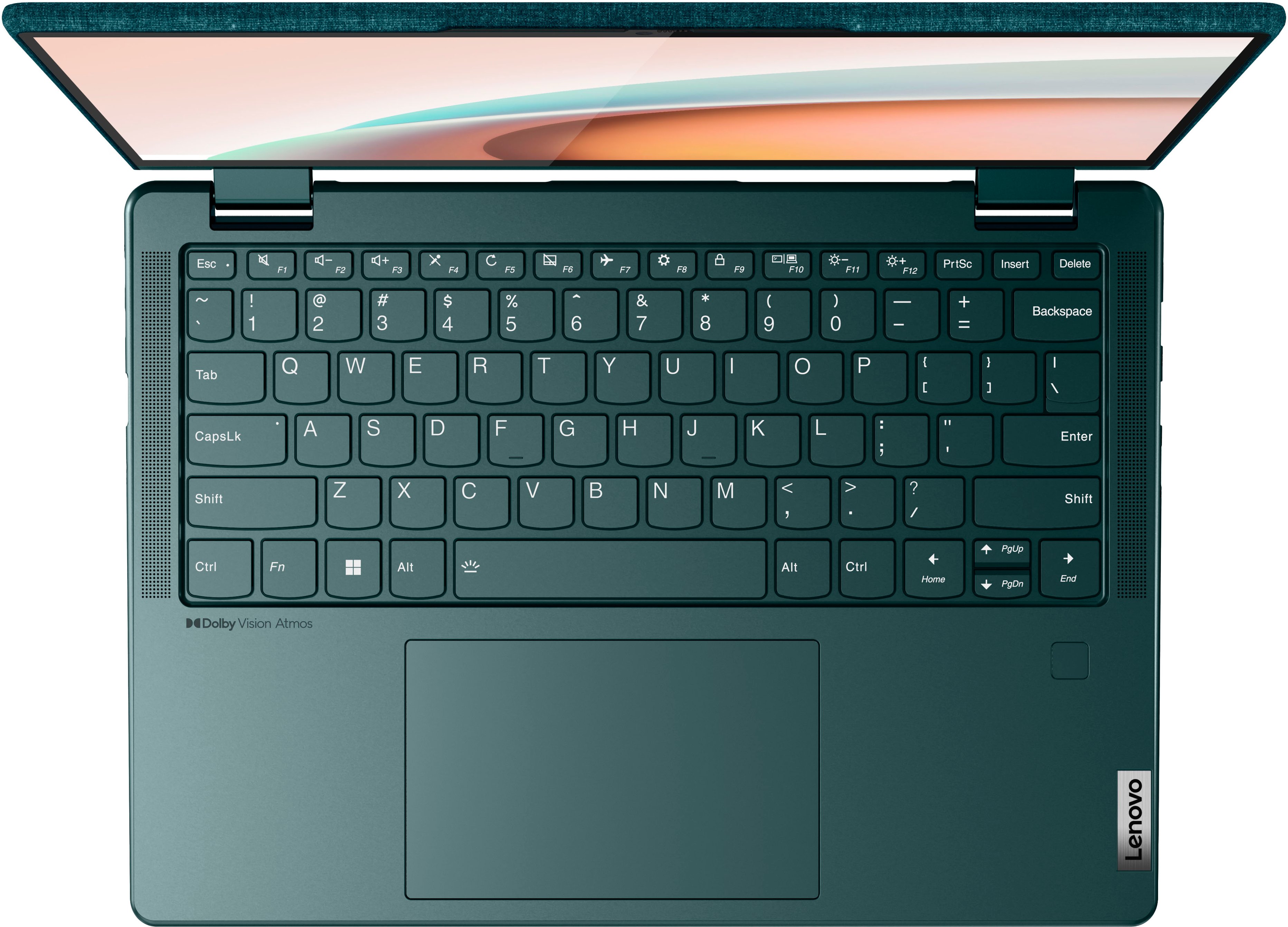
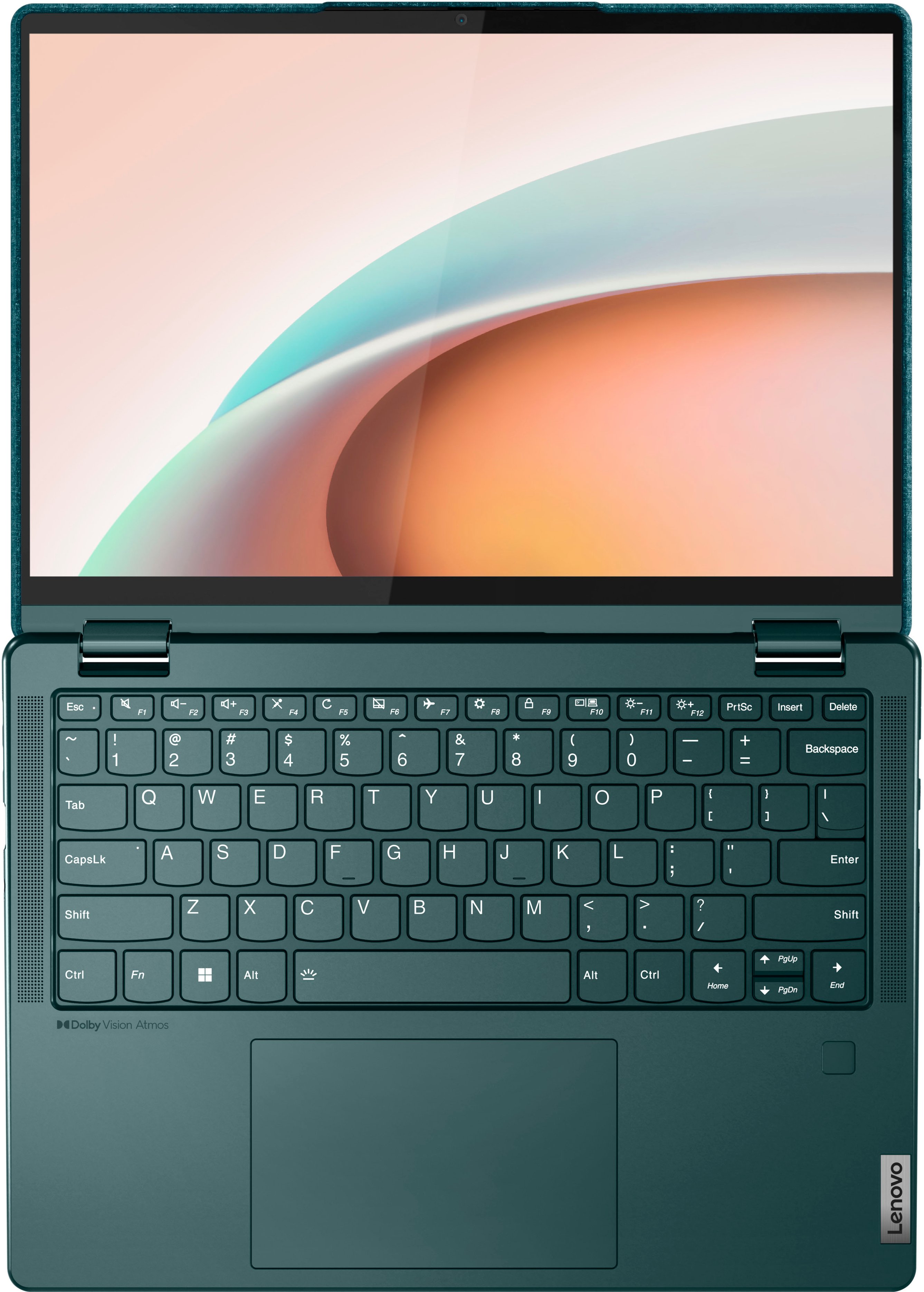
Posted .Hello, RobertC, we are sorry to hear that you have encountered an issue with your Yoga 6 13. To try and solve this issue, first, ensure that the touchpad is turned on. This model Yoga 6 has a touchpad toggle button on the top row of the keyboard, in line with the function keys, attached to the F6 key. You should see a small image of a touchpad with a diagonal line through it. Additionally, ensure that the function lock is not enabled. Pressing the F6 button should toggle your touchpad status and a graphic representing this setting adjustment should appear on the screen momentarily after pressing this key (similar to what happens when turning on and off the backlighting on the keyboard). If this does not work, we recommend checking for updates through Windows Update settings. These updates can help resolve issues from operating system bugs to driver software improvements. To navigate there, select start on the taskbar (windows logo) or press the windows key on the keyboard then select Settings. In Settings, select Windows Update, and then select the Check For Updates button. Install any available updates and restart your PC if required. If you didn’t have any updates that required a restart, it’s still a good idea to restart your device to make sure any pending updates are installed. Additionally, check for updates in the Lenovo Vantage application that is preinstalled on Windows devices. You can check by opening the app, navigating to the device tab, and selecting the “check for updates” option. If there are updates to install, follow the onscreen directions to finalize those updates. If your issues persist after these steps, we also recommend that you reach out to Lenovo Tech Support at this number to work with a representative to rectify the problem: 866-426-0911.
So so laptop
||Posted . Owned for 3 weeks when reviewed.This reviewer received promo considerations or sweepstakes entry for writing a review.Easy to setup but freezes once a day. Ok for occasional use but NOT reliable
No, I would not recommend this to a friendBrand response from Lenovo Product Expert
Posted .We are sorry to hear that you are having issues with your Lenovo Yoga 6 13, model number 82UD0002US. This Yoga 6 13 ships with Windows 11 Home, 64-bit Operating System installed. Be sure any software you installed is compatible with Windows 11. There is no need to install Microsoft Office software. The software is already part of the operating system, you just need to activate the software with a purchased product key. If you have installed a copy of Microsoft Office, this is conflicting with the existing copy on the system and this will slow your system down. If you have installed a 3rd party anti-virus program, be sure that Windows Defender is turned off and that the trial version of McAfee Anti-Virus software is uninstalled. There can only be one anti-virus program on the system. Here is a link to instructions for uninstalling McAfee from a Windows computer: https://service.mcafee.com/?articleId=TS101331&page=shell&shell=article-view You may need to restore your system to original factory default settings if any of the programming errors have occurred. You can do that by typing "restore" in the Cortana search window. Just click on the magnifying glass icon at the bottom of your Windows 11 Desktop. Click on "Reset This PC" Then click on "Get Started" and follow the on screen directions to restore to factory defaults. If there is no incompatible software installed but the issues persist, now check to be sure you have the latest version of Windows 11 on the computer. Then update all BIOS files and drivers up to that latest version of Windows 11. You can easily accomplish this by scanning the computer with the Lenovo Utility software available on this computer. This system has Lenovo utilities installed to help maintain the health of the device and keep the operating system software up to date. Type "Lenovo Vantage" in the Cortana Search window (if Lenovo Vantage is not installed on your device, you can download the APP and install it now). Select Lenovo Vantage from the list. In the window that opens, click on "Health and Support". In the expanded menu, select "Hardware Scan" In the window that opens, select "Run Quick Tests". This will scan your entire system for errors. Follow any directions that may pop up. If the problem continues after this scan, now click on "System Update". First select Windows update from the menu. Scan your system to be sure you have the latest version of Windows 11. Once that scan is complete, select "Additional Updates". This will scan your device to be sure there are no new BIOS/Driver updates needed. Follow any instructions that may pop up. If the issue continues after these updates, we recommend you call Lenovo Tech Support at: 877-453-6686 for additional help.
Not worth it.
||Posted . Owned for 10 months when reviewed.This reviewer received promo considerations or sweepstakes entry for writing a review.Honestly a very laggy laptop, not worth the money.
No, I would not recommend this to a friendLenovo yoga
||Posted . Owned for 4 months when reviewed.This reviewer received promo considerations or sweepstakes entry for writing a review.Worked fine until the warranty ended. Then turned to crap
No, I would not recommend this to a friendBrand response from Lenovo Product Expert
Posted .Hello, Riley2258, we are sorry to hear that you have encountered an issue with your Yoga 6 13. Since we do not know what went wrong with your device, we cannot give a solution to resolve this issue immediately, however, we recommend reaching out to Lenovo Tech Support at this phone number, as they will work with you to find a solution: 877-453-6686.
Laptop
||Posted . Owned for 3 weeks when reviewed.This reviewer received promo considerations or sweepstakes entry for writing a review.After a month, the facial identification setting isn’t working .
I would recommend this to a friendBrand response from Lenovo Product Expert
Posted .This Lenovo Yoga 6 13, model number 82UD0002US, ships with a FHD 1080p & IR webcam with Privacy Shutter and Windows Hello Facial Recognition capability. If you are no longer able to use Facial recognition to login, here is a link to some troubleshooting tips for fixing this issue within Windows 11: https://windowsreport.com/facial-recognition-not-working-windows-11/#:~:text=Reset%20facial%20recognition%20settings,to%20set%20it%20up%20again. If the issue continues, we recommend you contact Lenovo tech Support for additional help. Let the Lenovo Customer Service Specialist know the troubleshooting steps you have already taken. Call at: 877-453-6686.
- Pros mentioned:Ease of use
Not worth the money.
||Posted . Owned for less than 1 week when reviewed.This reviewer received promo considerations or sweepstakes entry for writing a review.Bout this to have a small portable gaming tablet/ laptop. Games from game pass passed the system requirements and installed, but the games would not start.
No, I would not recommend this to a friendBrand response from Lenovo Product Expert
Posted .We are sorry to hear that you are having issues loading specific games on to this Lenovo Yoga 6 13, model number 82UD0002US. This configuration of the Yoga 6 13 ships with Windows 11 Home, 64-bit Operating System and uses integrated AMD Radeon RX Vega 7 Version graphics processing within the AMD Ryzen 5 5500U Processor which is supported by 8GB Soldered LPDDR4x-4266MHz RAM. We recommend you check with the specific game's software publisher's web sites, of the games you are having issues with, for their compatibility with Windows 11 Home 64-bit operating system and the minimum/recommended hardware requirements (Is a Graphics card required, the processor speed and the minimum required system RAM and the minimum available hard drive space) to run their program, then compare those requirements to this system's configuration. If the configuration of this Yoga 6 13 meets the recommended requirements to play the games you are having issues with, we recommend you contact Lenovo Tech Support for additional help at: 877-453-6686.
Lenovo yoga labtop
||Posted . Owned for 2 weeks when reviewed.This reviewer received promo considerations or sweepstakes entry for writing a review.This labtop was seen to be a really great option for my significant other. I was really excited to give this to her but they computer gave out to a software issue and had to get it replaced with another one. 1 week later a new issue arise due to another type of software issue. This time it couldn’t be repaired again. I had to just give up on the labtop and some of my money back.
No, I would not recommend this to a friendBrand response from Lenovo Product Expert
Posted .We are sorry to hear that you have encountered an issue with your Lenovo Yoga 6. In advance, this is a lengthy response, however we want to give you and other readers of this response as much information as possible to help ensure your issue is resolved should you encounter something similar in the future. Be sure any software you installed is compatible with Windows 11. Incompatible software will cause the system to not perform properly and impair function. If the software is compatible with your device, yet the issues persist, we recommend checking for updates through Windows Update settings. These updates can help resolve issues from operating system bugs to driver software improvements. To navigate there, select start on the taskbar (windows logo) or press the windows key on the keyboard then select Settings. In Settings, select Windows Update, and then select the Check For Updates button. Install any available updates and restart your PC if required. If you didn’t have any updates that required a restart, it’s still a good idea to restart your device to make sure any pending updates are installed. Additionally, check for updates in the Lenovo Vantage application that is preinstalled on Windows devices. You can check by opening the app, navigating to the device tab, and selecting the “check for updates” option. If there are updates to install, follow the onscreen directions to finalize those updates. If your issues persists after these steps, we also recommend that you reach out to Lenovo Tech Support at this number for additional assistance: 877-453-6686.
Awful
||Posted . Owned for 3 weeks when reviewed.This reviewer received promo considerations or sweepstakes entry for writing a review.It has broken within the first 3 weeks of owning. Was used a total of 7 times before I got a blue screen and then was told I could not exchange it because it was out of the 14 day return window.
No, I would not recommend this to a friendBrand response from Lenovo Product Expert
Posted .We are sorry to hear that you are having issues with your Lenovo Yoga 6 13, model number 82UD0002US. If the issue is a Windows update that fails to install properly, you can rollback Windows 11 to the last version before the update that fails. Here is a link to more information about fixing a Windows 11 update that fails: https://windows101tricks.com/windows-11-update-failed/. If you are unable to properly load Windows 11 after the update failure, resetting this Yoga 6 13 back to original factory settings may fix the issue. Power off the computer and plug in the 45W USB-C (3-pin) AC adapter/charger, supports PD 3.0, 100-240V, 50-60Hz that ships with this Yoga 6 13 Laptop, with the computer powered off. This system is equipped with OneKey Recovery System. There is a very small pin hole on the bottom right side of the device, right near the bottom right corner of the cooling vent on the bottom of the device. You will need a pin to push this reset button. Plug the device in. Let the battery charge for about 15 minutes, with the power off. Push the reset button. The system should boot to a choice screen where you can choose "Restore To Factory Default". Select this. It will delete everything from the hard drive except the original factory install of the operating system. You will need to reinstall all programs and files after the reset. If you don't have copies of the files, try to make one before you restore by selecting "Boot to desktop" and trying to back up your files. If the problem persists after the factory reset, we recommend you contact Lenovo Tech Support at: 877-453-6686.
- Pros mentioned:Touch screen, Weight
BEST LAPTOP
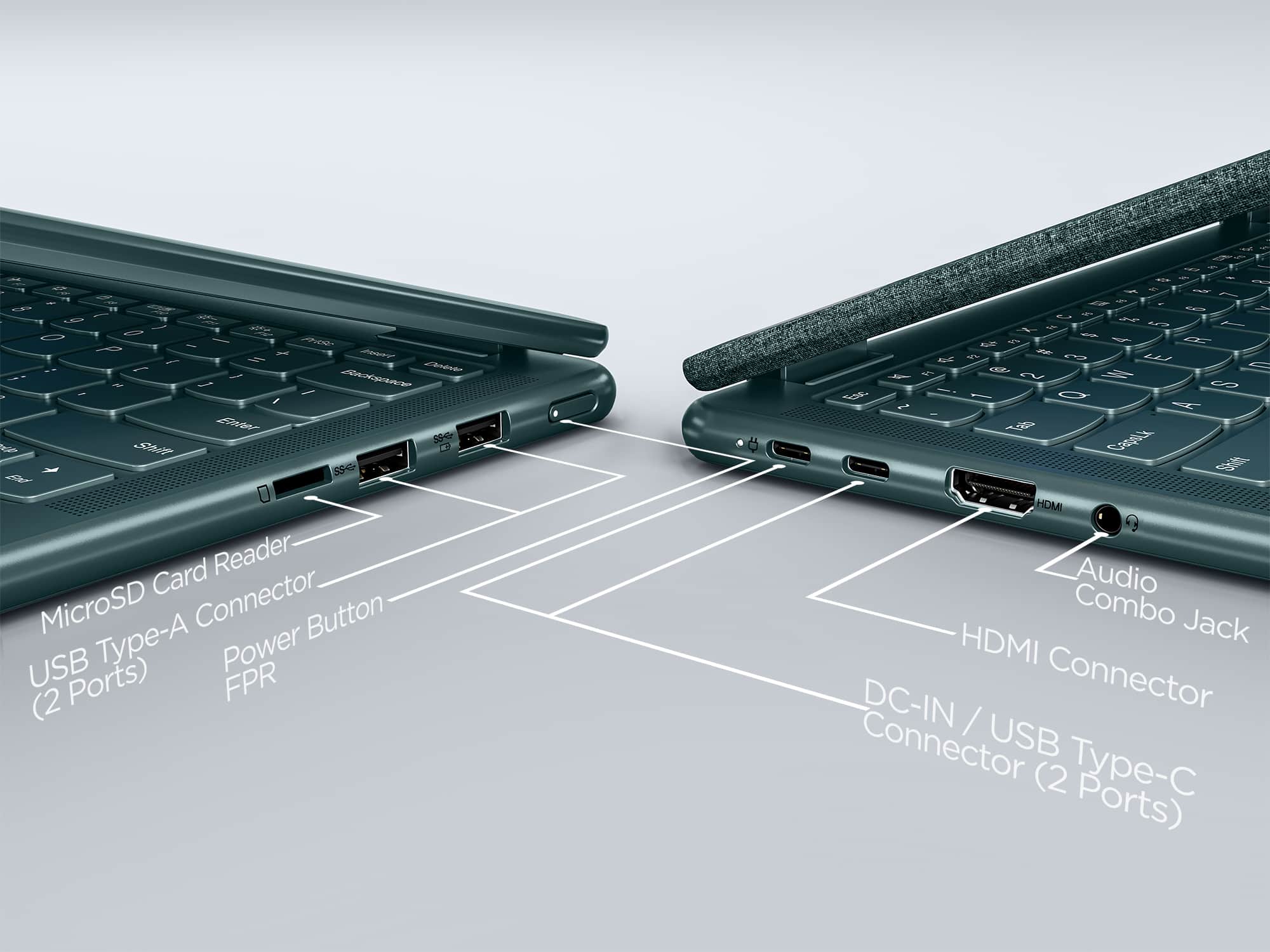
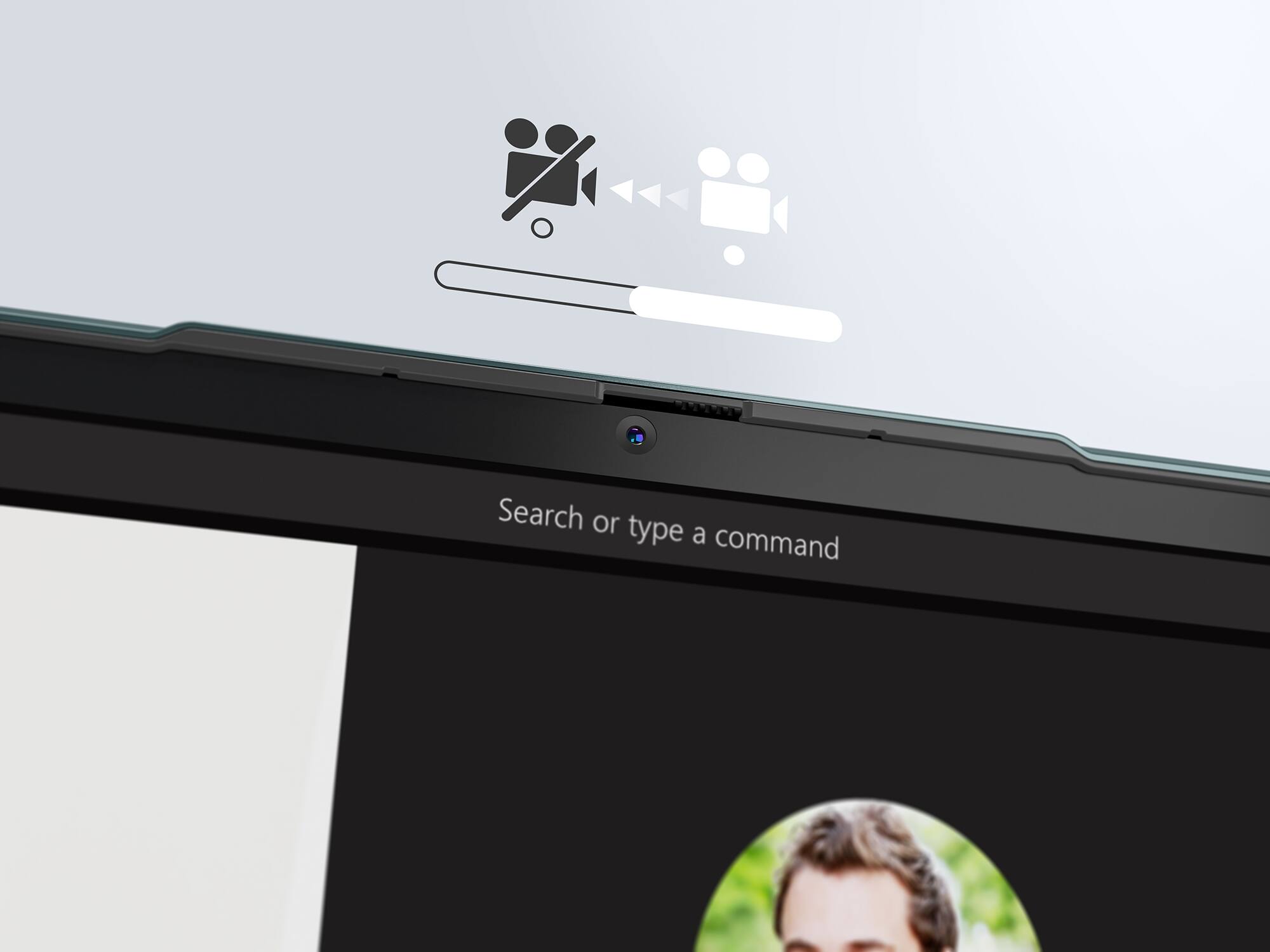
Posted .This reviewer received promo considerations or sweepstakes entry for writing a review.Before college started, I wanted to find a good laptop that I could use through all of college. I came across the Lenovo Yoga 6 laptop. I have had this laptop for about eight months, and it always surprises me. I have used three different laptops--- Asus X543, HP Old, HP 16inch---, so I can tell you that THIS laptop is the one you need. There are so many unique features, it is so easy to use, and it is very affordable. This laptop is a NECESSITY for college students, especially. First, I want to start off with the pricing of this laptop. I got this laptop for ONLY 600 dollars during a sale at Best Buy! The original price is about 750 dollars. Overall, the Lenovo Yoga 6 is extremely affordable for such a good laptop. Now, I would like to tell you about the unique features that make this laptop easy to use and reliable. This laptop has a fingerprint scanner and a password in case. The fingerprint scanner makes it super easy and quick to get into my laptop. It also has a touchscreen and can flip into an iPad. This feature is especially useful for people who prefer to type on-screen instead of a keyboard. Another feature that really comforts me is that the camera has a cover. So, when you are not using your camera, you can push the switch to the side to keep it covered. When I was younger, my mom would tell me stories about people being able to see you through your laptop camera. So, on my earlier laptops, I used to put tape over my camera which was not good for the laptop. The Lenovo Yoga 6 has a denim cover, which makes it very aesthetically pleasing. On top of that, this laptop weighs only THREE pounds! I love that because it is so easy to carry around and is small enough to fit in my bag without struggle. I still have not figured out how to get rid of them. It also holds 16GB of RAM and 1TB of storage, which is FANTASTIC for the price and the size. I was also able to link multiple accounts to this laptop, which is so convenient because you do not have to log in and out. You can just click onto your other account. Therefore, these features REALLY make it simple and easy to use. Compared to the Asus and the HP laptops that I have had; the Lenovo Yoga 6 is incredible. My first laptop was the Asus. I accidentally closed the laptop with my headphones on the keyboard and it completely shattered. I accidentally did that with the Lenovo Yoga 6, and nothing happened. I was in SHOCK. I expected it to break because it is so light and small. That is how you can tell that this laptop is exceptionally durable. The only negative is that random ads will pop up at the corner of the screen. This can be annoying because it covers the screen. I have not figured out how to fix this issue either. Overall, the Lenovo Yoga 6 never fails to shock me, and it is perfect for school.
I would recommend this to a friend Upset Customer
||Posted . Owned for 3 weeks when reviewed.This reviewer received promo considerations or sweepstakes entry for writing a review.Really poor experience purchasing this lap top. The sales associate left us when we were just looking and took a lunch break…. Once he came back and noticed I was buy this laptop. He pushed the other guy out of the way and made sure to take the sale from him. Really disappointed on how greedy and rude he was with the other associate.
I would recommend this to a friendNot worth the money
||Posted . Owned for 1 month when reviewed.This reviewer received promo considerations or sweepstakes entry for writing a review.The mouse pad would not work was broken when I bought it. Exchanged out and that one worked for a few hours and then the speaker stopped working. Needless to say I returned it and went someplace else and bought a cheaper computer that works great. P
No, I would not recommend this to a friendIf the return period was one week longer i would h
||Posted . Owned for 2 weeks when reviewed.This reviewer received promo considerations or sweepstakes entry for writing a review.3 weeks old today! (One week outside return period) and crashing is common over the past week. What have i installed on it? Steam and one very low overhead, low spec requirement card game.
No, I would not recommend this to a friendBrand response from Lenovo Product Expert
Posted .We are sorry to hear that you are having issues with your Lenovo Yoga 6 13, model number 82UD0002US. Be sure any software you installed is compatible with Windows 11, including any legacy games/software. Also, there is no need to install Microsoft Office software. The software is already part of the operating system, you just need to activate the software with a purchased product key. If you have installed a copy of Microsoft Office, this is conflicting with the existing copy on the system and this will slow your system down. If you have installed a 3rd party anti-virus program, be sure that Windows Defender is turned off and that the trial version of McAfee Anti-Virus software is uninstalled. There can only be one anti-virus program on the system. Here is a link to instructions for uninstalling McAfee from a Windows computer: https://service.mcafee.com/?articleId=TS101331&page=shell&shell=article-view You may need to restore your system to original factory default settings if any of the programming errors have occurred. You can do that by typing "restore" in the Cortana search window. Just click on the magnifying glass icon at the bottom of your Windows 11 Desktop. Click on "Reset This PC" Then click on "Get Started" and follow the on screen directions to restore to factory defaults. If there is no incompatible software installed but the issues persist, check to be sure you have the latest version of Windows 11 on the computer. Then update all BIOS files and drivers up to that latest version of Windows 11. You can easily accomplish this by scanning the computer with the Lenovo Utility software available on this computer. This system has Lenovo utilities installed to help maintain the health of the device and keep the operating system software up to date. Type "Lenovo Vantage" in the Cortana Search window (if Lenovo Vantage is not installed on your device, you can download the APP and install it now). Select Lenovo Vantage from the list. In the window that opens, click on "Health and Support". In the expanded menu, select "Hardware Scan" In the window that opens, select "Run Quick Tests". This will scan your entire system for errors. Follow any directions that may pop up. If the problem continues after this scan, now click on "System Update". First select Windows update from the menu. Scan your system to be sure you have the latest version of Windows 11. Once that scan is complete, select "Additional Updates". This will scan your device to be sure there are no new BIOS/Driver updates needed. Follow any instructions that may pop up. If the issue continues after these updates, we recommend you call Lenovo Tech Support at: 877-453-6686 for additional help.