Customer Ratings & Reviews

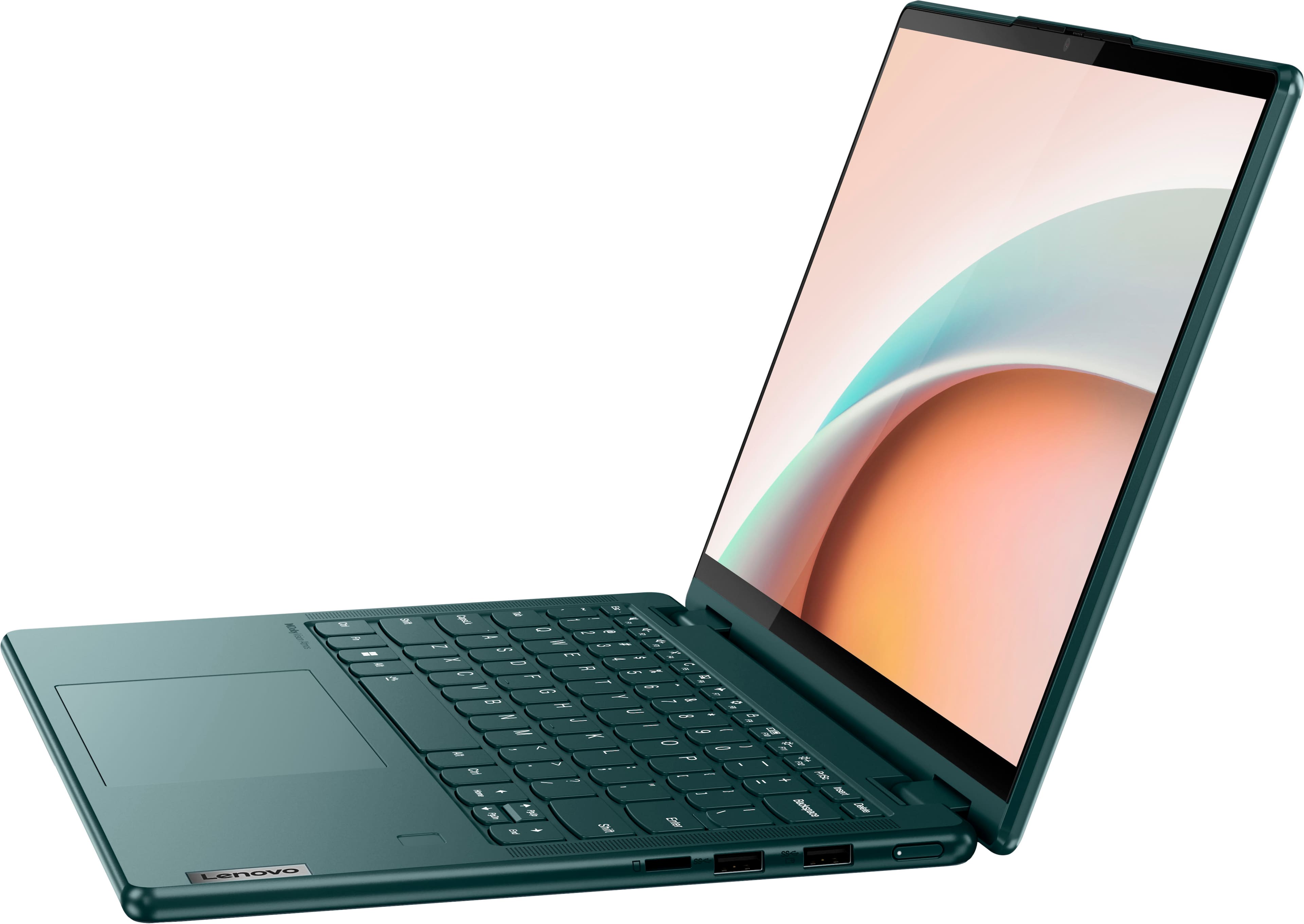
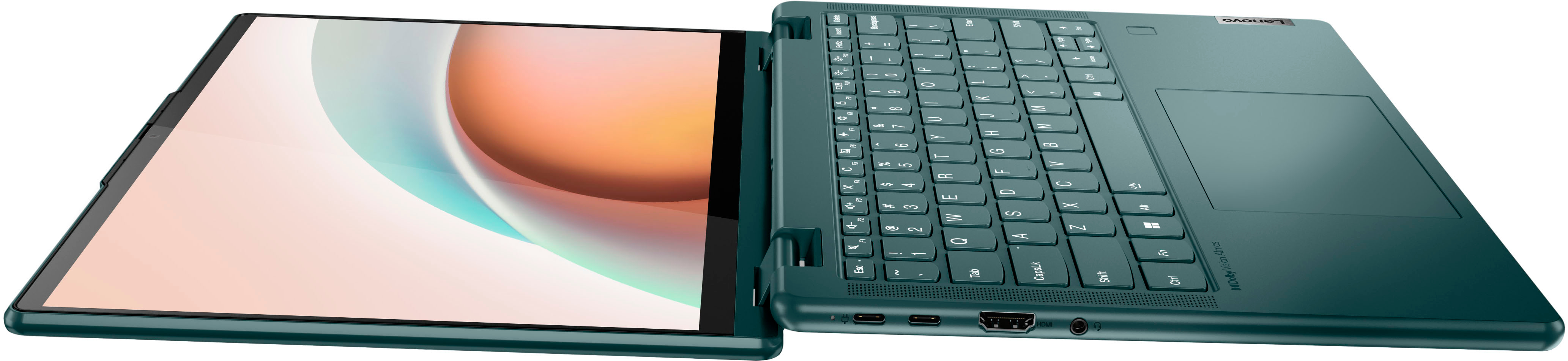
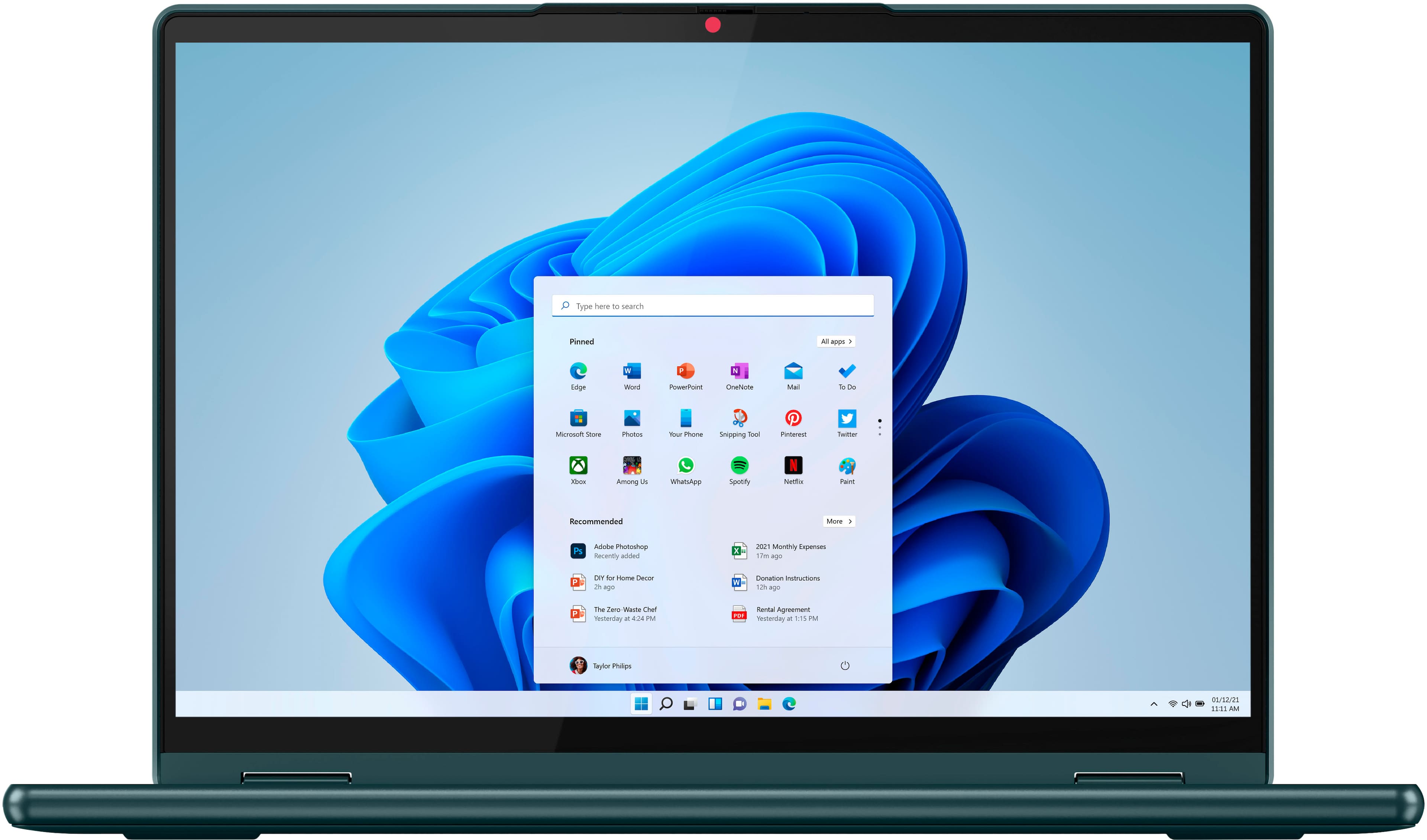
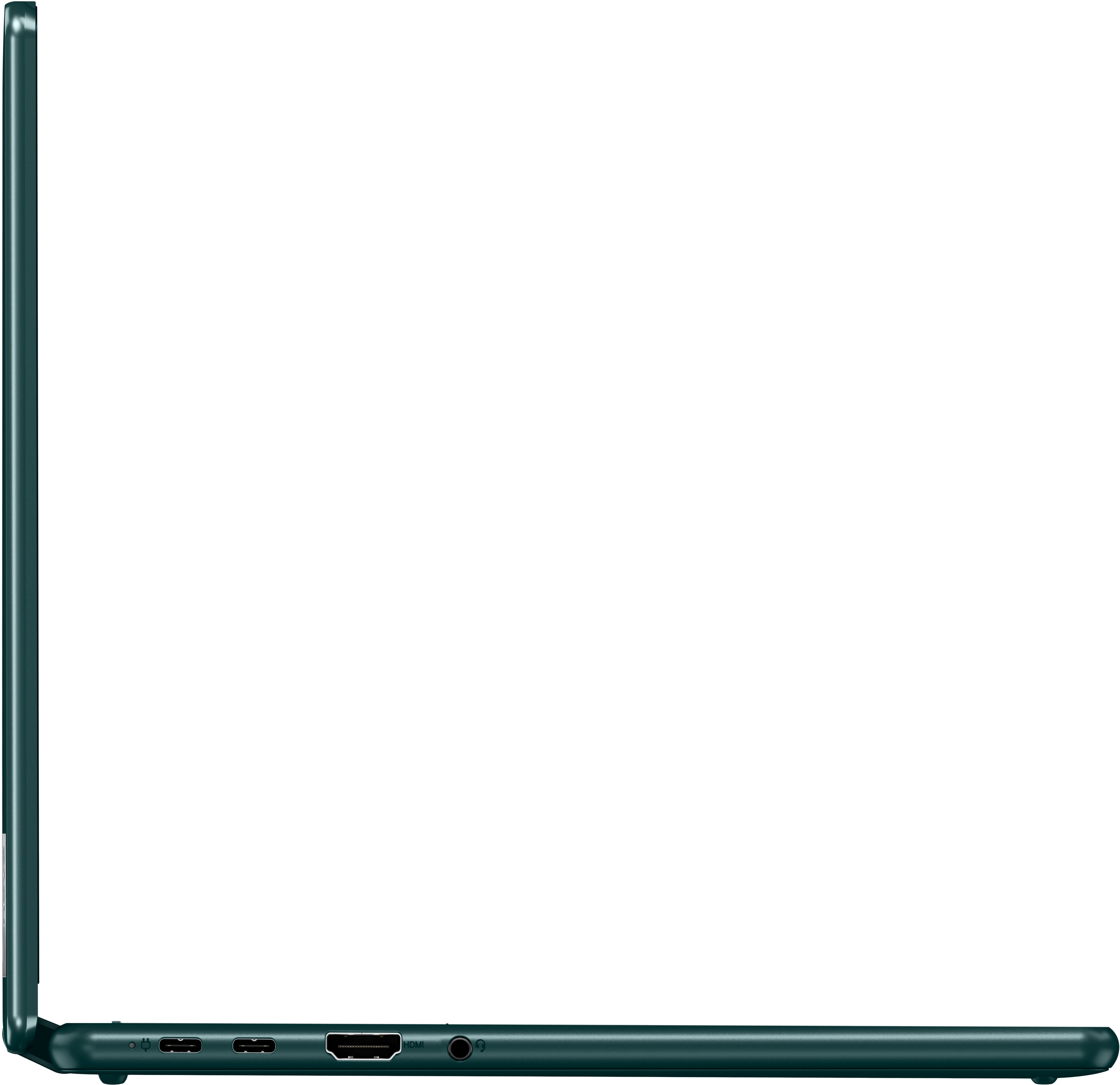




- Model:
- 82UD0000US
- SKU:
- 6502229
Rating by feature
- Battery Life
Rating 4.4 out of 5 stars
- Speed
Rating 4.5 out of 5 stars
- Display
Rating 4.6 out of 5 stars
Customers are saying
Customers love the Yoga 6 13.3" laptop's performance, responsive touchscreen, and lightweight design, finding it easy to use and ideal for portability. Many appreciate the long battery life and ample storage. While some users noted the fan can be audible during demanding tasks and the device may get warm, the overall experience is overwhelmingly positive.
This summary was generated by AI based on customer reviews.
Nice Laptop
||Posted . Owned for 1 month when reviewed.This reviewer received promo considerations or sweepstakes entry for writing a review.I purchased this for my husband for Christmas . He really likes it !
I would recommend this to a friendComputer
||Posted . Owned for 3 weeks when reviewed.This reviewer received promo considerations or sweepstakes entry for writing a review.Love it, had great customer help in picking out what I needed
I would recommend this to a friendPortable and fast
||Posted . Owned for 3 weeks when reviewed.This reviewer received promo considerations or sweepstakes entry for writing a review.Perfect for on the go pc. Traded in my HP for a Lenovo. Happy I did.
I would recommend this to a friendBrand response from Lenovo Product Expert
Posted .Thank you for choosing the Lenovo Yoga 6 13. We are pleased to hear that the Yoga 6 13 meets your computing needs so well.

Great!
||Posted . Owned for 3 weeks when reviewed.This reviewer received promo considerations or sweepstakes entry for writing a review.Love my new laptop. It’s the 2nd one I’ve purchased from Best Buy!
I would recommend this to a friendBrand response from Lenovo Product Expert
Posted .Thank you for choosing the Lenovo Yoga 6 13. We appreciate your loyalty to the Yoga Product Family and the Lenovo Brand. We are pleased to hear that the Yoga 6 13 is working out so well for you.
Great new computer
||Posted . Owned for 1 month when reviewed.This reviewer received promo considerations or sweepstakes entry for writing a review.Perfect computer for my needs. Easy to navigate and use
I would recommend this to a friendAnother stellar product from Lenovo
||Posted . Owned for 1 month when reviewed.This reviewer received promo considerations or sweepstakes entry for writing a review.Great Lenovo series of laptops with longevity and durability
I would recommend this to a friendBrand response from Lenovo Product Expert
Posted .Thank you for choosing the Lenovo Yoga 6 13. We are pleased to hear that the Yoga 6 13 is working out so well for you.
Great laptop
||Posted . Owned for 2 months when reviewed.This reviewer received promo considerations or sweepstakes entry for writing a review.This an excellent computer. The display is so crisp.
I would recommend this to a friendBrand response from Lenovo Product Expert
Posted .Thank you for choosing the Lenovo Yoga 6 13. We are pleased to hear that the features and performance of the Yoga 6 13 meets your computing needs so well.
Good
||Posted . Owned for 1 month when reviewed.This reviewer received promo considerations or sweepstakes entry for writing a review.Good, elegant, fast, good price, good battery life
I would recommend this to a friendBrand response from Lenovo Product Expert
Posted .Thank you for choosing the Lenovo Yoga 6 13. We are pleased to hear that the Yoga 6 13 is working out so well for you.
no touchscreen
||Posted . Owned for 2 months when reviewed.This reviewer received promo considerations or sweepstakes entry for writing a review.Out of the box the touchscreen doesn't work! It's an award for a student tomorrow!
No, I would not recommend this to a friendfaulty laptop
||Posted . Owned for 1 month when reviewed.This reviewer received promo considerations or sweepstakes entry for writing a review.The laptop was very slow and the trackpad was faulty
No, I would not recommend this to a friendNot happy with product or return policy
||Posted . Owned for 1 month when reviewed.This reviewer received promo considerations or sweepstakes entry for writing a review.Screen Glass broke a few weeks later Best Buy would not refund or exchange
No, I would not recommend this to a friendlenovo
||Posted .This reviewer received promo considerations or sweepstakes entry for writing a review.Ok product, would not have paid that much for it though
No, I would not recommend this to a friendDisappointed
||Posted . Owned for 2 weeks when reviewed.This reviewer received promo considerations or sweepstakes entry for writing a review.Low speed computer Batteries life less then 4 hours
No, I would not recommend this to a friendBrand response from Lenovo Product Expert
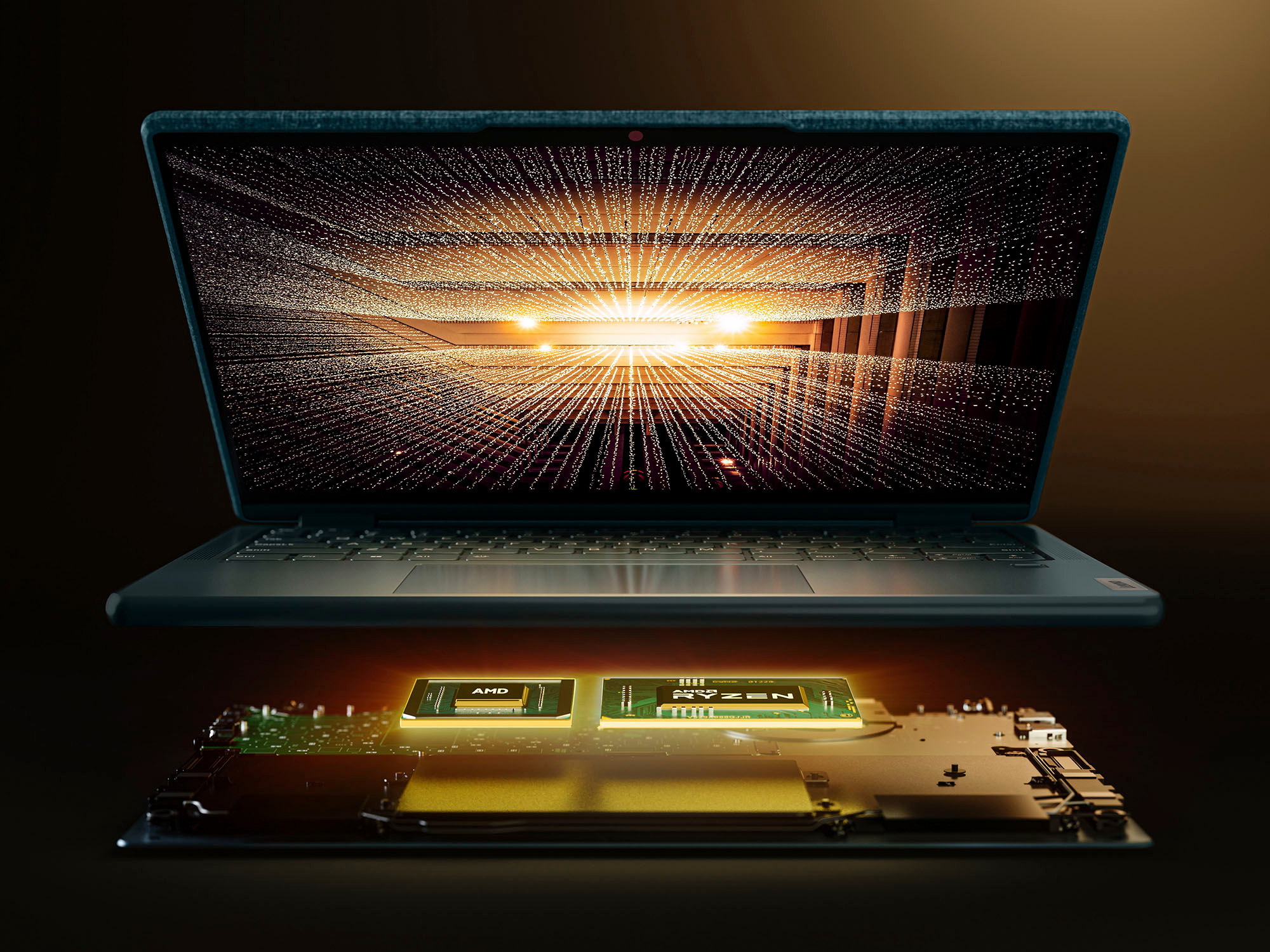
Posted .This Lenovo Yoga 6 13, model number 82UD0000US is a fast configuration, with its 8-Core/16-Thread AMD Ryzen 7 5700U Processor, with a base speed of 1.8GNz and a boost speed of up to 4.3GHz. This processor is supported by 16GB 16GB Soldered LPDDR4x-4266MHz RAM and a 512GB M.2 2242 PCIe 3.0x4 NVMe solid state hard drive. For internet connectivity, this Yoga 6 13 uses WiFi-6 wide range/high speed 2x2 802.11ax frequency WiFi, backward compatible to older a/b/g/n/ac frequencies as well. This model also ships with a Integrated 59Wh, Lithium-Polymer Battery, which within this model configuration, has a battery life of up to 13 hours, depending on the work the device is performing. If you are getting substantially less battery life and the performance of your Yoga 6 13 is less than expected, first, set your screen brightness at less than 100-percent - try 80-percent to start with. Then, be sure Battery Charge Threshold is turned off. This power management setting should only be used when the laptop is plugged in all the time. It will prolong overall battery life by only charging the battery to 60-percent of capacity. You can turn off Battery Charge Threshold within the Lenovo Vantage APP installed on this computer. In Vantage select Battery Settings and turn off Battery Charge Threshold, if turned on. Also check what programs are running in the background on the computer. Be sure only the programs you want running in the background are. These programs will drain the battery. Here is a link to information about how to find out what programs are running in the background on your Windows 11 computer and how to manage them for better system performance: https://websiteforstudents.com/how-to-find-what-is-running-in-windows-11/. Then, finally, be sure any software you installed is compatible with Windows 11. Incompatible software will drain the battery at a faster rate. There is no need to install Microsoft Office software. The software is already part of the operating system, you just need to activate the software with a purchased product key. If you have installed a copy of Microsoft Office, this is conflicting with the existing copy on the system and this will slow your system down. If you have installed a 3rd party anti-virus program, be sure that Windows Defender is turned off and that the trial version of McAfee Anti-Virus software is uninstalled. There can only be one anti-virus program on the system. You may need to restore your system to original factory default settings if any of the programming errors have occurred. You can do that by typing "restore" in the Cortana search window. Just click on the magnifying glass icon at the bottom of your Windows 11 Desktop. Click on "Reset This PC" Then click on "Get Started" and follow the on screen directions to restore to factory defaults. If the problem persists, we recommend you contact Lenovo Tech Support at: 877-453-6686.
I regret buying this laptop.
||Posted . Owned for 2 months when reviewed.This reviewer received promo considerations or sweepstakes entry for writing a review.Started malfunctioning on the second month . If your going to buy a thousand dollar laptop might as well get a MacBook . I regret getting this laptop. The casing also seems a bit cheap. Would not recommend.
No, I would not recommend this to a friendBrand response from Lenovo Product Expert
Posted .We are sorry to hear that you are having issues with your Lenovo Yoga 6 13, model number 82UD0000US. Be sure any software you installed is compatible with Windows 11. There is no need to install Microsoft Office software. The software is already part of the operating system, you just need to activate the software with a purchased product key. If you have installed a copy of Microsoft Office, this is conflicting with the existing copy on the system and this will slow your system down. If you have installed a 3rd party anti-virus program, be sure that Windows Defender is turned off and that the trial version of McAfee Anti-Virus software is uninstalled. There can only be one anti-virus program on the system. Here is a link to instructions for uninstalling McAfee from a Windows computer: https://service.mcafee.com/?articleId=TS101331&page=shell&shell=article-view You may need to restore your system to original factory default settings if any of the programming errors have occurred. You can do that by typing "restore" in the Cortana search window. Just click on the magnifying glass icon at the bottom of your Windows 11 Desktop. Click on "Reset This PC" Then click on "Get Started" and follow the on screen directions to restore to factory defaults. If the problem persists, we recommend you contact Lenovo Tech Support at: 877-453-6686.
THE WORST Lenovo I have ever owned (twice)
||Posted .This reviewer received promo considerations or sweepstakes entry for writing a review.First one - Factory batter error... Second one - Windows boot error(s)... For a Lenovo, worst experience EVER
No, I would not recommend this to a friendBrand response from Lenovo Product Expert
Posted .We are sorry to hear that you are having issues with your Lenovo Yoga 6 13, model number 82UD0000US. Resetting this computer back to original factory settings, using the recovery copy of Windows 11 Home, 64-bit Operating System software installed on this Yoga 6 13, may fix the boot error you are experiencing. Power off the Yoga 6 13 and plug in the AC adapter/charger that shipped with your Yoga 6 13, with the computer powered off. This system is equipped with OneKey Recovery System. There is a very small pin hole on the bottom left side of the device, right near the top left corner of the cooling vent on the bottom of the device. You will need a pin to push this reset button. Plug the device in. Let the battery charge for about 15 minutes, with the power off. Push the reset button. The system should boot to a choice screen where you can choose "Restore To Factory Default". Select this. It will delete everything from the hard drive except the original factory install of the operating system. You will need to reinstall all programs and files after the reset. If you don't have copies of the files, try to make one before you restore by selecting "Boot to desktop" and trying to back up your files. If the problem persists after the factory reset, we recommend you contact Lenovo Tech Support at: 877-453-6686.
No warzone
||Posted .This reviewer received promo considerations or sweepstakes entry for writing a review.Couldn’t run warzone on it at all. Says 5700 but its only 5000 . Returned it because I only purchased it with intentions of only playing warzone.
No, I would not recommend this to a friendBrand response from Lenovo Product Expert
Posted .This configuration of the Lenovo Yoga 6 13, model number 82UD0000US, ships with the 8-Core/16-Thread AMD Ryzen 7 5700U Processor and uses integrated AMD Radeon RX Vega 8 Version graphics processing, integrated within the AMD Ryzen 7 5700U processor. We always recommend you check the requirements and compatibility of any software/games you will be installing on your new computer, before you invest in any computer. Be sure your new computer configuration can support the software/games you will need to use and your workload.
Product was defected practically out of the box.
||Posted . Owned for 3 weeks when reviewed.This reviewer received promo considerations or sweepstakes entry for writing a review.Did not work for me. Knew it a problem within one week. Best Buy Customer reviewed the computer and immediately refunded my money.
No, I would not recommend this to a friendPick a different 2in1
||Posted . Owned for 1 week when reviewed.This reviewer received promo considerations or sweepstakes entry for writing a review.Was super exited then greatly disappointed. The battery life is awful. Had computer charged to 100% then turned off. Turned back on about 3 hours later with brightness just over halfway, only working on emails and it will only last about 4 hours. Computer also has trouble staying connected to the internet.
No, I would not recommend this to a friendBrand response from Lenovo Product Expert
Posted .We are sorry to hear that you are having issues with your Lenovo Yoga 6 13, model number 82UD0000US. This model configuration ships with a Integrated 59Wh, Lithium-Polymer Battery, which within this model configuration, has a battery life of up to 14 hours, depending on the work the device is performing. If you are getting substantially less battery life, first, set your screen brightness at less than 100-percent - try 80-percent to start with. Then, be sure Battery Charge Threshold is turned off. This power management setting should only be used when the laptop is plugged in all the time. It will prolong overall battery life by only charging the battery to 60-percent of capacity. You can turn off Battery Charge Threshold within the Lenovo Vantage APP installed on this computer. In Vantage select Battery Settings and turn off Battery Charge Threshold, if turned on. Also check what programs are running in the background on the computer. Be sure only the programs you want running in the background are. These programs will drain the battery. Here is a link to information about how to find out what programs are running in the background on your Windows 11 computer and how to manage them for better system performance: https://websiteforstudents.com/how-to-find-what-is-running-in-windows-11/. Then, finally, be sure any software you installed is compatible with Windows 11. Incompatible software will drain the battery at a faster rate. There is no need to install Microsoft Office software. The software is already part of the operating system, you just need to activate the software with a purchased product key. If you have installed a copy of Microsoft Office, this is conflicting with the existing copy on the system and this will slow your system down. If you have installed a 3rd party anti-virus program, be sure that Windows Defender is turned off and that the trial version of McAfee Anti-Virus software is uninstalled. There can only be one anti-virus program on the system. You may need to restore your system to original factory default settings if any of the programming errors have occurred. You can do that by typing "restore" in the Cortana search window. Just click on the magnifying glass icon at the bottom of your Windows 11 Desktop. Click on "Reset This PC" Then click on "Get Started" and follow the on screen directions to restore to factory defaults. If the problem persists, we recommend you contact Lenovo Tech Support at: 877-453-6686.
Blue screen after updates
||Posted . Owned for 1 month when reviewed.This reviewer received promo considerations or sweepstakes entry for writing a review.I was very excited to buy this Lenovo laptop as it was a good deal during discount. However I was very disappointed . After a few updates, I started getting blue screen errors. I tried restarting many times but to no avail. Finally had to return the laptop in bestbuy
No, I would not recommend this to a friendBrand response from Lenovo Product Expert
Posted .We are sorry to hear that you have experienced an issue with your Lenovo Yoga 6. In cases like this, we recommend that you create restore points for your computer to back up from in the event a Windows Update causes issues for your device. Here is a link to learn more about how to complete this process and other recovery options for Windows: https://support.microsoft.com/en-us/windows/recovery-options-in-windows-31ce2444-7de3-818c-d626-e3b5a3024da5 . If your issues persists, we recommend contacting Lenovo Tech Support at this number for additional assistance: 877-453-6686.
Unhappy customer
||Posted . Owned for 3 weeks when reviewed.This reviewer received promo considerations or sweepstakes entry for writing a review.I’ve had the laptop for 3 weeks and I’m getting an error saying the battery is unauthorized and will no longer charge. Beat buy only response was that I didn’t buy a protection plan and it was out of the 14 day return period. Thanks for the help.
No, I would not recommend this to a friendBrand response from Lenovo Product Expert
Posted .We are sorry to hear that you are having issues charging the internal battery within your Lenovo Yoga 6 13, model number 82UD0000US. Resetting this computer back to original factory settings will also reset the battery, which may correct the charging issue you are having. Be sure to backup your files as resetting the computer will delete all file and programs, except Windows 11 Operating System. Plug AC adapter/charger in. If you are able to use the computer plugged, here is a link to instructions for resetting the computer within Windows 11: https://www.windowscentral.com/how-reset-windows-11-pc-factory-settings. If you are unable to use the computer plugged in, or if when plugged in, when you place the touchpad cursor over the battery icon at the bottom right of your Windows Desktop Screen, the battery level indicator shows the battery level above 50 Percent, Plugged in, not charging, power off the computer, but leave it plugged in. Once the computer has shutdown completely, This system is equipped with OneKey Recovery System. There is a very small pin hole on the bottom left side of the device, right near the top left corner of the cooling vent on the bottom of the device. You will need a pin to push this reset button. Push the reset button. The system should boot to a choice screen where you can choose "Restore To Factory Default". Select this. It will delete everything from the hard drive except the original factory install of the operating system. You will need to reinstall all programs and files after the reset. If you don't have copies of the files, try to make one before you restore by selecting "Boot to desktop" and trying to back up your files. If the battery level indicator shows that your battery level is below 50 Percent, Plugged In, NOT CHARGING, when you place the touchpad cursor over the Battery Icon at the bottom right of your Windows Desktop Screen, or if the problem persists after the factory reset, we recommend you contact Lenovo Tech Support for additional help. Let the Lenovo Customer Support Specialist know that you can not charge the internal battery and that your current battery level is less than 50 Percent. Call at: 877-453-6686.