Customer Ratings & Reviews



- Model:
- 82UD0000US
- SKU:
- 6502229
Rating by feature
- Battery Life
Rating 4.4 out of 5 stars
- Speed
Rating 4.5 out of 5 stars
- Display
Rating 4.6 out of 5 stars
Customers are saying
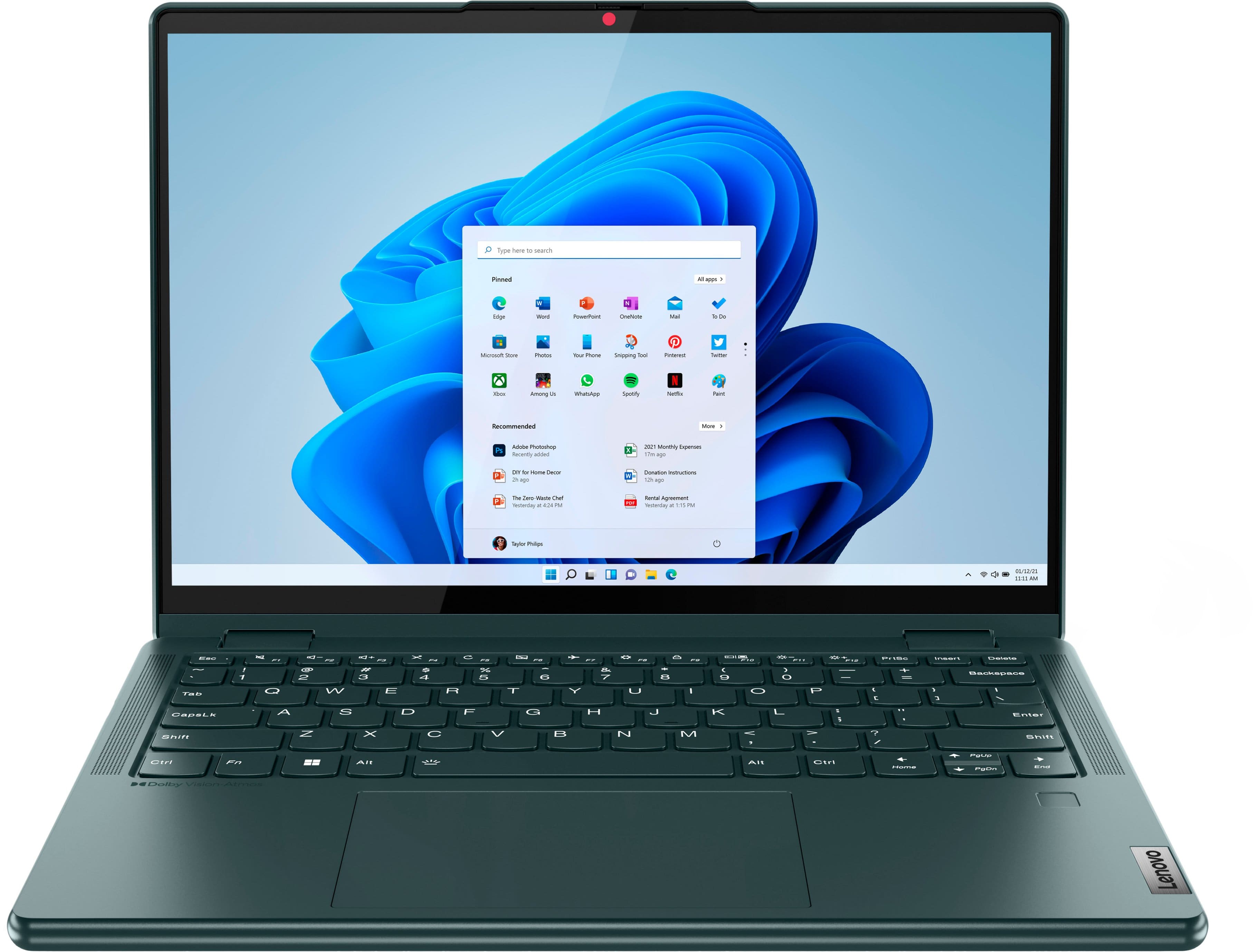
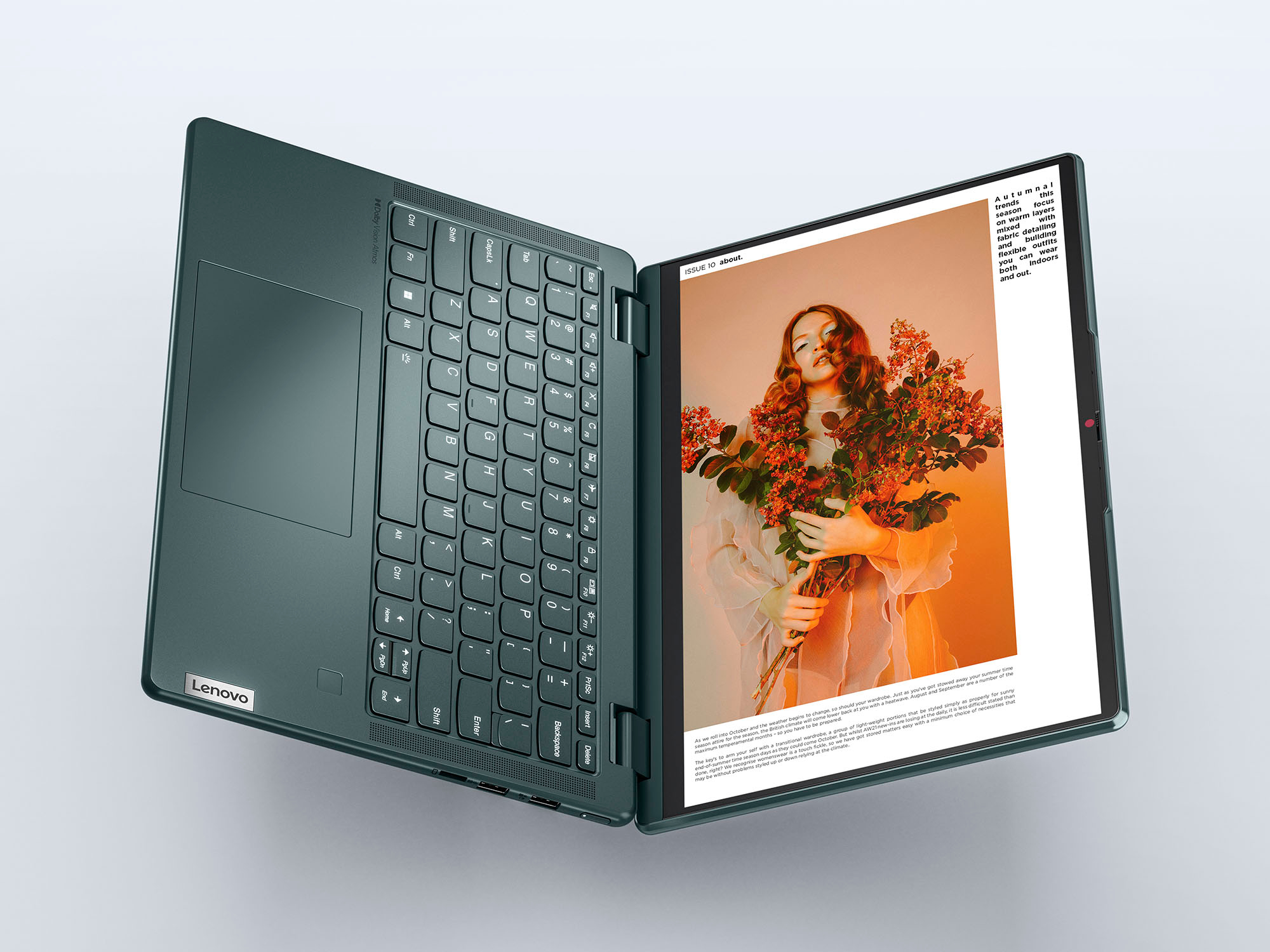
Customers love the Yoga 6 13.3" laptop's performance, responsive touchscreen, and lightweight design, finding it easy to use and ideal for portability. Many appreciate the long battery life and ample storage. While some users noted the fan can be audible during demanding tasks and the device may get warm, the overall experience is overwhelmingly positive.
This summary was generated by AI based on customer reviews.
- Pros mentioned:PerformanceCons mentioned:Heat
The best buy for the price
Posted .This reviewer received promo considerations or sweepstakes entry for writing a review.I have been using it for the last two years without any performance issues. However, it occasionally gets slightly warm during extended continuous use.
I would recommend this to a friend Great little laptop for college
Posted .This reviewer received promo considerations or sweepstakes entry for writing a review.My son has used this for his first three years of college and it is still working great for him after many assignments, papers, spreadsheets, applications, presentations, etc. We had one self-inflicted issue with a crack in the display and worked through the Tech Team for a quick and easy repair. Always great products and great service from Best Buy and Total Tech Team.
I would recommend this to a friend- Pros mentioned:Speed
Lenovo laptop
Posted .This reviewer received promo considerations or sweepstakes entry for writing a review.Laptop is great, barely used and runs great. Screen color is vibrant and the computer isnt slow or anything like that. Im very pleased.
I would recommend this to a friend - Pros mentioned:Weight
Lenovo
Posted .This reviewer received promo considerations or sweepstakes entry for writing a review.It’s lightweight and easy to use. The backlight is great! Love using it!!
I would recommend this to a friend Great Computer
Posted .This reviewer received promo considerations or sweepstakes entry for writing a review.Its a great product for the price. Good speed and display quality.
I would recommend this to a friendAs described.
Posted .This reviewer received promo considerations or sweepstakes entry for writing a review.This laptop runs fast and works as expected. Has a nice finish and seems to be good quality.
I would recommend this to a friendLenovo for the W!!
Posted .This reviewer received promo considerations or sweepstakes entry for writing a review.Better quality for the price point!!! Needed it in a jam and still using.
I would recommend this to a friendVerybad
Posted .This reviewer received promo considerations or sweepstakes entry for writing a review.Touch cursor have issue and sometimes touchpad is not working
No, I would not recommend this to a friendBrand response from Lenovo Product Expert
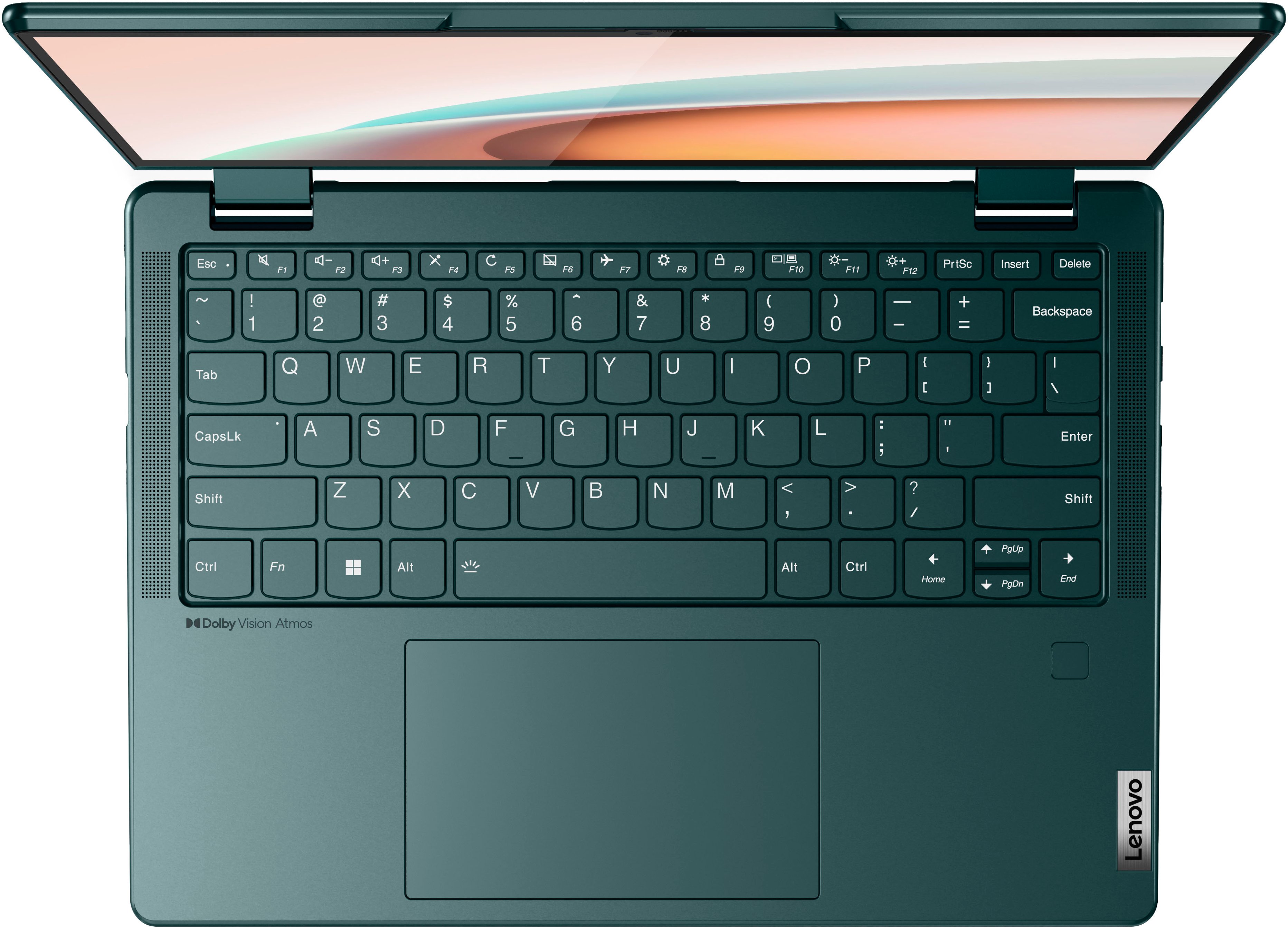
Posted .Hello GuruS, we are sorry to hear that you have encountered an issue with your Yoga 6 13. To try and solve this issue, first, ensure that the touchpad is turned on. This model Yoga 6 has a touchpad toggle button on the top row of the keyboard, in line with the function keys, attached to the F6 key. You should see a small image of a touchpad with a diagonal line through it. Additionally, ensure that the function lock is not enabled. Pressing the F6 button should toggle your touchpad status and a graphic representing this setting adjustment should appear on the screen momentarily after pressing this key (like what happens when turning on and off the backlighting on the keyboard). If this does not work, we recommend checking for updates through Windows Update settings. These updates can help resolve issues from operating system bugs to driver software improvements. To navigate there, select start on the taskbar (windows logo) or press the windows key on the keyboard then select Settings. In Settings, select Windows Update, and then select the Check For Updates button. Install any available updates and restart your PC if required. If you didn’t have any updates that required a restart, it’s still a good idea to restart your device to make sure any pending updates are installed. Additionally, check for updates in the Lenovo Vantage application that is preinstalled on Windows devices. You can check by opening the app, navigating to the device tab, and selecting the “check for updates” option. If there are updates to install, follow the onscreen directions to finalize those updates. If your issues persist after these steps, we also recommend that you reach out to Lenovo Tech Support at this number to work with a representative to rectify the problem: 866-426-0911.

Lenovo
Posted .This reviewer received promo considerations or sweepstakes entry for writing a review.It’s in the hands of the Geek Squad It lost the capability on multiple monitors
No, I would not recommend this to a friendBrand response from Lenovo Product Expert
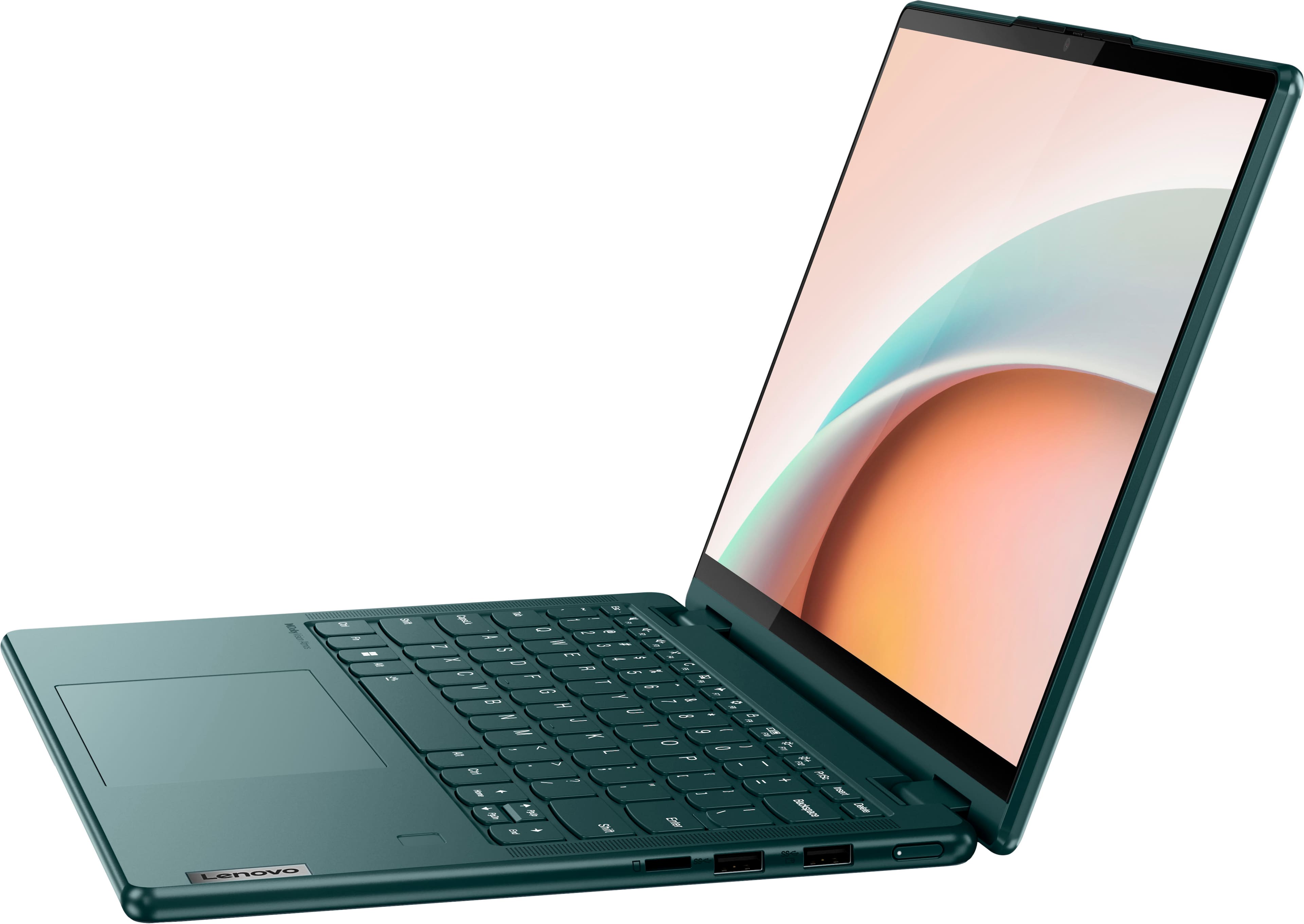
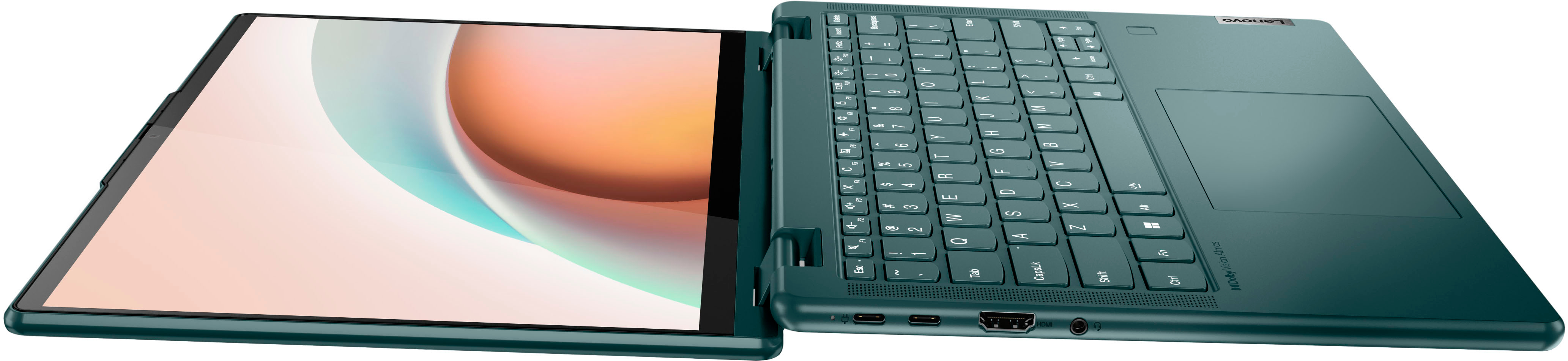
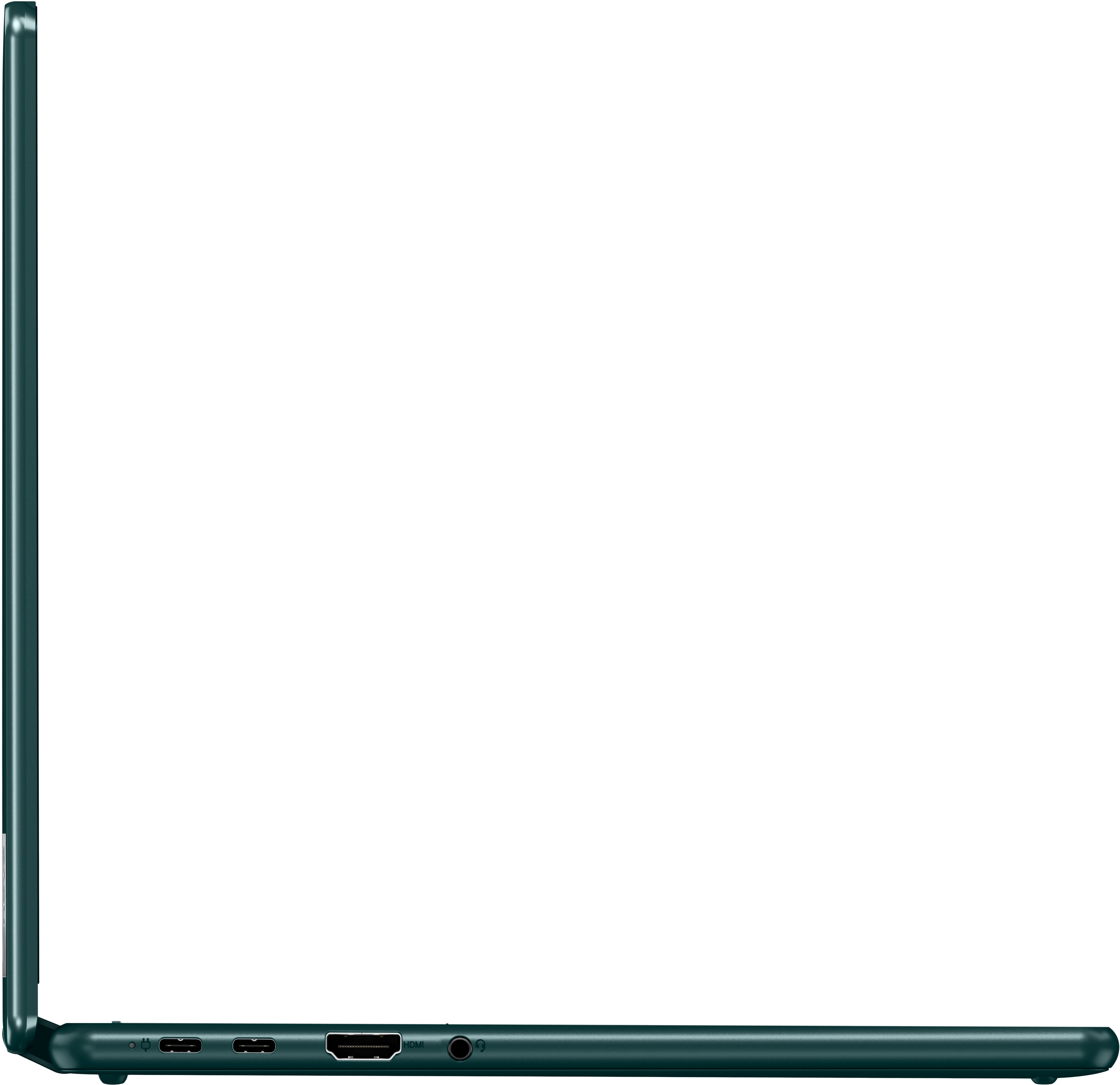
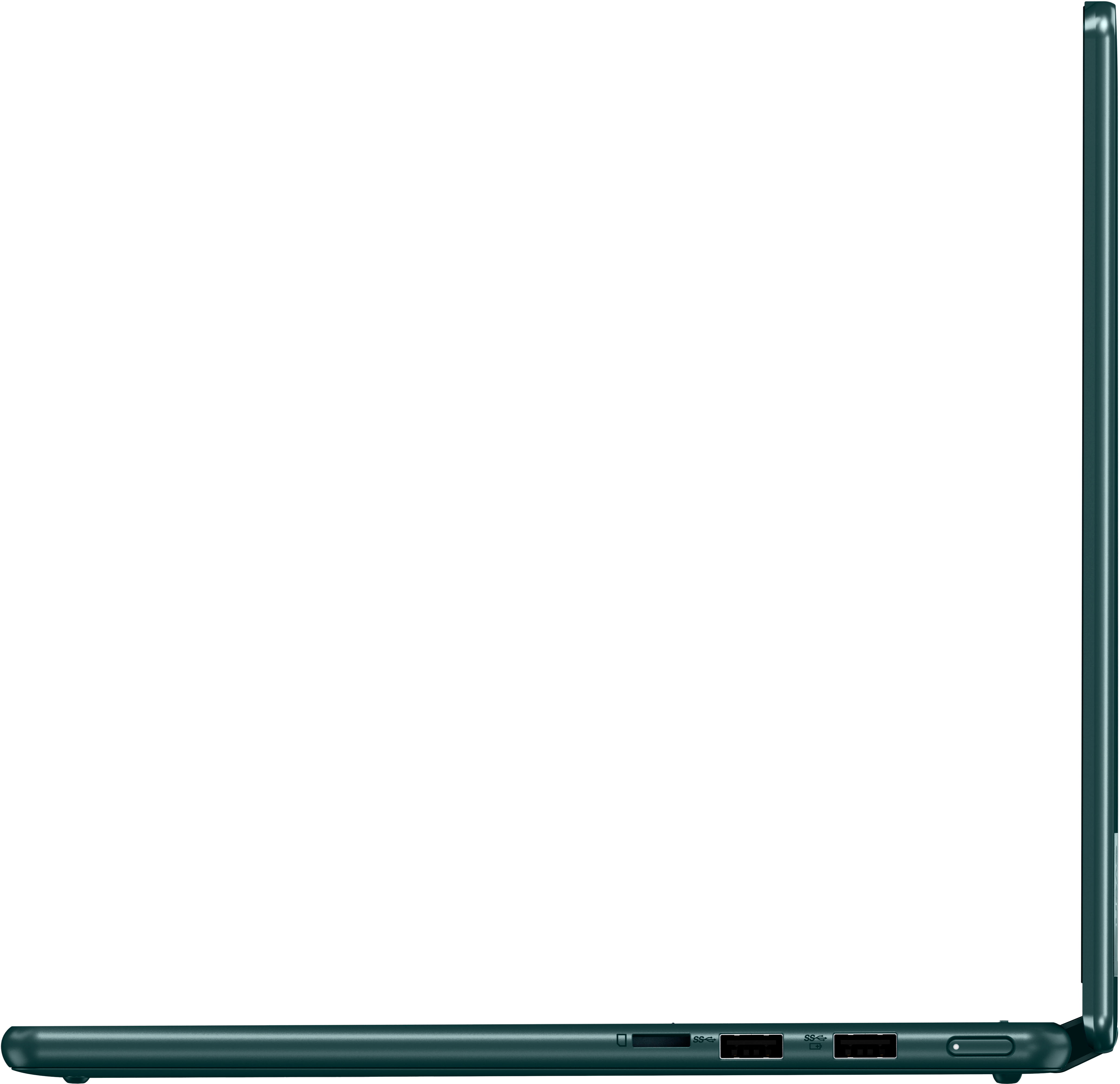
Posted .We are sorry to hear that you are having issues with your Lenovo Yoga 6 13, model number 82UD0000US. This configuration of the Yoga 6 13 supports up to 4 independent displays (native display and 3 external monitors via HDMI and USB-C). HDMI supports up to 3840x2160@60Hz, USB-C supports up to 3840x2160@60Hz. If you are having issues connecting external monitors, check to be sure that the monitors are connected correctly. Here is a link to more information: https://www.windowscentral.com/how-set-multiple-monitors-windows-11. If the monitors are connected correctly but the issue continues, now check to be sure you have the latest version of Windows 11 on the computer. Then update all BIOS files and drivers up to that latest version of Windows 11. You can easily accomplish this by scanning the computer with the Lenovo Utility software available on this computer. This system has Lenovo utilities installed to help maintain the health of the device and keep the operating system software up to date. Type "Lenovo Vantage" in the Cortana Search window (if Lenovo Vantage is not installed on your device, you can download the APP and install it now). Select Lenovo Vantage from the list. In the window that opens, click on "Health and Support". In the expanded menu, select "Hardware Scan" In the window that opens, select "Run Quick Tests". This will scan your entire system for errors. Follow any directions that may pop up. If the problem continues after this scan, now click on "System Update". First select Windows update from the menu. Scan your system to be sure you have the latest version of Windows 11. Once that scan is complete, select "Additional Updates". This will scan your device to be sure there are no new BIOS/Driver updates needed. Follow any instructions that may pop up. If the issue continues after these updates, we recommend you call Lenovo Tech Support at: 877-453-6686 for additional help.