Customer Ratings & Reviews
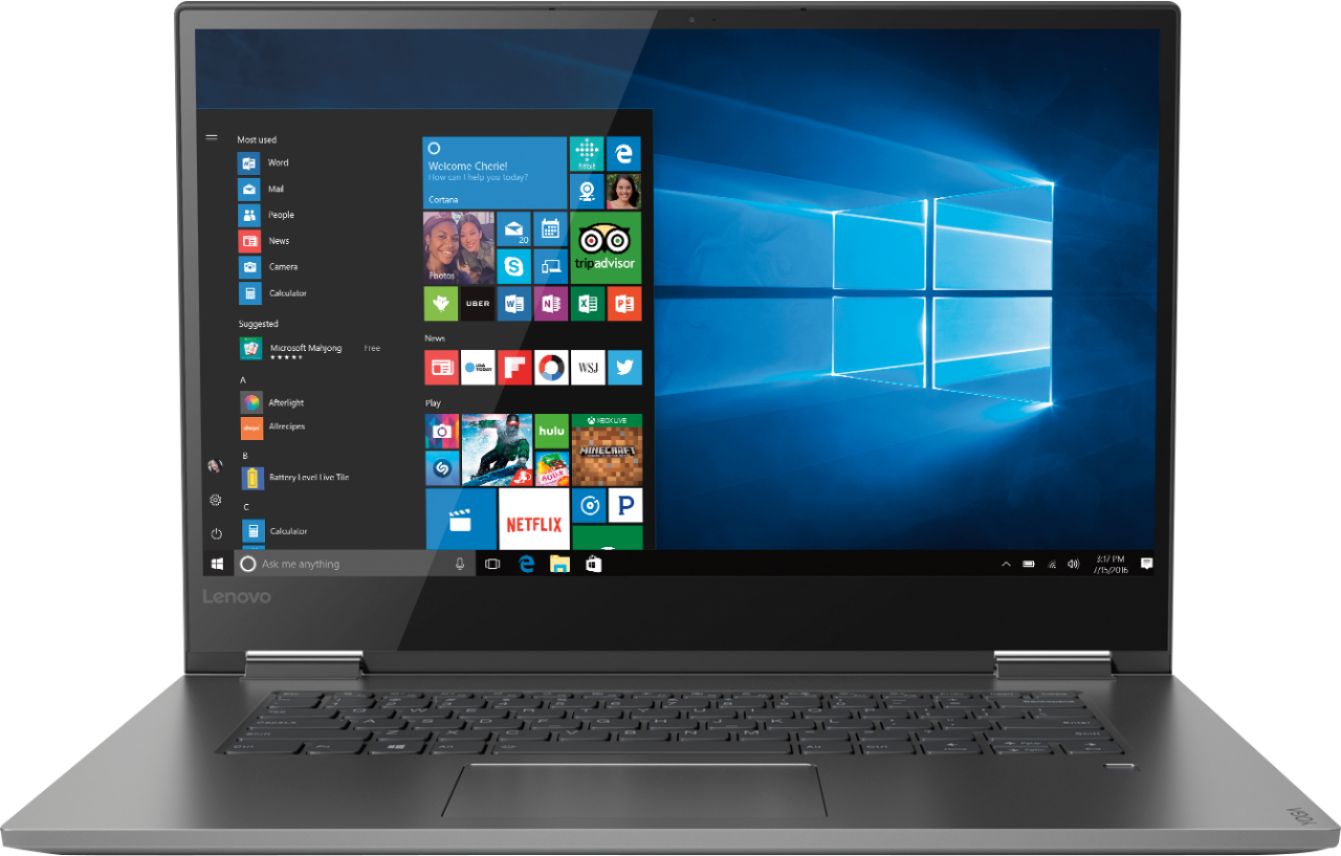
- Model:
- 81CU0009US
- SKU:
- 6201037
Rating by feature
- Value
Rating 4.2 out of 5 stars
- Quality
Rating 4.2 out of 5 stars
- Ease of Use
Rating 4.4 out of 5 stars
Customers are saying
Customers recognize the Yoga 730 2-in-1 laptop for its touchscreen capabilities, lightweight design, and affordable price. Many users appreciate the laptop's user-friendly interface and solid-state drive, which offers improved performance and speed. However, some customers have experienced issues with the laptop's Wi-Fi connectivity and weight.
This summary was generated by AI based on customer reviews.
Not Good
Posted .This reviewer received promo considerations or sweepstakes entry for writing a review.I've had the Lenovo Yoga 730-15 for about 1.5 years now. When I first bought it, I tried to plug in an external monitor. That did not work. I had to update the driver on the first day I bought it in order to simply hook up an external monitor. I mean seriously? This was a $750 computer when I bought it and it wasn't even able to accept an external monitor without a driver update. One of the reasons I bought the Yoga 730 was for the fingerprint reader. I was excited at the prospect of not having to type in a password every time I logged on. But the fingerprint reader simply does not work. 9/10 times it would tell me that it was unable to register my fingerprint. I gave up trying to use it over a year ago. About 5 months ago, the screen began to flicker. Basically, these grey and black bars cover the entire screen while flickering so that you cannot see the screen at all. It makes the computer unusable. It is getting progressively worse. Contacted Lenovo and of course I’m out of warranty by 6 months and was literally told that I was on my own and would have to get it fixed by paying out of pocket. Started doing research on screen flickering issues with the Yoga 730 and there a host of blogs and You Tube videos from people with the exact same issue. It is a known issue and Lenovo isn’t issuing any recalls or offering to fix the problem for free.
No, I would not recommend this to a friendBrand response from Lenovo Product Expert
Posted .We are sorry to hear that you are having issues with your Lenovo Yoga 730-15. It is important for the proper operation of your computer, to keep the operating software up to date. This includes the latest version of Windows 10 first. Be sure the computer has the latest version of Windows 10 installed. Then update all of the BIOS files and drivers for that latest version of Windows 10. You can easily accomplish this by scanning the computer with the Lenovo Utility software installed. This system has Lenovo utilities installed to help maintain the health of the device and keep the operating system software up to date. Type "Lenovo Vantage" in the Cortana Search window (if Lenovo Vantage is not installed on your device, you can download the APP and install it now). Select Lenovo Vantage from the list. In the window that opens, click on "Health and Support". In the expanded menu, select "Hardware Scan" In the window that opens, select "Run Quick Tests". This will scan your entire system for errors. Follow any directions that may pop up. If the problem continues after this scan, now click on "System Update". First select Windows update from the menu. Scan your system to be sure you have the latest version of Windows 10. Once that scan is complete, select "Additional Updates". This will scan your device to be sure there are no new BIOS/Driver updates needed. Follow any instructions that may pop up. If the issue still continues after these updates, we recommend you call Lenovo Tech Support at: 877-453-6686 for additional help.

question
Posted .This reviewer received promo considerations or sweepstakes entry for writing a review.I am interested in buying this laptop, mainly because it does not have a number pad. I was going to go with a I5 with 12GB, but they all had numeric key pads. I am concerned that it is a clearance item.
I would recommend this to a friendBrand response from Lenovo Product Expert
Posted .Here is the Lenovo Yoga 730-15 configured with 12GB RAM and no 10-kry numeric pad: https://www.bestbuy.com/site/lenovo-yoga-730-2-in-1-15-6-touch-screen-laptop-intel-core-i5-12gb-memory-256gb-solid-state-drive-abyss-blue/6331991.p?skuId=6331991
- Cons mentioned:Customer support
Wifi issue from day 1, won't recommend
Posted .This reviewer received promo considerations or sweepstakes entry for writing a review.(READ FULL REVIEW) I am writing this review late because of my very busy schedule. So, I bought this laptop last month after extensive net surfing. When I started using it, the design is pretty good but the main problem was internet connectivity. Despite trying three different routers, wifi does not stay connected for long and then you have to delete your wifi software (ReakTek), reinstall it and it will start working again until to be disconnected. I wish I could have returned it sooner and would have bought Mac book. (will regret it for a long time). Despite of my very busy schedule, I could not return it on time and now have to wait on hold for quite a long time when I call Lenovo support service. I would not recommend anyone to buy this laptop if you have busy schedule and you find it hard to take out time to return to store if any issue comes up. (I KNOW THAT LENOVO WILL LEAVE A STANDARD REPLY BUT IT WONT IMPRESS ME, STUCK WITH THIS MACHINE)
No, I would not recommend this to a friendBrand response from Lenovo Product Expert
Posted .We are sorry to hear that you are having issues with your Yoga 730-15 and its WiFi connectivity. There is a new RealTek WiFi Card Driver update version currently available. This will correct the WiFi connectivity issue that is currently being found within Lenovo models with the RealTek 8822BE WiFi Card.
Install the new driver version on the computer with the WiFi connectivity issue, RealTek Wireless Driver for Windows 10 (64-bit) Lenovo –
https://download.lenovo.com/pccbbs/mobiles/r0prw12w.exe
If the WiFi signal continues to drop after restarting the computer, manually change the Bandwidth setting under the "Advanced Driver Properties" within the Device Manager, from
80Mhz_40Mhz_20Mhz to 40Mhz_20Mhz. If you need additional help, we recommend you call Lenovo Tech Support at: 877-453-6686. For 2018, Lenovo retained its place for a second year as the best laptop vendor:
https://www.laptopmag.com/articles/laptop-brand-ratings
- Cons mentioned:Customer support
Not wireless
Posted .This reviewer received promo considerations or sweepstakes entry for writing a review.I have always used ibm several thinkpads. Ran my practice for years on these. Bought 3 yoga 730 with i5 processor and intel wireless card. These work well. Bought 3 new ones with i7 and realtek wireless card. These can't find wireless or stay connected. Paid my IT guy 4 hours he recommended HP as they stay connected. Called lenovo support put on hold for 30 minutes never called me back. So i am returning all three for HP. I also took one home and it could not stay connected to home network . If lenovo can not provide reasonable support i need to move on.
No, I would not recommend this to a friendBrand response from Lenovo Product Expert
Posted .The Lenovo Yoga 730-15 ships with the latest 5G 802.11AC frequency WiFi. Be sure that the router you are using has the latest firmware updates available from the router manufacturer's web site. You can update the BIOS and communications drivers on the computer by using the Lenovo Utility software on the computer. This system has Lenovo utilities installed to help maintain the health of the device and keep the operating system software up to date. Type "Lenovo Vantage" in the Cortana Search window (if Lenovo Vantage is not installed on your device, you can download the APP and install it now). Select Lenovo Vantage from the list. In the window that opens, click on "Health and Support". In the expanded menu, select "Hardware Scan" In the window that opens, select "Run Quick Tests". This will scan your entire system for errors. Follow any directions that may pop up. If the problem continues after this scan, now click on "System Update". First select Windows update from the menu. Scan your system to be sure you have the latest version of Windows 10. Once that scan is complete, select "Additional Updates". This will scan your device to be sure there are no new BIOS/Driver updates needed. Follow any instructions that may pop up. If the issue still continues after these updates, we recommend you call Lenovo Tech Support at: 877-453-6686 for additional help.
dirt
Posted .This reviewer received promo considerations or sweepstakes entry for writing a review.this laptop has a mind of its own. When you open a browser and search something it will always open in a new tab, when you turn on the device it might not respond to anything and won't let you input your password, its not that fast, the touch screen has a mind of its own sometimes and I clean my screen so something on it is not the problem, there will be random pop up when you turn on the device after turning the system off like McAfee, explorer exe, and other background applications I guarantee youve never seen before that harass you and wont let you open other applications on start up and slow down the whole system until they are dealt with. the computer acts like you are pushing keys when you arent and mind you I take good care of my device and keep it clean. I have always had these problems since getting this device. I would not buy again or recommend to anyone.
No, I would not recommend this to a friendBrand response from Lenovo Product Expert
Posted .We are sorry to hear that you are having issues with your Lenovo Yoga 730-15. It is possible the issue you describe may be due to either a problem with the initial activation and setup of Windows 10 and/or incompatible software installed on the device. Be sure any software you installed is compatible with Windows 10. There is no need to install Microsoft Office software. The software is already part of the operating system, you just need to activate the software with a purchased product key. If you have installed a copy of Microsoft Office, this is conflicting with the existing copy on the system and this will slow your system down. If you have installed a 3rd party anti-virus program, be sure that Windows Defender is turned off and that the trial version of McAfee Anti-Virus software is uninstalled. There can only be one anti-virus program on the system. You may need to restore your system to original factory default settings if any of the programing errors have occurred. You can do that by typing "restore" in the Cortana search window. Just click on the magnifying glass icon at the bottom left of your Windows 10 Desktop. Click on "Reset This PC" Then click on "Get Started" and follow the on screen directions to restore to factory defaults. If the problem persists, we recommend you contact Lenovo Tech Support at: 877-453-6686.

Screen Issue....Buyers Remorse
Posted .This reviewer received promo considerations or sweepstakes entry for writing a review.I've read many reviews that have the same problem. The screen flickers and becomes basically unusable until it decides to stop. I researched so many laptops that would be great for college and between this one and the dell I choice Lenovo. I'm having major buyers remorse. This laptop cost too much money to have an issue like this, especially after owning it for only a month brand new. I really would have liked for this to be a 5/5 review seeing I spent $800 for it, but the screen display is turning me off from this laptop and the brand. Very disappointed. Would not recommend to anyone unless they like wasting money. Lenovo needs to help restore the issue, and give people what they paid for before they lose more customers.
No, I would not recommend this to a friendBrand response from Lenovo Product Expert
Posted .We are sorry to hear that you are having screen flicker issues with your Lenovo Yoga 730-15. The issue you describe may be caused by a recent Windows 10 update that requires both a BIOS and video drivers update as well. If your screen is currently back and not displaying any image to work with, this system is equipped with OneKey Recovery System. There is a very small pin hole on the left side of the device, right near the headphone jack on the device. You will need a pin to push this reset button. Plug the device in. Let the battery charge for about 15 minutes. Push the reset button. The system should boot to a choice screen where you can choose "Restore To Factory Default". Select this. It will delete everything from the hard drive except the original factory install of the operating system. You will need to reinstall all programs and files after the reset. If you don't have copies of the files, try to make one before you restore by selecting "Boot to desktop" and trying to back up your files. Once you have the device restored to factory settings, you can check for the latest Windows 10 update, the scan for BIOS and Drivers updates by using the Lenovo Utility software installed on the device. This system has Lenovo utilities installed to help maintain the health of the device and keep the operating system software up to date. Type "Lenovo Vantage" in the Cortana Search window (if Lenovo Vantage is not installed on your device, you can download the APP and install it now). Select Lenovo Vantage from the list. In the window that opens, click on "Health and Support". In the expanded menu, select "Hardware Scan" In the window that opens, select "Run Quick Tests". This will scan your entire system for errors. Follow any directions that may pop up. If the problem continues after this scan, now click on "System Update". First select Windows update from the menu. Scan your system to be sure you have the latest version of Windows 10. Once that scan is complete, select "Additional Updates". This will scan your device to be sure there are no new BIOS/Driver updates needed. Follow any instructions that may pop up. If the issue still continues after these updates, we recommend you call Lenovo Tech Support at: 877-453-6686 for additional help.
Best laptop I've ever owned!
Posted .This reviewer received promo considerations or sweepstakes entry for writing a review.Boots up in 10 seconds. Lightning fast. Love, love, love it! No more Dells.
I would recommend this to a friendBrand response from Lenovo Product Expert
Posted .Thank you for choosing the Lenovo Yoga 730-15. We are pleased to hear that the performance of the Yoga 730-15 meets your computing needs so well.
VERY DISAPPOINTED
Posted .This reviewer received promo considerations or sweepstakes entry for writing a review.I just bought this laptop yesterday. I have the smaller 2-in-1 Lenovo Yoga and I wanted something larger and faster. This was recommended by two salespeople. It is very slow and cannot open certain websites. It is not responsive and I actually could not use it last evening. I love the look, the size, the keyboard, the 2-n-1, but that is where it ends. They told me that it was comparable to the Macbook 15" I7(not even close). I will be returning it this evening. (The salesperson had a Microsoft shirt on so that might explain why he would not show me any of the Macbooks).
No, I would not recommend this to a friendBrand response from Lenovo Product Expert
Posted .We are sorry to hear that you are having issues with your Lenovo Yoga 730-15. Be sure any software you installed is compatible with Windows 10. There is no need to install Microsoft Office software. The software is already part of the operating system, you just need to activate the software with a purchased product key. If you have installed a copy of Microsoft Office, this is conflicting with the existing copy on the system and this will slow your system down. If you have installed a 3rd party anti-virus program, be sure that Windows Defender is turned off and that the trial version of McAfee Anti-Virus software is uninstalled. There can only be one anti-virus program on the system. You may need to restore your system to original factory default settings if any of the programing errors have occurred. You can do that by typing "restore" in the Cortana search window. Just click on the magnifying glass icon at the bottom left of your Windows 10 Desktop. Click on "Reset This PC" Then click on "Get Started" and follow the on screen directions to restore to factory defaults. If the problem persists, we recommend you contact Lenovo Tech Support at: 877-453-6686.
touch screen not working
Posted .This reviewer received promo considerations or sweepstakes entry for writing a review.touch screen stopped working 6 months after first use. No wat to fix it.
No, I would not recommend this to a friendSame Lenovo Quality...Poor
Posted .This reviewer received promo considerations or sweepstakes entry for writing a review.At first this was a great fast laptop, did everything I needed. All of a sudden, after owning it for 18 days, the screen would start to flash, just with the desktop, and while using the internet also. Sometimes the screen would flash once an hour, or several times in a row, IT DRIVES YOU CRAZY! I've had Lenovo in the past, never had good luck, I should have learned my lesson. Best Buy sales always take you to Lenovo, I don't trust their judgement anymore.
No, I would not recommend this to a friendBrand response from Lenovo Product Expert
Posted .We are sorry to hear you are having issues with your Yoga 730-15. The flickering issue you mention might be a software issue, caused during a Windows 10 update. This system has Lenovo utilities installed to help maintain the health of the device and keep the operating system software up to date, including BIOS/Drivers that control the screen image. Type "Lenovo Vantage" in the Cortana Search window (if Lenovo Vantage is not installed on your device, you can download the APP and install it now). Select Lenovo Vantage from the list. In the window that opens, click on "Health and Support". In the expanded menu, select "Hardware Scan" In the window that opens, select "Run Quick Tests". This will scan your entire system for errors. Follow any directions that may pop up. If the problem continues after this scan, now click on "System Update". First select Windows update from the menu. Scan your system to be sure you have the latest version of Windows 10. Once that scan is complete, select "Additional Updates". This will scan your device to be sure there are no new BIOS/Driver updates needed. Follow any instructions that may pop up. If the issue still continues after these updates, we recommend you call Lenovo Tech Support at: 877-453-6686 for additional help.
Junk
Posted .This reviewer received promo considerations or sweepstakes entry for writing a review.I previously reviewed the Yoga 730 appx 6 months ago after purchasing it and gave it 3 stars. It has gotten worse. The fingerprint security has stopped working completely, and the worst flaw is the keyboard. I reviewed prior that it would jump around as you compose an email or document. I continually loose full emails after finishing. There is definitely something wrong with the keyboard and commands. Battery life if non existent. Honestly, I have had many different laptops and going back to Apple. Less than a year old and Lenova completely sucks. Waste of money.
No, I would not recommend this to a friendBrand response from Lenovo Product Expert
Posted .We are sorry to hear you are having issues with the fingerprint reader on your Lenovo Yoga 730-15. Here is a link to information about fixing issues with your fingerprint reader within Windows 10:
https://windowsreport.com/fingerprint-doesnt-work-windows-10/. Regarding the keyboard, first be sure it is not an inadvertent touch on the touchpad while you are typing that is causing the issue with the cursor moving on you. With regard to the touchpad, you can make adjustments to the touchpad in your system settings. You can get there by clicking on the magnifying glass at the bottom left of your Windows 10 screen. Type "touchpad" in the search window. Select "Mouse & touchpad settings" from the list of choices. You can make general adjustments to the touchpad there. You can also select "Additional mouse options" for more detailed adjustments to the touchpad sensitivity by increasing the delay of the touchpad. If it is not the touchpad, the keyboard issues may be due to out of date BIOS and Drivers. You can easily update the BIOS and Drivers on your computer by scanning the device with the Lenovo Utility software installed on this computer. This system has Lenovo utilities installed to help maintain the health of the device and keep the operating system software up to date. Type "Lenovo Vantage" in the Cortana Search window (if Lenovo Vantage is not installed on your device, you can download the APP and install it now). Select Lenovo Vantage from the list. In the window that opens, click on "Health and Support". In the expanded menu, select "Hardware Scan" In the window that opens, select "Run Quick Tests". This will scan your entire system for errors. Follow any directions that may pop up. If the problem continues after this scan, now click on "System Update". First select Windows update from the menu. Scan your system to be sure you have the latest version of Windows 10. Once that scan is complete, select "Additional Updates". This will scan your device to be sure there are no new BIOS/Driver updates needed. Follow any instructions that may pop up. Regarding the battery life, the Yoga 730-15 ships with a 3CELL 51.5WH, Lithium Polymer battery, with a battery life of up to 9 hours, depending on the work that the device is performing. If you have out of date BIOS and Drivers on the device, this may shorten the battery life as well. If the issues continue, we then recommend you call Lenovo Tech Support for help with your specific issues at: 877-453-6686.
Not worth the price at all.
Posted .This reviewer received promo considerations or sweepstakes entry for writing a review.The screen started to flicker grey after just a week of use. It would go from flickering once or twice to going completely grey until I turned it off. Completely unacceptable for a $1000 laptop. I also used the Lenovo pen and had several issues with the laptop screen just not reading the pen. Not worth your money, look for a different brand.
No, I would not recommend this to a friendBrand response from Lenovo Product Expert
Posted .We are sorry to hear that you are having screen flicker issues with your Lenovo Yoga 730-15. This issue may be caused by recent Windows 10 updates that also require updates to the BIOS and video drivers on the device. This is easily accomplished with the Lenovo Utility software on the device. This system has Lenovo utilities installed to help maintain the health of the device and keep the operating system software up to date. Type "Lenovo Vantage" in the Cortana Search window (if Lenovo Vantage is not installed on your device, you can download the APP and install it now). Select Lenovo Vantage from the list. In the window that opens, click on "Health and Support". In the expanded menu, select "Hardware Scan" In the window that opens, select "Run Quick Tests". This will scan your entire system for errors. Follow any directions that may pop up. If the problem continues after this scan, now click on "System Update". First select Windows update from the menu. Scan your system to be sure you have the latest version of Windows 10. Once that scan is complete, select "Additional Updates". This will scan your device to be sure there are no new BIOS/Driver updates needed. Follow any instructions that may pop up. If the issue still continues after these updates, we recommend you call Lenovo Tech Support at: 877-453-6686 for additional help.
DO NOT BUY
Posted .This reviewer received promo considerations or sweepstakes entry for writing a review.Purchased this laptop in August 2018, within the first two months I had issues with the screen flickering. A little research online showed that it is a common issue that Lenovo has refused to acknowledge. A year later the flicker has gotten so bad the the laptop is nearly unusable. From speaking to others it is obvious that this is an issue with multiple Lenovo laptop models and Lenovo continues to ignore is and refuse to issue a recall. Will not recommend and will never buy a Lenovo product again.
No, I would not recommend this to a friendBrand response from Lenovo Product Expert
Posted .We are sorry to hear that you are having issues with your Lenovo Yoga 730-15. We recommend you call Lenovo Tech Support for help with your specific issue at: 887-453-6686.
- Cons mentioned:Wifi connectivity
JUNK
Posted .This reviewer received promo considerations or sweepstakes entry for writing a review.Worst item I’ve ever bought! This Laptop is keep dropping wifi signals every 1 minutes. Used for 30 minutes only!
No, I would not recommend this to a friendBrand response from Lenovo Product Expert
Posted .We are sorry to hear that you are having issue with WiFi connectivity issues with your Lenovo Yoga 730-15. This model uses the latest 5G 802.11AC frequency WiFi. If you are using an older b/g/n router, 802.11AC is backward compatible, but be user your older router has the latest firmware updates available at the router manufacturer's web site. Second, be sure your computer has the latest version of Windows 10 Operating System and the BIOS files and drivers and the device. You can easily accomplish this by scanning the computer with the Lenovo Utility software installed on the computer. This system has Lenovo utilities installed to help maintain the health of the device and keep the operating system software up to date. Type "Lenovo Vantage" in the Cortana Search window (if Lenovo Vantage is not installed on your device, you can download the APP and install it now). Select Lenovo Vantage from the list. In the window that opens, click on "Health and Support". In the expanded menu, select "Hardware Scan" In the window that opens, select "Run Quick Tests". This will scan your entire system for errors. Follow any directions that may pop up. If the problem continues after this scan, now click on "System Update". First select Windows update from the menu. Scan your system to be sure you have the latest version of Windows 10. Once that scan is complete, select "Additional Updates". This will scan your device to be sure there are no new BIOS/Driver updates needed. Follow any instructions that may pop up. If the issue still continues after these updates, we recommend you call Lenovo Tech Support at: 877-453-6686 for additional help. For 2018, Lenovo retained its place for a second year as the best laptop vendor:
https://www.laptopmag.com/articles/laptop-brand-ratings
Screen Flicker
Posted .This reviewer received promo considerations or sweepstakes entry for writing a review.Big screen flicker problem, search online for yoga 730 screen flicker issues before buying. I haven't found fix, lots of complaints on Lenovo forum. Returned one for replacement, happened on second one also, will be returning again, this time for refund.
No, I would not recommend this to a friendBrand response from Lenovo Product Expert
Posted .We are sorry to hear that you are having issues with screen flicker on your Lenovo Yoga 730-15. The issue you describe may be caused by a recent Windows 10 update that requires a separate BIOS and drivers update as well. This can easily be accomplished by using the Lenovo Utility software installed on this device. This system has Lenovo utilities installed to help maintain the health of the device and keep the operating system software up to date. Type "Lenovo Vantage" in the Cortana Search window (if Lenovo Vantage is not installed on your device, you can download the APP and install it now). Select Lenovo Vantage from the list. In the window that opens, click on "Health and Support". In the expanded menu, select "Hardware Scan" In the window that opens, select "Run Quick Tests". This will scan your entire system for errors. Follow any directions that may pop up. If the problem continues after this scan, now click on "System Update". First select Windows update from the menu. Scan your system to be sure you have the latest version of Windows 10. Once that scan is complete, select "Additional Updates". This will scan your device to be sure there are no new BIOS/Driver updates needed. Follow any instructions that may pop up. If the issue still continues after these updates, we recommend you call Lenovo Tech Support at: 877-453-6686 for additional help.
Don’t buy
Posted .This reviewer received promo considerations or sweepstakes entry for writing a review.Worst item I’ve ever bought. Several keys have stopped working permanently after going in and out. Thing is only a few months old. On top of that the battery life is absolutely horrible. Really regret ever considering something besides a MacBook. Save yourself trouble and buy something else - anything else.
No, I would not recommend this to a friendBrand response from Lenovo Product Expert
Posted .We are sorry to hear that you are having issues with your Lenovo Yoga 730-15. This configuration number, 81CU0009US, ships with a 3CELL 51.5WH, Lithium Polymer battery, with a battery life of up to 9 hours, depending on the work that the device is performing. We recommend you call Lenovo Tech Support for help with your specific issues at: 877-453-6686.
For 2018, Lenovo retained its place for a second year as the best laptop vendor:
https://www.laptopmag.com/articles/laptop-brand-ratings
Operated for 30 ninutes and died
Posted .This reviewer received promo considerations or sweepstakes entry for writing a review.I didn’t even own this machine for 12 hours when I used it in a meeting and within 30 minutes the machine just faded away and now doesnt charge or operate in any way. I can’t believe i got the lemon of the bumch
No, I would not recommend this to a friendBrand response from Lenovo Product Expert
Posted .We are sorry to hear that you are having issues with your Lenovo Yoga 730-15. From the description of the issue you are experiencing, it sounds like there was an issue with the initial activation of Windows 10. Resetting the Windows 10 operating system back to factory settings may fix the issue. Since you can no longer boot the computer, This system is equipped with OneKey Recovery System. There is a very small pin hole on the left side of the device, right near the headphone jack on the device. You will need a pin to push this reset button. Plug the device in. Let the battery charge for about 15 minutes. Push the reset button. The system should boot to a choice screen where you can choose "Restore To Factory Default". Select this. It will delete everything from the hard drive except the original factory install of the operating system. You will need to reinstall all programs and files after the reset. If you don't have copies of the files, try to make one before you restore by selecting "Boot to desktop" and trying to back up your files. If the problem persists after the factory reset, we recommend you contact Lenovo Tech Support at: 877-453-6686.
WiFi doesn't work
Posted .This reviewer received promo considerations or sweepstakes entry for writing a review.This product is defective: The WiFi works only intermittently -- upgrading Firmware and drivers does not help, nor does using a USB Wifi plug-in. Avoid at all costs
No, I would not recommend this to a friendBrand response from Lenovo Product Expert
Posted .We are sorry to hear that you are having issues with WiFi connectivity within your Yoga 730-15. There is a new RealTek WiFi Card Driver update version currently available. This will correct the WiFi connectivity issue that is currently being found within Lenovo models with the RealTek 8822BE WiFi Card.
Install the new driver version on the computer with the WiFi connectivity issue, RealTek Wireless Driver for Windows 10 (64-bit) Lenovo –
https://download.lenovo.com/pccbbs/mobiles/r0prw12w.exe
If the WiFi signal continues to drop after restarting the computer, manually change the Bandwidth setting under the "Advanced Driver Properties" within the Device Manager, from
80Mhz_40Mhz_20Mhz to 40Mhz_20Mhz. If you need additional help or the issue continues, we recommend you call Lenovo Tech Support at: 877-453-6686. For 2018, Lenovo retained its place for a second year as the best laptop vendor:
https://www.laptopmag.com/articles/laptop-brand-ratings