Customer Ratings & Reviews
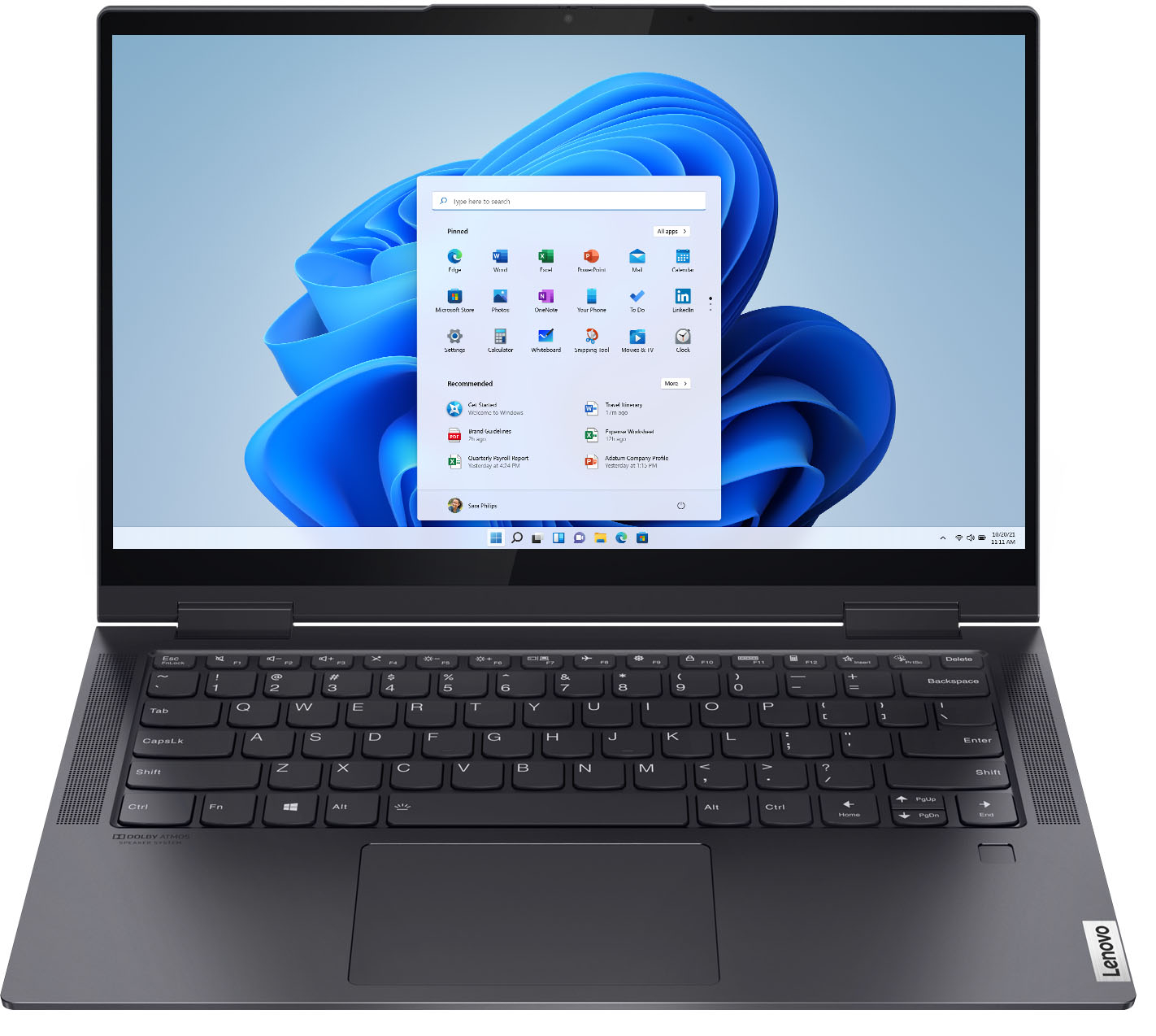



- Model:
- 82BH00DLUS/82BH0002US
- SKU:
- 6426704
Rating by feature
- Battery Life
Rating 4.6 out of 5 stars
- Speed
Rating 4.7 out of 5 stars
- Display
Rating 4.6 out of 5 stars
Customers are saying
Customers are impressed with the Yoga 7i 2-in-1 laptop's speed, light weight, and long battery life. They appreciate the touch screen and build quality, and find the price reasonable for the performance they get. However, some customers have experienced issues with the hinge breaking after light use.
This summary was generated by AI based on customer reviews.
This item fails in end-user experience
||Posted . Owned for 1 month when reviewed.This reviewer received promo considerations or sweepstakes entry for writing a review.Regret purchase. The laptop is pretty unusable after first update. Which failed. also, annoyance space bar doesn't wake system up from sleep setting. I'll have to fix first issue by factory reset. The second annoyance is likely a fixable setting that i'll find after I find time to do a factory reset.
No, I would not recommend this to a friendBrand response from Lenovo Product Expert
Posted .We are sorry to hear that you are having issues with a Windows 10 update to your Intel Evo-Certified, Lenovo Yoga 7i-14. You can rollback a Windows 10 update that does not work properly without having to do a complete factory reset/restore. Here is a link to instructions for rolling back a Windows 10 update that fails: https://www.howtogeek.com/235474/how-to-roll-back-builds-and-uninstall-updates-on-windows-10/. If the issue continues, we recommend you contact lenovo Tech Support for additional help at: 877-453-6686.

Disappointed.
||Posted . Owned for 3 weeks when reviewed.This reviewer received promo considerations or sweepstakes entry for writing a review.I was told that this item would have a battery life of 10-15 hrs. At best the battery last 4 hrs. There is an intermittent problem with the microphone as well. I will be taking this laptop back. I am wondering if best buy distributes "seconds" as far as laptops are concerned! HP, Lenovo not good from Best Buy.
No, I would not recommend this to a friendBrand response from Lenovo Product Expert
Posted .The Intel Evo-Certified, Lenovo Yoga 7i-14 model number 82BH0002US, ships with All-Day-Battery Life, thanks to its 4CELL_71WH_INTERNAL, Lithium Polymer Battery, which within this configuration, has a battery life of up to 13 hours, depending on the work the device is performing. If you are getting substantially less battery life, first, set your screen brightness at less than 100-percent - try 80-percent to start with. Then, be sure Battery conservation Mode is turned off. This power management setting should only be used when the laptop is plugged in all the time. It will prolong overall battery life by only charging the battery to 60-percent of capacity. Here is a link to instructions for turning off Battery Conservation Mode: https://support.lenovo.com/us/en/solutions/ht103159. Also check what programs are running in the background on the computer. Be sure only the programs you want running in the background are. These programs will drain the battery. Here is a link to information about how to find out what programs are running in the background on your Windows 10 computer and how to manage them for better system performance: https://www.windowscentral.com/how-prevent-apps-running-background-windows-10. Then, finally, be sure any software you installed is compatible with Windows 10. Incompatible software will drain the battery at a faster rate. There is no need to install Microsoft Office software. The software is already part of the operating system, you just need to activate the software with a purchased product key. If you have installed a copy of Microsoft Office, this is conflicting with the existing copy on the system and this will slow your system down. If you have installed a 3rd party anti-virus program, be sure that Windows Defender is turned off and that the trial version of McAfee Anti-Virus software is uninstalled. There can only be one anti-virus program on the system. You may need to restore your system to original factory default settings if any of the programming errors have occurred. You can do that by typing "restore" in the Cortana search window. Just click on the magnifying glass icon at the bottom left of your Windows 10 Desktop. Click on "Reset This PC" Then click on "Get Started" and follow the on screen directions to restore to factory defaults. If the problem persists, we recommend you contact Lenovo Tech Support at: 877-453-6686.
Lenovo Yoga 71 14"
||Posted . Owned for 4 months when reviewed.This reviewer received promo considerations or sweepstakes entry for writing a review.Poor, poor, poor. I have had to retun this expensive item two times for repair - once because the motherboard needed repair, without computer almost 3 weeks. Now it wouldnt power on, ut was sent to Kentucky. They irdered a part for the inside. I need my money bacj, this is a poor computer.
No, I would not recommend this to a friendBrand response from Lenovo Product Expert
Posted .We are sorry to hear that you are having issues with your Intel Evo-Certified, Lenovo Yoga 7i 14. Be sure the issue you are experiencing is not a software-based issue. Try resetting the computer back to original factory settings. This system is equipped with OneKey Recovery System. There is a very small pin hole on the bottom right side of the device, right near the top right corner of the cooling vent on the bottom of the device. You will need a pin to push this reset button. Plug the device in. Let the battery charge for about 15 minutes. Push the reset button. The system should boot to a choice screen where you can choose "Restore To Factory Default". Select this. It will delete everything from the hard drive except the original factory install of the operating system. You will need to reinstall all programs and files after the reset. If you don't have copies of the files, try to make one before you restore by selecting "Boot to desktop" and trying to back up your files. Once the computer is reset, be sure any software you installed is compatible with Windows 10. There is no need to install Microsoft Office software. The software is already part of the operating system, you just need to activate the software with a purchased product key. If you have installed a copy of Microsoft Office, this is conflicting with the existing copy on the system and this will slow your system down. If you have installed a 3rd party anti-virus program, be sure that Windows Defender is turned off and that the trial version of McAfee Anti-Virus software is uninstalled. There can only be one anti-virus program on the system. You may need to restore your system to original factory default settings if any of the programming errors have occurred. You can do that by typing "restore" in the Cortana search window. Just click on the magnifying glass icon at the bottom left of your Windows 10 Desktop. Click on "Reset This PC" Then click on "Get Started" and follow the on screen directions to restore to factory defaults. If the problem persists, we recommend you contact Lenovo Tech Support at: 877-453-6686.
Unusable
||Posted . Owned for less than 1 week when reviewed.This reviewer received promo considerations or sweepstakes entry for writing a review.ABSOLUTELY DO NOT BUY THIS MACHINE. I have tried 2 of these units this week. Both have a defective screen which flashes near the top as well as blacks out, and image on screen shakes. Tried updating drivers which is the recommended fix to no avail. Completely unusable.
No, I would not recommend this to a friendBrand response from Lenovo Product Expert
Posted .We are sorry to hear that you are having issues with your Intel Evo-Certified, Lenovo Yoga 7i-14, model number 82BH0002US. You mention updating only the drivers on this system. First, be sure you have the latest version of Windows 10 on the computer. Then update all BIOS files and drivers up to that latest version of Windows 10. This should correct the screen image issue you mention. You can easily accomplish this by scanning the computer with the Lenovo Utility software available on this computer. This system has Lenovo utilities installed to help maintain the health of the device and keep the operating system software up to date. Type "Lenovo Vantage" in the Cortana Search window (if Lenovo Vantage is not installed on your device, you can download the APP and install it now). Select Lenovo Vantage from the list. In the window that opens, click on "Health and Support". In the expanded menu, select "Hardware Scan" In the window that opens, select "Run Quick Tests". This will scan your entire system for errors. Follow any directions that may pop up. If the problem continues after this scan, now click on "System Update". First select Windows update from the menu. Scan your system to be sure you have the latest version of Windows 10. Once that scan is complete, select "Additional Updates". This will scan your device to be sure there are no new BIOS/Driver updates needed. Follow any instructions that may pop up. If the issue still continues after these updates, we recommend you call your local Best Buy Store to make an appointment with the Geek Squad there for further assistance.
Don’t waste your money
||Posted . Owned for 4 months when reviewed.This reviewer received promo considerations or sweepstakes entry for writing a review.I started having trouble with this laptop about a month after I purchased it. It will not connect to WiFi anywhere. Lenovo customer/tech support has been no help at all.
No, I would not recommend this to a friendBrand response from Lenovo Product Expert
Posted .We are sorry to hear that you are having issues with your Intel Evo-Certified, Lenovo Yoga 7i-14, model number 82BH0002US. This configuration ships with the best Intel 6G WiFi available - 2 x 2 802.11ax frequency WiFi which is also backward compatible to all older WiFi versions - a/b/g/n/ac. If you are having WiFi connectivity issues first, check to be sure you have the latest version of Windows 10 on the computer. Then update all BIOS files and drivers up to that latest version of Windows 10. You can easily accomplish this by scanning the computer with the Lenovo Utility software available on this computer. This system has Lenovo utilities installed to help maintain the health of the device and keep the operating system software up to date. Type "Lenovo Vantage" in the Cortana Search window (if Lenovo Vantage is not installed on your device, you can download the APP and install it now). Select Lenovo Vantage from the list. In the window that opens, click on "Health and Support". In the expanded menu, select "Hardware Scan" In the window that opens, select "Run Quick Tests". This will scan your entire system for errors. Follow any directions that may pop up. If the problem continues after this scan, now click on "System Update". First select Windows update from the menu. Scan your system to be sure you have the latest version of Windows 10. Once that scan is complete, select "Additional Updates". This will scan your device to be sure there are no new BIOS/Driver updates needed. Follow any instructions that may pop up. If the issue still continues after these updates, we recommend you call Lenovo Tech Support at: 877-453-6686 for additional help.
Horrible reliability
||Posted . Owned for 2 months when reviewed.This reviewer received promo considerations or sweepstakes entry for writing a review.2 months after purchase the network adapter is not working. Now it has to be fixed by Geek Squad. That means more time without a computer to use. Reliability is dismal.
No, I would not recommend this to a friendBrand response from Lenovo Product Expert
Posted .We are sorry to hear that you are having issues with your Intel Evo-Certified, Lenovo Yoga 7i-14 model number 82BH0002US. This model ships with the latest Intel 6G, Wide-Range/High Speed 2x2 802.11AX frequency WiFi. This is also compatible with older a/b/g/n/ac frequency WiFi as well. If you are unable to connect to your home WiFi, try connecting to another WiFi source. If you can generate a WiFi HotSpot with your cell phone, try to connect the Yoga 7i-14 to this WiFi signal. Or try connecting to a public WiFi source, using a VPN for security, if possible. If you are able to connect to another WiFi source, contact your WiFi service provider about compatibility with 802.11AX frequency WiFi. If the issue continues and you still can not connect to WiFi, try using a USB 3.0 to ethernet adapter like this one, if possible: https://www.bestbuy.com/site/insignia-usb-3-0-to-gigabit-ethernet-adapter-white/3510527.p?skuId=3510527. Connect to your router/MODEM then to the Yoga 7i-14. Once you have an internet connection established, check to be sure you have the latest version of Windows 10 on the computer. Then update all BIOS files and drivers - Including WiFi drivers, up to that latest version of Windows 10. You can easily accomplish this by scanning the computer with the Lenovo Utility software available on this computer. This system has Lenovo utilities installed to help maintain the health of the device and keep the operating system software up to date. Type "Lenovo Vantage" in the Cortana Search window (if Lenovo Vantage is not installed on your device, you can download the APP and install it now). Select Lenovo Vantage from the list. In the window that opens, click on "Health and Support". In the expanded menu, select "Hardware Scan" In the window that opens, select "Run Quick Tests". This will scan your entire system for errors. Follow any directions that may pop up. If the problem continues after this scan, now click on "System Update". First select Windows update from the menu. Scan your system to be sure you have the latest version of Windows 10. Once that scan is complete, select "Additional Updates". This will scan your device to be sure there are no new BIOS/Driver updates needed. Follow any instructions that may pop up. If the issue still continues after these updates, we recommend you call Lenovo Tech Support at: 877-453-6686 for additional help.
Dissatisfaction
||Posted . Owned for 1 month when reviewed.This reviewer received promo considerations or sweepstakes entry for writing a review.WIFI doesn’t work properly, most of the time it says that’s it’s missing a driver and after a couple of reboots it works and it continues on and off.
No, I would not recommend this to a friendBrand response from Lenovo Product Expert
Posted .We are sorry to hear that you are having issues updating the drivers within your Intel Evo-Certified, Lenovo Yoga 7i-14. Be sure you have the latest version of Windows 10 on the computer. Then with the device connected to your WiFi router, update all BIOS files and drivers, including those drivers controlling the device WiFi, up to that latest version of Windows 10. You can easily accomplish this by scanning the computer with the Lenovo Utility software available on this computer. This system has Lenovo utilities installed to help maintain the health of the device and keep the operating system software up to date. Type "Lenovo Vantage" in the Cortana Search window (if Lenovo Vantage is not installed on your device, you can download the APP and install it now). Select Lenovo Vantage from the list. In the window that opens, click on "Health and Support". In the expanded menu, select "Hardware Scan" In the window that opens, select "Run Quick Tests". This will scan your entire system for errors. Follow any directions that may pop up. If the problem continues after this scan, now click on "System Update". First select Windows update from the menu. Scan your system to be sure you have the latest version of Windows 10. Once that scan is complete, select "Additional Updates". This will scan your device to be sure there are no new BIOS/Driver updates needed. Follow any instructions that may pop up. If the issue still continues after these updates, we recommend you call Lenovo Tech Support at: 877-453-6686 for additional help.
Not recommended
||Posted . Owned for 3 weeks when reviewed.This reviewer received promo considerations or sweepstakes entry for writing a review.Wasted about 20hrs cumulative trying to get this computer setup and one software downloaded to find out the operating system was bad.
No, I would not recommend this to a friendBrand response from Lenovo Product Expert
Posted .We are sorry to hear that you are having issues with the Windows 10 Operating System installed on your Intel Evo-Certified, Lenovo Yoga 7i-14, model number 82BH0002US. Be sure any software you installed is compatible with Windows 10. There is no need to install Microsoft Office software. The software is already part of the operating system, you just need to activate the software with a purchased product key. If you have installed a copy of Microsoft Office, this is conflicting with the existing copy on the system and this will slow your system down. If you have installed a 3rd party anti-virus program, be sure that Windows Defender is turned off and that the trial version of McAfee Anti-Virus software is uninstalled. There can only be one anti-virus program on the system. You may need to restore your system to original factory default settings if any of the programming errors have occurred. You can do that by typing "restore" in the Cortana search window. Just click on the magnifying glass icon at the bottom left of your Windows 10 Desktop. Click on "Reset This PC" Then click on "Get Started" and follow the on screen directions to restore to factory defaults. If there is an issue with the Windows 10 Operating system, it is possible resetting the computer and reinstalling Windows 10 may fix the issue. This system is equipped with OneKey Recovery System. There is a very small pin hole on the bottom right side of the device, right near the top right corner of the cooling vent on the bottom of the device. You will need a pin to push this reset button. Plug the device in. Let the battery charge for about 15 minutes. Push the reset button. The system should boot to a choice screen where you can choose "Restore To Factory Default". Select this. It will delete everything from the hard drive except the original factory install of the operating system. You will need to reinstall all programs and files after the reset. If you don't have copies of the files, try to make one before you restore by selecting "Boot to desktop" and trying to back up your files. If the problem persists after the factory reset, we recommend you contact Lenovo Tech Support at: 877-453-6686.
Horrible job by best buy and geek squad
||Posted . Owned for 1 month when reviewed.This reviewer received promo considerations or sweepstakes entry for writing a review.This was open box certified by the Geek Squad. The camera does not work and the automatic connection with internet is horrible.
No, I would not recommend this to a friendBrand response from Lenovo Product Expert
Posted .We are sorry to hear that you are having issues with your Intel Evo-Certified, Lenovo Yoga 7i-14. First, be sure the manual Privacy Shutter is open before using the webcam. This model ships with a 720p (HD) webcam with manual Privacy Shutter built in. Be sure the Privacy Shutter is completely open before trying to use the webcam or the webcam will not operate. There is a small slider, directly above the webcam lens. Move the tab to the right to open the Privacy Shutter. There is a red dot over the webcam lens that will disappear when the Privacy Shutter is fully open. This will indicate that the webcam is really to use. You can close the Privacy Shutter when you are done with the webcam for your security, by sliding the tab to the left to close the Privacy Shutter. The Red Dot will appear over the webcam lens when the Privacy Shutter is closed. To correct WiFi connectivity issues, be sure you have the latest version of Windows 10 on the computer. Then update all BIOS files and drivers up to that latest version of Windows 10. You can easily accomplish this by scanning the computer with the Lenovo Utility software available on this computer. This system has Lenovo utilities installed to help maintain the health of the device and keep the operating system software up to date. Type "Lenovo Vantage" in the Cortana Search window (if Lenovo Vantage is not installed on your device, you can download the APP and install it now). Select Lenovo Vantage from the list. In the window that opens, click on "Health and Support". In the expanded menu, select "Hardware Scan" In the window that opens, select "Run Quick Tests". This will scan your entire system for errors. Follow any directions that may pop up. If the problem continues after this scan, now click on "System Update". First select Windows update from the menu. Scan your system to be sure you have the latest version of Windows 10. Once that scan is complete, select "Additional Updates". This will scan your device to be sure there are no new BIOS/Driver updates needed. Follow any instructions that may pop up. If the issue still continues after these updates, we recommend you call Lenovo Tech Support at: 877-453-6686 for additional help.
Don’t buy
||Posted . Owned for 1 month when reviewed.This reviewer received promo considerations or sweepstakes entry for writing a review.It worked great the 1st two times... after that it’s constantly freeze up. But Best Buy was great and made it right
No, I would not recommend this to a friendBrand response from Lenovo Product Expert
Posted .We are sorry to hear that you are having issues with your Intel Evo-Certified, Lenovo Yoga 7i-14, model number 82BH0002US. Be sure any software you installed is compatible with Windows 10. There is no need to install Microsoft Office software. The software is already part of the operating system, you just need to activate the software with a purchased product key. If you have installed a copy of Microsoft Office, this is conflicting with the existing copy on the system and this will slow your system down. If you have installed a 3rd party anti-virus program, be sure that Windows Defender is turned off and that the trial version of McAfee Anti-Virus software is uninstalled. There can only be one anti-virus program on the system. You may need to restore your system to original factory default settings if any of the programming errors have occurred. You can do that by typing "restore" in the Cortana search window. Just click on the magnifying glass icon at the bottom left of your Windows 10 Desktop. Click on "Reset This PC" Then click on "Get Started" and follow the on screen directions to restore to factory defaults. If the problem persists, we recommend you contact Lenovo Tech Support at: 877-453-6686.
- Pros mentioned:Processor speed, Screen size
Fast and Smooth Laptop, lame keyboard and trackpad
Posted .This reviewer received promo considerations or sweepstakes entry for writing a review.Pros: The new 11th gen i7 with 12gb of ram is plenty fast for normal use Intel Iris Xe is suprisingly pretty good, can play Skyrim on medium settings with above 30 fps The gunmetal color is made of actual metal and feels really sturdy despite being very thin and light 14" Screen is FHD and has nice enough looking colors. Has a thunderbolt port for super fast data transfers and other things Cons: My biggest gripe with this keyboard (really with most laptops in the past 5 years) is that the keycaps feel really cheap and tue key travel feels unsatisfactory. Someone who types a lot for school or work will not be very satisfied. The trackpad is also matte finish and cheap as well. Not as bad as lower end laptops, but a glass surfsce trackpad would feel much better. Overall a fast, compact laptop that has meh keys and trackpad.
No, I would not recommend this to a friendBrand response from Lenovo Product Expert
Posted .Thank you for choosing the Intel Evo-Certified, Lenovo Yoga 7i-14. This model ships with a full size standard QWERTY keyboard with a comfortable 2.0mm key travel for a responsive typing experience. The Yoga 7i-14 ships with a one piece touchpad with adjustable sensitivity for a personalized user experience. Co-engineered by Lenovo and Intel to provide the ultimate experience for life and work anywhere, the Yoga 7i laptop combines versatile portability and enhanced productivity. Experience the boundary-breaking performance and responsiveness of 11th Gen Intel Core i7 processor and vibrant FHD clarity with Intel Iris Xe graphics. You’ll also enjoy lightning-fast speeds with Intel WiFi 6 and two Thunderbolt 4 ports for connecting to power and accessories with a single cable.
- Pros mentioned:Processor speed
Great Laptop.
Posted .This reviewer received promo considerations or sweepstakes entry for writing a review.Had an issue with a Dell Gaming laptop and this was recommended by BestBuy sales person. Well this laptop is fast, sleek and will run photoshop without issue and I am a gamer and this is better in some respects to the dell machine. Even though this does not have a dedicated high end graphics card, the Intel Iris Xe can run some of my middle of the road graphics hungry games run awesome. Well done Lenovo. Nice versatile laptop. Does not over heat compared to the dell gaming laptop. Awesome buy.
I would recommend this to a friendBrand response from Lenovo Product Expert
Posted .Thank you for choosing the Intel Evo-Certified, Lenovo Yoga 7i-14. We are pleased to hear that the performance of the Yoga 7i-14 meets your computing needs so well.
Lenovo
Posted .This reviewer received promo considerations or sweepstakes entry for writing a review.It is a great computer that has lasted us a long time.
I would recommend this to a friend- Cons mentioned:Hinge
Lenovo Hinge failure
Posted .This reviewer received promo considerations or sweepstakes entry for writing a review.Hinge failed less than 2 years after purchase destroying the touch screen, LED Display and frame. Looking around online this seems to be a common place issue that has been affecting Lenovo laptops and still affects them as of writing this in 2024. I will never buy a Lenovo laptop again.
No, I would not recommend this to a friend Mr
Posted .This reviewer received promo considerations or sweepstakes entry for writing a review.Battery life good, versatile product, no complaints
I would recommend this to a friendBrand response from Lenovo Product Expert
Posted .Thank you for choosing the Intel Evo-Certified, Lenovo Yoga 7i 14. We are pleased to hear that the Yoga 7i 14 is working out so well for you.
Mediocre
Posted .This reviewer received promo considerations or sweepstakes entry for writing a review.This is an alright computer. It can do everything it claims... sometimes. If you wanted to buy the apple equivalent of this computer it would cost much much more, but it would work more consistently. The touchscreen is nice, but honestly I rarely use it, because it isn't good enough to use for any kind of art. After less than a month of use it crashed, and Geek Squad had to replace the whole motherboard. Now it works great most of the time, but it still turn off on me 2-5 times a week for no reason, and nobody can explain why. Its becomes frustrating. I suggest going with apple, it will be more reliable. If you just hate apple. this is a mediocre choice. The display isn't very bright. During the day (even indoors) it can be hard to see the screen
No, I would not recommend this to a friendBrand response from Lenovo Product Expert
Posted .We are sorry to hear that you are having issues with your Lenovo Yoga 7i 2-in-1 14 Touch Screen Laptop with Intel Evo Platform Core i7. First, please be sure the computer internal battery has a charge. Plug the AC adapter/charger that ships with your Lenovo Yoga 7i 2-in-1 14 Touch Screen Laptop into the proper charging port on the left side of the computer. It is the port with the electric plug icon next to it. This is the only port that can be used to charge the computer. There is an LED light right next to the charging port. If the AC adapter is sending power to the computer, the LED light will be on. If the LED does not light, the problem may be with the AC adapter and we recommend you visit your local Best Buy Geek Squad for assistance.
If the computer is charging (LED light is on) let the computer charge for 15-minutes, then boot the computer normally by pushing the power button. The computer should boot normally. If it does not, resetting the computer back to original factory settings may correct the issue. Since you cannot boot the computer normally, this system is equipped with OneKey Recovery System. There is a very small pin hole on the bottom right side of the device, right near the top right corner of the cooling vent on the bottom of the device. You will need a pin to push this reset button. Plug the device in. Let the battery charge for about 15 minutes. Push the reset button. The system should boot to a choice screen where you can choose "Restore To Factory Default". Select this. It will delete everything from the hard drive except the original factory install of the operating system. You will need to reinstall all programs and files after the reset. If you don't have copies of the files, try to make one before you restore by selecting "Boot to desktop" and trying to back up your files.
If the problem persists after the factory reset, we recommend you contact Lenovo Tech Support at: 877-453-6686.
Yoga Lenovo Laptop is not worth it
Posted .This reviewer received promo considerations or sweepstakes entry for writing a review.I'm completely dissatisfied with this laptop. It only lasted two years and screen started falling apart. I bought a yoga design so I could open 360° but every time I hear this cracking sound. Lenovo didn't want to fix as my warranty period expired.
No, I would not recommend this to a friend- Cons mentioned:Hinge
Hinge issue/lawsuit
Posted .This reviewer received promo considerations or sweepstakes entry for writing a review.Buyer beware. The hinges on lenovo computers are faulty and they are involved in a class action lawsuit at the moment. They break causing damage to the screen and aren’t covered under warranty. Avoid like the plague.
No, I would not recommend this to a friend Camera randomly works
Posted .This reviewer received promo considerations or sweepstakes entry for writing a review.I always buy lenovo. I love them. Except the webcam. This is my tbird lenovo laptop (2nd yoga). The camera never works. Updating dr8 Ivers doesnt help. Toggling on/off doesnt help. Nothing ever helps. The camera just randomly appears and disappears from device manager. Never buying lenovo again.
No, I would not recommend this to a friendBrand response from Lenovo Product Expert
Posted .We are sorry to hear that you are having issues with the Webcam within your Intel Evo-Certified, Lenovo Yoga 7i 14 model number 82BH0002US. This model ships with a 720p (HD) webcam with manual Privacy Shutter built in. Be sure the Privacy Shutter is completely open before trying to use the webcam or the webcam will not operate and the computer will no longer see the webcam as installed on the computer. There is a small slider, directly above the webcam lens. Move the tab to the right to open the Privacy Shutter. There is a red dot over the webcam lens that will disappear when the Privacy Shutter is fully open. This will indicate that the webcam is really to use. You can close the Privacy Shutter when you are done with the webcam for your security, by sliding the tab to the left to close the Privacy Shutter. The Red Dot will appear over the webcam lens when the Privacy Shutter is closed. If the issue continues, we recommend you call Lenovo Tech Support at: 877-453-6686.