Customer Ratings & Reviews
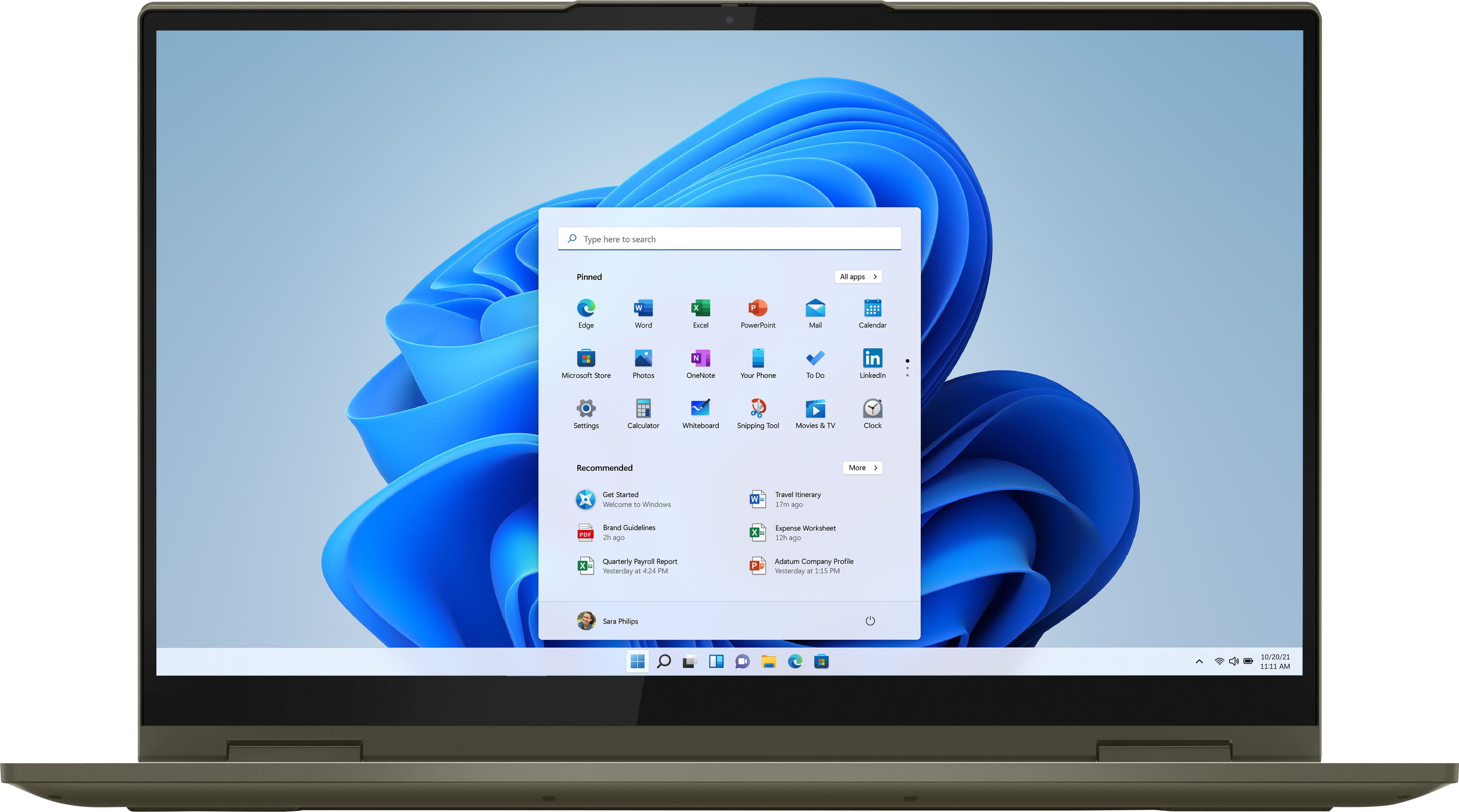



- Model:
- 82BJ0003US/82BJ007SUS
- SKU:
- 6426713
Rating by feature
- Battery Life
Rating 4.5 out of 5 stars
- Speed
Rating 4.7 out of 5 stars
- Display
Rating 4.7 out of 5 stars
Customers are saying
Customers are impressed with the Yoga 7i's touch screen, describing it as smooth and responsive. They also appreciate its long battery life, lightweight design, and user-friendly interface. The laptop's performance and build quality are also praised, with customers noting its sturdy construction and reliable performance.
This summary was generated by AI based on customer reviews.
Leveno
||Posted . Owned for 2 months when reviewed.This reviewer received promo considerations or sweepstakes entry for writing a review.The keyboard is tough to use and It lacks a standard HDMI port.
No, I would not recommend this to a friendBrand response from Lenovo Product Expert
Posted .The Intel Evo-Certified, Lenovo Yoga 7i 15 model number 82BJ0003US, ships with a standard QWERTY keyboard with included 10-key numeric pad. This model ships with 2x Thunderbolt 4 / USB4 40Gbps (support data transfer, Power Delivery 3.0 and DisplayPort 1.4) with video out capability. The Yoga 7i 15 supports up to 3 independent displays via native display and 2 external monitors; supports external monitors via Thunderbolt 4 (up to 7680×4320@60Hz). You can connect an HDMI monitor to this laptop by using a Thunderbolt 3.0/4.0 to HDMI adapter like this one from a Best Buy advertising partner: https://www.2daydeliver.com/product_detail.php?id=SKUB08Y246V8X&last_node=Adapters&click_src=googleads&gclid=EAIaIQobChMIsuvdt6mL8gIVKAaICR1T-w_PEAYYCCABEgIUoPD_BwE

Audio issues
||Posted .This reviewer received promo considerations or sweepstakes entry for writing a review.Disappointed in product. Replaced an existing Lenovo. Purchased based on recommendation from sales staff. Computer had audio issues upon start up. Tried updating drivers and contacting Lenovo support. After an hour of unsuccessfully trying to fix issue, Lenovo support suggested returning product.
No, I would not recommend this to a friendBrand response from Lenovo Product Expert
Posted .We are sorry to hear that you are having audio issues with your Lenovo Yoga 7i-15. If you have updated to the latest version of Windows 10 and updated all of the BIOS files and drivers to that latest version of Windows 10, now check the computer for any hardware issues. You can easily accomplish this by scanning the computer with the Lenovo Utility software available on this computer. This system has Lenovo utilities installed to help maintain the health of the device and keep the operating system software up to date. Type "Lenovo Vantage" in the Cortana Search window (if Lenovo Vantage is not installed on your device, you can download the APP and install it now). Select Lenovo Vantage from the list. In the window that opens, click on "Health and Support". In the expanded menu, select "Hardware Scan" In the window that opens, select "Run Quick Tests". This will scan your entire system for errors. Follow any directions that may pop up. If the problem continues after this scan, now click on "System Update". First select Windows update from the menu. Scan your system to be sure you have the latest version of Windows 10. Once that scan is complete, select "Additional Updates". This will scan your device to be sure there are no new BIOS/Driver updates needed. Follow any instructions that may pop up. If there are no reported hardware issues and the operating system software is up to date, be sure any software you installed is compatible with Windows 10. There is no need to install Microsoft Office software. The software is already part of the operating system, you just need to activate the software with a purchased product key. If you have installed a copy of Microsoft Office, this is conflicting with the existing copy on the system and this will slow your system down. If you have installed a 3rd party anti-virus program, be sure that Windows Defender is turned off and that the trial version of McAfee Anti-Virus software is uninstalled. There can only be one anti-virus program on the system. You may need to restore your system to original factory default settings if any of the programming errors have occurred. You can do that by typing "restore" in the Cortana search window. Just click on the magnifying glass icon at the bottom left of your Windows 10 Desktop. Click on "Reset This PC" Then click on "Get Started" and follow the on screen directions to restore to factory defaults. If the problem persists, we recommend you contact Lenovo Tech Support at: 877-453-6686.
Shuts off
||Posted . Owned for 11 months when reviewed.This reviewer received promo considerations or sweepstakes entry for writing a review.It was ok for the first couple of weeks but then it started to shut off for no reason. Traded it in asap for an hp
No, I would not recommend this to a friendBrand response from Lenovo Product Expert
Posted .We are sorry to hear that you are having issues with your Intel Evo-Certified, Lenovo Yoga 7i 15, model number 82BJ0003US. First, check to be sure the computer has a charged battery. There is only one port on the right side of the computer that can charge the computer, there is an electric plug icon and an LED light next to this port. Connect the AC adapter/charger that came with the computer to a wall outlet then connect to this charging port on the computer. You should see the white LED light next to the charging port light up, indicating that the computer is charging. Let the computer charge for 15-minutes. Now press the power button and the Yoga 7i 15 should boot normally to the login screen. If the computer still does not power on, resetting the computer may fix the issue. This system is equipped with OneKey Recovery System. There is a very small pin hole on the bottom right side of the device, right near the top right corner of the cooling vent on the bottom of the device. You will need a pin to push this reset button. Plug the device in. Let the battery charge for about 15 minutes. Push the reset button. The system should boot to a choice screen where you can choose "Restore To Factory Default". Select this. It will delete everything from the hard drive except the original factory install of the operating system. You will need to reinstall all programs and files after the reset. If you don't have copies of the files, try to make one before you restore by selecting "Boot to desktop" and trying to back up your files. If the problem persists after the factory reset, we recommend you contact Lenovo Premium Care for additional help at: 888-278-9707.
Screen keeps going black randomly
||Posted . Owned for 1 month when reviewed.This reviewer received promo considerations or sweepstakes entry for writing a review.This laptop is horrible! I bought it for work and the screen keeps going black. I've only had it a month and I called support twice now I have to take it to get repaired or send it out for 10-12 business days. I use it for work so I wont be making money for that long! I expected a lot more from an over $1000 laptop
No, I would not recommend this to a friendBrand response from Lenovo Product Expert
Posted .We are sorry to hear that you are having issues with the screen on your Intel Evo-Certified, Lenovo Yoga 7i-15 model number 82BJ0003US. Try resetting your computer back to original factory setting to clear the screen issue. This system is equipped with OneKey Recovery System. There is a very small pin hole on the bottom right side of the device, right near the top right corner of the cooling vent on the bottom of the device. You will need a pin to push this reset button. Plug the device in. Let the battery charge for about 15 minutes. Push the reset button. The system should boot to a choice screen where you can choose "Restore To Factory Default". Select this. It will delete everything from the hard drive except the original factory install of the operating system. You will need to reinstall all programs and files after the reset. If you don't have copies of the files, try to make one before you restore by selecting "Boot to desktop" and trying to back up your files. If the problem persists after the factory reset, we recommend you contact Lenovo Tech Support at: 877-453-6686.
Unhappy
||Posted . Owned for 1 month when reviewed.This reviewer received promo considerations or sweepstakes entry for writing a review.This computer is in w/Geek Squad to see if they can figure out why it won't hold a charge. We are very disappointed. We can't take advantage of 14-day warranty because my husband had to go out of town right after purchase and didn't even turn it on at home until that period had passed. Not impressed so far.
No, I would not recommend this to a friendBrand response from Lenovo Product Expert
Posted .Be sure you are using the correct port for charging the computer. There is only one port on the computer that can charge the computer. This charging port is on the left side of the computer and has an electric plug icon next to it. This is the only port that can charge the computer. Plug your included AC adapter/charger into a wall socket, then into the proper charging port on the computer. Let the computer charge for 15-minutes with the computer completely shut down. After 15-minutes of charging, with the computer still plugged in and charging, press the power button. The computer will boot normally to the Windows 10 Desktop Screen. Let the computer continue charging until battery level is at 100 Percent. You can use the computer while it is charging. If you continue to have issues, we recommend you contact lenovo Tech Support at: 877-453-6686.
Mine was a dud
||Posted . Owned for 1 week when reviewed.This reviewer received promo considerations or sweepstakes entry for writing a review.Bought it on Monday, Jan 18th. Worked fine for a week, then I unplugged it to use it on Jan 25th and it shut off and would never let me power it back up. DEAD! Returned it for a full refund. Also, if you use One Drive, it ate up all my storage when I transferred my pictures over, then wouldn't let me access them without upgrading for a fee. Not a fan of One Drive.
No, I would not recommend this to a friendBrand response from Lenovo Product Expert
Posted .We are sorry to hear that you had issues with your Intel Evo-Certified, Lenovo Yoga 7i-15. Since the computer was working well, then failed, be sure any software you installed is compatible with Windows 10. There is no need to install Microsoft Office software. The software is already part of the operating system, you just need to activate the software with a purchased product key. If you have installed a copy of Microsoft Office, this is conflicting with the existing copy on the system and this will slow your system down. If you have installed a 3rd party anti-virus program, be sure that Windows Defender is turned off and that the trial version of McAfee Anti-Virus software is uninstalled. There can only be one anti-virus program on the system. You may need to restore your system to original factory default settings if any of the programming errors have occurred. You can do that by typing "restore" in the Cortana search window. Just click on the magnifying glass icon at the bottom left of your Windows 10 Desktop. Click on "Reset This PC" Then click on "Get Started" and follow the on screen directions to restore to factory defaults. If the problem persists, we recommend you contact Lenovo Tech Support at: 877-453-6686.
Speaker Issue
||Posted . Owned for 1 month when reviewed.This reviewer received promo considerations or sweepstakes entry for writing a review.I bought this laptop at the end of May and was really happy but noticed that the laptop does not recognize the speaker. Lenovo has already sent a tech to replace the motherboard, not sure why but that did not help the issue. Now the laptop is with Lenovo, trying to determine what the issue is.
No, I would not recommend this to a friendBroken
||Posted . Owned for 1 month when reviewed.This reviewer received promo considerations or sweepstakes entry for writing a review.I have had this laptop less than 60 days and it has already broken down and I am having to deal with warranty issues to get it repaired. I am a small business owner and my computer is my access to how my business is doing. Very unhappy at this time.
No, I would not recommend this to a friendBrand response from Lenovo Product Expert
Posted .We are sorry to hear that you are having issues with your Intel Evo-Certified, Lenovo Yoga 7i 15. Resetting the computer back to original factory settings may correct the issue you are having. Here is a link to instructions for resetting a Windows 10 Computer: https://support.microsoft.com/en-us/windows/recovery-options-in-windows-31ce2444-7de3-818c-d626-e3b5a3024da5#ID0EDD=Windows_10. If for some reason you are unable to access the internet for these reset instructions due to the issues you are having with the computer, this system is equipped with OneKey Recovery System. There is a very small pin hole on the bottom right side of the device, right near the top right corner of the cooling vent on the bottom of the device. You will need a pin to push this reset button. Plug the device in. Let the battery charge for about 15 minutes. Push the reset button. The system should boot to a choice screen where you can choose "Restore To Factory Default". Select this. It will delete everything from the hard drive except the original factory install of the operating system. You will need to reinstall all programs and files after the reset. If you don't have copies of the files, try to make one before you restore by selecting "Boot to desktop" and trying to back up your files. Once you have the computer reset, be sure any software you installed is compatible with Windows 10. There is no need to install Microsoft Office software. The software is already part of the operating system, you just need to activate the software with a purchased product key. If you have installed a copy of Microsoft Office, this is conflicting with the existing copy on the system and this will slow your system down. If you have installed a 3rd party anti-virus program, be sure that Windows Defender is turned off and that the trial version of McAfee Anti-Virus software is uninstalled. There can only be one anti-virus program on the system. You may need to restore your system to original factory default settings if any of the programming errors have occurred. You can do that by typing "restore" in the Cortana search window. Just click on the magnifying glass icon at the bottom left of your Windows 10 Desktop. Click on "Reset This PC" Then click on "Get Started" and follow the on screen directions to restore to factory defaults. If the problem persists, we recommend you contact Lenovo Tech Support at: 877-453-6686.
Piece of junk.
||Posted . Owned for 3 months when reviewed.This reviewer received promo considerations or sweepstakes entry for writing a review.Don't bother with this laptop. It worked pretty good for about 30 minutes. You have to update it for it to be able to work on the internet. Once you do that it locks up and there is no saving it. No technical help could fix it. I had to return it to the store. Best Buy knows there is an issue but they continue to sell them.
No, I would not recommend this to a friendBrand response from Lenovo Product Expert
Posted .We are sorry to hear that you had an issue with a Windows 10 Update to your Intel Evo-Certified, Lenovo Yoga 7i-15 model number 82BJ0003US. You can rollback a Windows 10 update that fails to work properly. Here is a link to instructions for doing this: https://www.howtogeek.com/235474/how-to-roll-back-builds-and-uninstall-updates-on-windows-10/. If for some reason this rollback method does not clear the update issue, resetting the computer back to original factory setting may fix this problem. Here is a link to instructions for resetting a Windows 10 computer: https://support.microsoft.com/en-us/windows/recovery-options-in-windows-10-31ce2444-7de3-818c-d626-e3b5a3024da5. If you can not access this method, this system is equipped with OneKey Recovery System. There is a very small pin hole on the bottom right side of the device, right near the top right corner of the cooling vent on the bottom of this device. You will need a pin to push this reset button. Plug the device in. Let the battery charge for about 15 minutes. Push the reset button. The system should boot to a choice screen where you can choose "Restore To Factory Default". Select this. It will delete everything from the hard drive except the original factory install of the operating system. You will need to reinstall all programs and files after the reset. If you don't have copies of the files, try to make one before you restore by selecting "Boot to desktop" and trying to back up your files. If the problem persists after the factory reset, we recommend you contact Lenovo Tech Support at: 877-453-6686.
Disappointed
||Posted . Owned for 1 month when reviewed.This reviewer received promo considerations or sweepstakes entry for writing a review.Had to return this product after less than a week.
No, I would not recommend this to a friendAkron manager should be fired. -John-
||Posted .This reviewer received promo considerations or sweepstakes entry for writing a review.No charger in box. John the managers solution was to try sell me one. Even after it was indicated it must have been left of when re boxed by sales associate. This manager should be fired! Would not give last name just John
No, I would not recommend this to a friendBad product
||Posted .This reviewer received promo considerations or sweepstakes entry for writing a review.I purchased this laptop 9 days ago and the power has gone out. This will be my 3x returning back to Best Buy to return a laptop in the 15 day grace period. Sad to say (the laptops always shut down while I am doing homework). Very Inconvenience.
No, I would not recommend this to a friendBrand response from Lenovo Product Expert
Posted .We are sorry to hear that you are having issues with your Intel Evo-Certified, Lenovo Yoga 7i-15, model number 82BJ0003US. First, be sure the battery has a charge. Be sure you are plugging the included charger into the correct charging port on the left side of the computer. Only the Thunderbolt 4.0 port with both the Thunderbolt Icon as well as the electrical plug icon can charge the computer. Be sure you have the AC adapter/charger plugged into the right port. Let the computer charge for 15-minutes, with the device turned completely off. After 15-minutes, with the device still plugged in, push the power button and the computer should boot normally to the Windows 10 Desktop Screen. If you continue to have issues, we recommend you contact Lenovo Tech Support at: 877-453-6686.
Buyer beware
||Posted . Owned for 1 month when reviewed.This reviewer received promo considerations or sweepstakes entry for writing a review.The purchase and experience this far has been awful. Three weeks after receiving the computer and logging on only 1 time it shut down. It has been at the Geek Squad for three days now and I have not received a call.
No, I would not recommend this to a friendDAVE MCCORMICK
||Posted . Owned for 1 week when reviewed.This reviewer received promo considerations or sweepstakes entry for writing a review.ITS NOT HERE, YOUR SYSTEM OF RECORDED MESSAGES SUCK. I GOT HUNG UP ON 5 TIMES. I WILL NEVER ORDER FROM BEST BUY EVER AGAIN.POOR SERVICE. POOR HELP. DISHONEST COMPANY. I DON'T KNOW HOW YOU STAY IN BUSINESS
No, I would not recommend this to a friendUSB C stopped working
||Posted . Owned for 7 months when reviewed.This reviewer received promo considerations or sweepstakes entry for writing a review.Both USB C ports stopped working 8 months after purchase. That's the only way to charge the computer.
No, I would not recommend this to a friendBrand response from Lenovo Product Expert
Posted .We are sorry to hear that you are having issues with your Intel Evo-Certified, Lenovo Yoga 7i 15. Resetting the computer back to original factory settings may correct the issue. Even if the Thunderbolt ports are not working, plug the included AC adapter/charger into the proper charging port (the one with the electric plug icon next to it). This system is equipped with OneKey Recovery System. There is a very small pin hole on the bottom right side of the device, right near the top right corner of the cooling vent on the bottom of the device. You will need a pin to push this reset button. Plug the device in. Let the battery charge for about 15 minutes. Push the reset button. The system should boot to a choice screen where you can choose "Restore To Factory Default". Select this. It will delete everything from the hard drive except the original factory install of the operating system. You will need to reinstall all programs and files after the reset. If you don't have copies of the files, try to make one before you restore by selecting "Boot to desktop" and trying to back up your files. If the problem persists after the factory reset, we recommend you contact Lenovo Tech Support at: 877-453-6686.
Power just died. Very disappointed.
||Posted . Owned for 1 month when reviewed.This reviewer received promo considerations or sweepstakes entry for writing a review.I was excited to use the laptop but after two weeks of light use, the laptop just lost power and there was no way to turn it on again. It is still in the repair center up to now. Very disappointed!
No, I would not recommend this to a friendBrand response from Lenovo Product Expert
Posted .We are sorry to hear that you are having issues powering on your Intel Evo-Certified, Lenovo Yoga 7i-15. First, be sure the battery is charged. Plug the AC adapter/charger in to the dedicated Thunderbolt 4.0 port that is specifically configured to charge the computer, there is only one. This specific Thunderbolt 4.0 port has an electrical plug icon right next to the Thunderbolt port. This is the only port that can charge the computer. Plug in the charger, let the computer charge for at least 15-minutes with the computer completely powered off. After 15-minutes of charging, with the computer still plugged in and charging power the computer on. The computer should boot normally and continue charging. You can use the computer while it is charging to 100-Percent. If the issue you describe continues after charging, using the dedicated charging port, we recommend you contact Lenovo Tech Support at: 877-453-6686.
Best Buy (geek squad)
||Posted . Owned for 3 weeks when reviewed.This reviewer received promo considerations or sweepstakes entry for writing a review.Presently getting serviced now; computer locked up and wouldn’t turn on. Initial updates never completed and I am now with out my $1000 computer ( purchased less than 30 days ago!!!!!!)
No, I would not recommend this to a friendBrand response from Lenovo Product Expert
Posted .We are sorry to hear that you had issues powering on your Intel Evo-Certified, Lenovo Yoga 7i-15, model number 82BJ0003US. First, be sure the computer battery has a charge. Plug the AC adapter/charger into the proper Thunderbolt 4.0 port on the left side of the computer. There are two Thunderbolt 4.0 ports on this side but only one - the Thunderbolt 4.0 port with the electric plug can right next to the Thunderbolt icon, can be used to charge the computer. With the AC adapter plugged into the right charging port, let the computer charge for 15-minutes with the computer completely shutdown. After 15-minutes of charging press the power button. The computer should boot normally and continue charging. You will be able to use the computer while it charges to 100-Perecent. If the computer battery has a charge and the computer will still not power on, this system is equipped with OneKey Recovery System. There is a very small pin hole on the bottom right side of the device, right near the top right corner of the cooling vent on the bottom of the device. You will need a pin to push this reset button. Plug the device in. Let the battery charge for about 15 minutes. Push the reset button. The system should boot to a choice screen where you can choose "Restore To Factory Default". Select this. It will delete everything from the hard drive except the original factory install of the operating system. You will need to reinstall all programs and files after the reset. If you don't have copies of the files, try to make one before you restore by selecting "Boot to desktop" and trying to back up your files. If the problem persists after the factory reset, we recommend you contact Lenovo Tech Support at: 877-453-6686.
You can do better
||Posted . Owned for 2 months when reviewed.This reviewer received promo considerations or sweepstakes entry for writing a review.I loved it....and then it went rogue. The screen had a mind of its own. The review would be too long if I told you the entire story. Just...nah. Know your worth. You can do better >O<
No, I would not recommend this to a friendBrand response from Lenovo Product Expert
Posted .We are sorry to hear that you are having issues with your Intel Evo-Certified, Lenovo Yoga 7i-15, model number 82BJ0003US. Since you mentioned that the issues did not initially present themselves, be sure any software you installed is compatible with Windows 10. There is no need to install Microsoft Office software. The software is already part of the operating system, you just need to activate the software with a purchased product key. If you have installed a copy of Microsoft Office, this is conflicting with the existing copy on the system and this will slow your system down. If you have installed a 3rd party anti-virus program, be sure that Windows Defender is turned off and that the trial version of McAfee Anti-Virus software is uninstalled. There can only be one anti-virus program on the system. You may need to restore your system to original factory default settings if any of the programming errors have occurred. You can do that by typing "restore" in the Cortana search window. Just click on the magnifying glass icon at the bottom left of your Windows 10 Desktop. Click on "Reset This PC" Then click on "Get Started" and follow the on screen directions to restore to factory defaults. If the problem persists, we recommend you contact Lenovo Tech Support at: 877-453-6686.
Do not buy
||Posted . Owned for 1 week when reviewed.This reviewer received promo considerations or sweepstakes entry for writing a review.Nope and nope. The BestBuy customer service pees tried to replace my damaged Lenovo c740 for this one and nope. Returned it the same day. That bad. Poor design and definitely a no for me.
No, I would not recommend this to a friendDied in less than a week
||Posted . Owned for 2 weeks when reviewed.This reviewer received promo considerations or sweepstakes entry for writing a review.I had for 1 week. I worked for 2 days and then stopped working. It would hardly boot up. The few times it did completely boot up, you could not open any apps.
No, I would not recommend this to a friendBrand response from Lenovo Product Expert
Posted .We are sorry to hear that you are having issues with your Intel Evo-Certified, Lenovo Yoga 7i-15, model number 82BJ0003US. It is possible that resetting your computer back to original factory settings may correct the issue you are having. Since you can no longer boot the computer properly for a normal restore, this system is equipped with OneKey Recovery System. There is a very small pin hole on the bottom right side of the device, right near the top right corner of the cooling vent on the bottom device. You will need a pin to push this reset button. Plug the device in. Let the battery charge for about 15 minutes. Push the reset button. The system should boot to a choice screen where you can choose "Restore To Factory Default". Select this. It will delete everything from the hard drive except the original factory install of the operating system. You will need to reinstall all programs and files after the reset. If you don't have copies of the files, try to make one before you restore by selecting "Boot to desktop" and trying to back up your files. Once you have the computer restored, be sure any software you installed is compatible with Windows 10. There is no need to install Microsoft Office software. The software is already part of the operating system, you just need to activate the software with a purchased product key. If you have installed a copy of Microsoft Office, this is conflicting with the existing copy on the system and this will slow your system down. If you have installed a 3rd party anti-virus program, be sure that Windows Defender is turned off and that the trial version of McAfee Anti-Virus software is uninstalled. There can only be one anti-virus program on the system. You may need to restore your system to original factory default settings if any of the programming errors have occurred. You can do that by typing "restore" in the Cortana search window. Just click on the magnifying glass icon at the bottom left of your Windows 10 Desktop. Click on "Reset This PC" Then click on "Get Started" and follow the on screen directions to restore to factory defaults. If the problem persists, we recommend you contact Lenovo Tech Support at: 877-453-6686.