Customer Ratings & Reviews
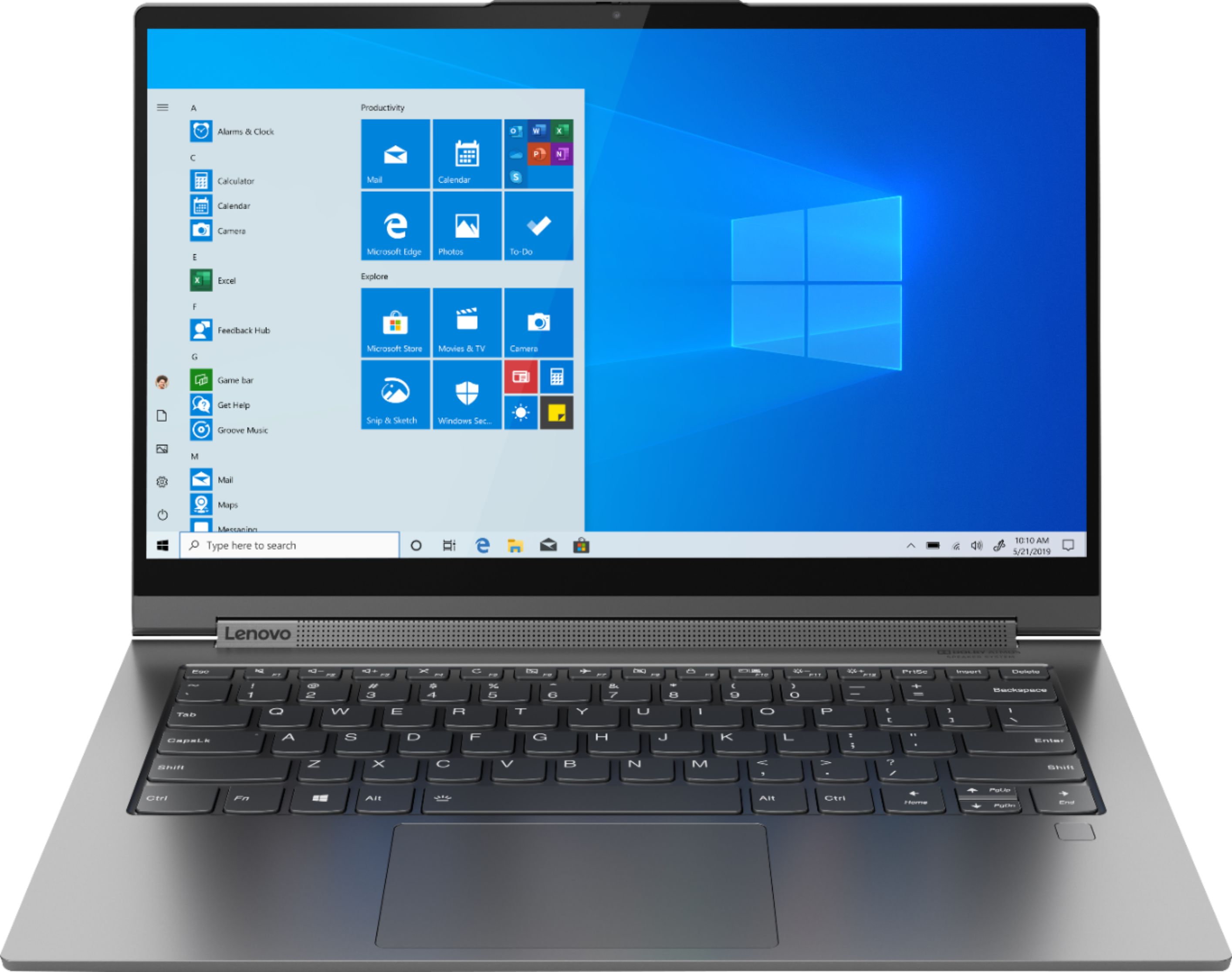
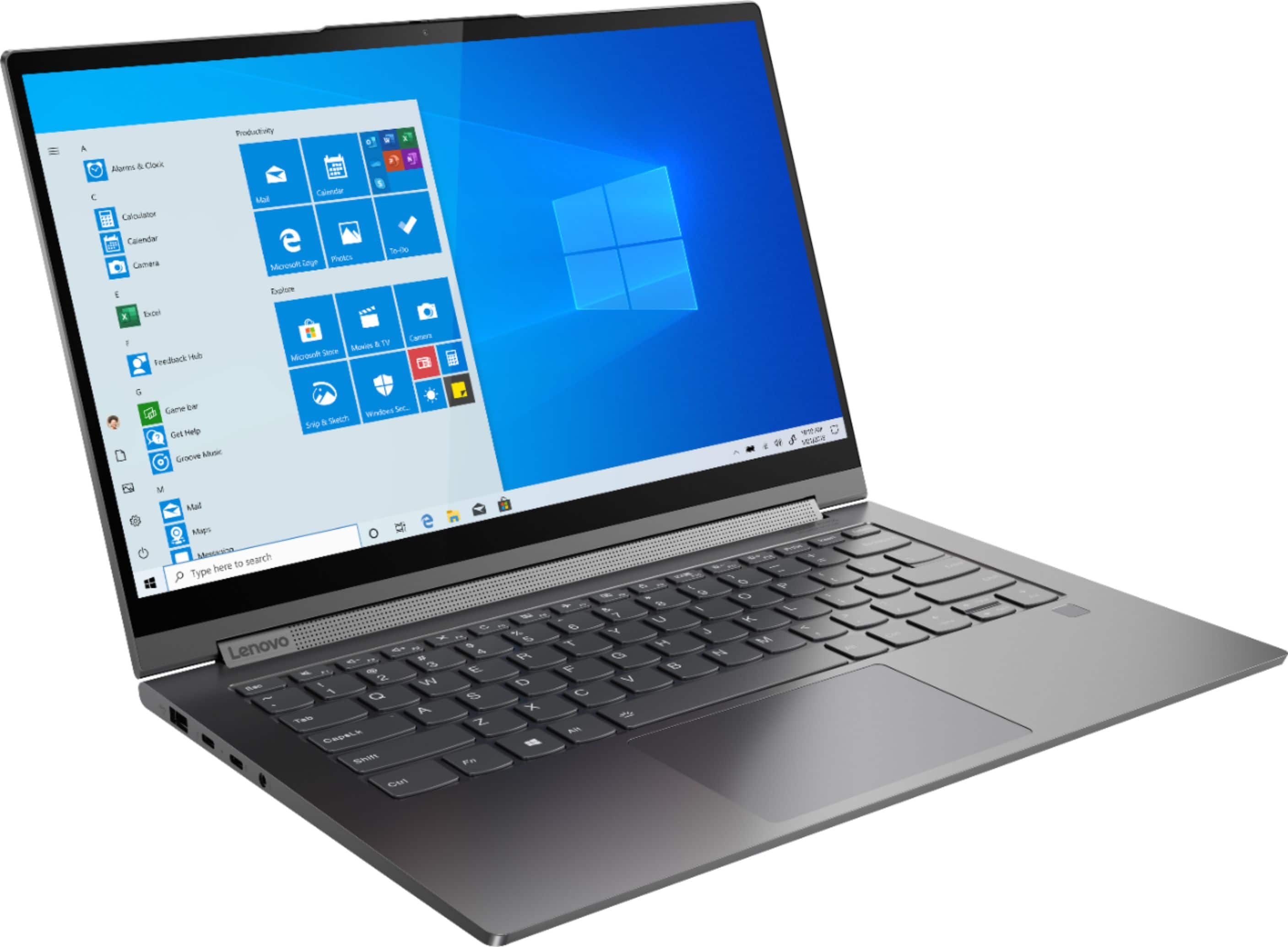






- Model:
- 81Q9002GUS
- SKU:
- 6367799
Rating by feature
- Battery Life
Rating 4.2 out of 5 stars
- Speed
Rating 4.4 out of 5 stars
- Display
Rating 4.5 out of 5 stars
Customers are saying
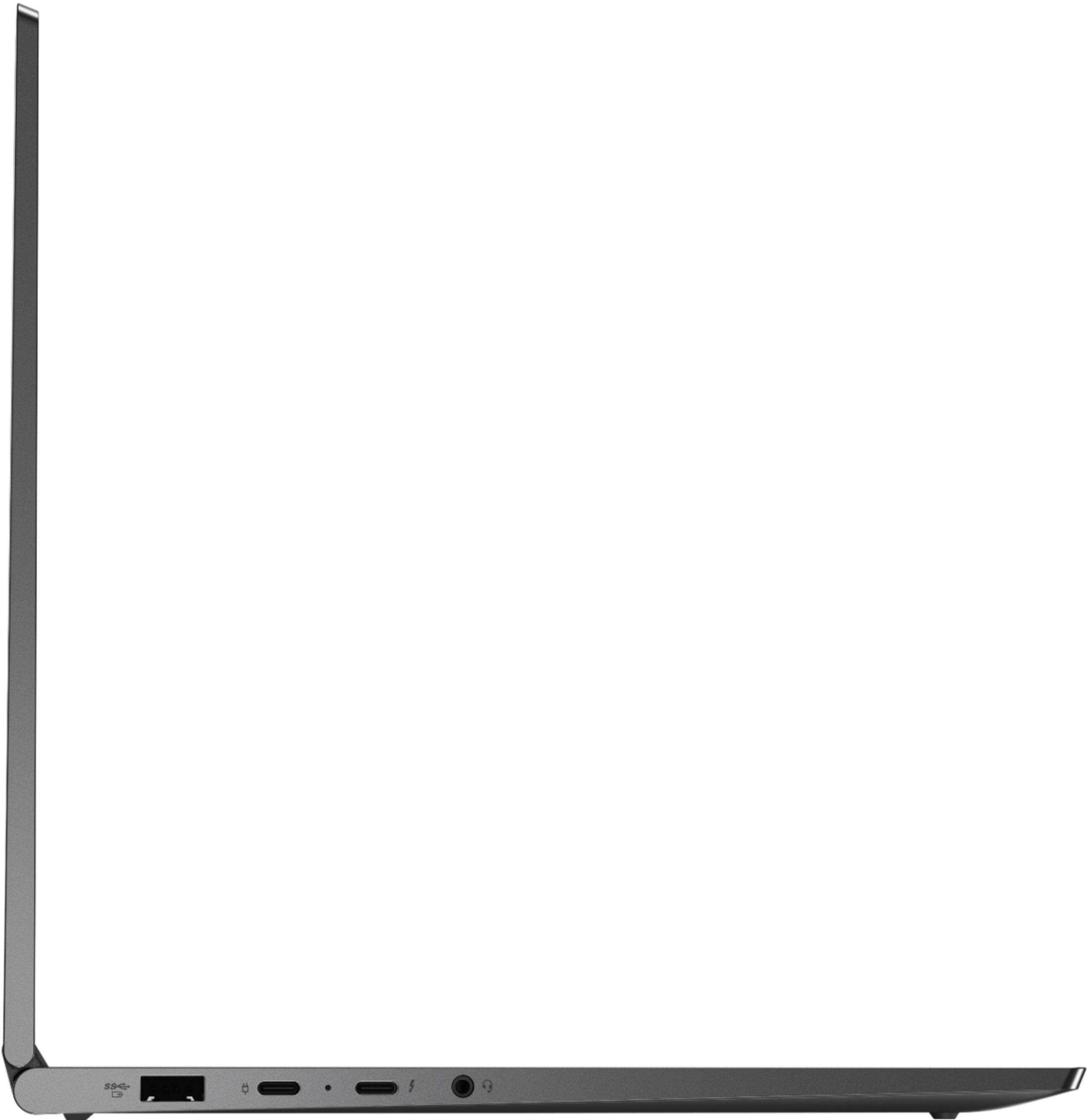
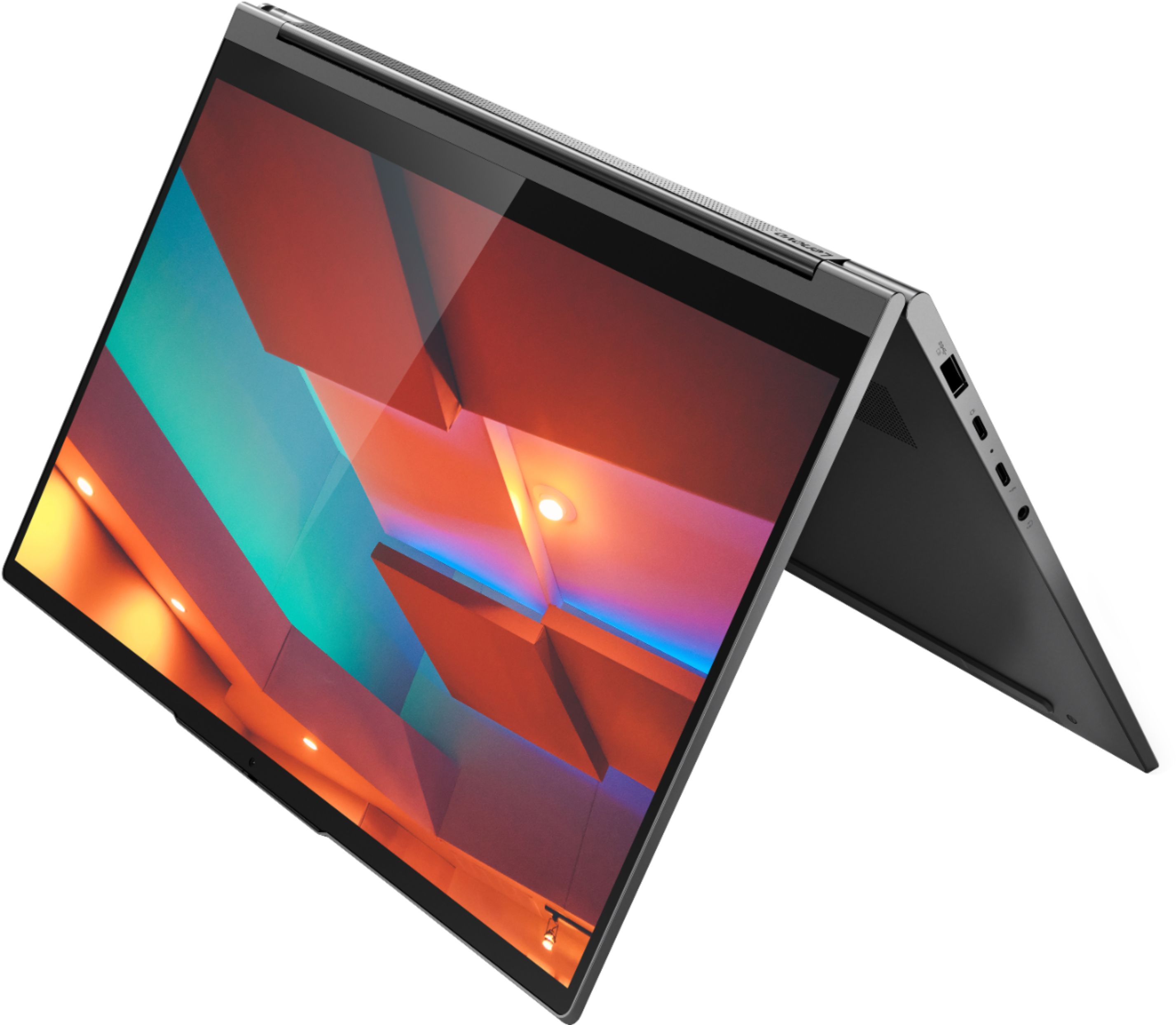
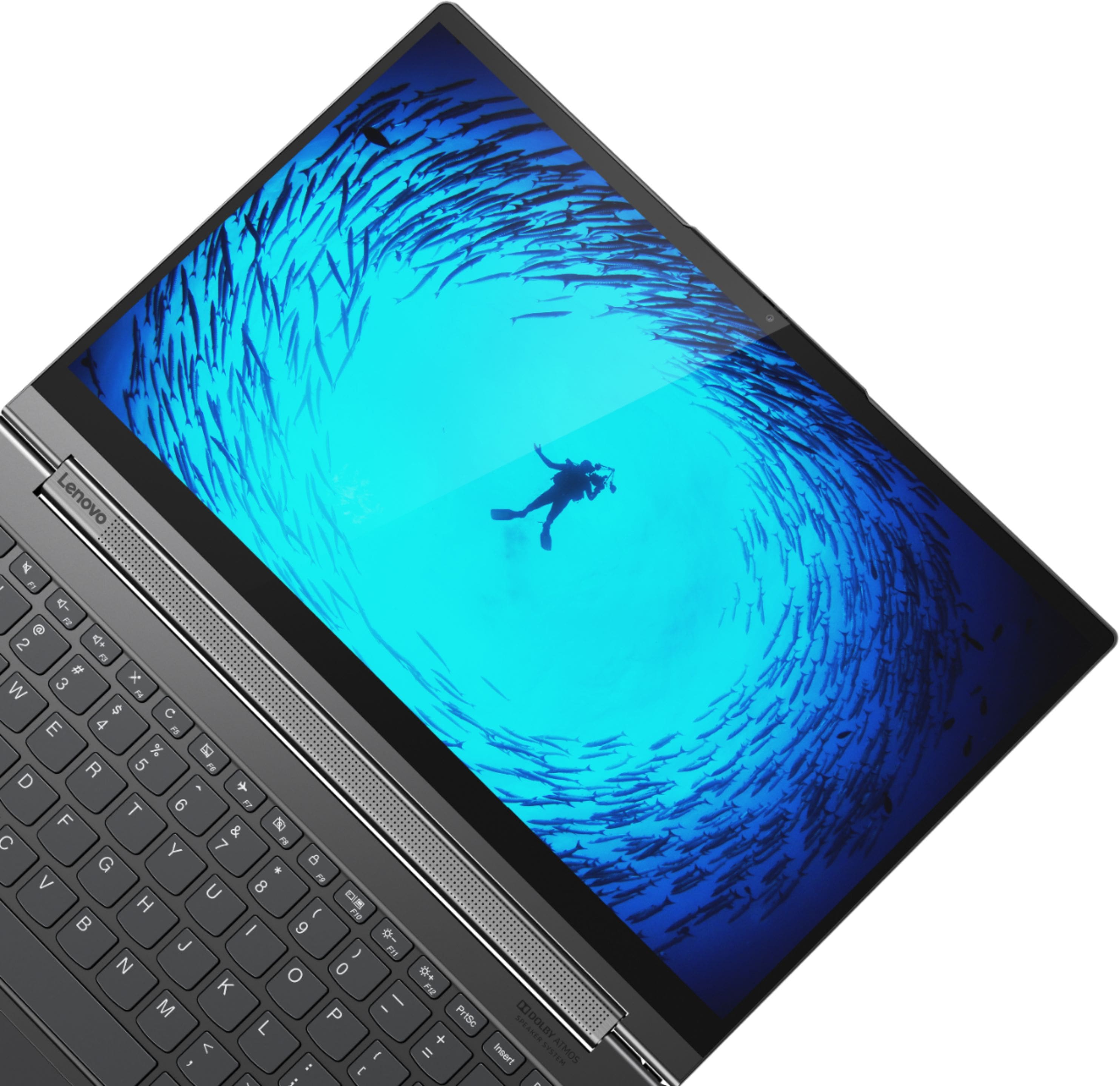
Customers are enthusiastic about the Yoga C940 2-in-1 laptop's fast performance, responsive touch screen, long battery life, and lightweight design. They appreciate the solid build quality and high-quality screen. However, some customers have concerns about the limited number of ports, occasional fan noise, and higher price point.
This summary was generated by AI based on customer reviews.
Avoid this Laptop
||Posted . Owned for 5 months when reviewed.This reviewer received promo considerations or sweepstakes entry for writing a review.After 2 months, started turning itself off and then takes up to 10 minutes to get it back on again. Have spoken with Lenovo support with no resolution, other than them admitting this is a common issue.
No, I would not recommend this to a friendBrand response from Lenovo Product Expert
Posted .The Lenovo Yoga C940-14 will boot from off to the Windows 10 Desktop in less than 10-seconds. Windows 10 will not normally shut itself down. Be sure any software you installed is compatible with Windows 10. There is no need to install Microsoft Office software. The software is already part of the operating system, you just need to activate the software with a purchased product key. If you have installed a copy of Microsoft Office, this is conflicting with the existing copy on the system and this will slow your system down. If you have installed a 3rd party anti-virus program, be sure that Windows Defender is turned off and that the trial version of McAfee Anti-Virus software is uninstalled. There can only be one anti-virus program on the system. You may need to restore your system to original factory default settings if any of the programming errors have occurred. You can do that by typing "restore" in the Cortana search window. Just click on the magnifying glass icon at the bottom left of your Windows 10 Desktop. Click on "Reset This PC" Then click on "Get Started" and follow the on screen directions to restore to factory defaults. If the problem persists, we recommend you contact Lenovo Tech Support at: 877-453-6686.

- Cons mentioned:Camera
Faulty Computer
||Posted . Owned for 1 month when reviewed.This reviewer received promo considerations or sweepstakes entry for writing a review.Bought a open box and just now found out the camera doesnt work
No, I would not recommend this to a friendBrand response from Lenovo Product Expert
Posted .We are sorry to hear that you are having issues with the webcam on your Lenovo Yoga C940-14. This model ships with a 720p (HD) webcam with manual Privacy Shutter built in. Be sure the Privacy Shutter is completely open before trying to use the webcam or the webcam will not operate. There is a small slider, directly above the webcam lens. Move the tab to the right to open the Privacy Shutter. There is a red dot over the webcam lens that will disappear when the Privacy Shutter is fully open. This will indicate that the webcam is really to use. You can close the Privacy Shutter when you are done with the webcam for your security, by sliding the tab to the left to close the Privacy Shutter. The Red Dot will appear over the webcam lens when the Privacy Shutter is closed. If the Privacy Shutter is open, but the camera still is not working, now check to be sure you have the latest version of Windows 10 on the computer. Then update all BIOS files and drivers up to that latest version of Windows 10. You can easily accomplish this by scanning the computer with the Lenovo Utility software available on this computer. This system has Lenovo utilities installed to help maintain the health of the device and keep the operating system software up to date. Type "Lenovo Vantage" in the Cortana Search window (if Lenovo Vantage is not installed on your device, you can download the APP and install it now). Select Lenovo Vantage from the list. In the window that opens, click on "Health and Support". In the expanded menu, select "Hardware Scan" In the window that opens, select "Run Quick Tests". This will scan your entire system for errors. Follow any directions that may pop up. If the problem continues after this scan, now click on "System Update". First select Windows update from the menu. Scan your system to be sure you have the latest version of Windows 10. Once that scan is complete, select "Additional Updates". This will scan your device to be sure there are no new BIOS/Driver updates needed. Follow any instructions that may pop up. If the issue still continues after these updates, we recommend you call Lenovo Tech Support at: 877-453-6686 for additional help.
Scratch & Dent
||Posted . Owned for 1 month when reviewed.This reviewer received promo considerations or sweepstakes entry for writing a review.Laptop did have a dent on the top that was not mentioned but besides that it works fine
I would recommend this to a friendPoor laptop
||Posted . Owned for 3 months when reviewed.This reviewer received promo considerations or sweepstakes entry for writing a review.Absolutely the worst laptop I've purchased. Will not stay connected to wifi. Sent it in thru Best Buy for repair, it was returned 6 weeks later. Still doesn't stay connectd to wifi. They've had it longer than I have and now I can't return it. Sucks!
No, I would not recommend this to a friendBrand response from Lenovo Product Expert
Posted .We are sorry to hear that you are having issues with your Lenovo Yoga C940-14. This model ships with the latest, Intel 6G, Wide-Range/High Speed 2x2 802.11AX frequency WiFi, which is also backward compatible with older b/g/n (2.4GHz and 5.0GHz)/ac frequency WiFi. First, if possible, try using your Yoga C940-14 with other WiFi at a public location, a coffee shop or public library. If the Yoga C940 can connect there, contact your home internet provider for a software update to your home system. If the issue continues at another WiFi location, then be sure you have the latest version of Windows 10 on the computer. Then update all of the BIOS files and drivers up to that latest version of Windows 10. You can easily accomplish this by scanning the computer with the Lenovo Utility software available on this computer. This system has Lenovo utilities installed to help maintain the health of the device and keep the operating system software up to date. Type "Lenovo Vantage" in the Cortana Search window (if Lenovo Vantage is not installed on your device, you can download the APP and install it now). Select Lenovo Vantage from the list. In the window that opens, click on "Health and Support". In the expanded menu, select "Hardware Scan" In the window that opens, select "Run Quick Tests". This will scan your entire system for errors. Follow any directions that may pop up. If the problem continues after this scan, now click on "System Update". First select Windows update from the menu. Scan your system to be sure you have the latest version of Windows 10. Once that scan is complete, select "Additional Updates". This will scan your device to be sure there are no new BIOS/Driver updates needed. Follow any instructions that may pop up. If the issue still continues after these updates, we recommend you call Lenovo Tech Support at: 877-453-6686 for additional help.
Charging cable NOT included
||Posted . Owned for less than 1 week when reviewed.This reviewer received promo considerations or sweepstakes entry for writing a review.The open box at the Eagan store does not include the charger despite being rate as "Satisfactory" which includes "essential" cables according to their definition. So I drove down there but did not get it because they wouldn't include a cable.
No, I would not recommend this to a friendLaptop not powering up after 3 weeks
||Posted . Owned for 1 month when reviewed.This reviewer received promo considerations or sweepstakes entry for writing a review.Got a laptop during Independence day sale and it was working well for 3 weeks and not powering up after that. Had to call Lenovo service to resolve and it is yet to get resolved. Not happy with the purchase.
No, I would not recommend this to a friendBrand response from Lenovo Product Expert
Posted .We are sorry to hear that you are having issues charging the battery within your Lenovo Yoga C940-14. It is possible that resetting the computer back to original factory setting will also reset the battery function with your laptop. Since you can not boot the computer, this system is equipped with OneKey Recovery System. There is a very small pin hole on the bottom left side of the device, right near the bottom left corner of the cooling vent on bottom of the device. You will need a pin to push this reset button. Plug the device in. Let the battery charge for about 15 minutes. Push the reset button. The system should boot to a choice screen where you can choose "Restore To Factory Default". Select this. It will delete everything from the hard drive except the original factory install of the operating system. You will need to reinstall all programs and files after the reset. If you don't have copies of the files, try to make one before you restore by selecting "Boot to desktop" and trying to back up your files. If the problem persists after the factory reset, we recommend you contact Lenovo Tech Support at: 877-453-6686.
Battery not good
||Posted .This reviewer received promo considerations or sweepstakes entry for writing a review.I mainly use for zoom , drain out 20% per hour. battery not good as it said
No, I would not recommend this to a friendBrand response from Lenovo Product Expert
Posted .Hi there, the Lenovo Yoga C940 14" laptop model # 81Q9002GUS features a battery life of up to 15 hours.If you are getting substantially less battery life, please adjust your screen brightness settings. A setting of 100% brightness will drain your battery much faster than a lower setting. We recommend setting the screen brightness to some value below 100% that is still comfortable for you to view. Next be sure Battery conservation Mode is turned off. This power management setting should only be used when the laptop is plugged in all the time. It will prolong overall battery life by only charging the battery to 60-percent of capacity. Here is a link to instructions for turning off Battery Conservation Mode: https://support.lenovo.com/us/en/solutions/ht103159. Also check what programs are running in the background on the computer. Be sure only the programs you want running in the background are. These programs will drain the battery. Here is a link to information about how to find out what programs are running in the background on your Windows 10 computer and how to manage them for better system performance: https://www.windowscentral.com/how-prevent-apps-running-background-windows-10. Then, finally, be sure any software you installed is compatible with Windows 10. Incompatible software will drain the battery at a faster rate. There is no need to install Microsoft Office software. The software is already part of the operating system, you just need to activate the software with a purchased product key. If you have installed a copy of Microsoft Office, this is conflicting with the existing copy on the system and this will slow your system down. If you have installed a 3rd party anti-virus program, be sure that Windows Defender is turned off and that the trial version of McAfee Anti-Virus software is uninstalled. There can only be one anti-virus program on the system. You may need to restore your system to original factory default settings if any of the programming errors have occurred. You can do that by typing "restore" in the Cortana search window. Just click on the magnifying glass icon at the bottom left of your Windows 10 Desktop. Click on "Reset This PC" Then click on "Get Started" and follow the on screen directions to restore to factory defaults. If the problem persists, we recommend you contact Lenovo Tech Support at: 877-453-6686.
Crashes every now and then
||Posted . Owned for 3 weeks when reviewed.This reviewer received promo considerations or sweepstakes entry for writing a review.It has not been a month and the laptop keeps crashing every now and then. Be it installing VLC media player or doing nothing it simply crashes with the blue screen. I had tried to troubleshoot but havent found any disk errors.
No, I would not recommend this to a friendBrand response from Lenovo Product Expert
Posted .Hello, we are sorry to hear you are experiencing issues with your Lenovo Yoga C940 model 81Q9002GUS. : Be sure any software you installed is compatible with Windows 10. There is no need to install Microsoft Office software. The software is already part of the operating system, you just need to activate the software with a purchased product key. If you have installed a copy of Microsoft Office, this is conflicting with the existing copy on the system and this will slow your system down. If you have installed a 3rd party anti-virus program, be sure that Windows Defender is turned off and that the trial version of McAfee Anti-Virus software is uninstalled. There can only be one anti-virus program on the system. You may need to restore your system to original factory default settings if any of the programming errors have occurred. You can do that by typing "restore" in the Cortana search window. Just click on the magnifying glass icon at the bottom left of your Windows 10 Desktop. Click on "Reset This PC” Then click on "Get Started" and follow the on-screen directions to restore to factory defaults. If the problem persists, we recommend you contact Lenovo Tech Support at: 877-453-6686.
Do not buy
||Posted . Owned for 3 months when reviewed.This reviewer received promo considerations or sweepstakes entry for writing a review.Broke in a few days. Started freezing and battery would die randomly. Had to return it. For the price those issues really shouldn't be happening.
No, I would not recommend this to a friendBrand response from Lenovo Product Expert
Posted .We are sorry to hear that you had issues with your Lenovo Yoga C940-14. Be sure any software you installed is compatible with Windows 10. There is no need to install Microsoft Office software. The software is already part of the operating system, you just need to activate the software with a purchased product key. If you have installed a copy of Microsoft Office, this is conflicting with the existing copy on the system and this will slow your system down. If you have installed a 3rd party anti-virus program, be sure that Windows Defender is turned off and that the trial version of McAfee Anti-Virus software is uninstalled. There can only be one anti-virus program on the system. You may need to restore your system to original factory default settings if any of the programming errors have occurred. You can do that by typing "restore" in the Cortana search window. Just click on the magnifying glass icon at the bottom left of your Windows 10 Desktop. Click on "Reset This PC" Then click on "Get Started" and follow the on screen directions to restore to factory defaults. If the problem persists, we recommend you contact Lenovo Tech Support at: 877-453-6686.
touch screen does not work
||Posted . Owned for 2 weeks when reviewed.This reviewer received promo considerations or sweepstakes entry for writing a review.I went from Monterrey to San Antonio Tx to pick up the Laptop and when I returned to Mexico I realized that the touch screen does not work. I have already sent a report to LENOVO but they ask me to send it back and it takes two weeks to respond.
No, I would not recommend this to a friendBrand response from Lenovo Product Expert
Posted .We are sorry to hear that you are having issues with the touchscreen on your Lenovo Yoga C940-14. First, restore the computer back to original factory settings. Here is a link to instructions for restting your Windows 10 device: https://support.microsoft.com/en-us/help/4026528/windows-10-reset-or-reinstall. Second, now check to see if the touchscreen is functioning. If not, be sure you have the latest version of Windows 10 on the computer, then update all of the BIOS files and Drivers up to that latest version of Windows 10. You can easily accomplish this by scanning the computer with the Lenovo Utility software on the computer. This system has Lenovo utilities installed to help maintain the health of the device and keep the operating system software up to date. Type "Lenovo Vantage" in the Cortana Search window (if Lenovo Vantage is not installed on your device, you can download the APP and install it now). Select Lenovo Vantage from the list. In the window that opens, click on "Health and Support". In the expanded menu, select "Hardware Scan" In the window that opens, select "Run Quick Tests". This will scan your entire system for errors. Follow any directions that may pop up. If the problem continues after this scan, now click on "System Update". First select Windows update from the menu. Scan your system to be sure you have the latest version of Windows 10. Once that scan is complete, select "Additional Updates". This will scan your device to be sure there are no new BIOS/Driver updates needed. Follow any instructions that may pop up. If the issue still continues after these updates, we recommend you call Lenovo Tech Support at: 877-453-6686 for additional help.
- Pros mentioned:Battery life, Touch screen
Great 2-in-1 for the price!!
Posted .This reviewer received promo considerations or sweepstakes entry for writing a review.I was choosing between the Dell XPS 2-in-1 13" and this laptop. Ultimately, I chose the Yoga because I prefer the 16:9 screen ratio and the battery life is longer on the Yoga. One thing that made it hard for me to choose between the two is that the XPS has a brighter screen and smaller bezels. What propelled me to purchase the Yoga, was the included pen, hinge-sound bar, and the keyboard. The keyboard on the Yoga is far more superior than the XPS for my little fingers! The Dell XPS 2-in-1 13.4", FHD, 10th gen i7, 8GB Ram with 256GB of memory is priced at $1369.99 & The Yoga C940 14", FHD, 10th gen i7, 12GB ram, 512GB Memory is currently priced at $1399.99... The C940 was on sale for $1149.99 and has 4gb more ram and 256gb more memory, so that was the final straw! I am happy with my decision so far! While my laptop is not in 4k or UHD, I am still happy with the resolution-- plus, I will take that extra 5 hours of battery life. With the Intel Iris Plus graphics, I can safely say I am getting accurate color translation. The only thing I feel like I am TRULY missing out on, is the brighter display :(
I would recommend this to a friendBrand response from Lenovo Product Expert
Posted .The Lenovo Yoga C940-14 ships with a 4CELL_60WH_INTERNAL, Lithium Polymer Battery, with a battery life of up to 15 hours, depending on the work the device is performing. The Yoga C940-14 ships with a IPS LCD w/LED Backlight screen, with a resolution of 1920 x 1080 (FHD) and a brightness level of 400 nits.
Too bad so sad...
||Posted . Owned for 3 months when reviewed.This reviewer received promo considerations or sweepstakes entry for writing a review.Dead out of the box. Return period expired. Will have to go through Lenovo support. Too bad so sad...
No, I would not recommend this to a friendBrand response from Lenovo Product Expert
Posted .Although all Lenovo laptops have their battery charged at the factory, it is not a full charge and the battery can drain to zero charge over time. Be sure to plug your new Yoga C940-14 in before trying to boot the computer for the first time. Try plugging the computer in and letting the battery charge for 15-minutes. Now press the power button and the computer should boot normally to the Windows 10 initial activation screen. If the laptop does not boot up after a 15-minute charge, try resetting the computer back to original factory settings. Since you can not boot the computer normally, this system is equipped with OneKey Recovery System. There is a very small pin hole on the bottom left side of the device, right near the bottom left corner of the cooling vent on the bottom of the device. You will need a pin to push this reset button. Plug the device in. Let the battery charge for about 15 minutes. Push the reset button. The system should boot to a choice screen where you can choose "Restore To Factory Default". Select this. It will delete everything from the hard drive except the original factory install of the operating system. You will need to reinstall all programs and files after the reset. If you don't have copies of the files, try to make one before you restore by selecting "Boot to desktop" and trying to back up your files. If the problem persists after the factory reset, we recommend you contact Lenovo Tech Support at: 877-453-6686.
Keeps locking up.
||Posted . Owned for 5 months when reviewed.This reviewer received promo considerations or sweepstakes entry for writing a review.Locks up with a screen freeze. Only way to recover is a hard reboot. So far Lenovo has not given any support to fix the problem.
No, I would not recommend this to a friendBrand response from Lenovo Product Expert
Posted .We are sorry to hear that you are having issues with your Yoga C940-14. First, be sure any software you installed is compatible with Windows 10. There is no need to install Microsoft Office software. The software is already part of the operating system, you just need to activate the software with a purchased product key. If you have installed a copy of Microsoft Office, this is conflicting with the existing copy on the system and this will slow your system down. If you have installed a 3rd party anti-virus program, be sure that Windows Defender is turned off and that the trial version of McAfee Anti-Virus software is uninstalled. There can only be one anti-virus program on the system. You may need to restore your system to original factory default settings if any of the programming errors have occurred. You can do that by typing "restore" in the Cortana search window. Just click on the magnifying glass icon at the bottom left of your Windows 10 Desktop. Click on "Reset This PC" Then click on "Get Started" and follow the on screen directions to restore to factory defaults. If the problem persists, we recommend you contact Lenovo Tech Support at: 877-453-6686.
Open box.
||Posted .This reviewer received promo considerations or sweepstakes entry for writing a review.It was an open box. Never again will I buy an open box. The laptop started acting up 2 weeks after the purchase.
No, I would not recommend this to a friendBrand response from Lenovo Product Expert
Posted .Hello, we are sorry to hear you are experiencing an issue with your Lenovo C940 laptop model #81Q9003PUS . We recommend to ensure you have installed the latest system software, device drivers, and system BIOS on your machine as it is possible this will fix your problem. You can easily accomplish this by scanning the computer with the Lenovo Utility software available on this computer. This system has Lenovo utilities installed to help maintain the health of the device and keep the operating system software up to date. Type "Lenovo Vantage" in the Cortana Search window (if Lenovo Vantage is not installed on your device, you can download the APP and install it now). Select Lenovo Vantage from the list. In the window that opens, click on "Health and Support". In the expanded menu, select "Hardware Scan” In the window that opens, select "Run Quick Tests". This will scan your entire system for errors. Follow any directions that may pop up. If the problem continues after this scan, now click on "System Update". First select Windows update from the menu. Scan your system to be sure you have the latest version of Windows 10. Once that scan is complete, select "Additional Updates". This will scan your device to be sure there are no new BIOS/Driver updates needed. Follow any instructions that may pop up. If the issue continues after these updates, we recommend you call Lenovo Tech Support at: 877-453-6686 for additional help.
Laptop
||Posted . Owned for 4 months when reviewed.This reviewer received promo considerations or sweepstakes entry for writing a review.The computer camera won't work. Hardware issues... And the Columbus ga location won't help with the issue.
No, I would not recommend this to a friendBrand response from Lenovo Product Expert
Posted .We are sorry to hear that you are having issues with the webcam on your Lenovo Yoga C940-14. This model ships with a 720p (HD) webcam with manual Privacy Shutter built in. Be sure the Privacy Shutter is completely open before trying to use the webcam or the webcam will not operate. There is a small slider, directly above the webcam lens. Move the tab to the right to open the Privacy Shutter. There is a red dot over the webcam lens that will disappear when the Privacy Shutter is fully open. This will indicate that the webcam is really to use. You can close the Privacy Shutter when you are done with the webcam for your security, by sliding the tab to the left to close the Privacy Shutter. The Red Dot will appear over the webcam lens when the Privacy Shutter is closed. If the Privacy Shutter is open but the issue continues, now check to be sure that you have the Latest version of Windows 10 on the computer. Then update all BIOS files and drivers up to that latest version of Windows 10. You can easily accomplish this by scanning the computer with the Lenovo Utility software available on this computer. This system has Lenovo utilities installed to help maintain the health of the device and keep the operating system software up to date. Type "Lenovo Vantage" in the Cortana Search window (if Lenovo Vantage is not installed on your device, you can download the APP and install it now). Select Lenovo Vantage from the list. In the window that opens, click on "Health and Support". In the expanded menu, select "Hardware Scan" In the window that opens, select "Run Quick Tests". This will scan your entire system for errors. Follow any directions that may pop up. If the problem continues after this scan, now click on "System Update". First select Windows update from the menu. Scan your system to be sure you have the latest version of Windows 10. Once that scan is complete, select "Additional Updates". This will scan your device to be sure there are no new BIOS/Driver updates needed. Follow any instructions that may pop up. If the issue still continues after these updates, we recommend you call Lenovo Tech Support at: 877-453-6686 for additional help.
Frozen Laptop
||Posted . Owned for 2 weeks when reviewed.This reviewer received promo considerations or sweepstakes entry for writing a review.It froze up on me several times. I returned it to my local Best Buy.
I would recommend this to a friendBrand response from Lenovo Product Expert
Posted .Hello, we are sorry to hear you are experiencing this issue with your Lenovo Yoga C940 laptop model # 81Q9002GUS. Be sure any software you installed is compatible with Windows 10. There is no need to install Microsoft Office software. The software is already part of the operating system, you just need to activate the software with a purchased product key. If you have installed a copy of Microsoft Office, this is conflicting with the existing copy on the system and this will slow your system down. If you have installed a 3rd party anti-virus program, be sure that Windows Defender is turned off and that the trial version of McAfee Anti-Virus software is uninstalled. There can only be one anti-virus program on the system. You may need to restore your system to original factory default settings if any of the programming errors have occurred. You can do that by typing "restore" in the Cortana search window. Just click on the magnifying glass icon at the bottom left of your Windows 10 Desktop. Click on "Reset This PC” Then click on "Get Started" and follow the on-screen directions to restore to factory defaults. If the problem persists, we recommend you contact Lenovo Tech Support at: 877-453-6686.
Do not recommend
||Posted . Owned for 3 weeks when reviewed.This reviewer received promo considerations or sweepstakes entry for writing a review.Virtually unusable due to screen glitching. Known issue.
No, I would not recommend this to a friendBrand response from Lenovo Product Expert
Posted .We are sorry to hear that you had issues with the screen flickering on your Lenovo Yoga C940-14. Be sure you have the latest version of Windows 10 on the computer. Then update all of the BIOS files and drivers up to this latest version of Windows 10. You can easily accomplish this by scanning the computer with the Lenovo Utility software available on this computer. This system has Lenovo utilities installed to help maintain the health of the device and keep the operating system software up to date. Type "Lenovo Vantage" in the Cortana Search window (if Lenovo Vantage is not installed on your device, you can download the APP and install it now). Select Lenovo Vantage from the list. In the window that opens, click on "Health and Support". In the expanded menu, select "Hardware Scan" In the window that opens, select "Run Quick Tests". This will scan your entire system for errors. Follow any directions that may pop up. If the problem continues after this scan, now click on "System Update". First select Windows update from the menu. Scan your system to be sure you have the latest version of Windows 10. Once that scan is complete, select "Additional Updates". This will scan your device to be sure there are no new BIOS/Driver updates needed. Follow any instructions that may pop up. If the issue still continues after these updates, we recommend you call Lenovo Tech Support at: 877-453-6686 for additional help.
Missing PEN to Lenovo
||Posted . Owned for 1 month when reviewed.This reviewer received promo considerations or sweepstakes entry for writing a review.Never got a call about my pen missing that was supposed to be with the labtop-
No, I would not recommend this to a friendBrand response from Lenovo Product Expert
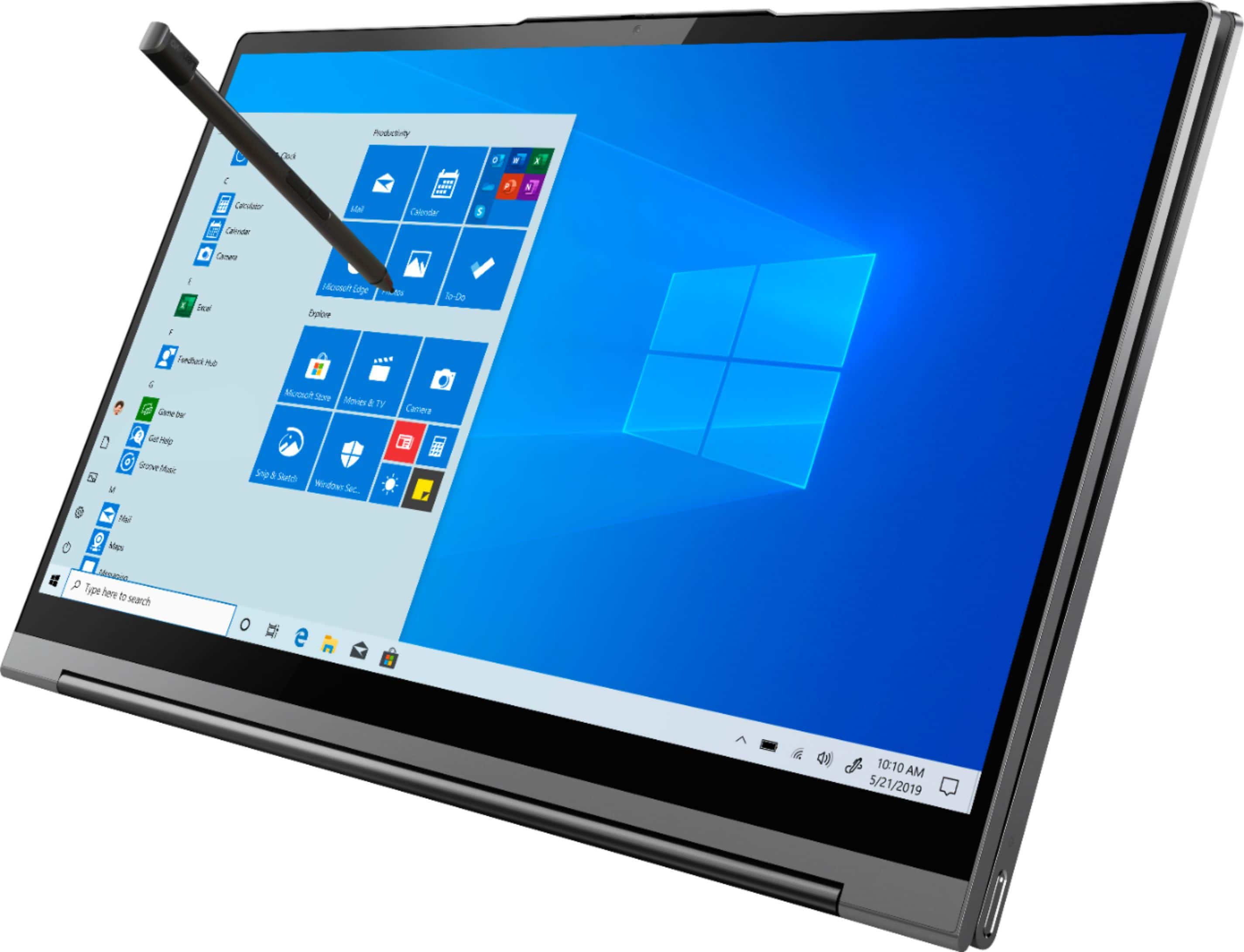
Posted .Check inside the pen garage within the computer itself. The pen is placed in the pen garage at the factory. The Pen garage is accessed from the back right side of the computer with the computer lid closed. You will need to pry the pen out of the garage with your fingernail.
Audio & video problems
||Posted .This reviewer received promo considerations or sweepstakes entry for writing a review.Purchased a month ago, having video & audio issues
No, I would not recommend this to a friendBrand response from Lenovo Product Expert
Posted .We are sorry to hear that you are having issues with your lenovo Yoga C940-14. We recommend you call Lenovo Tech Support for help with your specific issues at: 877-453-6686.
keyboard and wifi
||Posted . Owned for 3 weeks when reviewed.This reviewer received promo considerations or sweepstakes entry for writing a review.terrible keyboard; wifi issues. i had it for a day and i returned it. wothless
No, I would not recommend this to a friendBrand response from Lenovo Product Expert
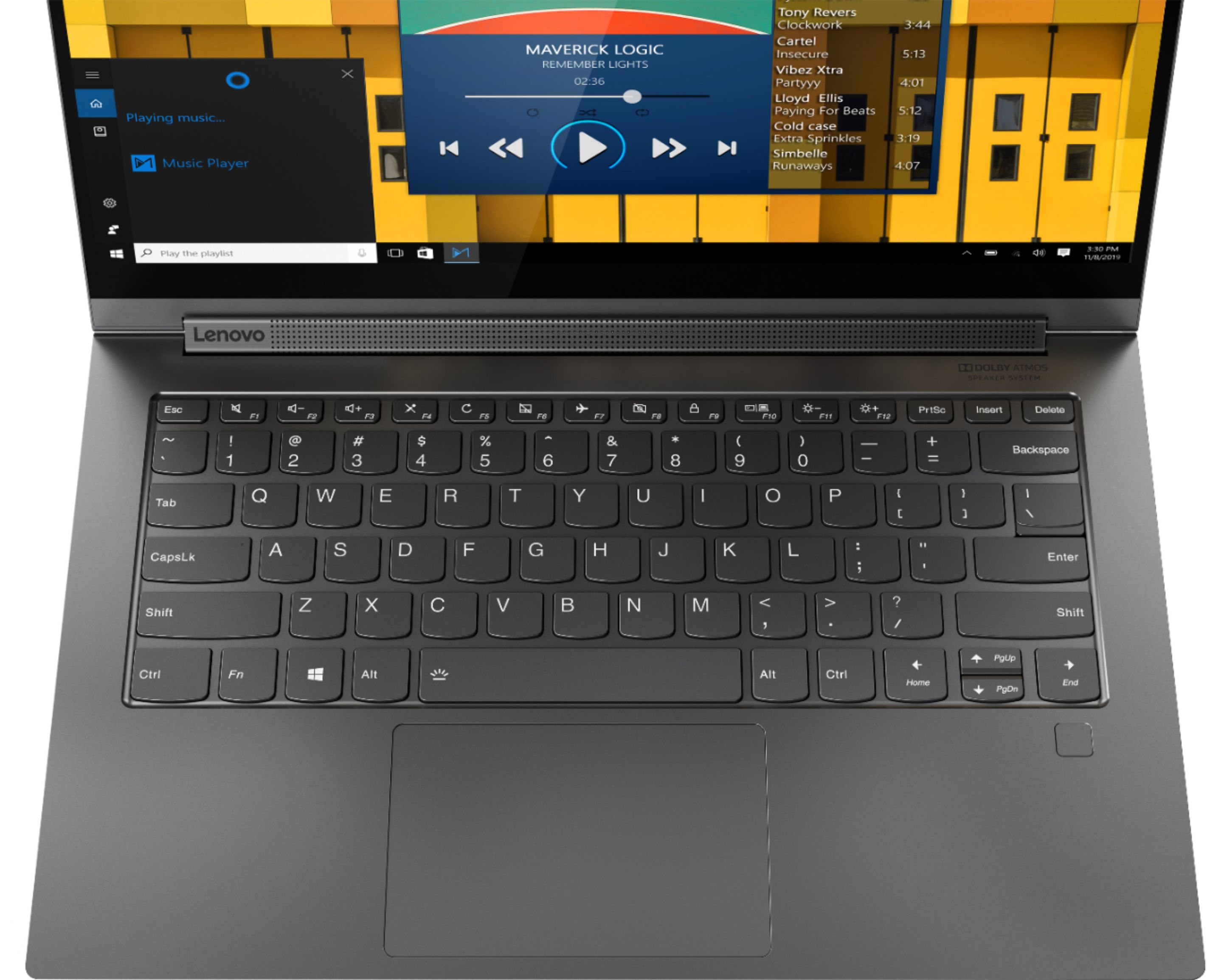
Posted .The Lenovo Yoga C940-14 model number 81Q9002GUS ships with a standard QWERTY keyboard with 4.3mm of travel on the keys for a great typing experience. WiFi is the latest 6G, 2x2 802.11AX format for wide range, super fast connectivity with a compatible router. The WiFi is also backward compatible to older b/g/n/AC frequencies as well. Every component of Yoga C940 was engineered with your experience in mind. That’s why The Yoga C940 offers the brilliant color and clarity with ultra-narrow bezels. At 400 nits brightness, it’s brighter than standard SDR displays. You’ll enjoy amazing realism that's vivid, nuanced, and powerful. Capture your ideas the moment inspiration hits with a garaged digital pen. Featuring an in-body charging compartment, the Yoga C940 ensures you’ll never lose a thought—or your digital pen—again. The convertible hinge hides a powerful Dolby Atmos Speaker System that immerses you in 3D sound in every mode. Combined with two sets of speakers featuring powerful subwoofers, custom tweeters, and unique vibration buffers that reduce unwanted noise, your audio will sound bigger, deeper, and more accurate. Experience how the Yoga C940 embodies world-class craftsmanship, innovative solutions, and elevated design. Log into your Yoga C940 in less than two seconds with an integrated fingerprint reader. That’s three times faster than the average time it takes to type a password. Forget your password.