Customer Ratings & Reviews





- Model:
- 910-007561
- SKU:
- 6640829
Rating by feature
- Value
Rating 4.5 out of 5 stars
- Quality
Rating 4.9 out of 5 stars
- Ease of Use
Rating 4.6 out of 5 stars
Customers are saying
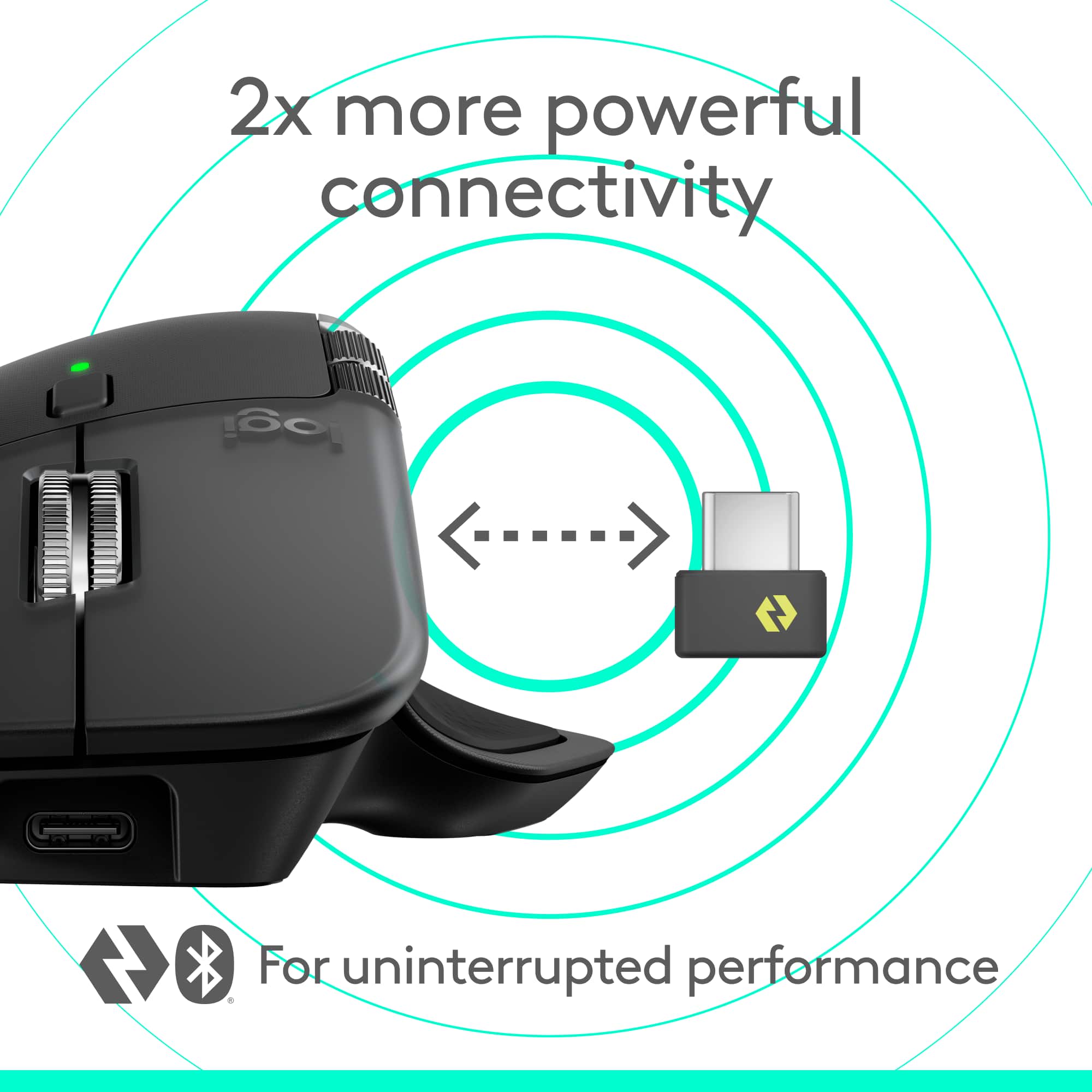
Customers often highlight the MX Master 4's exceptional button functionality, ergonomics, and haptic feedback. The mouse is also praised for its impressive battery life, build quality, and seamless connectivity. However, some users find the size and weight to be a drawback.
This summary was generated by AI based on customer reviews.
First ergo mouse
||Posted . Owned for 2 weeks when reviewed.This reviewer received promo considerations or sweepstakes entry for writing a review.Pretty good and efficient mouse. First ergo mouse and pretty happy
I would recommend this to a friendBrand response from Logitech
Posted .Thanks for letting us know how things are going. We’re happy the product is performing as expected. Your support means everything.

LOVE THIS NEW MODEL, IT GET THINGS DONE QUICKER!
||Posted . Owned for 1 month when reviewed.This reviewer received promo considerations or sweepstakes entry for writing a review.BEST OF THE BEST, BUILT TO LAST. HANDS DOWN A ONE OF A KIND REMARKABLE GAME CHANGING PRODUCT THAT I WILL NOT GET TIRED OF USING AND THE FORCE FEEDBACK VIBRATION / GRIP REALLY WORKS GREAT TOGETHER.
I would recommend this to a friendBrand response from Logitech
Posted .Your feedback means a lot to us. We’re glad the product is serving you well and helping you get things done. Thanks for choosing Logitech!
If you want the very best!
||Posted . Owned for 1 month when reviewed.This reviewer received promo considerations or sweepstakes entry for writing a review.Extremely precise and very smooth overall action and movement. Most likely the best overall technically available mouse.
I would recommend this to a friendBrand response from Logitech
Posted .We’re glad the product is serving you well and helping you get things done. Thanks for choosing Logitech!
Great mouse, same minor annoyance
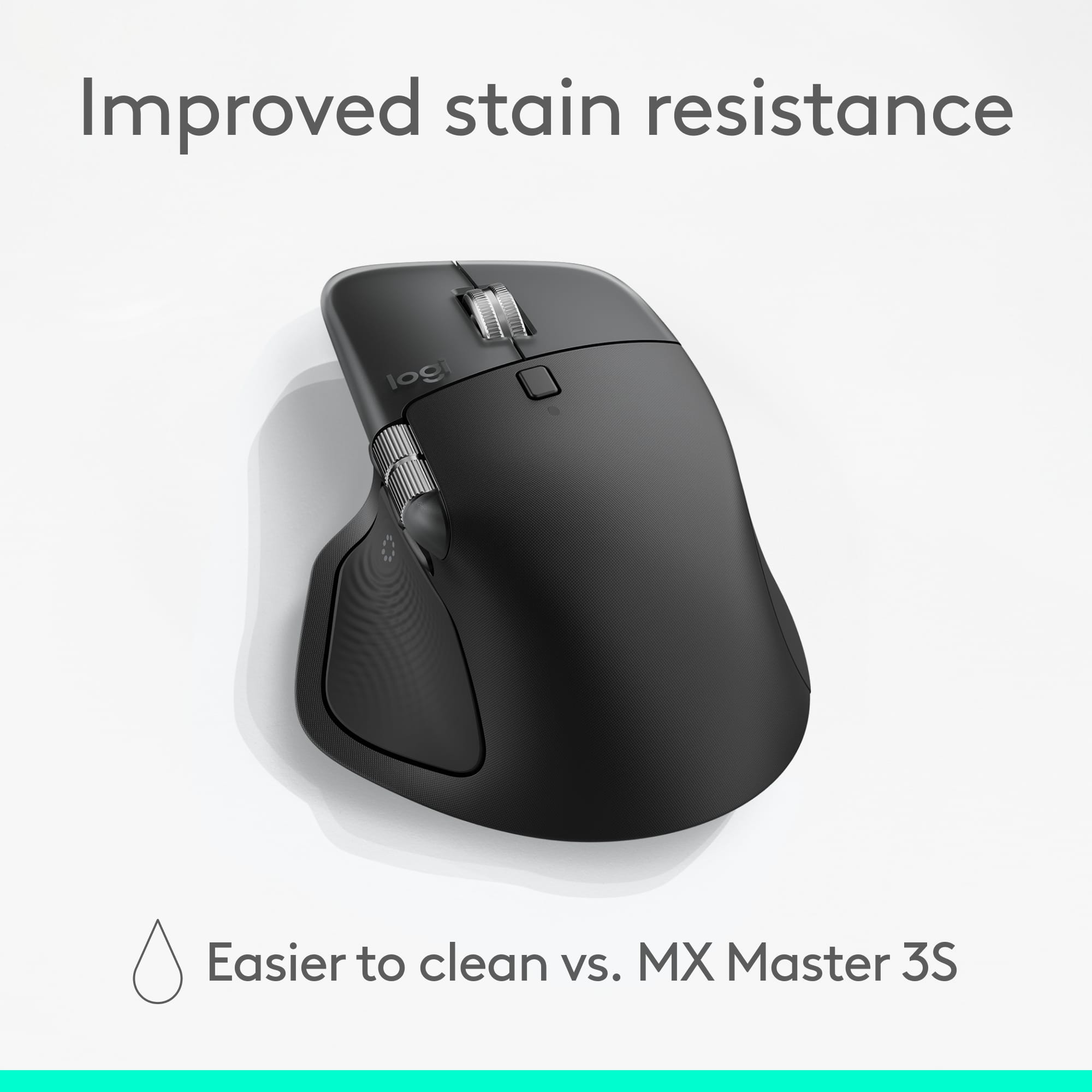
||Posted . Owned for 1 month when reviewed.This reviewer received promo considerations or sweepstakes entry for writing a review.Amazing mouse. Very similar to the 3, with a few good quality of life improvements. Softer touch materials, quieter clicks, and more uniform body should keep it cleaner for longer. The one thing I wish they would change is the connection selection is still on the bottom. The did add an option in the software to change with the new actions button, but still annoying.
I would recommend this to a friendBrand response from Logitech
Posted .We truly appreciate you highlighting the quality-of-life improvements like the softer materials, quieter clicks, and more uniform body. Your feedback regarding the placement of the connection selection button on the bottom, despite the software option, is important to us, and we've noted your input for future design considerations. We're glad overall that you find it to be an amazing mouse!
- Pros mentioned:Battery life, Ergonomics, Haptic feedback

A Premium Mouse for Serious Productivity!
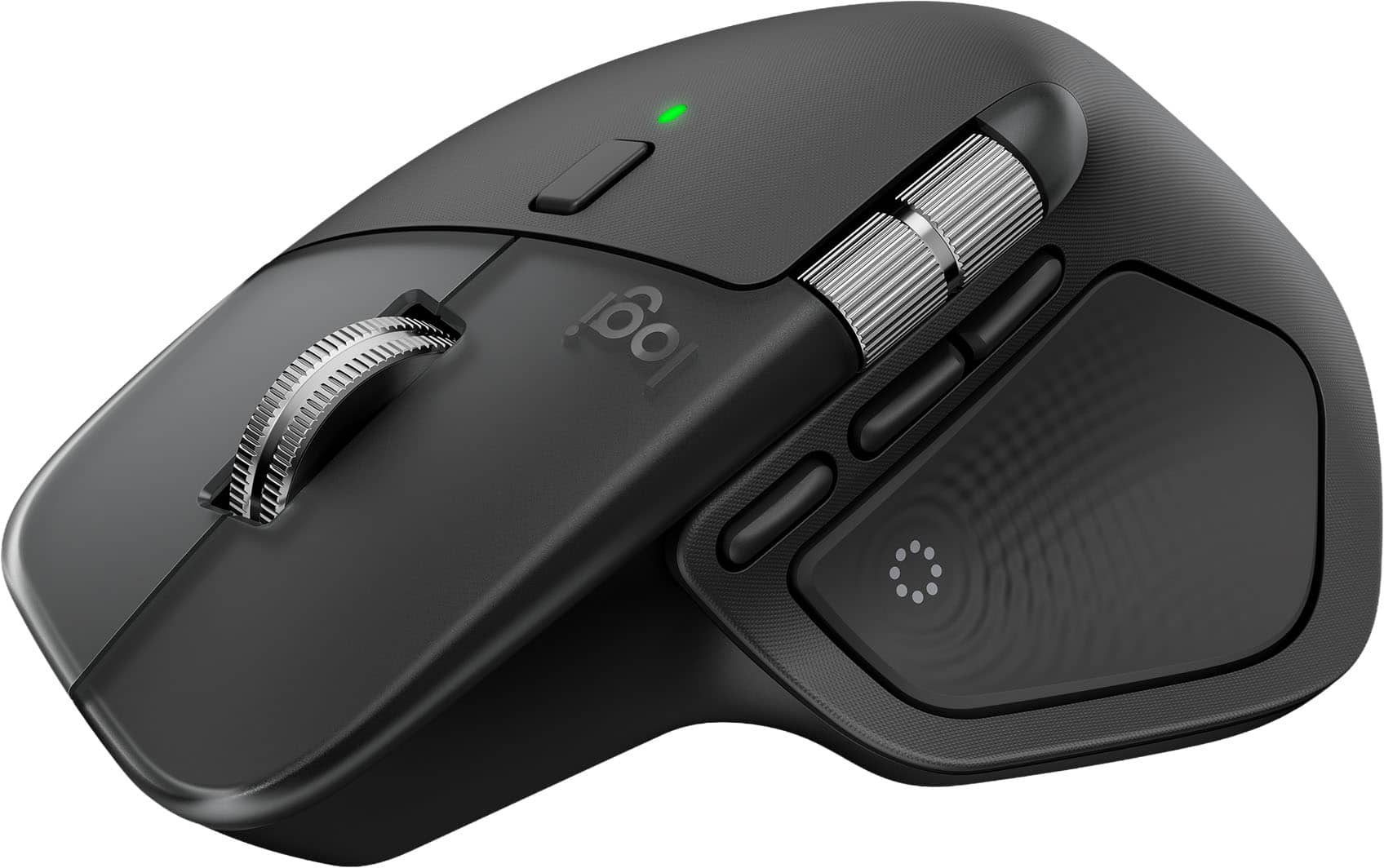
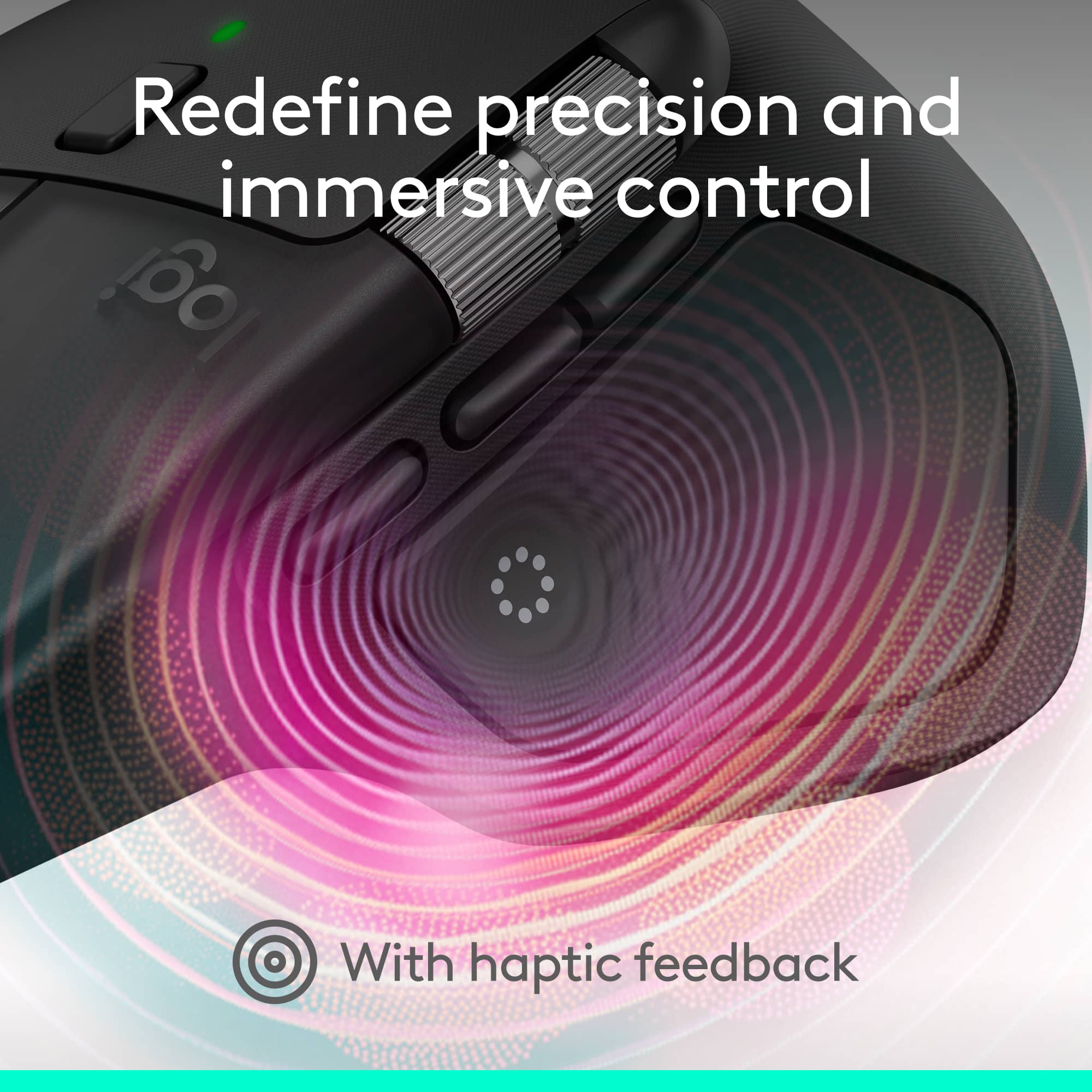
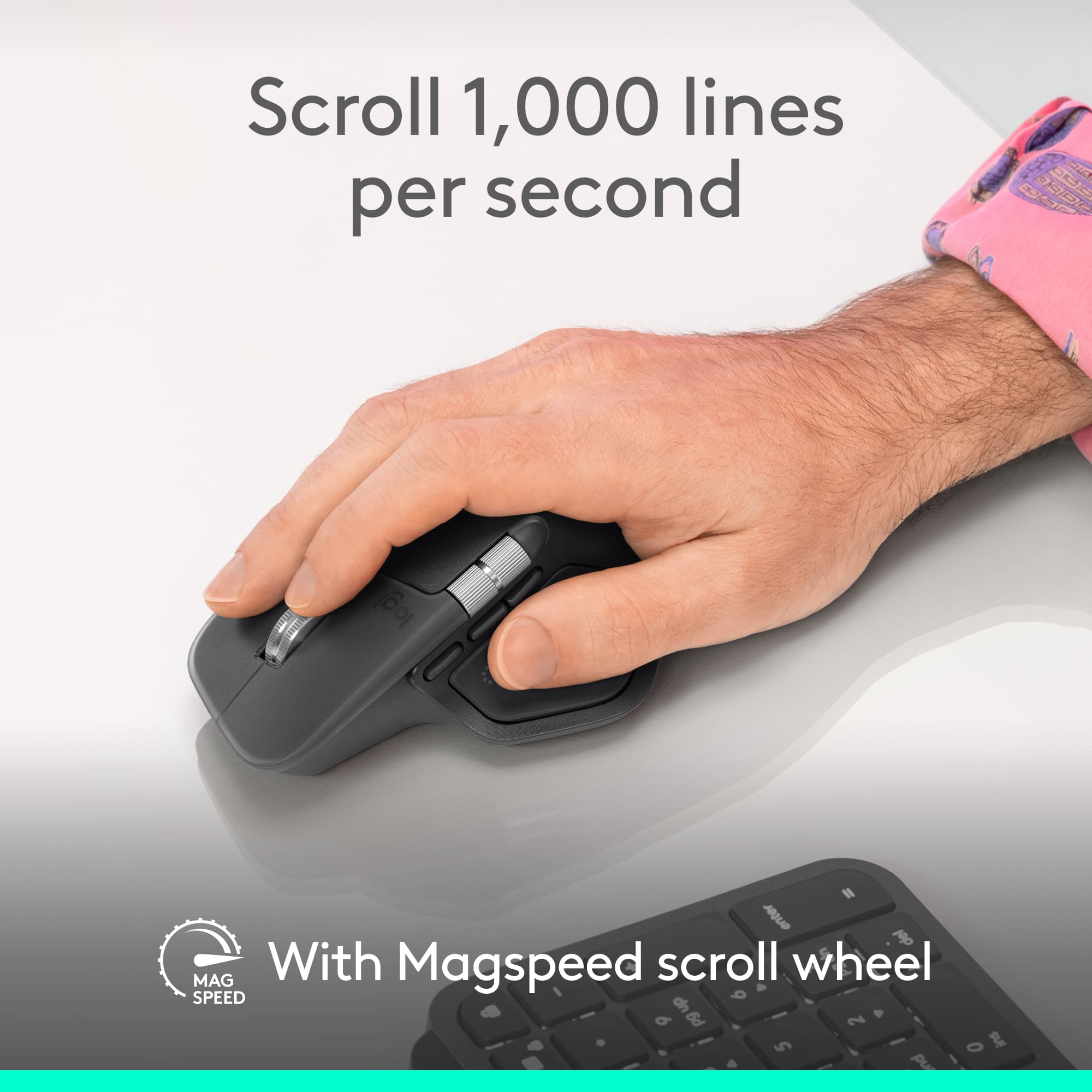
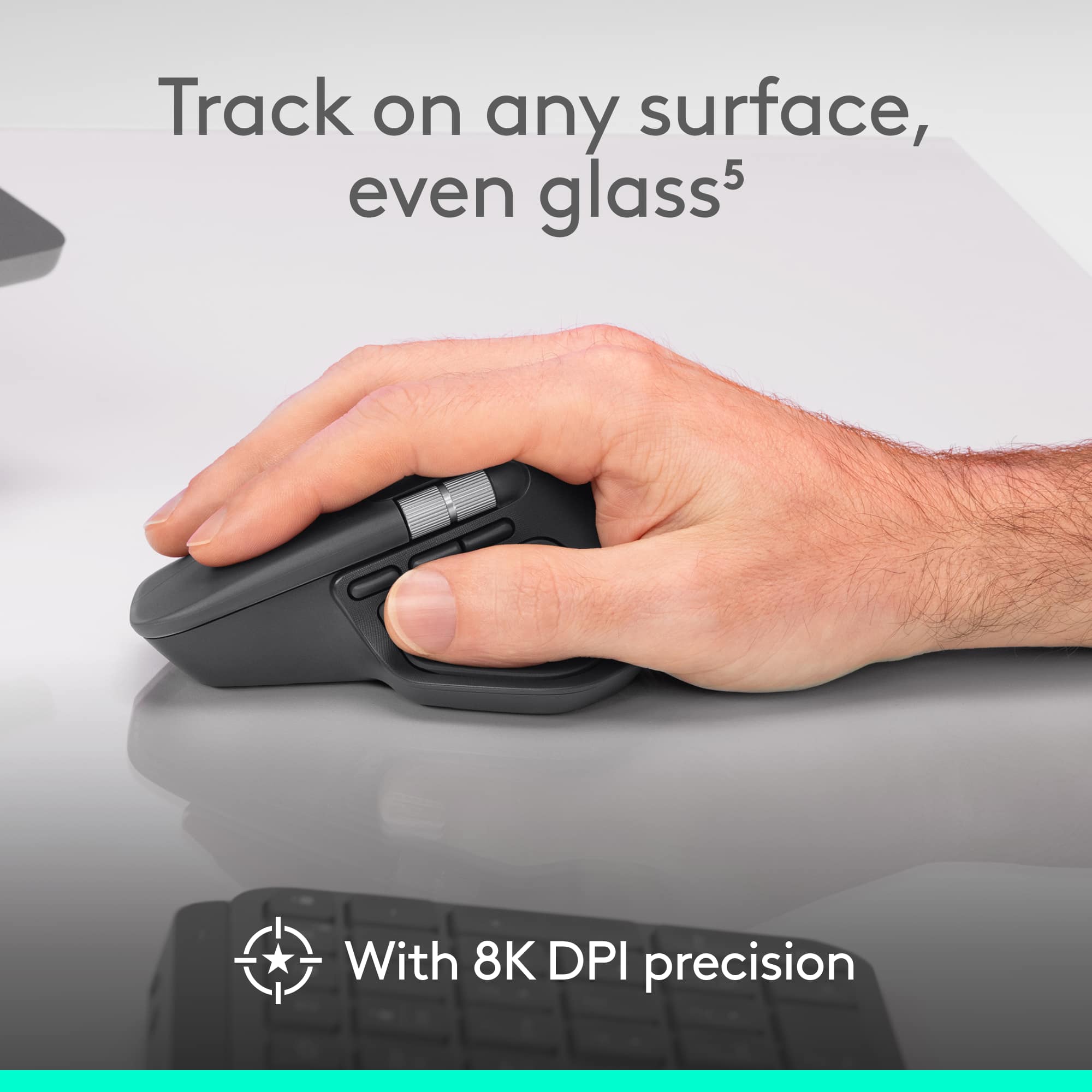
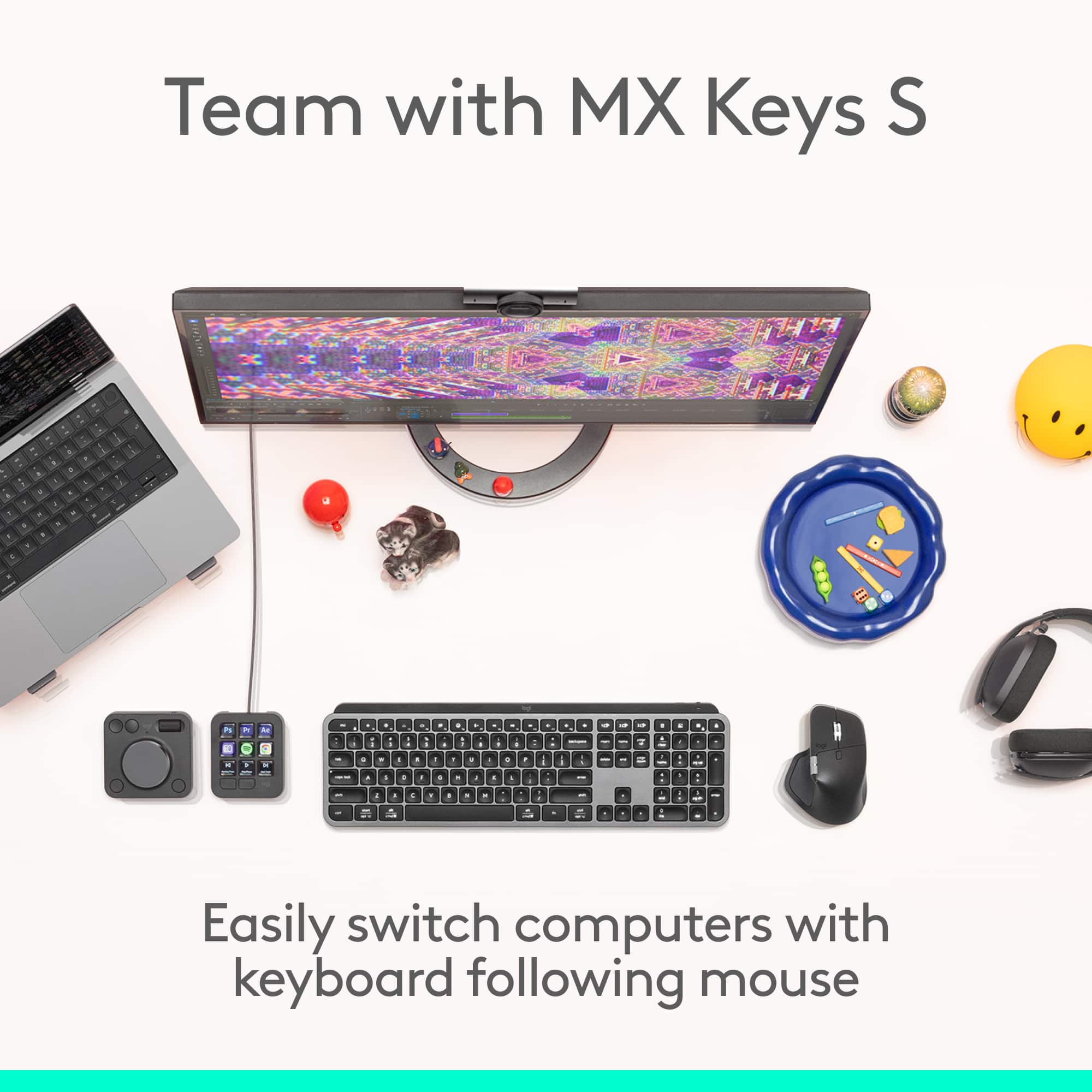
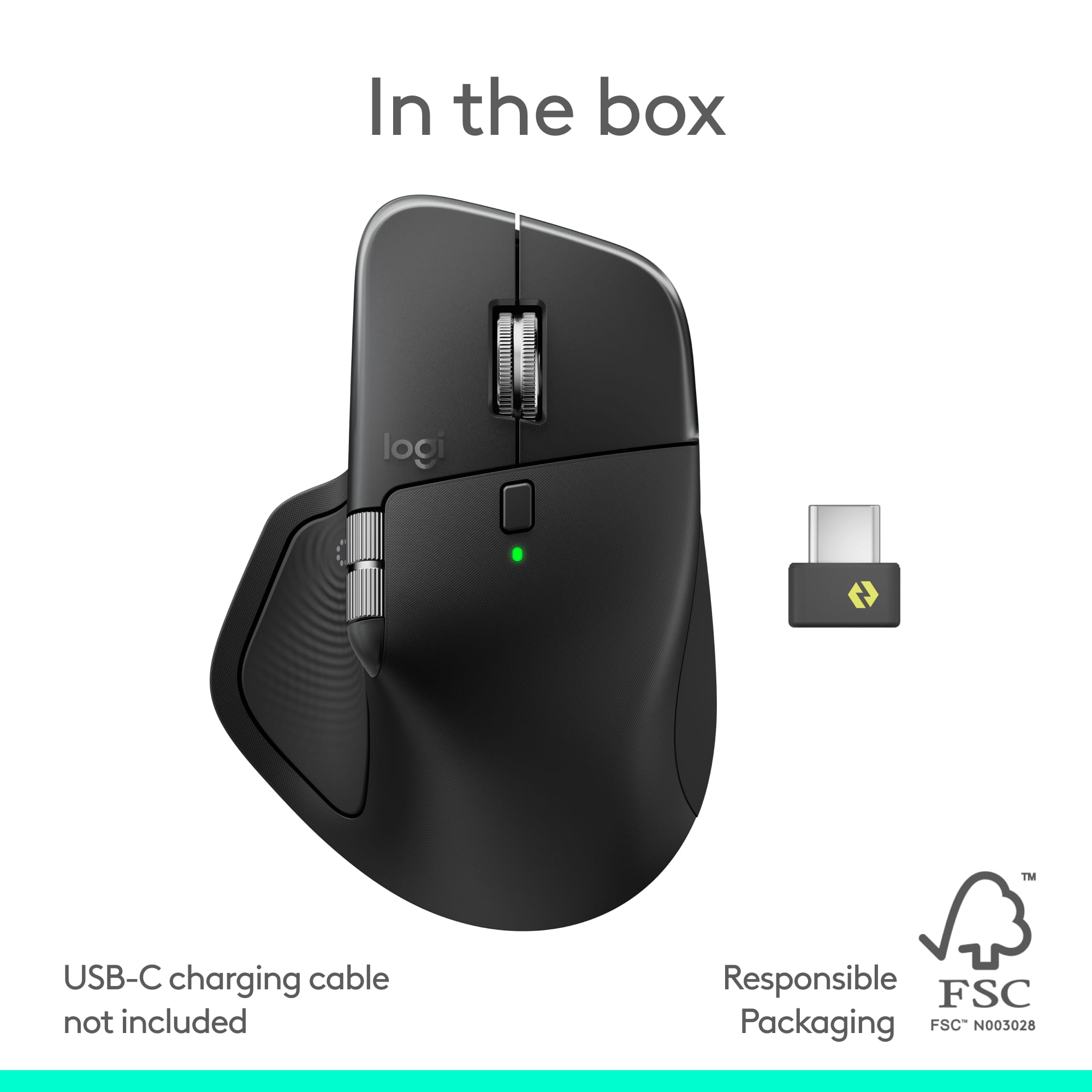
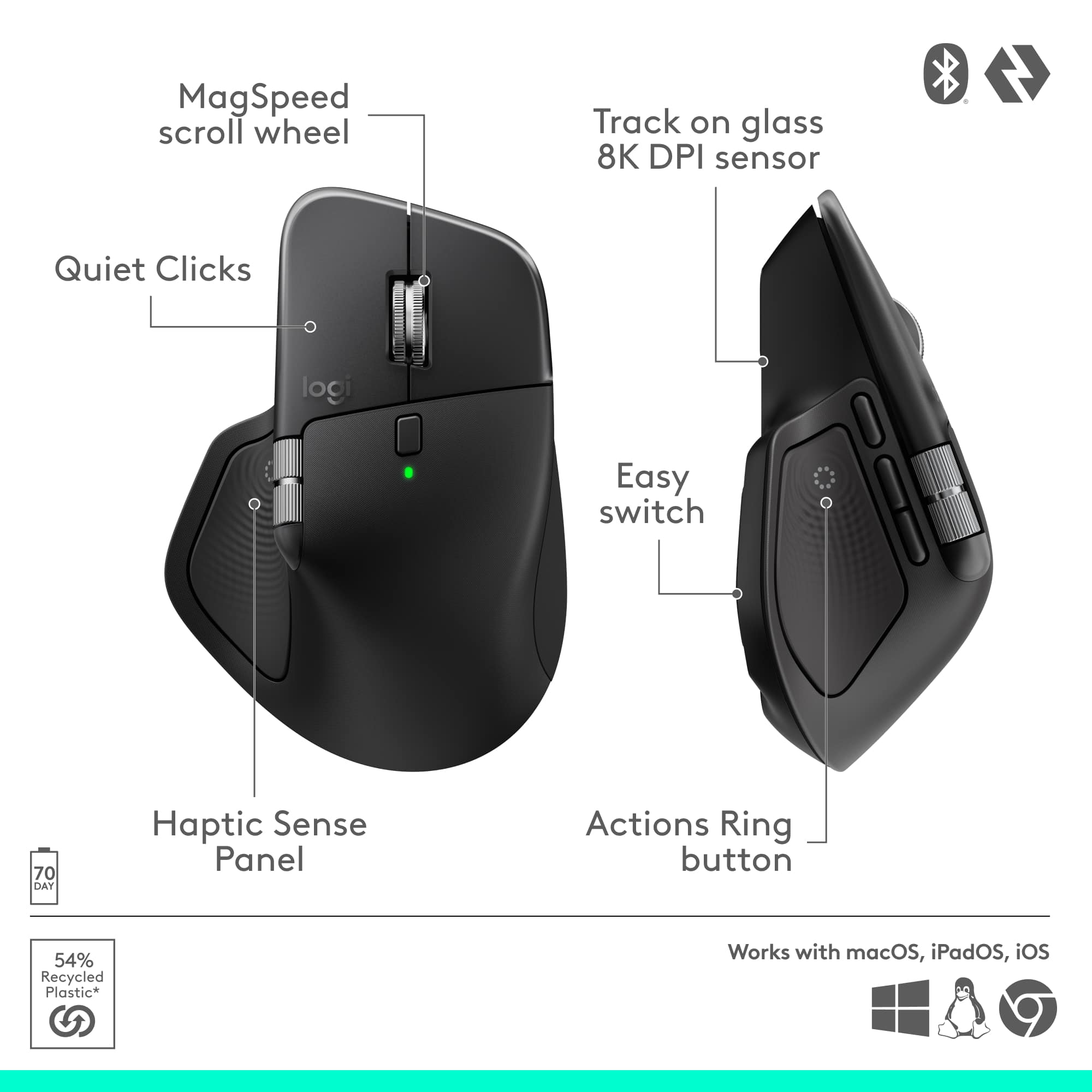
|Posted .This reviewer received promo considerations or sweepstakes entry for writing a review.Logitech brand does not need any introduction and this latest MX Master 4 is a perfect example of it. It is Logitech’s latest flagship productivity mouse, designed for power users, creators, and professionals who spend long hours at a computer. I’ve been using MS Masters for years; which includes 2, 3 and 3s (current one), and when Logitech announced the MX Master 4, I was genuinely curious: was it worth the hype (and the price)? After spending a bunch of time with it, here’s my honest take — what I loved, what annoyed me, and who I think should actually buy it. Out of the box the MX Master 4 looks and feels like a premium device. It settles into your hand the way a good leather glove fits — not tight, but just right. The thumb rest and the overall shape are very comfortable; after an afternoon of editing photos and switching between three machines I didn’t have that usual wrist ache. If you’re the kind of person who spends hours in front of a screen, that alone is worth a lot. The scroll wheel and the buttons feel solid. The clicks are quiet (Logitech claims quieter than prior models) — they’re not dead-silent, but they’re much less audible than most office mice. If you work in a quiet office or on calls a lot, your coworkers will thank you. This is a mouse designed for long sessions. I noticed less tension in my forearm after several hours of coding + Slack + a dozen browser tabs. The shape encourages a neutral wrist position, and the button layout feels natural. Logitech’s MagSpeed wheel is great. It smoothly flips between lightning-fast scrolling (handy for long documents or long web pages) and a more precise ratcheting mode for when I’m zooming in on a photo or scrubbing a timeline. The transition feels refined — not jumpy, not gummy. The MX Master 4 adds haptic feedback for certain actions. At first I thought, “Do I need this?” — and then I left it on a mild setting and realized it gives tiny confirmations for things like snapping or shifting modes. It’s subtle, and you can turn it off if it annoys you. Personally I left it on because those small taps started to feel helpful when doing repetitive tasks. The Darkfield sensor is reliable on most surfaces — I even tested it briefly on a thick glass table and it tracked fine. I don’t like using big mousepads, so that flexibility is welcome. DPI tuning is granular, which is nice if you juggle a laptop screen and a massive 4K monitor. I use a laptop + desktop + iPad setup. Switching between devices is simple (there’s the Easy-Switch and the extra ways in the software). The Flow feature that lets you copy-paste between machines is legitimately useful if you often move text or images between systems. It’s one of those features that, once you try it, you miss when you don’t have it. Logitech claims long battery life and, in my use, I easily got weeks without charging on all previous mice that I used. I haven't used this one long enough to testify it but I'm assuming the same or better performance from it. The one-minute quick charge giving hours of use is exactly the kind of practicality I appreciate. This is not a cheap mouse. If your needs are light — just email, browsing, and the occasional spreadsheet — the MX Master 4 is overkill. It’s an investment for people who will actually use the advanced features. To get the most out of it you need Logitech’s Logi Options+ software (Windows/macOS). That software unlocks the Actions Ring, haptics settings, app-specific button mappings, and Flow setup. If you run Linux or use systems where the software isn’t available or is patchy, you’ll still have a great hardware mouse — but you’ll miss a lot of the “magic.” What's surprising was the USB-C charging cable is not included in the box. This is a small gripe, but worth noting. Most of us have one lying around, but I would have preferred a cable included for completeness. The MX Master 4 is one of those devices that makes you realize what you were missing once you use it. It’s polished, thoughtful, and geared toward productivity. I’d give it a solid 4.5 out of 5 — I dock half a point because it’s pricey, a bit heavy for travel, and some features rely heavily on the companion software. But if you’ll use its features, it’s easily one of the best productivity mice you can buy.
I would recommend this to a friendBrand response from Logitech
Posted .Hey! Your review helps us stay aligned with our users needs. We’re grateful for your support and insight. Thank you for choosing Logitech.
Logitec MX Master $
||Posted . Owned for 3 months when reviewed.This reviewer received promo considerations or sweepstakes entry for writing a review.Amazing mouse, The configuration is very simple and can be adjusted to suit individual needs...
I would recommend this to a friendBrand response from Logitech
Posted .We appreciate you sharing your positive feedback on the Logitech - MX Master 4. We're glad it meets your requirements and thank you for your continued support.
Only mouse I'll use
||Posted . Owned for 2 weeks when reviewed.This reviewer received promo considerations or sweepstakes entry for writing a review.I've been using Logitech MX Masters for many years. Love the new gen, comfortable and high quality.
I would recommend this to a friendBrand response from Logitech
Posted .Thanks for the positive feedback! We’re happy to hear the product is performing well. Thanks for choosing Logitech!
Good shape
||Posted . Owned for 3 weeks when reviewed.This reviewer received promo considerations or sweepstakes entry for writing a review.It's insanely comfortable. And it's also extremely quiet when you click.
I would recommend this to a friendBrand response from Logitech
Posted .Thank you for your kind words! We’re delighted the product is performing well for you. Your feedback inspires us to keep pushing forward.
Great item
||Posted . Owned for 1 month when reviewed.This reviewer received promo considerations or sweepstakes entry for writing a review.Awsome article and convenient price, great quality
I would recommend this to a friendBrand response from Logitech
Posted .Thanks for your thoughtful words! We’re proud to know our product is working well for you. Your support means everything.
Logitech Mouse Review
||Posted . Owned for 3 weeks when reviewed.This reviewer received promo considerations or sweepstakes entry for writing a review.Functions as intended, a little pricey for what you're getting but doesn't matter when its on the company card.
I would recommend this to a friendBrand response from Logitech
Posted .We’re grateful for your feedback and happy to hear the product is working smoothly. Your experience helps us build better tools for everyone.
Amazing!
||Posted . Owned for 3 weeks when reviewed.This reviewer received promo considerations or sweepstakes entry for writing a review.The best mouse, possibly ever...Unfortunately it was just too big for my hands. I wish they'd make it smaller.
I would recommend this to a friendBrand response from Logitech
Posted .Thank you for the high praise! While we’re thrilled you loved the MX Master 4 features, we appreciate the honest feedback regarding the size. We’ll certainly share your request for a more compact version with our design team!
work mouse.
||Posted . Owned for 1 month when reviewed.This reviewer received promo considerations or sweepstakes entry for writing a review.exactly what we needed. Wish you would stop asking for more characters, I leave a review and that should be enough
I would recommend this to a friendBrand response from Logitech
Posted .Thank you for your feedback! We’re glad to hear the Logitech MX Master 4 – Adobe Edition met your needs as a reliable work mouse. Your review is truly appreciated and helps us continue delivering the right solutions.
Very nice mouse.
||Posted . Owned for 1 month when reviewed.This reviewer received promo considerations or sweepstakes entry for writing a review.This mouse is is very responsive. Comfortable natural feel.
I would recommend this to a friendBrand response from Logitech
Posted .Thanks for your thoughtful words! We’re proud to know our product is working well for you. Your support means everything.
Logitech changed the shape slightly...
||Posted . Owned for 1 month when reviewed.This reviewer received promo considerations or sweepstakes entry for writing a review.I was not sure how to rate this mouse, so I just used 3 stars. I am sure all of its new features are great and probably would have warranted a 5 star rating, but (to me) the feel of the mouse was unusable. I own the MX Master 3 and my hand cups over it perfectly, so it is really comfortable to use. On the MX Master 4 however, the "high point" of the mouse is now higher and somewhat pointier than the MX Master 3 mouse, so much so that is actually hurts me to use it because, I am assuming, my hand can no longer cup over the mouse fully anymore so all the pressure when using it is concentrated in that now higher "high point". I really wanted this mouse to work because I wanted its additional features, but unfortunately, I had to return the mouse. If you are coming from the MX Master 3 mouse like I did, be sure to try actually using the demo mouse before purchasing it.
I would recommend this to a friendBrand response from Logitech
Posted .We’re sorry to hear that the Logitech - MX Master 4 Wireless Mouse didn’t fully meet your expectations. This isn’t the experience we want for you. We’ll share this with our team for improvement.
- Pros mentioned:Battery life, Button functionality, ErgonomicsCons mentioned:Size, Weight
Amazing, but takes a little time to get used to.
|Posted .This reviewer received promo considerations or sweepstakes entry for writing a review.I have always had my eyes on these mice, wondering if they really are as good as people say they are. I finally pulled the trigger and got myself one. Out of the box you can tell this is definitely not your standard mouse. I will take this opportunity to say that if you have used a regular mouse for most of your life, this one will take some getting used to. When I first started using it, I didn’t like it at all, but I stuck with it for a few days and now there is no way I would ever go back to a regular mouse again. This is definitely bigger than your usual mouse, and definitely a lot heavier. This one comes in at 150 grams when I weighed it. So, this probably wouldn’t be great for gaming. I have this on my mail computer where I do a lot of photo and video editing, and it has some special features just for that, I will get into those later. Setup is very easy, there is an included dongle that you can use if you like, and it can also connect via Bluetooth. I tried both, and I felt the Bluetooth connection worked best for me. There is a small button on the bottom of the mouse which allows you to switch between 3 different devices. So, if you wanted to use this for a desktop and laptop you could easily switch between the 2. There is included software which allows you to customize this mouse and its buttons in many different ways. You can literally change the functions of each button to customize it to do exactly what you want. As I mentioned before, this also has a few special profiles that you can use when using some photo or video editing apps. I use Adobe Photoshop as well as Davinci resolve. When I open those programs and press the large button under where my thumb rests, a wheel of common functions shows up on the screen and I can easily select one of them just by clicking on them. They are also completely customizable so you can program them to the most common functions that you use in your workflow. The Adobe version of this mouse also comes with a free 2 month subscription to the creative cloud as well! As I said before, this mouse takes a little getting used to. But after using it for a while you can tell a lot of time and energy was spent making the ergonomics of this mouse perfect. Every button is right where it should be and you really do not have to stretch or struggle to reach any of the buttons or scroll wheels. It is by far the best mouse I have ever used and it so easy to customize everything to fit your exact needs. If you are a photo or video editor, this is a must have! The battery life is also amazing too. I have been using this all day for a week now and the battery level is still showing 70%. If you have been interested in these, or just want to try something different, I would definitely give it a try. I think this will become your new favorite mouse!
I would recommend this to a friendBrand response from Logitech
Posted .Hey! It’s great to know our product is working as intended. Your review helps us improve and evolve. Thank you for your continued support.
Logitech Upgrade to MX Master 4
||Posted . Owned for 3 weeks when reviewed.This reviewer received promo considerations or sweepstakes entry for writing a review.This is my second Logitech MX Master. I had the MX Master 3 before but the 4 is so much better with the Adobe Edition.
I would recommend this to a friendBrand response from Logitech
Posted .We're so happy to hear that! Thank you for choosing Logitech.
- Pros mentioned:Battery life, Button functionality, Ergonomics
A premium professional feeling precise mouse
|Posted .This reviewer received promo considerations or sweepstakes entry for writing a review.The Logitech MX Master 4 immediately impressed me with its ergonomic design and comfort. It has a sculpted shape that fits naturally in hand, making long sessions at the desk feel effortless. The mouse is a decent size that fits into almost any sized hand as it cradles your thumb keeping it from dragging across your desk. It glides buttery smooth across the desk surface and on the mouse pad with no heavy weight feeling given the size. The first thing that stands out after comfort is the number of buttons and custom functions available. It’s clear this mouse was built for power users, creators, professionals, and multitaskers alike. It will definitely take some time to learn all of the buttons and availble mappings and gestures to truly unlock its full potential, but once you do, this mouse feels like an extension of your hand. Each button is strategically positioned within easy reach, minimizing strain and maximizing workflow efficiency whether you’re editing, streaming, or working on office tasks. One of my favorite touches is the shortcut wheel, which activates at the press of a button. It instantly brings up your most used apps and tools, truly keeping everything “at your fingertips” pun fully intended. This is an underrated feature that quickly becomes second nature once you’ve customized it to your routine. The haptic feedback feature is subtle, nothing overbearing, but adds a layer of precision that creative professionals will appreciate, especially for photo or video editing where delicate control is key. For my current use, it’s a nice touch rather than a must have, though I can see how it could be invaluable once I dig deeper into advanced editing tasks. If you’re looking for a gaming mouse though, this isn’t the one. While the buttons have excellent tactile response and the performance is buttery smooth, it’s tuned more for comfort and silence than competitive gaming. The clicks have a soft, premium membrane feel rather than the sharp, mechanical click of a gaming mouse. It’s refined, quiet, and elegant, a professional’s tool more than a gamer’s weapon. Battery life has been exceptional so far. Even with heavy daily use, it holds strong for days without needing a recharge, and the seamless Bluetooth connectivity between multiple devices is flawless. Switching between my desktop, laptop, and tablet is effortless with virtually no delay. Overall, as my first Logitech MX Master series mouse, the MX Master 4 has set the bar high. It’s incredibly versatile, comfortable, and thoughtfully engineered for productivity. Whether for office, school, content creation, or streaming, this mouse delivers a premium user experience that truly enhances workflow.
I would recommend this to a friendBrand response from Logitech
Posted .Hey! Your feedback helps us improve and innovate. We’re happy our product is meeting your needs. Thank you for being part of our community.
Logitech MX Master 4 Review
||Posted . Owned for 1 month when reviewed.This reviewer received promo considerations or sweepstakes entry for writing a review.Outstanding product and the best logitech mouse I've purchased. Smooth scrolling, responsive actions, and a high-quality product.
I would recommend this to a friendBrand response from Logitech
Posted .We appreciate you taking the time to share your experience. Knowing our product is working well for you makes all the difference. Thanks for being with Logitech.
Quality
||Posted .This reviewer received promo considerations or sweepstakes entry for writing a review.Silent clicks and extremely long battery life. Have yet to find use for the hotkey wheel more than just side buttons so I can’t say I have a preference.
I would recommend this to a friendBrand response from Logitech
Posted .Your feedback means a lot to us, and we’re so glad to hear you’re enjoying your Logitech device. We work hard to create products that make life easier and more enjoyable, and it’s great to know we hit the mark. Thanks again for your support!
Improvement
||Posted . Owned for 2 weeks when reviewed.This reviewer received promo considerations or sweepstakes entry for writing a review.Great product. Nice improvement over the MX Master 4. Not ground breaking improvements, but nice nevertheless.
I would recommend this to a friendBrand response from Logitech
Posted .We appreciate you taking a moment to share your experience. It’s great to know that our product is living up to your expectations and making your tasks easier. Your support means the world to us—thanks for being a Logitech customer.