Customer Ratings & Reviews
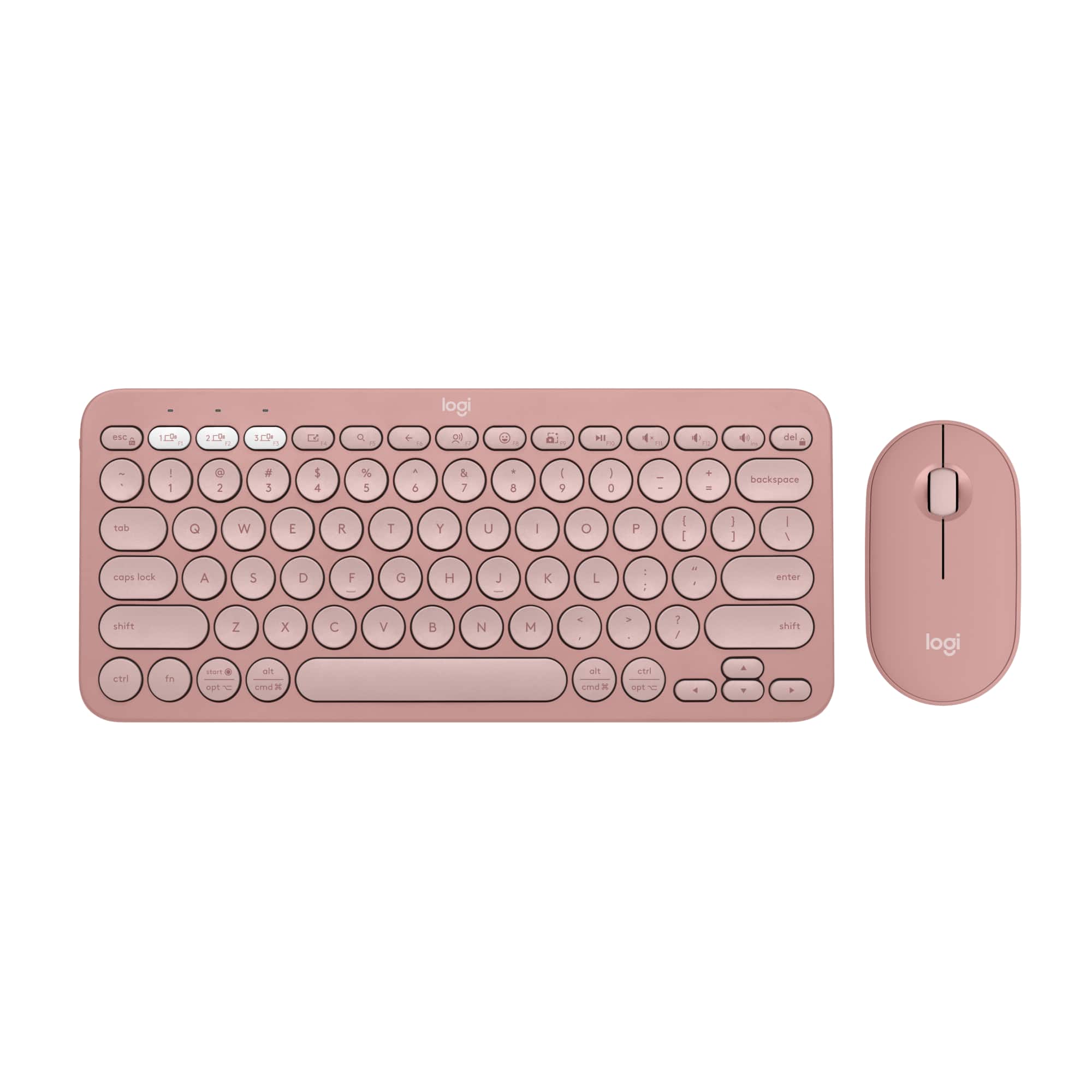


![A customizable pair with customizable keys & button with Logi options+ app [2].](https://pisces.bbystatic.com/image2/BestBuy_US/images/products/6f3b629c-ab31-4d08-9b94-191ff77139bb.png)
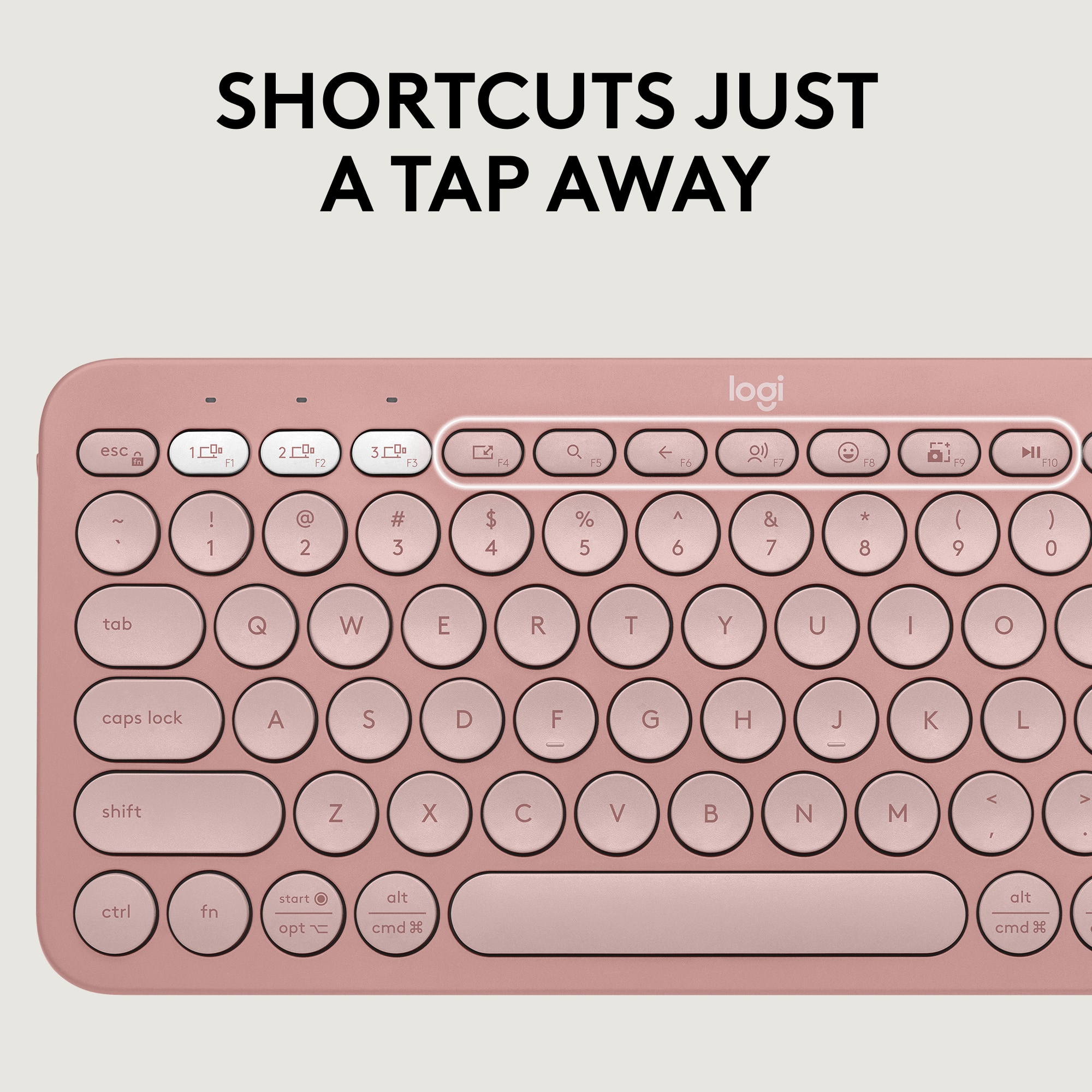
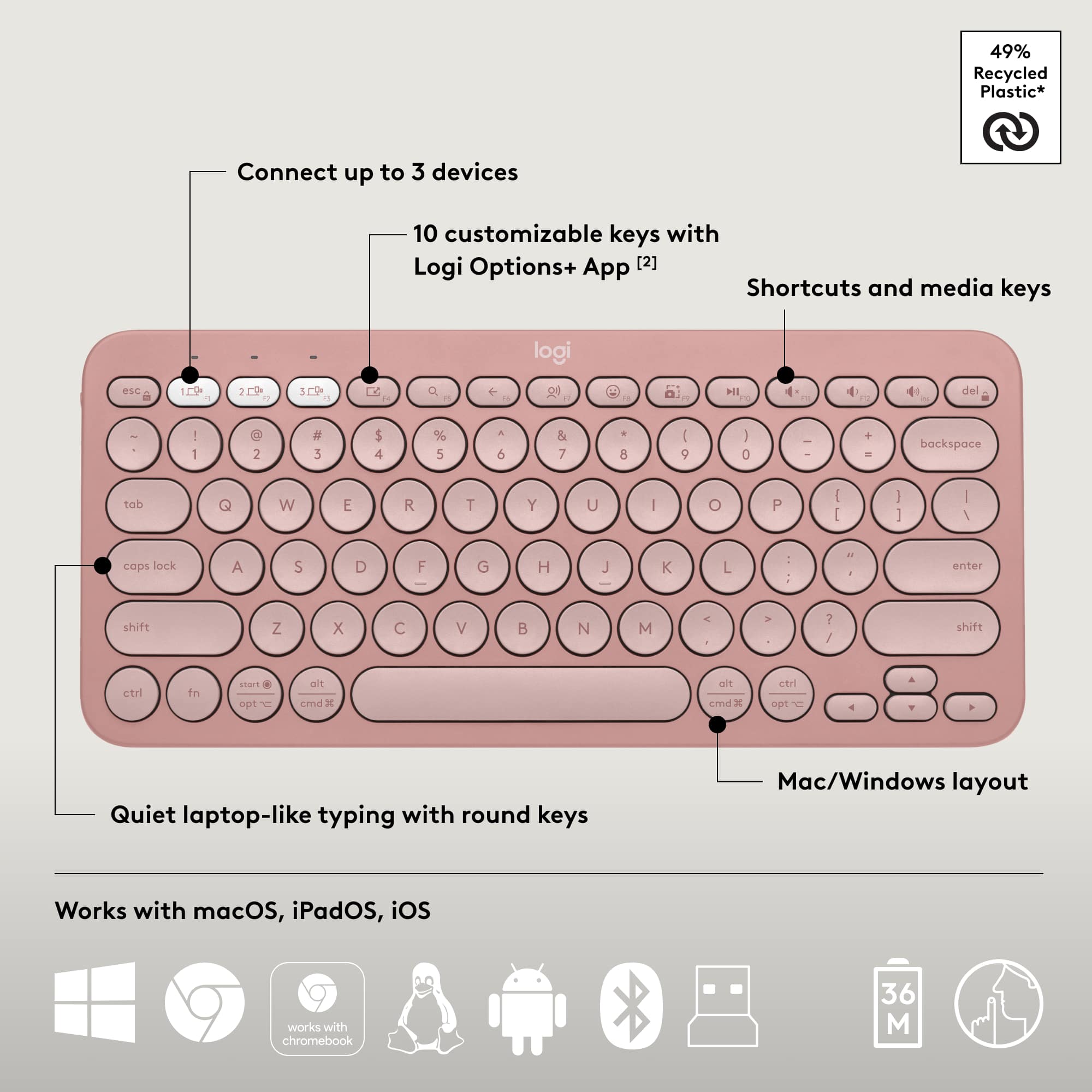
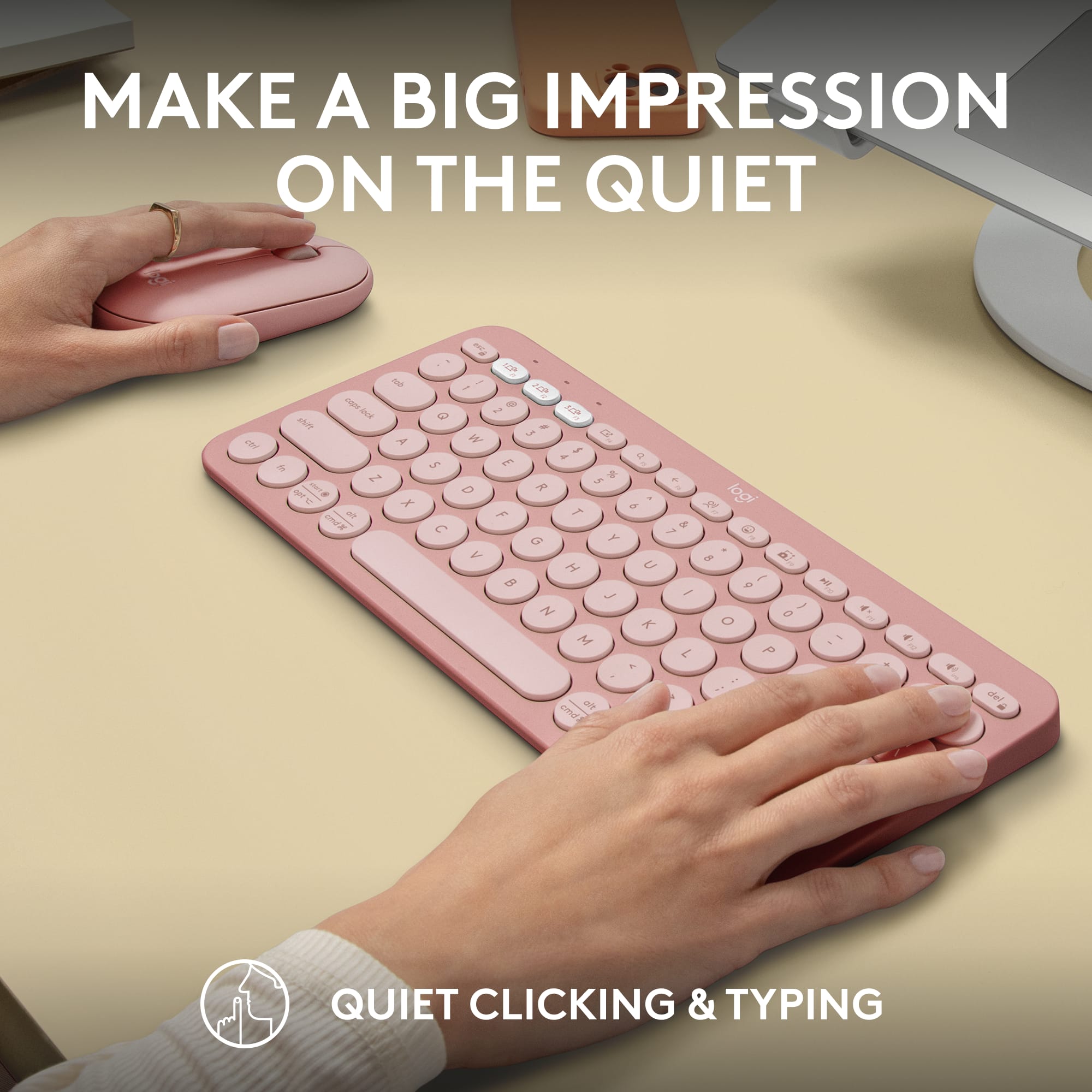
![Silent clicks [3] and quiet scrolling [58% Recycled Plastic] Customizable middle button with Logi Options+ App [2] Connect up to 3 devices Pebble Mouse 2 M350s logi Slim, ambidextrous design Works with macOS, iPadOS and Chromebook [24]](https://pisces.bbystatic.com/image2/BestBuy_US/images/products/a15bf8ad-3f0d-429e-a639-aba31ea52af1.jpg)



- Model:
- 920-012199
- SKU:
- 6571657
Rating by feature
- Value
Rating 4.6 out of 5 stars
- Quality
Rating 4.7 out of 5 stars
- Ease of Use
Rating 4.7 out of 5 stars
to a friend
Customers are saying
Customers value the MX Master 4 for Mac's portability and size, making it a great fit for laptop use. The mouse's overall performance, reliable connectivity, and long battery life are also appreciated. Users find the button functionality and haptic feedback to be excellent, and the mouse is comfortable and quiet.
This summary was generated by AI based on customer reviews.
Cheap
||Posted . Owned for 3 weeks when reviewed.This reviewer received promo considerations or sweepstakes entry for writing a review.The price is what you are here for. Functional, but not built for comfort or longevity. Low quality. Mouse has very short bluetooth range before dropping out.
No, I would not recommend this to a friendBrand response from Logitech
Posted .Thank you for sharing your experience regarding the comfort, longevity, and mouse connectivity range. Your feedback is important and helps us understand areas for improvement in future designs.

I don’t recommend it
||Posted . Owned for 1 month when reviewed.This reviewer received promo considerations or sweepstakes entry for writing a review.Unfortunately it didn’t work as I expected, the connection with my iPad was really bad and when it finally started working, it disconnected again, I tried to return it because I was told that I had a month to do it but when I get to the location the associate told me that it was actually just 15 days
No, I would not recommend this to a friendBrand response from Logitech
Posted .We’re sorry to hear that the Logitech - Pebble 2 Combo Compact Wireless Scissor Keyboard and Mouse Bundle didn’t fully meet your expectations. This isn’t the experience we want for you. We’ll pass this along to our product team, and our support team would be happy to assist you further at socialcare@logitech.com
Just perfect
||Posted . Owned for 3 weeks when reviewed.This reviewer received promo considerations or sweepstakes entry for writing a review.Loved by my niece, just what she was looking for especially the color.
I would recommend this to a friendBrand response from Logitech
Posted .The Logitech Pebble 2 is a great choice for those looking for a sleek and portable mouse. Its compact design and stylish colors make it a popular option, especially among younger users.
Serves the purpose .
||Posted . Owned for 2 weeks when reviewed.This reviewer received promo considerations or sweepstakes entry for writing a review.Its fast and vey responsive irs worth the money. And that was not bad either
I would recommend this to a friendBrand response from Logitech
Posted .Thank you for your positive feedback on the Pebble 2 Combo Compact Wireless Scissor Keyboard and Mouse Bundle! We're glad to hear that you appreciate its speed, responsiveness, and value.
Good
||Posted . Owned for 1 month when reviewed.This reviewer received promo considerations or sweepstakes entry for writing a review.Good, very sensitive but so small for someone who has bigger hand
I would recommend this to a friendBrand response from Logitech
Posted .Hey! Thanks for the feedback on the Logitech Pebble 2 Combo! We appreciate you mentioning that it's good and very sensitive. It's valuable to know that the size might be small for users with larger hands. Thanks for sharing your experience with us.
Don't leave home without the logi bolt
||Posted . Owned for 2 weeks when reviewed.This reviewer received promo considerations or sweepstakes entry for writing a review.Did not work wirelessly with my new Chromebook. I was on a trip and did not bring the plugin adapter.
No, I would not recommend this to a friendBrand response from Logitech
Posted .We note your experience with the Pebble 2 Combo's wireless connectivity on your Chromebook, especially while traveling. Our aim is to provide reliable performance across all compatible devices. Your input is valuable as we continuously refine our products.
Small Wireless keyboard
||Posted . Owned for 3 weeks when reviewed.This reviewer received promo considerations or sweepstakes entry for writing a review.Better instructions on how to sync to external computer
I would recommend this to a friendBrand response from Logitech
Posted .That's a great suggestion! We'll definitely consider providing more detailed instructions for syncing the Pebble 2 Combo to external computers in future versions. Thank you for your feedback!

Productivity Booster
|Posted .This reviewer received promo considerations or sweepstakes entry for writing a review.The MX Master 4 is the latest flagship mouse in Logitech’s lineup. The highlight new feature for this mouse is its ability to provide haptic feedback. While haptics don’t necessarily increase productivity, they do enhance feedback and give you confidence that the action you’re trying to do is successful, for example, snapping to smart guides in Photoshop. PROs • The center wheel allows precise scrolling when rotated slowly or at normal pace. But if you flick it quickly, it rotates freely for rapid scrolling. There is also a center button that by default activates rapid scroll, but there’s really no reason to use it when the flicking motion works just fine. Fortunately, that button can be configured for another function. For example, I have set the button to close browser tabs when in Chrome or Safari. • Charge port on the front means that it can continue being used while charging. If in a rush, one minute of charging is supposed to provide about 3 hours use. Fully charging, however, should last 70 days. • The haptic button can be pressed to bring up the Actions Ring by default. The Actions Ring is a menu wheel of selectable functions for general use or based on the app you’re in. You can even create a folder to nest additional functions. If you’re doing anything that requires a lot of mouse interaction like photo/video editing, the Actions Ring has the potential to boost productivity immensely. • Premium feel and mouse click sound. • The function of just about every button can be customized to truly let you get the most out the mouse. CONs • Note that the front port is only for charging, not for wired operation. That means it still needs to be connected via Bluetooth or via Logitech’s Bolt receiver, which inexplicably is not included in the Mac edition of the mouse despite being the same price as the non-Mac edition that does include the receiver. • The Logi Plugins Marketplace is confusing. There are plugins and there are profiles, and at a glance, it’s hard to tell what the difference is and what you should be using when. • Despite all the flexibility in configuring the buttons and wheels per application, there is no way to configure them per website. I spend most of my working day in Gmail. It would be nice if I could further configure the settings with shortcuts for deleting, archiving, replying etc. while in Gmail. But the settings only apply to the browser, not the website. OTHER • Logitech has really gone all-in on their Logi Options+ software. Firstly, it serves as a hub for configuring many Logitech devices including mice, cameras, and keyboards. Many of the buttons on these devices can be repurposed for different settings. But secondly, the Logi Options+ also allows customization by app, both by your own settings and by downloading app specific plug-ins in the Logi marketplace. • The long term usefulness of haptics is TBD. It requires software apps to incorporate it in meaningful ways. At launch, Photoshop, Lightroom and Zoom have incorporated haptics. The Logi marketplace will have additional plugins over time. I would not purchase this mouse based solely on the haptics feature, but it does give you an additional button to configure as you’d like. • The thumb wheel—unlike the scroll wheel—is always free rotating. You can adjust the sensitivity so, for example, horizontal scroll speed is faster or slower. But it’s also a natural wheel to use for switching browser tabs or Excel workbook sheets, and having some “clickability” like the scroll wheel would be useful. • One other functionality I wish the mouse had was the ability to use the scroll wheel to scroll application window menu items. This would be a killer feature and really improve productivity. I’m coming from using an Apple trackpad, so comparisons to the prior version of the mouse don’t mean much to me. I’ve been using a third party utility to customize my trackpad. Since that utility also customizes other peripherals and apps, I won’t be giving it up. But the MX4 and Logi Options+ will be my go to to configure anything mouse related. Overall I give this 4.5 stars, rounded down for not including a Bolt receiver in the Mac edition.
I would recommend this to a friendBrand response from Logitech
Posted .Thank you so much for your detailed feedback on Logitech - MX Master 4 for Mac! We’re thrilled to know it’s meeting your expectations. We truly appreciate you taking the time to share your experience! Your support means a lot to us.
Too small
||Posted .This reviewer received promo considerations or sweepstakes entry for writing a review.I knew the keyboard was small but it is a little too small. Very cramped typing experience.
No, I would not recommend this to a friendBrand response from Logitech
Posted .We appreciate your honest feedback on the Pebble 2 Combo keyboard. We understand that while you knew it was compact, it turned out to be a bit too small for a comfortable typing experience, leading to a cramped feeling. Your input is valuable as we continually strive to improve our designs.
Not Great- Returning
||Posted . Owned for less than 1 week when reviewed.This reviewer received promo considerations or sweepstakes entry for writing a review.I found this to be a very cute set but that is about it. It is so small that my wrist hurt while using it. The keyboard, although very small, is actually a little heavy for what I would expect it to be. The mouse is not very comfortable either and I didn't really like how it felt on my hands. Typing on the keyboard also didn't feel very natural to me and I am usually pretty adaptable when it comes to keyboards. Also, the price point is also a little high. I have found better combos out there for cheaper. I ended up buying the Logi Wave keys instead.
No, I would not recommend this to a friendBrand response from Logitech
Posted .We apologize that the Pebble 2 Combo didn't meet your expectations. We understand that comfort and typing experience are crucial. Your feedback about the size, weight, and price point is valuable to us. We appreciate you sharing your experience and are glad you found a better fit with the Logi Wave Keys.
Still the Productivity Mouse to Beat
|Posted .This reviewer received promo considerations or sweepstakes entry for writing a review.There isn't a terrible amount to be said about the new MX Master 4 that probably hasn't already been said. For a productivity mouse, Logitech has built hands down the best mouse for the job. The biggest change from the MX Master 3 for me was the haptic feedback. The positive feedback when clicking is satisfying and reminds me of Apple's trackpads. The mouse is incredibly well built, ergonomic, and a great alternative to the trackpad. The Options+ software allows you to pretty much customize everything about the mouse from what the button actions will be to the feedback amount. The mouse also has the option to be paired to up to three devices which is great for those with more than on Mac or maybe an iPad Pro in the mix. Battery life is still incredible and despite using the mouse for three weeks it is still rocking the initial charge. The mouse is precise and seems to work on all surfaces I have tried including a glass mousepad. I don't really recommend the mouse for any kind of competitive gaming, but it would work in a pinch. It feels fast and responsive, but compared to a true gaming mouse you can feel the difference. Overall, the mouse is my daily workhorse and has gotten me away from my Magic Trackpad. For a productivity mouse you simply cannot go wrong with the Logitech MX Master 4 for MaC. Easy recommendation.
I would recommend this to a friendBrand response from Logitech
Posted .Hey! We’re honored that you’ve taken the time to share your experience. Positive feedback like yours not only lifts our spirits but also reinforces our commitment to continuous innovation. Thank you for choosing Logitech and for trusting us to be part of your daily setup.
Logitech - MX Master 4 for Mac - Laser Ergonomic
|Posted .This reviewer received promo considerations or sweepstakes entry for writing a review.Logitech - MX Master 4 for Mac - Laser Ergonomic Mouse is awesome. Easy to setup and configure with the logitech software. Customizable beyond imagination. Each button can be setup to do custom actions. The action button on the left side of the mouse is crazy. It will open up your AI from MS, ChatGPT, etc. Launches instantly and without fail. You can also use the action button to play or pause music, etc. Scroll wheel is effortless. I was using an apple mouse prior and love it, but this is a step above to say the least. Easy to connect using bluetooth and within seconds for it to connect and be used as a standard mac mouse device. I installed the Logitech app software for the mouse specifically for Mac and within minutes I had it setup with custom actions, switching between desktops, launching AI agents and changing my world forever. Cannot say enough about this mouse. Effortless and amazing all in one swift motion. Scrolling through web pages and clicking into the advanced options of my apps so quickly on my 49” widescreen monitor. There is truly nothing like this device. Absolutely and thoroughly enjoying it.
I would recommend this to a friendBrand response from Logitech
Posted .Thank you for the amazing review! We're thrilled to hear how much you're enjoying the MX Master 4 for Mac and that it has exceeded your expectations. It's wonderful to know that the customization options, ease of use, and performance are making your workflow so much smoother. We appreciate you sharing your positive experience!
Not good.
||Posted . Owned for 2 weeks when reviewed.This reviewer received promo considerations or sweepstakes entry for writing a review.I'll never understand making a keyboard that doesn't tell you when caps lock is on. I can get a full sized keyboard for half the price with this basic function.
No, I would not recommend this to a friendBrand response from Logitech
Posted .Thank you for sharing your feedback regarding the Pebble 2 Combo. We’re sorry for any inconvenience caused and appreciate you highlighting the importance of a caps lock indicator. Your input will help guide future product enhancements.
Customer
||Posted . Owned for 1 month when reviewed.This reviewer received promo considerations or sweepstakes entry for writing a review.Uncomfortable, hard to use. Don't like it....going to return it.
No, I would not recommend this to a friendBrand response from Logitech
Posted .We’re really sorry to hear about your experience with the Logitech - MX Master 4 for Mac. That’s not what we aim for. Please contact us at socialcare@logitech.com with your details so we can assist you directly.
Great Features, Battery Life, and Multi-PC Support
|Posted .This reviewer received promo considerations or sweepstakes entry for writing a review.The Pebble 2 Combo is a great travel combo with a low profile, but solid, keyboard and a good mouse, each that can be paired with up to three devices that you can easily switch between. Design I expected a very light and almost flimsy keyboard, like another travel one that I have. This one is not that way at all. It has some weight to it and feels much more solid, have little to no flex. There's no flex when typing and it has a good feel. The keyboard feels a bit smaller to me but I can type on it. There are no feet that flip down on the bottom to angle it but there's a built-in slant that feels comfortable to me. There's a compartment in the bottom that holds the two AAA batteries. The mouse is a good size, not too small, and still feels very comfortable for me to use. The click is very good, firm and clear but quiet. Instead of having the USB receiver storage under the mouse, there's USB storage that's accessed by taking the top off the mouse. It lifts off easily but doesn't fall off. It's held on by magnets. It takes one AA battery that goes in the same area. The keyboard has a power on/off switch on the left side. The mouse has a power on/off switch on the bottom along with the three-way toggle "Easy-Switch" button on the bottom to switch between connected computers. The keyboard uses <F1>, <F2>, and <F3> for this, which works well. It's just like media button keys on function keys. You can press the <FN> button and <ESC> to change which is locked/default. The other function can be accessed by pressing the <FN> key while you push the function key for the function you want. There is a mini but ok inverted T arrow key layout. It's not perfect but I like it better than when the <left> and <right> arrow keys are the same height as the <up> and <down> arrow keys together. It's easy for my fingers to find all four keys without looking and ok to use even though they are half-height keys. I think the keyboard and mouse look cool with their soft, rounded, lines. Features Both the keyboard and mouse support being paired with up to three devices at a time. They come paired to the USB Bolt receiver that comes with them (one paired to both) but the connections can be established with a Bolt receiver or by Bluetooth. I had no problems pairing them either way, even establishing a useless second connection from the Keyboard to the USB Bolt receiver works just fine. You'll want to install the Logi Options+ software to fully utilize and configured the keyboard and the mouse, as well as get firmware updates for them. I've found the Logi Options+ software to be easy to use. For the keyboard, you can re-map a number of keys and assign specific functions to them. You can even have it automatically change the custom functions based on the application you open. So you can have tit set one way for everything and then have it reconfigure the keyboard when you switch to given application. The mouse lets you adjust the resolution by percent with the max being 100% or 4000 dpi (the minimum it supports is 400 dpi). Besides configuring and updating the keyboard and mouse, you can view battery levels and it gives easy access to the support site for each device. There is a setup wizard that it takes you through first to walk you through the available configuration options. Options + is also needed to enable Flow, which I'll talk about more later. One other feature that has a lot of potential is called "Smart Actions". There are pre-made templates or you can start from scratch, but all you choose a trigger, like clicking a button or opening an app, and then you define the action that you want to be completed. On the mouse for instance, the only trigger you can modify the action for is the middle mouse button. Then you can set it so it will do something like type a bunch of text for you, open an application, playback recorded keystrokes, or do a system action like play/pause, change brightness, cut, paste, etc. Flow Flow is a very cool feature you can use to use the keyboard and mouse on two or three computer's (Mac or PC) at one time! You just move the mouse between the computer displays and it moves not only the mouse input but the keyboard too - automatically! I tested this with two PCs and it works very well. It works with some other Logitech devices. It seems the mouse needs to officially support Flow. I tested it with a keyboard that didn't say anything about Flow in the info that came with it and was able to use it with Flow. The way it works is both keyboard and mouse need to be paired to the two or three machines on separate easy switch inputs, using either a USB receiver or Bluetooth. Once they are, you go into Logitech Options + and into the mouse settings to enable Flow. Then in the Flow settings you can pair the mouse with a keyboard. After that, the mouse and keyboard will Flow between the two or three computers automatically as you move the mouse. Bolt USB Receiver While I'm not a fan of having different adapters that are not compatible, I can understand some reasons for the Bolt receiver. If you've been using Logitech devices for many years you will know that they had USB receivers that just worked with the one device they came with. Then they came out with the Unifying USB receiver that would allow you to connect up to six devices to one Unifying USB receiver. That was great so you didn't need to use two USB ports for a keyboard and mouse anymore and you could even use the same adapter for more than one keyboard or mouse. The Bolt Receiver can also pair up to 6 devices to a single Bolt USB receiver but it also uses a more secure wireless connection and has lower latency and I think lower power usage. Because of the security it implements, some people may be able to use the Bolt receiver where they are otherwise required to use a wired keyboard or mouse due to their job. Anyway, I'm glad the Pebble 2 Combo comes with a Bolt Receiver! It works great! Battery life 2 years for the mouse and 3 years for the keyboard...that's fairly incredible I think. Of course I couldn't test this but I should be good for a while. The fact that you can just through in standard batteries when you do have one that's dead it's such a bad thing either in this world where I feel like I need to keep everything charged. The down-side is these devices cannot be used over a corded connection, only wireless, so you will need good batteries or you'll have to keep spares on hand - Again, with the battery life it shouldn't be much of a problem. You can also trade out the Alkaline batteries for Lithium. The lithium should last quite a bit longer and they weigh less! So if you want a lighter mouse you can do that and you'll probably notice the weight difference. I doubt you'll notice the weight difference with the keyboard because it weighs more in general. Overall For me, the Pebble 2 Combo is a great solution to provide good input devices that don't take up a lot of space. It's ideal for a PC connected to a TV for presentations or things like that. I like it in the living room. It's very easy to switch the mouse or keyboard to a different paired computer, just by selecting 1, 2, or 3 - or by moving the mouse if using Flow. It's even space saving on a table if you have a 2-in-1 PC or Chromebook, like I do, and put it in tent mode. This takes up less space on a table, front to back, than a laptop usually does and I prefer the mouse to a touchpad. It could be an excellent option for someone who travels and likes to take a keyboard and mouse along.
I would recommend this to a friendI like the brand. But..
||Posted . Owned for 3 weeks when reviewed.This reviewer received promo considerations or sweepstakes entry for writing a review.This product is difficult to install it works sometimes often not. The directions are bunch pictures instead of language. A waste of money. I should have taken it back instead, the time passed by days.
No, I would not recommend this to a friendBrand response from Logitech
Posted .We apologize that you had a difficult time setting up the Logitech Pebble 2 Combo. We understand the frustration of unclear instructions and inconsistent performance. Your feedback is valuable to us as we strive to improve our products and user experience. We will work to enhance future product documentation and ensure a smoother setup process.
You get what you pay for
||Posted . Owned for 3 weeks when reviewed.This reviewer received promo considerations or sweepstakes entry for writing a review.Keyboard work mouse doesn’t connect but it was not expensive so is fine
No, I would not recommend this to a friendExcellent Compact Wireless Combo
|Posted .This reviewer received promo considerations or sweepstakes entry for writing a review.I have enjoyed using the Logitech Pebble 2 Combo (Keyboard and Mouse) over the past week on a variety of devices. The keyboard is dark gray with primarily lighter gray keys with white lettering. It is compact sitting at 11 inches wide, 5.25 inches deep and about 3/8 inches at the tallest. It uses 2 AAA batteries that are included and are advertised to last three years. There is a sliding power toggle on/off located on the left side. It is a QWERTY style board with 12 function keys across the top and no ten key. The keys have a rounded design of either circles or ovals, and is practically silent to use unless your fingers really pound down on the keys. It can use Bluetooth or the included Logi Bolt USB receiver to connect to devices. I tried both ways of connection and they both worked flawlessly. The keyboard has 3 white buttons across the top that allows quick switching to other paired devices. The mouse is also compact and is shaped like an oval. It is about 4.5 inches long, 2 3/8 inches wide, and about an inch tall. It is the same dark gray as the keyboard except for a lighter 'logi' logo on top. It uses a single AA battery which is accessed by taking the top half of the mouse off. The Logi Bolt USB receiver is housed in there, too, and can be removed. The battery is advertised to last 2 years. The scroll wheel is smooth to the touch with a fairly light scroll bump indicator. The width of the scroll wheel is quite nice; it is wider than the scroll wheel of any other mouse I have but is located in such a way that it never gets in the way. Clicking the mouse is silent with slight resistance. It glides very nicely. There is a sliding power on/off toggle on the bottom and a push button which allows quick changing between three paired devices. I paired both the keyboard and mouse with my personal computer and my Steam Deck. For my computer, I used the Bolt receiver and for the Steam Deck I used Bluetooth. Once paired, I was able to assign my computer as Device 1 and the Steam Deck as Device 2 and use the white quick connect buttons to move between devices easily and flawlessly. There is optional software, Logi Options+, that allows some customization of the Function keys and firmware updates. There is no backlighting on the keyboard, and no RGB on either unit. I would say I have large hands and I was impressed with how easy it was to type. I held the Logi keyboard above my normal keyboard and the space from the left edge of the left-most keys to the right edge of the right-most keys is only half an inch shorter. The keys on the Logi keyboard are barely raised above the bezel so if you're used to key travel it can take some getting used to how little there is to push down to type. There are no legs but is slightly taller in the back and slants down at a slight angle which I appreciated. The mouse sits just slightly taller in the palm area but fit pretty well into my hands. There is not much click travel down for either left or right clicks. I was impressed that it worked with the Steam Deck. You could use the Logi Pebble 2 combo for any purpose but the compact size, portability, and quick connection really lend it to being used on the go or at least in alternative locations. As my Steam Deck docks to my living room TV, it is very convenient and inconspicuous to keep the combo on the coffee table in case they are needed. But it could easily be used for business and coffee shop meetings as it has that no frills look and understandably so. I typed with it quite easily and the mouse is perfect. I thought I would find some flaw in the design or limitation in usage, but the only thing I can say is that you can't use it in the dark. I would recommend the Logitech Pebble 2 combo wireless keyboard and mouse for all uses, all locations, and for any hand size.
I would recommend this to a friendDefective and non-ergonomic
||Posted . Owned for 7 months when reviewed.This reviewer received promo considerations or sweepstakes entry for writing a review.got this product last year in August from best buy after reading mostly positive reviews. Latest today April 06, 2025 the keyboard won’t even be recognized on my macbook air or even my windows laptop. I wouldn’t recommend the keyboard at all, however choose the mouse at your risk since its not at all ergonomic and will cause wrist pain after only a few hours of use
No, I would not recommend this to a friendBrand response from Logitech
Posted .Thank you for sharing your experience with the combo. We're sorry to hear that the keyboard is no longer being recognized on your devices after less than a year of use. We also appreciate your feedback regarding the ergonomics of the mouse and the potential for wrist discomfort. We apologize for the inconvenience this has caused. To address this issue, we recommend reaching out to our social care team via email at socialcare@logitech.com with your
- Name:
- Email Address:
- Country:
- Product Name:
- Brief description of issue:
Logitech and the MX Master line wins again
|Posted .This reviewer received promo considerations or sweepstakes entry for writing a review.I have been a fan of the Logitech brand for almost twenty years and whenever I am in the market for a new computer accessory, it is the brand I am sure to stick with and check out their latest products to add to my arsenal. That is no different with this Logitech MX Master ergonomic mouse for Mac products. My work recently switched my work laptop from a PC to a Mac so I found myself wanting a Mac specific mouse to help me get back to the efficiency I was used to. Logitech knocked it out of the park with this one when it comes to efficiency and advanced features, one of those being the ability to switch between up to three different Apple devices with the Actions ring button, which is of course in a very convenient spot right under the tip of the thumb. Even with my shorter fingers, I am still able to reach it and press it with no issues. It has been an excellent new tool with photo editing, helping me speed up my process just a little bit more which counts for everything. When Logitech claims this mouse is ergonomic, they truly mean it, as I said my hands are on the smaller side but I am still very comfortable using this mouse. The new and improved texture and materials on this mouse also feel high end and luxurious, even after using it for eight to ten hours at a time, my hand is still comfortable and no signs of sweaty irritated hands. I also absolutely love the metal scroll ring, not only does it feel like such a high quality, but the weight of it really helps you get some speed and get a quick scroll easily going. I never realized how much time I used to waste scrolling until I had such an efficient new way to do it. Overall, I cannot recommend Logitech products, and specifically their MX Master line of products, whether you spend all day every day on your computer, or just a casual Mac user, this product is sure to elevate the experience.
I would recommend this to a friendBrand response from Logitech
Posted .Hey! We’re grateful for your thoughtful review. It’s encouraging to know our product is making a positive impact. Thank you for being part of our journey.