Customer Ratings & Reviews
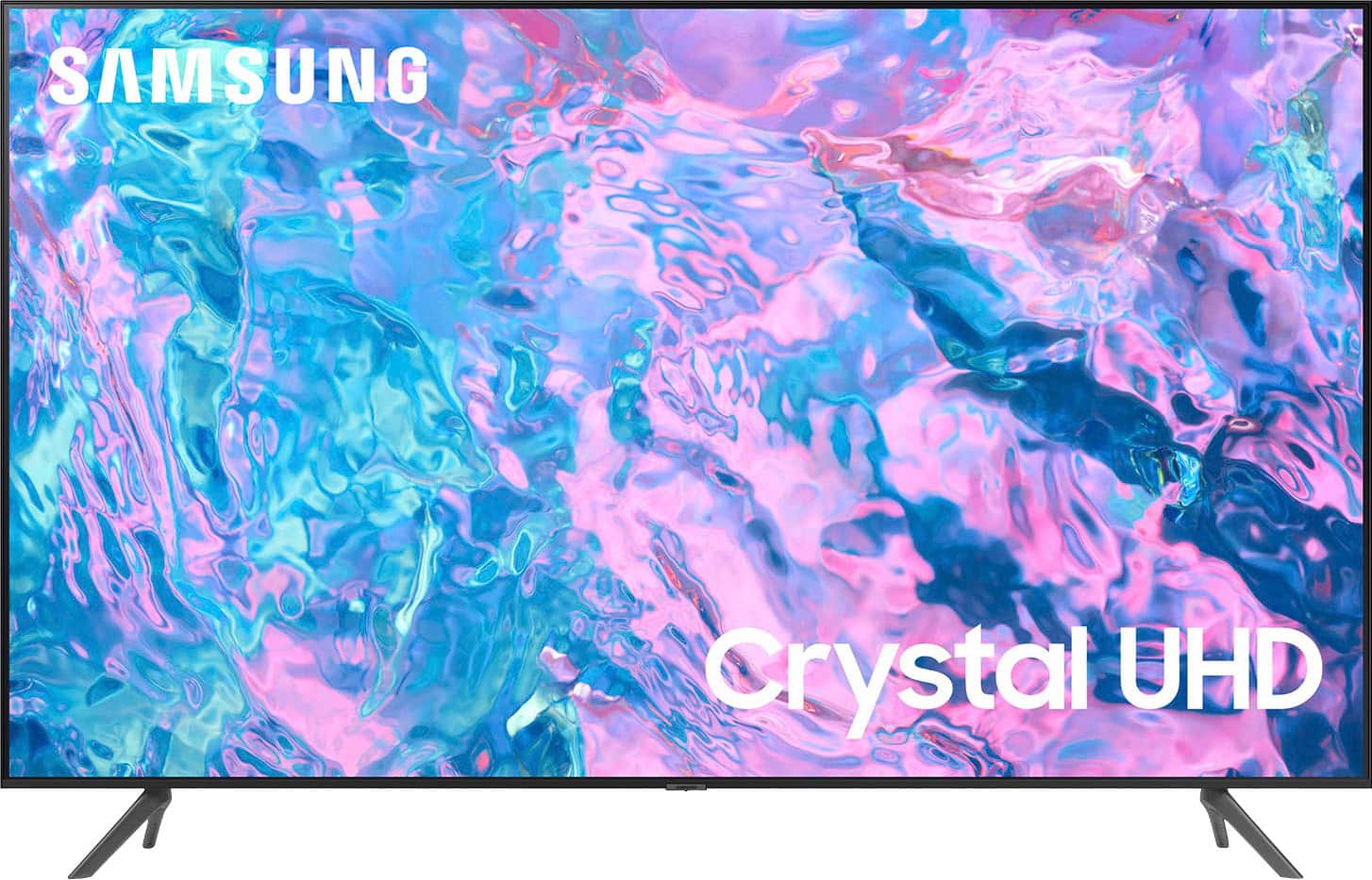
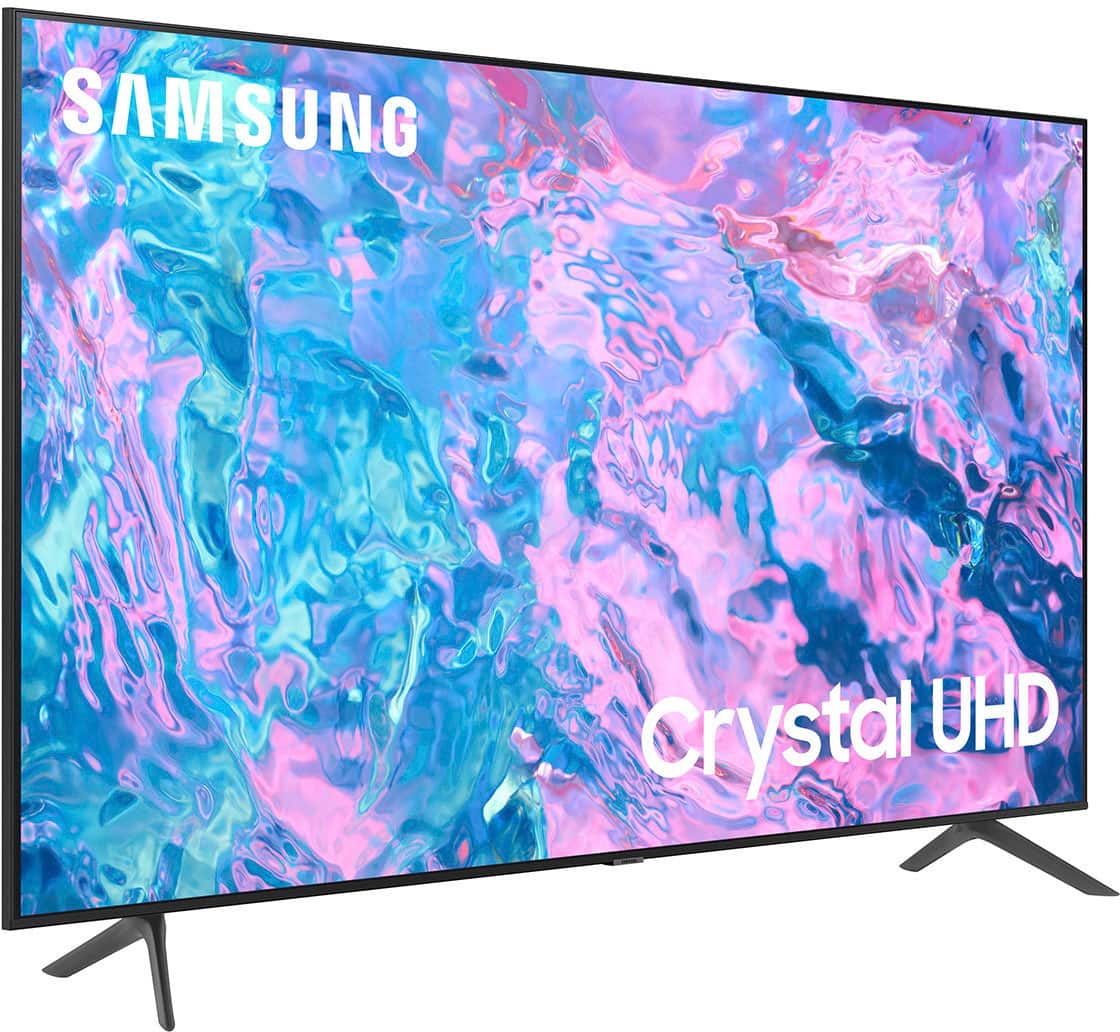
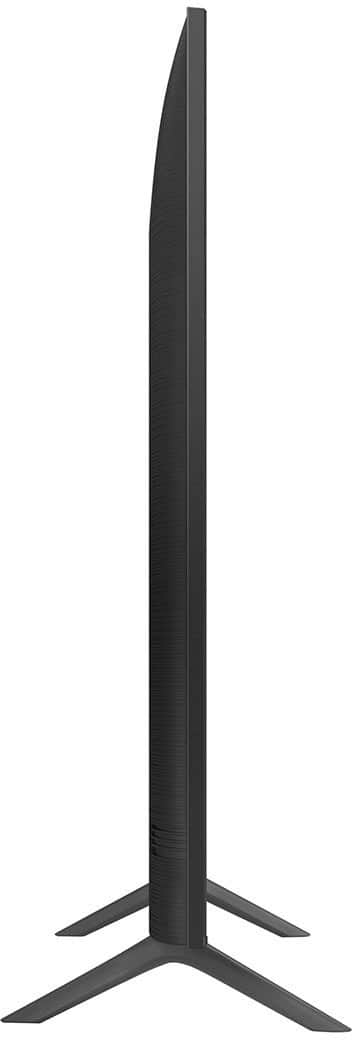
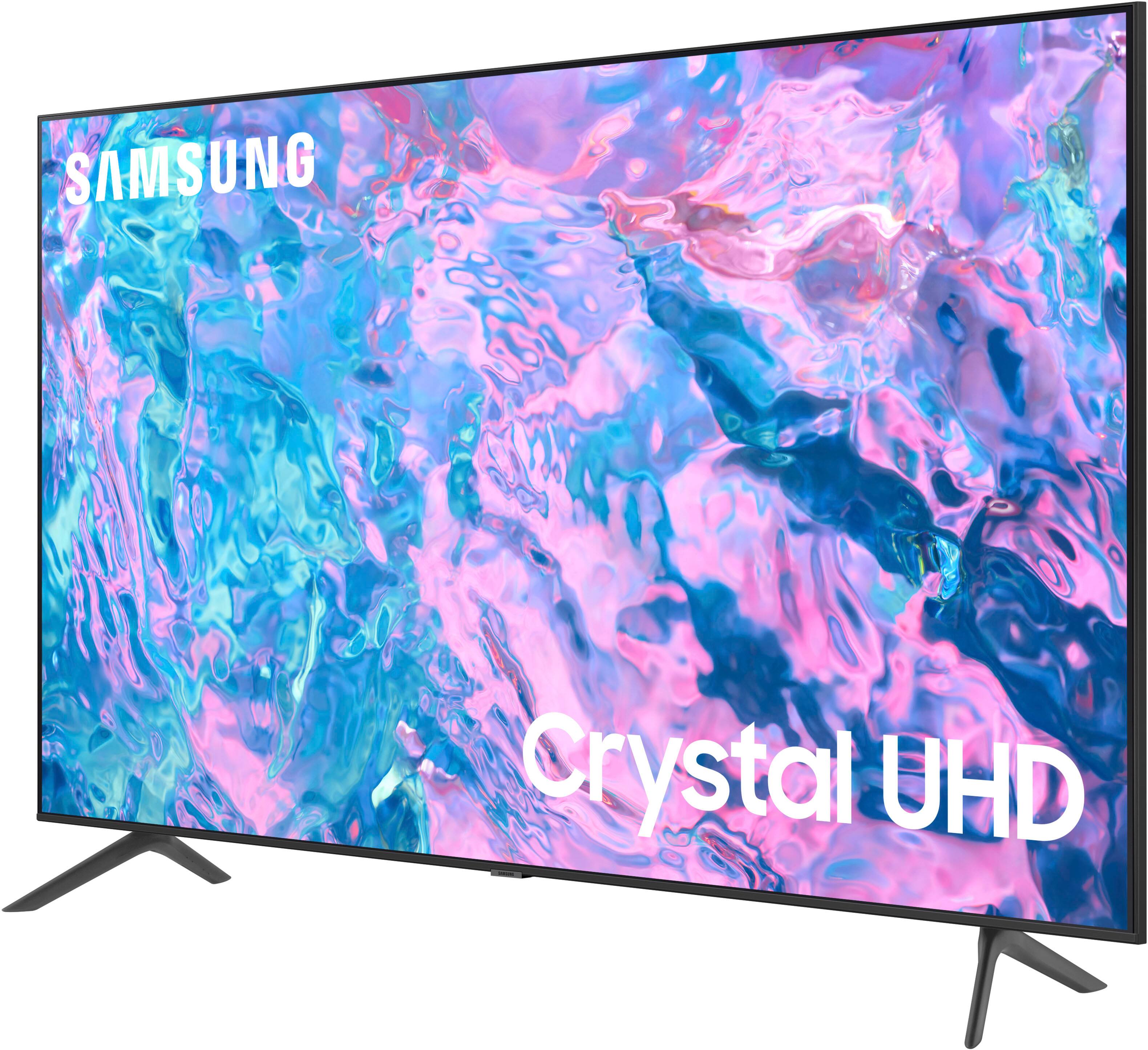


- Model:
- UN43CU7000FXZA
- SKU:
- 6537422
Rating by feature
- Picture Quality
Rating 4.8 out of 5 stars
- Sound Quality
Rating 4.5 out of 5 stars
- Brightness
Rating 4.8 out of 5 stars
Customers are saying
Customers find value in the 43” Class CU7000 Crystal UHD 4K Smart Tizen TV (2023)'s superb picture quality, ease of use, and attractive price point. Many appreciate the vibrant colors and straightforward setup process. However, some users express dissatisfaction with the remote control's design and the TV's volume capabilities. Overall, the positive feedback on picture quality and ease of use outweighs the negative comments regarding the remote and volume.
This summary was generated by AI based on customer reviews.
Good TV
||Posted . Owned for 11 months when reviewed.This reviewer received promo considerations or sweepstakes entry for writing a review.The volume button on the controller is annoying, its a rocker that flicks up or down, rather than two individual buttons.
I would recommend this to a friendSamsung tv
||Posted . Owned for 3 weeks when reviewed.This reviewer received promo considerations or sweepstakes entry for writing a review.Sound is difficult to regulate - must be very high to hear
I would recommend this to a friendAverage quality tv
||Posted . Owned for 3 weeks when reviewed.This reviewer received promo considerations or sweepstakes entry for writing a review.Bought for my son's room, my only complaint would be all the ads that seem to be part of the menu. I know samsung is trying to sell some apps and provide suggestions, but its a bit too much when it takes up most of th3 screen when gping through the menu.
I would recommend this to a friendBrand response from Samsung
Posted .Hi DiegoS,
Thank you for your feedback on the user interface of the CU7000 TV. Please know it will be shared with our internal teams.
If you ever have questions or need help, Samsung is here for you! Give us a call at 1-800-SAMSUNG, 8 AM - 12 AM EST, seven days a week. Our LiveChat agents are also available by clicking on the ‘Support’ link on our website.
Thanks for being a part of the Samsung family!
~ Samsung Advisor
New tv
||Posted . Owned for 3 weeks when reviewed.This reviewer received promo considerations or sweepstakes entry for writing a review.Nice tv easy tho not sure how to sink w Dish remote
I would recommend this to a friend- Cons mentioned:Volume
Not a good product
||Posted . Owned for 10 months when reviewed.This reviewer received promo considerations or sweepstakes entry for writing a review.I love Samsung products, but this TV is the worst product I've ever bought. Bought TV on December 29, 2023, and have had to unplug several times because volume goes completely out, also have to turn up to 50 or more for good volume, LG TV volume was 8. When watching movies the pictures skips. Samsung do better.
No, I would not recommend this to a friend Good product
||Posted . Owned for 3 weeks when reviewed.This reviewer received promo considerations or sweepstakes entry for writing a review.Well Samsung is good product. It works very well
I would recommend this to a friend- Pros mentioned:Picture quality
Great picture but…
||Posted . Owned for 1 week when reviewed.This reviewer received promo considerations or sweepstakes entry for writing a review.Software was not fun to use. Apps froze up a lot and channels would change randomly. When it did work the picture was great but needs a better UI
No, I would not recommend this to a friendBrand response from Samsung
Posted .Hi Will,
We appreciate your feedback on the Samsung CU7000 TV. I'm sorry to hear you are experiencing issues with the TV apps freezing, as well as the channels changing randomly. Please try the following troubleshooting steps to resolve these issues.
First, let's ensure you are running the latest Firmware. Go to Settings> Support> Software Update. To ensure you do not miss any Firmware Updates, I recommend enabling Auto Updates. Go to Settings> Support> Software Update> then select Auto Update.
Next, I recommend utilizing the self-diagnostic tool, which checks memory, frees unused cached memory, and closes background apps. Go to Settings > Support > Device Care > Start Device Care.
Finally, let's try running a cold boot on your TV. To do so, hold down the Power button on the Samsung TV remote until the TV turns off and then on again. This should take about 5 seconds.
I hope these tips help resolve your concerns. If you continue to have issues, please call us at 1-800-SAMSUNG, 8 AM - 12 AM EST, seven days a week. LiveChat with an agent, as well as manuals, software, and warranty info, can be found at the ‘Support’ link on our Samsung website.
~ Samsung Advisor
Great tv but it broke
||Posted . Owned for 1 month when reviewed.This reviewer received promo considerations or sweepstakes entry for writing a review.Great tv had it for a week then the cat knocked it over and cracked the screen warranty not covered repair cost double then what was paid for.
I would recommend this to a friend- Cons mentioned:Volume
Issue's when used with FIOS0
||Posted . Owned for 1 month when reviewed.This reviewer received promo considerations or sweepstakes entry for writing a review.Volume works inconsistently and picture doesn't work well with FIOS via HDMI. Seems to work via internet okay. Returning to Best Buy.
No, I would not recommend this to a friendBrand response from Samsung
Posted .Hi VincelW,
Thank you for sharing your experience with connecting Fios via HDMI to the CU7000 TV. Please know we are here to help and have a few suggestions:
First, please ensure your TV and Fios device are up to date with the latest Firmware. For your TV, please go to Settings> Support> Software Update.
Next are some tips for clarity:
1) HDMI cables are recommended for optimal HD viewing.
2) If you have an analog cable box or satellite box, upgrade to a digital cable box or satellite box.
3) Change the output resolution of your devices, such as digital broadcast receivers, IPTV, and set-top boxes, to UHD or HD.
4) You can further adjust your sharpness, brightness, contrast, color, and more by going to Settings > All Settings> Picture > Expert Settings
5) Choose a Picture Mode by going to Settings > All Settings> Picture > Picture Mode and choose from Dynamic, Standard, Natural, Movie, or Filmmaker Mode.
Please try adjusting the following Settings to improve your experience.
The Auto Volume function automatically adjusts the sound to a certain level when changing channels or switching to another external input. Go to Settings > All Settings> Sound > Expert Settings > Auto Volume = On.
You may also want to perform a Sound Test under Support > Self Diagnosis > Start Sound Test.
If you continue to have issues, please call us at 1-800-SAMSUNG, 8 AM - 12 AM EST, seven days a week. LiveChat with an agent, as well as manuals, software, and warranty info, can be found at the ‘Support’ link on our Samsung website.
~ Samsung Advisor
Very basic 4K UHD Samsung.
||Posted . Owned for 2 weeks when reviewed.This reviewer received promo considerations or sweepstakes entry for writing a review.Purchased this Samsung on a very good discount for a spare bedroom and still ended up returning. Unit offers very little features, sound is weak, felt I needed to get a soundbar if I had kept it. My main concern was the picture. I watch a ton of football & basketball and players movement just seemed off, like slight blurs and fuzzy colors. Don’t be fooled by the brand and it being 4K UHD, this is about as basic of a tv you’ll find. Could be fine for some, but I don’t recommend this for sports watching.
No, I would not recommend this to a friendBrand response from Samsung
Posted .Hi GeoffH,
I am very sorry that you experienced issues with your CU7000 Crystal UHD TV and are currently waiting for it to be serviced. I understand your frustration and appreciate your patience. Should you have any issues with your TV after service is complete, please contact Samsung Customer Support. You can call us at 1-800-SAMSUNG, 8 AM - 12 AM EST, seven days a week. Our LiveChat agents are also available by clicking on the ‘Support’ link on our website.
~ Samsung Advisor
Samsung Crystal UHD TV. 43”
||Posted . Owned for 3 weeks when reviewed.This reviewer received promo considerations or sweepstakes entry for writing a review.I don’t like the overall picture quality. Picture at times is hazy and cloudy. The color quality is not good at times. Settings confusing to adjust.
No, I would not recommend this to a friendBrand response from Samsung
Posted .Hi Sparky,
We appreciate your feedback on your CU7000 TV’s picture quality. Please know there are multiple settings available for you to adjust.
For optimal motion image performance, you may want to adjust the picture clarity setting by going to Settings > All Settings> Picture > Expert Settings > Picture Clarity Settings.
- Off: Picture Clarity Settings will always be off
- Auto: Picture Clarity Settings will automatically activate and deactivate based on the type of program being watched
- Custom: Allows custom adjustments and settings to be used. By selecting the Custom option, you can access these advanced settings for Judder Reduction, LED Clear Motion, and Noise Reduction.
To learn more about your TV with our step-by-step guides, go to https://www.samsung.com/us/support/answer/ANS00062199/.
If you’d like more help with settings, we are always happy to help! Call us at 1-800-SAMSUNG, 8 AM - 12 AM EST, seven days a week. Or visit us on the Samsung website and click on the ‘Support’ link for:
1) LiveChat
2) Manuals, Software, & Warranty Info
~ Samsung Advisor
Too soon
||Posted . Owned for 1 month when reviewed.This reviewer received promo considerations or sweepstakes entry for writing a review.While we used the television it worked great. But it just went black screen. It would project the Samsung image and faid to black.
No, I would not recommend this to a friendSo much for Samsung!
||Posted . Owned for 3 weeks when reviewed.This reviewer received promo considerations or sweepstakes entry for writing a review.Great set ounce it's set up. Took almost an hour with the Geek Squad. Software the problem . The last one made it only 5 years. So much for Samsung!
No, I would not recommend this to a friendBrand response from Samsung
Posted .Hi BruceF,
Thank you for sharing your experience setting up the Samsung 43" CU7000 TV. Please know Samsung is always here and happy to help with any questions you may have. You can always call us at 1-800-SAMSUNG, 8 AM - 12 AM EST, seven days a week. Our LiveChat agents are also available by clicking on the ‘Support’ link on our website.
~ Samsung Advisor
Not happy Sound issue
||Posted . Owned for 1 month when reviewed.This reviewer received promo considerations or sweepstakes entry for writing a review.the sound keeps going off. I have to reset the sound and also restart my ROKU. If it wasn't hung in which I paid to have done I would return it.
No, I would not recommend this to a friendBrand response from Samsung
Posted .Hi KathleenE,
We appreciate you sharing details of the sound issue you’re experiencing on your CU7000 TV. There are a few troubleshooting steps I recommend trying:
1) Please check the volume control of your TV, and then check the volume control of any external devices (cable box or satellite box, DVD, Blu-ray, etc.) connected to your TV. Also, check the cable connection between any external device and the TV and then try the cable connection again.
2) Set Sound Output to the TV Speaker by going to Settings > All Settings> Sound > Sound Output.
3) Check whether Digital Output Audio Format is set to Pass-Through by going to Settings > All Settings> Sound > Expert Settings > Digital Output Audio Format > Auto. If connected to an external sound device, please select Pass-Through.
You may also want to ensure your Firmware is up to date. Go to Settings> Support> Software Update.
I hope this helps. Should your issue persist, please contact Samsung Customer Support at 1-800-SAMSUNG, 8 AM - 12 AM EST, seven days a week. Or visit us on the Samsung website and click on the ‘Support’ link for:
1) LiveChat
2) Manuals, Software, & Warranty Info
~ Samsung Advisor
- Cons mentioned:Remote control
Not made for Streaming Apps
||Posted . Owned for 1 month when reviewed.This reviewer received promo considerations or sweepstakes entry for writing a review.From the moment this was set up, it didn’t work right. Streaming apps kept freezing, and remote wouldn’t respond half the time. Very slow operating system as well, the remote itself was so bad I tried a universal one instead. Returned within 2 weeks as updates didn’t resolve any issues.
No, I would not recommend this to a friendBrand response from Samsung
Posted .Hi Dawnstar,
Thank you for taking the time to provide feedback on your CU7000 TV. Please know that your feedback will be shared with our internal product teams. We take pride in our products and are sorry to hear that your experience was not up to our high standards.
We do hope you will give Samsung another chance when purchasing your next TV. If there’s anything we can ever help with, please call us at 1-800-SAMSUNG, 8 AM - 12 AM EST, seven days a week. Or visit us on the Samsung website and click on the ‘Support’ link for:
1) LiveChat
2) Manuals, Software, & Warranty Info
~ Samsung Advisor
get another delivery service
||Posted . Owned for 2 weeks when reviewed.This reviewer received promo considerations or sweepstakes entry for writing a review.go to ups and drop fedex because 5 different deliveries and each time one of the 5 TVs we ordered had screen damage due to delivery.
I would recommend this to a friendBrand response from Samsung
Posted .Hi BillM,
I'm very sorry to hear about your experience with receiving five broken CU7000 TVs. If there's anything we can do to help, please call us at 1-800-SAMSUNG, 8 AM - 12 AM EST, seven days a week. Or visit us on the Samsung website and click on the ‘Support’ link for:
1) LiveChat
2) Manuals, Software, & Warranty Info
~ Samsung Advisor
Dont buy BestBuy Dont buy Samsung
||Posted . Owned for 1 month when reviewed.This reviewer received promo considerations or sweepstakes entry for writing a review.**Please Read*** Worst Television purchase, the official date of not working is February 22, 2024. Date of purchase: Jan 23, 2024. It was not even a month of partial use, and it broke. I tried going to the easy fixes on YouTube but had no success. Bestbuy return policy is only 15 days, which is super short. I should have been more attentive, but I wouldn't believe my TV would stop working within 28 days of purchase. I'm just disappointed that this is the quality of the product that can be sold.
No, I would not recommend this to a friendBrand response from Samsung
Posted .Hi Juan,
I’m sorry to hear about the issues you’ve experienced with Samsung’s CU7000 TV. Your feedback is important to us and will be shared with our product teams.
Samsung is committed to providing the best possible product experience, quality, and value. We back this Samsung TV with a 1-year limited manufacturer's warranty, including authorized repair for manufacturer defect, if purchased brand-new directly from an authorized seller. You can see the full details of your warranty on Samsung's website. Go to Support (upper right corner) and select Warranty information. This will allow you to search for your product and view the full details of the included warranty.
Please give us the opportunity to assist you by contacting Samsung Customer Support at 1-800-SAMSUNG, 8 AM - 12 AM EST, seven days a week. Our LiveChat agents are also available by clicking on the ‘Support’ link on our website.
~ Samsung Advisor
Nice TV, not so good setup wizard
||Posted . Owned for 3 weeks when reviewed.This reviewer received promo considerations or sweepstakes entry for writing a review.The initial setup voice is really loud when it comes on and scared the crap out of me when it came on.
I would recommend this to a friendSamsung 7000 tv
||Posted . Owned for less than 1 week when reviewed.This reviewer received promo considerations or sweepstakes entry for writing a review.Picture is not clear rather washed out looking. Also to hear have to turn it up to 85%. Would not recommend unless you have a soundbar.
No, I would not recommend this to a friendBrand response from Samsung
Posted .Hi CharlesA,
Thank you for sharing your thoughts on the picture and quality of your CU7000 TV. I have a few recommendations that may improve your visual experience:
First, let's ensure you are running the latest Firmware Update. Go to Settings> Support> Software Update.
Next, there are several picture and sound settings that you can adjust to best fit what you are watching. Go to Home > Settings > All Settings > Picture > Picture Mode and select the mode that best fits your usage:
1) Standard: Default mode suitable for general viewing environments.
2) Natural: Reduces eye strain for a comfortable viewing experience.
3) Movie: Most suitable for watching TV or movies in a dark room.
4) Dynamic: Makes the picture brighter and clearer in bright viewing environments.
5) Filmmaker Mode: You can watch the source content (e.g., movie) as it is. If the image is defined as Filmmaker Mode, it will automatically switch to Filmmaker Mode while watching.
You can also go to Settings > All Settings> Picture > Expert Settings > to manually fine-tune your image.
For sound adjustments please review the following:
1) Auto Volume automatically adjusts the sound to a certain level when changing channels or switching to another external input. Go to Settings > All Settings> Sound > Expert Settings > Auto Volume.
2) Adaptive Sound automatically adjusts to a specific volume level while watching TV. The TV analyzes your volume usage history by time period to automatically adjust the volume when you use an app or switch to an external input source. Go to Settings> All Settings> Sound> Sound Mode> Adaptive Sound.
If you’d like more help with settings, please know we’re here to help! Call us at 1-800-SAMSUNG, 8 AM - 12 AM EST, seven days a week. Or visit us on the Samsung website and click on the ‘Support’ link for:
1) LiveChat
2) Manuals, Software, & Warranty Info
~ Samsung Advisor
Apps and settings
||Posted . Owned for 1 week when reviewed.This reviewer received promo considerations or sweepstakes entry for writing a review.Does not have the Max and Hulu apps available to download. The settings menu is kinda simple and confusing at the same time.
No, I would not recommend this to a friendBrand response from Samsung
Posted .Hi ManuelR,
Thank you for reaching out and letting us know that you are unable to access certain apps with your CU7000 TV. Both of those apps should be available on this unit. Please go to Settings> Support> Software Update and confirm your TV is up to date with the latest Firmware.
Next, go to Home> Apps> Search> Then search for the Max and Hulu app and then download both apps.
If you need more help, Samsung is here for you. Please call us at 1-800-SAMSUNG, 8 AM - 12 AM EST, seven days a week. Our LiveChat agents are also available by clicking on the ‘Support’ link on our website.
~ Samsung Advisor