Customer Ratings & Reviews
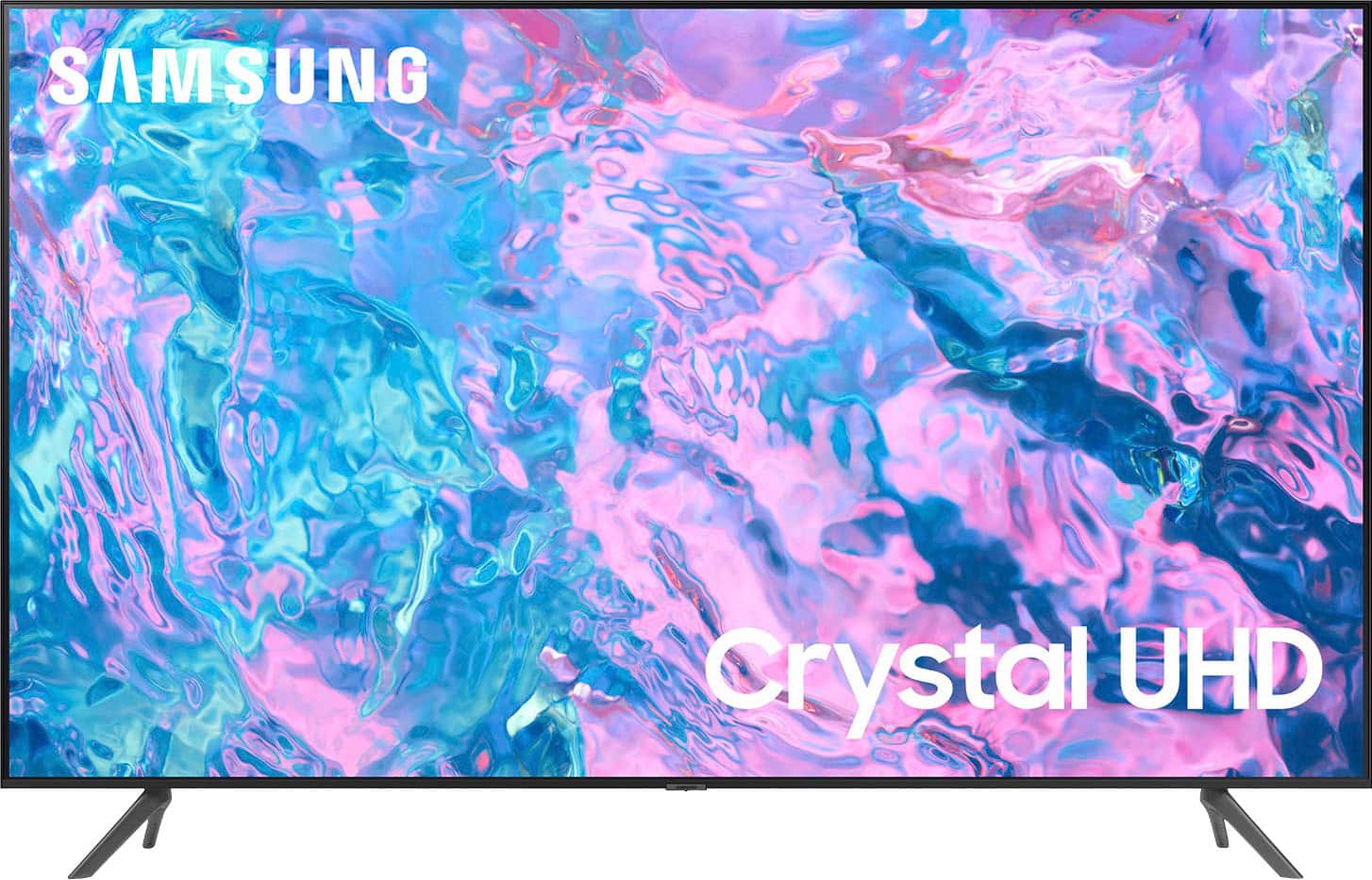
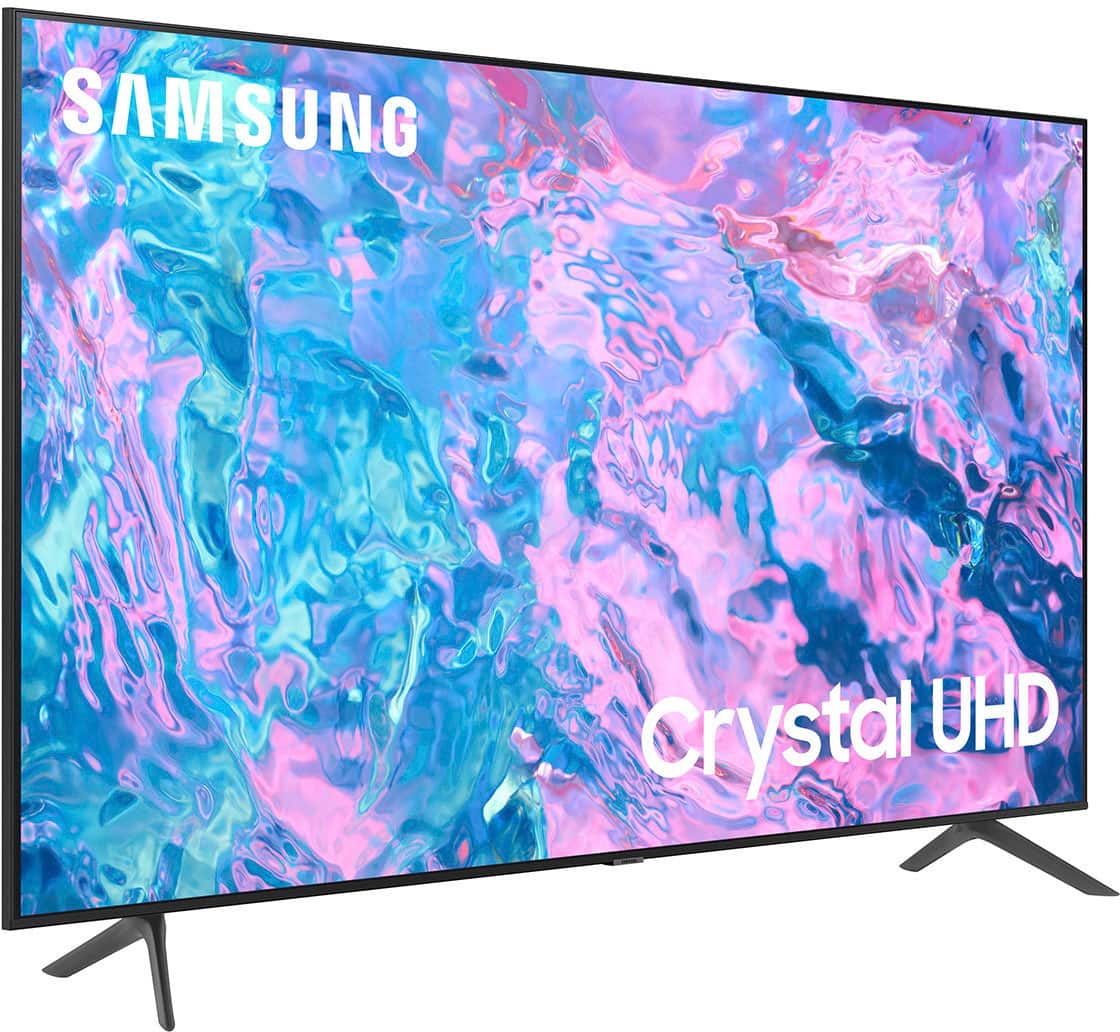
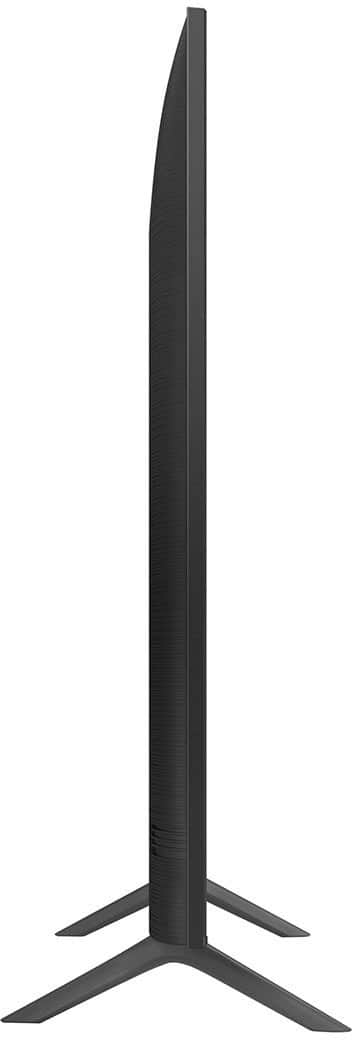
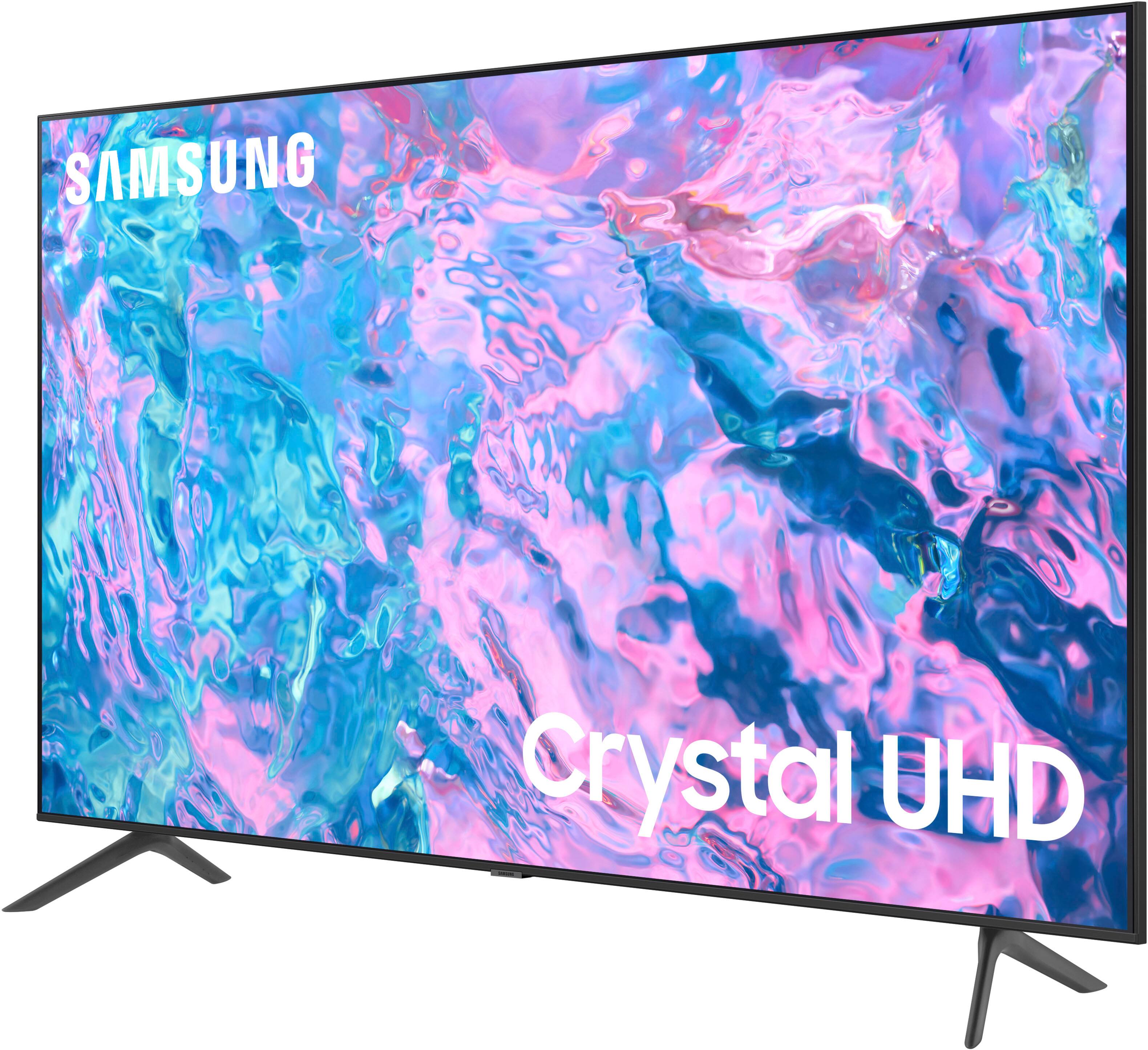


- Model:
- UN43CU7000FXZA
- SKU:
- 6537422
Rating by feature
- Picture Quality
Rating 4.8 out of 5 stars
- Sound Quality
Rating 4.5 out of 5 stars
- Brightness
Rating 4.8 out of 5 stars
Customers are saying
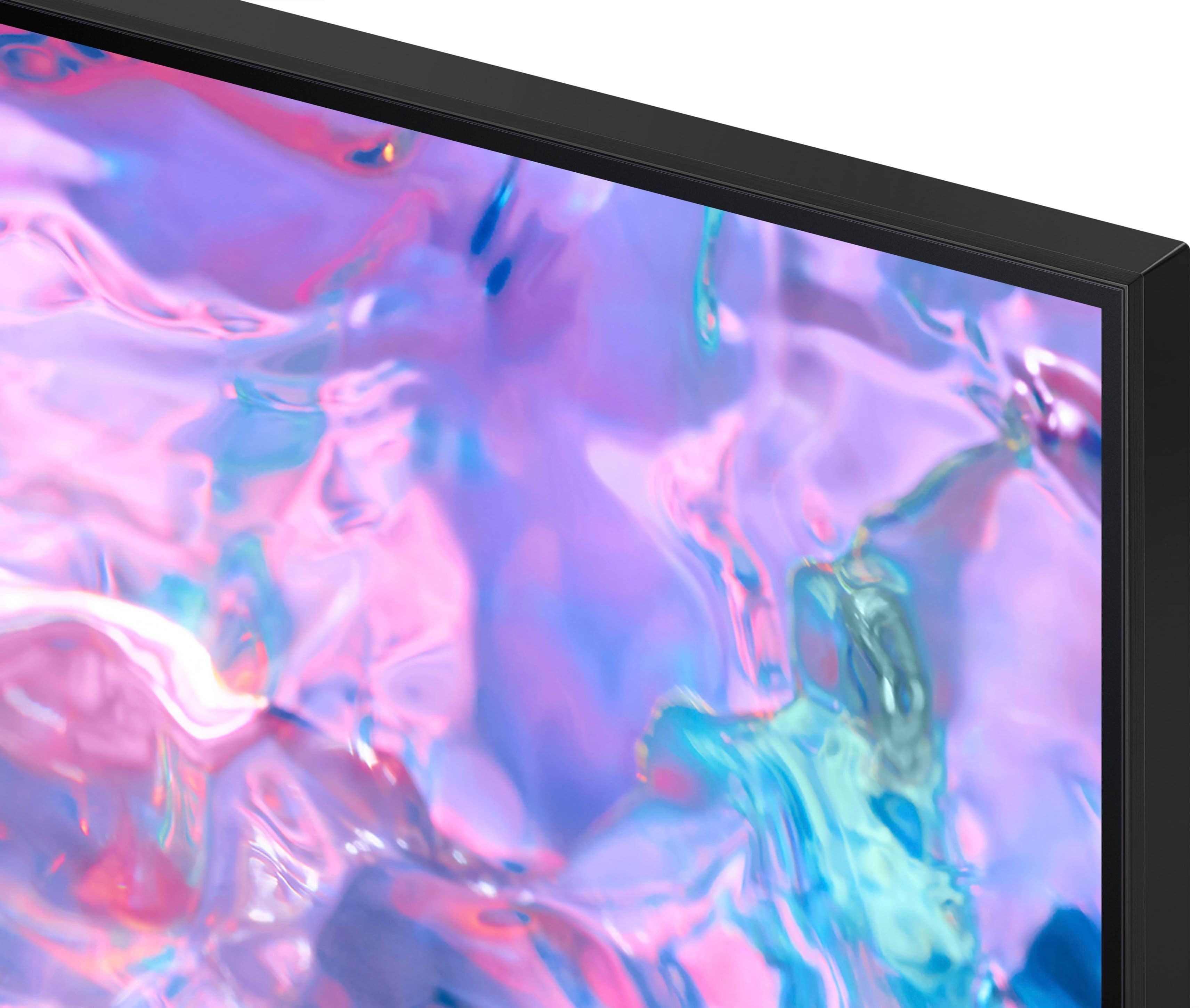
Customers find value in the 43” Class CU7000 Crystal UHD 4K Smart Tizen TV (2023)'s superb picture quality, ease of use, and attractive price point. Many appreciate the vibrant colors and straightforward setup process. However, some users express dissatisfaction with the remote control's design and the TV's volume capabilities. Overall, the positive feedback on picture quality and ease of use outweighs the negative comments regarding the remote and volume.
This summary was generated by AI based on customer reviews.
Connectivity issues, poor sound.
||Posted . Owned for 4 months when reviewed.This reviewer received promo considerations or sweepstakes entry for writing a review.Constant internet connectivity issues. I guess you get what you pay for. The sound quality is poor. At lower volume levels the clarity of sound diminishes greatly making it hard to understand any kind of speech.
No, I would not recommend this to a friendSome Problems
||Posted . Owned for 3 months when reviewed.This reviewer received promo considerations or sweepstakes entry for writing a review.This particular model has given me problems the internet disconnects and the apps are very slow when opening or switching between them
No, I would not recommend this to a friendBrand response from Samsung
Posted .Hi Christian,
We appreciate your feedback on the Samsung CU7000 TV. I'm sorry to hear you are experiencing issues with your Wi-Fi disconnecting from the TV.
First, let's ensure you are running the latest Firmware. Go to Settings> Support> Software Update. To ensure you do not miss any Firmware Updates, I recommend enabling Auto Updates. Go to Settings> Support> Software Update> then select Auto Update.
Next, let's try running a cold boot on your TV. To do so, hold down the Power button on the Samsung TV remote until the TV turns off and then on again. This should take about 5 seconds.
I hope these tips help resolve your concerns. If you continue to have issues, please call us at 1-800-SAMSUNG, 8 AM - 12 AM EST, seven days a week. LiveChat with an agent, as well as manuals, software, and warranty info, can be found at the ‘Support’ link on our Samsung website.
~ Samsung Advisor
Great until it wasn't
||Posted .This reviewer received promo considerations or sweepstakes entry for writing a review.Worked pretty well until it didn't. This tv rocks when it worked. Played Xbox game pass games on it and the tizen interface was acceptably quick enough. Bad part, the tv now fails to turn on properly. The set is out of warranty and I should have spent extra money on a better quality setup. Cheaper tvs have cheaper parts. My 75 inch qled is older and still runs without issue.
No, I would not recommend this to a friendaverage tv
||Posted . Owned for 3 weeks when reviewed.This reviewer received promo considerations or sweepstakes entry for writing a review.color and sound very average! expected much more from samsung, however the price may justify this product.
No, I would not recommend this to a friendBrand response from Samsung
Posted .Hi GerardL,
Thank you for your feedback on the picture and sound quality of your Samsung CU7000 TV. Please know we are here to help and have several recommendations for you.
There are several picture and sound settings that you can adjust to best fit what you are watching. Go to Home > Settings > All Settings > Picture > Picture Mode and select the mode that best fits your usage:
1) Standard: Default mode suitable for general viewing environments.
2) Natural: Reduces eye strain for a comfortable viewing experience.
3) Movie: Most suitable for watching TV or movies in a dark room.
4) Dynamic: Makes the picture brighter and clearer in bright viewing environments.
5) Filmmaker Mode: You can watch the source content (e.g., movie) as it is. If the image is defined as Filmmaker Mode, it will automatically switch to Filmmaker Mode while watching.
You can also go to Settings > All Settings> Picture > Expert Settings > to manually fine-tune your image.
For sound adjustments, go to Settings> All Settings> Sound.
If you’d like more help with settings, please know we’re here to help! Call us at 1-800-SAMSUNG, 8 AM - 12 AM EST, seven days a week. Or visit us on the Samsung website and click on the ‘Support’ link for:
1) LiveChat
2) Manuals, Software, & Warranty Info
~ Samsung Advisor
Its ok
||Posted . Owned for 2 months when reviewed.This reviewer received promo considerations or sweepstakes entry for writing a review.I like the TV but some apps you cant download which i had to add a roku box so i could watch the apps.
No, I would not recommend this to a friendBrand response from Samsung
Posted .Hi Jennifer,
We appreciate your purchase and for sharing your experience with our built-in app store. Please know we are always adding new apps for our customers! To make sure you don't miss anything, I recommend enabling automatic updates on your Firmware. Go to Settings > Support > Software Update, then select Auto Update.
If you ever have questions or need help, Samsung is here for you! Give us a call at 1-800-SAMSUNG, 8 AM - 12 AM EST, seven days a week. Our LiveChat agents are also available by clicking on the ‘Support’ link on our website.
Thanks for being a part of the Samsung family!
~Samsung Advisor
Merge please
||Posted . Owned for 3 weeks when reviewed.This reviewer received promo considerations or sweepstakes entry for writing a review.Enjoying my 2nd Samsung TV! Gave it a 3stars only because I need 2 remotes to operate. Also sound low. Had to put volume really high.
I would recommend this to a friendBrand response from Samsung
Posted .Hi Memom43,
Thank you for your review of the CU7000 TV. It's great to hear you are enjoying it so far! Please know that your Samsung TV remote can control external devices, such as a Soundbar, when connected via HDMI.
Regarding low volume, there are several volume features you can adjust, which may improve your audio experience.
1) Auto Volume automatically adjusts the sound to a certain level when changing channels or switching to another external input. Go to Settings > All Settings> Sound > Expert Settings > Auto Volume.
2) Adaptive Sound automatically adjusts to a specific volume level while watching TV. The TV analyzes your volume usage history by time period to automatically adjust the volume when you use an app or switch to an external input source. Go to Settings> All Settings> Sound> Sound Mode> Adaptive Sound.
3) Several Sound Modes are likewise available to meet your personal preferences: Home > Settings > All Settings> Sound > Sound Mode.
I hope these tips help you enjoy your new product.
You can contact us for further help at 1-800-SAMSUNG, 8 AM - 12 AM EST, seven days a week. Our LiveChat agents are also available by clicking on the ‘Support’ link on our website.
~ Samsung Advisor
- Cons mentioned:Remote control
Okay TV
||Posted . Owned for 1 month when reviewed.This reviewer received promo considerations or sweepstakes entry for writing a review.I did not like the remote, nor the sound quality for the room I had he TV in.
No, I would not recommend this to a friendBrand response from Samsung
Posted .Hi JeremyP,
Thank you for sharing your thoughts regarding the CU7000 TV’s remote and sound quality. We recommend adjusting the Sound Settings to improve your experience. You can change the Sound Mode by going to Settings > All Settings> Sound > Sound Mode.
You can also customize the sound with Expert Settings by going to Settings > All Settings> Sound > Expert Settings.
You can learn how to use Samsung Smart Remote. Just go to Home> (left directional button) Settings> Support> Remote Control Guide. Find details on how to use the Samsung Smart Remote. Press the menu to use a variety of functions of the Samsung Smart Remote.
To assist you with possible sound settings adjustments for a better audio experience or choosing a Samsung Soundbar to complement your viewing enjoyment, please reach out to us at 1-800-SAMSUNG, 8 AM - 12 AM EST, seven days a week. Or visit us on the Samsung website and click on the ‘Support’ link for:
1) LiveChat
2) Manuals, Software, & Warranty Info
~ Samsung Advisor
Purchase something else
||Posted . Owned for 1 month when reviewed.This reviewer received promo considerations or sweepstakes entry for writing a review.Had to invest many hours of my time before anyone could watch a program on this TV. It showed an error message (server offline, try again later) instead of the user agreement and this thing is a brick until the user agreement is signed. Do an internet search for this issue and see the many people have this problem. Lost days of frustration to this issue. No support from Samsung, no help available on website or by phone. When I eventually got past this error there was no way to get Netflix to work although TV was logged into our wireless network. Terrible product with no manufacturer support. I will never purchase another Samsung product.
No, I would not recommend this to a friendBrand response from Samsung
Posted .Hi RichardP,
I'm very sorry to hear about all of the issues you experienced with the CU7000 TV and Samsung Customer Service. Please know we are available via our website, Facebook Chat, or by phone. We apologize for any inconvenience and appreciate all of your patience.
If Netflix is still not working, please try the below troubleshooting steps.
First, please ensure you are running the latest Firmware update. Go to Settings> Support> Software Update.
Next, I recommend running a cold reboot on your TV. The easiest way is to hold down the Power button on the Samsung TV remote until the TV turns off and then on again. This should take about 5 seconds.
Then, please ensure the Netflix app is up to date by going to “Apps” on your Smart TV and selecting “Settings” from the top right corner. Next, select the Netflix app and select "Update," if available. If the issue persists or if there is no Update available, we will try deleting and reinstalling the Netflix app. To do so, navigate to “Apps” on your Smart TV and select “Settings” from the top right corner. Next, select the app. Finally, select Delete, and select Delete again to confirm.
Then, we will reinstall the app by returning to “Apps” on your Smart TV and selecting “Settings” from the top right corner. Click on “Netflix” and then select “Reinstall.”
If you continue to have issues, please call us at 1-800-SAMSUNG, 8 AM - 12 AM EST, seven days a week. LiveChat with an agent, as well as manuals, software, and warranty info, can be found at the ‘Support’ link on our Samsung website.
~ Samsung Advisor
Entry level overpriced trash
||Posted . Owned for 1 month when reviewed.This reviewer received promo considerations or sweepstakes entry for writing a review.It's a tv y'all. I bought to cloud game, but it's definitely entry level trash. Colors are not bright and vivid. It an overpriced paperweight
No, I would not recommend this to a friendBrand response from Samsung
Posted .Hi MichaelC,
It’s unfortunate to hear you’re not fully satisfied with the brightness of your CU7000 TV’s picture. Please know that we are here to help you.
First, let’s ensure you are running the latest Firmware Update. Go to Settings> Support> Software Update.
Next, If the colors on your TV are correct but just a little too dark or bright, you can try adjusting Picture Modes, Contrast, Brightness, or Sharpness settings.
For darker scenes, I recommend Dynamic Picture Mode, which makes pictures brighter and clearer in bright viewing environments. Go to Settings > All Settings> Picture > Picture Mode > Dynamic.
Or you can manually adjust the Brightness by pressing the HOME button on your remote, then navigating to Settings > All Settings> Picture > Expert Settings.
You may also want to disable Power Saving Mode, which automatically adjusts the brightness to reduce the TV’s power consumption. Go to: Settings > All Settings> General > Eco Solution> Power Saving Mode.
I hope this helps to improve your picture. Should you need further assistance, please contact us at 1-800-SAMSUNG, 8 AM - 12 AM EST, seven days a week. Or visit us on the Samsung website and click on the ‘Support’ link for:
1) LiveChat
2) Manuals, Software, & Warranty Info
~ Samsung Advisor
Good tv could be better
||Posted . Owned for 1 month when reviewed.This reviewer received promo considerations or sweepstakes entry for writing a review.Its a good tv but the software is kinda slow its manageable just kinda annoying
I would recommend this to a friendBrand response from Samsung
Posted .Hi Shaan,
I’m sorry to hear about the issues you’re experiencing with a slow operating system. To ensure performance is fully optimized, please make sure your TV is running the latest firmware. To do so, go to Settings> Support> Software Update. You can easily update from there if necessary.
Next, I recommend utilizing the self-diagnostic tool, which checks memory, frees unused cached memory, and closes background apps. Go to Settings > Support > Device Care > Start Device Care.
If you continue to have issues, please call us at 1-800-SAMSUNG, 8 AM - 12 AM EST, seven days a week. LiveChat with an agent, as well as manuals, software, and warranty info, can be found at the ‘Support’ link on our Samsung website.
~ Samsung Advisor
Samsung
||Posted . Owned for 2 weeks when reviewed.This reviewer received promo considerations or sweepstakes entry for writing a review.I like tv just remote that why i have it 3 becuse remote to its not like like thr other ones
I would recommend this to a friendBrand response from Samsung
Posted .Hi Oksy,
Thank you for providing us with feedback on the CU7000 TV remote. Samsung remotes are designed to be convenient and useful. Still, we understand if you’d prefer to use a third-party remote, whether it’s a universal remote, a game controller, or something else! Whether you are replacing a lost remote or using an alternative remote to help reduce clutter, a third-party remote is a great option to use to control your Samsung TV.
You can also take advantage of the remote control function within the SmartThings app. If your TV has been added to your SmartThings app on your tablet or mobile device, you can use the app to control your device.
If you need more help, Samsung is here for you. Please call us at 1-800-SAMSUNG, 8 AM - 12 AM EST, seven days a week. Our LiveChat agents are also available by clicking on the ‘Support’ link on our website.
~ Samsung Advisor
Tv
||Posted . Owned for 1 month when reviewed.This reviewer received promo considerations or sweepstakes entry for writing a review.Picture is not the greatest! Would like a picture picture and sound.
No, I would not recommend this to a friendBrand response from Samsung
Posted .Hi Chapman,
Thank you for your feedback on the CU7000 TV picture and sound quality. Below are a few settings that I recommend adjusting:
Go to Home > Settings > All Settings > Picture > Picture Mode and select the mode that best fits your usage:
1) Standard: Default mode suitable for general viewing environments.
2) Natural: Reduces eye strain for a comfortable viewing experience.
3) Movie: Most suitable for watching TV or movies in a dark room.
4) Dynamic: Makes the picture brighter and clearer in bright viewing environments.
5) Filmmaker Mode: You can watch the source content (e.g., movie) as it is. If the image is defined as Filmmaker Mode, it will automatically switch to Filmmaker Mode while watching.
You can also go to Settings > All Settings> Picture > Expert Settings > to manually fine-tune your image.
For sound adjustments, go to Settings> All Settings> Sound.
If you’d like more help with settings, we are always happy to help! Call us at 1-800-SAMSUNG, 8 AM - 12 AM EST, seven days a week. Or visit us on the Samsung website and click on the ‘Support’ link for:
1) LiveChat
2) Manuals, Software, & Warranty Info
~ Samsung Advisor
Good picture bad upscaling
||Posted . Owned for 1 week when reviewed.This reviewer received promo considerations or sweepstakes entry for writing a review.The tv is very slow to respond to commands. Good for the price tag.
I would recommend this to a friendBrand response from Samsung
Posted .Hi Btiffany,
Thank you for your feedback on the picture quality of the Samsung CU7000 TV. Please know there are various Setting adjustments available that may improve the picture quality and any lag you are experiencing.
To ensure performance is fully optimized, please make sure your TV is running the latest firmware. To do so, go to Settings> Support> Software Update. You can easily update from there if necessary.
Next, I recommend utilizing the self-diagnostic tool, which checks memory, frees unused cached memory, and closes background apps. Go to Settings > Support > Device Care > Start Device Care.
Regarding the picture you are seeing, the TV will upscale any content sent to it as best as possible. The closer your content is to 4K, the better the image will look on the screen.
Here are some tips to help improve picture clarity:
1) HDMI cables are recommended for optimal HD viewing.
2) If you have an analog cable box or satellite box, upgrade to a digital cable box or satellite box.
3) Change the output resolution of your devices, such as digital broadcast receivers, IPTV, and set-top boxes, to UHD or HD.
4) You can further adjust your sharpness, brightness, contrast, color, and more by going to Settings > All Settings> Picture > Expert Settings
5) Choose a Picture Mode by going to Settings > All Settings> Picture > Picture Mode and choose from Dynamic, Standard, Natural, Movie, or Filmmaker Mode.
Should you ever have questions or need help with TV features, specs, or operations, we are here to help. You can call us at 1-800-SAMSUNG, 8 AM - 12 AM EST, seven days a week. Our LiveChat agents are also available by clicking on the ‘Support’ link on our website.
~ Samsung Advisor
Tv
||Posted . Owned for 1 month when reviewed.This reviewer received promo considerations or sweepstakes entry for writing a review.the television is fine the remote control is very small
I would recommend this to a friendBrand response from Samsung
Posted .Hi JesusP,
Thank you for choosing Samsung and for providing us with feedback regarding the CU7000 TV remote. Samsung remotes are designed to be convenient and useful, but we understand if you’d prefer to use a third-party remote, whether it’s a universal remote, a game controller, or something else! Whether you are replacing a lost remote or using an alternative remote to help reduce clutter, a third-party remote is a great option to use to control your Samsung TV.
If there’s anything we can ever help with, please call us at 1-800-SAMSUNG, 8 AM - 12 AM EST, seven days a week. Or visit us on the Samsung website and click on the ‘Support’ link for:
1) LiveChat
2) Manuals, Software, & Warranty Info
~ Samsung Advisor
- Pros mentioned:Picture quality
Short picture life.
||Posted . Owned for 3 weeks when reviewed.This reviewer received promo considerations or sweepstakes entry for writing a review.Great picture but only lasted for three days. Returned for refund.
I would recommend this to a friendBrand response from Samsung
Posted .Hi CameronD,
Thank you for taking the time to provide feedback on your CU7000 TV. Please know that your feedback will be shared with our internal product teams. We take pride in our products and are sorry to hear that your experience was not up to our high standards.
We do hope you will give Samsung another chance when purchasing your next TV. If there’s anything we can ever help with, please call us at 1-800-SAMSUNG, 8 AM - 12 AM EST, seven days a week. Or visit us on the Samsung website and click on the ‘Support’ link for:
1) LiveChat
2) Manuals, Software, & Warranty Info
~ Samsung Advisor
Very slow and dated
||Posted . Owned for 2 weeks when reviewed.This reviewer received promo considerations or sweepstakes entry for writing a review.I’m experiencing extremely slow transitions between apps, and the quality is also very low—it doesn’t look like 4K at all, even though it is. I was considering buying an LG, which had only a slight difference in price, but I decided on this one. It seems you get what you pay for
No, I would not recommend this to a friendBrand response from Samsung
Posted .Hi TimmySteinmetz,
We appreciate your purchase and feedback on the Samsung CU7000 TV. There are a few settings I recommend adjusting that may resolve the issues you mentioned experiencing.
First, let's ensure you are running the latest Firmware. Go to Settings> Support> Software Update.
Next, I recommend utilizing the self-diagnostic tool, which checks memory, frees unused cached memory, and closes background apps. Go to Settings > Support > Device Care > Start Device Care.
Please know your TV will upscale any content sent to it as best as possible. The closer your content is to 4K, the better the image will look on the screen.
Here are some tips to help improve picture clarity:
1) HDMI cables are recommended for optimal HD viewing.
2) If you have an analog cable box or satellite box, upgrade to a digital cable box or satellite box.
3) Change the output resolution of your devices, such as digital broadcast receivers, IPTV, and set-top boxes, to UHD or HD.
4) You can further adjust your sharpness, brightness, contrast, color, and more by going to Settings > All Settings> Picture > Expert Settings
5) Choose a Picture Mode by going to Settings > All Settings> Picture > Picture Mode and choose from Dynamic, Standard, Natural, Movie, or Filmmaker Mode.
Should you ever have questions or need help with TV features, specs, or operations, we are here to help. You can call us at 1-800-SAMSUNG, 8 AM - 12 AM EST, seven days a week. Our LiveChat agents are also available by clicking on the ‘Support’ link on our website.
~ Samsung Advisor
- Pros mentioned:Picture quality
18 months and dead
||Posted . Owned for 1.5 years when reviewed.This reviewer received promo considerations or sweepstakes entry for writing a review.No picture after 18 months, yet still has sound. Bedroom tv, wasn't used much.
No, I would not recommend this to a friend Quality ok
||Posted . Owned for 2 weeks when reviewed.This reviewer received promo considerations or sweepstakes entry for writing a review.Picture sometimes goes from dark to light with no reason. Other than that it’s ok.
No, I would not recommend this to a friendBrand response from Samsung
Posted .Hi NancyL,
We appreciate your feedback on the CU7000 TV. The fluctuation on your TV that you are seeing is most likely due to some of our power-saving features. You can change the dimming feature of your CU7000 TV by adjusting some of the energy efficiency features designed to reduce power consumption.
The Eco sensor automatically adjusts the brightness level of the TV according to the ambient light level. If the Eco Sensor has adjusted the screen’s brightness level, you can select Min. Backlight to manually adjust the minimum screen brightness. You can also disable these features for a steady brightness setting.
You can adjust Brightness Optimization, Brightness Reduction, Motion Lighting, or Contrast Enhancer by going to Settings > All Settings> General > Power and Energy Saving > and adjusting the Brightness Optimization, Brightness Reduction, and Motion Lighting.
You can also go to Settings > All Settings> Picture > Expert Settings > Contrast Enhancer to manually adjust contrast.
For further assistance with settings adjustments, please contact Samsung Customer Support. You can call us at 1-800-SAMSUNG, 8 AM - 12 AM EST, seven days a week. Our LiveChat agents are also available by clicking on the ‘Support’ link on our website.
~ Samsung Advisor
The Not So Smart TV
||Posted . Owned for 3 weeks when reviewed.This reviewer received promo considerations or sweepstakes entry for writing a review.The TV side is good but the Smart side is not so good. Yeah when you have a brand new 2023 model smart tv and you get messages from sites telling you that your browser is out of date and to update to a current browser you know Samsung has messed up bigtime!
No, I would not recommend this to a friendBrand response from Samsung
Posted .Hi Kazz,
We appreciate your purchase and feedback on the CU7000 TV. Please know we are here to help!
To ensure performance is fully optimized, please make sure your TV is running the latest firmware. To do so, go to Settings> Support> Software Update. You can easily update from there if necessary.
If you continue to have issues, please give us a call at 1-800-SAMSUNG, 8 AM - 12 AM EST, seven days a week. Our LiveChat agents are also available by clicking on the ‘Support’ link on our website.
~ Samsung Advisor
Questionable
||Posted . Owned for 3 weeks when reviewed.This reviewer received promo considerations or sweepstakes entry for writing a review.I have issues with it since I bought it. It will not hold a wifi connection.
No, I would not recommend this to a friendBrand response from Samsung
Posted .Hi LizH,
We appreciate your feedback on the Samsung CU7000 TV. I'm sorry to hear you are experiencing issues with your Wi-Fi disconnecting from the TV.
First, let's ensure you are running the latest Firmware. Go to Settings> Support> Software Update. To ensure you do not miss any Firmware Updates, I recommend enabling Auto Updates. Go to Settings> Support> Software Update> then select Auto Update.
Next, let's try running a cold boot on your TV. To do so, hold down the Power button on the Samsung TV remote until the TV turns off and then on again. This should take about 5 seconds.
I hope these tips help resolve your concerns.
If you need more help, Samsung is here for you. Please call us at 1-800-SAMSUNG, 8 AM - 12 AM EST, seven days a week. Our LiveChat agents are also available by clicking on the ‘Support’ link on our website.
~ Samsung Advisor