Customer Ratings & Reviews
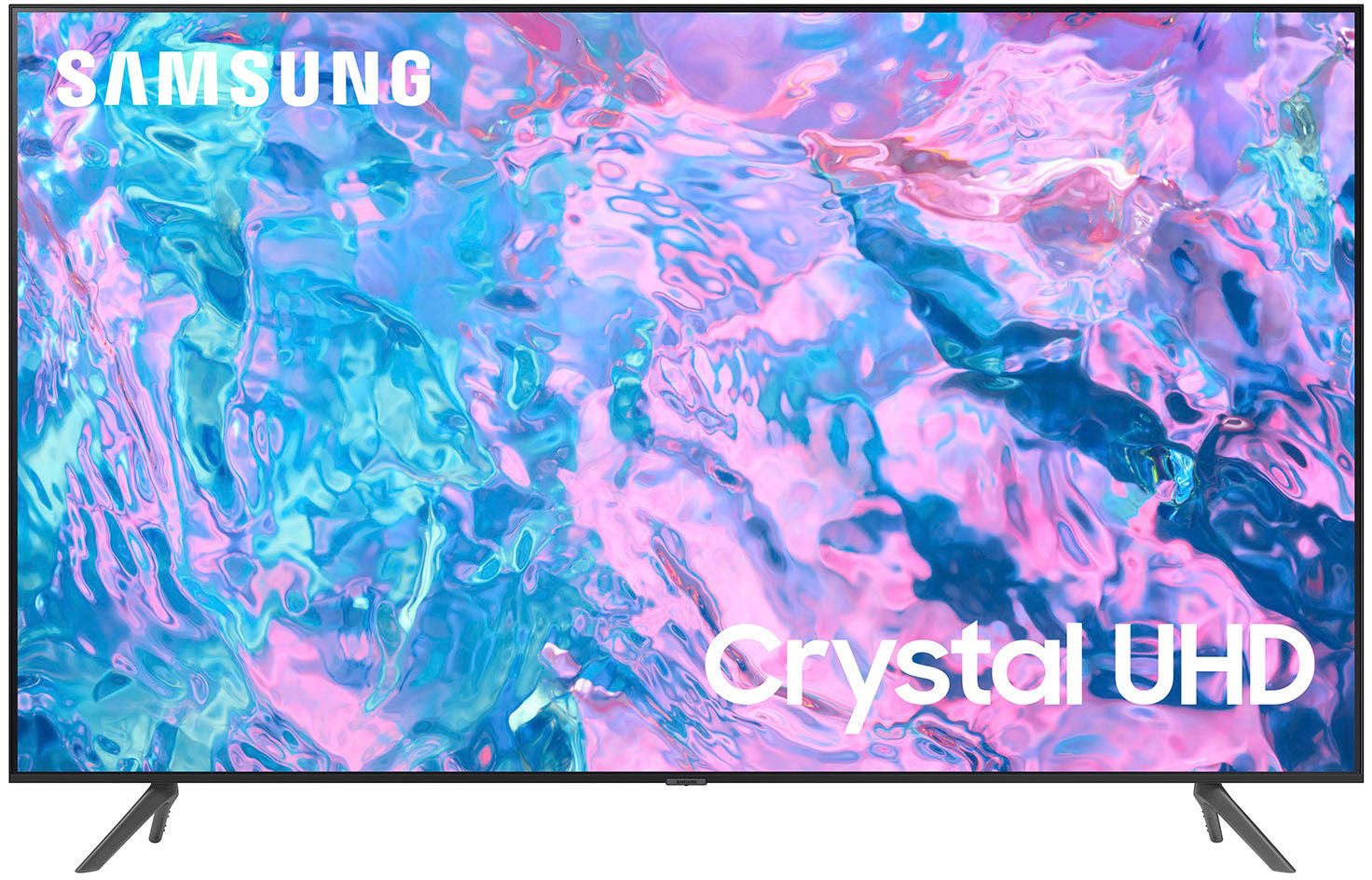
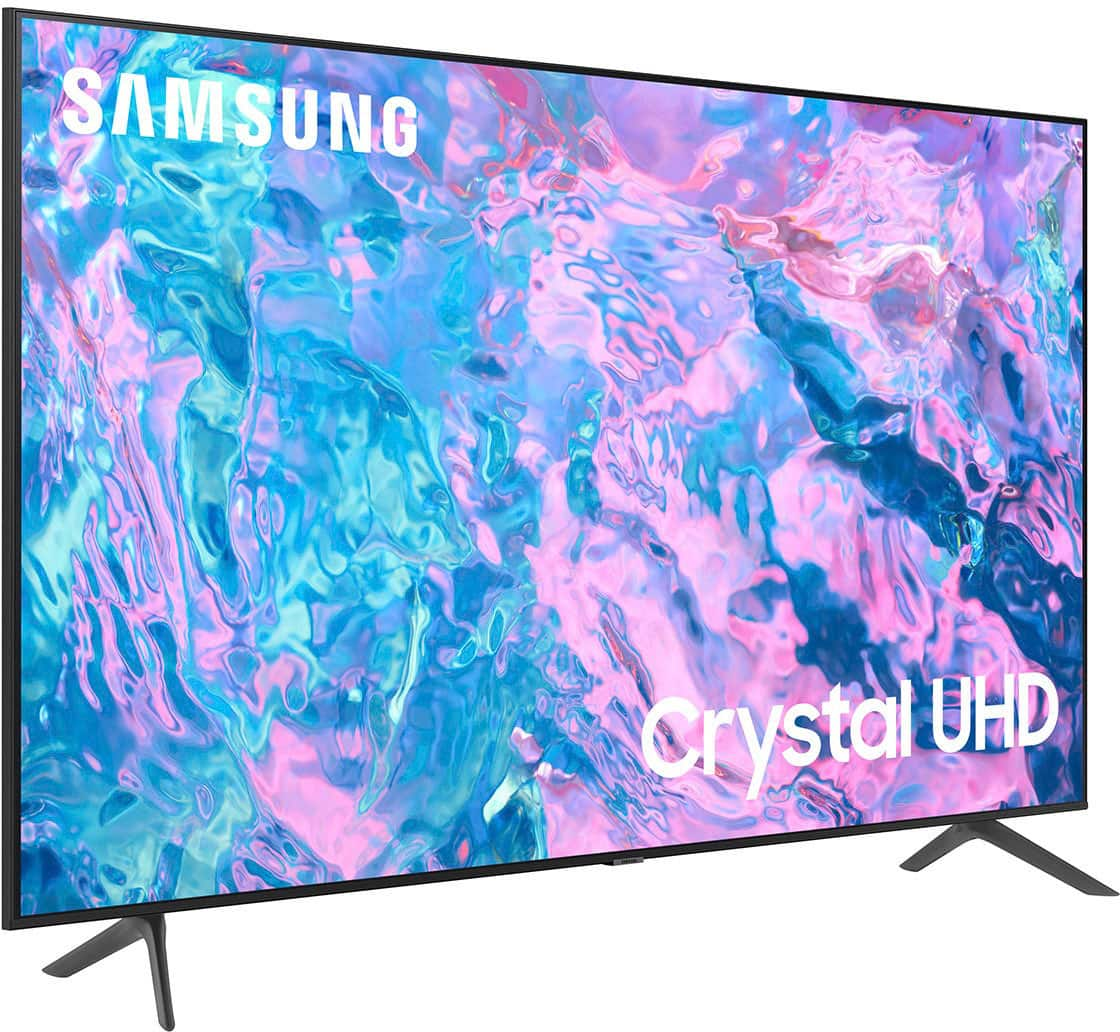
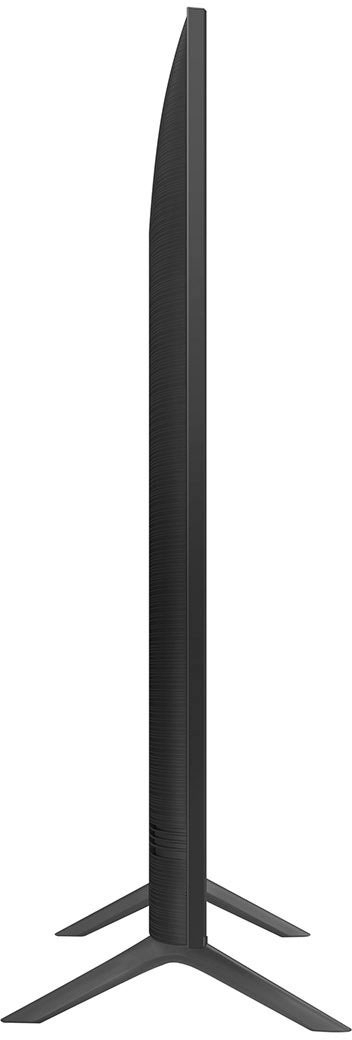
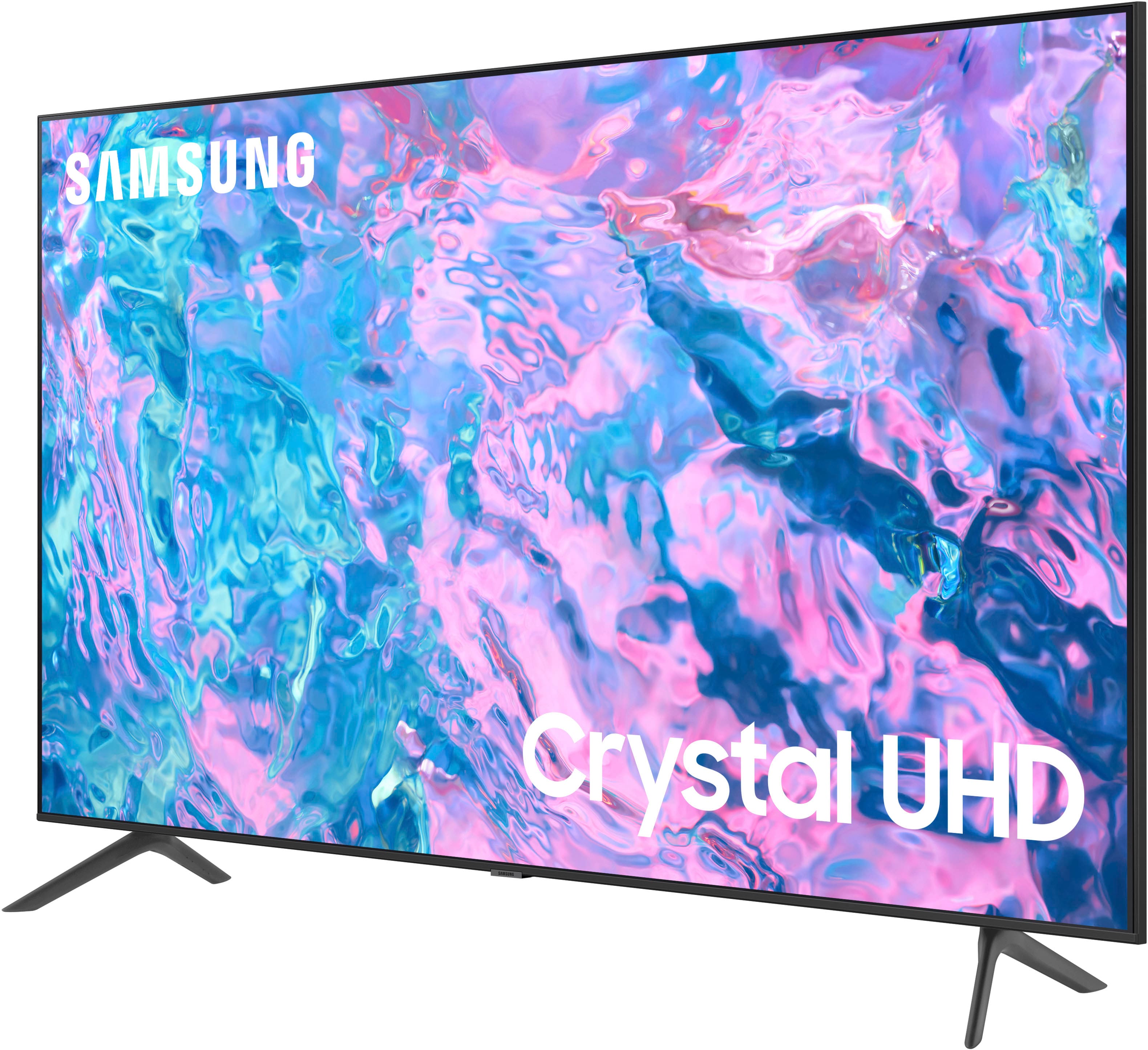
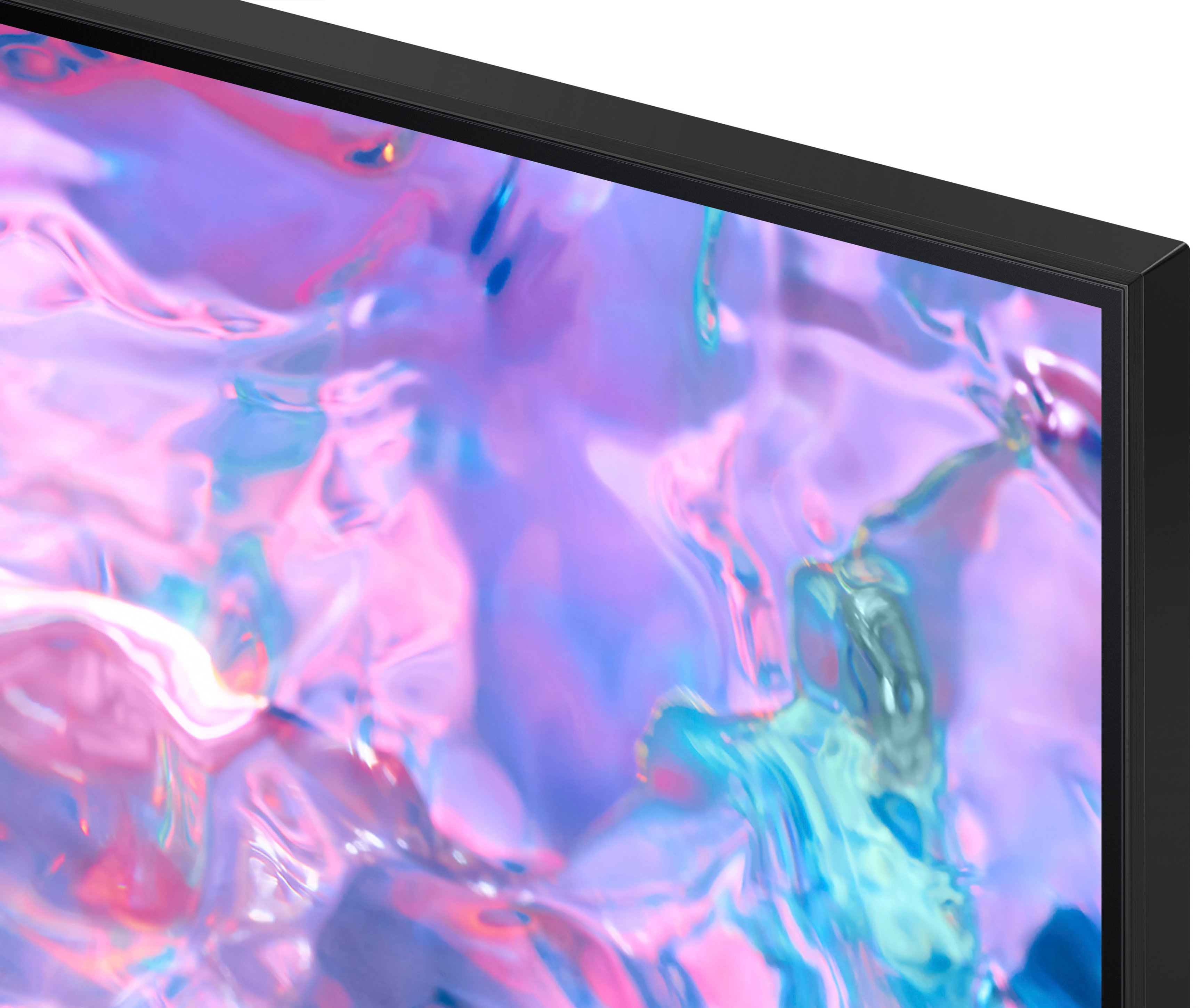


- Model:
- UN55CU7000FXZA
- SKU:
- 6537366
Rating by feature
- Picture Quality
Rating 4.8 out of 5 stars
- Sound Quality
Rating 4.5 out of 5 stars
- Brightness
Rating 4.8 out of 5 stars
Customers are saying
Customers highly value the picture quality, ease of use, and price of the 55” Class CU7000 Crystal UHD 4K Smart Tizen TV (2023). Many also appreciate the vibrant colors and straightforward setup process. While some users found the remote control and volume could be improved, the overall experience is largely positive. The television's design and lightweight nature also received favorable comments.
This summary was generated by AI based on customer reviews.
Insignia Fire TV 55"
||Posted . Owned for 1 month when reviewed.This reviewer received promo considerations or sweepstakes entry for writing a review.Not great. Had to have the insides replaced a few weeks after purchase. Still having issues. Would not but again.
No, I would not recommend this to a friendBrand response from Samsung
Posted .Hi DRobin,
It's unfortunate to hear that you are experiencing issues with your CU7000 TV after replacement. Please give us a chance to make this right by contacting us at at 1-800-SAMSUNG, 8 AM - 12 AM EST, seven days a week. Our LiveChat agents are also available by clicking on the ‘Support’ link on our website.
~ Samsung Advisor
Ms
||Posted . Owned for 1 month when reviewed.This reviewer received promo considerations or sweepstakes entry for writing a review.Do not have 55” Samsung. Exchanged for 50” LG. Very satisfied with the LG.
No, I would not recommend this to a friendPoor installation and picture
||Posted . Owned for 3 weeks when reviewed.This reviewer received promo considerations or sweepstakes entry for writing a review.I went into the store to buy my tv. The sales person was very nice. I asked about the tv being close to the wall and she said that would work. So I bought it with a bracket for the wall and installation fee. And then the disaster began, 2 trips from the geek squad not prepared and asking me to buy extra wall units and cord etc. my tv is now 3 inches from my wall and I’m not pleased.
No, I would not recommend this to a friendBrand response from Samsung
Posted .Hi EileenM,
I'm very sorry to hear about your experience with the installation of your CU7000 TV. I recommend reaching out to your local Best Buy and providing them with feedback on your experience.
If you are not satisfied with the picture on your TV, please know there are many settings available that can improve your visual experience. First, please ensure you are running the latest Firmware. Go to Settings> Support> Software Update.
Next, go to Home > Settings > All Settings > Picture > Picture Mode and select the mode that best fits your usage:
1) Standard: Default mode suitable for general viewing environments.
2) Natural: Reduces eye strain for a comfortable viewing experience.
3) Movie: Most suitable for watching TV or movies in a dark room.
4) Dynamic: Makes the picture brighter and clearer in bright viewing environments.
5) Filmmaker Mode: You can watch the source content (e.g., movie) as it is. If the image is defined as Filmmaker Mode, it will automatically switch to Filmmaker Mode while watching.
You can also go to Settings > All Settings> Picture > Expert Settings > to manually fine-tune your image.
If there's anything we can do or if you have any questions, please do not hesitate to reach out to us at 1-800-SAMSUNG, 8 AM - 12 AM EST, seven days a week. Our LiveChat agents are also available by clicking on the ‘Support’ link on our website.
~ Samsung Advisor
Samsung Tv
||Posted .This reviewer received promo considerations or sweepstakes entry for writing a review.The tv has lines on it only had it for a year. I thought Samsung was a good brand for tvs.
No, I would not recommend this to a friendBad experience
||Posted . Owned for 3 weeks when reviewed.This reviewer received promo considerations or sweepstakes entry for writing a review.Two problems Initially, TV was blur showing some patterns, Later disappeared. Best buy quoted 100+ USD for TV mount.
No, I would not recommend this to a friendBrand response from Samsung
Posted .Hi VincentA,
We appreciate your feedback on the CU7000 TV. Please know if you have any issues, we are here to help. You can call us at 1-800-SAMSUNG, 8 AM - 12 AM EST, seven days a week. Our LiveChat agents are also available by clicking on the ‘Support’ link on our website.
~ Samsung Advisor
Not that Crystal!!
||Posted . Owned for 3 weeks when reviewed.This reviewer received promo considerations or sweepstakes entry for writing a review.Not that great quality. My older samsung was better. Not crystal clear
No, I would not recommend this to a friendBrand response from Samsung
Posted .Hi TGeo,
Thank you for sharing your thoughts on your CU7000 TV’s image quality. The TV will upscale as best as possible any content sent to it. The closer your content is to 4K, the better the image will look on the screen.
Here are some tips to help improve picture clarity:
1) HDMI cables are recommended for optimal HD viewing.
2) If you have an analog cable box or satellite box, upgrade to a digital cable box or satellite box.
3) Change the output resolution of your devices, such as digital broadcast receivers, IPTV, and set-top boxes, to UHD or HD.
4) You can further adjust your sharpness, brightness, contrast, color, and more by going to Settings > All Settings> Picture > Expert Settings
5) Choose a Picture Mode by going to Settings > All Settings> Picture > Picture Mode and choose from Dynamic, Standard, Natural, Movie, or Filmmaker Mode.
Should you ever have questions or need help with TV features, specs, or operations, we are here to help. You can call us at 1-800-SAMSUNG, 8 AM - 12 AM EST, seven days a week. Our LiveChat agents are also available by clicking on the ‘Support’ link on our website.
~ Samsung Advisor
Cu7000
||Posted . Owned for 5 months when reviewed.This reviewer received promo considerations or sweepstakes entry for writing a review.Bought it in late September, lasted 3 months till a dead pixel appeared, waited for Samsung to do a warranty repair kept canceling it and now it has a dark spot on screen
No, I would not recommend this to a friendBrand response from Samsung
Posted .Hi StanF,
I'm very sorry your TV has display issues, and you are awaiting service. Please give us a call so we can better support you with your warranty appointment. You can contact us at 1-800-SAMSUNG, 8 AM - 12 AM EST, seven days a week. Our LiveChat agents are also available by clicking on the ‘Support’ link on our website.
~ Samsung Advisor
It’s okay
||Posted . Owned for 1 month when reviewed.This reviewer received promo considerations or sweepstakes entry for writing a review.Tv is super slow , apps don’t work for no reason sometimes , glitches out and apps pop open that you don’t even click
No, I would not recommend this to a friendBrand response from Samsung
Posted .Hi BiancaM,
I’m sorry to hear about the issues you’re experiencing with unresponsive apps. To ensure performance is fully optimized, please make sure your TV is running the latest firmware. To do so, go to Settings> Support> Software Update. You can easily update from there if necessary.
Next, I recommend utilizing the self-diagnostic tool, which checks memory, frees unused cached memory, and closes background apps. Go to Settings > Support > Device Care > Start Device Care.
If you continue to have issues, please call us at 1-800-SAMSUNG, 8 AM - 12 AM EST, seven days a week. LiveChat with an agent, as well as manuals, software, and warranty info, can be found at the ‘Support’ link on our Samsung website.
~ Samsung Advisor
Powering off by itself
||Posted . Owned for 3 months when reviewed.This reviewer received promo considerations or sweepstakes entry for writing a review.Keeps shutting itself off. Bummer. I don’t want to uninstall it and haul it back!!
No, I would not recommend this to a friendBrand response from Samsung
Posted .Hi JeffA,
I’m sorry to hear you’re experiencing a power cycling issue where your TV turns on and off repeatedly. Please try a few troubleshooting steps that may help solve the issue:
1) Check the power cable for damage and proper connection.
2) If the cable is bent, broken, kinked, pinched, pressed excessively (possibly by a heavy object on top of it), or damaged, this is likely the cause of the issue. Replace the cable.
3) Unplug the TV from the wall outlet for 30 seconds, then plug it back in.
4) If the power cycling allows enough time between powering on and off, try updating the TV to the latest firmware. There is a risk, however. If the TV turns off during the software update, it could damage the TV. Updates can take up to 30 minutes, depending on network speed, so if the TV is not turning off too frequently, try updating the software.
If you ever have questions or need help, Samsung is here for you! Give us a call at 1-800-SAMSUNG, 8 AM - 12 AM EST, seven days a week. Our LiveChat agents are also available by clicking on the ‘Support’ link on our website.
Thanks for being a part of the Samsung family!
~ Samsung Advisor
Don't buy!
||Posted . Owned for 2 weeks when reviewed.This reviewer received promo considerations or sweepstakes entry for writing a review.I've had problems with the audio and the video. The tv has frozen and has shut off on its own. Best Buy's return policy is pathetic.
No, I would not recommend this to a friendBrand response from Samsung
Posted .Hi Review,
I'm sorry to hear about your experience with the CU7000 TV, and we appreciate your feedback. I have a few recommendations that may improve your experience.
First, let's ensure you are running the latest Firmware. Go to Settings> Support> Software Update.
Next, there are several picture and sound settings that you can adjust to best fit what you are watching. Go to Home > Settings > All Settings > Picture > Picture Mode and select the mode that best fits your usage:
1) Standard: Default mode suitable for general viewing environments.
2) Natural: Reduces eye strain for a comfortable viewing experience.
3) Movie: Most suitable for watching TV or movies in a dark room.
4) Dynamic: Makes the picture brighter and clearer in bright viewing environments.
5) Filmmaker Mode: You can watch the source content (e.g., movie) as it is. If the image is defined as Filmmaker Mode, it will automatically switch to Filmmaker Mode while watching.
You can also go to Settings > All Settings> Picture > Expert Settings > to manually fine-tune your image.
For sound adjustments, go to Settings> All Settings> Sound.
If you’d like more help with settings, please know we’re here to help! Call us at 1-800-SAMSUNG, 8 AM - 12 AM EST, seven days a week. Or visit us on the Samsung website and click on the ‘Support’ link for:
1) LiveChat
2) Manuals, Software, & Warranty Info
~ Samsung Advisor
Ordinary Picture
||Posted . Owned for 1 month when reviewed.This reviewer received promo considerations or sweepstakes entry for writing a review.Picture was not very good. Should have purchased another TV.
No, I would not recommend this to a friendBrand response from Samsung
Posted .Hi JamesD,
Thank you for sharing your thoughts on the picture quality of your CU70000 TV. I have a few recommendations that may improve your visual experience:
Go to Home > Settings > All Settings > Picture > Picture Mode and select the mode that best fits your usage:
1) Standard: Default mode suitable for general viewing environments.
2) Natural: Reduces eye strain for a comfortable viewing experience.
3) Movie: Most suitable for watching TV or movies in a dark room.
4) Dynamic: Makes the picture brighter and clearer in bright viewing environments.
5) Filmmaker Mode: You can watch the source content (e.g., movie) as it is. If the image is defined as Filmmaker Mode, it will automatically switch to Filmmaker Mode while watching.
You can also go to Settings > All Settings> Picture > Expert Settings > to manually fine-tune your image.
If you need more help, Samsung is here for you. Call us at 1-800-SAMSUNG, 8 AM - 12 AM EST, seven days a week. Our LiveChat agents are also available by clicking on the ‘Support’ link on our website.
~ Samsung Advisor
Wouldn’t buy again
||Posted . Owned for 1 month when reviewed.This reviewer received promo considerations or sweepstakes entry for writing a review.Screen had multiple rows of dead pixels less than a month after purchasing
No, I would not recommend this to a friendBrand response from Samsung
Posted .Hi Shawn,
We appreciate your feedback regarding the screen abnormalities you’re seeing on your CU7000 TV. Please run a Picture Test to determine if the TV causes the problem. Picture Test displays a high-definition picture you can examine for flaws or faults. Go to Settings > Support > Device Care > Self Diagnosis > Picture Test.
If the issue continues to appear on all sources and the picture test, this will require service. For assistance in setting up a service appointment, please contact Samsung Support at 1-800-SAMSUNG, 8 AM - 12 AM EST, seven days a week. Our LiveChat agents are also available by clicking on the ‘Support’ link on our website.
~ Samsung Advisor
Samsung CU7000 TV: AirPlay Woes and Audio Issues
||Posted . Owned for 1 month when reviewed.This reviewer received promo considerations or sweepstakes entry for writing a review.The Samsung CU7000 TV promised a seamless viewing experience, but it fell short. Despite numerous attempts, AirPlay connections were consistently unstable. Even when a connection was established, there was no audio output.
No, I would not recommend this to a friendBrand response from Samsung
Posted .Hi RohitB,
I'm sorry to hear you experienced issues while attempting to connect your Apple device via Airplay. Please try the below troubleshooting tips to resolve this issue.
First, let's ensure you are running the latest Firmware. Go to Settings> Support> Software Update. To ensure you do not miss any Firmware Updates, I recommend enabling Auto Updates. Go to Settings> Support> Software Update> then select Auto Update.
Next, let's try running a cold boot on your TV. To do so, hold down the Power button on the Samsung TV remote until the TV turns off and then on again. This should take about 5 seconds.
When connecting via Airplay, please ensure both devices are connected to the same Wi-Fi connection, and both devices are up to date with the latest Firmware.
If you continue to have issues, please call us at 1-800-SAMSUNG, 8 AM - 12 AM EST, seven days a week. LiveChat with an agent, as well as manuals, software, and warranty info, can be found at the ‘Support’ link on our Samsung website.
~ Samsung Advisor
No HBO
||Posted . Owned for 1 month when reviewed.This reviewer received promo considerations or sweepstakes entry for writing a review.Pictures quality poor and you can’t use HBO on it sound quality poor too..
No, I would not recommend this to a friendBrand response from Samsung
Posted .Hi FredQ,
Thank you for reaching out and letting us know about the issues you are experiencing with the CU7000 TV. Please follow the below troubleshooting tips to help resolve these issues.
First, if your HBO app is not working correctly, please ensure the app is up to date. Go to Apps on your Smart TV and select Settings from the top right corner. Next, select the Max app and select Update, if available. If the issue persists or if there is no Update available, try deleting and reinstalling the Max app.
Also, please note that "HBO Max" did change to "Max," and you might need to delete the HBO Max app and search for "Max" inside of the app store on your TV.
Next, if the picture you are seeing on your TV is not to your liking, please know there are several settings you can adjust. Go to Home > Settings > All Settings > Picture > Picture Mode and select the best mode for your usage. You can also go to Settings > All Settings> Picture > Expert Settings > to manually fine-tune your image.
You can also adjust the sound on your TV by going to Settings > All Settings> Sound > Sound Mode.
I hope these tips help you enjoy your new product! If you need more help, please contact us at 1-800-SAMSUNG, 8 AM - 12 AM EST, seven days a week. Our LiveChat agents are also available by clicking on the ‘Support’ link on our website.
~ Samsung Advisor
Bad Quality
||Posted . Owned for 1 year when reviewed.This reviewer received promo considerations or sweepstakes entry for writing a review.I bought this TV for my mother Christmas 1 year ago and it no longer works! Horrible product Samsung and Best Buy. What happened to quality?
No, I would not recommend this to a friendService department is good
||Posted . Owned for 1 month when reviewed.This reviewer received promo considerations or sweepstakes entry for writing a review.No good, had to replace main screen and main circuit board. Had the TV on for 20 minutes and completely shut down.
No, I would not recommend this to a friendBrand response from Samsung
Posted .Hi MichaelMueller,
Thank you for your purchase and feedback on the CU7000 TV. I'm sorry that you had to go through the hassle of having to service your new TV. Please know we are here to help if you ever have any questions or need anything. We are available via phone at 1-800-SAMSUNG, 8 AM - 12 AM EST, seven days a week. Our LiveChat agents are also available by clicking on the ‘Support’ link on our website.
~ Samsung Advisor
Samsung-on the road down hill
||Posted . Owned for 1 month when reviewed.This reviewer received promo considerations or sweepstakes entry for writing a review.Never worked right. Had to call Customer Service. CS tech person came to our home. It worked correctly until the next day. No sense putting up with nonsense. Got a Sony!
No, I would not recommend this to a friendBrand response from Samsung
Posted .Hi Songbird9,
Thank you for sharing your review, and we’re sorry to hear that your experience with the Samsung CU7000 TV was not up to our high-quality standards. Should you ever decide to give Samsung TVs another try and have questions or need help with settings, setup, or features, we would be glad to help. Call us at 1-800-SAMSUNG, 8 AM – 12 AM EST, seven days a week. LiveChat with an agent, as well as manuals, software, and warranty info, can be found at the ‘Support’ link on our Samsung website.
We hope to regain you as a customer in the future.
~Samsung Advisor
Apple air play not working.
||Posted . Owned for 1 month when reviewed.This reviewer received promo considerations or sweepstakes entry for writing a review.Apple air play not working. . Cannot able to fix
No, I would not recommend this to a friendBrand response from Samsung
Posted .Hi there,
I'm sorry that Airplay is not working properly with your CU7000 TV. Please know we are here to help you!
First, let's ensure you are running the latest Firmware on both your TV and your Apple device. For your television, go to Settings> Support> Software Update.
Next, to connect your phone via Airplay, go to Source > Connection Guide > Smartphone > Apple AirPlay.
If you continue to have issues, please call us at 1-800-SAMSUNG, 8 AM - 12 AM EST, seven days a week. Our LiveChat agents are also available by clicking on the ‘Support’ link on our website.
~ Samsung Advisor
Expected more
||Posted . Owned for 2 weeks when reviewed.This reviewer received promo considerations or sweepstakes entry for writing a review.It was laggy and it was smaller than expected. Oh well
No, I would not recommend this to a friendBrand response from Samsung
Posted .Hi Ndng,
Thank you for your feedback on the CU7000 TV. Please know we are here to help.
To ensure performance is fully optimized, please make sure your TV is running the latest firmware. To do so, go to Settings> Support> Software Update. You can easily update from there if necessary.
Next, I recommend utilizing the self-diagnostic tool, which checks memory, frees unused cached memory, and closes background apps. Go to Settings > Support > Device Care > Start Device Care.
If you ever have questions or need help, Samsung is here for you! Give us a call at 1-800-SAMSUNG, 8 AM - 12 AM EST, seven days a week. Our LiveChat agents are also available by clicking on the ‘Support’ link on our website.
Thanks for being a part of the Samsung family!
~ Samsung Advisor
55' Samsung tv cu7000
||Posted . Owned for 1 month when reviewed.This reviewer received promo considerations or sweepstakes entry for writing a review.Popoo Poor. Picture quality and no voice mike.
No, I would not recommend this to a friendBrand response from Samsung
Posted .Hi YahelM,
We appreciate your feedback on the CU7000 TV's picture quality. Please know we are here to help and have a few recommendations that may improve the image quality.
Go to Home > Settings > All Settings > Picture > Picture Mode and select the mode that best fits your usage:
1) Standard: Default mode suitable for general viewing environments.
2) Natural: Reduces eye strain for a comfortable viewing experience.
3) Movie: Most suitable for watching TV or movies in a dark room.
4) Dynamic: Makes the picture brighter and clearer in bright viewing environments.
5) Filmmaker Mode: You can watch the source content (e.g., movie) as it is. If the image is defined as Filmmaker Mode, it will automatically switch to Filmmaker Mode while watching.
You can also go to Settings > All Settings> Picture > Expert Settings > to manually fine-tune your image.
If you are looking for a Samsung TV with a built-in voice assistant, I recommend the CU8000 TV and above. Should you have any questions regarding your TV, please do not hesitate to reach out to us at 1-800-SAMSUNG, 8 AM - 12 AM EST, seven days a week. Our LiveChat agents are also available by clicking on the ‘Support’ link on our website.
~ Samsung Advisor