Customer Ratings & Reviews
- Model:
- BRMWCUS1BKHB
- SKU:
- 6547644
Rating by feature
- Sound Quality
Rating 4.7 out of 5 stars
- Battery Life
Rating 4.6 out of 5 stars
- Range
Rating 4.7 out of 5 stars
Customers are saying
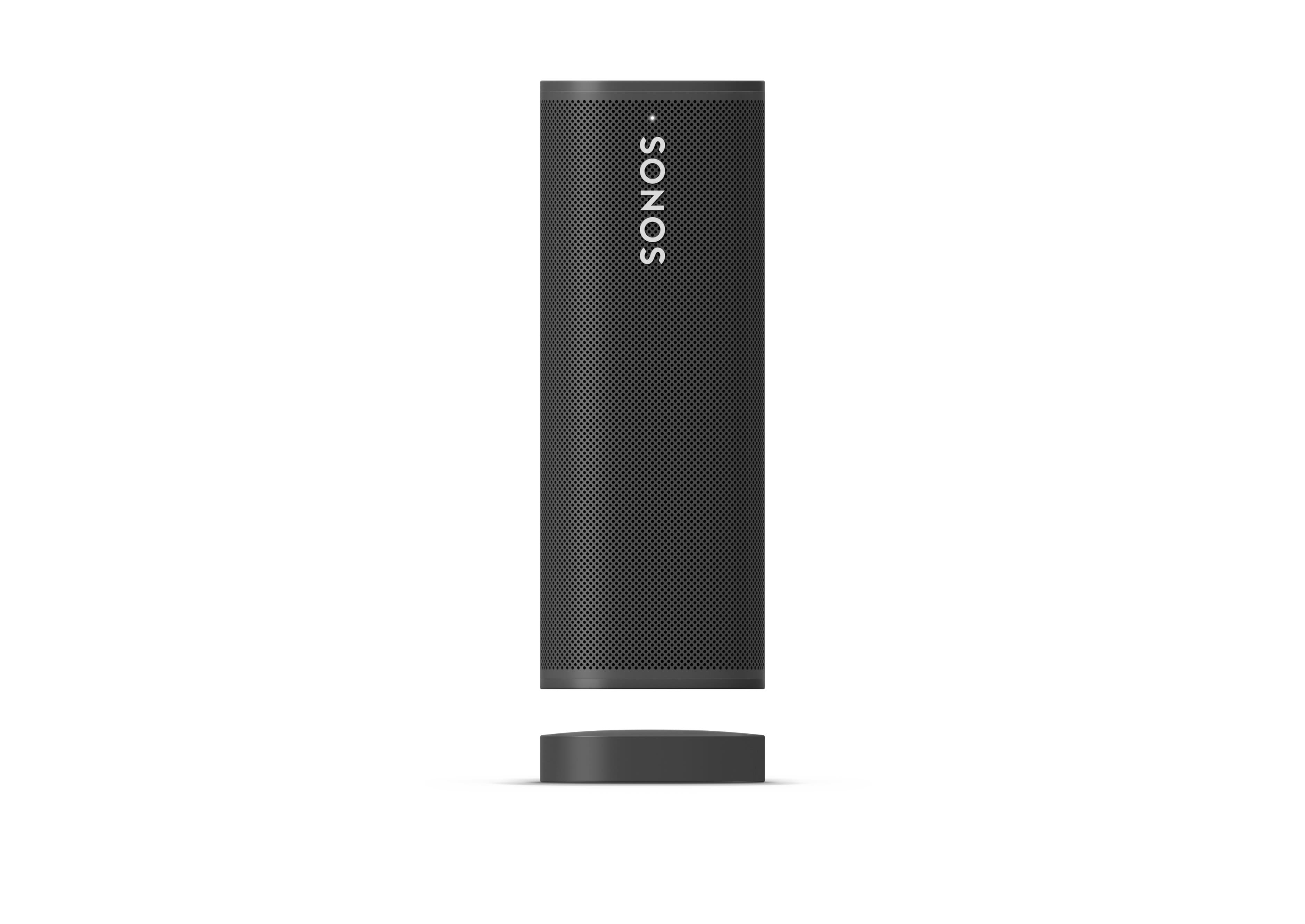
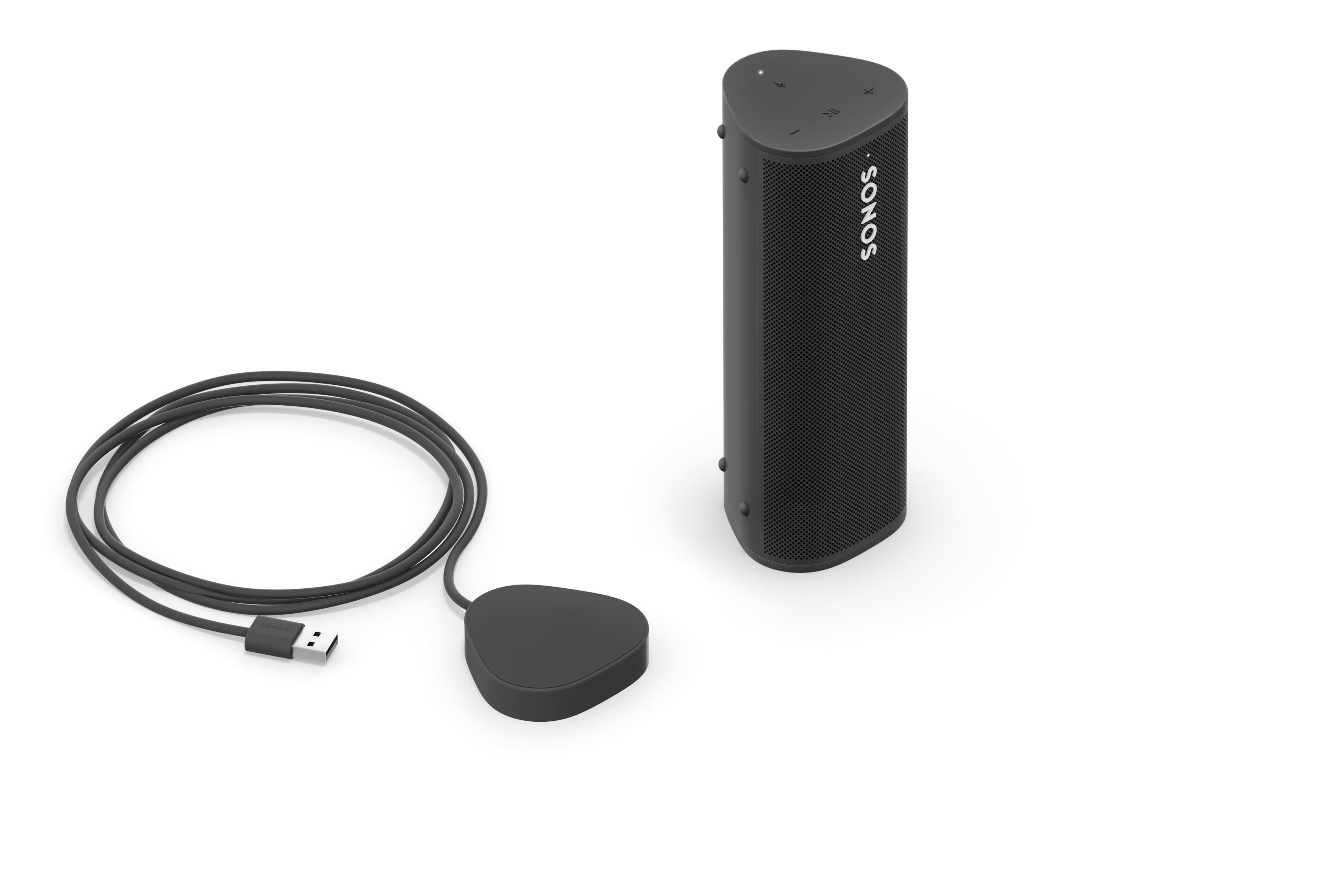
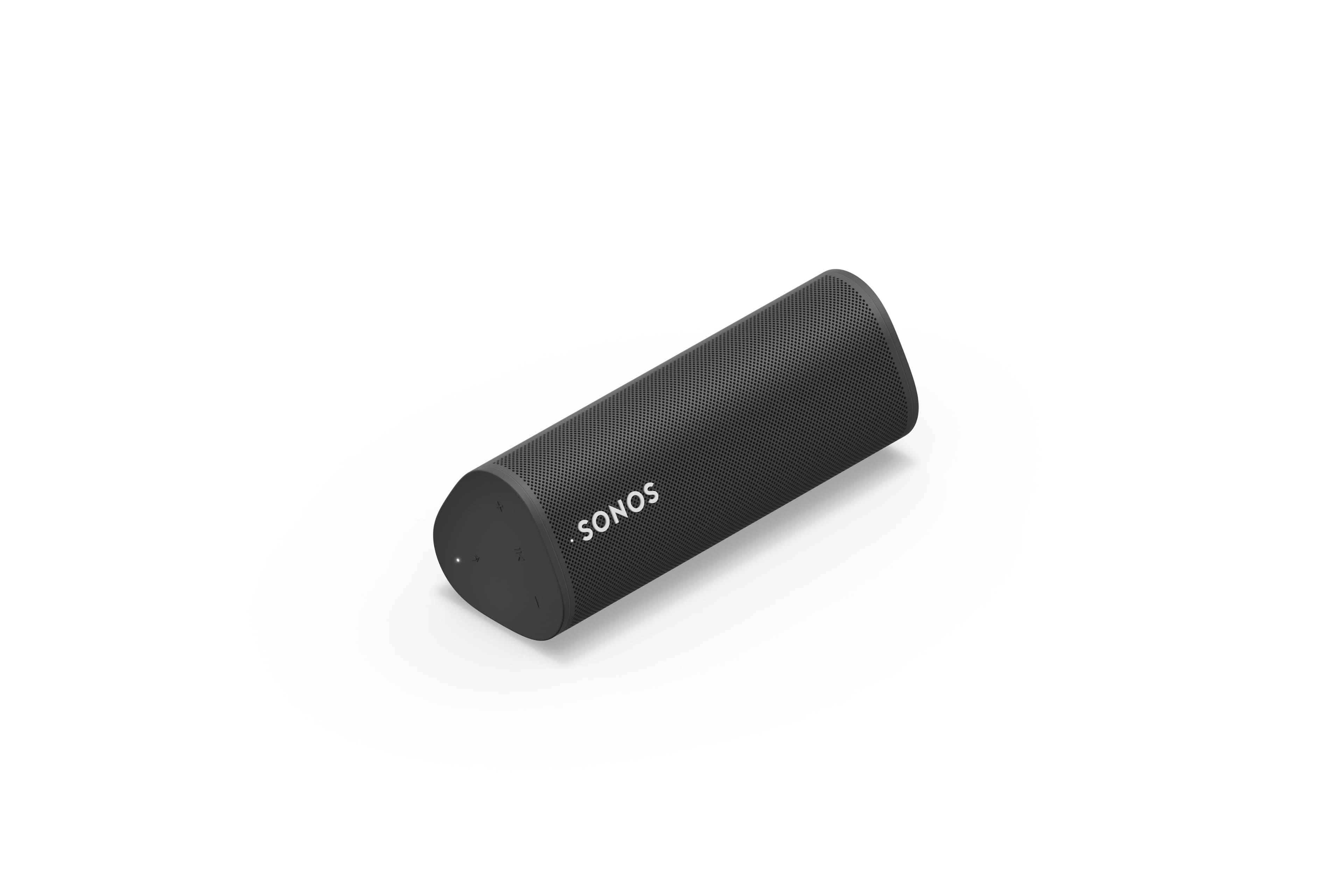
Customers love the Roam + Wireless Charger Bundle's exceptional sound quality and convenient portability. Many appreciate its impressive battery life and easy connectivity options, allowing for seamless Bluetooth and Wi-Fi pairing. The compact size is also frequently praised, with users highlighting its powerful sound despite its small stature.
This summary was generated by AI based on customer reviews.
- Pros mentioned:Sound quality
The preferable
Posted .This reviewer received promo considerations or sweepstakes entry for writing a review.It is really a good sounding system and you can choose which is better for your living room
I would recommend this to a friend - Pros mentioned:Portability
Great
Posted .This reviewer received promo considerations or sweepstakes entry for writing a review.Easy to use. Matches up well with our Sonos speakers
I would recommend this to a friend New (open box) sold not working
Posted .This reviewer received promo considerations or sweepstakes entry for writing a review.This is a review of the new open box item and the response from BestBuy NOT the Sonos speaker. The new open boxed speaker and wireless charger were purchased as a gift, with no time to exchange before gifting. The charger would not connect with and charge the speaker. This may have been a defect with the charger or the speaker, it is not clear. They should have been checked before shipping. I went to the store to get a replacement, and the workers could not check what the problem was and the only recourse was to return the already gifted item OR pay the full price for a new item.
I would recommend this to a friendInconsistent pairing with bluetooth
Posted .This reviewer received promo considerations or sweepstakes entry for writing a review.This product is extremely frustrating when trying to pair with my Bluetooth device. I want to throw my $179 speaker in the trash and I hate it.
No, I would not recommend this to a friendBrand response from Sonos Customer Care
Posted .Hello Melisa,
Sorry to hear you are having trouble with your device. Here are some additional steps you can take to ensure a successful bluetooth connection to your devices:
Pair Sonos Roam with Bluetooth
Before you start Roam needs to be set up with the Sonos app on Wi-Fi before it can connect to your device via Bluetooth. Make sure Roam is powered on and awake before following the steps below.
Pair your device with Roam
Follow these steps to pair a device to Roam via Bluetooth:
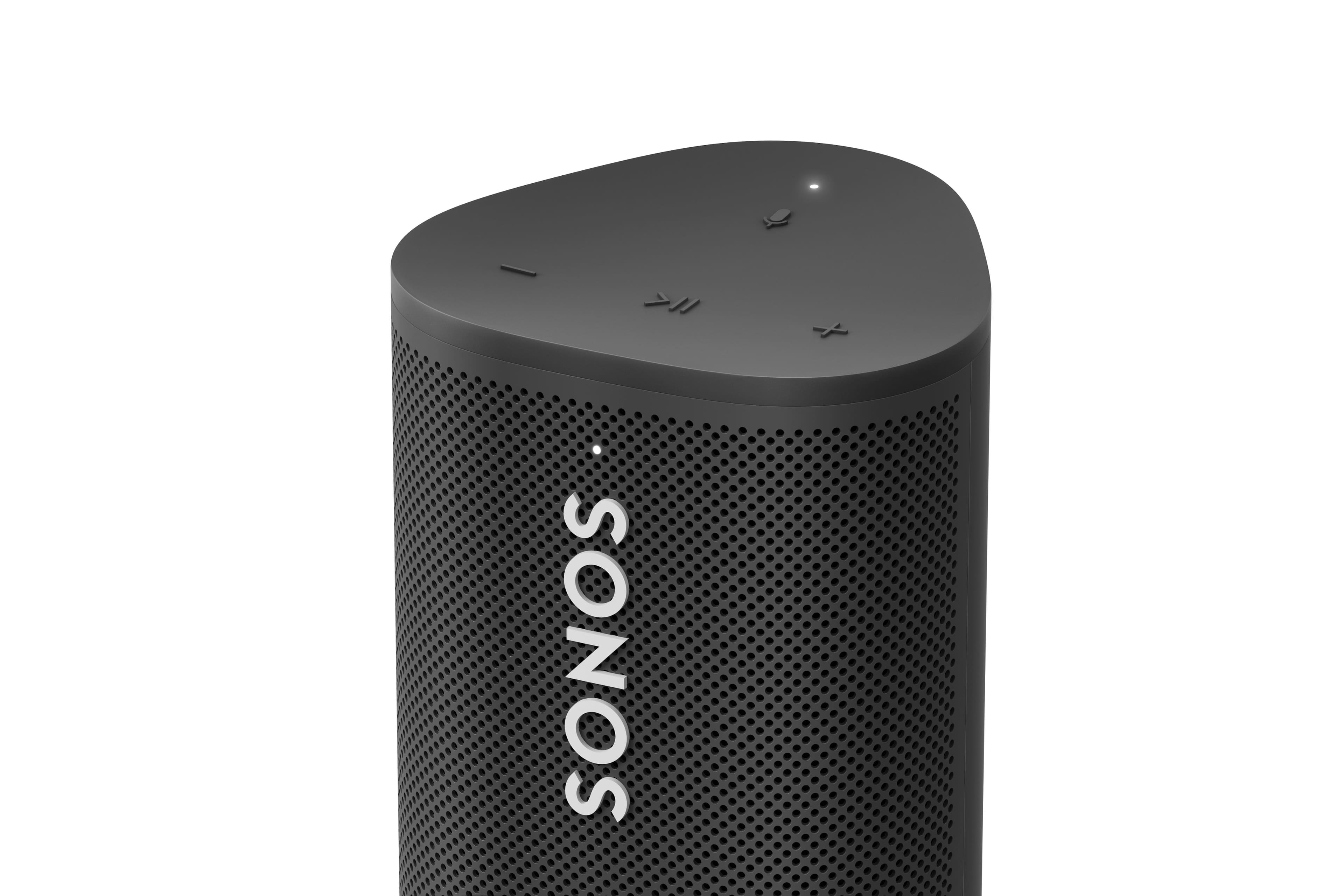
Press and hold the power button on the back of Roam for two seconds, then release. You will hear the pairing tone and the status LED on the front will start flashing blue.
Go to your device’s Bluetooth settings and select Roam from the device list.
When successfully paired, you’ll hear another tone and the status LED will change to solid blue.
Pair a different device with Roam
After you’ve paired Roam with one device, you can follow the steps below to pair it to a different device.
Press and hold the power button on the back of Roam for two seconds, then release. Roam will try to connect to a previously-paired device.
If Roam connects to a previously-paired device, the status LED will turn solid blue. Press and hold the power button again for two seconds, then release. This will put Roam into pairing mode so you can add a different device.
If Roam can’t find a previously-paired device nearby, it will automatically enter pairing mode and the status LED will begin blinking blue.
Once Roam shows a blinking blue status light, go to your device’s Bluetooth settings and select Roam from the device list.
When successfully paired, you’ll hear another tone and the status LED will change to solid blue.
Disconnect your device from Roam
Follow these steps to disconnect your Bluetooth device from Roam.
From your Bluetooth device:
Go to your device’s Bluetooth settings.
Select Roam and tap or click Disconnect.
From Roam:
Roam will disconnect from your Bluetooth device when it goes to sleep or is powered off. When awakened or powered on again, Roam will be in WiFi mode.
Roam has an Idle Auto-Disconnect setting which will disconnect Roam from a Bluetooth device after 30 minutes of sitting idle. This setting is off by default, but can be turned on in the
Settings tab under System > Roam > Bluetooth > Idle Auto-Disconnect.
Reconnect Roam with Bluetooth
Follow these steps to reconnect to Roam from a previously paired device:
From your Bluetooth device:
Go to your device’s Bluetooth settings.
Select Roam from the list of previously connected devices to reconnect your paired device.
From Roam:
Press and hold the button on the back of Roam for two seconds, then release.
The status LED will turn solid blue and you’ll hear another tone confirming Roam has reconnected to your Bluetooth device.
You can set Roam to automatically reconnect to its most recent Bluetooth device. This setting is off by default, but can be turned on in the
Settings tab under System > Roam > Bluetooth > Always Auto-Connect.
This can also be found on support.sonos.com. We hope this helps!
Possibly the worse thing to happen to technology
Posted .This reviewer received promo considerations or sweepstakes entry for writing a review.Im going to cut to the point. This speaker is absolutely garbage. Doesnt connect well with AirPlay or Bluetooth constantly drops the song or cuts in and out. I love Sonos products but i would buy legit any other speaker than this one if you want it to work for you.
No, I would not recommend this to a friend