How to Set Up a Microphone
- Click the
 (Apple) icon in the top left corner of the screen, then click System Preferences (macOS Figure 1).
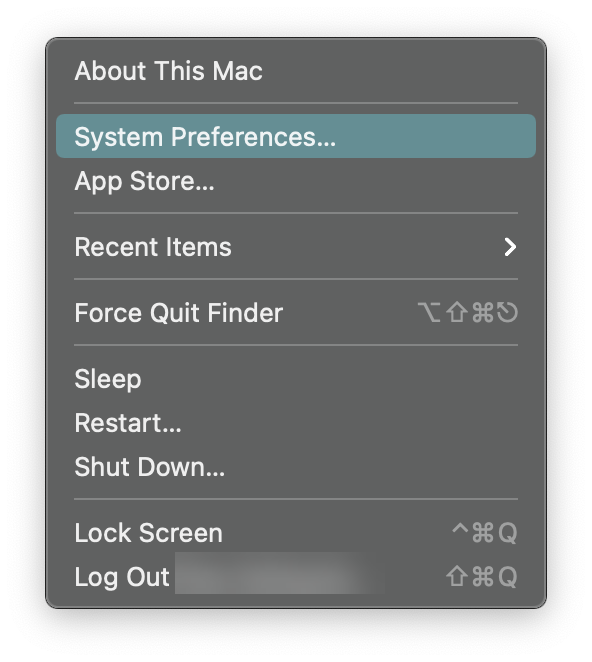
macOS Figure 1
- Click Sound (macOS Figure 2).
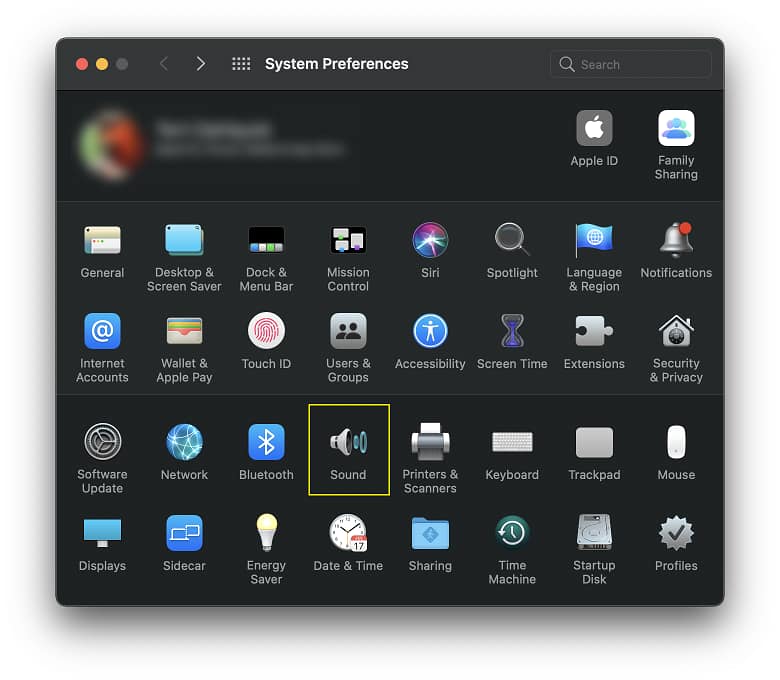
macOS Figure 2
- Choose the Input tab. The list of microphones will appear. Choose the microphone you want to use (mac OS Figure 3).
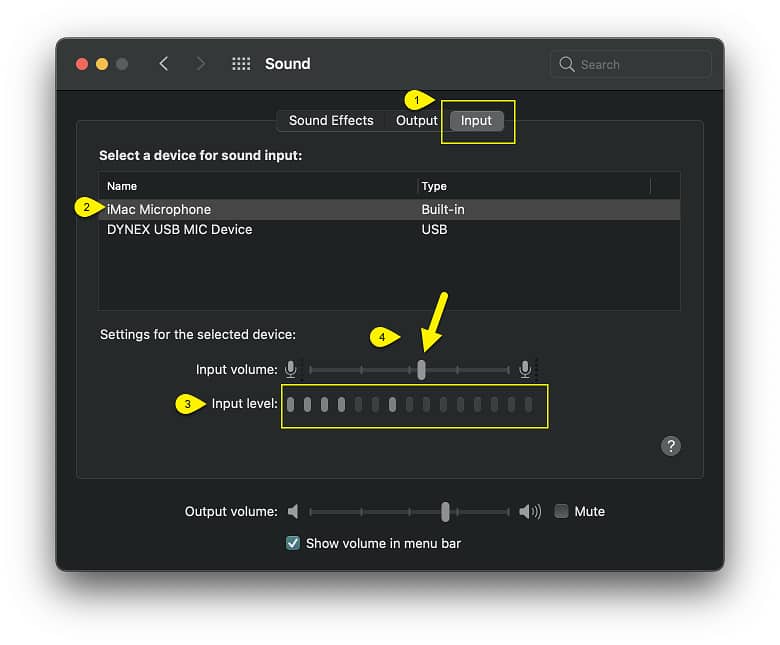
macOS Figure 3
- Speak into the microphone and look for bars moving beside Input Level while talking (macOS Figure 3).
- If the bars are rising while speaking, the microphone is properly configured.
- If the bars are not rising while speaking into the mic, continue with the next steps.
- Drag the slider for Input Volume all the way to the right to set the maximum volume (macOS Figure 3).
- Repeat Steps 4 and 5 to test. If the microphone still does not work, continue with the next step.
- Shut down your computer then turn it back on. If the problem persists, you may have a driver or hardware issue. Please schedule an in-home or in-store appointment.
- Right-click on the Speaker Icon in the bottom right corner of your screen. A context menu will pop up (Windows Figure 1).
NOTE:On Windows 8/8.1, make sure you start at your desktop screen before choosing the speaker icon.
Windows Figure 1
- Select Recording devices from the context menu (Windows Figure 2).
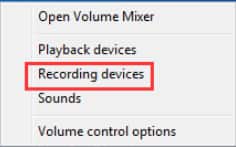
Windows Figure 2
- Ensure the desired microphone is set as default. If not, highlight the desired microphone, and click Set Default (Windows Figure 3).
NOTE: Your desired device name might not be Microphone and the icon may differ from the one shown.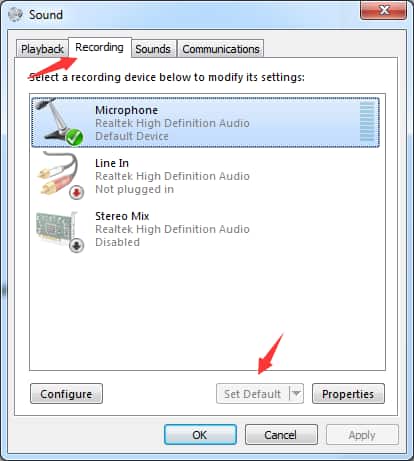
Windows Figure 3
- With your selected microphone selected, click the Properties button (Windows Figure 4).
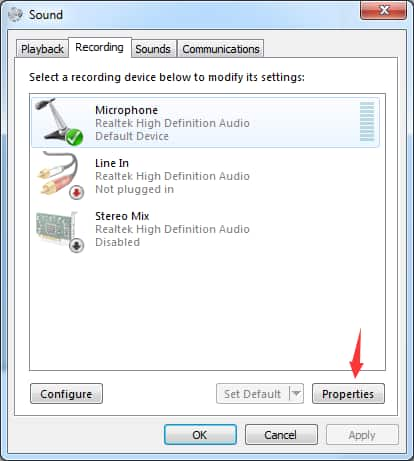
Windows Figure 4
- Click on the Levels tab.
- Ensure the volume level for Microphone is set to 50 or higher. If the microphone volume is muted, the sound icon will display like this:
 (speaker icon with circle backslash). Click on it to unmute it. (Windows Figure 5).
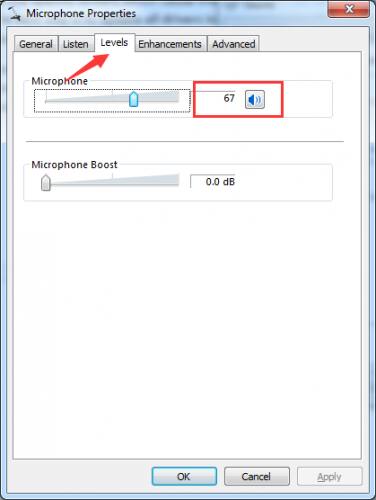
Windows Figure 5
- Ensure the volume level for Microphone is set to 50 or higher. If the microphone volume is muted, the sound icon will display like this:
- Click Apply, then OK.
Keywords: Windows, 7, 8, 8.1, 10, 11, Microphone, Mac, OSX, macOS, OS X,