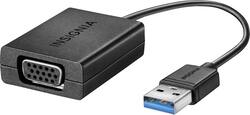
Insignia™ - USB to VGA Adapter - Black
- Key Specs
- Connector Type (End 1): USB
- Gender (End 1): Male
- Connector Type (End 2): VGA
- Gender (End 2): Female
- Connector Finish: Nickel
- General
- Brand: Insignia™
- Model Number: NS-PU96203
- Product Name: USB to VGA Adapter
- Color: Black
- Connectivity
- Cable Type: USB
- Product Type: Adapter
- Connector Type (End 1): USB
- Gender (End 1): Male
- Connector Type (End 2): VGA
- Gender (End 2): Female
- Material
- Connector Finish: Nickel
- Other
- UPC: 600603201264
Expand your computer setup with this Insignia USB to VGA adapter. The USB connector works with both USB 3.0 and legacy USB ports for effortless connectivity, and the VGA connection point lets you attach an additional monitor to your desktop computer. Configured to support up to a 1080p resolution monitor, this Insignia USB to VGA adapter delivers beautiful picture quality.
- Compatible with most computers: With a USB 3.0 or USB 2.0 connection, for wide-ranging use.
- Adapter: Lets you add an additional display to your setup, so you can eliminate the layering of open windows to enhance productivity.
- Supports up to 1080p resolution (with USB 3.0 port): Works with legacy USB ports (max resolution 800x600)
- Compatible with most computers: With a USB 3.0 or USB 2.0 connection, for wide-ranging use.
- Adapter: Lets you add an additional display to your setup, so you can eliminate the layering of open windows to enhance productivity.
- Supports up to 1080p resolution (with USB 3.0 port): Works with legacy USB ports (max resolution 800x600)
Whats Included
- Insignia USB to VGA Adapter
- Insignia USB to VGA Adapter
Q: is this compatible with windows 10?
A: In the experience of many, including myself, this does NOT work with Windows 10, at least with the driver which one can install by plugging in the product. In short, for the average consumer, I would look to another product for Windows 10 until the below described issues are resolved. For those who wish to use this for Windows 10 (probably those in the camp of purchasers who wish to troubleshoot), I have heard there are some driver updates; however, my searches have yielded 404s on Insignia's product support site. Perhaps, these will soon be resolved after the time of this comment. The issues many have experienced with Windows 10 amount to the displays either appearing black or blue, rendering the machine unusable and requiring a reinstallation of the OS or a rollback via system restore (always have a USB stick handy with recovery tools ready folks): This thread on Microsoft's Community describes the issue in more detail for the undecided customer: http://answers.microsoft.com/en-us/windows/forum/windows_10-performance/black-screen-after-installing-usb-to-vga-adapter/01e3f4d7-1fd4-4a77-87e2-60cc80504953 For those who have this issue, I would recommend trying a system restore from a recovery disk or USB drive. For me, I had remote desktop enabled, so I was able to remote into the nonworking machine and uninstall in Programs & Features in Control Panel. Unfortunately, many Win10 installations have both system restore and remote desktop disabled by default.
Q: Can I hook up an HP VGA monitor to my HP Pavilion 23 all in one computer with this adapter?
A: Only if you need a new paperweight because this adapter will kill your computer. Do not buy this thing.
Q: Do I have to download any drivers for this to work on an HP 220 All In One Computer?
A: Does not work with windows 10. It will corrupt your OS and crash your PC.
A: I don't have a specific answer to the question, but I also have a Surface pro and noticed some problems connecting to projectors. I used the display adapter sold by Microsoft - connects to the HDMI adapter and is powered by the projector's USB port. On a test run, the Powerpoint slides worked perfectly. During the meeting, it did not work. I had to improvise. To answer your situation - you may have to work with the display settings on the Surface Pro to find one that works. I don't know if the numbers you posted (1680 vs. 1068) were as a result of a typo (1068 doesn't sound like a typical display setting), but you may have to try a lower resolution. If you're not sure how to do this, read on... The bottom left hand side of the screen should have four images: The start button, an arrow that points to the left, a circle and a box (task view). Using the mousepad, point to the circle and click on the circle. In the search bar, type "display". The search will show a number of options...choose "Change display settings". It should be highlighted as the first choice. The middle of the page should have a column of options and settings. Display, brightness, Night light, Scale and layout, Resolution, orientation and multiple displays. Select the "Resolution" option and see which one works best with your projector. Settings should range from 800 x 600 to 2736 x 1824. My Surface Pro has 25 different settings. One of them should match one of the settings within the capability of the projector. Match the two, and you shouldn't have any problems. Be sure to test each setting before locking in on one. The Surface Pro should give you a chance to return to the original setting if the one selected doesn't work. Hope this helps.
Q: Is this compatiable with XP. And if so, what else do I have to do.
A: Yes just download the driver for it
A: Update the driver by following the online instructions. I experienced the same at first, but when follow the steps it works!