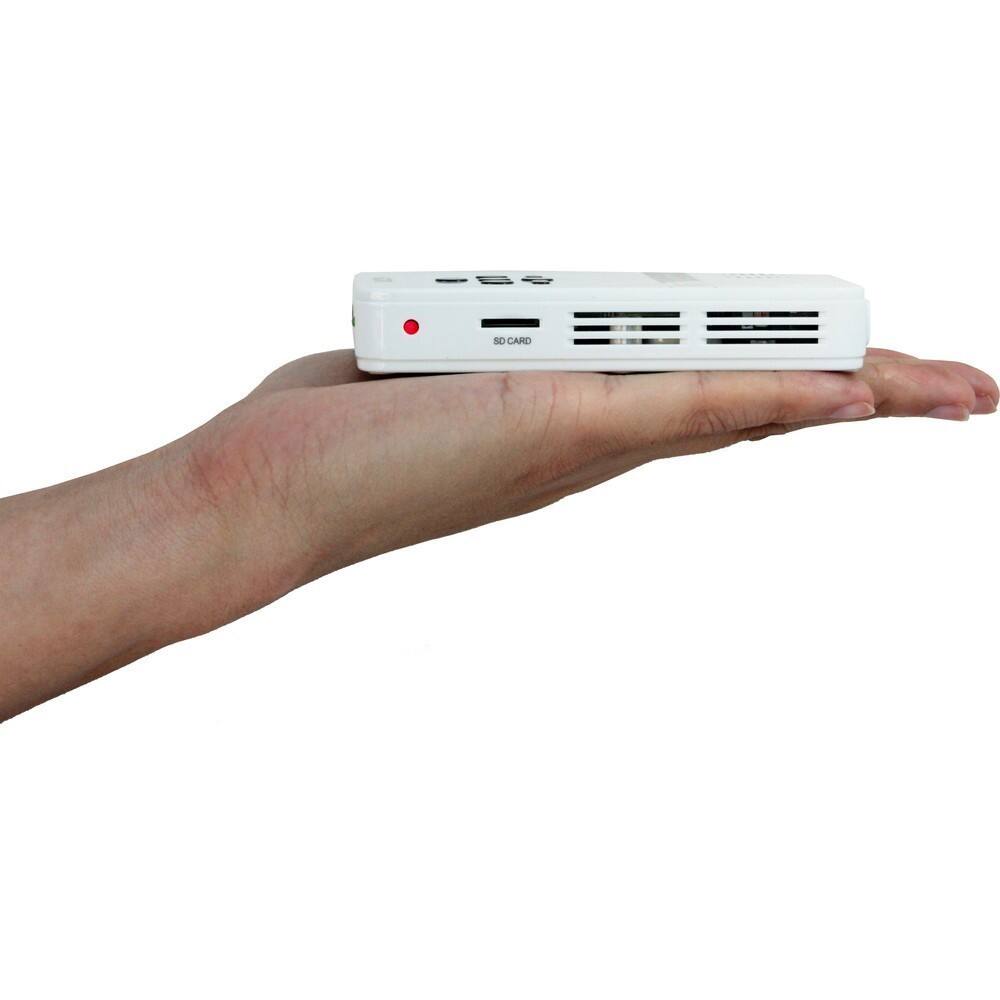
A:AnswerIf your ZTE phone will have a video out feature then the projector will be compatible. You will mostly likely just need to get an adapter and a mini-HDMI cable to connect them.
A:AnswerI believe it will only be available through online. The store may not carry them. You may order the projector online and have it shipped to one of the Best Buy stores near you.
A:AnswerYes it is compatible with a Macbook Air. You will just need to get a mini-display port to HDMI adapter and also get a mini HDMI cable. Once you have both you will be able to connect with the projector.
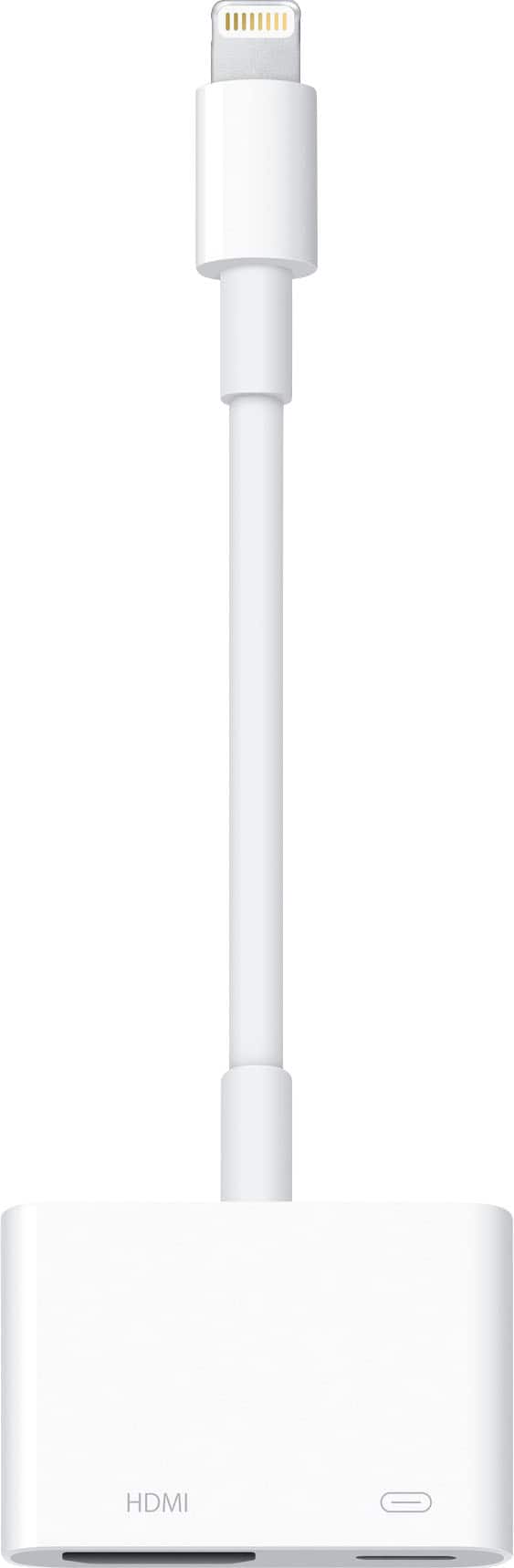
A:AnswerI believe the problem is the cable. So get a new cable or I recommend to get the one directly from Apple called a lighting to digital a/v adapter for the best results. No it should not have this issue on this projector as it is the cable that is causing the problem.
A:AnswerYes you will be able to but only through a Google Chromecast connected the projector. You will need to download the Google home app to mirror over your device to the Chromcast. It depends if the camera will have a video out capability to connect with the projector. If so then you can connect it through the HDMI port.
A:AnswerThe Moto Z will not have the HDMI out feature so it will not work with any projector. An alternative would be connecting it through a Google Chromecast.
A:AnswerYes you will be able to connect any HDMI enabled devices to mirror it to the projector and show Youtube videos from there. Please note some phones will need to have a video out feature and you may need to get an adapter to enable it.
A:AnswerIt will actually work with any Android phone as long as you have the right attachment cord. I'm not sure about the Kindle. I had to order and addition $50 HDMI cable for my iPhone, but it works fine on my sons Samsung Galaxy and my husbands Note.
A:AnswerThe Samsung S5 and up, Samsung has disabled the MHL video out feature from the phone so you will not be able to connect to the projector with a cable. I do recommend to get a Google Chromecast and connect it through that and it should work well.
A:AnswerFor any presentation I do recommend a unit that is 300 Lumens or more and have a HD resolution like the P300 for the best result. As the LED Pico is more towards personal use and not for text based presentation.
A:AnswerYes you can, you would just need an adapter from Apple called a lighting to digital a/v adapter and a mini-HDMI to HDMI cable if you don't have one already to connect your iPhone to the projector.
A:AnswerYes that is correct you can use the projector as the 2nd screen. Need to make sure both are connected to the computer and that duplicate or extend option is selected.
A:AnswerYou will probably need an adaptor to connect to the Mini HDMI port. But if you can do that, then using a computer would work. I hooked mine up to an Amazon Firestick. But you will need a speaker. The speakers on this are almost non-existing. Anything that using an audio jack should work.