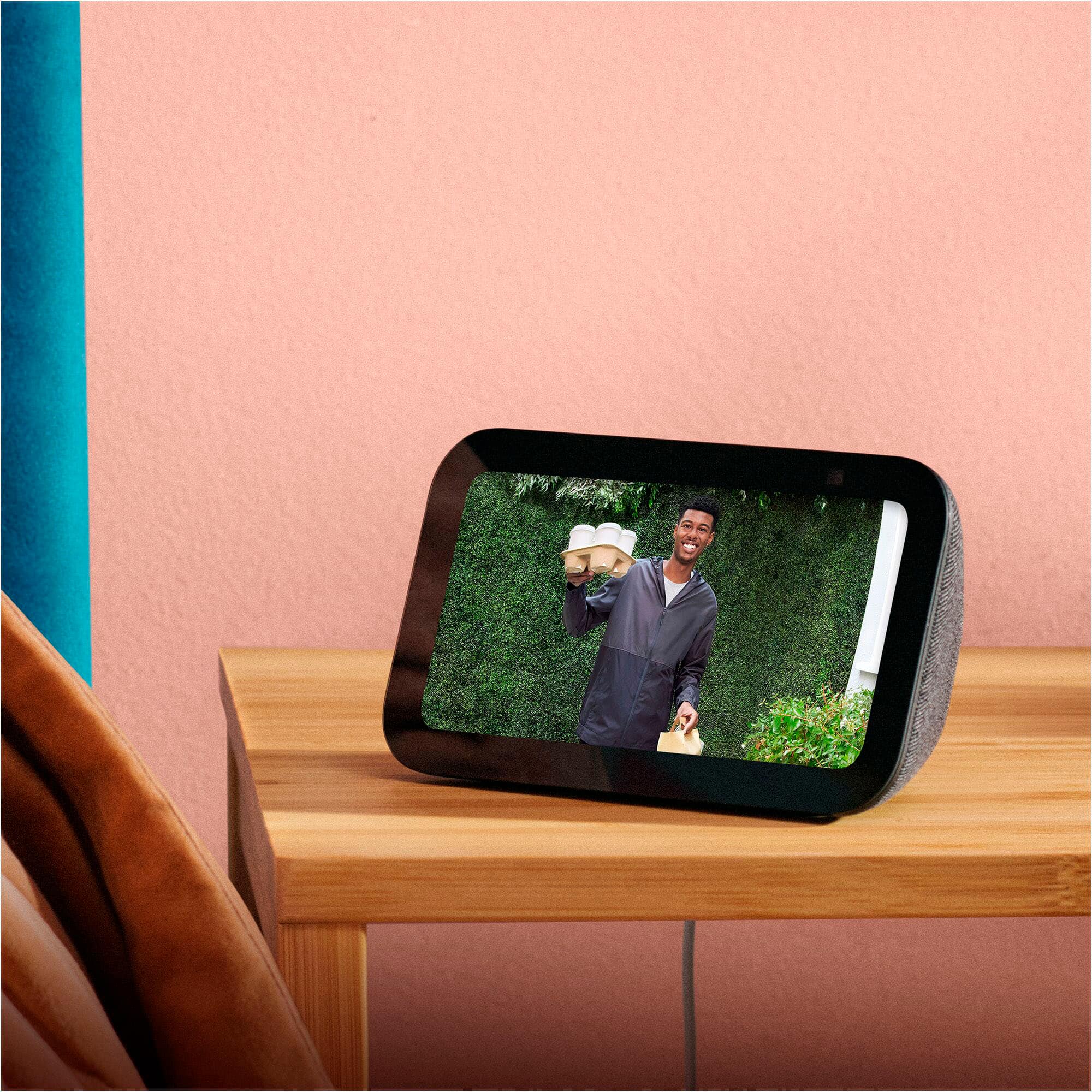
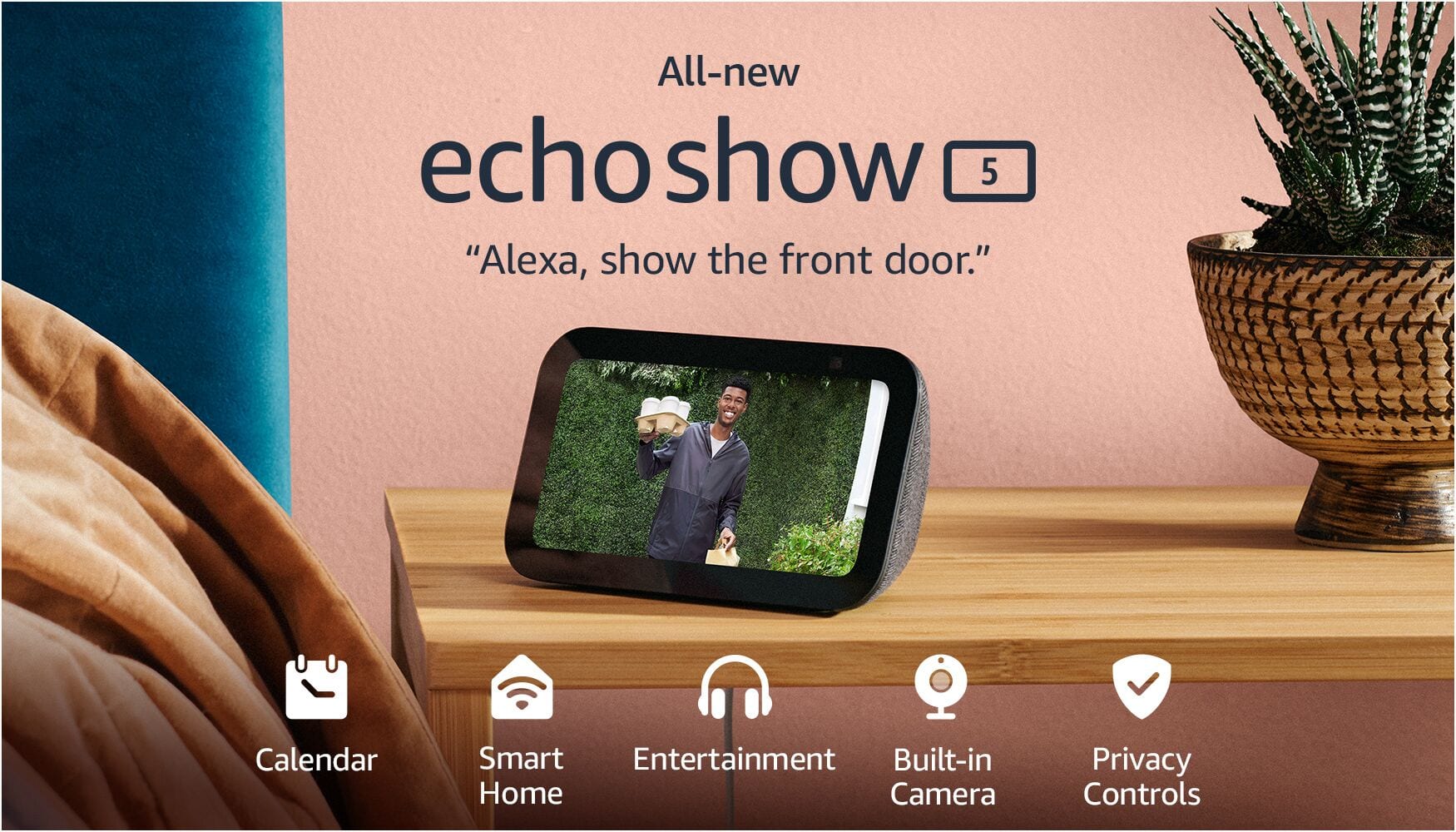
A:AnswerHi, Stella! Yes! The Echo Show 5 (3rd Generation) is compatible with the Ring Video Doorbell. All you need to do is connect your Ring to your Alexa device via the Alexa app. I hope this helps. Have a great day!
A:AnswerHi Tony, on your Echo Show 5, swipe down from the top and go to Settings > Home Content to turn off things like recommendations, trending topics, and promotional content.
You can also enable Do Not Disturb or Night Mode so the screen stays dimmer at night.
Hope this helps!
A:AnswerHello TCflyer! Yes, the Echo Show 5 is fully compatible with the 2nd Gen Blink Doorbell and Sync Module XR. You can enable "Doorbell Press Notifications" in the Alexa app. Then, when someone presses the doorbell your Echo will make a chime and Alexa will announce that someone is at the door. You can also set it to "automatic Live-view", which means as soon as the doorbell is pressed a live-feed will pop up on your Show 5. The Show 5 does not store video internally and can only be used for viewing live footage. Old clips can be brought up within the Blink app. I hope this answers your question and I hope you have a great day!
A:AnswerHello,
It looks like you have a first generation Echo show 5. If the Echo Show 5 is factory reset to it's original settings, once you turn it on, it will walk you through the set up process. It will ask for your Wi-Fi network and password, your Amazon Account, which is free to setup if you don't have one already. As well as other questions which are optional such as naming the device or giving it a room location. If the device is not factory reset and you purchased or were gifted a refurbished unit, I would recommend calling our Customer Service number at 1.888.280.4331
I hope this helps!
A:AnswerHello Dav,
To set up your Echo Show 5 all you need to do is plug the device in and follow the prompts. These are the prompts that you will follow:
- Language Selection
- WiFi Network
- Amazon Account Login Credentials
- Verify your Time Zone and Address
After these prompts, you will be given the option to customize the device. Options such as Device Name, Wallpaper, Room Location. These are optional settings and can be skipped.
The device may also require an update. It will notify you of this during the setup process and will complete the update on its own.
I hope this helps!
A:AnswerHello Jp
Yes, the Amazon Echo Show 5 pairs seamlessly with Ring cameras and doorbells to display live video, provide two-way audio communication, and announce motion or doorbell presses. You can set this up through the Alexa app. I hope this information helps. Have a great day.
A:AnswerHi Rachel, Yes, the Youkey Life doorbell (such as the DB312 wireless or DB322 wired models) is compatible with the Amazon Echo Show 5. Youkey Life doorbells officially support Amazon Alexa integration. This means you can: 1) View the live video feed from the doorbell on your Echo Show 5 using voice commands like “Alexa, show the front door camera” (or whatever name you assign to it). 2) Stream live feeds on Alexa-enabled screen devices like the Echo Show series. 3) Use two-way talk in some setups (check the specific model for full details). 4) Receive notifications and control basic functions through the Alexa app. Hope you have a great day.
A:AnswerHi Yes, you can watch cooking recipes on the Echo Show 5—it's actually one of the better uses for this compact smart display in the kitchen. You can use voice-activated recipes with video just by saying something like "Alexa, show me a recipe for (DISH NAME), ETC. Once you pick a recipe, Alexa reads the steps aloud while showing them on the 5.5 inchec screen. Hope you have a great day.
A:AnswerHello! Alexa is compatible with a wide range of security systems, allowing for voice-controlled arming/disarming, camera viewing, and routine integration. While compatible with a large number of systems, I would verify compatibility with your specific system just to be sure. Thank you and have a great day!
A:AnswerHello Cassie! Happy to report that Alexa device setup is simple and frustration free! All you'll need to do is plug it in, connect to wi-fi, and follow a few prompts. Here's a step by step guide:
1. Power On: Plug the included power adapter into a wall outlet and the back of the Echo Show 5. It will automatically begin booting up.
2. Select Language: Select your preferred language on the screen.
3. Connect to Wi-Fi: Select your Wi-Fi network from the list and enter the password.
4. Log in to Amazon Account: Enter your Amazon account email and password, or if you purchased it on your account, it may pre-register.
5. Confirm Information: Verify your time zone, address, and name the device.
6. Update and Customize: The device will likely install a software update, which takes about 5-10 minutes. Then, select your preferred clock face, background photo, and room location.
7. Final Settings: Decide on settings for Amazon Sidewalk, camera monitoring, and Kid-friendly content.
I hope I've answered your question and that you have a great day!
A:AnswerHello, Melissa! The Echo Show devices don't require a phone to connect to Wi-Fi. Because it has a built-in touchscreen, you can handle the entire setup directly on the device itself. This makes it much more "standalone" than its screenless devices.
**How to connect directly on the Echo Show**
--Swipe down from the top of the screen to reveal the quick menu.
--Tap the Settings (gear icon).
--Tap Network.
--Select your Wi-Fi network from the list.
--An on-screen keyboard will pop up; type in your password and tap Done or Connect.
I hope this helps!
A:AnswerHi Bbking,
Yes, you can control your Roku TV with an Amazon Echo Show 5 by enabling the Roku skill in the Alexa app. You can use voice commands to turn the TV on/off, adjust volume, switch inputs, and launch specific apps like Netflix.
I hope this answers your question!
A:AnswerHello Shirley and thank you for your question! Yes, in order to see the Wyze camera on the Amazon echo show 5, you need to enable the Wyze skill on the Alexa app. Once the skill is enabled, you can connect to the camera. Hope this helps! Have a great day!
A:AnswerHello,
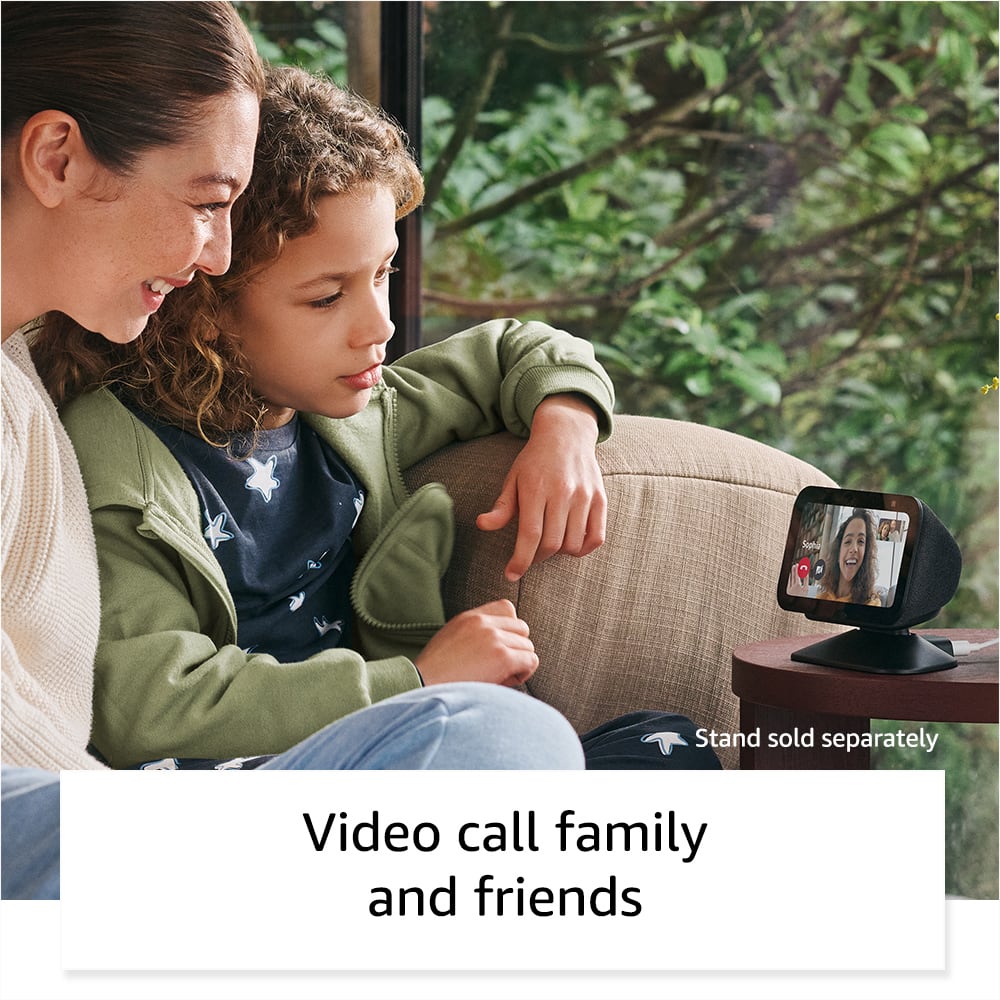
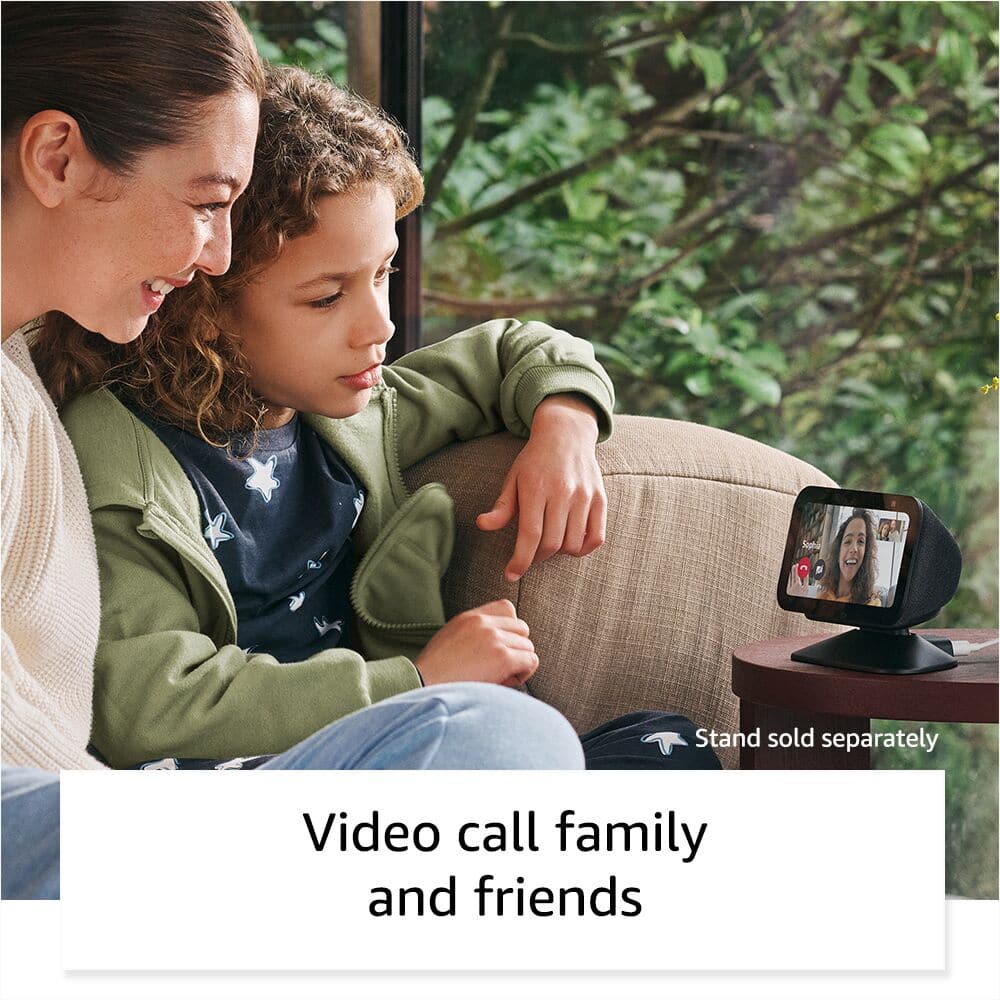
Alexa does not use the FaceTime or Meet apps for video calling. Alexa does however offer Drop in video calling. Using Alexa's Drop In feature you can video or voice call anyone in your contacts. For example, My family all use Android phones, but I have an iPhone, When my wife and I want to video chat with my parents, I can say "Alexa, Video Call Mom and Dad". The one thing that is required is that any party you would like to call do need to have the Alexa App, which is free on IOS or Android.
Roku Cameras are supported by Alexa Devices, In order to view your Roku Cameras on your Echo Show 5 you can complete the following steps:
- Make sure your Roku Cameras are on and connected to your network.
- On your Phone or Mobile Device open the Alexa App.
- Tap "More" Icon
-Tap "Skills & Games"
- Search for "Roku Smart Home"
- Enable Skill and sign in to your Roku Account on the Alexa App.
- The Alexa App will give you prompts to follow to discover your devices.
- If the Discovery process does not work, you can tell your Show 5 "Alexa, Discover Devices"
I hope this answers your questions!
A:AnswerHi there! You can access your Roku camera's via Alexa by enabling the Roku skill in the free Alexa app. To find the skill, just open the free alexa app and search "Roku" via the Alexa+ store. Once you're all signed in, just say "Alexa, show me [name of the Roku camera]" to see the live view. I hope that helps, have a great rest of your day!
A:AnswerHello! Thank you for your question about the Echo Show 5. The Echo Show 5 does not support direct emergency service calling (911) on its own. However, when bundled with Alexa Emergency Assist, you can say "Alexa, call for help" to connect with a trained Urgent Response agent 24/7 who can request dispatch of emergency services on your behalf and pass critical information from your profile to first responders. This service avoids wait times and automatically notifies up to 25 designated emergency contacts when a call starts and ends. The standard Echo Show 5 without Emergency Assist allows you to make calls, drop-ins, and announcements to one designated emergency contact. Alexa Emergency Assist requires a subscription and provides enhanced emergency response capabilities including pre-saved critical information like allergies, gate codes, or pets in the home that can be shared with first responders.
If you have other questions about the Echo Show 5's calling features or emergency capabilities, I recommend contacting Amazon Customer Support at 1-888-280-4331 (available 24/7) for additional assistance. Have a great day!