A:AnswerHi Dan! From a quick look online, it appears some users have had luck fixing this by changing which HDMI port the Fire Stick is connected via. If that doesn't solve the problem, or if you need additional assistance, I would suggest reaching out to Amazon Support directly.
A:AnswerAll you need is an HDMI connection and it makes your TV smart. I believe you want to know if Spectrum TV has an App that you can download on the Firestick. Go to google and ask google.
A:AnswerHi Wilson! Yes, you can use your Fire TV Stick to view both Ring and Wyze cameras. Here's how: All Ring devices are compatible with Amazon Alexa. Therefore, you can easily set your Ring Doorbell or camera to play on your Fire TV (or Fire TV Stick) with the Alexa app. Before all of that, you’ll need to install the Ring skill using the Alexa app. You can do this on both your computer or your smart device.
Follow these steps:
Launch the Alexa app.
Tap the ‘more’ icon at the bottom-right of the screen (three horizontal lines).
Select ‘Skills & Games’ from the dropdown menu.
skills and games
Hit the ‘Search’ button at the top-right of the screen.
Type ‘ring’ in the search bar and locate the Ring app from the list.
ring
Tap the blue ‘Enable to Use’ button to add the skill to your Alexa devices.
enable to use
Enter your Ring credentials on the following screen.
login
Tap ‘Sign In,’ after which you’ll be taken to the authorization screen.
Hit ‘Authorize.’ Now just ask, “Alexa, show me the [device name]”: to display the Ring Doorbell or camera on your TV screen. For Wyze, first you’ll need at least one of the 2nd Generation Wyze Cams, or a Wyze Cam Pan, as the original v1 Wyze Cam doesn’t support this kind of streaming. You’ll also need to make sure that its firmware is updated to the latest version, as you might have problems connecting if you’re running an older version.Using the Alexa Voice Remote that comes with your Fire Stick, you can easily set up your TV or monitor to connect to your Wyze Cam and start casting using voice commands.
Once you’ve got your Wyze Cam updated and connected to the Wyze app, you’ll need to get the Wyze skill enabled. Here's how: Follow these steps:
Launch the Alexa app.
Tap the ‘more’ icon at the bottom right of the screen (three horizontal lines).
Select ‘Skills & Games’ from the dropdown menu.
skills and games
Hit the ‘Search’ button at the top-right of the screen.
Type ‘Wyze’ in the search bar and locate the Wyze app from the list.
Wyze
Tap the blue ‘Enable to Use’ button to add the skill to your Alexa devices.
enable to use. Now just ask, “Alexa, show me the [device name]”: to display the Wyze camera on your TV screen. Make sure you know the specific device name, what you've named it in the Wyze App, to pull it up. Thanks for the question, have an amazing day!!
A:AnswerThey each have an app that you can download. The CW is one I watch a lot. If you have internet connection it will definitely save you money switching from cable to firestick with Philo app
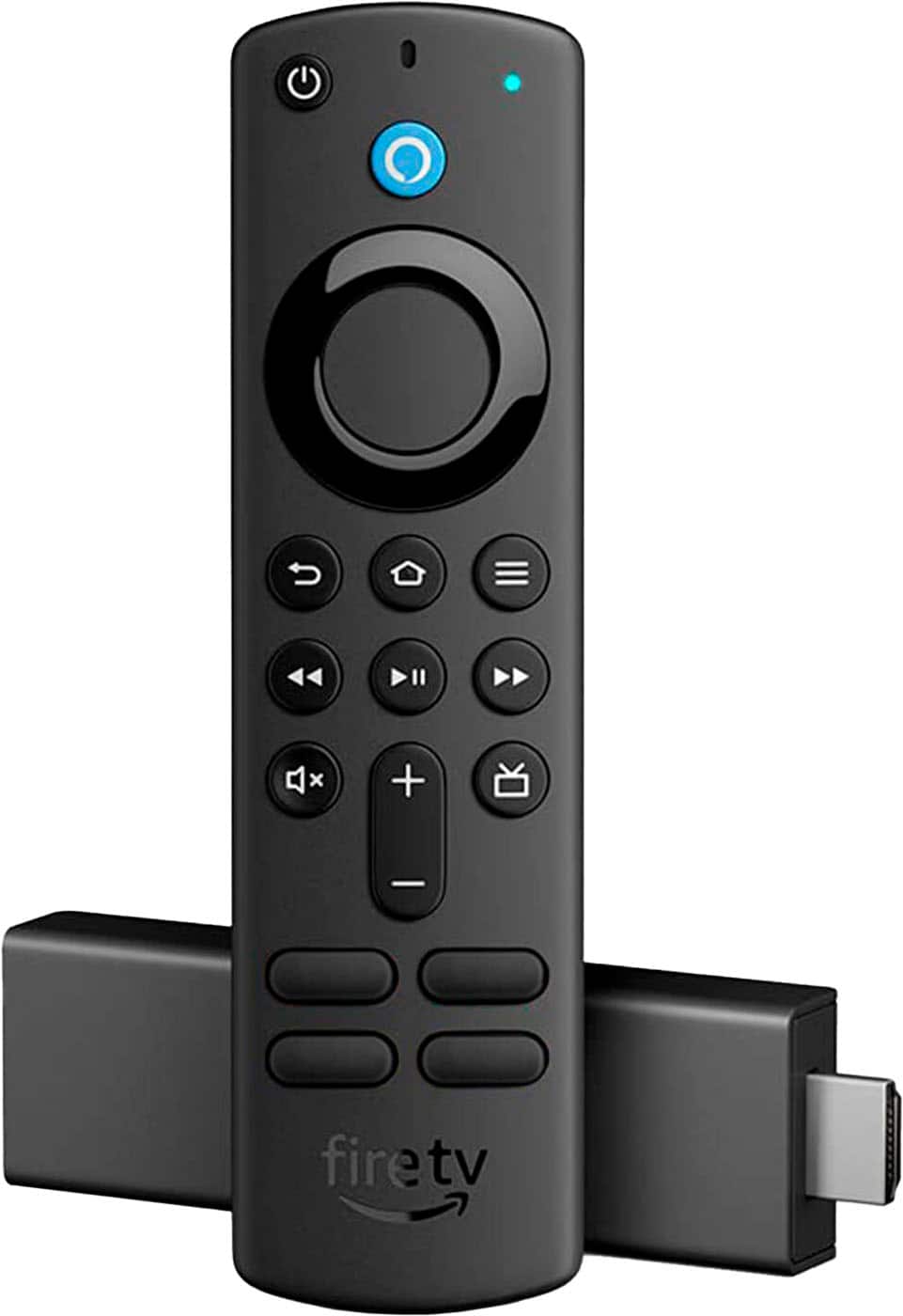
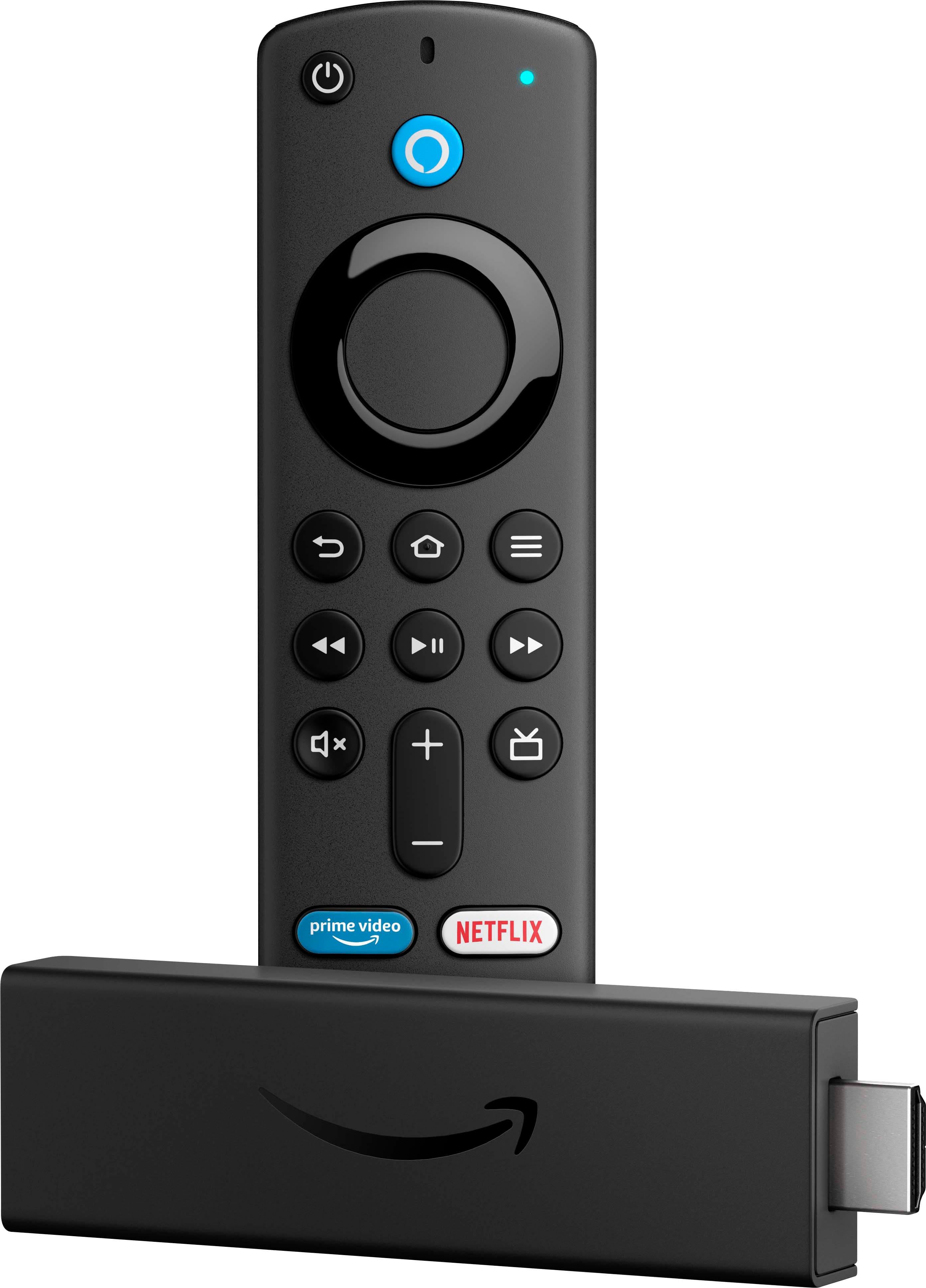
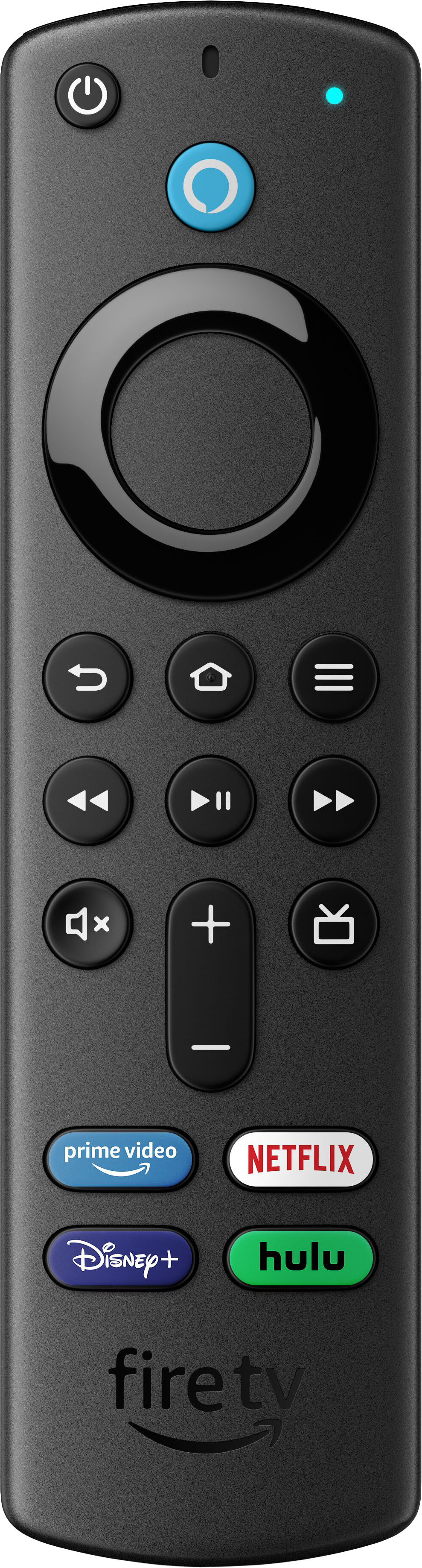
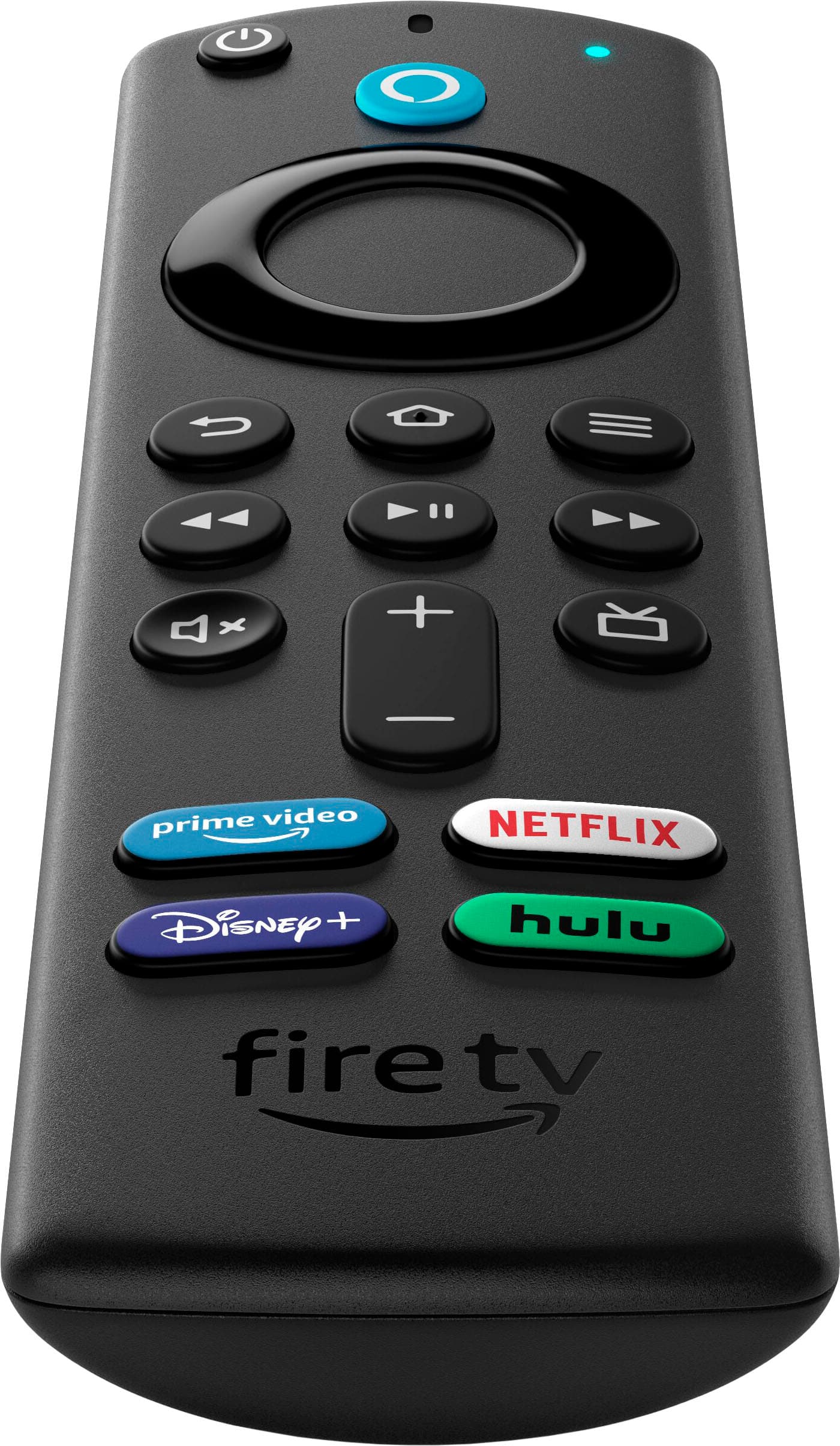
A:AnswerI wouldn't say a full replacement, but it does allow you to control your volume and turn the TV on/off with the Firestick remote. There are no number buttons for channels.
A:AnswerNo. We specifically bought the Firetv cube for voice control. You can open the YouTube tv app, but you cannot navigate with voice within the app. Very frustrating.