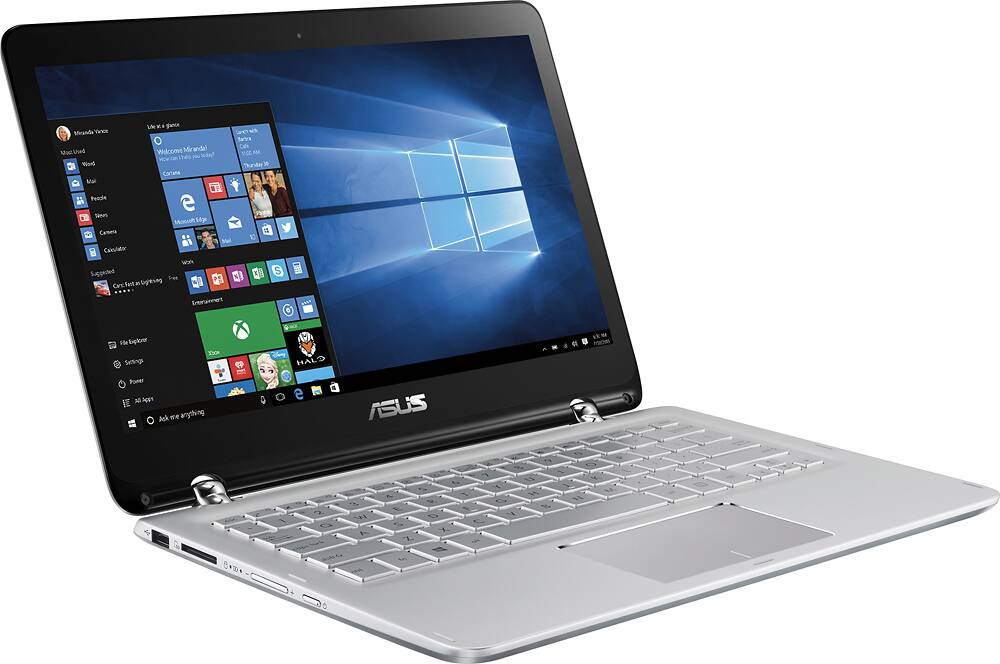
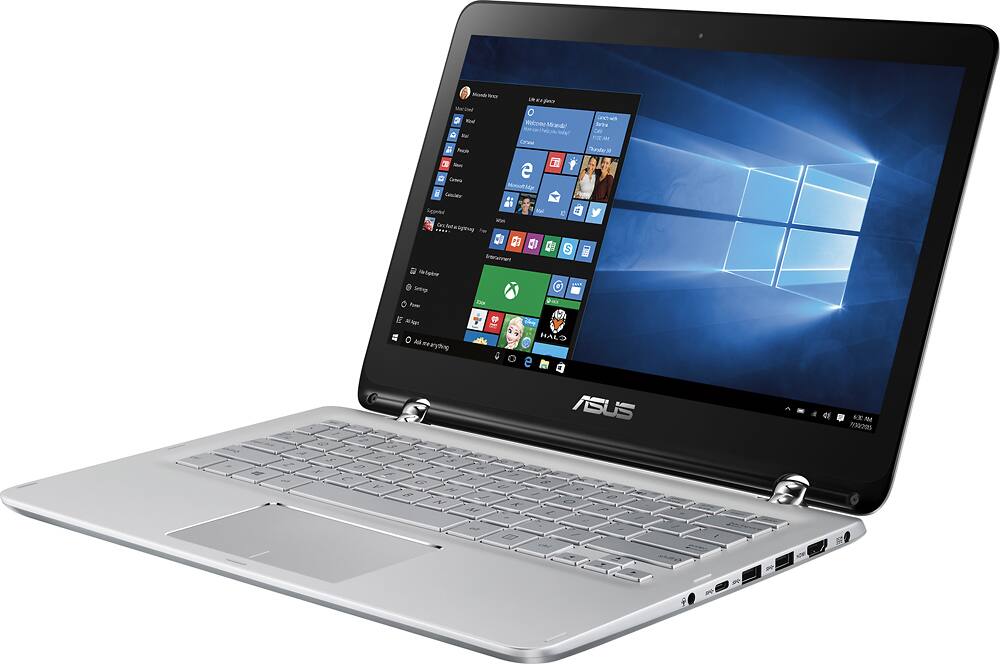
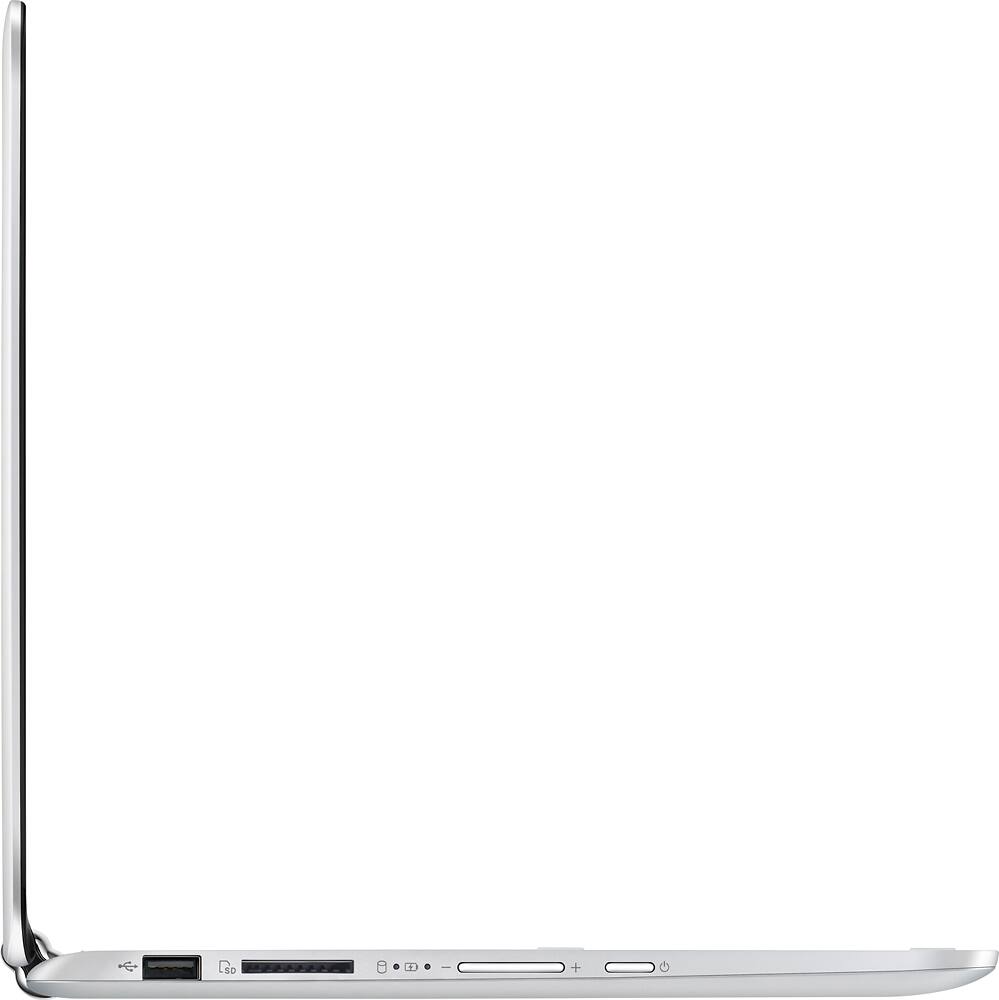
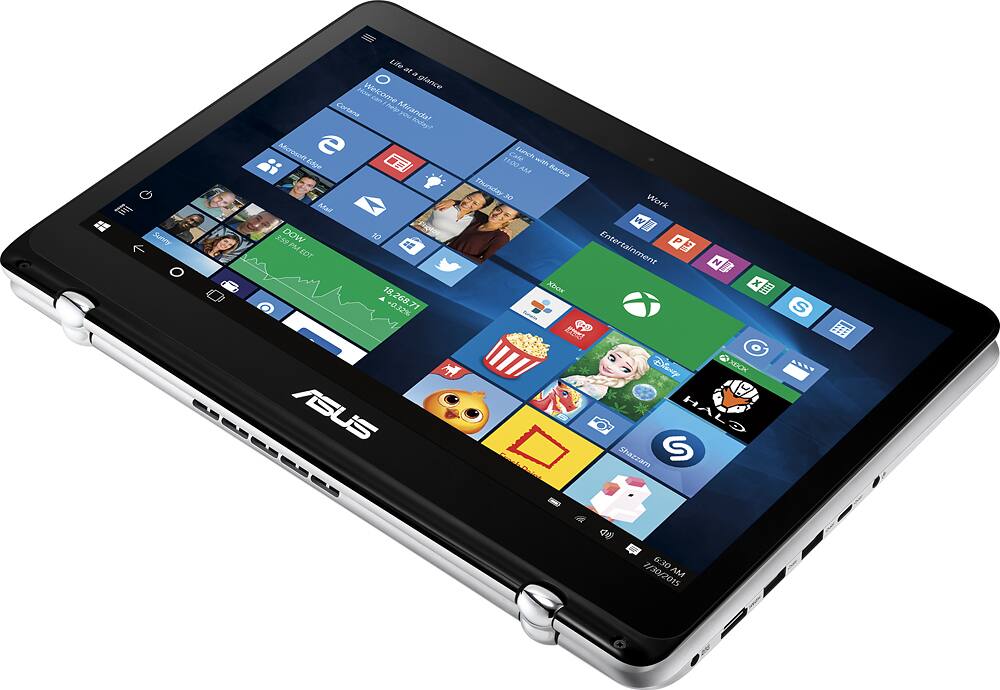
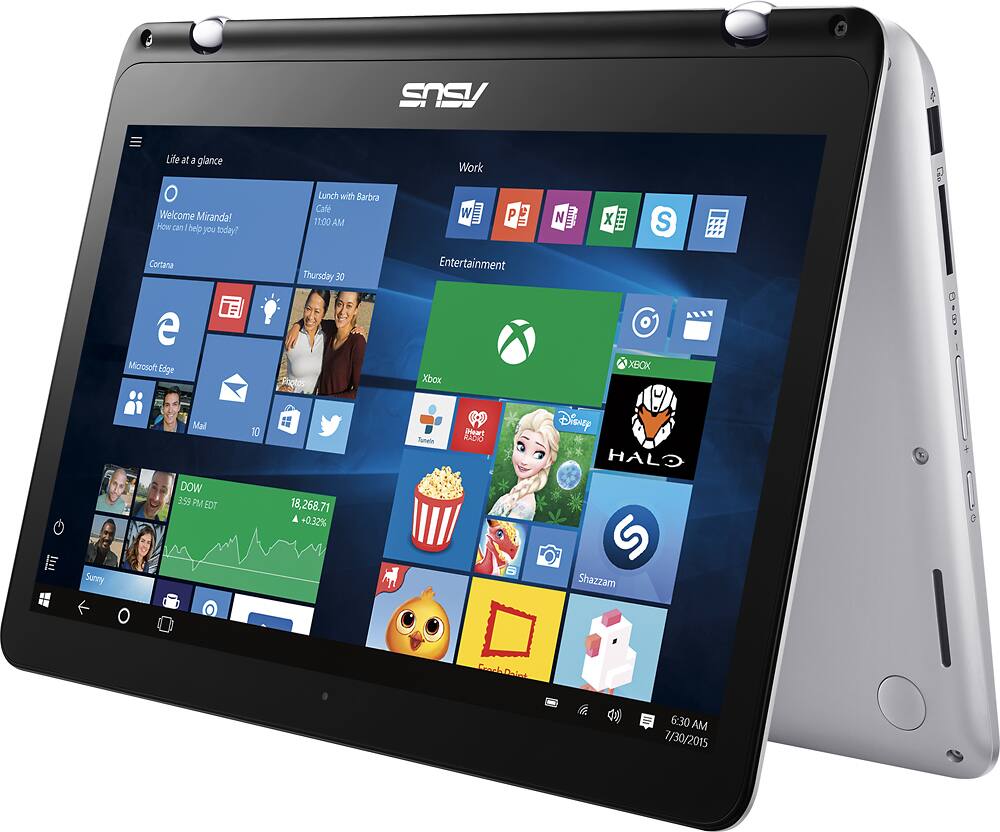
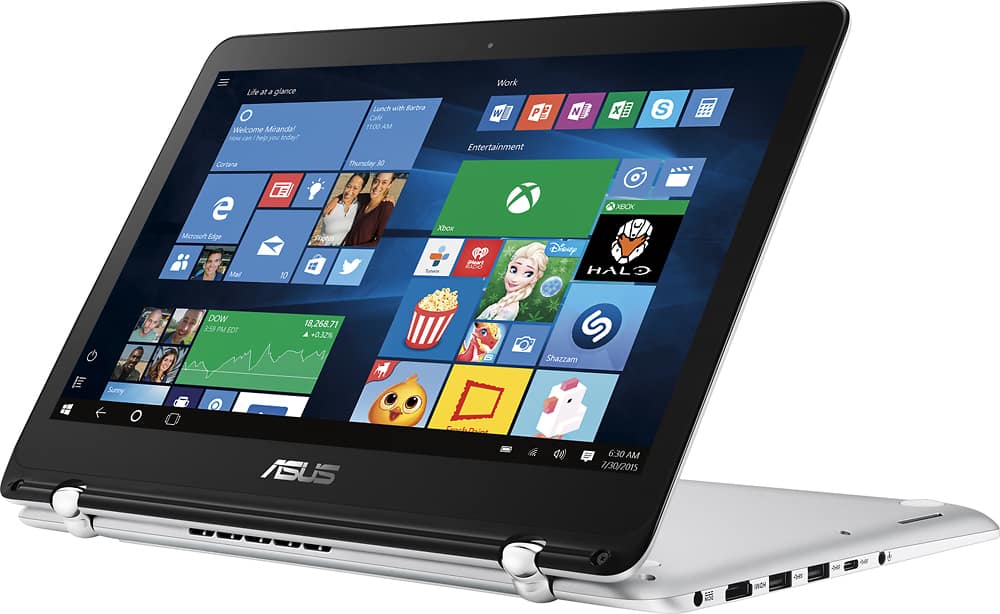
A:Answer Yes, if you're moderately handy with precision screwdrivers. You'll have to remove the screws holding the bottom cover on - they vary in color and size, so be sure to map out where they came from and go back to. Then use a spudger (a plastic wedge tool) to carefully - VERY CAREFULLY - work your way around the case slowing releasing the plastic clips which hold it on. Then again, carefully - VERY CAREFULLY - slide the cover off the piece that "sticks" the center together.
You'll see the hard drive (in my case an HGST 1TB 5400rpm drive) covered with a shiny grey plastic wrap. The hard drive is held in place by a carrier; you can remove 3 screws to loosen it. Then remove the SATA connector - gently but firmly pry it back off the hard drive. Set it out of the way as much as possible. Then 4 black screws hold the hard drive to the carrier (2 per side). Remove those and put in the SSD. Reverse the procedure (attach SATA cable, attach carrier, attach cover) and you're done.
It's MUCH MUCH faster with an SSD (I put in a Toshiba Q 256GB Pro I had laying around). Boot speed is in seconds - under 10. Haven't noticed much in the way of improved battery life - sorta hoping it would be longer (10 hours which is what I seemed to get before the SSD). Be sure to use whatever SSD utility came with your SSD; in my case, DIPM (Device Initiated Power Management) was NOT turned on - it should be which should help battery life. All other parameters were okay.
If you're not handy with a precision screwdriver and can't be CAREFUL, take it somewhere to have the SSD installed. Worth it.