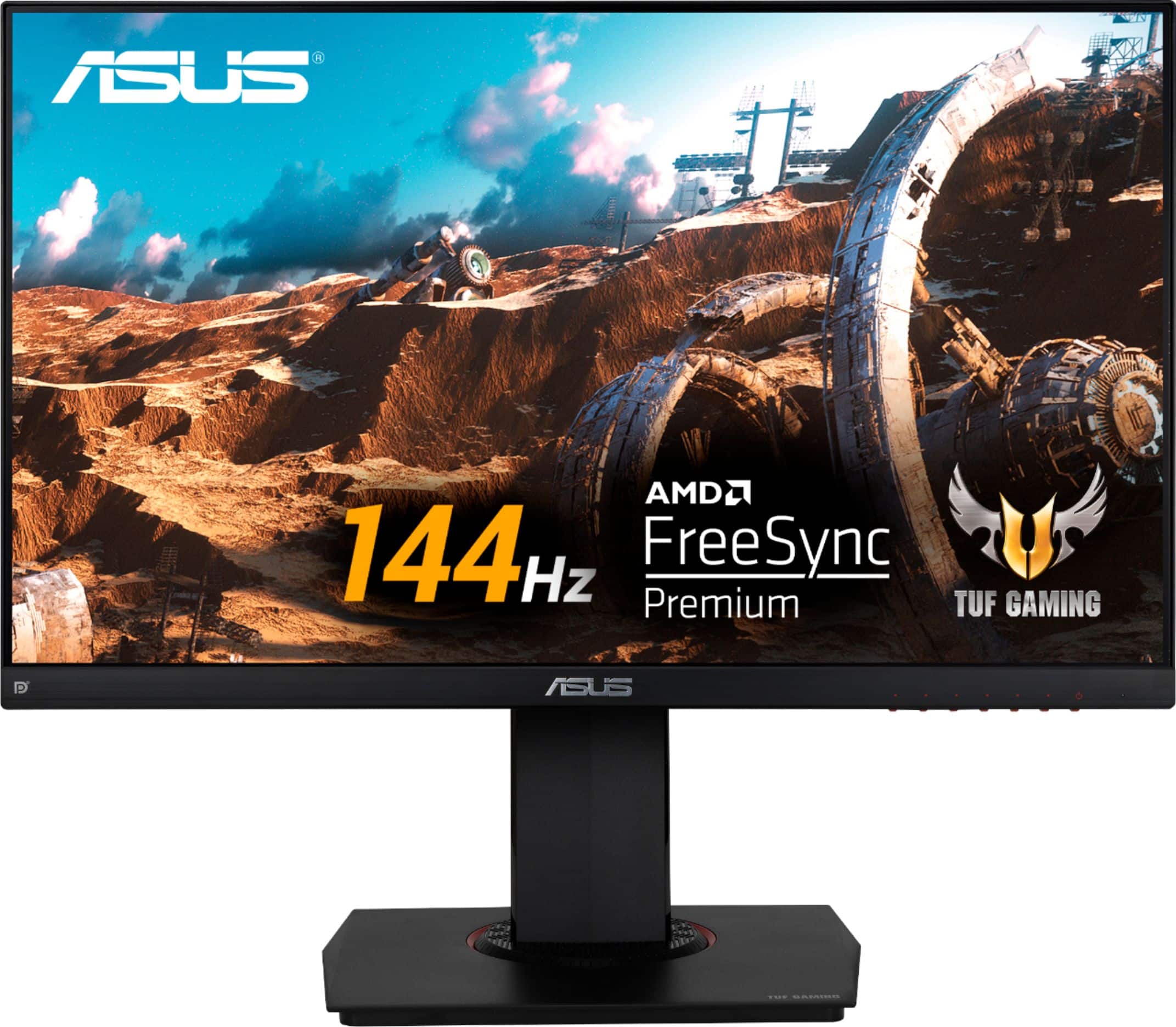
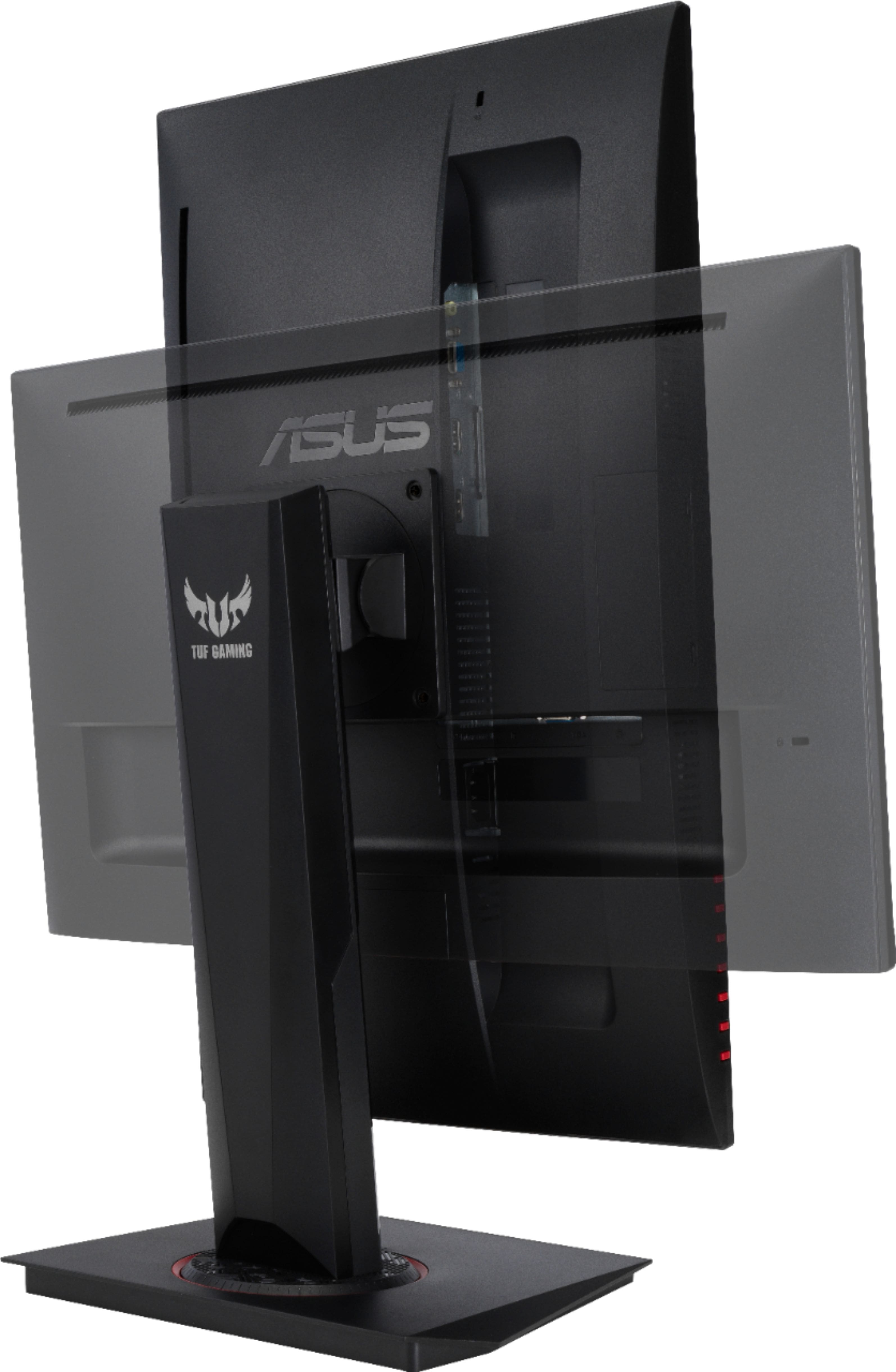
A:AnswerFrom what I understand, IPS (along with VA and TN) is a type of "panel technology" that falls under the LCD spectrum. The LED portion of the monitor is the "backlight technology". So, you can have an LCD monitor which comes with IPS panel technology and LED backlight.
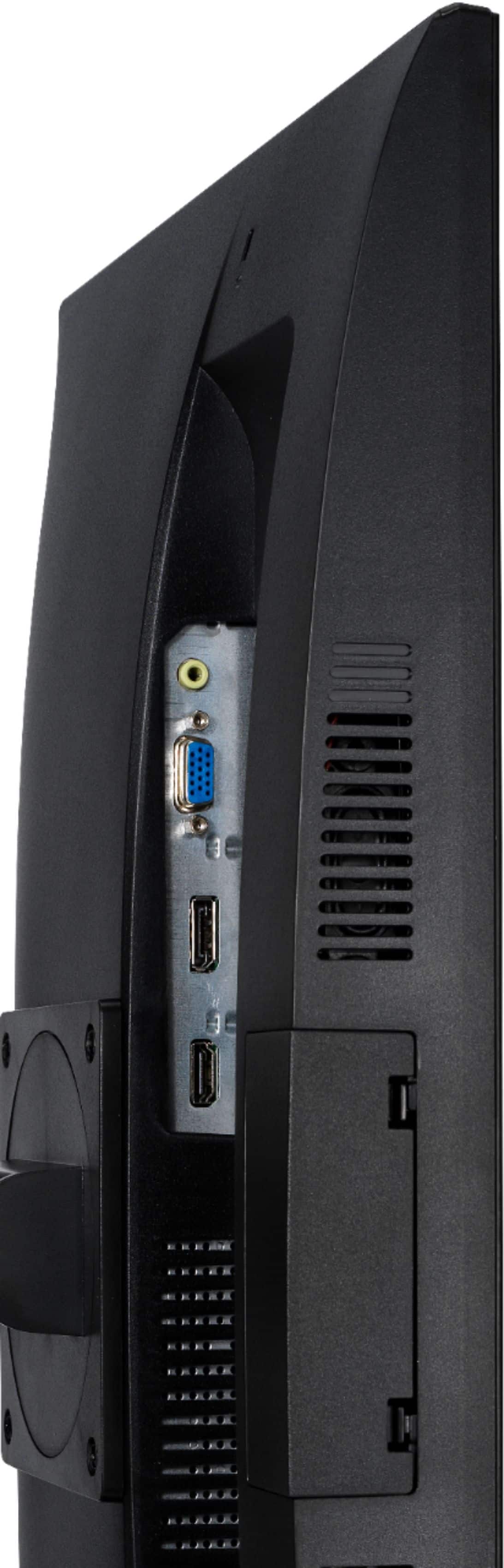
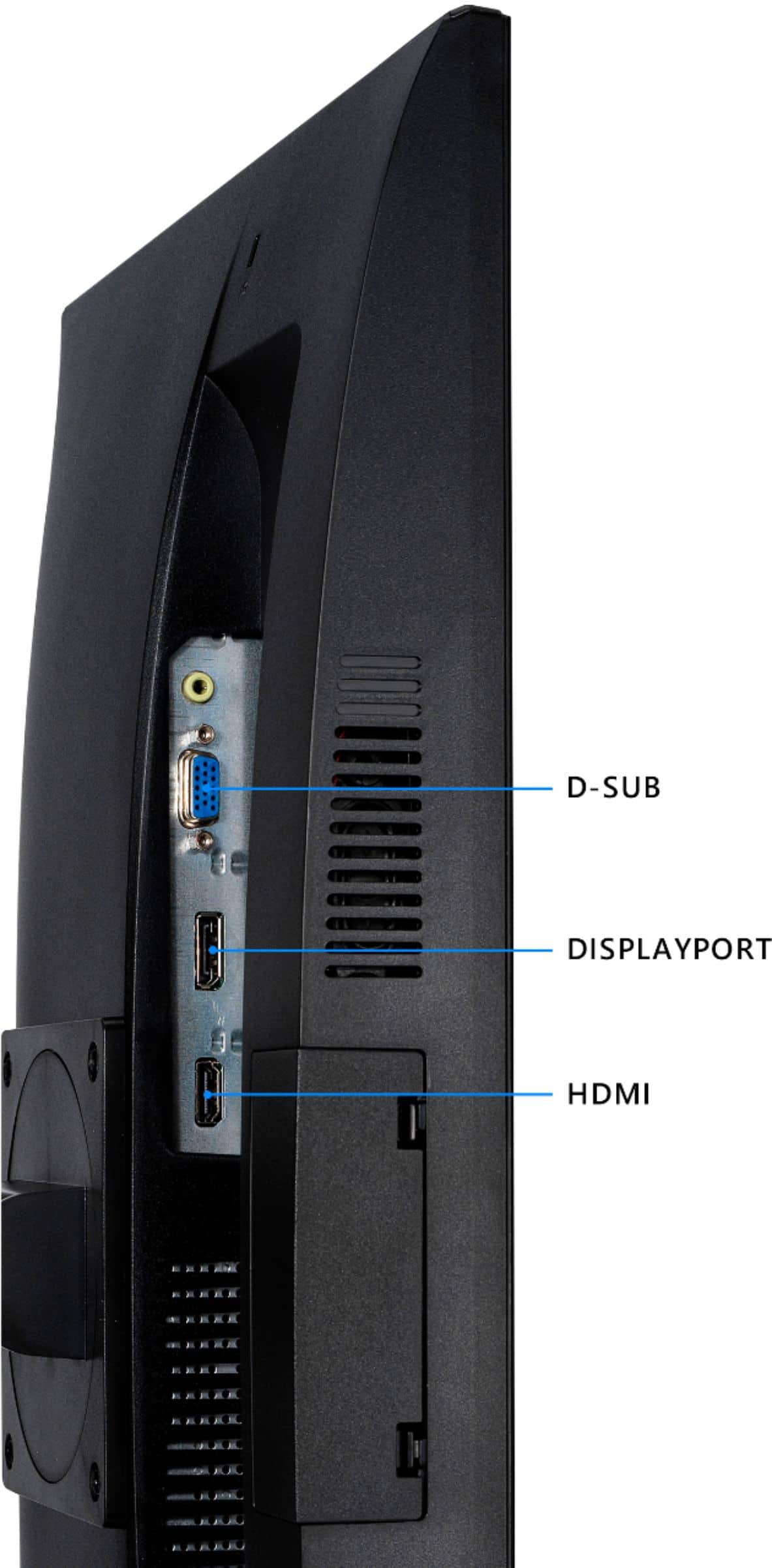
A:AnswerI recommend you use a display port cable, but the HDMI cable that came with the monitor will work also. Also, make sure you're manually changing your hz via Windows
A:AnswerYou need to right click on the desktop background and go into display settings > select ASUS VG249 > Display adapter properties > > monitor > Select refresh rate > click 144hz > apply > ok.
A:Answer144 Hz.
It should be noted that it's a FreeSync display, so to get max performance out of the box, you'll need a FreeSync-compatible graphics card. Theoretically, however, there's a way to get all 144 Hz while using a G-Sync card. While I don't think I've noticed a difference, you may, so here are the steps.
1) Make sure your drivers are up to date
2) In the Nvidia Control Panel (which I assume you have if you have a G-Sync Card), select "Change resolution" in the menu on the left-hand side.
3) Select the highest resolution and refresh rate supported by the monitor, which in this case will be 1920x1080 and 144 Hz.
4) Select "Set up G-Sync" in the left-hand menu.
5) Select "Enable G-Sync" for this monitor.
6) Try it out and see if you notice a difference!
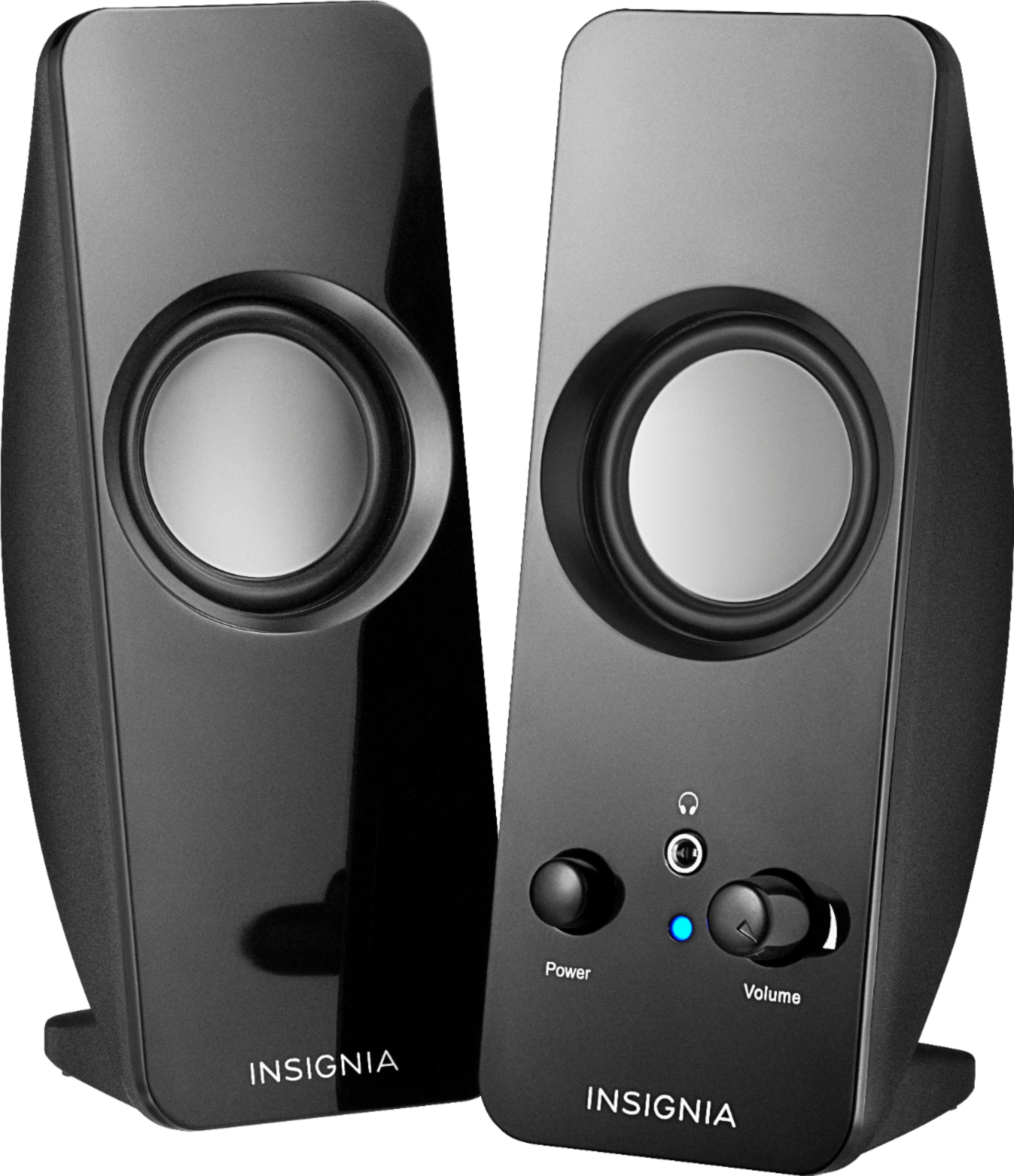
Oh, and one more thing - while the monitor has speakers built in, they're extremely quiet, so you'll want some dedicated speakers anyway. I've recommended some cheap Insignia speakers for you that should get the job done. I'm personally using an older set of Insignias, and they seem to offer decent performance for the price, even if my right speaker likes to rattle at higher volumes since it's had a rough life.
Hope this helps!
A:AnswerThere's so much controversy over if HDMI is better or Display port, although, in my opinion, display port is better. So I would use the Display port