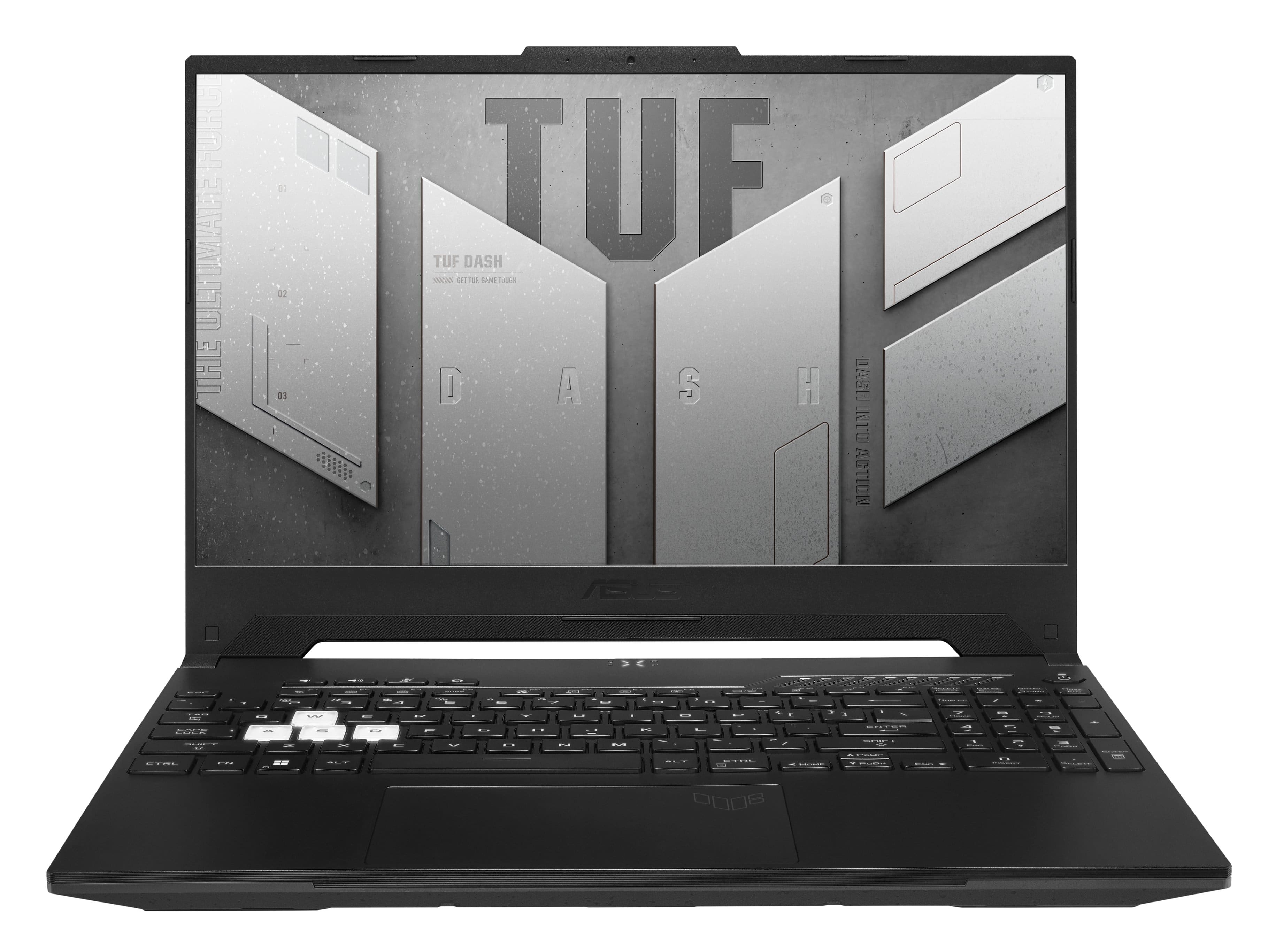
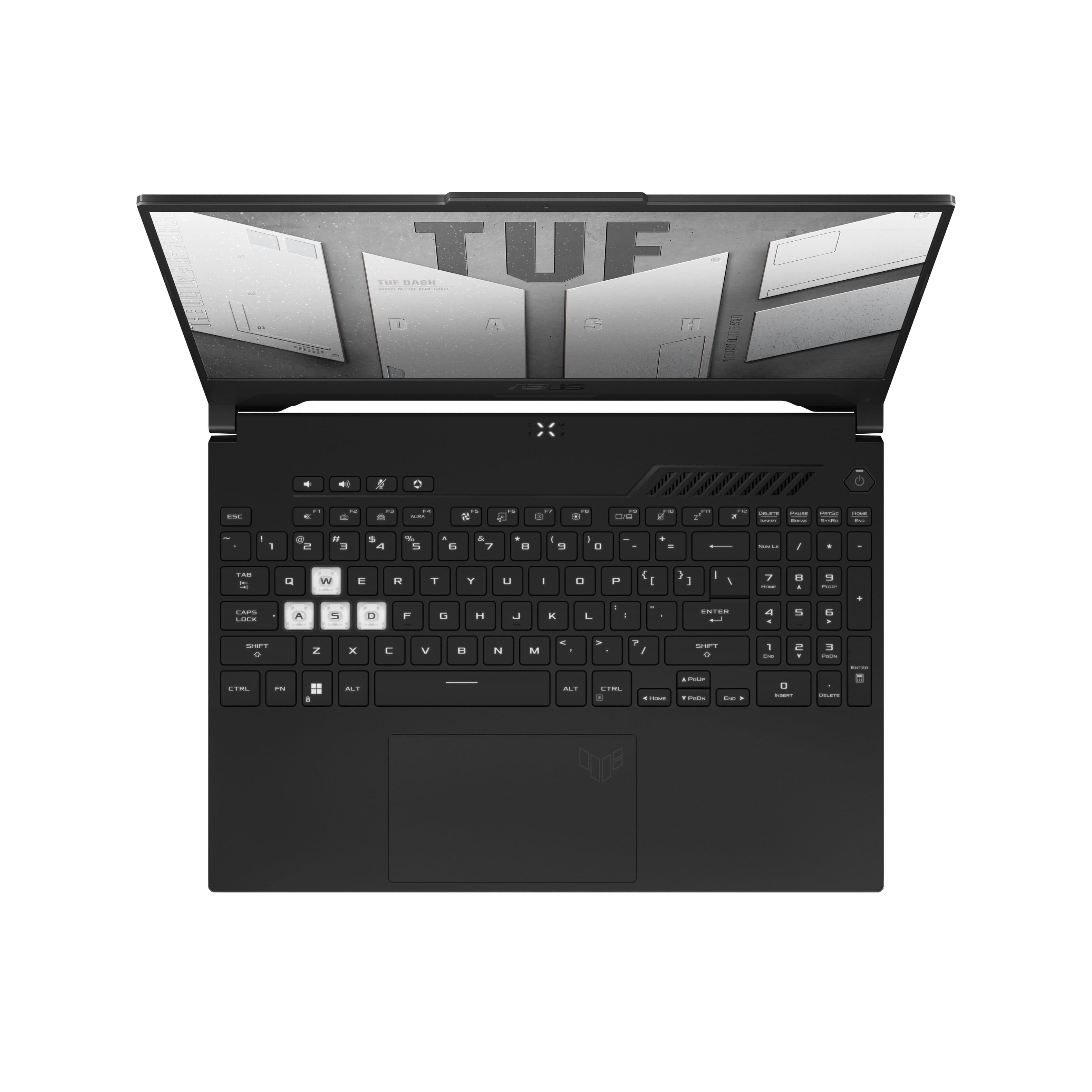
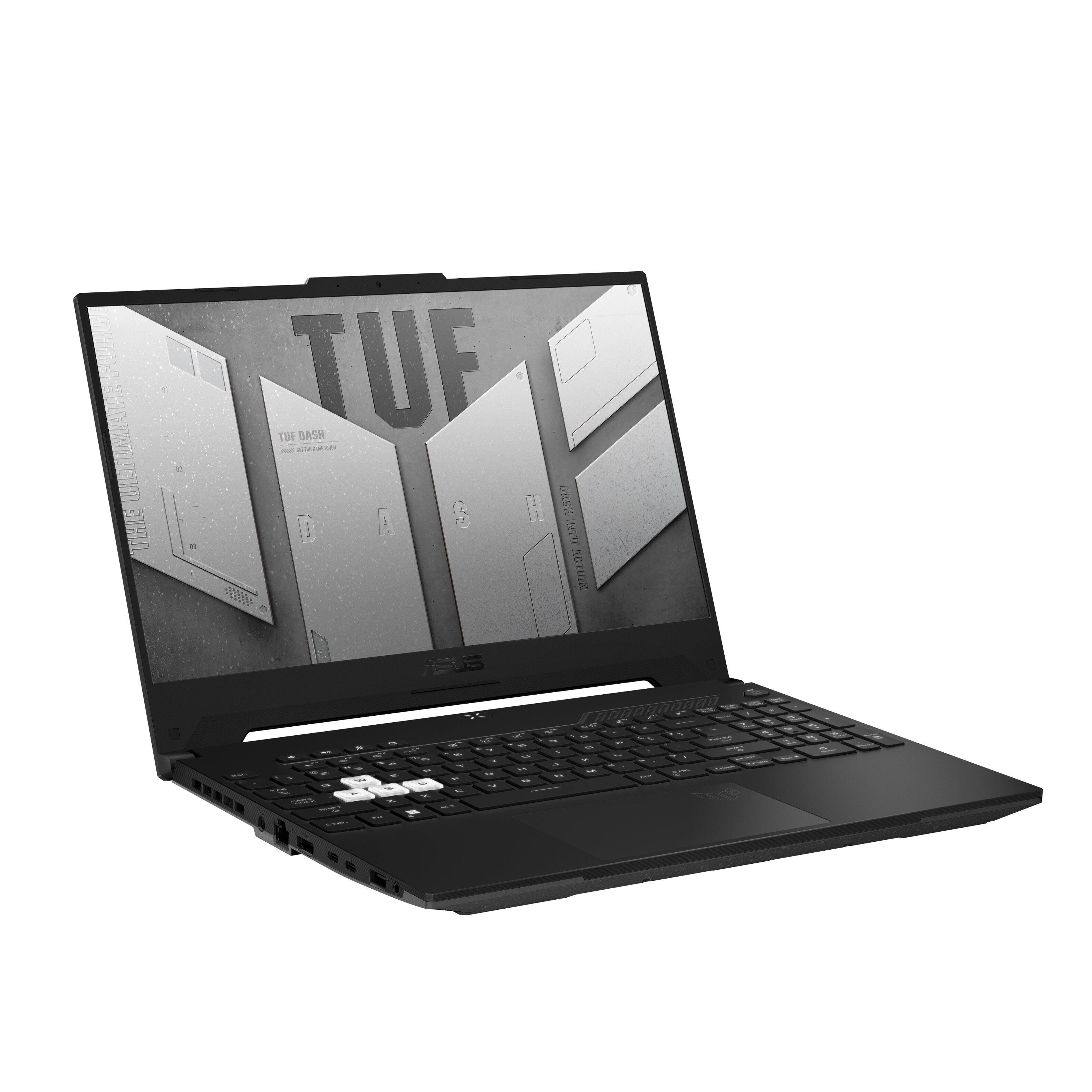
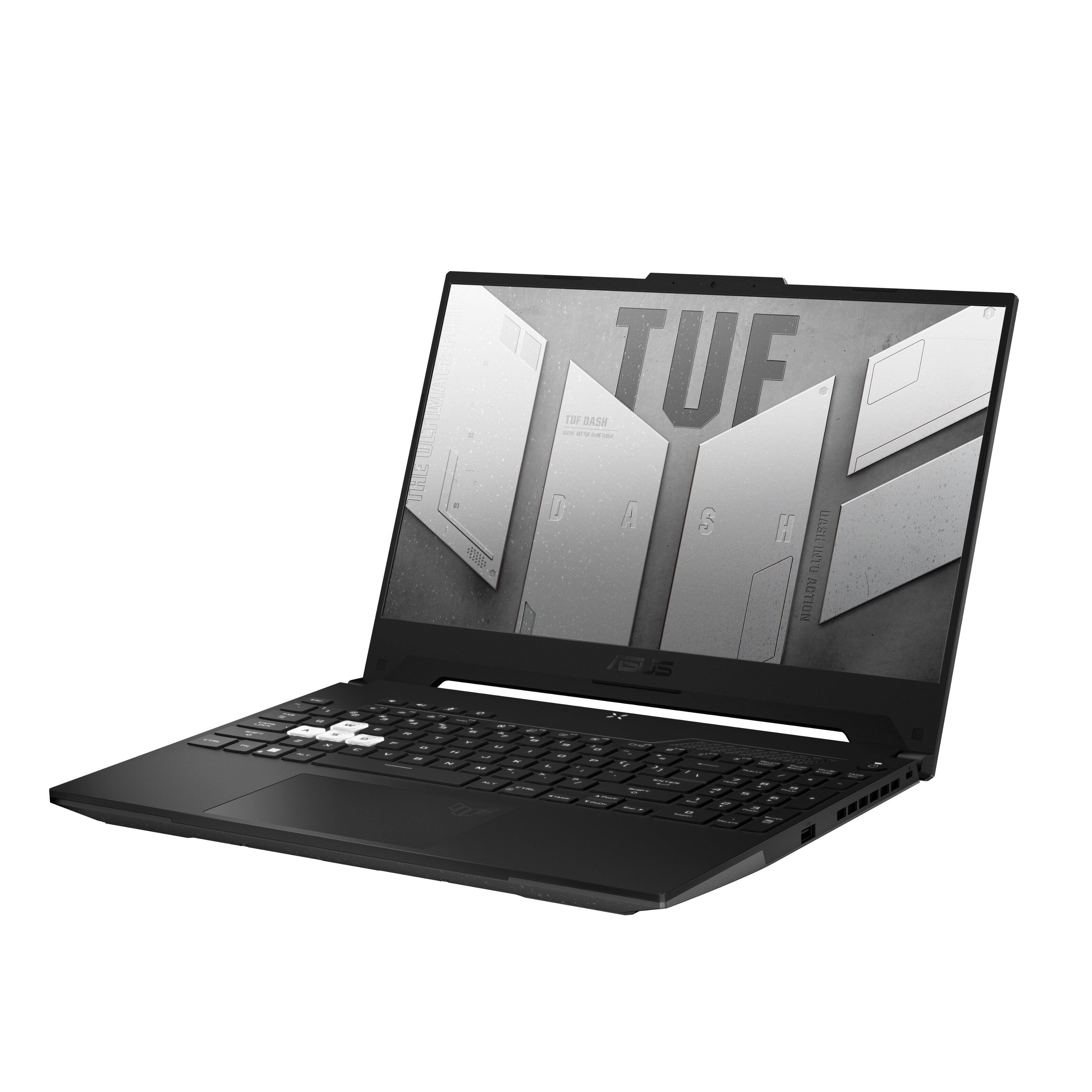
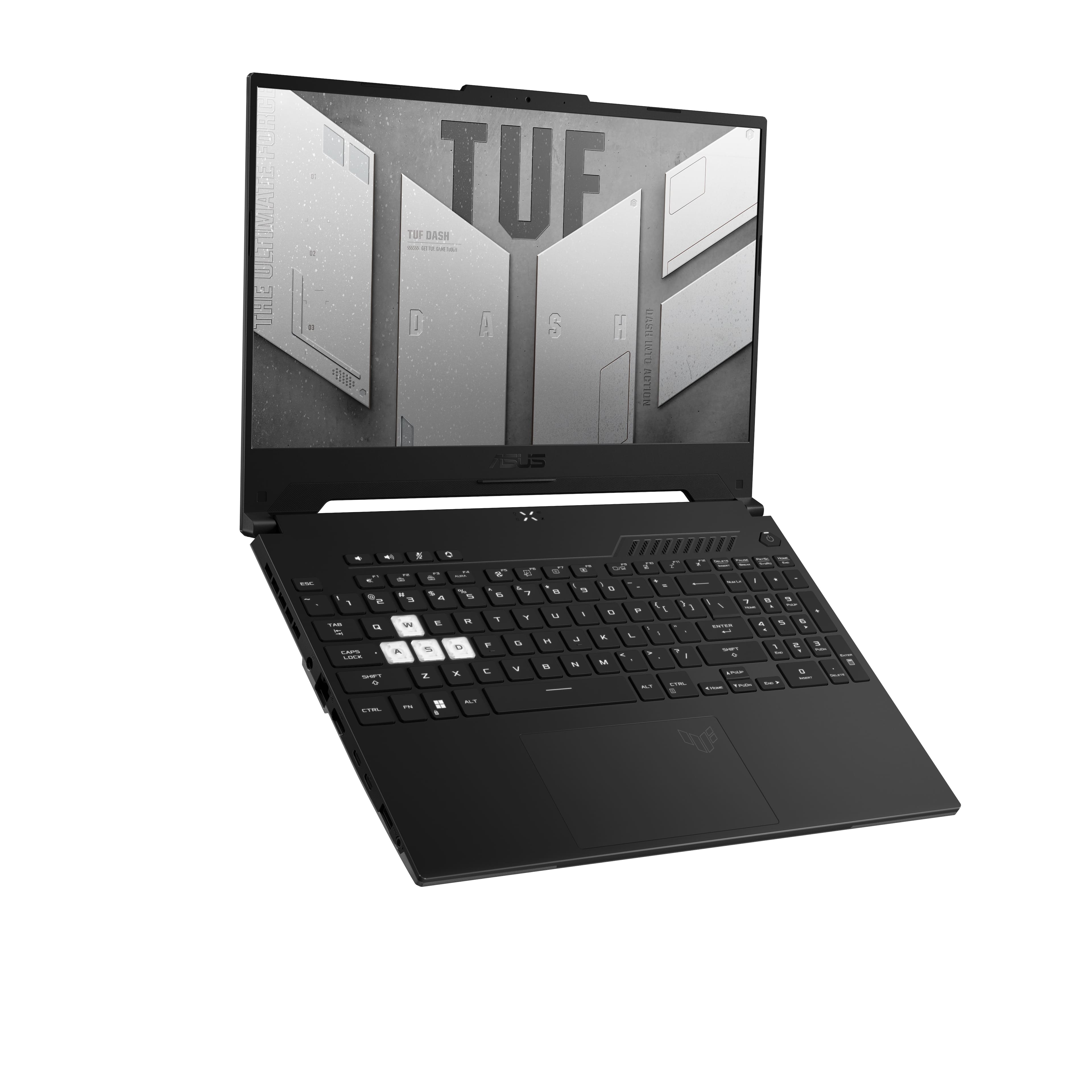
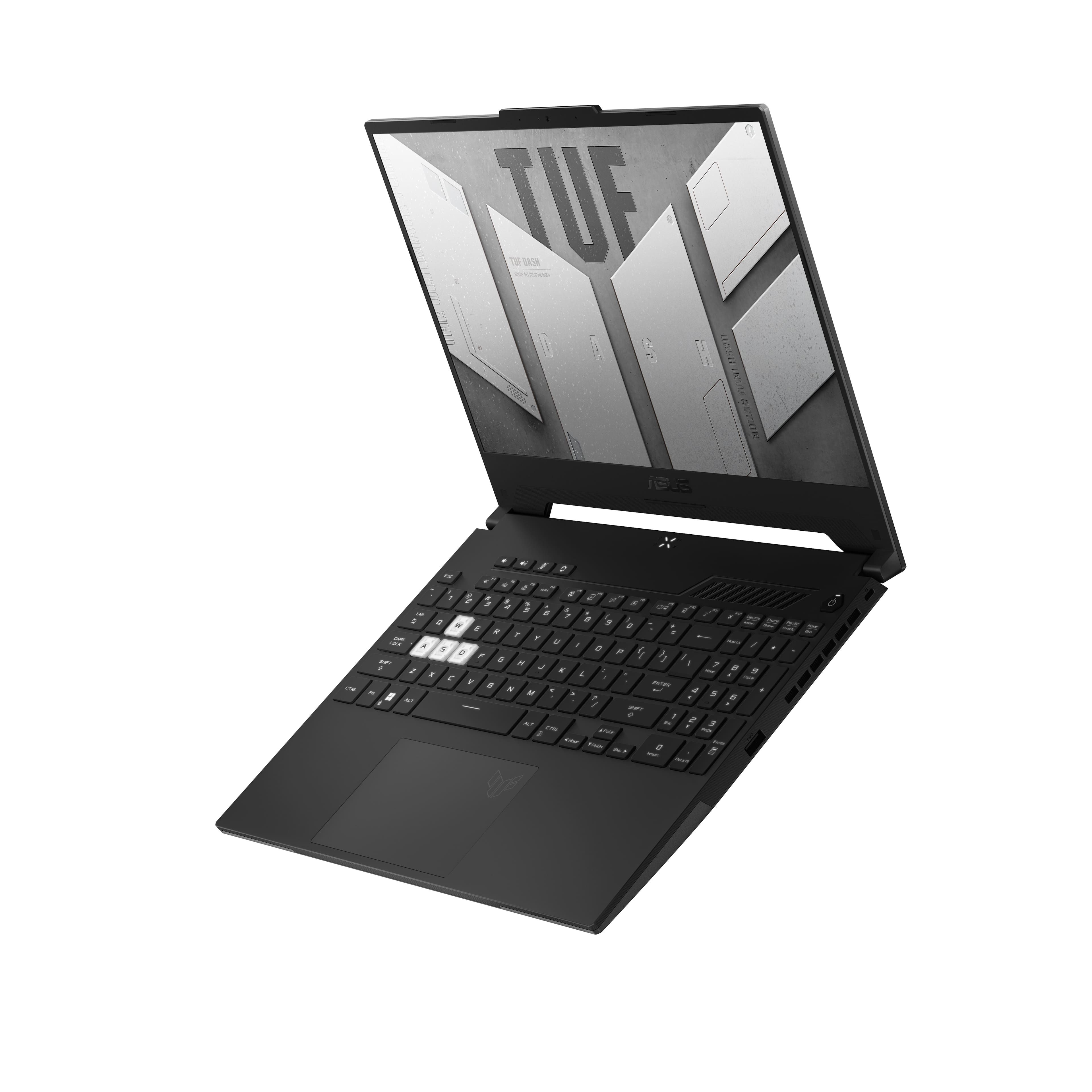
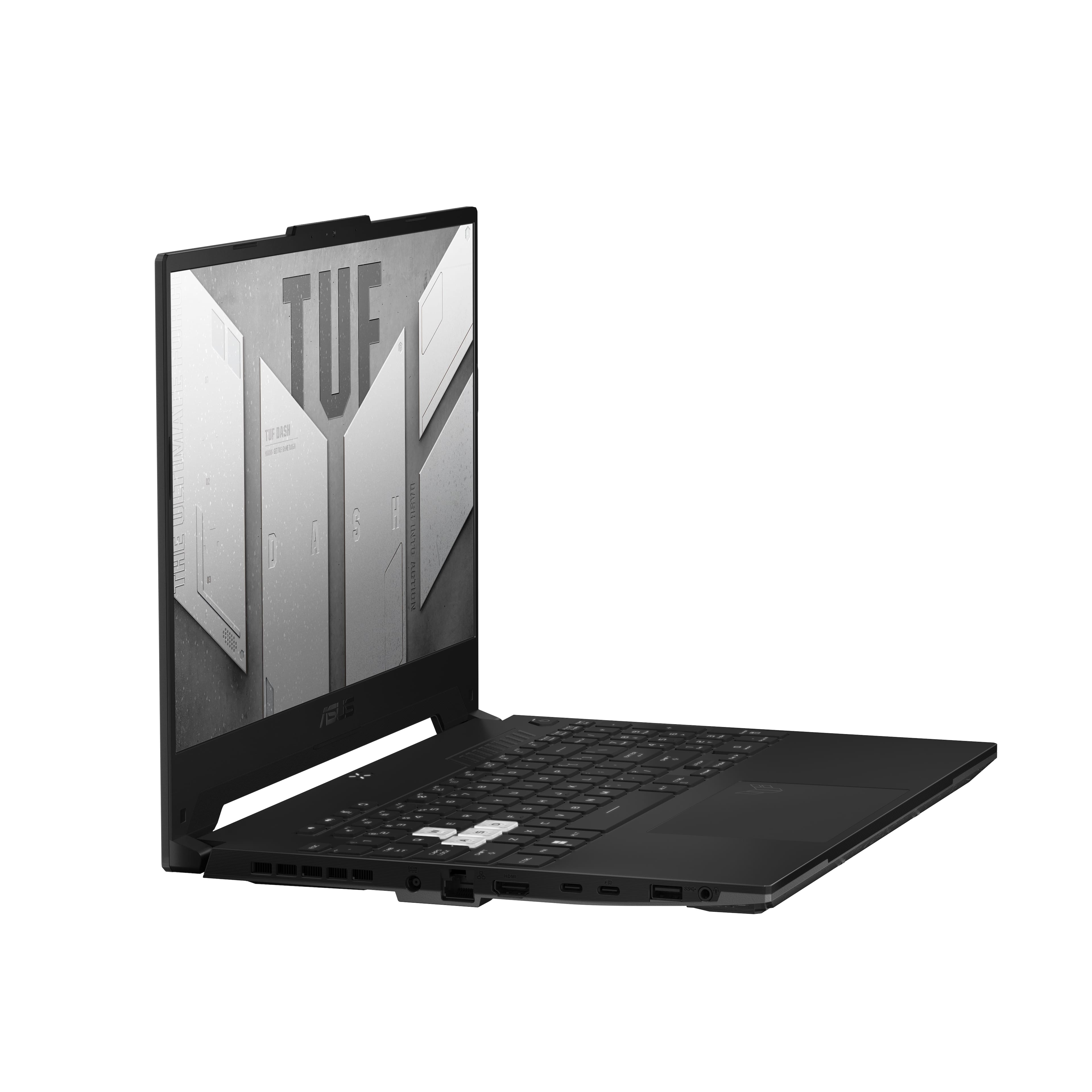
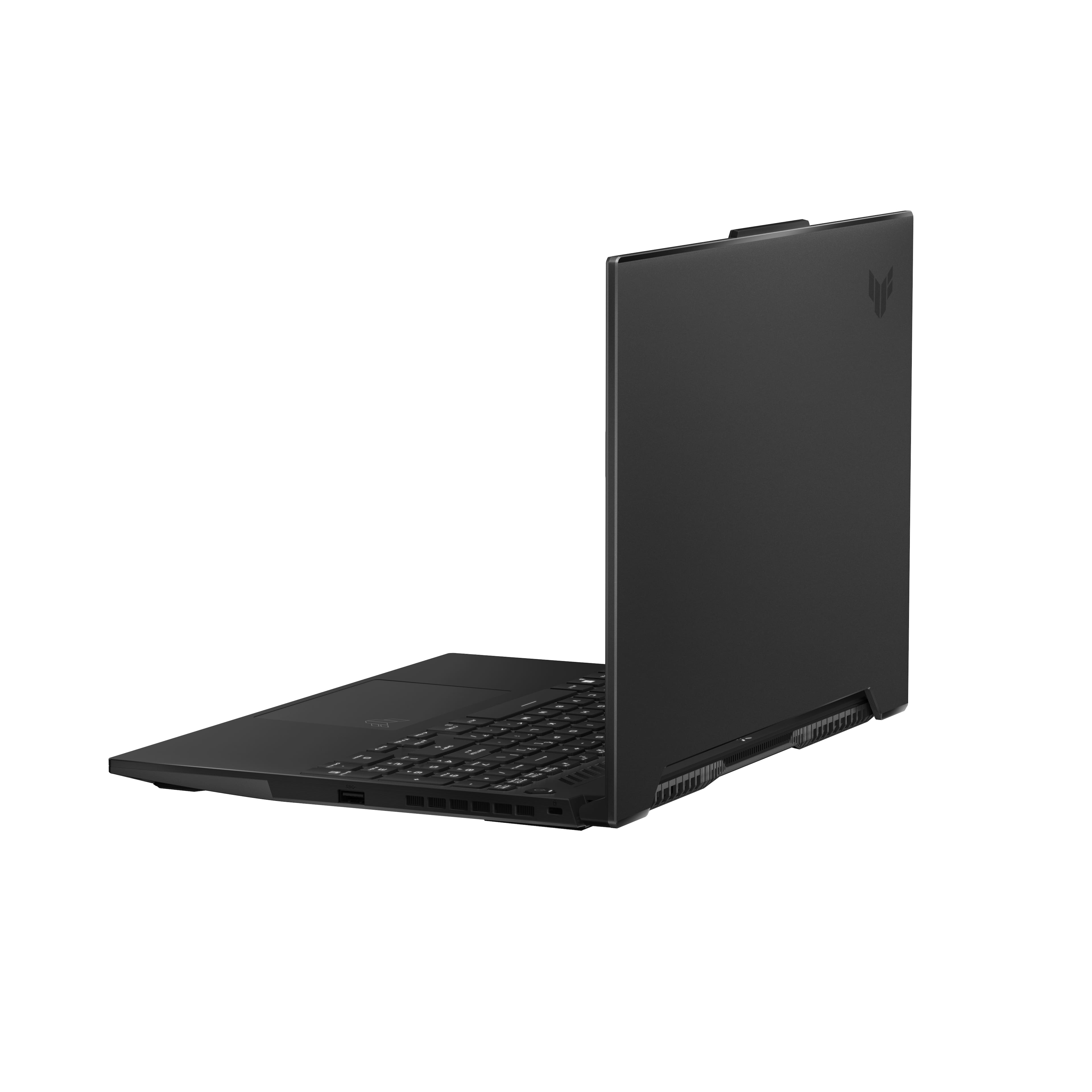
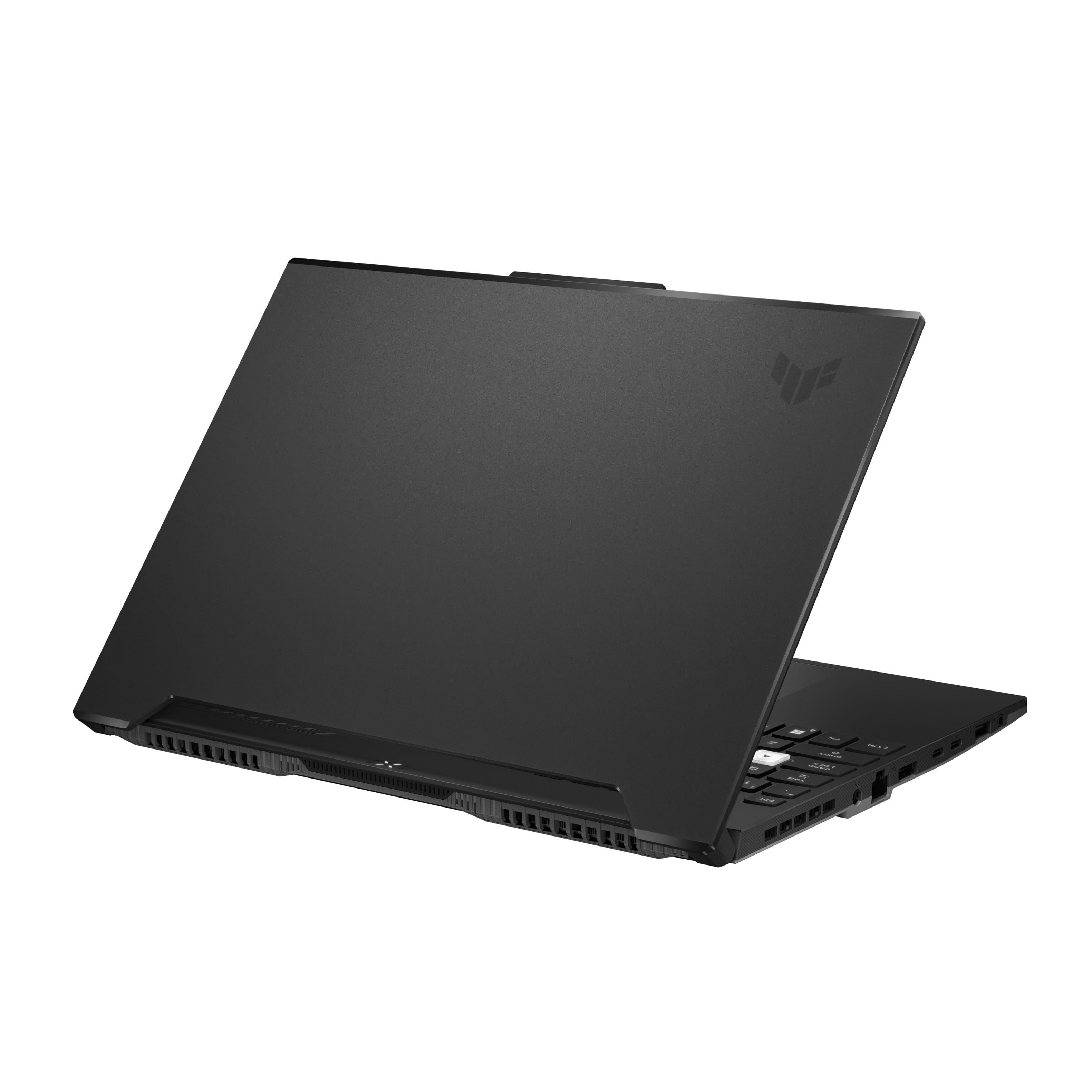
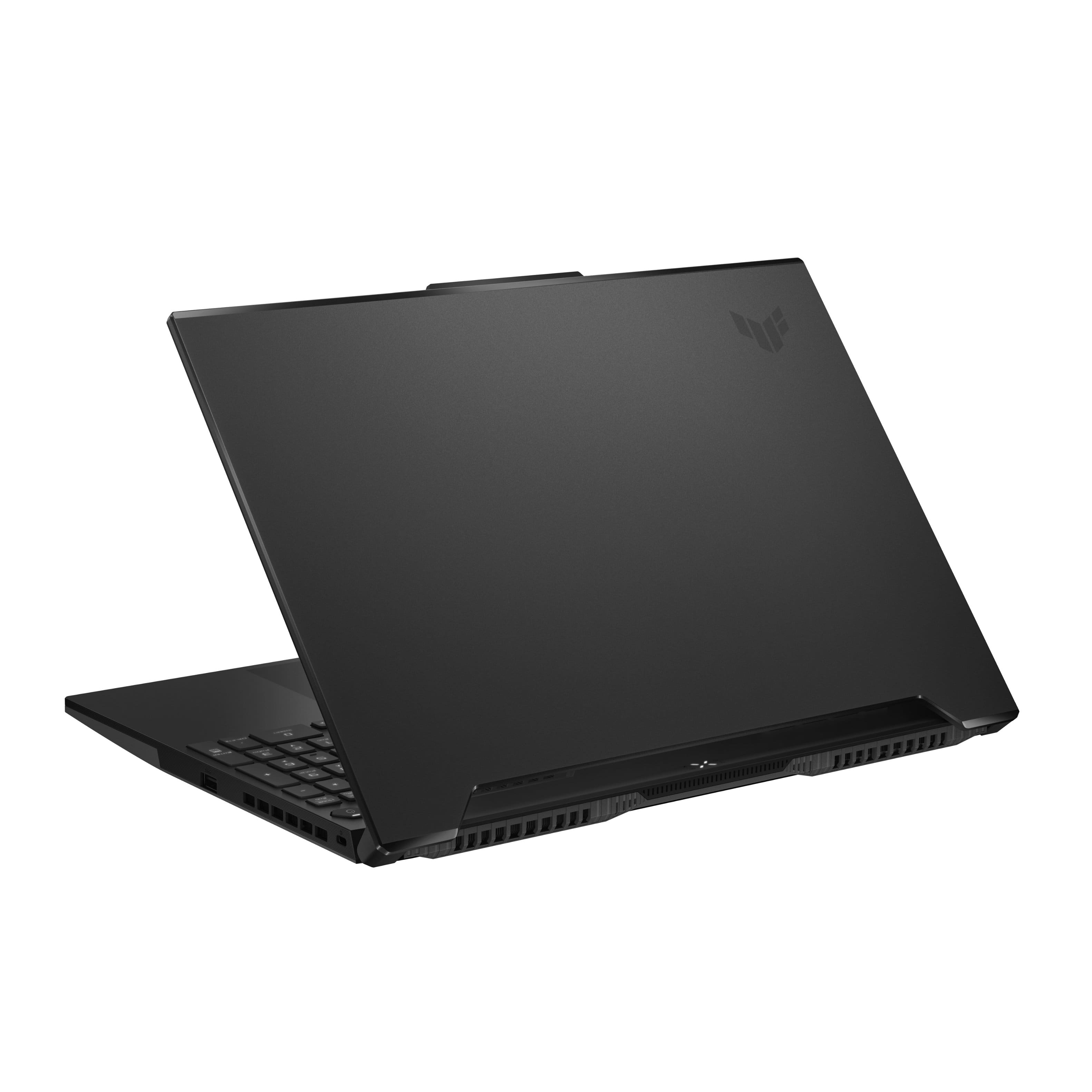
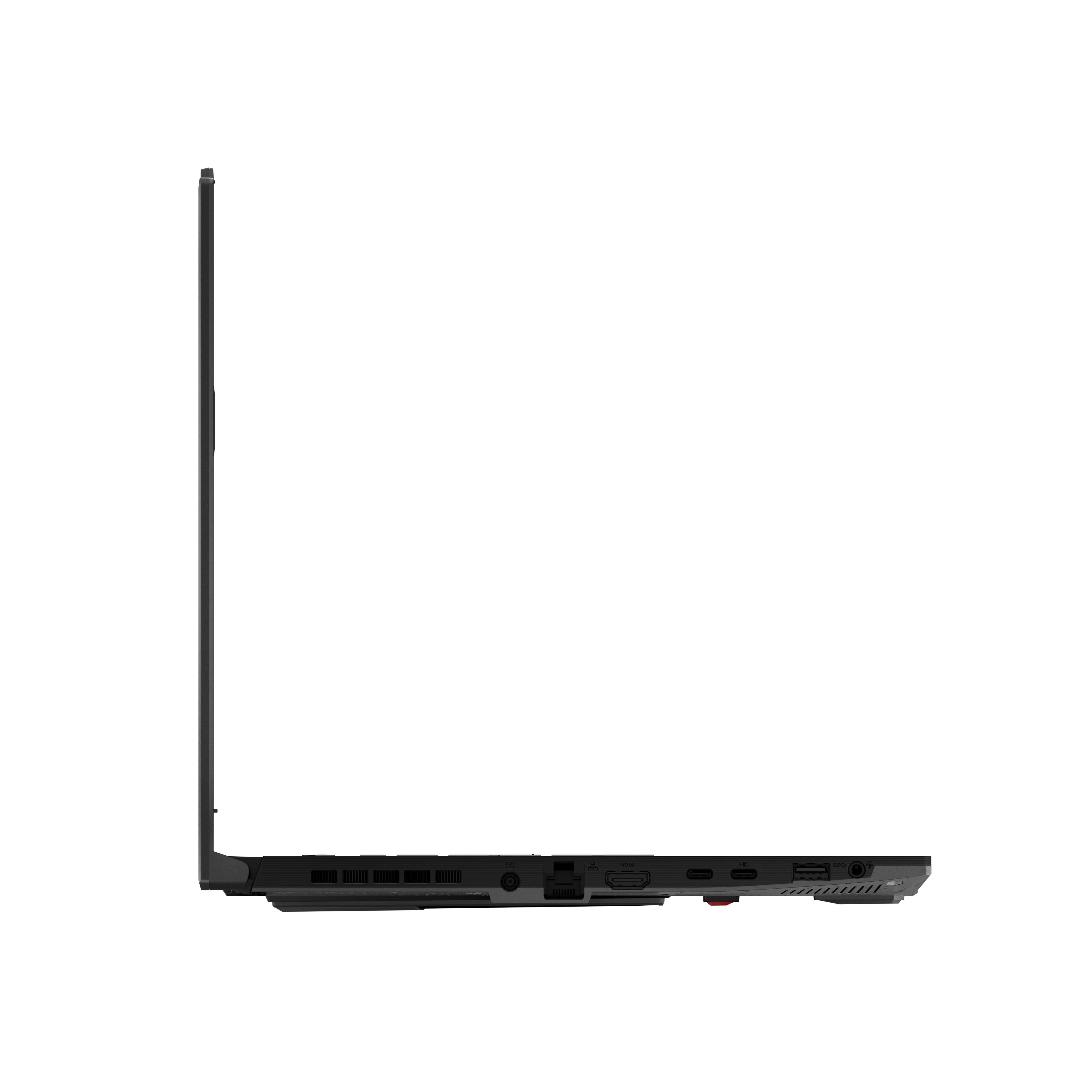
A:AnswerIt is generally recommended to use the charger that is specifically designed for your laptop model to ensure optimal performance and prevent any potential issues. In the case of the ASUS TUF Dash 15.6" FHD 144Hz Gaming Laptop with an Intel Core i7 processor, 16GB DDR5 memory, NVIDIA GeForce RTX 3070 graphics card, and a 512GB PCIe SSD, the manufacturer recommends using a 200W charger.
While using a 180W charger may still provide power to your laptop, it might not be able to deliver the full power required by the system, especially during intensive tasks such as gaming or video editing. This can lead to suboptimal performance or even battery draining while plugged in.
To ensure the best performance and longevity of your laptop, it is recommended to use the charger specifically designed for it, which in this case would be a 200W charger.
A:AnswerAdaptive or Gsync is automatically enabled by default. Please check if the video driver and Windows are up to date. If playing online, please verify if internet service is working properly and internet connection is stable since this will definitely affect the video quality.
A:AnswerGreetings from Intel team and thank you for your question. The Intel® Core™ i7-12650H Processor has an Efficient-core Max Turbo Frequency of 3.50 GHz and a Max Turbo Frequency of 4.70 GHz however you have to take in consideration that performance of the Intel® Turbo Boost Technology varies depending on hardware, software, and system configuration. You can check more info about this topic here:[ https://www.intel.com/content/www/us/en/support/articles/000030893/processors.html ] Thank you for choosing Intel!
A:AnswerASUS doesn't recommend any program or software. Type-in "GPU benchmark software" on a browser or search field, it will bring up a lists of the best software and pick your choice.
A:Answeras one would expect out a gaming laptop, not the greatest but this one did about 2 and a half youtube hours on a full charge or an hour or so playing games on high settings
A:AnswerIf the laptop will not power on or boot up, please do the following. Verify if the AC adapter is connected properly from the laptop to a known good power outlet or AC source. Try another power source. Try to press and hold down the power button to shut it down completely, just in case laptop is not in hibernate mode, wait for at least 10 seconds then power on. Please wait, if the system is applying updates in the System Registry, it will black screen temporarily. If it still black screen after a few minutes, at least 10 minutes, please repeat the power cycle process again. Also, please try to disconnect the power cable and other third-party harddware or device connected to the laptop, and let it drain for 24 hours to clear the memory. This will reset the hardware to default settings. After doing this, please reconnect your AC adapter, do not power on the unit until the battery was charged.